What Is a Touch Screen LCD Display and How Does It Work
A touch screen lcd display lets you see images and control devices by tapping or swiping the screen with your finger or a stylus. You use it as both a display and a way to give commands. Many devices in schools, warehouses, and homes use this technology because it works well and can be repaired easily. You will find several main types of touch screens, each using a different method to sense your touch. The market for these displays continues to grow quickly.
Shenzhen TopAdkiosk Display Technology Co., Ltd.
Add.: 2F, Bldg 10, Changfeng Industrial Park, Dongkeng, Fenghuang, Guangming, Shenzhen, China 518132
Mobile/WHATSAPP: 86-138 25769658
Email: marketing@topadkiosk.com topadkiosk@gmail.com
Skype: pghenry1
Wechat: adkioskhenry
English Web.: https://www.topkioskdisplay.com/
http://www.ad-kiosk.com/
https://www.toplcddisplay.com/
http://www.multitouchdigitalsignage.com/
https://www.youtube.com/channel/UCYVYNJHxLVEcQD8fuUxXNTA/videos?view_as=subscriber
https://www.facebook.com/TOPADKIOSKSHENZHEN/?ref=bookmarks
As long as we have the blueprints, Shenzhen TopAdkiosk Display Technology Co., Ltd no worse than anyone else.
please contact Shenzhen TopAdkiosk Display Technology Co.
Key Takeaways
Touch screen LCD displays show pictures and let you touch to control them. You do not need a keyboard or mouse to use these devices. Capacitive screens are very sensitive and let you use more than one finger at a time. Resistive screens work with anything you touch them with, but they are not as quick to respond. Think about where you will use the screen and what you need before picking one. Some screens work better in tough places, and some are clearer and faster. Modern touch screens are strong and use less energy. This helps them last longer and saves power. Always clean touch screens gently with a soft cloth. This keeps them working well and looking nice.
What Is a Touch Screen LCD Display
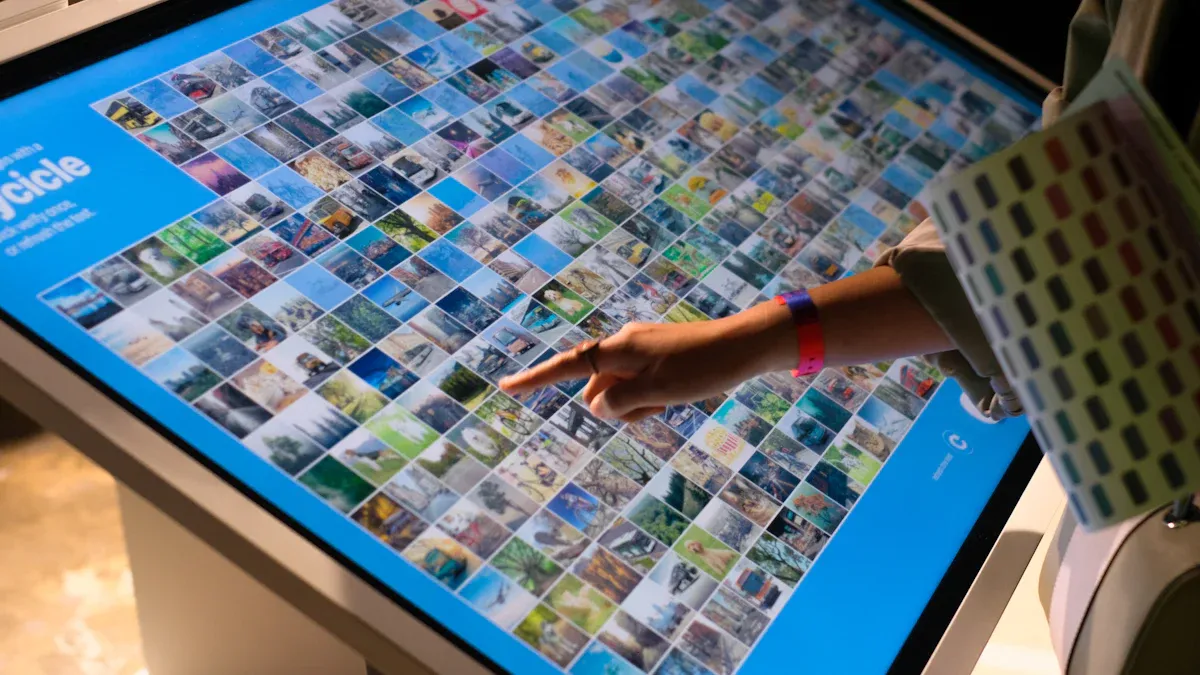
Definition and Features
A touch screen lcd display shows pictures and lets you control the device by touching it. You can watch videos, see information, and use your finger to make things happen on the screen. This technology uses a liquid crystal display (LCD) to show what you see. It also has a digitizer, which is a special layer that senses your touch. The digitizer finds out where you touch and tells the device to do something.
You can find touch screen lcd displays in many places. They are in self-service kiosks, tablets, smartphones, and cars. These screens are important in many jobs because they make devices simple to use.
Modern touch screen lcd displays have some key features:
Thin-film-transistor (TFT) design gives bright colors and sharp images.
High brightness and color accuracy help you see the screen in sunlight.
Multi-touch support lets you use gestures like pinch-to-zoom or swipe.
Scratch-resistant surfaces and strong build help the screens last longer.
Low power use saves energy and helps batteries last longer.
Here is a table with some common features:
Feature | Description |
|---|---|
Display Quality | High brightness and color accuracy help you see the screen in bright places and show true colors. |
Touch Responsiveness | Multi-touch and smooth input make it easy to use gestures like pinch-to-zoom. |
Durability | Scratch-resistant surfaces and strong build help the screens last in tough places. |
Energy Efficiency | Low power use from smart backlighting helps batteries last longer and saves energy. |
Tip: You can use your finger or a stylus on a touch screen lcd display, depending on the type of touch technology.
Input and Output Functions
A touch screen lcd display is both an input and output device. You give commands by touching the screen. The device shows you information after you touch it. This makes it easy to use computers, phones, and other devices without a keyboard or mouse.
As an input device, the touch panel senses your touch. It can tell if you tap, swipe, or use other gestures. Some screens feel the electricity from your finger. Others work when you press on them.
As an output device, the LCD shows you pictures, videos, and feedback after you touch it. For example, if you tap an app icon, the screen opens the app and shows what is inside.
Here is a simple table to show how input and output work together:
Component Type | Description |
|---|---|
Input | Touch panels sense touch commands, so you can interact with the device. |
Output | LCD displays show images after you touch the screen. |
There are two main types of touch technology in these displays. Capacitive touch screens sense electricity from your finger and let you use more gestures. Resistive touch screens work when you press on them and can be used with a stylus or even a gloved finger. Capacitive screens usually feel more sensitive. Resistive screens often cost less.
A touch screen lcd display gives you an easy way to control your device and see what happens right away. This mix of input and output is why many modern electronics use it.
How a Touch Screen LCD Display Works
General Working Principle
You control a touch screen lcd display by touching it. The screen shows pictures and reacts to your touch. There is a special layer on top of the LCD panel. This layer senses your finger or stylus. When you touch the screen, the layer finds your input and sends a signal. The device gets the signal and changes what you see.
Capacitive touch screens use a clear material that conducts electricity. Your finger changes the electric field when you touch the screen. The device checks this change and knows where you touched. Resistive touch screens have two thin layers with a gap between them. When you press the screen, the layers touch each other. The device measures the voltage change to find your touch spot.
Note: The touch layer and LCD panel work together. The touch layer senses your input. The LCD panel shows what happens after you touch. Electricity helps the screen find your touch and update the display.
Touch Detection Methods
Different touch screen lcd displays use different ways to sense touch. You can see how each method works in the table below:
Method | Description |
|---|---|
Capacitive touchscreens | Use your body's capacitance to detect touch. The device measures changes in capacitance at the touch point. |
Resistive touchscreens | Have two conductive layers that make contact when pressed. The device measures the current to find the touch location. |
Surface acoustic wave (SAW) | Use ultrasonic waves. The device measures how waves scatter when you touch the screen. |
Capacitive touch screens react to light touches. You do not need to press hard. The screen feels smooth and lets you use gestures like pinch-to-zoom. You must use your finger or a special stylus because the screen needs something that conducts electricity. Resistive touch screens need you to press down. You can use anything, even a gloved finger or a pen. These screens are good for careful tasks but usually only sense one touch at a time.
Here is a comparison of the main features:
Feature | Capacitive Touch | Resistive Touch |
|---|---|---|
Detection Mechanism | Responds to electrostatic field changes | Works by physical pressure causing two layers to touch |
Pressure Requirement | Light touch suffices | Needs applied force |
Interaction Experience | Smooth, intuitive, and comfortable | More mechanical feel; less comfortable for long use |
Input Flexibility | Needs conductive input (finger or stylus) | Accepts any object, including non-conductive ones |
Multitouch Support | Yes, supports advanced gestures | No, usually detects only one touch point |
Use Cases | Good for quick interactions and modern interfaces | Better for precise point selection |
You use a touch screen lcd display by touching the screen. The device senses your touch and reacts fast. The touch layer uses electricity or pressure to find your touch. The LCD panel shows the result. This teamwork makes the display simple to use and helps you control devices quickly.
Types of Touch Screen LCD Displays
You can find several main types of touch screen lcd display technologies. Each type works in a different way and has its own strengths and weaknesses. Here is what you need to know about each one:
Resistive Touch Screens
A resistive touch screen uses two thin, clear layers with a small gap between them. When you press the screen, the layers touch and create an electric signal. The device measures this signal to find out where you touched.
Advantages:
You can use your finger, a stylus, or even gloves.
These screens work well in tough places and can handle scratches.
Disadvantages:
The screen may not respond as quickly as other types.
It usually only senses one touch at a time.
The display can look less bright because of the extra layers.
Advantages | Disadvantages |
|---|---|
Works with any object | Slower response |
Durable and reliable | |
Good for harsh settings | Lower brightness and clarity |
Tip: If you need a screen for a warehouse or a place where you wear gloves, resistive touch screens are a good choice.
Capacitive Touch Screens
A capacitive touch screen senses the electricity from your finger. When you touch the screen, it changes the electric field. The device detects this change and knows where you touched. Some models can sense more than one touch at once, so you can use gestures like pinch-to-zoom.
Advantages:
Very sensitive and quick to respond.
Supports multi-touch and gestures.
The screen looks bright and clear.
Disadvantages:
You need to use your finger or a special stylus.
Water or moisture can affect how it works.
Usually costs more than resistive screens.
Advantages | Limitations |
|---|---|
Multi-touch support | Sensitive to moisture |
Higher cost | |
Long lifespan | Needs conductive input |
Infrared Touch Screens
Infrared touch screens use tiny lights and sensors around the edges of the display. These lights create a grid across the screen. When you touch the screen, your finger blocks some of the lights. The sensors notice this and find your touch point.
Key Points:
You can use almost anything to touch the screen, including gloves or a stylus.
These screens are strong and last a long time.
Weaknesses:
Bright sunlight or dust can sometimes cause problems.
The system may not work well if the sensors get dirty.
Surface Acoustic Wave
Surface acoustic wave (SAW) screens send sound waves across the glass surface. When you touch the screen, you block or change the waves. The device senses this change and finds your touch spot.
Pros:
The screen looks very clear and bright.
It is strong and resists scratches.
Cons:
Water or dirt on the screen can cause issues.
Works best on smaller screens.
Pros | Cons |
|---|---|
High clarity | Needs regular cleaning |
Durable and responsive | Not for large screens |
Not affected by temperature | Sensitive to moisture |
Optical Imaging
Optical imaging screens use cameras or sensors at the corners of the display. These sensors watch for changes in light when you touch the screen. When your finger blocks the light, the system figures out where you touched.
Advantages:
Works well for large screens.
Can sense many types of touch, including fingers and objects.
Often costs less than other types.
Disadvantages:
The system may not work well in very bright rooms.
Dust or dirt can affect how it senses touch.
Note: When you choose a touch screen lcd display, think about where you will use it and what you need it to do. Each type has its own best use.
Pros and Cons
Comparison Table
You can look at the main types of touch screen LCD displays. Each type has good and bad points. The table below shows how each type does in important areas. These areas are durability, sensitivity, cost, and common uses.
Type | Durability | Sensitivity | Cost | Common Uses |
|---|---|---|---|---|
Resistive | Good against scratches | Lower | Affordable | ATMs, kiosks, industrial controls |
Capacitive | Strong glass, resists moisture | High | Higher | Smartphones, tablets, interactive displays |
Infrared | Durable, works with many objects | Good | Higher | Public displays, large touch tables |
SAW | Scratch-resistant, clear display | High | Moderate | Information kiosks, medical devices |
Optical | Good for large screens | Good | Moderate | Large interactive boards, classrooms |
Tip: Think about what you need most. Do you want multi-touch, clear pictures, or a screen for tough places? Check these things before you choose.
Choosing the Right Type
When you pick a touch screen lcd display, think about where you will use it. Here are some important things to help you choose:
User Needs: Do you want to use gestures or more than one finger? Capacitive screens are best for this.
Environment: Will the screen get dust, water, or sunlight? Infrared and capacitive types work well with moisture and scratches.
Application: Do you need high accuracy or want to use gloves? Resistive screens let you use any object, even a stylus or gloves.
Budget: If you want to save money, resistive screens cost less. If you want better looks and speed, capacitive or infrared may be worth more money.
You should also check things like brightness, how fast the screen reacts, and the viewing angle. These things make it easier to see and use the screen in different places. Always pick the screen type that fits your needs, where you use it, and your budget for the best results.
You can use a touch screen LCD display to see and control things. You just touch the screen to make it work. There are different types like resistive, capacitive, infrared, surface acoustic wave, and optical. Each type has its own good points. You need to pick the screen that fits your needs. Look at important things before you choose:
Key Factor | Why It Matters |
|---|---|
Touch Sensitivity | Changes how fast and accurate you can use it |
Durability | Makes the screen last longer in hard places |
Functionality | Lets you control and see data quickly |
Think about where you will use the display and what features you need most. Choose the one that works best for you.
OLED Display Module Guide: Features & Prices
OLED (Organic Light Emitting Diode) technology differs fundamentally from traditional LCDs – no backlight is required. Each pixel emits its own light. This self‑emissive property enables infinite contrast, extremely thin form factors, and fast response times, making OLED modules popular for wearables, IoT devices, handheld instruments, and high‑end DIY projects.
Below is a breakdown of key features, technical trade‑offs, and typical price ranges for small‑ to medium‑sized OLED display modules (0.96″ to 7″) commonly available in 2026.
1. Key Features of OLED Modules
1.1 Image Quality – Infinite Contrast & Vivid Colour
Feature | Advantage |
|---|---|
True black | Pixels turn off completely → infinite contrast (1,000,000:1+). |
Wide colour gamut | Typically 100% sRGB / 70‑90% NTSC; QD‑OLED extends further. |
No backlight bleed | Uniform darkness across the screen. |
1.2 Viewing Angle & Response Time
Feature | Value |
|---|---|
Viewing angle | >160° (minimal colour/contrast shift) |
Response time | 0.03ms – 0.1ms (microsecond level) |
No motion blur | Ideal for fast‑changing graphics (gaming, video, real‑time data) |
1.3 Power Consumption
Dark‑mode efficient – Power draw scales with lit pixels. Dark UI uses far less energy than LCD.
Peak brightness – Small modules: 100–600 nits typical; some reach 1000+ nits.
Typical active current – 0.96″ 128×64: ~15–25 mA @ 3.3V; larger 2.4″: ~80–120 mA.
1.4 Thickness & Flexibility
Ultra‑thin – Active area thickness can be <1.2mm (without PCB).
Flexible / bendable – Plastic substrate versions (POLED) available for curved or foldable designs.
1.5 Lifespan & Burn‑in (Limitations)
Issue | Impact |
|---|---|
Blue pixel degradation | Blue organic material ages fastest. Lifetime (L50) typically 10,000 – 30,000 hours for small modules; larger / premium panels claim 30,000 – 50,000 hours. |
Burn‑in | Static high‑brightness elements (logos, status bars) may leave permanent ghost images over time. |
Moisture sensitivity | Requires good encapsulation; cheap modules may develop dark spots in humid environments. |
Note: For 24/7 static content (kiosks, public signage), LCD remains more durable. OLED is best for dynamic, dark‑theme, or consumer electronics.
2. Common OLED Module Sizes & Interfaces
Size | Resolution | Typical Interface | Common Driver IC | Typical Use |
|---|---|---|---|---|
0.96″ | 128×64 | I²C / SPI | SSD1306 / SH1106 | Small status displays, wearables, DIY |
1.3″ | 128×64 | I²C / SPI | SH1106 / SSD1306 | Slightly larger readable area |
1.5″ | 128×128 | SPI / 8‑bit parallel | SSD1351 | Round or square colour displays |
1.8″ | 160×128 | SPI / parallel | SSD1331 / ILI9342 | Compact colour graphic UI |
2.4″ | 320×240 (QVGA) | SPI / parallel / RGB | SSD1963 / ILI9341 | Handheld devices, menu systems |
3.5″ | 480×320 / 640×480 | RGB + touch optional | RA8875 / SSD2119 | Industrial HMI, medical panels |
7.0″ | 800×480 / 1024×600 | RGB / LVDS / MIPI | Custom | Large DIY tablets, smart home panels |
Interface notes:
I²C – Only 2 wires, slower (<1 MHz), good for low‑refresh static content.
SPI – 4–5 wires, faster (up to 40 MHz), supports partial updates.
Parallel 8/16‑bit – Fastest, but uses many GPIOs.
RGB / LVDS / MIPI – For high‑resolution modules (≥480×320).
3. Price Ranges (2026 – Small Quantities / DIY)
Prices vary by size, resolution, colour (monochrome vs. RGB), interface, and quality.
Size / Type | Typical Price (USD) | Notes |
|---|---|---|
0.96″ monochrome (white/blue/yellow) | 2–2–6 | Very common, I²C/SPI, SSD1306 |
1.3″ monochrome (128×64) | 5–5–9 | Larger active area |
1.5″ RGB colour (128×128) | 9–9–18 | SSD1351, round/square options |
2.4″ RGB QVGA (320×240) | 15–15–25 | ILI9341, SPI or parallel |
3.5″ RGB (480×320) + touch | 30–30–55 | RA8875 or similar, 4‑wire resistive / capacitive touch |
7.0″ RGB (800×480) – no touch | 45–45–80 | MIPI / LVDS / RGB interface |
7.0″ with capacitive touch | 70–70–120 | Often includes driver board |
Flexible / POLED (1.4″–2.0″) | 20–20–40 | Plastic substrate, bend radius ~10mm |
Micro‑OLED (0.2″–0.5″ high‑PPI) | 80–80–300+ | For AR/VR viewfinders, specialised |
Bulk pricing: For quantities 100+, prices drop 30‑50% (e.g., 0.96″ OLED ~1.20–1.20–2.00 each).
4. How to Choose the Right OLED Module
Ask these questions before buying:
What information do I need to show?
Simple text/icons → monochrome 128×64 (0.96″ or 1.3″).
Colour graphics or images → RGB (≥128×128).
Detailed UI / charts → ≥320×240.
What interface does my microcontroller support?
I²C for minimal pins, low speed.
SPI for good speed, more pins.
Parallel / RGB for high refresh rate.
What is the viewing environment?
Indoor dim light → standard brightness (100‑200 nits) fine.
Bright room or outdoors → choose ≥300 nits, consider optical bonding for glare reduction.
Do I need touch?
Resistive touch: cheaper, works with gloves.
Capacitive touch: better clarity, multi‑touch, more expensive.
What is my expected product lifetime?
<2 years consumer → standard OLED fine.
5 years industrial → consider high‑durability OLED or switch to LCD with backlight.
5. Pros & Cons Summary
Pros | Cons |
|---|---|
✅ True black, infinite contrast | ❌ Blue pixel aging, shorter lifespan (vs. LCD) |
✅ Wide viewing angle (>160°) | ❌ Burn‑in risk with static content |
✅ Very fast response (0.03ms) | ❌ Higher cost per mm² than LCD |
✅ No backlight → thinner, lighter | ❌ Reduced brightness in direct sunlight (low‑to‑mid models) |
✅ Low power with dark content | ❌ Sensitive to moisture (needs good sealing) |
6. Recommended Modules for Common Projects
Project | Recommended Module | Approx. Price |
|---|---|---|
Arduino sensor display | 0.96″ 128×64 I²C (white) | ~$4 |
Smart watch / wearable | 1.3″ 128×64 SPI (ultra‑low power) | ~$7 |
Portable game console | 2.4″ 320×240 SPI + SD card | ~$18 |
Home automation panel | 3.5″ 480×320 capacitive touch | ~$45 |
Industrial HMI prototype | 7.0″ 1024×600 LVDS + touch | ~$90 |
AR glasses (experimental) | Micro‑OLED 0.49″ 1920×1080 MIPI | ~$250+ |
7. Where to Buy (2026)
DIY / small quantity: AliExpress, Amazon, eBay, Adafruit, SparkFun, Seeed Studio.
Industrial / custom modules: BuyDisplay (EastRising), Newhaven Display, Winstar, Raystar.
High‑volume / OEM: BOE, Samsung Display, LG Display, Visionox, Everdisplay.
Always check for:
Genuine driver IC (SSD1306, SH1106, etc.)
Breakout board with voltage regulator (3.3V / 5V compatible)
Documentation / example code availability
Bottom Line
OLED display modules offer superior image quality, thinness, and fast response – ideal for applications where contrast and viewing angle matter. However, they are more expensive than LCD and have shorter lifespan, especially for static or always‑on content. For 2026, the sweet spot for DIY and low‑volume prototyping is the 0.96″ to 2.4″ range (4–4–25). For industrial or 24/7 signage, evaluate burn‑in risk carefully or consider high‑durability OLEDs / advanced LCD alternatives.
If you share your specific project (size, interface, indoor/outdoor, static vs. dynamic content), I can recommend a precise OLED module for you.FAQ
What is the main difference between resistive and capacitive touch screens?
Resistive | Capacitive |
|---|---|
Works with any object | Needs your finger or special stylus |
Handles tough environments | Feels more sensitive and smooth |
Can you use a touch screen LCD display with gloves?
You can wear gloves with resistive, infrared, and optical screens. Capacitive screens need your finger or a special stylus. Pick the type that fits what you need.
How do you clean a touch screen LCD display?
Wipe the screen with a soft, dry cloth. Do not use water or strong cleaners. Clean gently so you do not hurt the screen and it keeps working well.
Which touch screen type works best for outdoor use?
Infrared and capacitive screens work well in sunlight and wet places. Resistive screens are good for rough spots but may look dim outside.
Do touch screen LCD displays support multi-touch gestures?
Capacitive screens let you use gestures like pinch-to-zoom. Some infrared and optical screens also let you use more than one touch. Resistive screens usually only sense one touch at a time.
See Also
Understanding LCD Display Screens And Their Functionality
Exploring OLED Displays And Their Operational Mechanisms
Defining Stretched LCD Screens And Their Working Principles
A Comprehensive Guide To OLED Displays And Their Function
Creating High-Quality Touch And Non-Touch LCD Mirror Displays
