What is an Interactive Touch Screen Kiosk and How Does It Work
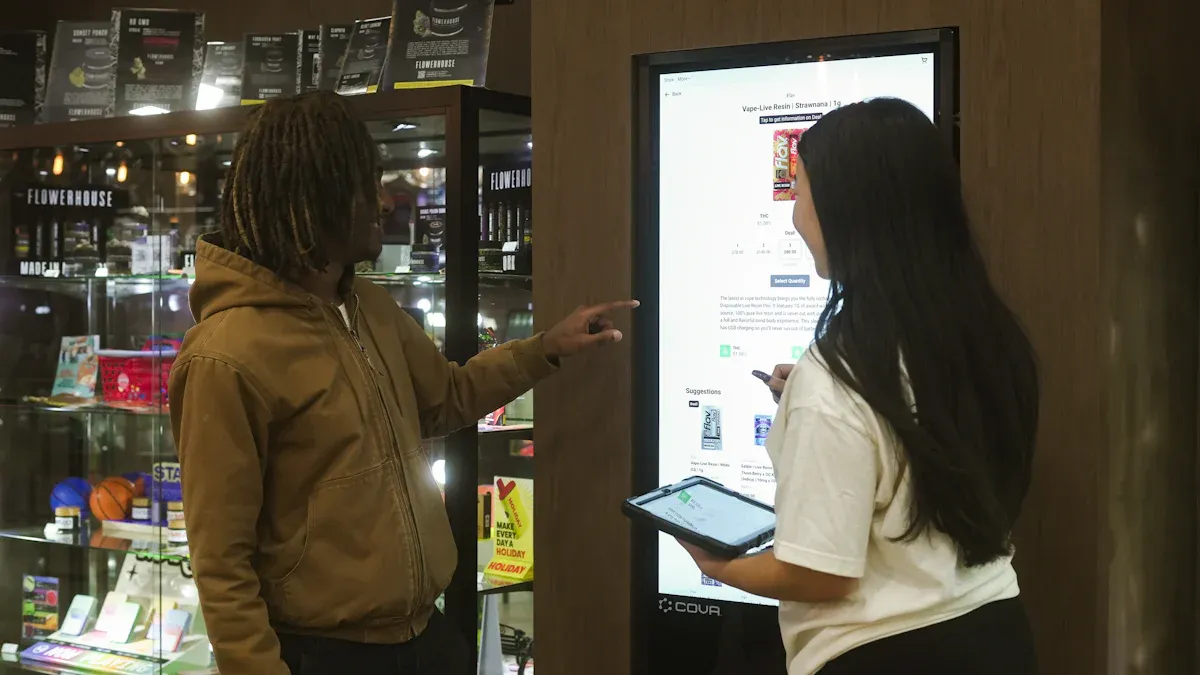
You see interactive touch screen kiosks in airports, malls, and hospitals. These machines let you use your fingers to tap, swipe, or select options right on the screen. A kiosk interactive touch screen uses both hardware and smart software to respond quickly to your touch. This makes your experience easy and smooth. You can check in, pay bills, or find information without waiting for help. The global market for these kiosks is growing fast, reaching over $34 billion in 2024, which shows their value in daily life.
Key Takeaways
Interactive touch screen kiosks help you do things fast and easy, like checking in or paying bills.
These kiosks use smart technology, such as capacitive and resistive touch screens, to react well when you touch them.
Self-service kiosks make lines shorter and help customers have a better time because you can do things by yourself.
Kiosks are in many places, like airports, malls, and hospitals, so they are handy for lots of jobs.
Businesses like kiosks because they work faster, make fewer mistakes, and make customers happier.
Shenzhen TopAdkiosk Display Technology Co., Ltd.
Add.: 2F, Bldg 10, Changfeng Industrial Park, Dongkeng, Fenghuang, Guangming, Shenzhen, China 518132
Mobile/WHATSAPP: 86-138 25769658
Email: marketing@topadkiosk.com topadkiosk@gmail.com
Skype: pghenry1
Wechat: adkioskhenry
English Web.: http://www.topadkiosk.com/
https://www.topkioskdisplay.com/
http://www.ad-kiosk.com/
https://www.toplcddisplay.com/
http://www.multitouchdigitalsignage.com/
https://www.youtube.com/channel/UCYVYNJHxLVEcQD8fuUxXNTA/videos?view_as=subscriber
https://www.facebook.com/TOPADKIOSKSHENZHEN/?ref=bookmarks
How Kiosk Interactive Touch Screen Technology Works
When you use a kiosk interactive touch screen, you work with a smart system. It has special screens, strong hardware, and easy-to-use software. This technology helps digital interactive kiosks work well in many places. It is simple and dependable.
Touch Screen Display Features
The display is the most important part of a kiosk interactive touch screen. You see choices and pick what you want right on the screen. Different display types give you sharp pictures, bright colors, and quick touch response. Here is a table that lists the main kinds of touchscreen displays you might see in a kiosk:
Technology Type | Description |
|---|---|
LCD | Liquid Crystal Display, known for clarity and efficiency. |
LED | Light Emitting Diode, offers brightness and energy savings. |
OLED | Organic Light Emitting Diode, gives better color contrast and flexibility. |
Flat Panel | Standard flat touch screen displays. |
Flexible Panel | Screens that can bend and curve for unique designs. |
Transparent Panel | Lets you see through the screen while showing content. |
You will also see two main types of touchscreen technology in kiosks:
Capacitive touch screens sense your finger’s natural conductivity.
Resistive touch screens detect pressure from your finger or a stylus.
Capacitive screens are smooth and react fast to gentle touches. Resistive screens work well in rough places and can be used with gloves or a stylus. The type of screen changes how you use the kiosk and how long it lasts.
Hardware Components
A kiosk interactive touch screen has many hardware parts to help it work well. Each part does something important. Here is a table that shows the main hardware components:
Component Type | Description |
|---|---|
Display Technology | Capacitive touchscreen panels (15–32 inches), often with anti-glare coatings. |
Processing Platform | Embedded PCs or Android boards with at least 4GB RAM and SSD storage. |
Integrated Peripherals | Card readers, NFC/contactless readers, barcode scanners, printers, and cameras. |
Enclosure Design | Lockable metal cases with cable management and protection from dust and moisture. |
Mounting Options | Floor stands, wall mounts, or countertop bases for different spaces. |
Panel PCs fit inside the kiosk. They put the screen and computer together in one piece. This saves space and makes the kiosk stronger. Extra devices like card readers and printers let you pay, print, or scan things. The tough case keeps everything safe and working in busy places.
Software and User Interface
The software in a kiosk interactive touch screen controls what you see and do. It runs on platforms like Intuiface, Pandasuite, or Novisign. These let businesses make menus, maps, payment screens, and more. The software can also connect to the internet or other systems to give you new information.
A good user interface makes the kiosk simple to use. Designers use big buttons, clear menus, and large icons. They make sure you get quick feedback when you tap or swipe. This helps you know if your action worked or if you need to try again. Accessibility features help everyone, even people with disabilities, use the kiosk.
Tip: When you use a kiosk interactive touch screen, look for big buttons and clear steps. These help you finish your task fast and easily.
The system handles your input right away. When you tap, swipe, or pick something, the touchscreen senses it and tells the computer inside. The software answers by showing the next screen or doing what you asked. This makes the experience quick and easy.
The mix of strong hardware and smart software gives you a fun and simple experience. You get fast service, clear info, and easy steps. Businesses can change what is on the kiosk anytime, so kiosks are useful and work well for many things.
Types of Interactive Touch Screen Kiosks
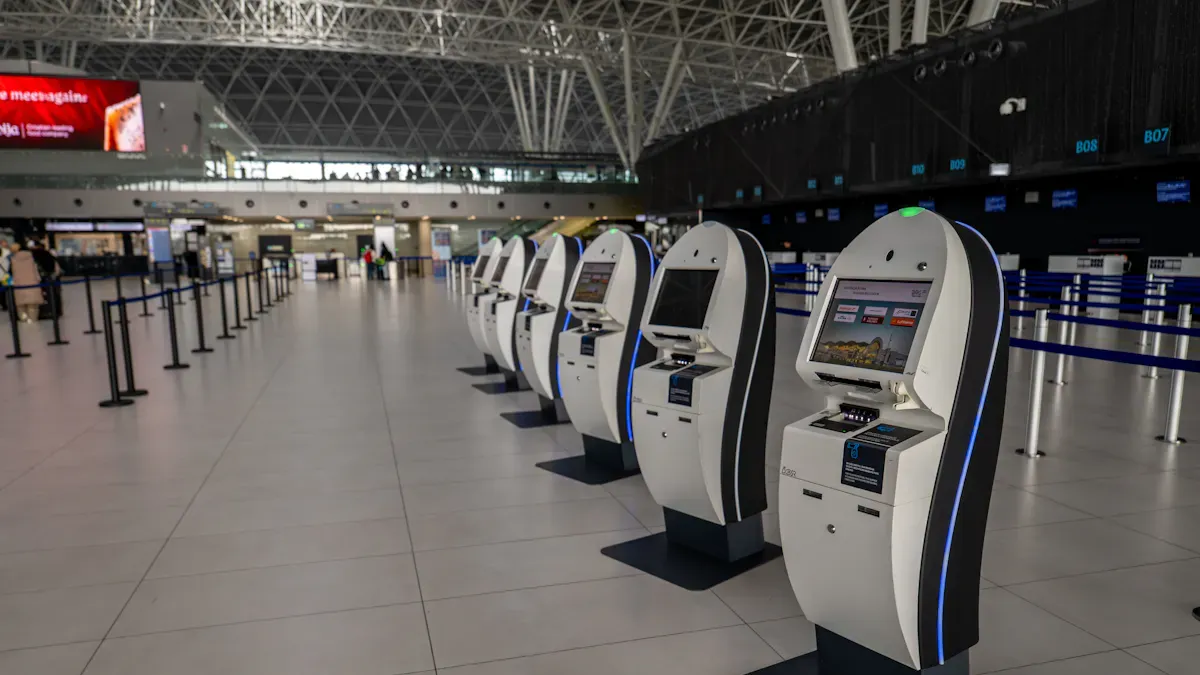
You see many interactive touch screen kiosks in public places. Each one has a special job and helps you finish tasks fast. These kiosks come in many shapes and sizes. Some sit on counters, some stand alone, some hang on walls, and some are easy to move. There are also kiosks that can be added to old setups. These designs fit different places and help more people use technology.
Self-Service Kiosks
Self-service kiosks let you do things without waiting for workers. You find these machines in stores, hotels, and restaurants. You can buy things, order food, or join rewards programs. These kiosks make your visit faster and easier. You get to control what you do and make fewer mistakes.
Benefit | Description |
|---|---|
Faster Service | You spend less time waiting in line. |
Greater Convenience | You can do things by yourself, at your own speed. |
Improved Accuracy | There are fewer mistakes when you use the kiosk. |
Omnichannel Integration | You get the same good service on all platforms. |
Enhanced Control | You have more say in how you use the kiosk. |
Tip: Try a self-service kiosk to check prices, order food, or sign up for rewards.
Information Kiosks
Information kiosks help you find answers and directions. You use them in malls, airports, and museums. You can check schedules, see alerts, or look at maps. These kiosks also let you give feedback or do simple tasks.
Function | Description |
|---|---|
Customer Service | You get help faster with self-service options. |
Transaction Management | You can pay or finish tasks quickly. |
Information Dissemination | The kiosk shows news, alerts, and other info. |
Wayfinding Services | You get directions and maps to help you find your way. |
Feedback Collection | You can share your thoughts to help improve things. |
You can use these kiosks to get info, pay, find your way, or give feedback.
Payment Kiosks
Payment kiosks let you pay bills, buy tickets, or add money to cards. You use them in banks, stores, and train stations. Security keeps your payments safe. Encryption scrambles your data. Tokenization hides your private details. Secure authentication checks who you are. The kiosk is watched all the time. End-to-end encryption and updates stop hackers. Session timeout and data purge protect your privacy.
Encryption
Tokenization
Secure Authentication
Continuous Monitoring
Surveillance
End-to-End Encryption
Regular Software Updates
Session Timeout
Data Purge Mechanisms
You can trust these kiosks to keep your payments safe.
Ticketing and Check-In Kiosks
Ticketing and check-in kiosks help you get in faster at events, museums, and stations. You use them to buy tickets, check in, or print badges. You save time and skip long lines. These kiosks make things work better and make you happier. You get clear steps and sometimes extra deals.
Venue Type | Kiosk Functionality |
|---|---|
Theme Parks and Attractions | You can buy tickets, get fast passes, or rent lockers. |
Museums | You can buy tickets and learn about exhibits. |
Parking Facilities | You can pay for parking easily. |
Conferences and Events | You can sign in and print badges fast. |
Public Transportation | You can buy or reload travel cards and tickets. |
Note: These kiosks help you wait less and move through busy places faster.
You see interactive kiosks everywhere. They make life easier and help businesses serve you better.
Main Uses and Benefits of Touch Screen Kiosk Solutions
Real-World Applications
You see interactive kiosks almost everywhere you go. These machines help you order food at restaurants. You can buy tickets at airports or check bus and train times. In health care, you use them to make appointments or find your way in a hospital. Stores use kiosks for self-checkout and to get feedback or show deals.
Food industry: You can order food fast and pick what you want.
Airports and public transportation: Buy tickets, check in, and see travel info.
Health care facilities: Make appointments, get directions, and see important info.
Retail: Scan items, pay, and join rewards programs for better shopping.
User Advantages
Interactive touch screen kiosks make things easier for you. You can finish tasks quickly with fewer steps. Many kiosks follow rules to help people with disabilities. You get features like voice control, screen readers, and bigger text. You can use touch, voice, or gestures to use the kiosk. Some screens move up or down and have keypads for everyone, even people in wheelchairs or with vision needs.
Accessibility Feature | Description |
|---|---|
Voice control and screen readers | Help people with vision problems use the kiosk. |
Adjustable text size and high contrast | Make screens easier for everyone to read. |
Multiple input methods | Let you use touch, voice, or gestures. |
Height-adjustable screens | Work for people of all heights or in wheelchairs. |
Physical keypads | Give another way to type in information. |
Audio jack compatibility | Connect to special devices for better use. |
Tip: Pick kiosks with big text and strong colors for easy reading.
Business Benefits
Businesses get many good things from touch screen kiosks. You help cut down wait times and lines, so more people get helped fast. Self-service lets workers do other jobs. Kiosks help you try new things, which means more sales and happy customers. Mistakes are fewer because you enter your own info.
Benefit Type | Description |
|---|---|
Queue Reduction & Throughput | Self-service kiosks make lines shorter by up to 30%. |
Higher Ticket Size | Kiosks suggest extras, so you might spend more. |
Labor Optimization | Workers can help with hard jobs while kiosks do the easy ones. |
Fewer Errors | You type your own order, so mistakes happen less. |
Interactive kiosks help you and businesses work together for a faster and better experience.
Industry Applications for Interactive Touch Screen Kiosks
Retail
You find interactive kiosks in lots of stores. These machines help you check prices and see if things are in stock. You can order items that are not there. Stores put kiosks where you can see them easily. The screens are simple, so you can find what you want fast. Stores update the kiosks often to keep things interesting.
You can look at products and compare them.
If something is missing, you can order it online.
You get deals and special offers quickly.
Industry | Use of Interactive Kiosks |
|---|---|
Quick Service Restaurants | You can order food, pay, and play games while you wait. |
Retail | You can read about products, check prices, and order things not in the store. |
Healthcare | You can check in, sign up, wait in line, and pay bills. |
Banking | You can get tickets, use your account, move money, or open new accounts. |
Hospitality | You can check in or out, pay bills, and find your way around. |
Entertainment | You can get info, plan your visit, and buy tickets at parks, concerts, or theaters. |
Healthcare
Hospitals and clinics use interactive kiosks to help patients check in and get info. You can sign up, make appointments, and pay bills without waiting. These kiosks let staff do other jobs.
Benefit | Description |
|---|---|
Kiosks mean fewer workers are needed for check-in, so things run better. | |
Data Quality Improvements | Kiosks help collect the right patient info, so records are better. |
Consistency of Registration Process | Kiosks make sure everyone checks in the same way, so there are fewer mistakes. |
Patient Experience Improvement | Kiosks help you wait less and give you info just for you. |
Hospitality
Hotels and resorts use interactive kiosks for guests. You can check in by using your card and following easy steps. You can check out, see your bill, and print a receipt without asking staff. Kiosks act like digital helpers, giving you local tips and letting you book restaurants or events anytime.
You can use guest services any time, day or night.
You can make bookings and find info fast.
Hotels need fewer front desk workers and work better.
Kiosks help hotels show their brand and earn more from ads.
Tip: Many people like hotels with self-service kiosks because they save time and make things easier.
Transportation
Airports and train stations use interactive kiosks to help you check in, print tickets, and buy passes. These kiosks show you up-to-date info about times and routes.
You save time by checking in and printing tickets yourself.
Airlines and stations spend less money because machines do the work.
Kiosks help you find your way with maps you can touch.
Application Type | Description |
|---|---|
Interactive Kiosks | Show you live info about times, routes, and tickets. |
Ticketing and Payment Systems | Let you buy tickets and pay fast, so lines are shorter. |
Wayfinding and Digital Signage | Help you get around with maps and directions you can use. |
Education
Schools and colleges use interactive kiosks for info and sign-ups. You can see class details, sign up for courses, and find maps of the campus. These kiosks make learning more fun and help schools give better service.
You can get info and sign up for things by yourself.
Kiosks help you learn and use school tools better.
Schools use kiosks to share info quickly and easily.
Note: Interactive kiosks help you finish tasks faster and make info easy to find in every field.
You use kiosk interactive touch screens to get things done fast. These machines have smart software and strong hardware. They help you pay, find info, and check in. Stores, hospitals, and hotels use kiosks to cut down wait times. They also make service better for everyone.
Benefit | Description |
|---|---|
You spend more time looking and learning new things. | |
You finish tasks without waiting in long lines. | |
Consistent Messaging | You always get clear and easy-to-understand info. |
Touch screen kiosks make your day easier. They also help businesses do a better job.
What Is an Interactive Touch Screen Kiosk and How Does It Work?
An interactive touch screen kiosk is a self‑service terminal that integrates a computer, a touch‑sensitive display, and specialised software. Users interact directly with the graphical interface on the screen – without staff assistance – to perform tasks such as searching for information, completing transactions, or checking in.
In simple terms, it is a “touch‑screen computer built into a rugged enclosure, designed for public self‑service”. You see them everywhere: shopping mall directories, fast‑food ordering stations, airport check‑in terminals, hospital registration points, and more.
How Does It Work?
From a technical perspective, an interactive touch screen kiosk consists of three collaborative layers: hardware layer, system layer, and application layer. Here is the step‑by‑step workflow.
1️⃣ Hardware Layer – Sensing & Actuation
Touch screen – Usually a projected capacitive (PCAP) touch screen that accurately detects finger position. The surface is covered with scratch‑resistant, anti‑glare glass, and often rated IP65 (dust‑tight and protected against water jets) and IK10 (vandal‑resistant) for public environments.
Computer (mainboard) – Industrial‑grade motherboard (e.g., Intel, Rockchip, NVIDIA Jetson) running Windows, Android, or Linux. The 2026 trend is to integrate an NPU (Neural Processing Unit) for edge AI processing.
Peripheral modules – Depending on the application, kiosks may integrate printers, barcode scanners, card readers, PIN pads, cameras, facial recognition modules, ID document readers, etc. These peripherals communicate with the main computer via USB, serial ports, or network connections.
2️⃣ System Layer – Drivers & Interaction Engine
Operating system – Manages hardware resources and touch drivers. The touch driver converts physical touch events into mouse clicks or touch events that the OS can understand.
Touch firmware – Continuously samples touch coordinates and sends them to the OS via I²C or USB interfaces. Sampling rates are typically 100–200 Hz, keeping latency below 10 ms.
3️⃣ Application Layer – Logic & User Experience
Kiosk software – This is what the user sees and touches. It typically runs in full‑screen mode, locks down the system (prevents users from exiting to the desktop), and provides a simple, large‑button, high‑contrast interface.
Workflow:
The user touches a button on the screen.
The touch driver reports the coordinates to the OS.
The kiosk software interprets the touch location, then calls the appropriate function (e.g., query a database, send a print command, initiate a payment).
The system executes the action and updates the interface (e.g., “Printing…”, “Payment successful”).
Key Features That Distinguish Kiosks from Tablets or PCs
Feature | Description |
|---|---|
Rugged durability | Metal enclosure, vandal‑resistant glass, dust/water sealing – designed for 24/7 public use. |
Peripheral integration | Supports scanners, card readers, printers, ID readers, and other professional modules. |
Self‑service design | Software typically includes “Home” button and auto‑reset on timeout to prevent users from getting stuck. |
Remote management | Cloud‑based dashboard for monitoring device status, updating content, and receiving fault alerts. |
High‑brightness touch screen | Outdoor or semi‑outdoor models reach 1,500–5,000 nits for sunlight readability. |
Example Workflow – Fast‑Food Self‑Order Kiosk
User touches “Start Order”.
Software displays menu categories.
User selects a burger, adds a drink, then touches “Add to Cart”.
Software calculates the total. User touches “Checkout”.
The system invokes the card reader / barcode scanner to process payment.
After successful payment, the software sends the order to the kitchen printer and the kitchen display screen.
The screen shows: “Your order number is XXX. Please wait for pickup.”
Throughout this process, the kiosk completely replaces a cashier – and multiple kiosks can be used simultaneously, each running independently.
Summary
An interactive touch screen kiosk is essentially a purpose‑built computer optimised for self‑service. Through the close integration of industrial‑grade hardware + touch drivers + full‑screen application software, it delivers a simple, efficient, and reliable self‑service experience for the public. Its core values are reducing labour costs, improving service efficiency, and extending service hours (24/7 availability) – making it an essential tool in today’s digital transformation.
What Is an Interactive Touch Screen Kiosk and How Does It Work?
An interactive touch screen kiosk is a self‑service terminal that integrates a computer, a touch‑sensitive display, and specialised software. Users interact directly with the graphical interface on the screen – without staff assistance – to perform tasks such as searching for information, completing transactions, or checking in.
In simple terms, it is a “touch‑screen computer built into a rugged enclosure, designed for public self‑service”. You see them everywhere: shopping mall directories, fast‑food ordering stations, airport check‑in terminals, hospital registration points, and more.
How Does It Work?
From a technical perspective, an interactive touch screen kiosk consists of three collaborative layers: hardware layer, system layer, and application layer. Here is the step‑by‑step workflow.
1️⃣ Hardware Layer – Sensing & Actuation
Touch screen – Usually a projected capacitive (PCAP) touch screen that accurately detects finger position. The surface is covered with scratch‑resistant, anti‑glare glass, and often rated IP65 (dust‑tight and protected against water jets) and IK10 (vandal‑resistant) for public environments.
Computer (mainboard) – Industrial‑grade motherboard (e.g., Intel, Rockchip, NVIDIA Jetson) running Windows, Android, or Linux. The 2026 trend is to integrate an NPU (Neural Processing Unit) for edge AI processing.
Peripheral modules – Depending on the application, kiosks may integrate printers, barcode scanners, card readers, PIN pads, cameras, facial recognition modules, ID document readers, etc. These peripherals communicate with the main computer via USB, serial ports, or network connections.
2️⃣ System Layer – Drivers & Interaction Engine
Operating system – Manages hardware resources and touch drivers. The touch driver converts physical touch events into mouse clicks or touch events that the OS can understand.
Touch firmware – Continuously samples touch coordinates and sends them to the OS via I²C or USB interfaces. Sampling rates are typically 100–200 Hz, keeping latency below 10 ms.
3️⃣ Application Layer – Logic & User Experience
Kiosk software – This is what the user sees and touches. It typically runs in full‑screen mode, locks down the system (prevents users from exiting to the desktop), and provides a simple, large‑button, high‑contrast interface.
Workflow:
The user touches a button on the screen.
The touch driver reports the coordinates to the OS.
The kiosk software interprets the touch location, then calls the appropriate function (e.g., query a database, send a print command, initiate a payment).
The system executes the action and updates the interface (e.g., “Printing…”, “Payment successful”).
Key Features That Distinguish Kiosks from Tablets or PCs
Feature | Description |
|---|---|
Rugged durability | Metal enclosure, vandal‑resistant glass, dust/water sealing – designed for 24/7 public use. |
Peripheral integration | Supports scanners, card readers, printers, ID readers, and other professional modules. |
Self‑service design | Software typically includes “Home” button and auto‑reset on timeout to prevent users from getting stuck. |
Remote management | Cloud‑based dashboard for monitoring device status, updating content, and receiving fault alerts. |
High‑brightness touch screen | Outdoor or semi‑outdoor models reach 1,500–5,000 nits for sunlight readability. |
Example Workflow – Fast‑Food Self‑Order Kiosk
User touches “Start Order”.
Software displays menu categories.
User selects a burger, adds a drink, then touches “Add to Cart”.
Software calculates the total. User touches “Checkout”.
The system invokes the card reader / barcode scanner to process payment.
After successful payment, the software sends the order to the kitchen printer and the kitchen display screen.
The screen shows: “Your order number is XXX. Please wait for pickup.”
Throughout this process, the kiosk completely replaces a cashier – and multiple kiosks can be used simultaneously, each running independently.
Summary
An interactive touch screen kiosk is essentially a purpose‑built computer optimised for self‑service. Through the close integration of industrial‑grade hardware + touch drivers + full‑screen application software, it delivers a simple, efficient, and reliable self‑service experience for the public. Its core values are reducing labour costs, improving service efficiency, and extending service hours (24/7 availability) – making it an essential tool in today’s digital transformation.
FAQ
What is a touch screen kiosk?
A touch screen kiosk is a self-service machine with a digital screen. You use your finger to tap, swipe, or select options. This technology helps you complete tasks quickly, like checking in, paying bills, or finding information in public places.
How does a touch screen kiosk work?
You interact with a touch screen kiosk by touching the display. The system senses your input and responds right away. The hardware and software work together to show menus, maps, or payment options. You finish tasks without needing help from staff.
Where can you find a touch screen kiosk?
You see a touch screen kiosk in airports, malls, hospitals, and restaurants. Many schools and hotels use them too. These machines help you check in, order food, buy tickets, or get directions. You find them in places where fast service matters.
What are the main benefits of using a touch screen kiosk?
You save time when you use a touch screen kiosk. You finish tasks faster and avoid long lines. The screen is easy to use. You get clear steps and quick results. Businesses use touch screen kiosk solutions to help more people and improve service.
Is a touch screen kiosk safe to use?
Yes, a touch screen kiosk uses security features to protect your information. You see encryption, secure logins, and regular updates. You can trust a touch screen kiosk to keep your data safe when you pay bills or enter personal details.
Tip: Always follow on-screen steps and use hand sanitizer after using a touch screen kiosk.
See Also
Discover The Essential Features Of Today's Touch Screen Kiosks
Understanding Self-Service Kiosks: Functionality And Operation Explained
A Comprehensive Guide For Installing Your Touch Screen Kiosk
Uncover 10 Unexpected Applications For Touch Screen Kiosks In 2026
