What Is an Info Kiosk and How Does It Work
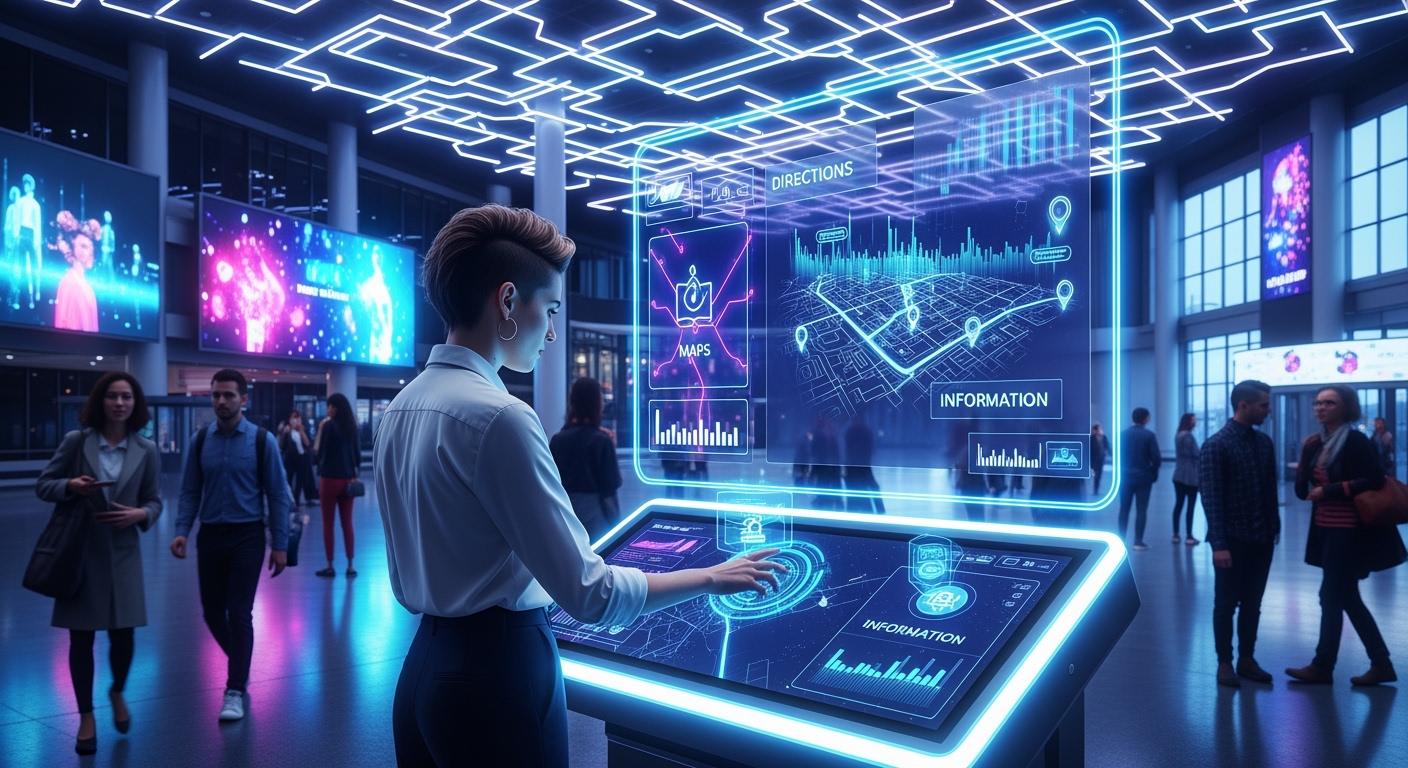
You can find an info kiosk in places where people need fast help or directions. This is a computer system you use by yourself. It gives you answers and services right away, so you do not have to wait for staff. Most info kiosks have touchscreens and simple menus. They also connect to live data. In busy places like malls, airports, and hospitals, these tools help you every day. For example, more than 72% of big airports use info kiosks now. This means fewer people ask staff for help, and things run better. In hospitals, over 62% use info kiosks for patient check-ins. This helps cut down on paperwork and makes service faster.
Shenzhen TopAdkiosk Display Technology Co., Ltd.
Add.: 2F, Bldg 10, Changfeng Industrial Park, Dongkeng, Fenghuang, Guangming, Shenzhen, China 518132
Mobile/WHATSAPP: 86-138 25769658
Email: marketing@topadkiosk.com topadkiosk@gmail.com
Skype: pghenry1
Wechat: adkioskhenry
English Web.: http://www.topadkiosk.com/
https://www.topkioskdisplay.com/
http://www.ad-kiosk.com/
https://www.toplcddisplay.com/
http://www.multitouchdigitalsignage.com/
https://www.youtube.com/channel/UCYVYNJHxLVEcQD8fuUxXNTA/videos?view_as=subscriber
https://www.facebook.com/TOPADKIOSKSHENZHEN/?ref=bookmarks
Key Takeaways
Info kiosks give fast answers and help without staff. This makes visits easier for everyone. These kiosks work all day and night. They help people finish tasks when they want. Kiosks have many languages and special features. This helps many different people use them. Businesses spend less money by using kiosks for easy jobs. Staff can then work on harder problems. You can see info kiosks in airports, hospitals, and malls. They make service better in public places.
What Is an Information Kiosk
Definition of Info Kiosk
You can spot an information kiosk in lots of public places. This device stands by itself and looks like a computer. It uses special parts and programs to give you answers fast. People say an information kiosk is a computer-like machine with hardware, software, and internet. It works as an embedded or IoT system. You use it by touching the screen or pressing buttons. The kiosk sits inside a tough case to keep it safe. You use an information kiosk to get help or finish tasks without staff.
Tip: An information kiosk helps you find your way, check times, or print papers. You do not have to wait for someone to help you.
Main Purpose and Uses
You use an information kiosk to make your visit simpler. The main goal is to give you quick info and services. You use it where staff are not always there, like bus stops or faraway places. Many kiosks have big text and different languages. This helps people with special needs. When you use a kiosk, you answer easy questions yourself. Staff can help with harder problems. In hospitals, you check in or pay bills at a kiosk. This means you wait less. In stores, you order things that are not on the shelf. Airports use kiosks for check-in and boarding passes. Schools put kiosks for maps and student help. Government offices let you send forms and payments at a kiosk. Hotels use kiosks for check-in and check-out. Fun places use kiosks for tickets and visitor info.
Kiosks give services in places where staff cannot work, like bus stops and faraway areas.
They help people who need big text or other languages.
Kiosks answer easy questions so staff can help with harder ones.
In hospitals, kiosks make check-in and paying faster, so you wait less.
Store kiosks help you order things not in stock.
Airports use kiosks for check-in and printing boarding passes.
Schools use kiosks for maps and student services.
Government offices use kiosks for forms and payments, so lines are shorter.
Hotels use kiosks for fast check-in and check-out.
Fun places use kiosks for tickets and info, making visits better.
You see that an information kiosk is not the same as a desk with staff. The table below shows how they are different:
Feature/Aspect | Digital Kiosk | Physical Information Desk |
|---|---|---|
Interaction | You use it yourself, not much talking | You talk to staff |
Complaint Resolution | Needs staff for hard problems | Staff help you right away |
Privacy Concerns | May not be private for some info | Staff keep your info more private |
User Experience | Touchscreen and videos | You talk to a person |
Availability | Open all day and night | Only open when staff are there |
Cost | Costs less after you set it up | Costs more because of staff |
Key Features
You find many important features in an information kiosk. The device has a touchscreen for easy use. You see simple menus and steps. The kiosk connects to live data, so info is always new. Many kiosks show videos and maps. You can print tickets, papers, or receipts. Some kiosks scan barcodes or take payments. The case keeps the device safe from harm. You use a kiosk in many places for different jobs.
Industry | |
|---|---|
Health Care | Check-in for visits, finding your way, telemedicine kiosks |
Government | Printing ID cards, driver’s tests, car registration |
Corporate | Visitor check-in, badge printing, help with directories |
Retail and Showrooms | Paying bills, getting small items, tickets, finding products |
Schools | Visitor check-in and tracking for safety |
Transportation | Showing routes and times, buying tickets |
Banking | Putting in or taking out money by yourself |
Sporting Events | Scanning tickets at games |
Universities | Finding your way, event info, printing papers |
You use an info kiosk to save time and get good answers. The device works all day and night. You see it in hospitals, airports, stores, and schools. The information kiosk helps you finish tasks without waiting for staff.
How Information Kiosks Work
Understanding how information kiosks work helps you see why they are so useful in public spaces. You interact with these machines every day, but you might not know what goes on inside. Let’s break down the main parts and steps that make an info kiosk run smoothly.
Hardware Components
You find several important hardware parts inside every kiosk. Each one plays a key role in making your experience easy and fast.
Component | Description |
|---|---|
The main way you interact with the kiosk. It responds quickly to your touch. | |
Central Processing Unit | The “brain” of the kiosk. It runs the programs and handles your requests. |
Peripheral Devices | Extras like scanners, cameras, and speakers. These help you scan tickets or hear instructions. |
Printer | Prints tickets or receipts for you after you finish a task. |
Card Reader | Lets you pay or check in by scanning cards. |
Scanner | Reads barcodes or QR codes, often used in stores or hospitals. |
Most kiosks use a strong touchscreen that can handle many touches every day. This is important in busy places like airports or malls. The hardware must last a long time and stay reliable, even when many people use it.
Note: A responsive touchscreen makes your experience smooth and quick. You feel more confident using the kiosk when it reacts right away.
Software and Interface
The software inside a kiosk controls what you see and do. It also keeps the system safe and up to date.
Software Type | Description |
|---|---|
Runs the main programs and connects to hardware. Common types include Windows, Android, iOS, and Linux. | |
Application Software | Shows you the menus and options. This part is often made for the business or place using the kiosk. |
Management Software | Handles updates, security, and content. Staff can manage this from far away to save time. |
You use a simple menu system to pick what you need. The software connects to the internet or a central database. This means you always get the latest information, like train times or hospital check-in status. The kiosk can also send your data back to a main system for storage and analysis. Secure connections and APIs keep your information safe during these updates.
Tip: Real-time data means you always see the newest info. For example, you get up-to-date flight times or ticket prices.
User Interaction
You start using a kiosk when something on the screen catches your eye. The process is simple and follows clear steps.
Step | Description |
|---|---|
The screen shows a moving image or message to get your attention. | |
Interaction | You touch the screen and see a menu with choices. |
Completion | You finish your task and get a ticket, receipt, or message on the screen. |
Kiosks help everyone, including people with disabilities. You find features like large fonts, high-contrast colors, and audio instructions. Some kiosks have buttons or voice commands if you cannot use a touchscreen. The design makes sure you can reach everything, whether you are standing or sitting in a wheelchair.
Kiosks use plain language and simple steps.
You can listen to instructions if you have trouble seeing.
The space around the kiosk is wide enough for wheelchairs.
You now know how information kiosks work. The hardware, software, and user-friendly design come together to give you fast, safe, and easy service. Real-time data and strong connections keep everything running smoothly.
Types of Information Kiosks
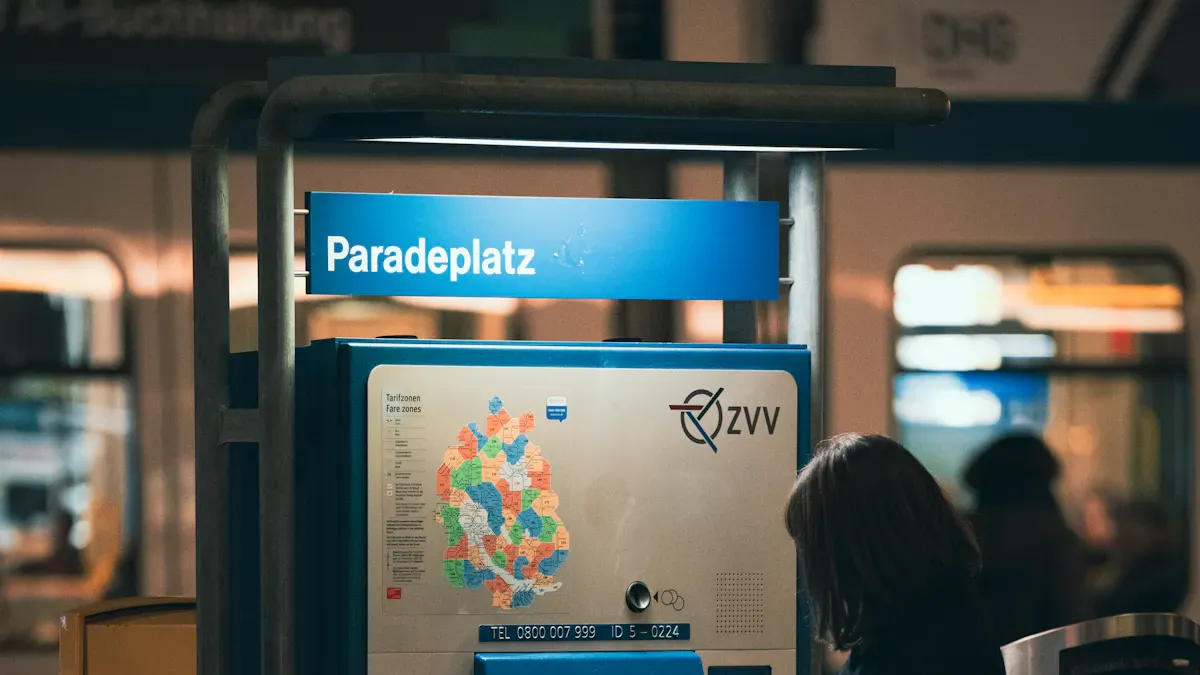
You can find many kinds of kiosks in public places. Each kind helps you in a special way. The table below lists the main types and what they do:
Category | Description |
|---|---|
Information kiosks | Give you maps, lists, and info in places like malls, airports, and museums. |
Self-service kiosks | Let you do things by yourself, like checking in or making orders. |
Interactive kiosks | Use touchscreens and videos to get your attention, often in stores and ads. |
Wayfinding kiosks | Help you find your way with maps and directions. |
Payment kiosks | Let you pay for things safely in stores and payment centers. |
Digital Information Kiosks
Digital information kiosks show you live info and services. You see them inside and outside. These kiosks have bright screens and strong parts for any weather. Outdoor kiosks need cases that keep out rain and sun. Indoor kiosks use regular parts. You often see digital signage kiosks in busy spots. They show maps, news, and ads. Some digital kiosks give emergency alerts or event times. You must plan where to put these kiosks and connect them to networks. This keeps them working well. Digital signage kiosks help you find places and learn about new deals.
Note: Digital information kiosks often need special setups for their spot and job.
Self-Service Kiosks
Self-service kiosks let you do things on your own. You use them to check in, order food, or pay bills. These kiosks save you time and help you skip lines. Some common uses are:
Checking in at airports and hospitals
Finding your way in malls
Paying bills and using money services
Signing up for healthcare
Ordering food in restaurants
Using government services
Searching for products in stores
Managing visitors
Self-service kiosks make your visit faster and easier. You control what you do, so staff can help with harder jobs.
Interactive Directory Kiosks
Interactive kiosks with directories help you find places in big buildings. You use them to look for stores, offices, or departments. These kiosks show maps and give you step-by-step directions. Many update their info right away, so you see the newest changes. Studies say most people notice these kiosks in the first 30 seconds. This gives a good first impression. Places with these kiosks get fewer questions at help desks. Staff can help with other things. Interactive kiosks also help you move around big places like hospitals or malls.
Interactive kiosks show maps for many floors.
They update fast when stores or offices change.
You get real-time directions, which makes things less stressful.
Ticketing and Payment Kiosks
Payment and ticketing kiosks help you buy tickets or pay for things without waiting in line. You see these kiosks in train stations, movie theaters, and stores. Payment kiosks use safe systems to protect your info. Digital signage kiosks show ticket prices and event details. Self-ordering kiosks in restaurants let you pick and pay for your food. These kiosks make paying quick and easy. You finish in just a few steps, so you save time and lines stay short.
Tip: Payment kiosks and self-ordering kiosks help you buy things safely and fast.
Benefits of Info Kiosks
Convenience and Accessibility
You get more help and easier access with an information kiosk. These machines work all day and night. You can use them anytime you want. You do not have to wait in long lines. You do not need staff to help you. Many kiosks have menus in different languages. This helps people from many places. The design is good for people with disabilities. You see big buttons and bright screens. Some kiosks talk to you with audio instructions. This makes self-service easy for everyone.
Feature | Description |
|---|---|
Kiosks are open all the time, so you do not wait. | |
Reduced Wait Times | You finish your tasks fast and skip long lines. |
Multilingual Support | Kiosks use many languages, so more people can use them. |
Kiosks take away the need to stand in line, so you feel less annoyed.
You can check in or order things quickly.
Easy features help people with disabilities.
Efficiency and Cost Savings
You help businesses save money and work faster with a kiosk. These machines do not need breaks or days off. They keep working all the time. Kiosks answer simple questions and do easy jobs. This lets staff do harder work. Companies need fewer workers at the front desk. Kiosks show info on screens, so there is less paper waste.
Evidence Type | Description |
|---|---|
Reduced Printing Costs | Kiosks use less paper and do not need new printed things. |
Businesses need fewer workers, so they save money. | |
Improved Efficiency | Staff can do harder jobs, and kiosks do the easy ones. |
Kiosks work all the time, so they help more people.
They answer easy questions, so staff can do other things.
You see shorter lines and get help faster, so people are happier.
Consistent Information Delivery
You always get the same and newest information from a kiosk. These machines connect to a main system. Updates happen right away. You do not get old or wrong info. Kiosks use screens, so there are fewer mistakes than with paper or staff. This helps you trust what you see.
Mechanism | Description |
|---|---|
Centralized Control | Staff can update kiosks from far away, so all kiosks match. |
Minimizing Human Error | Kiosks show digital info, so there are fewer mistakes. |
Real-time Updates | You see new changes as soon as they happen. |
Tip: When you use a kiosk, you know the info is new and correct. This makes your visit easier and better.
Real-World Applications
Retail and Shopping Malls
You see kiosks in malls and stores all the time. These machines help you find things and check prices. You can also learn about sales and deals. Kiosks give you tips based on what you like. They show you where stores are and what is on sale. You pay fast and safe, so lines are shorter. Staff can help with harder problems. Brands use kiosks to show products and talk to shoppers. This does not cost much money. Many people feel happier when they use self-service kiosks. About 70% of shoppers trust stores more when they have kiosks. Smart kiosks work all day and night. They show new deals and help stores sell more.
Shopping feels more personal
You pay fast
You find your way in stores
Brands save money on ads
Customers are happier
Transportation Hubs
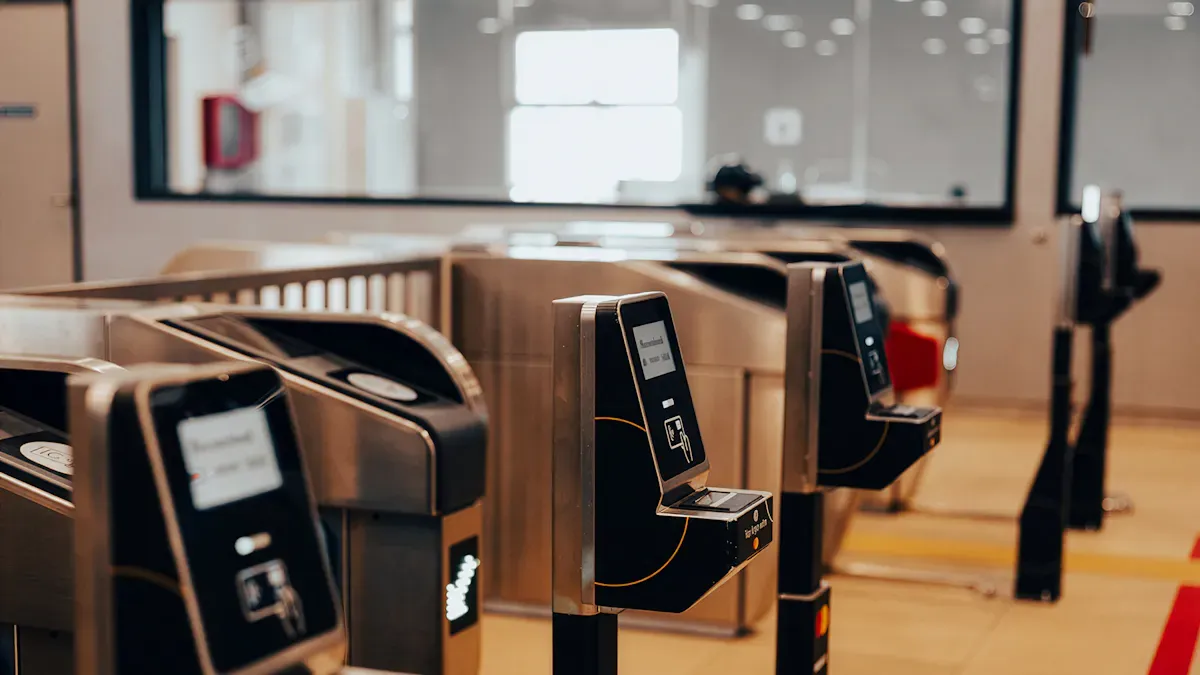
You find kiosks in airports, train stations, and bus stops. These machines help you find your way in busy places. You check in for flights or trains and ask questions. Kiosks help you with parking and show you where your car is. Staff can help you at kiosks, so main desks are not too busy. You see new schedules and get help with permits or checks.
Function Type | Description |
|---|---|
Passenger Information Points | Fast travel info |
Customer Service Counters | Help without long lines |
Permit or Screening Support | Easy checks and permits |
Parking and Access Operations | Parking and car help |
Attendant-Assisted Public Service | Staff help at kiosks, not just at main desks |
Transit or Terminal Guidance Points | Directions and info for getting around |
You use kiosks for directions, check-ins, and answers to questions. These machines make travel easier and less stressful.
Healthcare Facilities
Hospitals and clinics use kiosks to make visits better. You check in for your appointment and pay bills. Kiosks help you find your way in big hospitals. They cut down on paperwork. Most hospitals in the US let you see your health info on a screen. This means you wait less and get care faster. Kiosks give you health tips and news, so you know what is happening. You can see your health info safely and easily.
Check in and pay by yourself
Get help finding your way
See health info and learn new things
Government and Public Spaces
You use kiosks in government offices, libraries, and public buildings. These machines let you renew your license and pay fees. You can send in papers and check court dates. Kiosks help you pay bills and taxes. You can buy tickets for buses and renew travel cards. Kiosks also help you get health and insurance services. You check in as a visitor and get courthouse info without waiting.
Renew licenses and update your address
Pay fees and tickets
Send papers and see legal records
Pay bills and taxes
Manage visitors and use public transport
Kiosks make daily jobs easier in many places. You save time, get the right info, and have better service everywhere.
You notice that an information kiosk gives quick answers and services. You do not need staff to help you. You use a kiosk in airports, hospitals, malls, government offices, and transit hubs. The table below shows how info kiosks make public access better:
Description | |
|---|---|
Enhanced Service Delivery | Kiosks bring services to places without staff. They reach more people in a good way. |
Improved User Experience | They let you do things yourself, so you need less staff help. |
Expanded Accessibility | Big text, audio, and many languages help different people use kiosks. |
You can help your community by using or setting up a kiosk. Touchscreen kiosks match what people want for self-service in the future. Groups that use kiosks will make customers happier and need fewer staff. The info kiosk market will get bigger and reach $71 billion by 2034. Digital kiosks work with IoT and make service better in stores, hotels, and banks. You will see more information kiosks as technology gets better.
FAQ
What is an info kiosk?
An info kiosk is a self-service machine. You use it to get information or finish tasks without staff. You see these kiosks in places like malls, airports, and hospitals.
How do you use an info kiosk?
You touch the screen or press buttons. You follow simple steps on the menu. The kiosk gives you answers, prints tickets, or helps you pay bills.
Are info kiosks safe for your personal information?
Most info kiosks use secure software. Your data stays safe with strong protection. You should check for privacy signs or locks on the screen.
Can people with disabilities use info kiosks?
Yes. Many info kiosks have big text, audio instructions, and easy-to-reach screens. You can use them if you have trouble seeing or moving.
Where can you find info kiosks?
You find info kiosks in airports, hospitals, stores, schools, and government offices. They help you get directions, pay bills, or check in.
See Also
Understanding Self-Service Kiosks: Functionality and Benefits Explained
Essential Features of Contemporary Touch Screen Kiosks Unveiled
Six Essential Tips for Selecting Interactive Kiosks Effectively
Effective Troubleshooting Tips for Common Kiosk Operational Issues
Discover 10 Unexpected Applications of Touch Screen Kiosks in 2026
