What causes LCD display issues and how you can prevent them
Shenzhen TopAdkiosk Display Technology Co., Ltd.
Add.: 2F, Bldg 10, Changfeng Industrial Park, Dongkeng, Fenghuang, Guangming, Shenzhen, China 518132
Mobile/WHATSAPP: 86-138 25769658
Email: marketing@topadkiosk.com topadkiosk@gmail.com
Skype: pghenry1
Wechat: adkioskhenry
English Web.: https://www.topkioskdisplay.com/
http://www.ad-kiosk.com/
https://www.toplcddisplay.com/
http://www.multitouchdigitalsignage.com/
https://www.youtube.com/channel/UCYVYNJHxLVEcQD8fuUxXNTA/videos?view_as=subscriber
https://www.facebook.com/TOPADKIOSKSHENZHEN/?ref=bookmarks
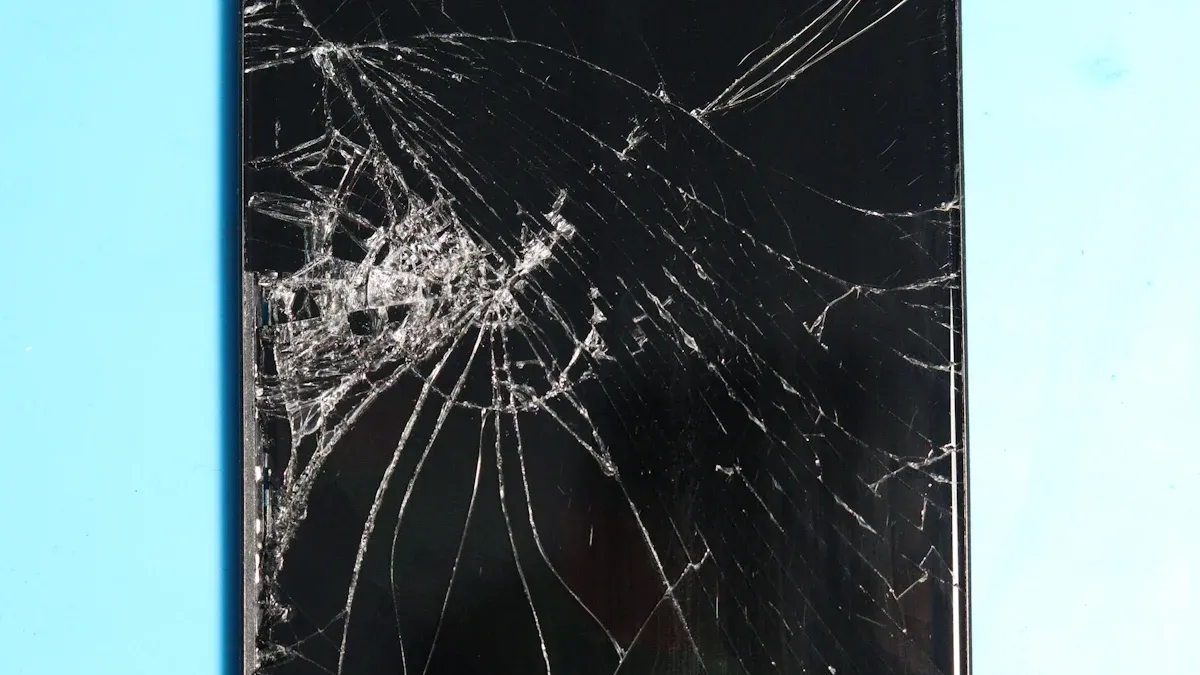
LCD display issues can happen in many devices, but you can fix them with easy steps. Problems usually come from cracked screens, electrical problems, very hot or cold temperatures, image sticking, or old backlights. You might see things like weird colors, touch not working, or slow screen actions. If you spot these problems early and use good tips, you can stop most lcd display issues. Taking care of your lcd will keep your screen clear and working well.
Issue Type | Common Causes |
|---|---|
Physical Damage | Hits, bending |
Electrical Faults | Bad connectors |
Environmental Factors | Very hot or cold |
LCD Burn/Backlight Problems | Still images, getting old |
Key Takeaways
Check your LCD screen regularly for cracks, spots, or lines. Early detection helps prevent bigger problems.
Use screensavers and change images often to avoid LCD burn. This keeps your display clear and bright.
Keep your LCD device at normal temperatures. Avoid extreme heat or cold to protect the liquid crystals inside.
Clean your LCD screen with a soft, lint-free cloth. Regular cleaning prevents dust buildup and keeps the display clear.
If issues persist after basic checks, seek professional help. Experts can fix problems that you cannot resolve at home.
Main Causes of LCD Display Issues
Physical Damage to LCD Screen
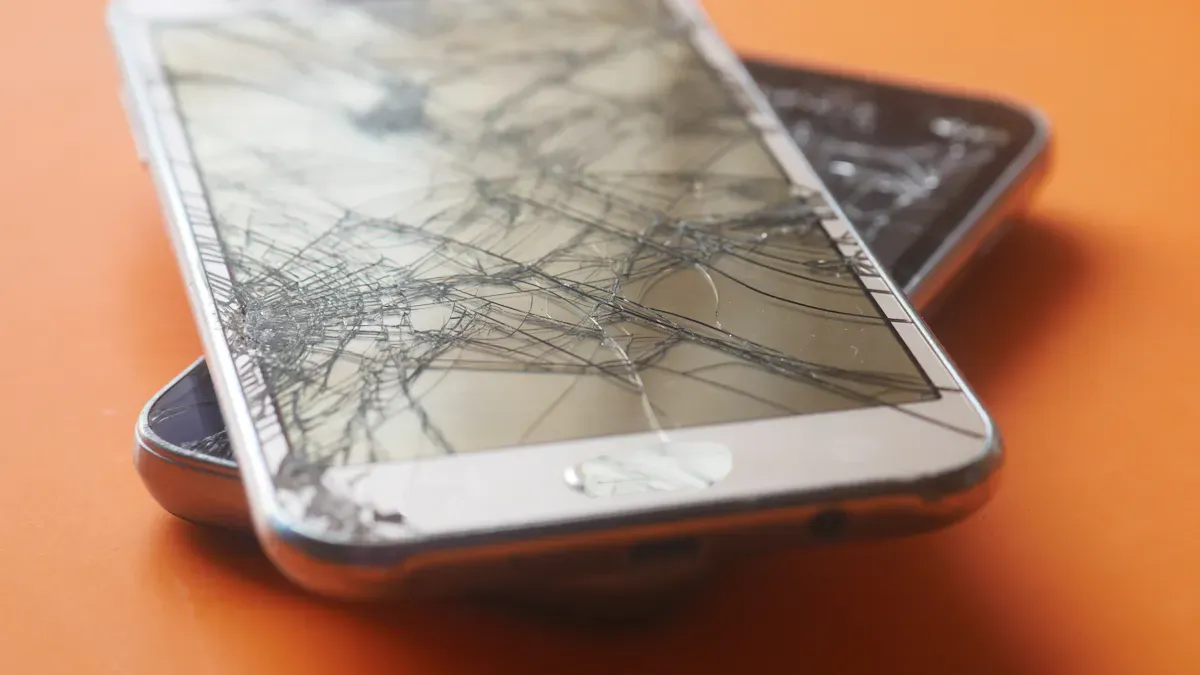
An LCD screen can break if you drop your device or push on it too hard. Even a small bump can make tiny cracks in the glass. These cracks might not show up right away. Later, you could see dark spots, marks that look like ink, or even liquid crystal leaking out.
Common signs of physical damage are:
Cracks or spiderweb shapes on the screen
Black spots, lines, or dead pixels
Flickering, weird colors, or a blank screen
Touch not working near cracks
Broken glass with loose pieces
If you see lines, color patches that stay, or parts that look darker or lighter, your lcd panel might be hurt. Smartphone lcd screens break more often because people use them a lot and take them everywhere.
Electrical and Power Issues
Electrical problems can make lcd screens act strange. Bad voltage, loose wires, or weak power can mess up your lcd screen. These things can cause flickering, blinking, or uneven light.
Cause of Malfunction | Description |
|---|---|
Makes the LED backlight flicker and brightness change. | |
Loose Connections | Can make the screen flicker or blink sometimes. |
Inadequate Power Supply | Not enough power can make the screen flicker or not light up all the way. |
If your monitor or lcd screen flickers or changes brightness, check the power and cables. Good power helps stop many lcd display problems.
Environmental Factors Affecting LCD Display
Things around you can change how your lcd screen works. Very hot or cold weather can hurt the liquid crystals inside. Cold can freeze the crystals. Heat can make the screen get old faster. Wet air can make water drops inside the lcd panel. This can cause rust and make your device not work well.
Keep your lcd screens away from sunlight, heaters, or cold places. Keeping your screen dry also helps stop damage over time.
LCD Burn and Backlight Problems
LCD burn, or image retention, happens when the same picture stays on the screen too long. This can leave a ghost image that does not go away. You might see this if you leave a menu or picture on your monitor for hours.
Backlights can also get old. After a while, the backlight in your lcd screen gets dim and may change color. Old CCFL backlights can turn yellow after about 8,000 hours. LED backlights last longer but still get dim after a lot of use. Signs of old backlights are:
The whole screen looks dim
Brightness is not even everywhere
The screen looks gray or yellow
These changes happen slowly, so you might not see them at first. Using screensavers and turning down brightness can help stop lcd burn and slow down backlight aging.
How to Recognize LCD Display Issues
Common LCD Screen Symptoms
You can spot many lcd display issues by looking for certain signs on your screen. These signs help you understand if your lcd screen does not display as it should. Here is a table that shows some common display problems and what they look like:
Symptom | Description |
|---|---|
Dead Pixels | Pixels that stay black or do not change color. |
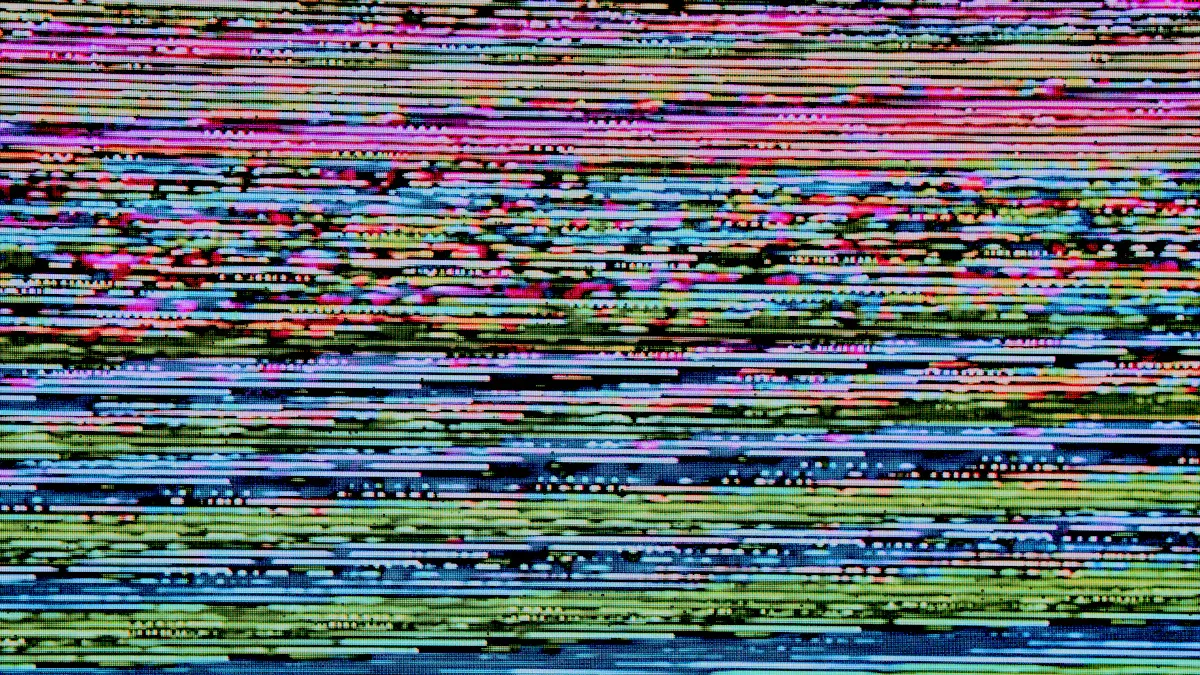
Flickering | The screen brightness changes quickly or flashes. |
Discoloration | Colors look wrong or do not match what you expect. |
Faint images stay on the screen after you change what is showing. | |
Cracked or Damaged LCD Panels | Lines, black spots, or broken areas on the screen. |
Touchscreen Malfunctions | The screen does not respond to your touch or acts on its own. |
Stuck Pixels | Dots that stay one color and do not move or change. |
Dim Backlight or Screen Not Lighting Up | The screen looks dark or you can barely see the image. |
You may also notice early signs of lcd burn, such as ghost images that do not go away. Recognizing the early signs of lcd burn can help with prevention and fixing lcd residual images before they get worse. Water or moisture exposure can cause discoloration or make the screen stop working.
Simple Diagnostic Steps
You can try some easy steps at home to find out what is wrong with your lcd display. Here is how to diagnose lcd issues:
Look closely at your screen for cracks, spots, or lines.
Show solid colors (red, green, blue, white, black) to check for color problems or stuck pixels.
Use built-in tools on your monitor or computer to test the display settings.
Turn off the lights and see if the backlight works or if the screen not lighting up is a problem.
If you know how, use a multimeter to check for electrical malfunction.
Try apps like Display Tester or Phone Check and Test for more checks.
On Windows, right-click the desktop and go to Display settings. On Mac, open System Preferences and choose Displays.
If you still see problems, look for solutions and repair options from a professional.
By following these steps, you can find out what is wrong with your lcd and decide if you need help. Early checks help with prevention and keep your display working longer.
Proven Strategies to Prevent LCD Burn and Other Issues
Handling and Usage Tips for LCD Display
You can keep your lcd screen safe by being careful. Always use both hands when you carry your monitor or phone. This helps stop cracks and keeps your lcd panel safe. Do not put heavy things on your device. Gentle pressure keeps the display from breaking. Keep sharp objects away from your lcd display. Do not press hard on the screen.
Tip: Clean your lcd display often with a soft, lint-free cloth. Dust can build up and cause problems later.
Keep your lcd panel at normal temperatures. Too much heat or cold can hurt the liquid crystals inside. Use a surge protector to protect your monitor from power surges. This stops electrical faults and keeps your lcd display working longer.
Do not use strong chemicals like acetone or alcohol to clean the screen.
Handle the lcd gently and avoid quick movements.
Keep your lcd panel dry and away from water.
Preventing LCD Burn with Screensavers and Power Settings
You can stop lcd burn by not leaving the same picture on your screen for too long. If you keep the same menu or image on your lcd screen, lcd burn can happen. Change what shows on your monitor often to help prevent lcd burn.
Here is a table that shows how screensavers and power settings help stop lcd burn:
Strategy | Effectiveness | Example |
|---|---|---|
Regularly change content | High | Using a screensaver that changes often |
Lower brightness | Medium | Keeping brightness at 50% instead of 100% |
Use sleep mode | High | Setting device to go to sleep after not using it |
Set your monitor or lcd display to use a screensaver that moves or changes. This stops static images and lowers lcd burn. Turn down the brightness on your lcd screen. High brightness makes lcd burn and backlight aging happen faster. Use sleep mode or power-saving settings. Your lcd panel will turn off when not in use, which helps stop lcd burn.
Note: If you see ghost images or faint shapes that stay after changing content, act fast. Change the display often and use screensavers to help remove these signs.
Do not leave your monitor on for a long time. Turn off your lcd display when you finish using it. This easy step helps keep your lcd screen safe and stops burn.
Cleaning and Environmental Protection
Taking care of your lcd screen means cleaning it often and keeping it safe from bad environments. Always turn off your lcd device before cleaning. This stops electrostatic shock and keeps your lcd panel safe.
Use a lint-free, soft cloth for cleaning. Do not spray water or cleaning solutions right onto the screen. For deeper cleaning, mix one part water with one part isopropyl alcohol. Do not use benzene, thinner, or ammonia-based liquids. These can hurt your lcd display.
Cleaning Method | Details |
|---|---|
Safe Cleaners | Use water, isopropyl alcohol (IPA), and hexane. Do not use ketone-type cleaners, ethyl alcohol, toluene, ethyl acid, or methyl chloride. |
Cleaning Technique | Use a lint-free, soft cloth. Do not let moisture get inside the display. |
Pre-Cleaning Step | Always turn off the device before cleaning to stop electrostatic shock. |
Recommended Solution | Mix 1 part water with 1 part isopropyl alcohol for safe cleaning. |
Caution | Do not use benzene, thinner, or ammonia-based liquids as they can hurt the screen. |
Keep your lcd panel away from sunlight, heaters, and cold places. Moisture can cause rust and damage the lcd. Protect your lcd display from humidity and spills. If you see signs of water damage, like discoloration or touch problems, dry your lcd screen and get help.
Tip: Clean your lcd display often and check for dust, dirt, or moisture. This helps keep your lcd screen clear.
By following these proven strategies to stop lcd burn and other lcd display issues, you can make your lcd panel last longer. Careful handling, regular cleaning, and smart use of screensavers and power settings help stop problems. You keep your lcd display bright, clear, and free from burn.
What to Do If LCD Display Issues Occur
Basic Troubleshooting for LCD Screen
If your lcd screen is not working right, start with easy checks. First, look at the screen for cracks, water drops, or weird colors. Check all connectors, ribbon cables, and solder joints for damage. If you think there is a power problem, use a multimeter to check the voltage. Test the backlight if the screen looks dim or you cannot see the image. Try using other cables or a different controller board to find out if the problem is with the hardware or software.
You can use these steps to fix lcd screen problems:
Look for cracks or other damage on the screen.
Make sure the power is steady and check for power problems.
Test the backlight and see if the brightness is okay.
Try new cables or another controller board.
Think about things like heat, cold, or wet air.
Show test images to find ghosting, stuck pixels, or uneven light.
Tip: Restart your device to clear out old data and reset settings. This can fix small problems.
Also, check the power connections and make sure no cables are loose or switches are off. Problems with the lcd panel, backlight, or inverter are common and need to be checked.
Limitation | Explanation |
|---|---|
Inability to address hardware failures | Easy checks cannot fix broken hardware that causes display trouble. |
Overlooking environmental factors | Simple checks may miss problems from heat or water. |
Ignoring complex signal issues | Easy steps may not fix signal problems that need special tools. |
Driver faults | Easy checks do not usually fix driver problems. |
Connection failures | Simple checks might miss some connection problems. |
Backlight degradation | Easy steps do not check for old or weak backlights. |
When to Seek Professional Help
If your lcd screen still does not work after these steps, you should get help from an expert. If your device has a warranty, call the repair service. The company might fix it for free. If your warranty is over, you will have to pay for repairs.
Here are the usual repair costs:
Device Type | Average Cost Range |
|---|---|
Smartphones | |
Tablets | $80 – $250 |
Laptops | $100 – $350 |
Experts can fix problems that you cannot fix at home, like broken hardware or old backlights. If your lcd screen still does not work after you check cables, power, and settings, ask a trained technician for help. This keeps your device safe and stops more damage.
Note: If you see signs of broken hardware or cannot fix the problem, getting professional repair is the best choice.
You can keep your LCD screen safe by checking it often. If you notice problems early, fixing them costs less and is easier. Cleaning your device, using screensavers, and changing brightness are good ways to help. The table below shows more ways to stop display issues:
Strategy | Application Area |
|---|---|
Understand the Environment | Home, Work, Medical Devices |
Shielding and Grounding | All Electronic Devices |
Filtering and Signal Processing | Monitors, TVs, Laptops |
Watch your screen for any changes. These steps help your LCD stay clear and last longer. 😊
How to Diagnose and Fix Common LCD Display Issues
LCD displays are generally reliable, but problems do occur. Many issues can be fixed without professional repair – provided you correctly diagnose the root cause. Below is a systematic guide to the most common LCD problems, their typical symptoms, and practical solutions.
⚠️ Safety First
Always disconnect power before cleaning or opening any display.
If you need to open the monitor, be aware that capacitors can hold dangerous charge even when unplugged. If you are not experienced with electronics repair, seek professional help.
Do not apply excessive pressure to the LCD panel – it is fragile.
1. No Picture, No Power – Monitor Completely Dead
Symptoms: Screen stays black, no power LED, no response.
Possible Causes:
Power cord not connected or faulty.
No power from outlet.
Internal power supply failure (blown fuse, bad capacitor).
Diagnosis & Fix:
Check that the power cord is firmly plugged into both the monitor and a working outlet.
Test the outlet with another device (e.g., lamp).
If the monitor has an external power brick, try a different one with the same voltage and polarity.
If internal, the power supply board may need repair – replace blown fuses or bulging capacitors. Otherwise, replace the power board.
2. Power LED On, But Screen is Black (Backlight Failure)
Symptoms: Power light is on (green or blue), but screen remains completely dark. Shine a flashlight at an angle – if you see a faint image, the backlight is dead.
Possible Causes:
Backlight inverter (older CCFL) or LED driver failed.
Bad backlight strip (LEDs burnt out).
Diagnosis & Fix:
Shine a bright flashlight close to the screen. If you see a faint image, backlight is the issue.
For edge‑lit or direct‑lit LED backlights, disassemble the monitor and test LED strips with a multimeter (or try a known‑good LED tester).
Replace faulty LED strips or the inverter/driver board. This requires moderate soldering skill.
3. Flickering Screen
Symptoms: Screen brightness fluctuates rapidly or image flickers.
Possible Causes:
Loose video cable.
Incorrect refresh rate setting.
Backlight flicker (PWM dimming) at low brightness.
Failing capacitor on the power board.
Diagnosis & Fix:
Reseat both ends of the video cable (HDMI, DVI, VGA, DisplayPort).
Try a different cable.
Adjust the refresh rate in your operating system (e.g., 60Hz instead of 75Hz).
Increase brightness to maximum – if flickering stops, it is normal PWM flicker (some monitors have a “flicker‑free” setting).
If flickering persists, open the monitor and inspect capacitors on the power board for bulging or leaking – replace as needed.
4. Dead Pixels (Stuck or Black)
Symptoms: Single pixels or small clusters that are permanently black (dead) or permanently coloured (stuck) and do not change with displayed content.
Possible Causes:
Manufacturing defect (common).
Physical pressure damage.
Diagnosis & Fix:
Stuck pixels (always bright) may be fixed by running pixel‑fixing software that rapidly cycles colours, or by gently massaging the area with a soft cloth (power off, then on). Success rate ~50%.
Dead pixels (always black) are almost impossible to fix – manufacturer warranty often requires a minimum number (e.g., 5‑10) for replacement.
5. Lines on Screen (Horizontal / Vertical)
Symptoms: One or more lines running across the screen – can be coloured, white, or black.
Possible Causes:
Loose or damaged ribbon cable (flex cable) connecting the LCD panel to the driver board.
Faulty driver IC (chip bonded to the glass).
Physical damage to the panel.
Diagnosis & Fix:
Gently press on the bezel near the line – if the line changes or disappears, the cable is loose.
Open the monitor, reseat the flat flex cables (clean contacts with isopropyl alcohol).
If a line is persistent and does not respond to pressure, the panel or driver IC is likely damaged – replacement is the only solution.
6. White Cloud / Uneven Backlight (Clouding)
Symptoms: Irregular bright patches visible on dark backgrounds, especially near edges.
Possible Causes:
Uneven pressure from the bezel or mounting.
Dust or moisture between diffuser sheets.
Deformed light guide plate.
Diagnosis & Fix:
Gently massage the area around the cloud with a soft cloth (power off) – sometimes redistributes stress.
If due to moisture, place the monitor in a warm, dry room for 2‑3 days.
For severe clouding, open the monitor and carefully reposition or clean the diffusion layers. This is advanced repair.
7. Colour Distortion / Wrong Colours
Symptoms: Colours look washed out, overly warm (reddish), or overly cool (bluish).
Possible Causes:
Incorrect colour temperature or RGB settings.
Loose or damaged video cable.
Failing backlight (CCFL age) or LCD panel.
Diagnosis & Fix:
Reset monitor OSD settings to factory defaults.
Check colour temperature setting – use “sRGB” or “Normal” instead of “Cool” or “Warm”.
Replace the video cable.
If only on one input, the source device may be faulty.
8. Image Persistence / Burn‑In (Temporary)
Symptoms: Faint ghost of a previous image remains after content changes, especially after long static display (e.g., taskbar). Usually fades after a few minutes.
Possible Causes:
Temporary image retention common in IPS and VA panels (not permanent like OLED burn‑in).
Diagnosis & Fix:
Display a full‑screen white or moving image (e.g., “screensaver”) for 10‑30 minutes.
Use the monitor’s “pixel refresh” or “image retention removal” feature if available.
Avoid displaying static images for extremely long periods.
9. Intermittent Power or Display
Symptoms: Monitor turns off and on randomly, or loses signal intermittently.
Possible Causes:
Faulty power or video cable.
Overheating (dusty vents, failed fan).
Bad capacitor on power board.
Diagnosis & Fix:
Replace both power and video cables.
Clean ventilation grilles and ensure fan (if present) spins freely.
Open monitor and inspect capacitors – bulging or leaking caps need replacement.
Summary Table – Quick Diagnostic Guide
Symptom | Most Likely Cause | DIY Fixable? |
|---|---|---|
Completely dead | Power supply, cable, outlet | Check cables/outlet; replace power supply |
Black screen with backlight visible | Backlight failure | Replace LED strips / inverter |
Flickering | Loose cable, refresh rate, caps | Reseat cable; change refresh rate; replace caps |
Stuck pixel | Manufacturing | Pixel massage or software (50% success) |
Dead pixel | Manufacturing | Not fixable – replace panel |
Lines on screen | Loose flex cable | Reseat cable (if persistent, panel damaged) |
White cloud (clouding) | Uneven pressure / moisture | Massage bezel; dry out; reposition diffusers |
Colour distortion | Settings, cable, backlight age | Reset OSD; replace cable |
Image retention | Temporary LCD persistence | Run moving image for 30 minutes |
Intermittent power | Bad cables, overheating, caps | Replace cables; clean vents; replace caps |
When to Replace vs. Repair
Replace if:
The monitor is more than 5‑7 years old and repair cost > 50% of a new monitor.
The LCD panel itself is cracked, has many dead pixels, or has deep physical damage.
You are not comfortable with electronic repair.
Repair if:
It is a simple fix (cables, capacitors, LED strips).
The monitor is expensive (professional or medical grade).
You have the skills and tools.
Tools You Might Need
Multimeter
Screwdrivers (Phillips, Torx)
Plastic spudgers / pry tools
Isopropyl alcohol (90%+) and lint‑free cloths
Soldering iron (for capacitor or LED strip replacement)
LED backlight tester
Final Advice
Before attempting any repair, always check the simplest things first – cables, power outlet, and OSD settings. Many “broken” monitors are fixed with a new HDMI cable or a factory reset. If you are unsure, consult a professional repair shop – LCD panels are delicate, and mistakes can turn a repairable monitor into e‑waste.
FAQ
What should you do if your LCD screen shows dead pixels?
You can try a pixel-fixing app or gently rub the area with a soft cloth. If the pixel stays stuck, you may need professional help. Most dead pixels do not spread.
How can you tell if your LCD backlight is failing?
A dim or uneven screen often means the backlight is weak. You might see yellow or gray areas. If you turn up the brightness and the screen still looks dark, the backlight may need repair.
Can you fix LCD burn at home?
You can reduce LCD burn by using a moving screensaver or changing the image often. Lower the brightness and let the screen rest. Severe burn may not go away completely, but these steps help.
What is the safest way to clean your LCD display?
Turn off your device first. Use a soft, lint-free cloth. Lightly wipe the screen. Do not spray liquid directly on the display. Avoid strong cleaners like alcohol or ammonia.
How do you diagnose common LCD display issues?
Show solid colors to spot stuck pixels. Check cables for loose connections. Test the screen in a dark room to see if the backlight works. If problems stay, ask a technician for help.
See Also
Understanding LCD Display Screens And Their Functionality
Pros And Cons Of Using LCD Display Screens
Essential Insights On The Benefits And Drawbacks Of LCD Displays
