What Causes Dark Spots on LCD Monitors and How to Identify Them
Shenzhen TopAdkiosk Display Technology Co., Ltd.
Add.: 2F, Bldg 10, Changfeng Industrial Park, Dongkeng, Fenghuang, Guangming, Shenzhen, China 518132
Mobile/WHATSAPP: 86-138 25769658
Email: marketing@topadkiosk.com topadkiosk@gmail.com
Skype: pghenry1
Wechat: adkioskhenry
English Web.: https://www.topkioskdisplay.com/
http://www.ad-kiosk.com/
https://www.toplcddisplay.com/
http://www.multitouchdigitalsignage.com/
https://www.youtube.com/channel/UCYVYNJHxLVEcQD8fuUxXNTA/videos?view_as=subscriber
https://www.facebook.com/TOPADKIOSKSHENZHEN/?ref=bookmarks
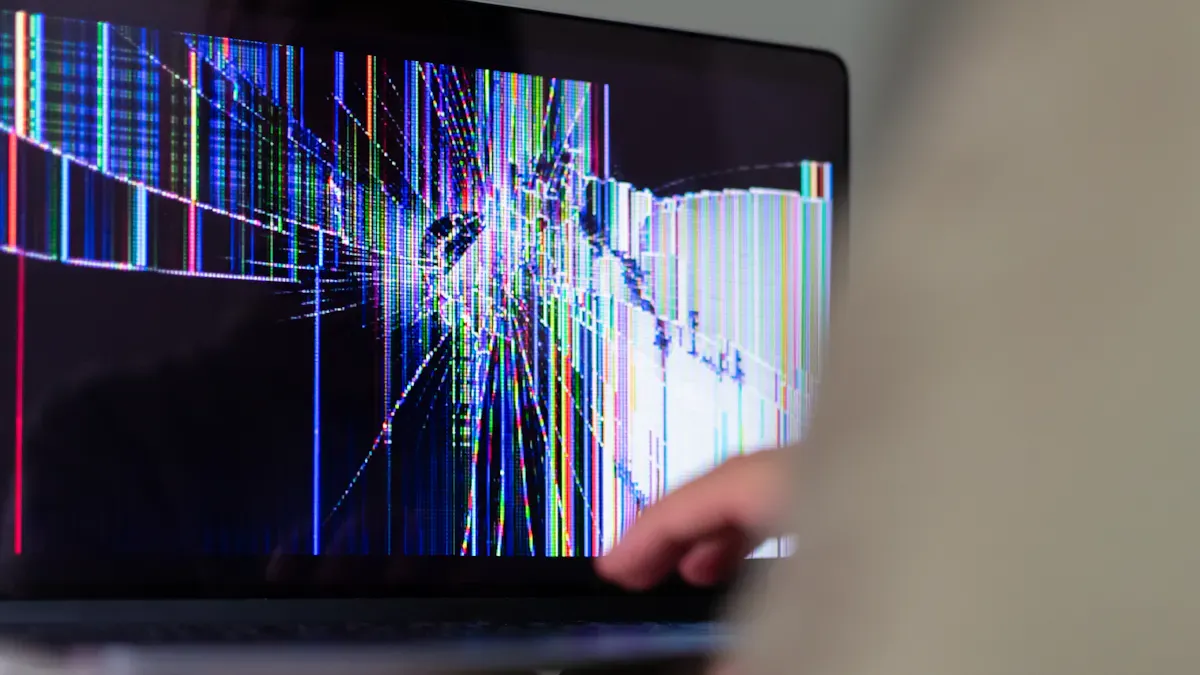
You might notice a dark spot on your LCD monitor. This dark spot on LCD monitor can appear as a patch or a mark, and it may bother you while you work or play games. It can also distract you when watching videos. Some dark spots on LCD monitor are caused by dirt, stuck pixels, or dead pixels. Other spots might indicate your LCD monitor has bigger issues. Check the table below to see how each cause affects your screen:
Cause | Impact on Performance |
|---|---|
Superficial Dirt | Does not affect how your LCD monitor works; you can clean it easily. |
Stuck Pixel | The dark spot on LCD monitor can be annoying to see; you might need tools to fix it. |
Dead Pixel | Creates a dark spot on LCD monitor that stays permanently; it can make using your screen much harder. |
You can identify these problems and try to improve your LCD monitor.
Key Takeaways
You can find dark spots on your LCD monitor by looking for dirt, dead pixels, or damage. Try using a white or black background to see problems better.
Clean your LCD screen often with a microfiber cloth to get rid of dust and dirt. This easy step helps you not mistake dirt for bigger issues.
Be gentle with your monitor so you do not cause marks or damage. Always use both hands to close laptops and do not press on the screen.
If cleaning does not fix the dark spot, you can try pixel-fixing software for stuck pixels. If you have dead pixels, you might need a professional to help.
To stop dark spots from happening, use a screen protector and keep your device in a cool, dry place. This helps prevent new spots in the future.
Types of Dark Spots on LCD Monitors

There are a few usual kinds of lcd screen dark spots you might see. Each kind looks different and can help you figure out why your screen has strange colors.
Dead Pixels and Stuck Pixels
You might see tiny black dots or bright colored dots that do not move. Dead pixels look like black spots, especially when the background is white. Stuck pixels show up as red, green, or blue dots, and you see them best on a black background. These pixel spots are the least serious type of lcd screen dark spot. Dead pixels are always black because they do not get power. Stuck pixels show bright colors because one part of the pixel is broken. You can try showing solid colors to find which pixels are not working right.
Tip: Try using a pure white or pure black background. This makes it easier to see dead pixels or stuck pixels.
Pressure Marks and Physical Damage
Pressure marks and damage make the screen look cloudy or have soft, odd shapes. If you press gently on the lcd, you might see a water ripple effect. If the screen is hurt badly, the dark spot will not go away with software. Indentation marks can happen if you do not handle or move the lcd carefully. These spots are seen more often in lcds that are between one and three years old.
Dust, Dirt, and Debris
Black spots can come from dust, dirt, or small bits on the screen. These spots change how the screen looks but do not stop the lcd from working. You can usually clean these marks off with a cloth. Surface stains are easy to see because they move or go away when you wipe the screen.
Backlight and Panel Issues
Backlight and panel problems can make the screen look cloudy, have shadows at the edges, or be dim in the corners. You might notice glowing spots or uneven light, especially when the screen is dark. Mura is a kind of screen problem that shows up as dark or light patches. This happens when the liquid crystal layers or backlight are not even. Big stains can show up after the lcd gets hit hard or gets too hot.
Type | Appearance | How to Spot It |
|---|---|---|
Dead Pixel | Black dot | White background |
Stuck Pixel | Red, green, or blue dot | Black background |
Pressure Mark | Cloudy, soft patch | Ripple effect, irregular shape |
Dust/Dirt | Surface black spot | Moves/disappears when cleaned |
Backlight Issue | Cloudy patch, edge shadow | Uneven glow in dark scenes |
You can use these clues to find the common types of lcd screen dark spots. This helps you know what is causing the strange colors on your lcd monitor.
Causes of Black Spots on LCD Screens
You might wonder why you see a dark spot on your lcd monitor. There are many reasons for lcd screen dark spot problems. If you know the main lcd dark spot causes, you can find problems early and fix them.
Physical and Mechanical Causes
Physical and mechanical problems are common reasons for lcd black spot. You may see black spots after your monitor gets hit or pressed. These dark spot causes include:
Cause | Description |
|---|---|
Superficial Dirt or Debris | Dust or dirt can stick to the screen and make it look discolored. |
Pressure or Impact Damage | Dropping or pressing the lcd can break layers and cause a permanent lcd black spot. |
Liquid Crystal Leakage | If the seal breaks, liquid crystal can leak and make dark patches. |
High Temperatures | Heat can hurt the lcd and make leaks and discoloration more likely. |
Look for cracks, dents, or stains on your screen. These physical causes often make lcd screen dark spot that does not clean off. Liquid crystal leakage is a big reason for lcd dark spot causes. When this happens, you might see dark areas that get bigger and colors that look wrong.
Electrical and Backlight Failures
Electrical problems and backlight failures also cause lcd black spot. These problems can make new or spreading discoloration on your lcd. Some lcd dark spot causes here are:
Dead pixels and stuck pixels: These look like small lcd black spot or colored dots. They happen when the pixel’s transistor stops working.
Backlight issues: The backlight can stop working from age, heat, or damage. This makes the screen look uneven, with dark patches and discoloration.
Connection problems: Loose or broken connections inside the lcd can make lines, bands, or lcd screen dark spot.
High temperatures: Heat can break electrical parts and make lcd dark spot causes happen more.
Electrical failures can make the screen change color suddenly. Backlight problems can make the lcd look dim or patchy, especially in dark scenes.
Manufacturing Defects and Aging
Manufacturing defects and aging are also lcd dark spot causes. These problems can show up soon or after years of use. Some common causes are:
Uneven liquid crystal distribution: If the factory does not spread the liquid crystals right, you may see lcd screen dark spot and discoloration.
Impurities in the backlight: Dust or particles inside the lcd can block light and make dark spot on lcd monitor.
Poor soldering: Weak connections can break and cause dead pixels and lcd black spot.
Inadequate sealing: Bad seals can let liquid crystal leak, which makes dark areas and discoloration spread.
Aging: Over time, the lcd parts wear out. This can cause dead pixels, flickering dots, and more lcd dark spot causes.
As your monitor gets older, you may see more lcd black spot. Aging also makes leaks and discoloration more likely.
Liquid Crystal and Polarizer Issues
Problems with the liquid crystal layer and polarizer are important lcd dark spot causes. These layers control how light moves through your lcd. If they break, you see discoloration and dark patches. Main dark spot causes here are:
Liquid crystal leakage: This is a serious lcd dark spot cause. When liquid crystal leaks, it messes up the display and makes black spots and discoloration spread.
Polarizer damage: If the polarizer layer gets scratched or old, you may see lcd screen dark spot and uneven colors.
Filter and lamp issues: Problems with the color filter or lamp can make the screen look discolored and cause dark spot on lcd monitor.
Watch for changes in brightness, color, or dark areas that spread. These signs often mean liquid crystal leakage or polarizer problems.
Note: Most lcd dark spot causes make the screen look discolored. You might see black spots, gray patches, or faded colors. Always check for liquid crystal leakage because it is a main cause of lcd black spot and screen discoloration.
Summary Table: Common Causes of LCD Black Spot
Category | Main Dark Spot Causes |
|---|---|
Physical/Mechanical | Dirt, impact, pressure, liquid crystal leakage, high temperatures |
Electrical/Backlight | Dead pixels, stuck pixels, backlight failure, connection problems, heat |
Manufacturing/Aging | Defect, uneven liquid crystal, impurities, poor soldering, inadequate sealing, aging |
Liquid Crystal/Polarizer | Liquid crystal leakage, polarizer damage, filter/lamp issues |
Now you know the main lcd dark spot causes. If you understand these causes of black spots, you can find and stop screen discoloration on your lcd monitor.
Diagnosing an LCD Black Spot
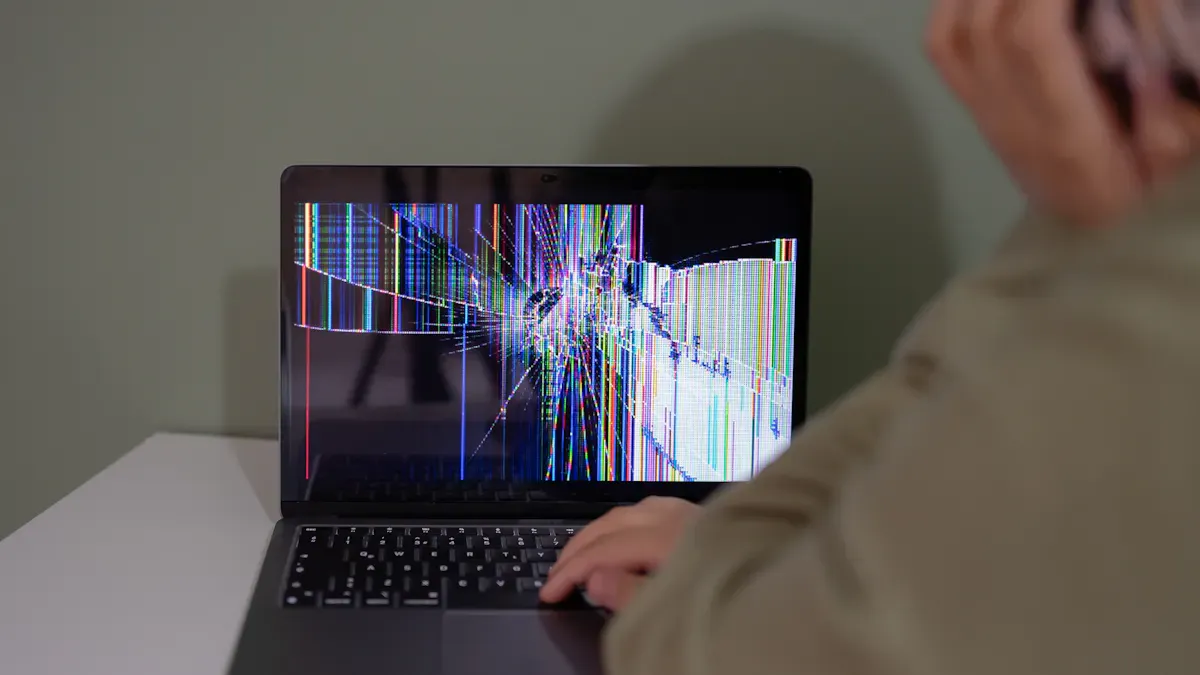
When you see a lcd black spot or screen discoloration, you can use simple steps to find the cause. These methods for detecting black spots help you decide if you can fix the problem or if you need help.
Visual Inspection Steps
Start by looking at your lcd in different lighting. Check the screen from different angles. You may notice that some black spots on lcd screens look darker or lighter depending on where you sit. Use a clean, dry cloth to wipe the screen. If the spot moves or disappears, it was likely dust or dirt. Look for cracks, dents, or signs of pressure. These can cause lcd screen dark spot and discoloration that do not go away with cleaning.
Tip: Use a flashlight to check for uneven brightness or clouding. This can help you spot screen discoloration that is hard to see in normal light.
Simple Screen Tests
You can use easy screen tests to find the type of lcd black spot. Try these methods for detecting black spots:
Show a pure white image. Dead pixels will appear as black dots.
Show a pure black image. Stuck pixels will show as bright colored dots.
Cycle through red, green, and blue screens. Stuck pixels will stay colored.
Use a grayscale image to check for brightness changes and discoloration.
Gently press the area. If the spot changes, it may be a pressure mark.
These tests help you see if the lcd screen dark spot comes from pixels, backlight, or physical damage.
Identifying External Factors
Check your environment for dust, oil, or moisture. Fine particles can settle on the lcd and cause screen discoloration. High humidity or temperature can make discoloration worse. If you see clouding or spreading black spots on lcd screens, moisture or aging hardware may be the cause.
When to Seek Professional Help
If you see large lcd black spot, cracks, or spreading discoloration, you should contact a professional. Persistent problems or severe screen discoloration often need expert repair. If you cannot find the cause or the spot gets bigger, do not try to fix it yourself.
Note: Quick action can stop more damage. If you feel unsure, ask for help to protect your lcd.
How to Fix an LCD Black Spot and Prevent Future Issues
If you see a dark spot on lcd monitor, you might feel worried about screen discoloration or lcd black spot. You can often fix dark spots on lcd with simple steps. Sometimes, you may need to repair or replace parts. You can also use preventive measures for lcd black spot to avoid future problems. This section will guide you through cleaning, repair, and how to prevent dark spots.
Cleaning and Easy Fixes
Many lcd screen dark spot problems come from dust or dirt. These spots do not cause real damage, but they can look like lcd black spot or discoloration. Cleaning your lcd helps you see if the problem is just on the surface.
Here is a simple table to show you the best way to clean your lcd:
Step | Description |
|---|---|
1 | Power off the device to avoid electrical damage. |
2 | Lightly dampen a microfiber cloth (avoid excess liquid). |
3 | Wipe the screen in gentle circular motions. |
Note | Never spray liquid directly onto the screen to prevent damage. |
You should always use a damp, lint-free microfiber cloth. Make sure the lcd is turned off before you start. Gently rub the cloth across the screen until the black spot is gone. If the spot disappears, you have fixed the lcd screen dark spot caused by dirt. This easy cleaning step can also help you avoid misdiagnosing a more serious lcd black spot.
Tip: Cleaning your lcd regularly keeps the screen clear and helps prevent dark spots on lcd screens from building up.
Repairing or Replacing Components
If cleaning does not fix dark spots on lcd, you may need to repair or replace parts. Some lcd black spot problems come from dead pixels, stuck pixels, or backlight issues. You can try a few things before choosing full screen replacement.
For stuck pixels, you can use pixel-fixing software. This software flashes colors to try to unstick the pixel.
For dead pixels, repair is not always possible. Sometimes, gentle pressure with a soft cloth can help, but do not press too hard.
If you see large areas of discoloration or spreading lcd black spot, the problem may be inside the lcd. You might need a full screen replacement if the damage is severe.
Backlight or panel issues often need professional repair. If you notice uneven brightness or big patches of screen discoloration, ask a technician for help.
Repair costs can vary. For phones, repair prices usually range from $90 to $350. For flagship models, the cost can go up to $400 or more. Full screen replacement is more expensive, but it is sometimes the only way to fix dark spots on lcd that will not go away.
Note: If you see cracks, liquid crystal leakage, or spreading discoloration, do not try to repair the lcd yourself. Professional repair or full screen replacement is safer.
Preventive Maintenance Tips
You can prevent dark spots on lcd screens by taking care of your device. Preventive measures for lcd black spot help you avoid future repair costs and keep your screen looking new. Here are some easy tips:
Handle your lcd with care. Do not press on the screen. Use both hands when closing a laptop.
Keep your lcd clean. Use a microfiber cloth and screen-safe cleaner often.
Add protection. Use a screen protector and keyboard cover.
Change your wallpaper and use screensavers. This helps prevent burn-in and screen discoloration.
Store your lcd in a cool, dry place. Avoid direct sunlight and high humidity.
Make sure your device has good airflow. Clean vents to stop overheating.
Update your graphics drivers and calibrate colors. This keeps the display working well.
Shut down your device properly. Do not keep it plugged in at 100% all the time.
Use a padded sleeve when traveling. Avoid tight storage that can press on the lcd.
You can also lower the brightness to slow down burn-in and discoloration. Use sleep mode or turn off the display when you are not using it. If you must show static images, use high contrast and change the content often.
Tip: Regular cleaning and careful use are the best ways for how to prevent dark spots and screen discoloration.
By following these steps, you can fix dark spots on lcd, avoid costly repair, and keep your lcd free from screen discoloration. Remember, knowing how to fix an lcd black spot and using preventive measures for lcd black spot will help your device last longer.
You can find dark spots on your LCD in a few ways. Look for backlight problems, dust, or transistor failures. Check for signs of mechanical stress and manufacturing defects too. Use a white or gray screen in a dim room. Look at the screen from different angles. Finding the cause is important because each problem needs a different fix. Protect your screen with a screen protector. Handle your device gently and store it in a safe place. Most LCD problems can be fixed if you follow these steps and ask for help when you need it.
Dark Spots on LCD Screens: What You Need to Know
Dark spots on an LCD screen can be annoying, alarming, or simply a nuisance. But not all dark spots are the same. Some are fixable; others are permanent. Understanding what you’re looking at is the first step toward deciding whether to live with it, try a DIY fix, or replace the screen.
🧩 Common Types of Dark Spots
Type | Appearance | Typical Cause | Fixable? |
|---|---|---|---|
Dead pixel | A single black (or white) dot that never changes colour. | Manufacturing defect or physical damage. | ❌ Rarely fixable. Usually permanent. |
Stuck pixel | A single coloured dot (red, green, blue, yellow) that stays on. | Pixel stuck in one position. | ✅ Sometimes fixable (massage or software). |
Pressure mark | A small, dark, often circular or crescent-shaped blotch. | Finger pressure, impact, or object pressing against the screen. | ⚠️ Mild cases may improve; severe marks are permanent. |
Liquid crystal leakage | Irregular “ink‑blot” dark patch with flowing edges; shape changes when pressed. | Physical damage to the panel seal (drop, impact). | ❌ Not repairable. Replace panel/monitor. |
Backlight bleeding | Uneven bright patches (usually white or yellow) on dark backgrounds – not truly dark spots, but can look like uneven grey/black. | Poor sealing, uneven bezel pressure. | ⚠️ Normal to some extent; can be reduced by adjusting bezel. |
Dust / debris inside | Small, sharp‑edged dark specks that do not move. | Particles entering between layers during manufacture or over time. | ✅ Can be cleaned by professional disassembly (high risk). |
Dead backlight LED | A dark strip or patch along one edge (for edge‑lit displays) or a small dark zone (direct‑lit). | LED failure. | ✅ Replace backlight strip (requires disassembly). |
🔍 How to Diagnose the Type of Dark Spot
Follow these steps to narrow down the cause:
Step 1: Press gently on the dark spot (power off, then on)
Shape changes? → Likely liquid crystal leakage (not fixable).
No change? → Proceed.
Step 2: Display a solid colour background (white, red, green, blue)
Use online pixel test tools or full‑screen colour images.
Spot stays black on all colours? → Dead pixel (probably permanent).
Spot changes colour or disappears on some colours? → Stuck pixel (possibly fixable).
Spot is only visible on dark backgrounds (black/grey), but not on white? → Backlight bleed or pressure mark.
Step 3: Look at the spot from an angle
Spot disappears at an angle? → Backlight bleed (normal optical effect).
Spot remains dark from all angles? → Dead pixel or dust.
Step 4: Shine a flashlight at an angle across the screen (power off)
You see a physical dent or distortion on the surface? → Pressure mark.
You see a dark, sharp‑edged particle between layers? → Dust inside.
You see a “wet” looking irregular stain? → Liquid crystal leakage.
🛠️ Possible Fixes (With Realistic Expectations)
1. Stuck Pixel – Try these (50% success rate)
Pixel massage (gentle rubbing) – Use a soft, lint‑free cloth wrapped around a blunt object (e.g., pen cap). Gently rub the stuck pixel in small circles for 10‑20 seconds while the screen is on (cycling colours). Do not press hard.
Software flashing – Run a stuck‑pixel fixer video (rapidly cycling RGB colours) on full screen for 10‑30 minutes. Search YouTube for “stuck pixel fixer”.
Pressure + heat trick (riskier) – Apply very gentle pressure with a warm (not hot) cloth. Not recommended for laptops or tablets.
2. Pressure Mark – Mild cases only
Power off the screen.
Use a microfiber cloth and very gently massage the area in expanding circles for 30‑60 seconds.
Power on and check. Repeat 2‑3 times. Do not press hard – you can make it worse.
Result: May reduce or eliminate shallow marks; deep marks are permanent.
3. Backlight Bleed – Reduce (not eliminate)
Loosen bezel screws slightly around the bleeding area (if safe to access).
Gently push the bezel away from the screen at the bleed location.
Result: Bleed may be reduced but rarely eliminated completely. Accept that most LCDs have some bleed.
4. Dust Inside – Professional cleaning only
Do NOT attempt to wipe internal dust yourself – you risk trapping more dust, scratching the polariser, or breaking the panel.
A repair shop can disassemble and clean between layers. Cost often exceeds monitor value unless it’s an expensive display.
5. Dead Pixel / Liquid Crystal Leakage / Severe Pressure Mark
No DIY fix.
Replace the monitor – repair typically costs more than a new monitor for consumer displays.
For expensive professional monitors, get a repair quote.
❌ What NOT to Do
Do not use sharp objects to try to “poke” or “scrape” the spot – this will permanently destroy the screen.
Do not apply excessive heat (hair dryer) – can melt polariser and cause permanent colour distortion.
Do not press hard – pressure marks become worse or turn into liquid crystal leakage.
Do not open the LCD panel yourself unless you have experience and a cleanroom‑like environment.
✅ Prevention Tips
Clean screens properly – Use a soft microfiber cloth and distilled water or screen cleaner. Never spray directly on the screen.
Avoid touching the screen with fingers – natural oils attract dust; pressure can leave marks.
Use a screen protector for tablets, laptops, and touchscreen monitors.
Store and transport displays face‑up with padding; avoid stacking items on top.
Control humidity – excessive moisture can lead to internal fogging and dust accumulation.
📅 When to Replace vs. Live With It
Spot Type | Action |
|---|---|
1‑2 dead pixels (non‑center) | Live with it – very common, often within warranty spec. |
Cluster of dead pixels (3+) | Warranty claim (if within period) or replace if bothersome. |
Liquid crystal leakage | Replace immediately – will spread over time. |
Pressure mark on cheap monitor | Live with it or replace (repair not economical). |
Pressure mark on expensive monitor | Get repair estimate; consider living with it if minor. |
Dust inside | Live with it unless it’s directly in a critical viewing area. |
Backlight bleed | Normal – return monitor only if extreme (warranty coverable). |
Final Thoughts
Dark spots on LCD screens range from normal manufacturing variation (dead pixels, backlight bleed) to serious physical damage (leakage, deep pressure marks). Most are not user‑repairable, but many are tolerable. Before attempting any fix, correctly identify the type of spot. If in doubt, consult a professional repair shop – but for inexpensive monitors, replacement is often the smarter financial move.
FAQ
What causes dark spots on my LCD monitor?
You might see dark spots because of dead pixels, stuck pixels, dirt, or damage. Sometimes, aging or manufacturing defects create these spots. Each cause changes how your screen looks.
Can I fix a dead pixel myself?
You can try pixel-fixing software or gently massage the area with a soft cloth. If the pixel stays black, you may need professional help. Dead pixels often cannot be fixed at home.
How do I know if a spot is dirt or a real screen problem?
Wipe the screen with a microfiber cloth. If the spot disappears, it was dirt. If the spot stays, you have a screen issue.
Will a dark spot get bigger over time?
Some spots, like those from liquid crystal leakage or panel damage, can spread. Dirt and dead pixels usually stay the same size. Watch your screen for changes.
Should I replace my monitor if I see dark spots?
You do not need to replace your monitor for small spots. Clean the screen and try simple fixes first. If the spot spreads or affects your work, consider professional repair or replacement.
See Also
Understanding LCD Display Screens and Their Functionality
Selecting the Ideal LCD Rack Monitor for Your Requirements
Leading LCD Display Screen Brands for Your Upcoming Project
