How to use magic player signage software CMS to update content via cloud
Add.: 2F, Bldg 10, Changfeng Industrial Park, Dongkeng, Fenghuang, Guangming, Shenzhen, China 518132
Mobile/WHATSAPP: 86-138 25769658
Email: marketing@topadkiosk.com topadkiosk@gmail.com
Skype: pghenry1
Wechat: adkioskhenry
English Web.: http://www.topadkiosk.com/
https://www.topkioskdisplay.com/
http://www.ad-kiosk.com/
https://www.toplcddisplay.com/
http://www.multitouchdigitalsignage.com/
https://www.youtube.com/channel/UCYVYNJHxLVEcQD8fuUxXNTA/videos?view_as=subscriber
https://www.facebook.com/TOPADKIOSKSHENZHEN/?ref=bookmarks
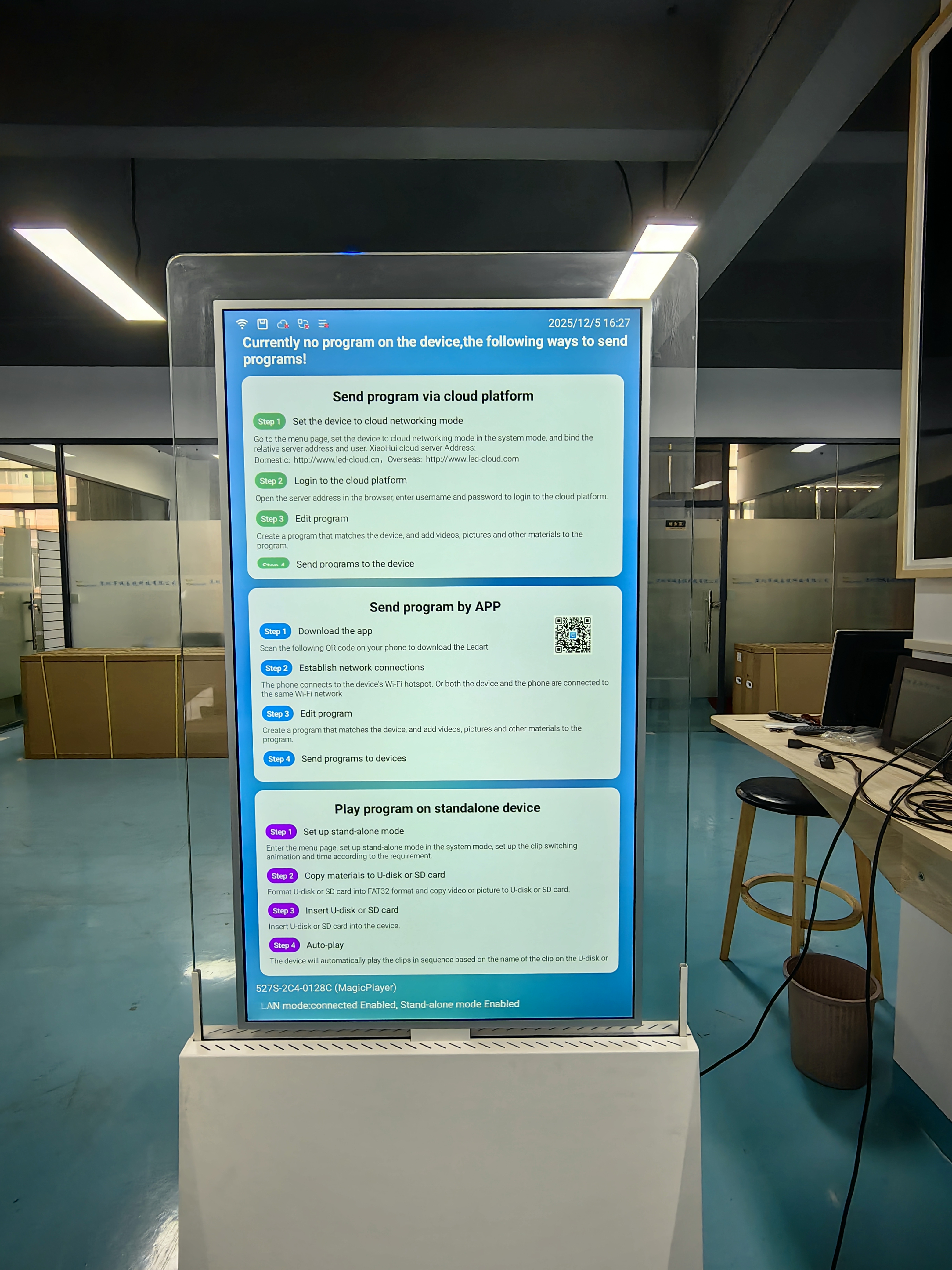
You can update your digital signage with the magic player using the MAGIC PLAYER SIGNAGE SOFTWARE UPDATE via cloud. Cloud-based solutions make your work easier and more flexible. The MAGIC PLAYER SIGNAGE SOFTWARE UPDATE through the cloud allows you to control screens from any location. Look at the table below to see how cloud options differ from on-premise systems:
Feature | Cloud Digital Signage | On-Premise Digital Signage |
|---|---|---|
Accessibility | Remote access from anywhere | Only accessible on-site |
Update Process | Real-time updates | Physical access required |
Scalability | Manage multiple locations | Limited by internal infrastructure |
Key Takeaways
You can use cloud-based magic player software to update digital signage from any place. This makes your work easier and more flexible. - Log in safely through the web portal or mobile app. Use strong passwords and two-factor authentication to keep your account safe. - You can manage your media library easily. Put files into folders to help you find and update content quickly. - Schedule content updates to show different media at certain times. This saves time and keeps your displays looking new. - Check your screens often after you publish updates. Make sure everything shows up right and works well.
Magic Player CMS Login
Accessing the Cloud Portal
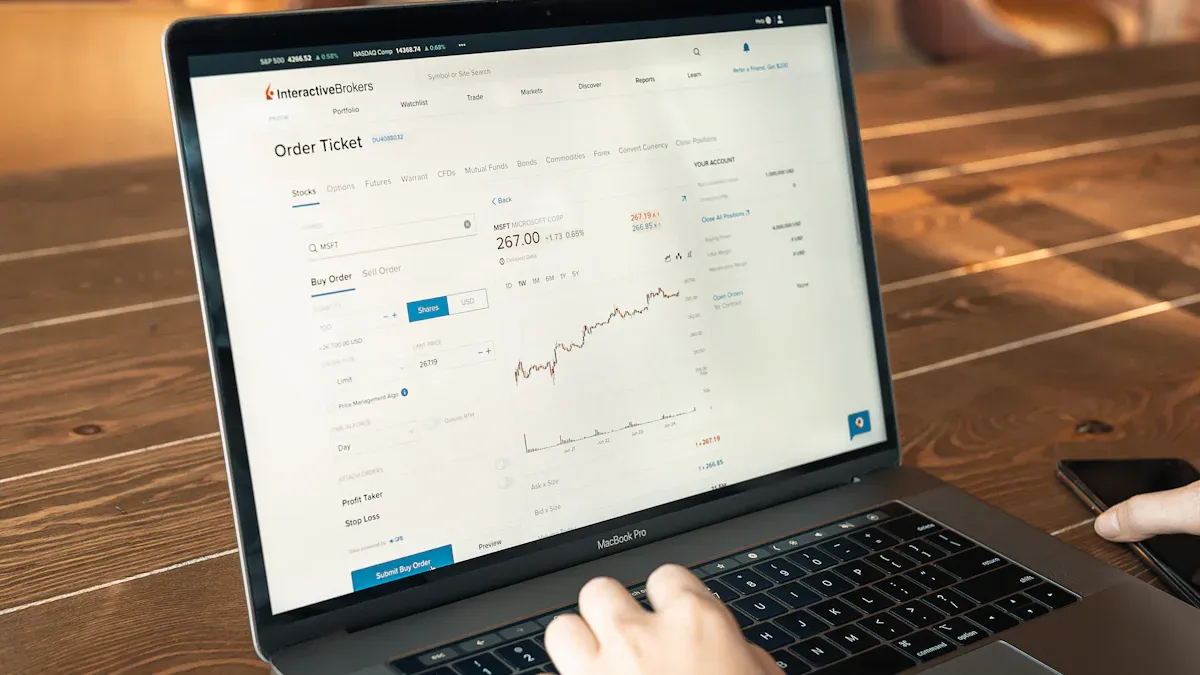
To manage your digital signage, log in to the magic player cloud portal. Use your web browser and type in the portal URL your administrator gave you. On the login page, put in your username and password. The system uses strong security to protect your information.
Public key cryptography keeps your login details safe.
The WebAuthn standard helps your browser trust the server.
Secure hardware, like a TPM or Secure Enclave, holds your keys. Some systems might ask for a fingerprint or face scan.
Tip: Always pick a strong password and turn on two-factor authentication if you can.
Using Mobile App Login
You can also use the mobile app to get into the CMS. Download the official app from your app store. Open the app and type in your login info. The app uses the same security as the web portal, so your data is safe. You can use your fingerprint or face to log in quickly.
Open the app.
Type your username and password.
Use your fingerprint or face if asked.
This way, you can update your screens anywhere. The MAGIC PLAYER SIGNAGE SOFTWARE UPDATE via cloud is even easier this way.
Troubleshooting Login
If you can’t log in, check your internet first. Make sure your username and password are correct. If you forget your password, click "Forgot Password" to reset it. Clearing your browser cache or updating the app can also help.
Note: If you still can’t log in, ask your system administrator for help. They can reset your login or check for updates.
The secure login process always keeps your digital signage safe and simple to manage.
Content Management
Navigating Media Library
The media library is in the main menu. It lets you keep and manage files for digital signage. You see folders and pictures of your files. You can look for files or sort them by type. The system works with many file formats. You can upload and organize different content.
LFD files for general content
JPG images
MP4 videos
DOC documents
PPT presentations
PDF files
MP3 audio
DLK datalink elements
VWL videowall content
You can look at files before using them. You can drag files into folders or move them to playlists. The media library helps you keep things neat and easy to find. You can use MAGIC PLAYER SIGNAGE SOFTWARE UPDATE via cloud to add new files from anywhere.
Tip: Put similar files in folders. This helps you manage big groups of files.
Dashboard Overview
The dashboard shows your signage system quickly. You see important tools right away. You can drag and drop to build playlists and set schedules. You do not need special skills. You get alerts on your phone if something is wrong. This helps you fix problems fast and keep screens working.
Feature | Description |
|---|---|
Change schedules and build playlists easily. | |
Mobile Alerts | Get notifications about problems from anywhere. |
Reduced Management Time | Save time and money with easy tools. |
You can make content with simple tools. The server sets up schedules and sends out files. The player works with many formats, so you do not need other software. The dashboard makes managing your signage quick and easy.
Note: Check the dashboard often to keep your content updated.
Update Content
It is easy to update your digital signage with magic player CMS. You can do everything from the cloud. You do not have to be at the location. You can upload new files, change old media, and set times for updates from anywhere.
Upload New Files
You can add new media to your screens in a few steps. The cloud CMS lets you upload files fast and safely.
Go to the media library on your dashboard.
Click the "Upload" button.
Pick the files from your computer or phone.
Confirm and wait for the files to show up.
Magic player CMS works with many file types. You can use videos, music, documents, and streaming content. Here is a table with the supported formats:
Supported Formats |
|---|
MP4 |
MP3 |
WMA |
Streaming Video |
YouTube |
You can look at files before you publish them. You can put files in folders to find them easily. Uploading with the cloud saves time and lets you update screens from any place.
Tip: Check your file type before you upload. This helps your content show up right.
Replace Existing Media
You can keep your screens fresh by swapping old files for new ones. The CMS lets you do this without stopping your playlists. There are tools to make this easy:
Use day-parting to change content at certain times.
Show different content in different places with regional targeting.
Use emergency overrides to update right away if needed.
Pick the media you want to change, upload the new file, and set when it should switch. The system updates your screens without stopping them. This keeps your content new and interesting for people.
Note: Emergency overrides help you act fast in urgent times.
Schedule Content
You can use scheduling tools in magic player CMS to plan updates. Scheduling lets you pick when your media shows on each screen. You can set daily, weekly, or custom times.
Here is a table with a scheduling tool in the CMS:
Product Name | Description |
|---|---|
Lets you set up updates and manage times easily. |
You can drag files into playlists and set start and end times. You can use day-parting to show different things at different times. You can target regions to show special content in each place.
Tip: Scheduling saves time and keeps your screens updated without extra work.
Common Errors and Prevention
Sometimes, you may see errors when updating content. Here is a table with common problems and how to stop them:
Common Error | Description | Prevention |
|---|---|---|
Incorrect CODE | Changing USERDATA can cause wrong code errors. | Do not change USERDATA unless you know what it does. |
Read-Only Files | Files from CD-ROMs may be read-only. | Uncheck 'read only' in the file settings. |
Backup Issues | Backups may fail if disks are not formatted. | Use rewritable disks or other backup ways. |
Spontaneous Problems | Issues may appear without changes. | Reinstall software or update drivers. |
Note: Always check your file settings and backup plans before you update content.
Training Resources
You can learn more about updating content with magic player CMS by using training tools. These guides and workshops help you get better at the process:
MagicINFO Training for content
MagicINFO Workshop
MagicINFO Onboarding
Digital Signage Guides
Knowledge Base
Knowledge Articles
FAQ
On Demand Webinars
You can find step-by-step guides, video lessons, and answers to questions. Training helps you use the CMS well and with confidence.
Tip: Use the knowledge base and webinars to learn about new features.
Publish and Verify

Save and Publish Changes
When you finish updating your content, you must save and publish it. Find the "Publish" or "Save and Publish" button on the dashboard. Click this button to send your new content to all screens. The system will send your updates to each device. This can take a few minutes. If your update is big, it may take longer. Sometimes, you might wait up to 10 minutes for large schedules.
If you have many screens, there are tools to help you. The table below shows ways to manage and publish updates to many displays at once:
Method | Description |
|---|---|
Use the same settings for a group of screens. This makes syncing easy. | |
Timer Settings | Set all screens to start and stop together. This keeps your presentation unified. |
Update Intervals | Choose how often content updates on all screens. This keeps everything in sync. |
Refresh Rates | Match refresh rates for smooth visuals on every display. |
Tip: Try preset management and timer settings to keep screens working together.
Check Display Updates
After you publish, check that your content shows up right on each screen. Here are steps to follow:
Make sure all screens are connected.
Look at each screen to see if the content plays.
Test offline fallback by pretending the network is down.
Check that no default logo is showing.
Use backup play to keep content running during errors.
Watch each display to see if it is on and connected.
Set email alerts to tell you if a screen turns off.
If you manage lots of screens, use centralized scheduling and content push tools. These help you update and watch many screens from one place. You can also use monitoring and diagnostics to check screens and fix problems from far away.
To see how your content does, connect analytics tools to the system. These tools show how people use your screens and help you find ways to improve.
Note: Always check your screens after you publish. Regular checks help you spot problems early and keep your magic player digital signage running well.
You can make your screens show new content fast with MAGIC PLAYER SIGNAGE SOFTWARE UPDATE via cloud. Magic Player CMS helps you save both time and money. Cloud updates let you change content from any place. You do not need to use USB sticks or do things by hand. This means you spend less on workers. Look at this table to see the main benefits:
Benefit Type | Description |
|---|---|
Cost Savings | |
Reduced Infrastructure | Lower server and network costs |
Lowered Labor Costs | Easier device and content management |
Follow the checklist to make updates go well. Ask support for help if you need it.
FAQ
How do you access MAGIC PLAYER SIGNAGE SOFTWARE UPDATE via cloud?
You log in through the web portal or mobile app. Enter your username and password. The system keeps your information safe. You can update your screens from anywhere.
What file formats can you upload to the CMS?
You can upload MP4, MP3, PDF, JPG, DOC, PPT, and streaming video. The CMS accepts many formats. Check your file type before uploading.
Can you schedule content updates for different screens?
Yes, you can set schedules for each screen. Drag files into playlists and choose start and end times. The scheduling tool helps you manage updates easily.
What should you do if your content does not show up?
Check your internet connection. Make sure your files are not read-only. Look at the dashboard for alerts. Contact support if you need more help.
Is training available for MAGIC PLAYER SIGNAGE SOFTWARE UPDATE via cloud?
You can use guides, webinars, and the knowledge base. Training helps you learn new features and update content with confidence.
See Also
Step by Step Guide to Local Server Digital Signage Setup
Easily Install and Configure Your Digital Signage Software
Installing and Setting Up Your Digital Display Signage
