How to update advertising player content by phone on Magic Player app CMS digital signage management software
Add.: 2F, Bldg 10, Changfeng Industrial Park, Dongkeng, Fenghuang, Guangming, Shenzhen, China 518132
Mobile/WHATSAPP: 86-138 25769658
Email: marketing@topadkiosk.com topadkiosk@gmail.com
Skype: pghenry1
Wechat: adkioskhenry
English Web.: http://www.topadkiosk.com/
https://www.topkioskdisplay.com/
http://www.ad-kiosk.com/
https://www.toplcddisplay.com/
http://www.multitouchdigitalsignage.com/
https://www.youtube.com/channel/UCYVYNJHxLVEcQD8fuUxXNTA/videos?view_as=subscriber
https://www.facebook.com/TOPADKIOSKSHENZHEN/?ref=bookmarks
You can quickly change ads on screens from anywhere with your phone by using the magic player app. You can update displays right away through the cloud, so you do not need to install things by hand. This keeps your content new. The app works well with Huidu Android boards, so it is easy and safe to use your phone to manage screens.
Key Takeaways
You can control your advertising content from any place with the Magic Player app on your phone. This helps you make fast updates and change things right away.
You can upload different files like pictures, videos, and documents to keep your ads new and interesting. You can also put your content into groups to help you manage it better.
You can watch your screens live and get alerts if there are any problems. This makes sure your screens always work well and show the correct content.
Magic Player mobile content update
It is easy to change your advertising player content with your phone when you use the Magic Player app. You can do things like install the app and watch your screens live from your phone. Let’s go through each step together.
Install Magic Player app
First, put the Magic Player app on your phone. Your phone must have these things:
4GB RAM or more
OpenGL ES 3.0
ETC2 texture compression
Kirin 970, Snapdragon 845, or Exynos 9810 chipsets
Find the app in the Google Play Store. Download and install it like other apps. Open the app when you finish.
Tip: If your phone is from after 2018, it should work.
Cloud login and device connection
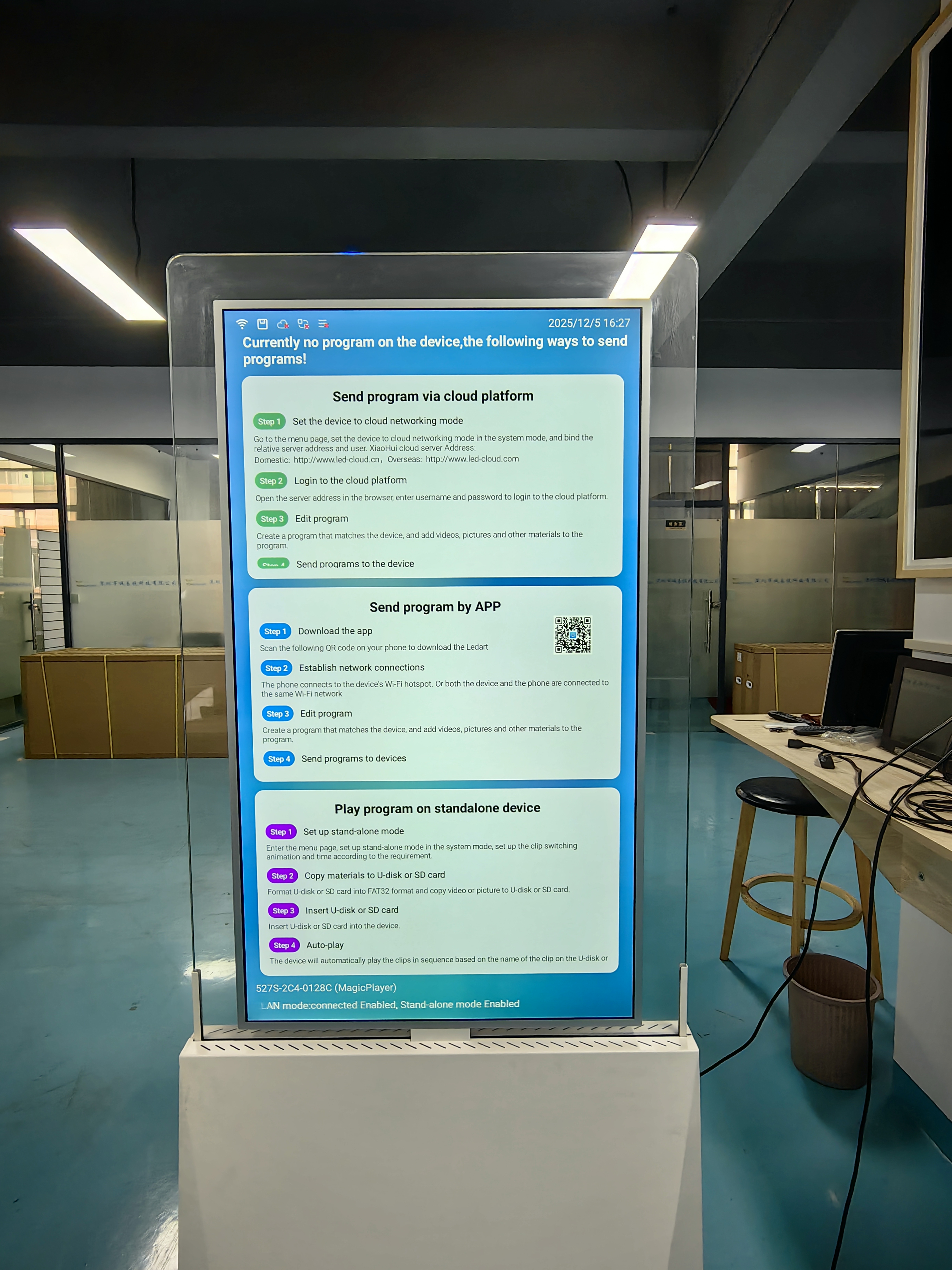
When you open Magic Player, you will see a login screen. Type in your account info to get to your cloud dashboard. This lets you control your screens from anywhere.
To connect your phone to your Huidu Android board:
Make sure your advertising player is on and online.
In the app, tap “Add Device.”
Type the device’s ID or scan the QR code on your player’s screen.
When it connects, your device will show up in the dashboard.
You can add more devices if you have more screens. The cloud lets you update content without being near the player.
Upload and organize content
Now you can upload your ads. Magic Player works with many file types. You can use pictures, videos, music, documents, and web pages. Here are some formats you can use:
Images: JPEG, PNG, GIF, BMP, TIFF
Videos: MP4, WMV, AVI, MPEG, MKV
Audio: MP3, WAV, M4A, AAC
Documents: PDF, PowerPoint, Excel, Word
HTML: Web content
Magic Player helps you keep your files neat. You can make and manage collections. Sort your files by team, project, or campaign. Here is how the interface helps you:
Feature | Description |
|---|---|
Make, hide, show, or move collections by tapping "Edit" on the Home Screen. | |
All Individuals Collection | Main folder for single workspaces, sorted by first name. |
All Teams Collection | Main place for team workspaces, sorted by team name. |
Interface Control | Collapse or open collections to save space. |
Creation | Add new workspaces by tapping the "+" at the top of the Home Screen. |
Note: You can use a USB drive to update content, but the app is faster and easier.
Schedule and update playlists
After you upload your content, you can make playlists. Playlists let you pick what plays and when. Here is how you do it:
Tap “Playlists” in the app menu.
Pick your device or group of devices.
Add content from your collections to the playlist.
Set the order and time for each item.
Choose when your campaign starts and ends.
You can change playlists anytime. Changes happen right away because Magic Player uses the cloud. Your screens always show the newest ads.
Real-time monitoring on phone
Magic Player lets you watch your screens live from your phone. You can see if your screens are working. Here is what you get:
Live dashboards show if your screens are online.
Alerts tell you if a screen goes offline or has a problem.
Content checks make sure the right ads are playing.
Remote tools help you fix problems from anywhere.
Reports show which ads work best and how often screens run.
Tip: Turn on notifications in the app so you always know if something happens.
Now you know how to update, schedule, and watch your advertising player content with Magic Player on your phone. This makes digital signage simple, quick, and dependable.
Troubleshooting and best practices

Fix connection issues
Sometimes your device will not connect to the app. You can fix this problem by doing these steps. Go to your phone’s settings and look for the Magic Link device. In Bluetooth settings, tap “Forget This Device.” Turn off Bluetooth and WiFi. Restart your phone. Turn Bluetooth back on and wait for the device name to show up. Tap it to reconnect. Check for updates on your phone and the Magic Link device. Try unplugging the device for 30 seconds and plug it back in. If you use a car or special hardware, check if it needs extra steps.
If you still have trouble, make sure your device works with the Magic Player app.
Content not displaying solutions
You may see blank screens or missing ads. Here are some reasons and what they mean:
Challenge | Implication on Display Issues |
|---|---|
Integration complexity with legacy systems | |
Content creation demands | Poorly designed content may not show up |
Cybersecurity vulnerabilities | Security problems can stop ads from loading |
Check your content files and make sure they match the supported formats. If you use old hardware, update it or check if it works with the app. Keep your app and devices safe to avoid display problems.
Efficient remote management tips
You can manage your screens from anywhere. Here are some ways to keep your system safe and easy to use. Use Single Sign-On and Two-Factor Authentication for secure access. Lock device buttons and block infrared controls to stop unwanted changes. Restart devices and update firmware remotely. Limit users to certain workgroups for better control.
Turn on notifications in the Magic Player app so you know right away if something goes wrong.
You can keep your advertising screens running smoothly with these tips. The Magic Player app helps you fix problems fast and manage your content safely.
You can make sure your screens always show new ads with magic player. You can manage your ads from far away in real time. This makes everything easy for you. Here are some good things about it:
Feature | Benefit |
|---|---|
Use your phone to control every display | |
Real-time content updates | Switch ads fast and see changes right away |
Use cloud tools and smart ideas to get great results.
FAQ
How do I add a new device to Magic Player?
You tap “Add Device” in the app. Scan the QR code or enter the device ID. Your device connects right away.
Can I update content if I am not near the screen?
Yes! You use the Magic Player app on your phone. The cloud lets you change ads from anywhere. Updates happen instantly.
What file types can I upload for my ads?
You can upload images, videos, audio, documents, and web pages.
Supported formats include JPEG, MP4, MP3, PDF, and HTML.
See Also
Simple Steps for Installing Digital Signage Software
Top 7 Trends in Digital Signage Technology for 2026
Guide to Installing and Setting Up Digital Signage
Seven Ways to Enhance Customer Engagement with Digital Signage
