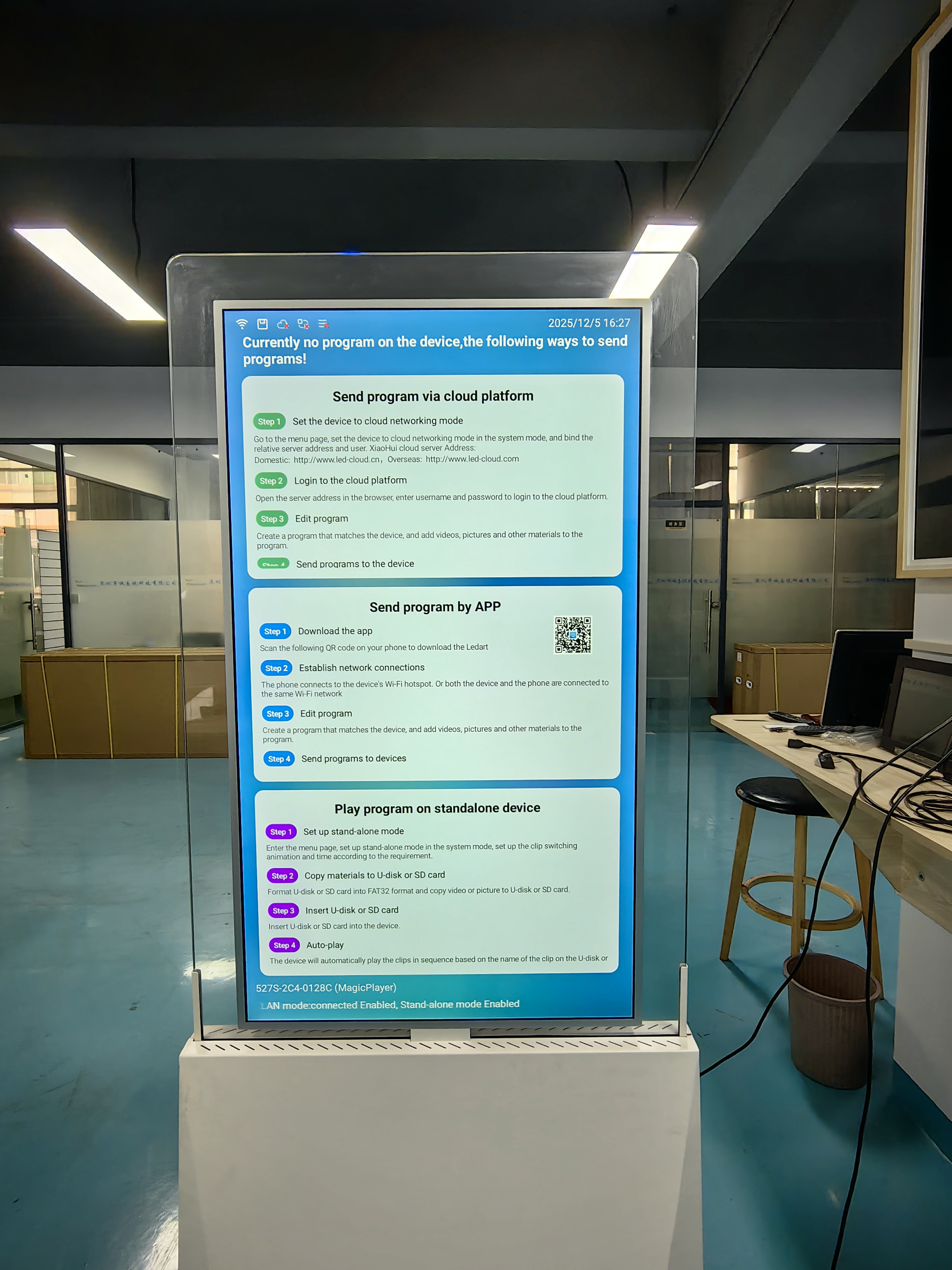
How to update advertising content using the magic player signage APP
Add.: 2F, Bldg 10, Changfeng Industrial Park, Dongkeng, Fenghuang, Guangming, Shenzhen, China 518132
Mobile/WHATSAPP: 86-138 25769658
Email: marketing@topadkiosk.com topadkiosk@gmail.com
Skype: pghenry1
Wechat: adkioskhenry
English Web.: http://www.topadkiosk.com/
https://www.topkioskdisplay.com/
http://www.ad-kiosk.com/
https://www.toplcddisplay.com/
http://www.multitouchdigitalsignage.com/
https://www.youtube.com/channel/UCYVYNJHxLVEcQD8fuUxXNTA/videos?view_as=subscriber
https://www.facebook.com/TOPADKIOSKSHENZHEN/?ref=bookmarks
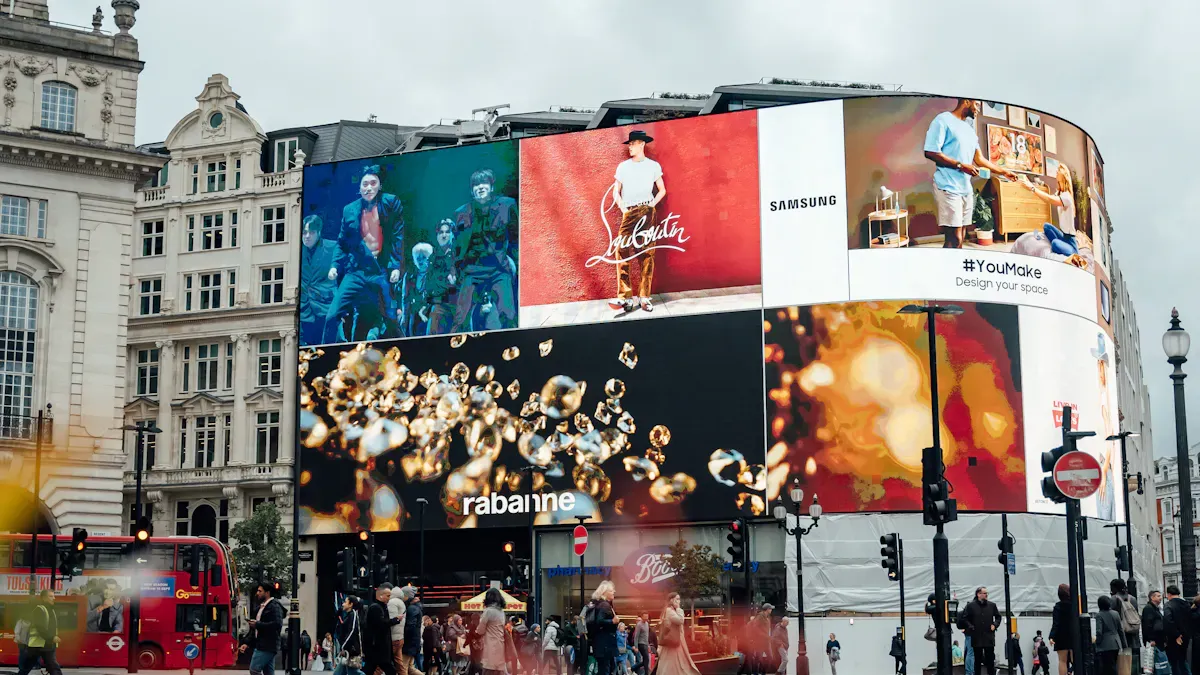
You can update your advertising content quickly with the magic player signage APP. Just plug in a USB drive, use your phone, or log in from the cloud. The process works for everyone, no matter your tech skills. If you want to try the magic player signage APP update content by USB, you only need a few simple steps.
Key Takeaways
It is easy to update content with the magic player signage APP. You can use a USB drive, mobile app, or cloud to control your ads.
Always check your username and password when you log in. This helps you set up fast and keeps your info safe.
Use simple file names for your ad content. This helps you find and change files when you update them.
The mobile app lets you change ads from any place. You can add new content and set playlists without being near the screens.
Cloud tools help you set updates and control many screens from one place. This saves time and keeps your ads the same everywhere.
Magic player login and setup
Access the app
First, open the magic player signage APP on your device. You can use a phone, tablet, or computer. Find the app icon and tap it to start. On a desktop, double-click the shortcut. The app opens fast and shows the login screen. You do not need to be a tech expert. The app is easy to use and looks simple.
Enter credentials
Next, type your username and password. Check that you enter them right. The app keeps your information safe with strong security. You will see a box to fill in your details. If you forget your password, you can reset it easily. The app uses special features to protect your data. Here is a table that lists some security protocols:
Security Feature | Description |
|---|---|
KNOX | A security platform that provides advanced protection for devices and data. |
ISO Certification | Recognized standard ensuring robust security measures are in place. |
EDM and License Management | Tools for managing user access and ensuring compliance with security policies. |
You are protected by ISO27701 certification. This keeps your privacy safe. These certifications help stop security problems.
Initial setup tips
After you log in, you see the main dashboard. You can set up your device for the first time. Pick your language and change display settings. If you want to use USB later, make sure your device finds external drives. The app gives you easy steps to follow. If you have trouble logging in, check your internet or your login details. Here are some quick tips to help:
Make sure your username and password are correct.
Restart your device if the app will not open.
Check that your internet works well.
The magic player helps you get started fast. The setup makes it easy to update content and keeps your data safe.
Update content via USB/pendrive
Updating your advertising content with a USB drive is simple when you use the magic player signage APP. You can follow these steps to make sure your new ads show up on your screens fast.
Prepare your USB drive
First, get a USB drive that works well. Make sure it has enough space for your new content. You should use a USB drive that is clean and free from viruses. Save your advertising files on your computer. The magic player signage APP supports common file types like JPG, PNG, MP4, and PDF. If you use these formats, your content will display correctly.
Tip: Name your files clearly. For example, use "Summer_Sale_Ad1.mp4" instead of "video1.mp4". This helps you find your files quickly.
Before you unplug your USB drive from your computer, always use the "Eject" option. This keeps your files safe and prevents errors.
Transfer files to device
Now, plug your USB drive into the USB port on your magic player device. The app will detect your drive right away. You will see a message or icon that shows your USB is connected. Open the magic player signage APP and go to the "Content Update" section.
You will see a list of files on your USB drive. Select the files you want to upload. Tap "Copy" or "Import" to transfer them to your device. The app will show a progress bar so you know when the transfer is done.
If you have many screens in different places, you need to update each one by hand. This method works best for small setups or when you want to update just a few screens.
Confirm content update
After the transfer, check your screen to see if the new content appears. The magic player signage APP lets you preview your ads before they go live. If everything looks good, press "Apply" or "Save" to finish the update.
Sometimes, things do not go as planned. You might see an error message or your content might not show up. Here is a table with common problems and how you can fix them:
Common Errors Encountered | Preventive Measures |
|---|---|
The update process was interrupted. | Make sure your device stays powered during updates. |
Some network filters prevent updates. | Check your network settings to allow all updates. |
If you still have trouble, try restarting your device or using a different USB drive. Always check that your files are in the right format.
Note: USB-based updates need you to be near each screen. If you have many screens in different places, this can take more time. Cloud updates let you change content from anywhere and keep all screens the same.
You can trust the magic player signage APP to make USB updates easy. Just follow these steps, and your advertising content will stay fresh and up to date.
Update content with mobile app
Updating your advertising content with the mobile app feels quick and easy. You do not need to stand in front of each screen. You can manage everything from your phone or tablet, even if you are far away. The magic player app works on many devices, so you can pick what fits you best.
Upload new media
You can upload new images or videos in just a few steps. Here’s how you do it:
Open the app and log in with your username and password.
Tap the Content tab to see your current files.
Press the New button and choose Upload Content.
Pick the images or videos you want from your device.
Tap Add Content to add them to your list.
Hit Start Upload to begin sending your files.
Wait for the upload to finish, then close the window.
Check your new files in the content list.
Tip: Use clear names for your files. This helps you find them fast when you need to update or schedule ads.
Replace existing ads
Sometimes you want to swap out an old ad for a new one. The app makes this simple. Just find the ad you want to replace in your content list. Tap on it, then select the new file you want to use. The app updates your screen right away. You do not need to restart your device or wait for a long sync.
Organize and schedule content
You can keep your ads organized by creating playlists. Go to the Playlist section and tap New Playlist. Add your media files in the order you want them to play. Next, visit the Schedule tab. Here, you can set times for each playlist to show on your screens. Save your schedule and publish it. Your screens will update at the right time, even if you are not there.
The magic player app works on many Android devices. Here’s a quick look:
Device Type | Operating System |
|---|---|
Android boxes | Android |
Tablets | Android |
Smartphones | Android |
You can update your ads from almost anywhere. This makes it easy to keep your content fresh and on time.
Cloud and advanced features

Cloud login method
You can control your advertising screens from any place. Just open the magic player signage APP and pick the cloud login option. Type in your username and password to get to your dashboard. You do not have to be close to your screens. You can change content, check the status, and set up playlists from your home or office.
Security is important when you use cloud updates. The platform uses strong tools to keep your data safe. Here are some ways your information stays protected:
Security Measure | Description |
|---|---|
Secure communication between server and clients. | |
IP Whitelisting | Only lets approved users access the system. |
VPN Setup | Creates a safe connection for remote access. |
Firewall/Security Groups | Controls who can reach your screens. |
24/7 Server Monitoring | Keeps an eye on server health all day. |
Annual Penetration Testing | Checks for weak spots every year. |
Tip: Always make strong passwords and never share your login details.
Automation and scheduling
You can save time by letting the app update content for you. The magic player signage APP cloud platform has tools like tags and conditional scheduling. Tags help you group screens and content together. You can make rules to show ads at certain times or on certain screens.
Feature | Description |
|---|---|
Tags | Combine displays and content with tags. |
Conditional Scheduling | Automate content using rules-based triggers. |
Want your morning ads to play only before noon? Set a rule for that. Need a sale ad to show just on weekends? Use conditional scheduling. You do not need to update each screen one by one.
You can set it up once and the app will do the rest.
Integration with other signage solutions
You can link the magic player signage APP to other signage systems. This helps if you have screens in many places or run a big company. The app works well for setups with more than one location. You can control all your screens from one dashboard. You can share content, set schedules, and manage playlists for every place.
If you use other signage software, you can connect them together. This makes your work easier and keeps your ads the same everywhere.
😊 You get more control and choices with cloud and advanced features.
You can update your ads in three simple ways with the magic player. You can use a USB, the mobile app, or the cloud. Each way has something special that makes it useful. Here is a table to help you compare:
Method | Advantages |
|---|---|
USB | Easy to use, works without internet, good for small groups |
Mobile App | Quick, lets you update from far away, helps you plan times |
Cloud | Lets you control everything in one place, gives live updates, can do things automatically |
Choose the way that fits your needs best. If you want more help, check out these links:
Keep your ads new and enjoy how easy it is to use your signage!
FAQ
How do you update content using a USB drive?
Plug your USB drive into the device. Open the magic player signage APP. Go to "Content Update." Select your files and tap "Copy" or "Import." Check your screen to see the new content. It’s quick and easy!
What file types does the magic player signage APP support?
You can use JPG, PNG, MP4, and PDF files. These formats work best for images, videos, and documents. Always check your file type before uploading.
Can you schedule ads to play at certain times?
Yes! You can set up playlists and schedules in the app. Pick the time you want each ad to show. The app will handle the rest for you.
Is it possible to update content from your phone?
Absolutely! Download the mobile app. Log in. Upload new media or replace ads right from your phone. You can manage your screens from anywhere.
What should you do if your content does not show up?
Try these steps:
Check your file format.
Restart your device.
Make sure you copied the files correctly. If you still have trouble, contact support for help.
See Also
A Complete Guide for Installing Digital Display Signage
Your Comprehensive Guide to Choosing Outdoor Digital Signage
Understanding the Basics of Digital Signage Solutions
Key Guidelines for Installing Outdoor Digital Signage This Year
Innovative Outdoor Digital Signage Trends Shaping Urban Environments
