Troubleshooting for Wall-Mounted Touch Information Kiosk
Shenzhen TopAdkiosk Display Technology Co., Ltd.
Add.: 2F, Bldg 10, Changfeng Industrial Park, Dongkeng, Fenghuang, Guangming, Shenzhen, China 518132
Mobile/WHATSAPP: 86-138 25769658
Email: marketing@topadkiosk.com topadkiosk@gmail.com
Skype: pghenry1
Wechat: adkioskhenry
English Web.: http://www.topadkiosk.com/
https://www.topkioskdisplay.com/
http://www.ad-kiosk.com/
https://www.toplcddisplay.com/
http://www.multitouchdigitalsignage.com/
https://www.youtube.com/channel/UCYVYNJHxLVEcQD8fuUxXNTA/videos?view_as=subscriber
https://www.facebook.com/TOPADKIOSKSHENZHEN/?ref=bookmarks
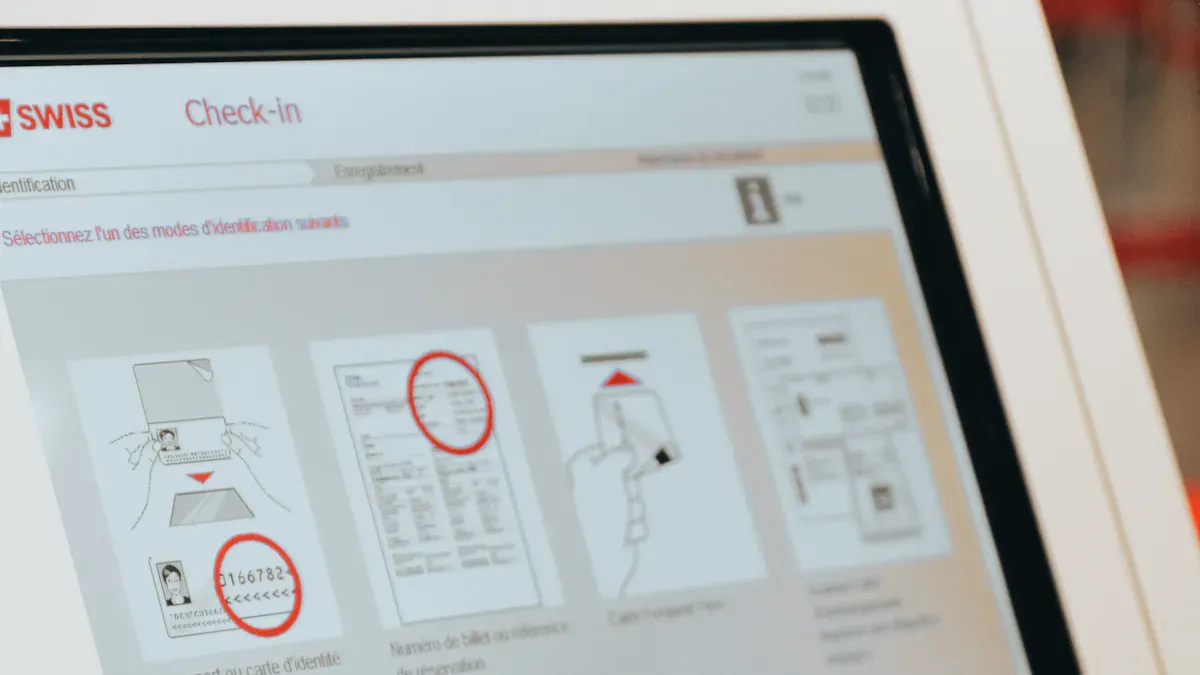
You depend on your Information Kiosk to deliver fast and accurate information. When the touch screen stops working, you need solutions right away. Troubleshooting for Wall-Mounted Touch Information helps you fix common problems quickly. You do not need special skills. Simple steps can get your kiosk running again. You can keep your kiosk reliable with a few easy checks and good habits.
Key Takeaways
Restart your kiosk to fix many touch screen issues quickly. Turn it off, wait 30 seconds, then turn it back on.
Keep the touch screen clean with a soft cloth and safe cleaner. Regular cleaning prevents touch problems and keeps the kiosk looking good.
Check all cables and connections to ensure they are secure. Loose or damaged cables can cause touch screen failures.
Update your kiosk's software and drivers regularly. This helps prevent software-related touch issues and keeps the system running smoothly.
Perform regular maintenance checks. Daily inspections and weekly cleanings help catch small problems before they become big issues.
Quick Fixes for Touch Screen Issues
When your Information Kiosk touch screen stops responding, you want fast solutions. Start with these simple steps to get your kiosk working again.
Basic Restart and Power Check
Restarting the kiosk often solves many touch screen problems. Turn off the power using the main switch or unplug the device. Wait for about 30 seconds. Plug it back in or turn the switch on. Watch for any signs of life on the screen. If the screen stays dark, check the power outlet and make sure the power cable is secure.
Tip: Always use the kiosk’s recommended shutdown process if available. This helps prevent software errors.
Cleaning and Inspecting the Screen
A dirty or smudged screen can cause touch issues. Use a soft, lint-free cloth to wipe the surface. Avoid harsh chemicals or rough materials. These can damage the screen. Cleaners made for electronics work best. Regular cleaning keeps your kiosk looking good and working well. Keeping the area around the kiosk clean also helps prevent dust from getting inside and causing problems.
Keeping the touch screen and its surroundings clean helps maintain both the function and appearance of your kiosk.
Checking Cable and USB Connections
Loose or faulty cables can stop the touch function. Check all visible cables and USB connections. Make sure they are plugged in tightly. Look for any signs of damage. Common symptoms of cable or USB issues include:
The power light blinks or the device disconnects unexpectedly.
The USB device connects for a moment, then disconnects.
If you notice any of these problems, try unplugging and reconnecting the cables. Replace any damaged cables if needed.
By following these quick fixes, you can solve many common touch screen issues on your wall-mounted Information Kiosk.
Diagnosing Information Kiosk Touch Problems
If your Information Kiosk touch screen does not work right, you need to find out why. You can look at the signs and match them to possible problems. This helps you fix things faster and keeps your kiosk working well.
Unresponsive or Frozen Screen
If your Information Kiosk screen does not react or gets stuck, you might see nothing happen when you touch it. There are a few common reasons for this:
The touchscreen monitor can stop working after being on for a long time, like 72 hours.
Software bugs can make the screen freeze.
Calibration issues can stop the screen from sensing your touch.
Physical damage can also make the screen not respond.
Try these steps to fix the problem:
Restart the Information Kiosk. Turn it off all the way, wait 30–60 seconds, then turn it back on.
Clean the touchscreen with a soft cloth and a safe cleaner.
Take off any screen protectors or things blocking the touch area.
Check all USB and power cables. Make sure they are tight and not broken.
Try other USB ports or power sources if the screen still does not work.
Look for damage on the screen. If you see cracks or deep scratches, you may need a pro to fix it.
Check for software updates and install them if you can.
Recalibrate the touch screen in the device settings.
Tip: Turning the monitor off and on again often fixes touch problems for a short time.
Inaccurate Touch or Calibration Errors
Sometimes, your Information Kiosk may not register touches in the right spot or may not respond well. This usually means there are calibration errors or things around the kiosk are causing trouble. Here are some reasons for bad touch accuracy:
The screen might not be lined up right.
You need to calibrate often to keep touch working well.
Dirt, dust, or bright lights can mess up the touch screen.
Different touch technologies, like capacitive or infrared, act differently in different places.
You can fix calibration errors by using the correct tool for your system. The table below shows common calibration tools:
Operating System | Calibration Tool/Software |
|---|---|
Windows | Built-in calibration tool (Control Panel > Tablet PC Settings > Calibrate) |
Android | Touchscreen calibration tools in Developer Settings (varies by manufacturer) |
Linux | xinput_calibrator or config files |
Embedded Systems | OEM-provided drivers or software utilities |
Note: Calibrating often helps your Information Kiosk keep good touch response.
Erratic or Fixed Cursor
If the cursor on your Information Kiosk moves by itself, jumps, or stays still, you might have a hardware or calibration problem. Use the table below to see what hardware faults could cause this:
Hardware Fault | Description |
|---|---|
Mechanical Misalignment | The touch module is not held well, so touches are wrong, especially near the edges. |
Ghost Touch | Electromagnetic interference from other devices causes fake touches, often when the kiosk is moved. |
Grounding Issues | Weak grounding makes phantom touches or too much sensitivity. |
Cable Problems | Loose or broken cables cause weird behavior, especially when the kiosk is moved. |
Improper Calibration | If the touch sensor moves, calibration gets bad, so the cursor acts strange. |
To see if the problem is hardware or software, follow these steps:
Check all physical connections. Make sure the touch screen shows up in the operating system.
Make sure the USB upstream cable is plugged in right.
If touch is not accurate, do a calibration.
For multi-touch problems, check that your monitor supports multi-touch and your operating system works with it.
If you see the cursor move weirdly after moving the Information Kiosk, check for loose cables or grounding problems.
By matching the signs to these causes, you can quickly find and fix most touch problems on your Information Kiosk.
Resolving Software and Connectivity Issues
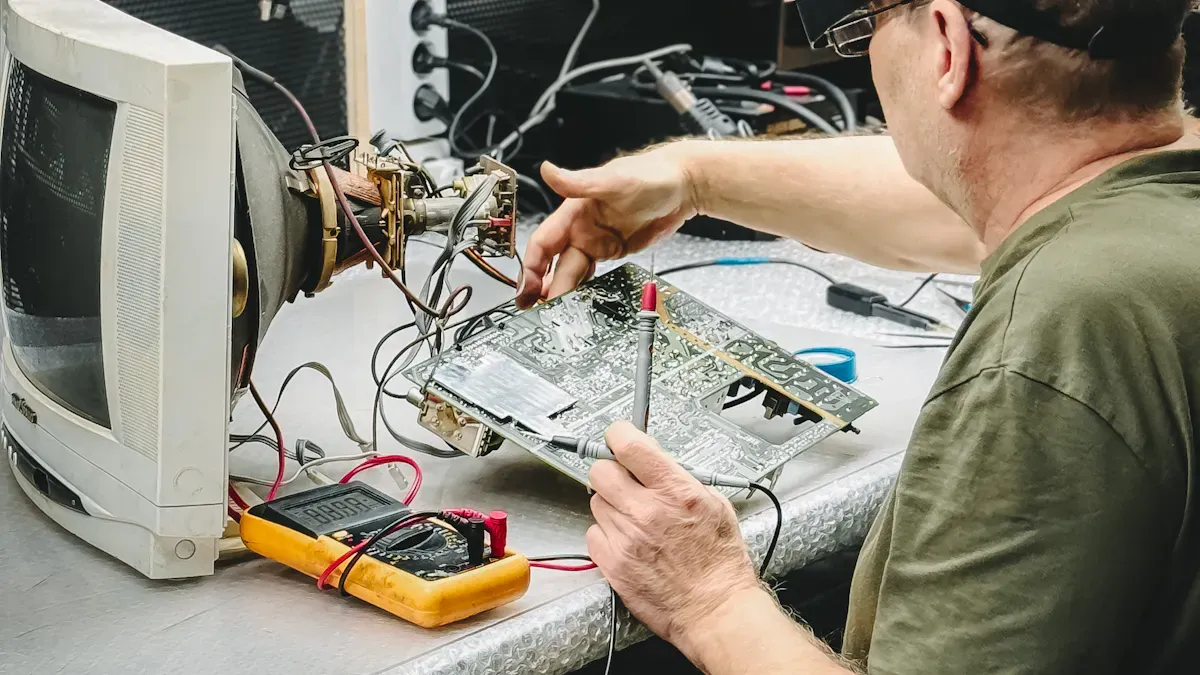
If your Information Kiosk has touch problems, software or connection issues might be the cause. You can fix many of these problems by following some easy steps.
Updating Software and Drivers
Old drivers or software can make your touch screen act weird. You should update them to help your kiosk work better. Here is a simple way to do it:
Write down your touch hardware and check if your system supports it.
Look at your IT rules and save your settings.
Get the newest driver for your system. Run it as an admin.
After you install it, open the driver tool and see if your kiosk finds the touch screen.
Try the touch screen and calibrate it if you need to. Save your changes.
Updating your drivers helps stop many touch problems.
Checking Network and Power Supply
Network or power problems can also make your kiosk not work right. Use the table below to find common network problems and how to fix them:
Network Issue | Solutions |
|---|---|
Slow Content Loading | Check your internet speed. Make images smaller. Use a content delivery network for big files. |
Connection Dropouts | Move your router closer. Update network drivers. Check for things that block the signal. Try a wired connection. |
Authentication Failures | Check your network login. Look at security settings. Try another way to log in. |
You should also make sure your power is steady. Check that all cables are tight and the outlet works.
Testing in Safe Mode
Safe Mode lets you test your Information Kiosk with only basic programs running. This helps you see if a program or driver is causing trouble. If your touch screen works in Safe Mode, other software is the problem. If it still does not work, check your hardware or reinstall drivers.
Safe Mode helps you find software problems and fix touch screen errors.
If you follow these steps, you can fix many software and connection problems and keep your kiosk working well.
Preventing Future Kiosk Problems
Regular Maintenance Tips
You can keep your wall-mounted touch information kiosk working well by doing regular maintenance. Simple daily and weekly tasks help you find problems early and stop bigger issues. Use the table below to plan your routine:
Maintenance Task | Frequency |
|---|---|
Daily Visual Inspections | Daily |
Screen Cleaning Protocol | Daily |
Weekly System Health Checks | Weekly |
Monthly Deep Maintenance | Monthly |
Environmental Controls Monitoring | Daily/Weekly/Monthly |
Check the screen every day for cracks, smudges, or anything strange. Clean the touchscreen with a soft cloth and safe cleaner. This keeps germs away and helps the screen work better. Each week, check the system’s health and make sure the software works well. Once a month, do a deeper check and clean vents or filters.
Clean touchscreens often to stop germs from building up.
Pick antimicrobial surfaces or optical bonding for extra safety.
Put hand sanitizer stations near the kiosk.
Use rugged displays if your kiosk is in a rough place.
Tip: Daily checks and weekly vent cleaning help you find small problems before they get worse.
Environmental and Usage Factors
The area around your kiosk affects how well it works. You should watch temperature, humidity, dust, light, and airflow. The table below shows the best ranges and when to act:
Environmental Factor | Optimal Range | Monitoring Method | Action Threshold |
|---|---|---|---|
Temperature | 68-72°F (20-22°C) | Digital thermometer | Alert at 65°F or 75°F |
Relative Humidity | 45-55% RH | Hygrometer | Alert at 40% or 60% |
Dust Accumulation | Minimal visible dust | Visual inspection | Clean when visible |
Ambient Light | < 500 lux on screen | Light meter | Adjust brightness |
Air Circulation | Adequate ventilation | Airflow check | Clean vents quarterly |
Keep your kiosk in a clean place with good airflow. Do not put it in direct sunlight or near heat sources. Check for dust and clean the area often. Good airflow stops overheating and keeps the system steady.
Use touch-free options like gesture controls to limit touching.
Remind users to clean their hands before using the kiosk.
By following these tips, you help your kiosk stay reliable and ready to use every day.
You can make your wall-mounted touch information kiosk work well by doing easy troubleshooting and regular care. Fix small problems right away so they do not get worse. Use a checklist to help you remember what to do:
Frequency | |
|---|---|
Clean screens with safe cleaners | Every day |
Check mounts | Every month |
Restart units | Every week |
If you keep having problems, ask a professional for help.
FAQ
How often should you clean the kiosk touch screen?
You should clean the touch screen every day. Use a soft, lint-free cloth and a cleaner made for electronics. This keeps the screen clear and helps the touch work well.
What should you do if the screen does not respond to touch?
First, restart the kiosk. Check all cables and power connections. Clean the screen with a safe cleaner. If the problem stays, try recalibrating the touch screen in the settings.
Can you update the kiosk software by yourself?
Yes, you can update the software if you follow the instructions from the manufacturer. Always back up your settings before you start. If you feel unsure, ask for help from a technician.
Why does the cursor move by itself on the kiosk?
Loose cables, grounding issues, or electromagnetic interference can cause this. Check all connections and make sure the kiosk is not near strong electrical devices.
What is the best way to prevent kiosk problems?
You should do regular checks, keep the area clean, and update software often. These steps help your kiosk stay reliable and ready for use.
See Also
Effective Solutions for Common Kiosk Problems and Challenges
Comprehensive Instructions for Setting Up Touch Screen Kiosks
Essential Characteristics of Today's Advanced Touch Screen Kiosks
Discover 10 Unexpected Applications for Touch Screen Kiosks
Evaluating Business Touch Screen Kiosks: Performance and Cost Analysis
