How to Troubleshoot Common Kiosk Issues for Smooth Operation
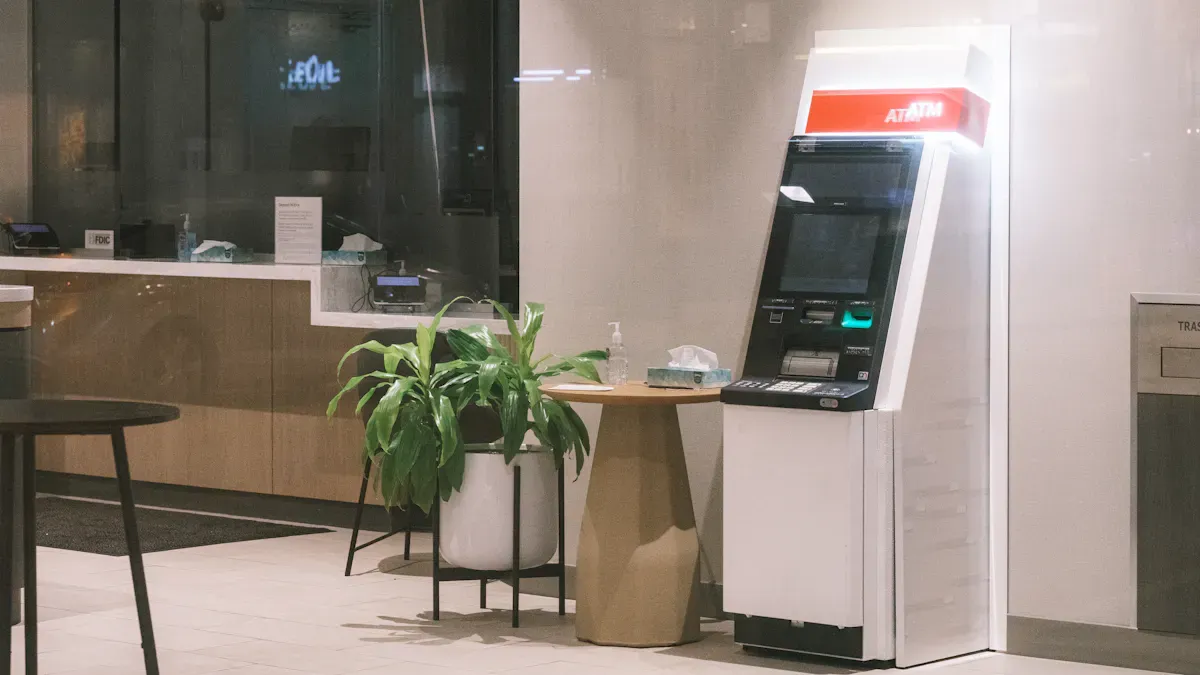
You know how frustrating it feels when a kiosk stops working. Every minute lost means less service and more unhappy customers. When you use a smart approach, you can solve problems faster and keep your kiosks running. Regular checks and good staff training help you spot issues early. If you want to learn more about troubleshooting common kiosk issues, you can always visit http://www.topadkiosk.com/ for extra tips.
Key Takeaways
Doing regular maintenance is important. Clean the screens and look at the cables every day to stop problems.
Teach your staff well. Help them fix small problems fast so the kiosk does not stop working for long.
Pick good kiosk management software. It helps you watch how the kiosk works and find problems early.
Write down all problems and how you fix them. Keeping notes helps you get better at solving problems later.
Make a plan to check the kiosk often. Check it every day, week, and month to stop big problems.
Troubleshooting Common Kiosk Issues
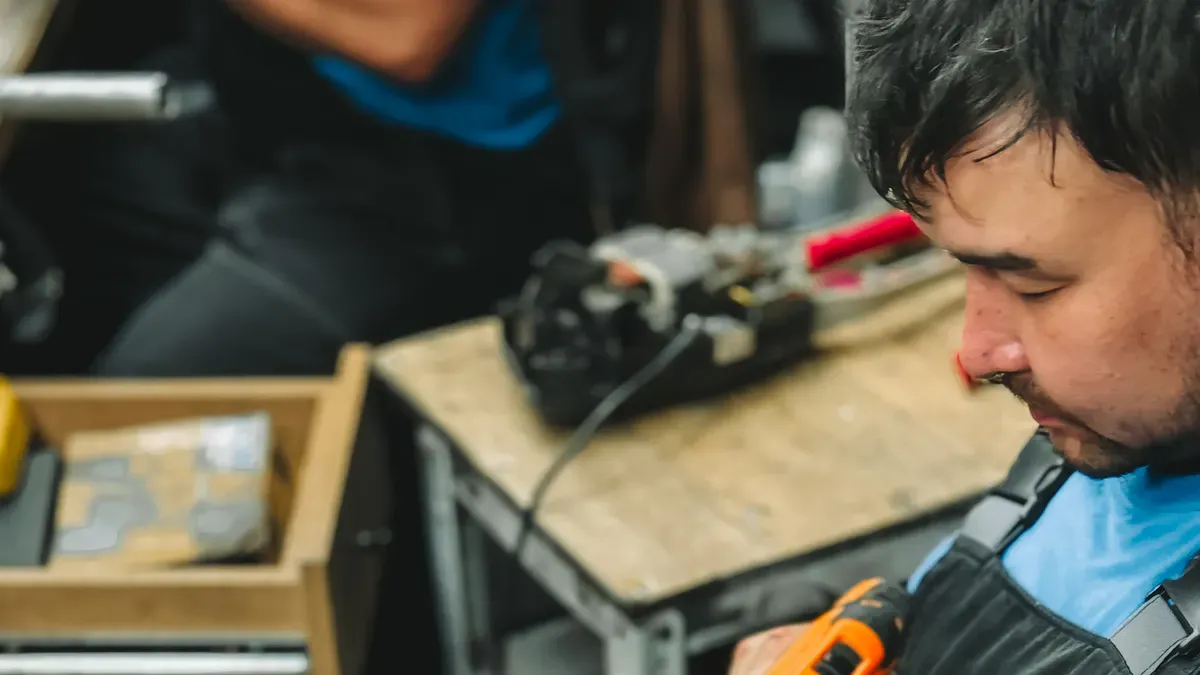
If you run a restaurant or use self-service kiosks, you will have technical issues sometimes. It is important to know how to find and fix these problems fast. This helps your restaurant work well. Let’s talk about the most common problems you might see and how you can solve them.
Here is a quick look at the most common problems in self-service kiosks and restaurant kiosk systems:
Issue | Description | Solution |
|---|---|---|
Technical Downtime | Hardware or software stops working and slows down service. | Use real-time monitoring and alerts to catch problems early. |
Limited Custom Reporting | Basic reports make it hard to track how your restaurant is doing. | Upgrade to kiosk management software with custom reporting tools. |
Difficulty Managing Locations | Handling many kiosks at once can get confusing. | Use centralized kiosk management software to control everything from one place. |
Inconsistent User Management | Hard to control who can access what, especially in big restaurants. | Choose kiosk management software with strong user management features. |
Hardware Compatibility Issues | Different hardware setups can cause problems. | Pick hardware-agnostic kiosk management software for easy integration. |
Data Privacy and Security Concerns | Security breaches can hurt your restaurant’s reputation. | Use advanced security features in your kiosk management software to protect customer data. |
Most of these problems are about how you use your kiosk management software and how you take care of your hardware. Now, let’s talk about each problem and what you can do.
Frozen Screens
Frozen screens can stop your restaurant kiosk from working. Sometimes the screen gets stuck or does not move. This can happen for a few reasons:
Hardware problems like dirty screens or loose cables.
Old software that needs an update.
Not doing regular maintenance.
To stop frozen screens, keep your kiosk management software updated and clean your screens often. If you see a frozen screen, restart the device first. If that does not help, check all cables and connections. Doing regular maintenance and updates will help you stop these problems from slowing down your restaurant.
Paper Jams
Paper jams happen a lot in self-service kiosks, especially in busy restaurants. When the printer jams, customers cannot get their receipts. This can make things confusing.
Here is an easy way to fix paper jams:
Open the printer and see if there is paper inside.
Look for anything stuck inside. Make sure the printer roller moves well. Clean out any trash.
When you put in new paper, leave a little piece sticking out. Close the printer, and it will cut the paper by itself.
If you do these steps, you can fix most jams fast and keep your restaurant kiosk working.
Card Reader Problems
Card reader problems can make staff and customers upset. Sometimes the card reader will not turn on or read some cards. Here are some things to check:
Make sure all cables are plugged in and not broken.
See if the power light is on.
Restart the device to reset it.
Look at the POS screen and make sure it is ready for payments.
If the card reader only reads magnetic stripes but not chip cards, clean the chip slot and update the firmware.
For contactless payments, check the settings and show customers how to use the reader.
If you still have problems, check the SIM card and antenna, and make sure your kiosk management software is set up right. Sometimes you need to call support for help. Good kiosk management software can help you find these problems before they get worse.
Unresponsive Touch Displays
Touchscreens are very important for self-service kiosks in restaurants. If they stop working, customers cannot order or pay. Here are some common reasons:
Cause | Description |
|---|---|
Software glitches | The screen freezes or does not move. Restarting the terminal can help. |
Dirty screens | Grease and dirt block touch input. Clean the screen often. |
Damaged cables | Loose or broken cables stop the screen from working. Check all connections. |
Environmental factors | Heat and humidity can mess with the touchscreen. Keep the area cool and dry. |
To fix a screen that does not work:
Restart the restaurant kiosk terminal.
Clean the screen with a soft cloth and safe cleaner.
Check all USB and power cables to make sure they are tight and not broken.
Calibrate the touchscreen if it does not work right.
Keeping your restaurant kiosk clean and checking cables often will help you stop these problems.
Power and Cable Checks
Many problems in restaurant kiosks come from loose cables or power issues. If your kiosk will not turn on or keeps turning off, check all the cables first. Make sure every cable is tight and not broken. Look at the power supply and see if it works.
Tip: Make a schedule to check your restaurant kiosks. Check screens, cables, and inside parts every day. Once a week, look at all ports and connections. Every month, check around your kiosks to make sure heat and humidity are not causing problems.
If you follow these steps and use good kiosk management software, you can find most problems early. Troubleshooting common kiosk issues does not have to be hard. With regular checks and the right tools, you can keep your restaurant working well and your customers happy.
Systematic Troubleshooting Steps
When your kiosk acts up, you need a plan. If you follow these steps, you can fix most problems quickly and keep your customers happy. Let’s walk through each step together.
Gather Information
Start by collecting details about the problem. The more you know, the easier it gets to find the cause. Here’s what you should look for:
Check if the kiosk connects to the network. A lost connection can stop everything.
Look at the hardware. Are all parts working? Is anything loose or broken?
See if the software matches the hardware. Sometimes updates or new devices cause trouble.
Think about how the kiosk works with other systems, like payment or kitchen screens.
Ask about data security. Has anything changed with passwords or settings?
Talk to your IT support team if you have one. They know what to check and can help you faster.
Tip: Write down what you see and hear. Even small details can help you solve the problem.
Analyze the Problem
Now, use the information you gathered to figure out what’s wrong. You don’t have to guess. Use tools and reports to help you.
Kiosk management software can show you what’s happening inside your kiosk.
Look at reports that tell you how often people use the kiosk, if transactions finish, and where customers get stuck.
Set up alerts that warn you when something goes wrong.
Check event and error logs. These logs keep track of every action and mistake.
Track how often your kiosk stays up and running.
Some popular tools for this are KioWare, ManageEngine Desktop Central, SiteKiosk, Hexnode MDM, and KioskSimple. These programs help you monitor, report, and fix problems fast.
Restart App or Device
Sometimes, the easiest fix works best. If your kiosk freezes or acts strange, try restarting the app or the whole device.
Close the app and open it again. This can clear up small glitches.
If that doesn’t work, restart the entire kiosk. Turn it off, wait a few seconds, then turn it back on.
Watch for any error messages when the kiosk starts up. These can give you clues.
Note: Restarting can solve many problems, but if the issue keeps coming back, you need to look deeper.
Implement Solutions
Once you know what’s wrong, it’s time to fix it. Use best practices to make sure your solution works and keeps your kiosk running smoothly.
Description | |
|---|---|
Communication | Let customers know about the kiosk and train your staff to help with problems. |
Signage | Use clear, easy-to-read signs to guide users, but don’t block the screen or buttons. |
Accessibility | Make sure everyone can use the kiosk, including people with disabilities. |
Presentation and Cleanliness | Keep the kiosk clean and tidy. A clean kiosk works better and looks more inviting. |
Remote Access for Monitoring | Use remote tools to check on kiosks, fix issues, and update content without being on-site. |
A responsive screen and helpful cues, like lights or sounds, make the kiosk easier to use. Remote monitoring lets you spot problems early and fix them before they get worse.
Assess and Document
After you fix the problem, check to see if everything works. Don’t forget to keep records. Good notes help you and your team next time.
Turn on logging for your kiosks. Logs record what happens and when.
Check your kiosk’s setup. Make sure all settings and files are correct.
Save extra logs for tricky problems, like sign-in or auto-logon issues.
Tip: Write down what happened, how you fixed it, and any changes you made. This helps you spot patterns and improve your process over time.
If you follow these steps every time, you’ll get better at solving problems and keeping your kiosks running smoothly.
Preventing Issues in Self-Service Kiosks
Good habits help your kiosks work well. If you want to stop kiosk deployment challenges, you should do regular checks. You also need to train your staff, update software, and use strong security.
Routine Inspections
You can find many problems early by checking your kiosks often. Here is a simple plan for most self-service kiosks:
Wipe the screen and clean the keypad or touchscreen.
Look at the printer for paper or jams.
Tap the screen to see if it works.
Test the payment system.
Weekly Checks
Look at all cables and power plugs.
Restart the system to keep it fresh.
Read software logs for mistakes.
See if there are software updates.
Fix the touchscreen if it does not work right.
Monthly Checks
Blow dust out of inside parts with air.
Run tests to find hardware problems.
Check firmware and app versions.
Save your data and look at logs.
Try all input devices to make sure they work.
Tip: If you follow this plan, you can find kiosk deployment challenges before they get big.
Staff Training
Your team helps stop downtime. If you teach your staff well, they can fix small problems fast. Here is what they should do:
Frequency | Tasks |
|---|---|
Daily | Clean screens, check printers, test touch, check payments. |
Weekly | Check cables, restart, read logs, look for updates, fix screens. |
Monthly | Clean inside, run tests, update firmware, save data, test devices. |
Tell your staff to report problems right away. This helps you stop kiosk deployment challenges before they get worse.
Regular Software Updates
You must keep your software new to stop bugs and security problems. Here is what you should do:
Put in security patches as soon as you hear about new risks.
Add small features every few months.
Plan for big upgrades once a year.
If you update often, you can avoid kiosk deployment challenges and keep your system safe.
Security Practices
Kiosk security is more than just locking the door. You need to protect your data security and your customers’ privacy. Try these steps:
Make sure payment information uses encryption and firewalls for a safe payment process.
Set up timeouts and delete old data.
Only let the right people use the kiosk and watch it from far away.
Check your security often to find weak spots.
Good security keeps your data security safe and protects your customers.
Restaurant Kiosk Maintenance Tips
Cleaning and Upkeep
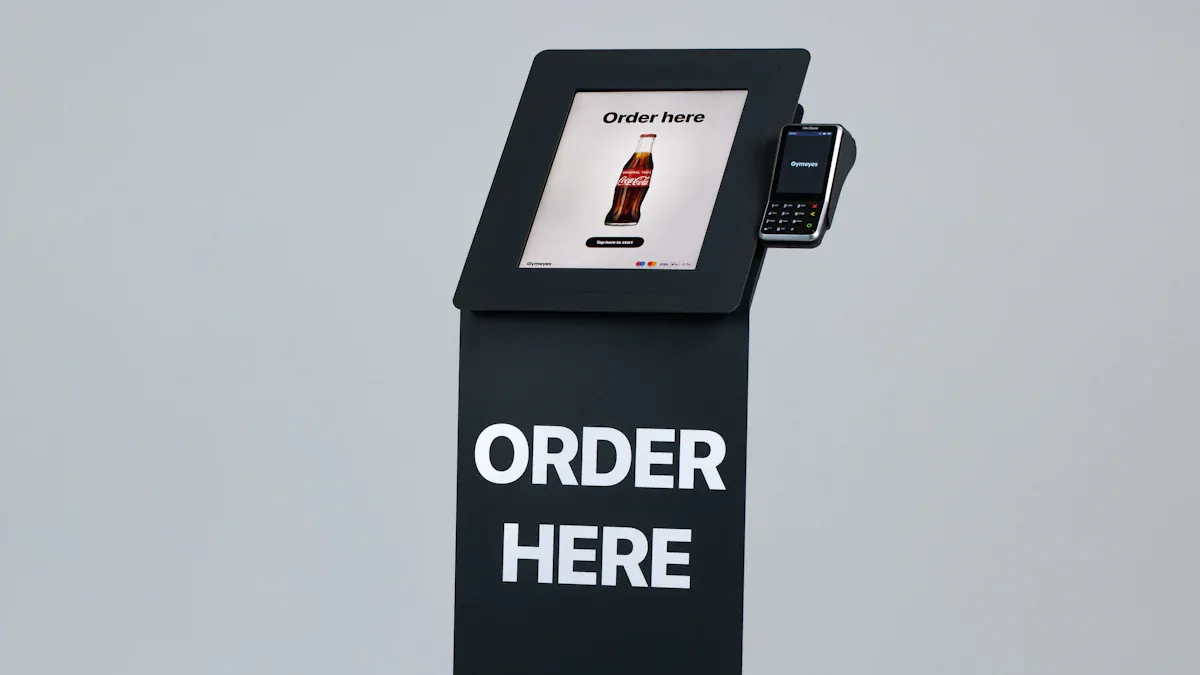
You want your restaurant kiosks to look good and work well. A regular cleaning plan keeps dirt and germs away. In busy spots, clean screens every day to keep everyone safe. Here are some easy cleaning tips:
Use pre-saturated wipes for quick cleaning.
Spray cleaner on a cloth, not directly on the kiosk.
Clean inside parts like credit card slots and bill validators to avoid problems.
Make cleaning part of your daily routine.
When you clean the touch screens, always use a soft, approved cleaner. Stay away from strong chemicals like ammonia. Try a mix of water and isopropyl alcohol (up to 70%) for best results. Microfiber cloths help prevent scratches. If you follow these steps, your kiosks will stay in top shape and last longer.
Monitoring Hardware Health
You need to keep an eye on your kiosk’s hardware health. Check cables, screens, and payment devices often. If you spot a loose wire or a slow printer, fix it right away. Many kiosks let you use remote monitoring tools. These tools send alerts if something goes wrong. You can catch small issues before they turn into big problems.
It’s also smart to check hardware and software compatibility. If you add new devices or update your system, make sure everything works together. This helps you avoid downtime and keeps your service smooth.
Backup and Recovery
Losing data can cause big headaches. You should always have a backup plan. Here’s a quick look at two main strategies:
Strategy Type | Description |
|---|---|
Automated Cloud Backups | |
Manual Updates | Needs regular checks to stay up to date. |
Automated cloud backups work in the background and keep your data safe. Manual updates need more attention, but they let you control what gets saved. Pick the method that fits your restaurant best. If you ever lose data, a good backup helps you get back to business fast.
Tip: Test your backup and recovery process every month. This way, you know it works when you need it most.
You can keep your kiosks running smoothly when you follow a clear troubleshooting process. Regular maintenance and staff training help you spot problems early and avoid technical downtime. Try these tips for better results:
Clean and inspect your kiosks often.
Train your team to handle small issues.
Test new software before using it everywhere.
Use feedback from staff and customers to improve.
Write down what works and what does not. This helps you fix problems faster next time.
Troubleshooting Common Kiosk Issues
Overview
Kiosk failures are like common colds – they happen often and are usually fixable. Data shows nearly two‑thirds of all kiosk issues come from a few common causes: misconfiguration (18%), network problems (14%), software errors (12%), power issues (11%), and OS glitches (11%).
This guide provides a systematic approach to diagnosing and fixing the most frequent kiosk problems.
✅ Universal Troubleshooting Flow (First Three Steps)
Before diving into specific modules, always start with these three simple checks:
Restart the kiosk
Unplug the power cord, wait 10 seconds, then plug it back in. Many temporary software or driver issues disappear after a restart.Check all connections
Verify that every cable (power, network, USB for printer/card reader) is firmly inserted into its port.Observe status LEDs
Look for indicator lights – e.g., the card reader should show a “Ready” or “Welcome” message; the network port should have blinking activity lights.
If these three steps don’t solve the problem, move to the module‑specific tables below.
⚙️ Module‑Specific Troubleshooting
🔌 1. Power & Boot Issues
Symptom | Possible Causes | Solutions |
|---|---|---|
Completely dead – no lights, no fan, screen off | 1. Power cord loose or outlet dead | 1. Test outlet with another device. Re‑plug cord. |
Power LED on, but screen stays black | 1. Backlight inverter failure | 1. Shine a flashlight at the screen – if you see a faint image, the backlight is dead. Replace backlight or LCD panel. |
🌐 2. Network Connectivity Issues
Symptom | Possible Causes | Solutions |
|---|---|---|
“Server error” / “Cannot connect” on screen | 1. Weak Wi‑Fi signal | 1. Move kiosk closer to AP or install a Wi‑Fi extender. |
Intermittent disconnections | 1. Cable interference | 1. Replace Ethernet cable with a shielded one (Cat6 or better). |
🖱️
3. Touchscreen & Display Problems
Symptom | Possible Causes | Solutions |
|---|---|---|
No touch response at all | 1. Dirty screen or protective film | 1. Clean with dry microfiber cloth. Remove thick screen protectors. |
Touch is inaccurate / jumps | 1. Screen not calibrated | 1. Run touch calibration (Windows: “Calibrate the screen for pen or touch”). |
Screen flickers or shows artifacts | 1. Loose video cable | 1. Reseat LVDS or HDMI cable inside kiosk. |
🖨️ 4. Printer Issues (Thermal / Receipt / Label)
Symptom | Possible Causes | Solutions |
|---|---|---|
No print, red error LED | 1. Out of paper | 1. Load new paper roll (correct orientation – thermal side up). |
Prints blank or very faint | 1. Wrong paper type (using non‑thermal paper on a thermal printer) | 1. Replace with proper thermal paper. |
Cuts paper too early or not at all | 1. Auto‑cutter jammed | 1. Remove jam – manually rotate gear with tweezers. |
💳 5. Card Reader / Payment Module Issues
Symptom | Possible Causes | Solutions |
|---|---|---|
Reader not responding, no lights | 1. USB/power cable loose | 1. Unplug and re‑plug the reader’s USB/power cable. |
Card read error / transaction fails | 1. Dirty magnetic head or chip contact | 1. Clean card slot with a cleaning card or compressed air. |
“Device tampered” message | 1. Physical tamper switch triggered | 1. Do not use – secure the kiosk immediately. Contact your security officer or payment provider to reset the tamper‑seal. |
🛡️ Preventive Maintenance & Best Practices
Practice | Why It Matters |
|---|---|
Remote monitoring & management | Real‑time alerts for paper‑low, offline status, or hardware faults. Many issues can be fixed remotely (e.g., restart app). |
Regular cleaning schedule | Dust inside a kiosk causes overheating and static shorts. Clean vents, fans, and touchscreen monthly. |
Network isolation (VLAN) | Kiosks are often targeted for attacks. Place them on a separate VLAN with no unnecessary inbound access. |
Spare parts inventory | Keep spare printer, power supply, and touch controller on hand. Swap time: 10 minutes vs. days waiting for parts. |
Environmental control | Avoid placing kiosks in direct sunlight, high humidity, or near grease sources (kitchens). Heat kills touchscreens and batteries. |
📝 When to Call a Professional
If you have gone through all the steps above and the issue persists, contact your kiosk vendor or an authorised technician. Before you call, have this information ready:
Kiosk model and serial number
Exact error message or code (photo helps)
What you have already tried (e.g., “restarted, checked cables, cleaned printer”)
🎯 Quick Reference Card (Print & Stick on Kiosk)
First do this:
Restart (unplug 10 sec)
Check cables
Look for error LEDs
If still broken:
No power → test outlet, check adapter
No network → reboot router, check Ethernet
No touch → clean screen, restart
Printer not working → check paper & jam
Card reader dead → re‑plug USBHenry Fang
General Manager
Shenzhen TopAdkiosk Display Technology Co., Ltd.
Add.: 2F, Bldg 10, Changfeng Industrial Park, Dongkeng, Fenghuang, Guangming, Shenzhen, China 518132
Mobile/WHATSAPP: 86-138 25769658
Email: marketing@topadkiosk.com topadkiosk@gmail.com
Skype: pghenry1
Wechat: adkioskhenry
English Web.: http://www.topadkiosk.com/ FAQ
What should you do if your kiosk screen freezes?
Try restarting the kiosk first. If that does not work, check all cables and clean the screen. Update your software if needed. If the problem keeps happening, contact your support team.
How often should you clean your kiosk?
You should clean your kiosk every day. Wipe the screen and buttons with a soft cloth. Clean inside parts like card readers every week. This keeps your kiosk working well and looking good.
Why does your kiosk printer jam?
Paper jams happen when:
The paper is loaded wrong.
There is dust or debris inside.
The printer needs cleaning. Check the paper and clean the printer to fix most jams.
How can you keep your kiosk secure?
Security Tip | What You Can Do |
|---|---|
Use strong passwords | Change them often |
Lock hardware | Use tamper-proof cases |
Update software | Install patches right away |
Stay alert for any strange activity.
See Also
6 Essential Tips For Selecting Interactive Kiosks Effectively
A Comprehensive Guide To Installing Touch Screen Kiosks
Key Features To Look For In Modern Touch Screen Kiosks
Discover 10 Unexpected Applications Of Touch Screen Kiosks In 2026
Tips For Finding The Best Local LCD Kiosk Installation Service
