Making Interactive Experiences With Touch Table Object Recognition Tags
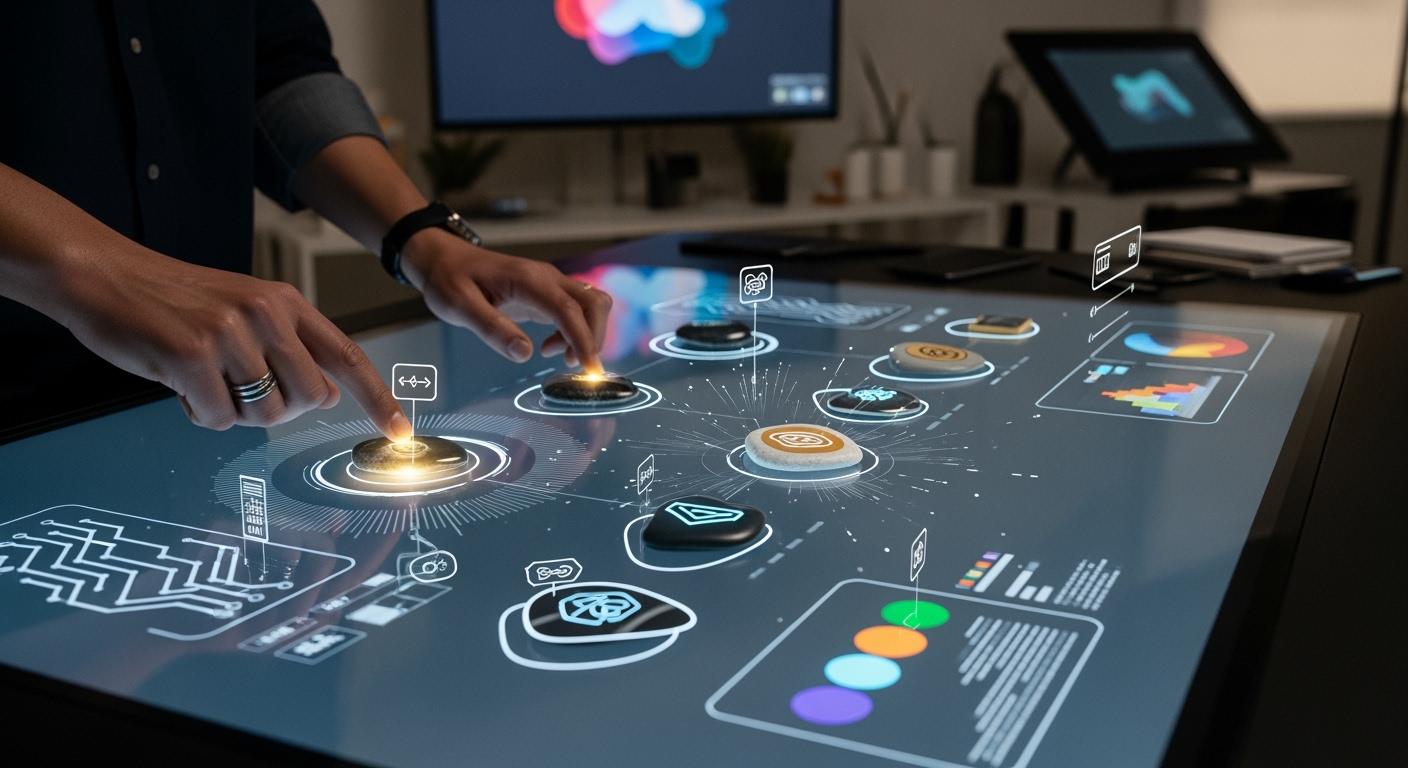
Touch Table With Object Recognition Tags lets you use real objects to connect with digital things. You can put items on the table and get quick feedback, lights, or sounds. Think about using this in a classroom, game room, or museum.
Shenzhen TopAdkiosk Display Technology Co., Ltd.
Add.: 2F, Bldg 10, Changfeng Industrial Park, Dongkeng, Fenghuang, Guangming, Shenzhen, China 518132
Mobile/WHATSAPP: 86-138 25769658
Email: marketing@topadkiosk.com topadkiosk@gmail.com
Skype: pghenry1
Wechat: adkioskhenry
English Web.: http://www.topadkiosk.com/
https://www.topkioskdisplay.com/
http://www.ad-kiosk.com/
https://www.toplcddisplay.com/
http://www.multitouchdigitalsignage.com/
https://www.youtube.com/channel/UCYVYNJHxLVEcQD8fuUxXNTA/videos?view_as=subscriber
https://www.facebook.com/TOPADKIOSKSHENZHEN/?ref=bookmarks
Many people can use it at once, which helps teamwork and makes learning fun.
Learning games on touch tables help you remember more and have a good time.
You can see what others do, so group activities feel more exciting.
Think about how you could use this technology to make new ways to learn or play.
Key Takeaways
Touch tables help people learn and play together. Many users can use real objects and digital things at the same time.
Object recognition tags make activities more fun. They help people remember things better by using their hands.
Keeping tags in good shape and setting them up right helps them work well. This makes using the touch table easy and fun.
Trying out new objects and ways to recognize them can help people find new ways to learn and play.
Easy starting points and simple navigation make the touch table better for everyone. This helps all users join in easily.
Touch Table With Object Recognition Tags
How Object Recognition Works
A Touch Table With Object Recognition Tags links real objects to digital actions. When you put a tagged item on the table, the system finds out what it is fast. It also knows where you put it. This works because the table has special sensors and smart software.
Here are the main parts that help make this work:
Component Type | Description |
|---|---|
Sensors | Find touch, pressure, and movement. These include force sensors, capacitive sensors, and infrared. |
Wireless Modules | Let the table connect to other devices with Zigbee or WiFi. |
Actuation Tech | Make things happen, like lights, sounds, or moving parts. |
AI and Machine Learning | Help the table know objects and learn about new ones. |
Frameworks | Software like reacTIVision uses camera feeds to spot tags right away. |
Regular touchscreens only react to finger taps. A Touch Table With Object Recognition Tags can sense real objects. You can use tokens, cards, or models to start special content. The table makes a 3D space for you and your friends to play together.
Key Benefits and Applications
There are many good things about using a Touch Table With Object Recognition Tags. The table lets many people use it at the same time. You can work with classmates or teammates. You can touch, move, and mix objects, which makes learning and playing more fun.
Some main uses are:
Museums: Put a model on the table to see its history or compare it with others.
Trade shows: Use objects to show products or play videos.
Education: Match shapes, learn science, or build math skills by moving real pieces.
Games: Play board games that use sound and animation.
These tables help you learn by doing things, not just reading. You can unlock stories, solve puzzles, or plan projects with others. In public places, big tables let many people join in at once. For example, some museum tables let up to eight people use them together. This makes teamwork and group discovery easy and fun.
Tip: Try different objects to see how the table reacts. You might find new ways to learn or play!
Recognition Methods
Fiducials and Marker Chips
Fiducials and marker chips help the touch table know objects. Fiducials are patterns printed on the bottom of things. The camera under the table sees these patterns. It tells the system which object is there. Marker chips use electronic signals to do something similar.
Here is a table that shows the good and bad sides of fiducials and marker chips:
Advantages | Disadvantages |
|---|---|
Accurate pose estimation | Sensitivity to lighting conditions |
Handles occlusions to some extent | High computational time |
Provides four points for pose estimation | Detection limits with occluded or distant markers |
You can track objects well and see how they move or turn. But lighting can make detection harder. The system may take longer to process images if there are many objects.
NFC and Capacitive Tags
NFC and capacitive tags are another way to recognize objects. NFC tags use magnetic signals to talk to the table. Capacitive tags change the electric field when you put an object on the table.
Here is a table that compares what they do and their limits:
Technology | Functionality | Limitations |
|---|---|---|
NFC | Uses magnetic coupling for communication between devices. | Works only up to 4 cm. May cause false touch events if exploited. |
Capacitive Tags | Measures changes in capacitance when an object approaches. | Can be affected by outside electric fields, causing false touches. |
These tags help you detect objects quickly and easily. NFC tags are good for close-range use. Capacitive tags react to touch and movement. Both can sometimes cause false events if things are not perfect.
TUIO and Multitouch Integration
TUIO is a protocol that helps the touch table track many touches and objects at once. It sends information about where each object is. It also tells how it is turned and if it moves or disappears.
Description | |
|---|---|
Position | Shows where the object is placed on the surface. |
Orientation | Tells how the object is rotated. |
Movement | Tracks displacement, rotation, appearance, or removal. |
TUIO works well with multi-touch surfaces. Many interactive tables use TUIO with software. If you use Windows apps, you might need TouchInjector to change TUIO messages into normal touch events. TUIO sends data as OSC messages over UDP. This keeps your system fast and responsive. You can use TUIO with Touch Table With Object Recognition Tags to make fun, interactive experiences.
Tip: Try using different recognition methods together to get the best results for your project.
Building and Using Object Recognition Tags
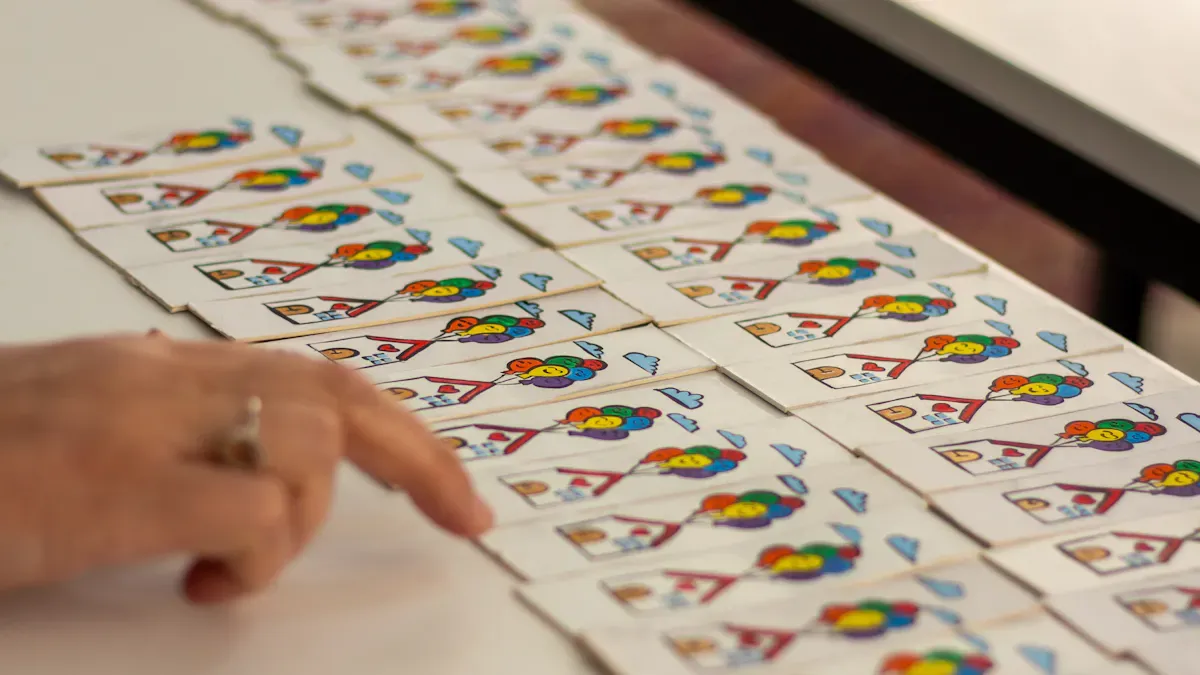
Materials and Tools
You need the right materials and tools to make object recognition tags that work well with your touch table. Using quality supplies helps your tags last longer and work better. Here is a table that shows some of the most reliable materials and tools you can use:
Material/Tool | Description |
|---|---|
Liquid two-component casting resin | Lets you create strong, clear discs for object recognition. |
Measure cups and gloves | Keeps you safe and helps you mix the resin correctly. |
Disc-shaped silicone molds | Shapes the discs, usually about 3 inches wide. |
Self-adhesive conductive copper tape | Makes the discs able to carry an electric signal. |
Adhesive sticker paper labels | Lets you print and stick labels on your discs. |
You can find these items at craft stores or online. Always wear gloves when you work with resin. Use the molds to make discs that are the right size for your table. Copper tape helps your tags send signals to the table. Sticker labels help you keep track of each tag.
Tip: Use clear resin for your discs. It helps the sensors see the tags better and keeps your table looking neat.
Creating and Mounting Tags
Start by making the base discs. Mix the casting resin in a measuring cup. Pour it into the silicone molds. Wait for the resin to harden. This step gives you a strong and flat base for your tags. A good base disc is important. It helps the table recognize the tag every time you use it.
After the discs are ready, cut small pieces of self-adhesive copper tape. Stick the tape to the bottom of each disc. Make sure the tape is flat and smooth. This helps the tag send a clear signal. Next, print your labels on sticker paper. Place a label on the top of each disc. You can use numbers, pictures, or colors to tell the tags apart.
If you want to use other objects, glue the disc to the bottom of the item. For example, you can attach a disc to a toy car or a plastic animal. Make sure the disc sits flat. This helps the table read the tag without mistakes.
Note: Always check that the copper tape does not peel off. Press it down firmly for best results.
System Setup and Testing
Once you finish making your tags, you need to set up your system. Place the touch table on a flat surface. Connect it to power and turn it on. Open the software that works with your table.
Put one tag on the table. Watch the screen to see if the table recognizes it. Move the tag around. Turn it in different directions. The table should track the tag’s position and rotation. Try using two or more tags at the same time. This helps you see if the table can handle group activities.
If a tag does not work, check the copper tape and the label. Make sure the disc is clean and not scratched. Sometimes, you need to adjust the software settings. Follow the instructions for your touch table.
Tip: Test your tags before you use them in a real activity. This helps you fix any problems early and makes your interactive experience smooth.
By following these steps, you can build reliable object recognition tags. Good base discs and careful setup help your touch table work its best. You can now create fun and interactive experiences for learning, games, or displays.
Troubleshooting and Tips
Improving Reliability
You want your touch table to work every time you use it. Start by making sure your tags are made with care. Use the same size and shape for each tag. This helps the table read them without mistakes. Clean the table surface often. Dust or smudges can block sensors. Place your table in a spot with even lighting. Bright lights or shadows can confuse the camera.
Here is a table that shows common reliability issues and what they mean:
Issue Type | Description |
|---|---|
Inconsistency in Measurement Methods | Different ways of checking objects can give mixed results. |
Lack of Standardization | Tags with different shapes or colors can make the system less accurate. |
Subjectivity in Scoring | Manual checks can take time and may not always be fair. |
You can fix these problems by using the same process for every tag. Try to keep your tags simple and easy to tell apart.
Common Challenges
You may face some challenges when using object recognition tags. Sometimes, the table does not see a tag right away. Try moving the tag or checking if the label is clear. If the table acts slow, close other apps on your computer.
Users often say that clear and simple entry points help them get started. They like when the table uses the same patterns for moving between screens. You should check your content often to keep it fresh. Listen to feedback from users. This helps you make your table better over time.
Clear entry points make it easy to start.
Consistent navigation keeps users from getting lost.
Regular updates build trust.
Feedback helps you improve.
Maintenance Best Practices
Take care of your touch table and tags to keep them working well. Wipe the table with a soft cloth. Check tags for damage or peeling labels. Store extra tags in a safe place. Update your software when new versions come out.
Tip: Set a schedule for cleaning and checking your system. This keeps your interactive experiences smooth and fun.
You can make interactive experiences if you follow simple steps. The table below lists each step and what you should do:
Phase | Key Steps |
|---|---|
1 | Pick software, plan your content, and get hardware. |
2 | Find pictures, write words, check and test your work. |
3 | Set up hardware, add software, and test everything. |
4 | Teach staff, start your project, and ask for feedback. |
5 | Share your project, add new things, and watch how it does. |
Try out new ideas and learn from any problems. You can look at guides on ScienceDirect, IBM, and Coursera to help you begin your own project.
FAQ
How do you clean the touch table surface?
Use a soft, dry cloth to wipe the table. Avoid water or harsh cleaners. Clean the table often to keep sensors working well.
Can you use any object as a tag?
You need to attach a special tag or disc to the object. The table cannot recognize plain objects without these tags.
What happens if a tag stops working?
Check the tag for damage or dirt. Make sure the copper tape is flat and the label is clear. Replace the tag if needed.
How many people can use the table at once?
Many tables support up to eight users at the same time. You can work together or play group games easily.
Do you need special software for object recognition?
Yes, you need software that works with your touch table. Programs like reacTIVision help the table read tags and objects.
See Also
Discover 10 Unexpected Applications for Touch Screen Kiosks in 2026
Comprehensive Instructions for Setting Up a Touch Screen Kiosk
Essential Characteristics of Today's Advanced Touch Screen Kiosks
How Touch Screen Displays Enhance Contemporary Casino Gaming Experiences
New Developments in Interactive Screen Technology Expected in 2026
