lcd touch screen kiosk solutions and environment to install and application to use touch screen kiosks
Add.: 2F, Bldg 10, Changfeng Industrial Park, Dongkeng, Fenghuang, Guangming, Shenzhen, China 518132 Mobile/WHATSAPP: 86-138 25769658
Email: marketing@topadkiosk.com topadkiosk@gmail.com Wechat: adkioskhenry English Web.: http://www.topadkiosk.com/ https://www.topkioskdisplay.com/
http://www.ad-kiosk.com/ https://www.toplcddisplay.com/
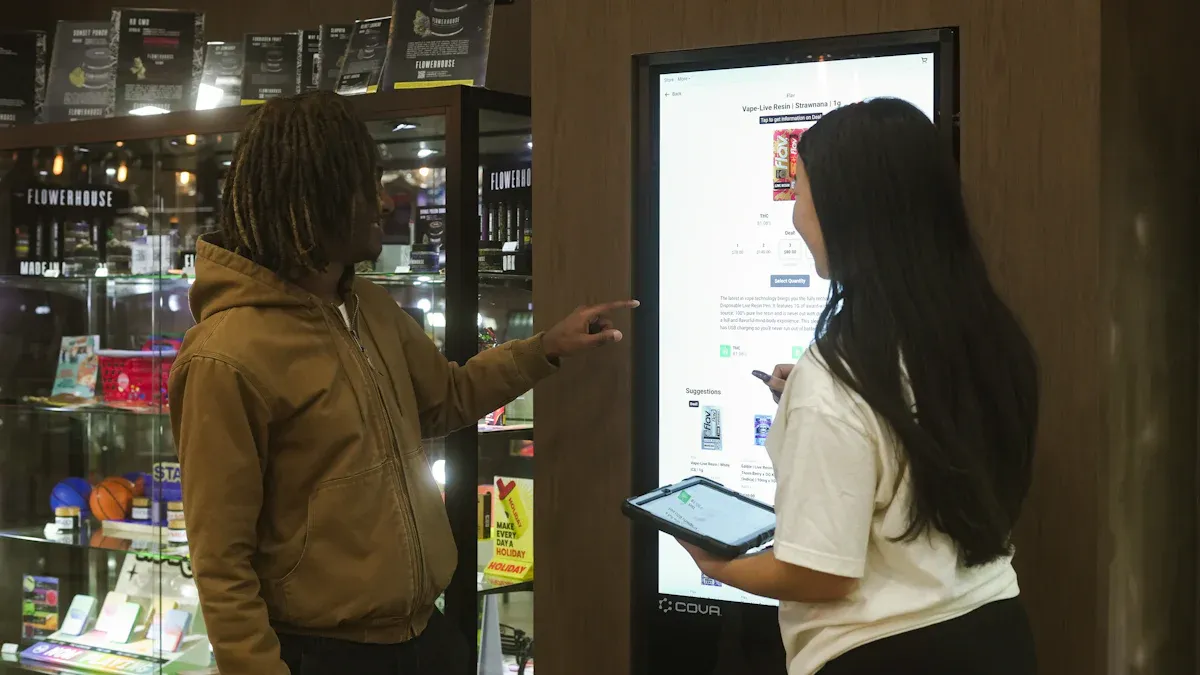
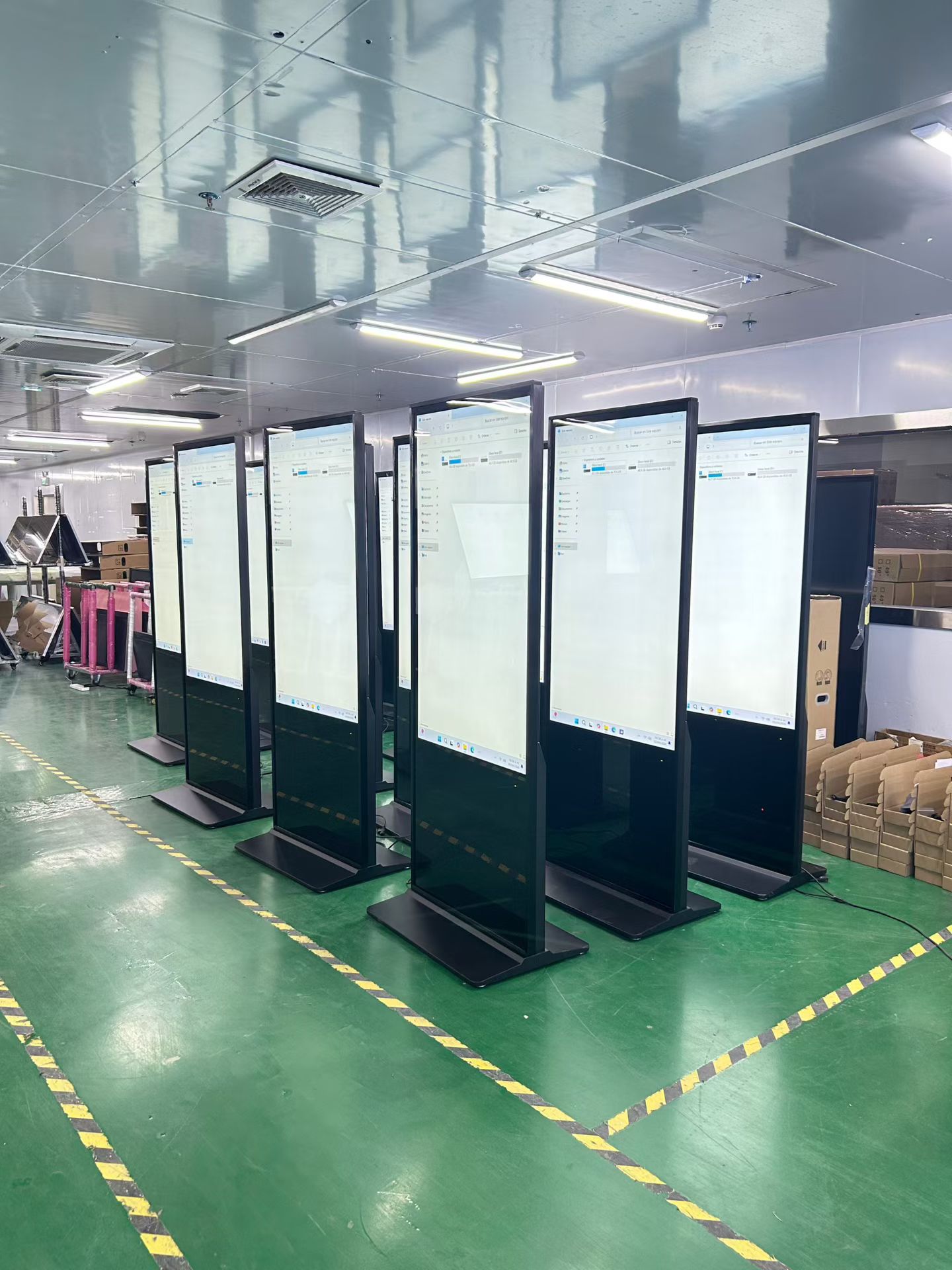
LCD touch screen kiosk solutions are advanced machines featuring touch screen solutions that allow users to interact with digital content effortlessly. These kiosks enhance customer experiences by streamlining processes, increasing efficiency, and reducing costs. Additionally, they are capable of collecting valuable data. For optimal results, it is recommended to install these kiosks in high-traffic areas such as hallways, lobbies, reception areas, and entry corridors. Various sectors, including healthcare, public transport, banking, hospitality, fast-food, retail, and urban environments, utilize lcd touch screen kiosk solutions and environment to improve service delivery and enhance customer satisfaction.
Key Takeaways
Pick the best touch screen for your kiosk. Capacitive screens work fast and look clear. Resistive screens last long and cost less.
Put kiosks where many people walk by. Places like lobbies and doors help more people see and use them.
Make sure kiosks are easy for all people to use. Use big, clear letters and colors that stand out. Design them so everyone can use them.
Take care of kiosks to make them last longer. Clean screens every week. Check the hardware every month. Update the software every few months. This helps kiosks work well.
Keep kiosks safe from harm. Use strong cases to protect them. Watch what happens on the kiosks. Change passwords often to keep user data safe.
Types of Touch Screen Solutions
Capacitive vs. Resistive Touch Screens
There are two main kinds of touch screen solutions in kiosks. These are capacitive and resistive. Each one works in its own way and has special advantages.
Capacitive touch screens have a clear layer on glass. They sense your touch by noticing changes in electricity. This makes them quick and easy to use. You can touch with more than one finger at the same time. The screen looks bright and clear.
Resistive touch screens use layers that react to pressure. You must press down for them to work. These screens can be used in many places. They may not feel as fast, but they are strong and less expensive.
Capacitive screens are used when you want fast action and clear pictures. Resistive screens are good where you need tough and cheap options.
Tip: If you want your kiosk to feel like your phone or tablet, pick a capacitive touch screen solution.
Scenario | Type of Touch Screen |
|---|---|
Capacitive | |
Tablets | Capacitive |
Consumer electronics | Capacitive |
Commercial-Grade and High-Traffic Options
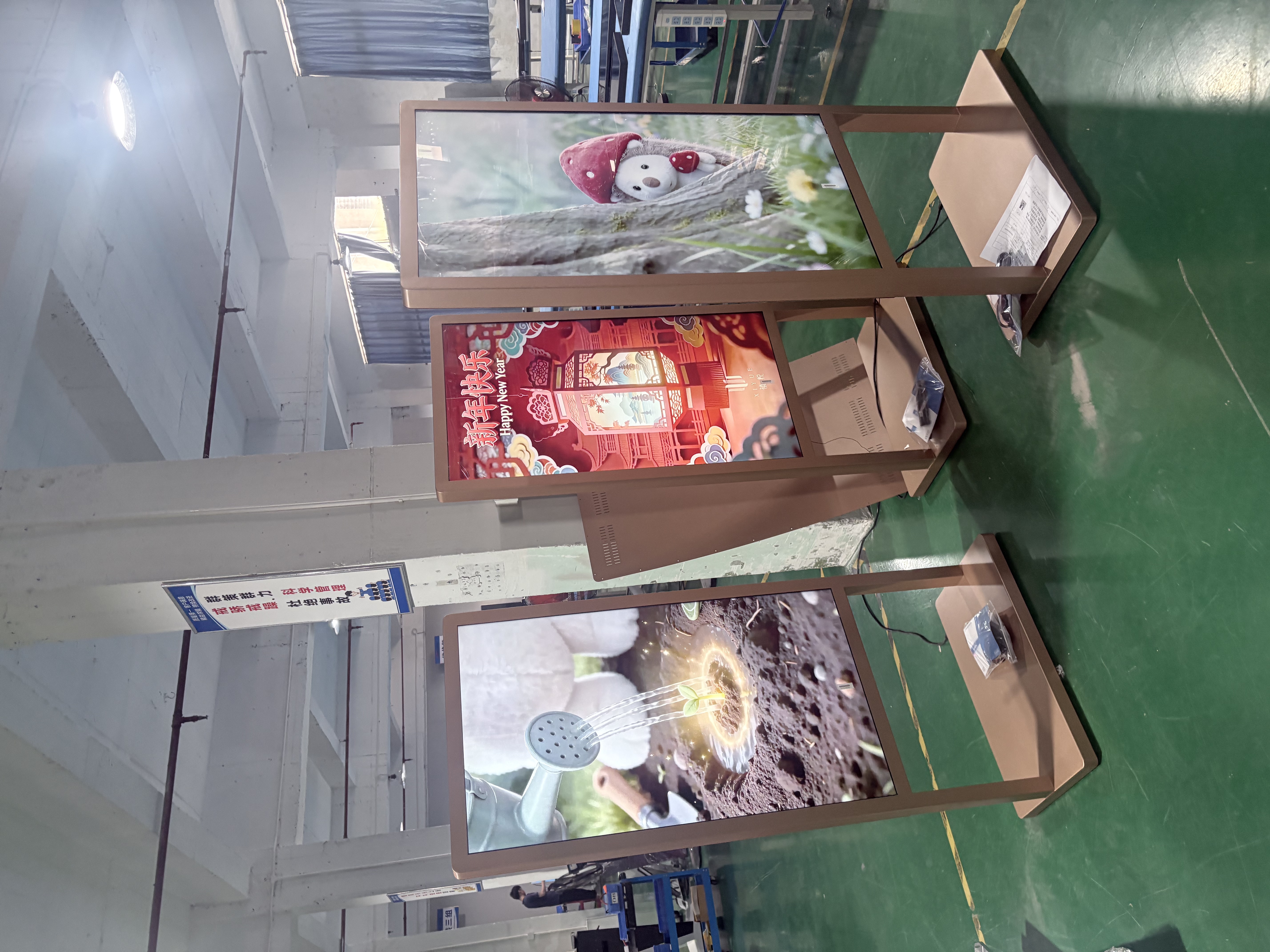
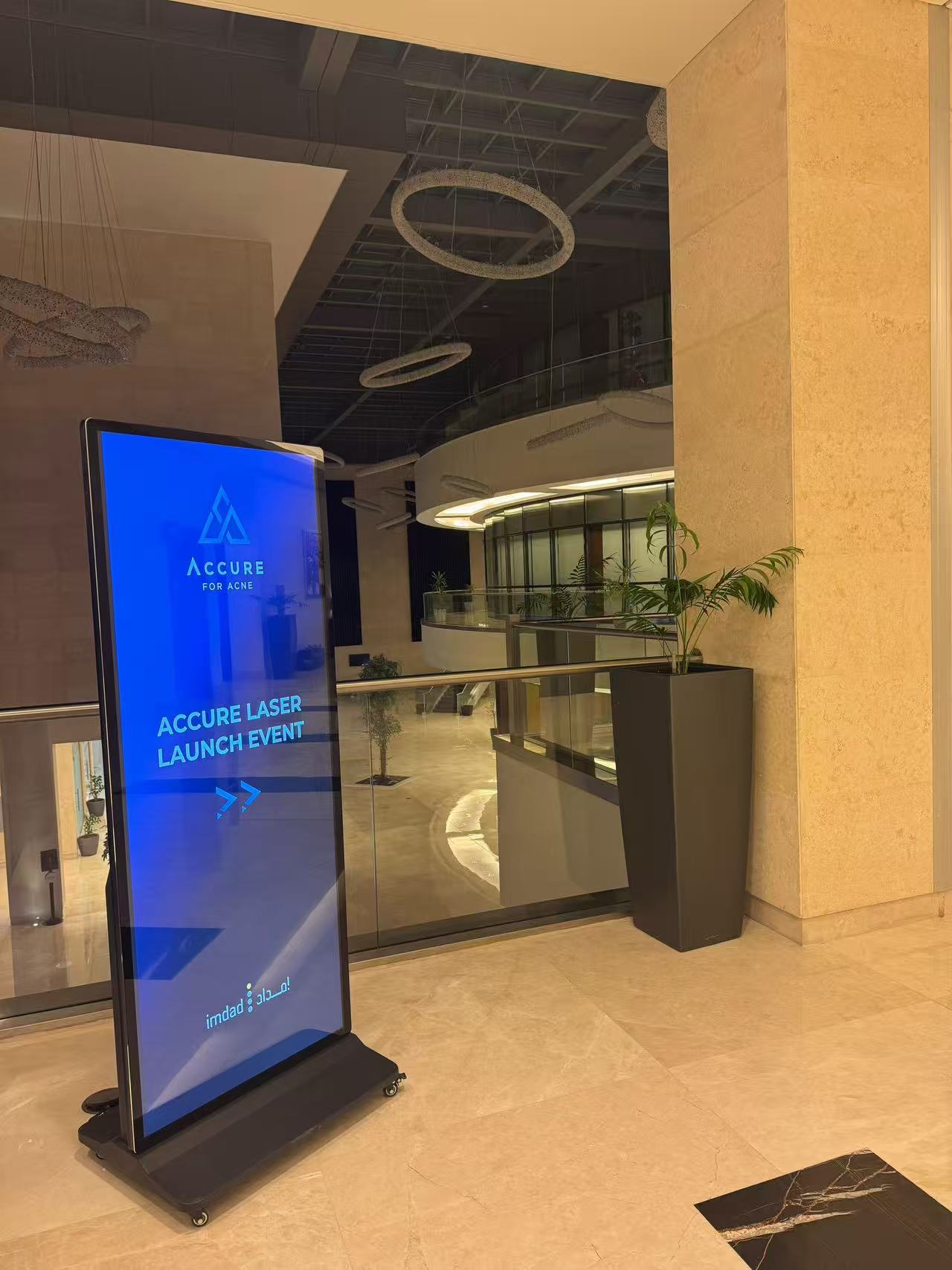
If you put a touch screen solution in a busy place, you need strong features. These kiosks are made to handle lots of use and rough spots.
Feature | Description |
|---|---|
Enhanced Durability | Handles lots of use and tough weather |
Stays easy to see even in sunlight (up to 3500 nits) | |
Tempered Glass | Stops scratches and hard hits |
Lockable Controls | Keeps people from changing settings |
IP65 Ratings | Blocks dust and water, good for outside |
24/7 Rated | Works all day and night |
Heavy-Duty Thermal Management | Stops the kiosk from getting too hot |
Customizable Designs | Lets you change the look for your needs |
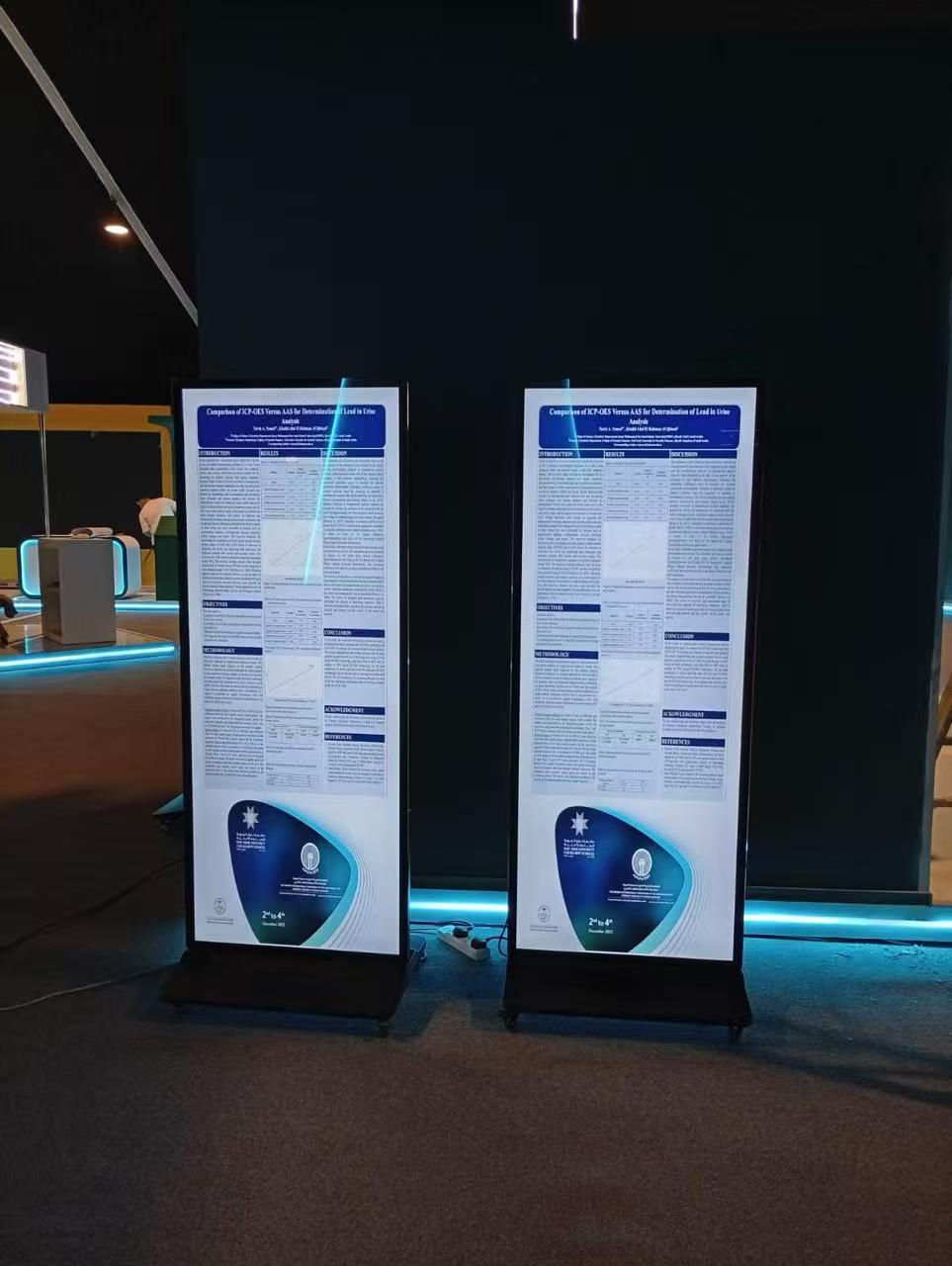
You will find these features in kiosks at airports, malls, and hospitals. They help the kiosk last longer and work better.
Choosing the Right Touch Screen Solution
You need to pick a touch screen solution that fits your business. Think about these important points:
Criteria | Description |
|---|---|
Performance Specifications | Check how fast and correct the screen reacts to touch. |
Operational Requirements | Think about where you will put the kiosk and what it must do. |
Cost Considerations | Look at the price, including buying, fixing, and replacing the kiosk. |
Industry-Specific Applications | Make sure the solution works for your field, like healthcare or finance. |
Scalability | Pick a solution that can grow with your business. |
Pilot Testing | Try the kiosk in real life before buying more. |
Training and Support | Make sure you have help to teach users and fix problems. |
Note: Always try your kiosk with real people first. This helps you find and fix problems before you get more kiosks.
When you know about these types and features, you can pick the best touch screen solution for your place and use.
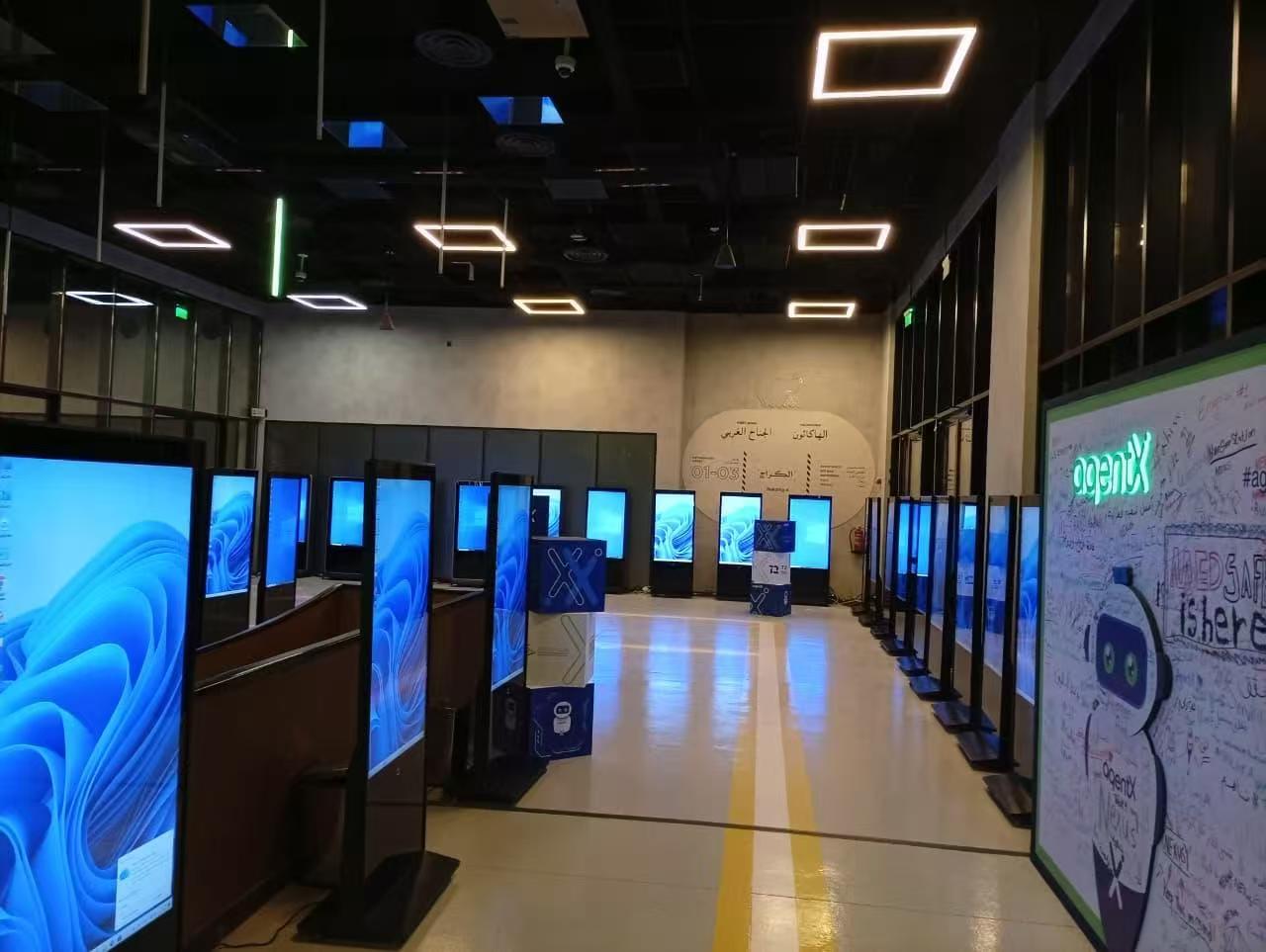
Installation Environment
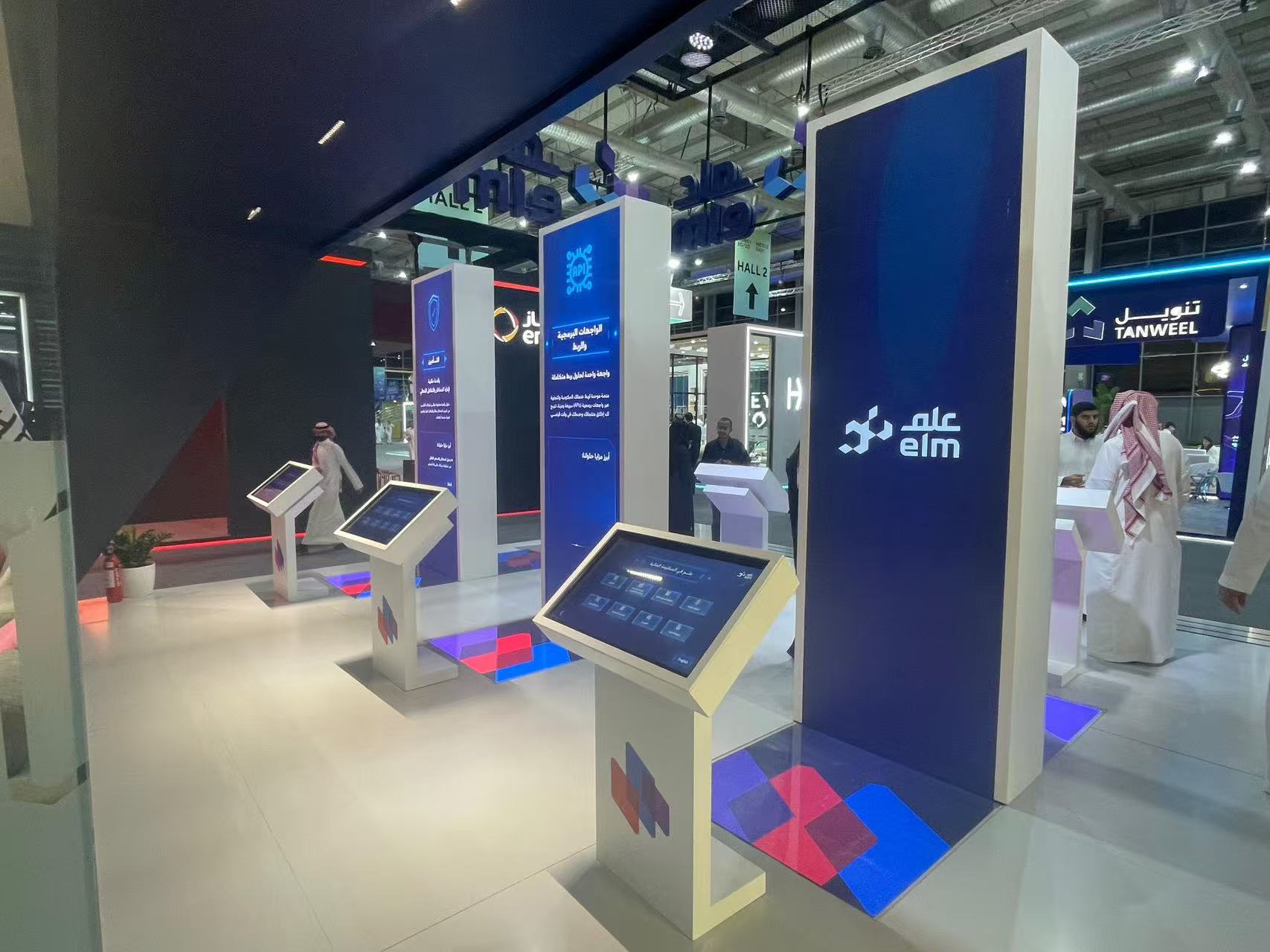
Indoor and Outdoor Considerations
Think about where you want to put your kiosk. Indoor and outdoor places need different things. Indoor kiosks are good for malls, hospitals, and schools. Outdoor kiosks must deal with weather and changes outside.
Impact on Performance | |
|---|---|
Lighting | Sunlight can make screens hard to see. Bright screens help. Anti-glare screens stop glare. |
Humidity | Too much moisture can cause damage. Protection from water is needed. |
Temperature | Cold can crack screens. Heat can make kiosks break faster. |
Outdoor kiosks need to be strong. They must keep out rain, snow, and heat. Weatherproofing stops water and dust from getting in. Climate resistance lets kiosks work in hot and cold. Screens should stay bright and clear in sunlight.
Factor | Description |
|---|---|
Rugged Construction | Tough materials keep kiosks safe from weather and damage. |
Weatherproofing | Kiosks keep working in rain, snow, and hot or cold days. |
Climate Resistance | Inside parts handle changes in temperature. Insulation helps. |
Bright screens let people use kiosks outside. |
Tip: Try to put outdoor kiosks in shady spots. Shade helps people see the screen and keeps kiosks safe from weather.
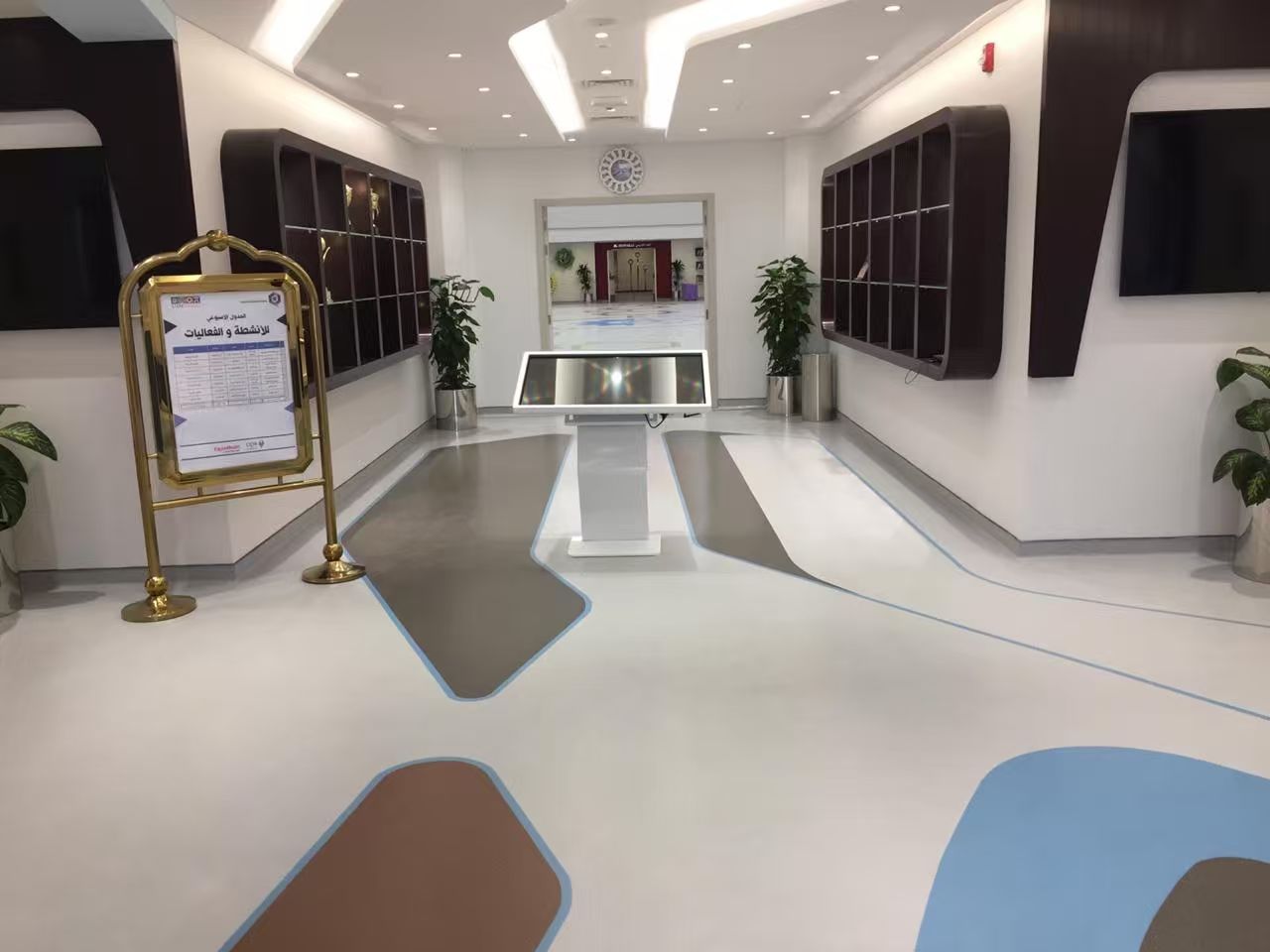
Space and Accessibility
Make sure there is enough room around your kiosk. Good space helps everyone use the kiosk, even people with disabilities.
Pick colors that stand out for easy seeing.
Use big, clear fonts.
Keep the design simple and neat.
Put controls where everyone can reach them.
Set the screen at a height for standing and sitting users.
Leave open space so people can get close to the kiosk.
Give instructions in large print and braille.
Let users ask for help if needed.
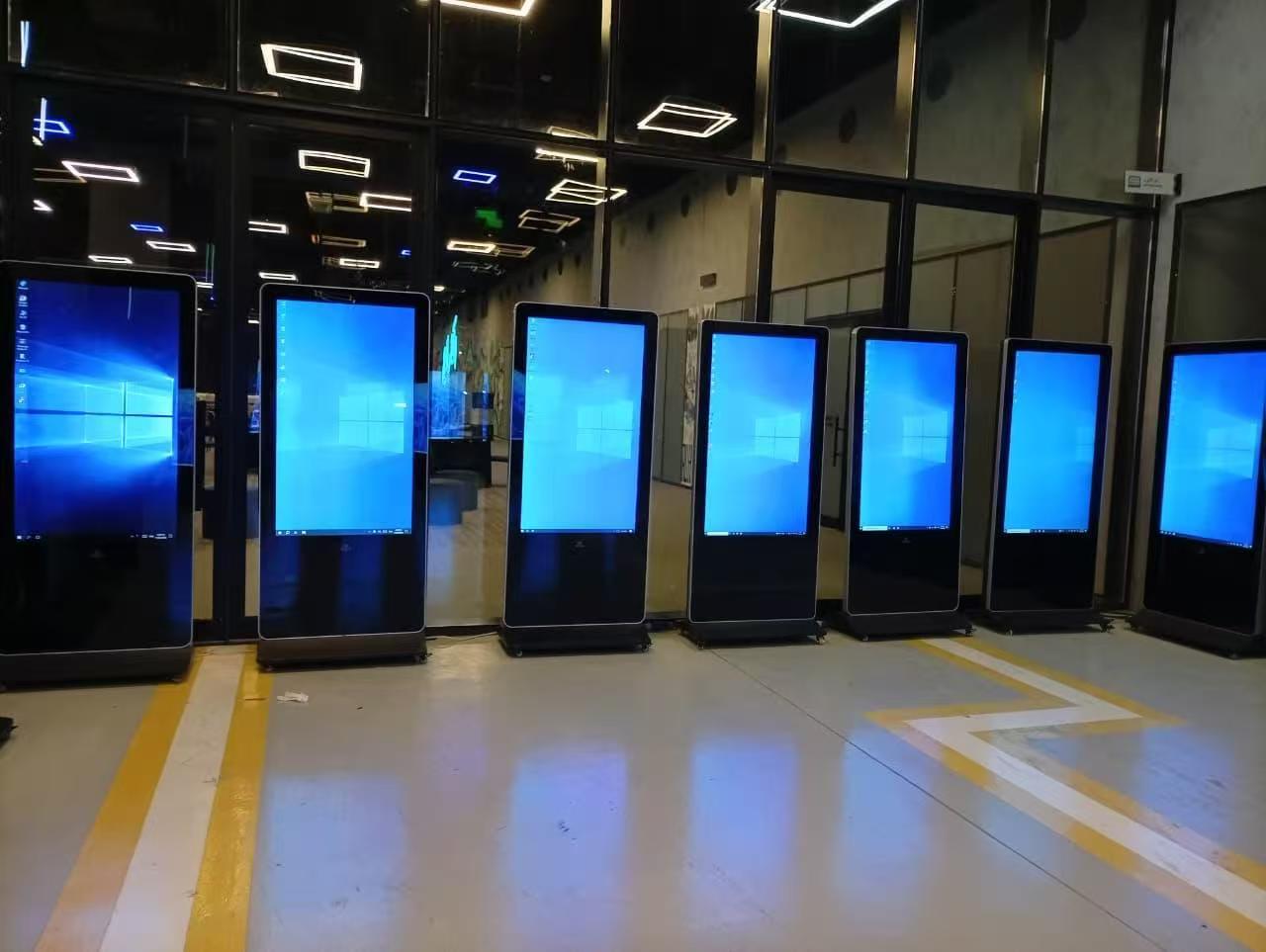
Accessibility rules, like ADA, help you make kiosks easy for all. These rules cover access, seeing and hearing help, and simple use.
Requirement | |
|---|---|
Clear Floor Space | People with wheelchairs can get to the kiosk. |
Responsive Screens | Screens are easy to touch and respond fast. |
High-Contrast Visuals | Helps people who have trouble seeing. |
Audio Output | Headphone jacks and volume controls help those who need sound. |
Ergonomics | Controls work with one hand and need little force. |
User Testing | Ask people with disabilities to try the kiosk and give feedback. |
Note: Add things like audio help, buttons you can feel, and screens that move up and down to make kiosks easier for everyone.
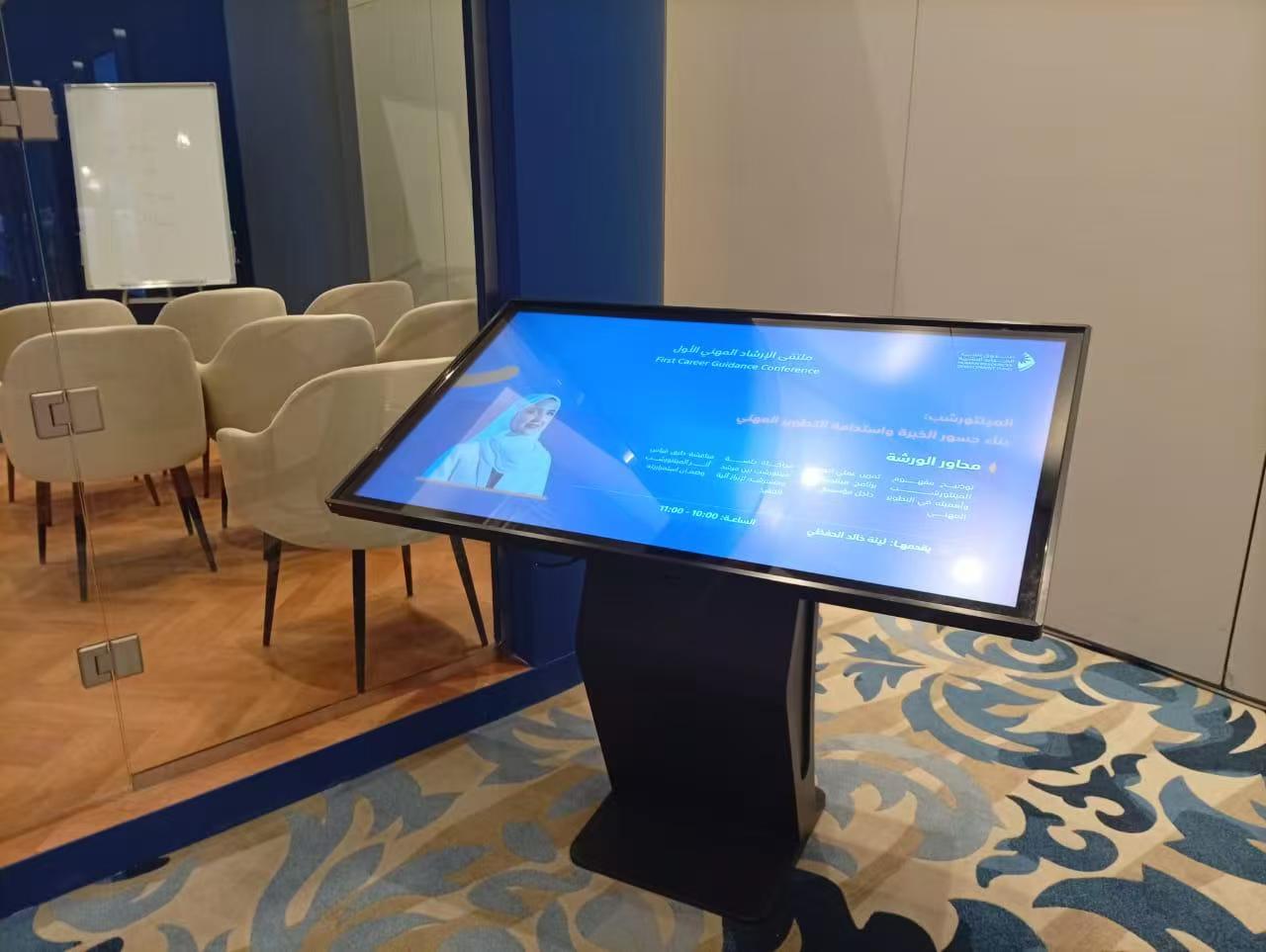
Power, Connectivity, and Security
Kiosks need steady power and good connections to work well. LCD screens use most of the power, especially big or bright ones. Capacitive screens use less power than resistive screens. Wi-Fi and Bluetooth use more power when they are on. Most kiosks use AC adapters for power. Some have batteries for short use.
Factor | Description |
|---|---|
Display Technology Power | LCD screens with LED lights use most of the system’s power. |
Touch Technology Impact | Capacitive screens save power when not in use. |
Processing Requirements | CPU, graphics, and memory use power too. |
Connectivity Power Consumption | Wi-Fi and Bluetooth use more power when sending data. |
Power Delivery Standards | USB-C Power Delivery gives up to 100 watts for screens. |
Alternative Power Sources | AC adapters give steady power. Batteries last 8-12 hours for portable kiosks. |
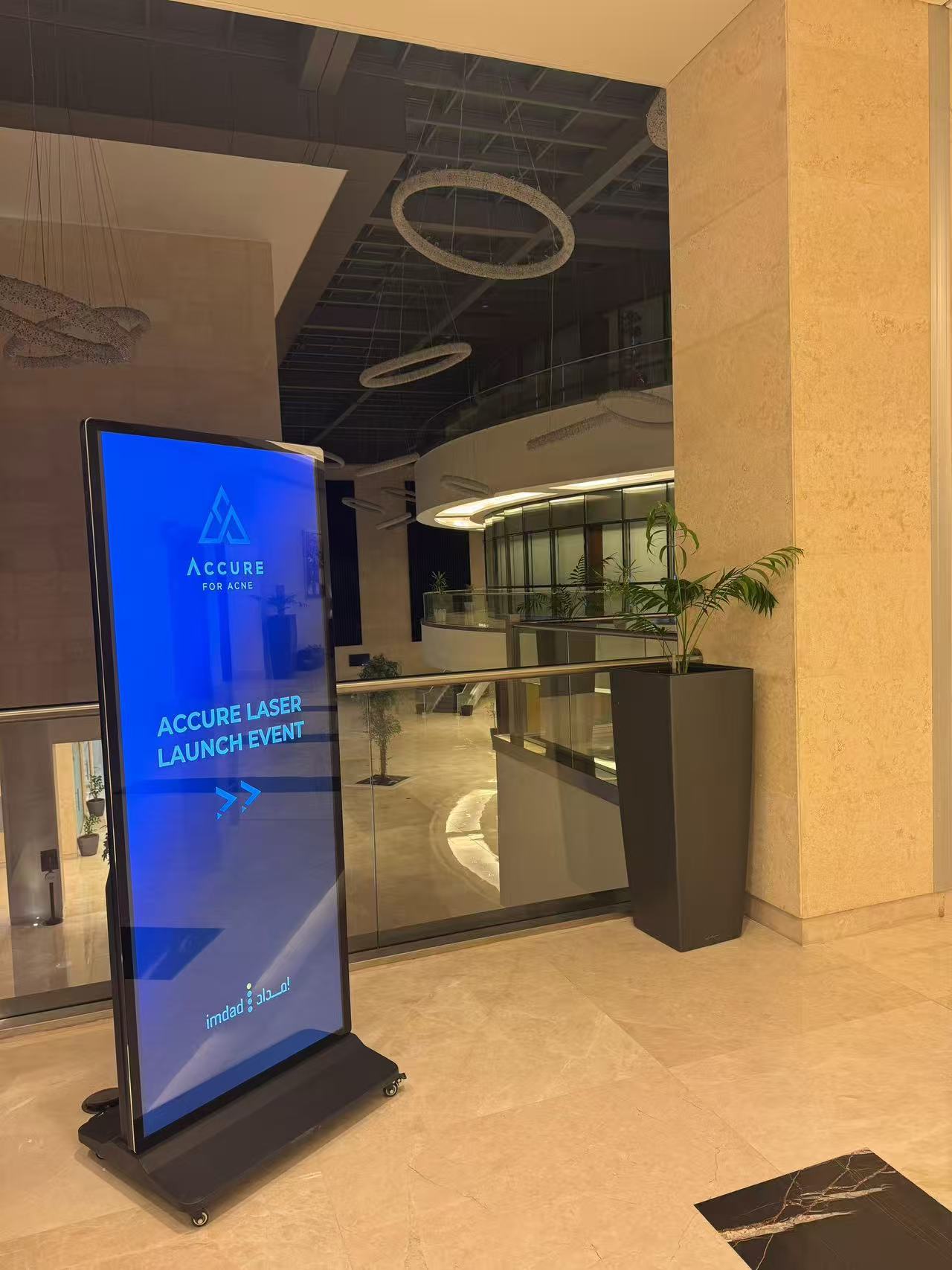
Keep your kiosk safe from theft and hacking. Use strong cases to stop tampering. Put kiosks where cameras or staff can watch them. Make the operating system safer by turning off things you do not need and updating security. Keep kiosks on their own networks. Use strong passwords and change them often. Encrypt customer data and control who can use the system.
Use strong cases for kiosks.
Watch kiosks with cameras.
Pick safe places for kiosks.
Make the operating system safer.
Keep networks separate.
Use designs that stop tampering.
Require strong passwords.
Check and record activity.
Encrypt customer data.
Tip: Check your kiosk’s security often and update settings to keep user information safe.
A good installation environment helps your touch screen solution work well and last longer. You make the kiosk safe, easy to use, and reliable for everyone.
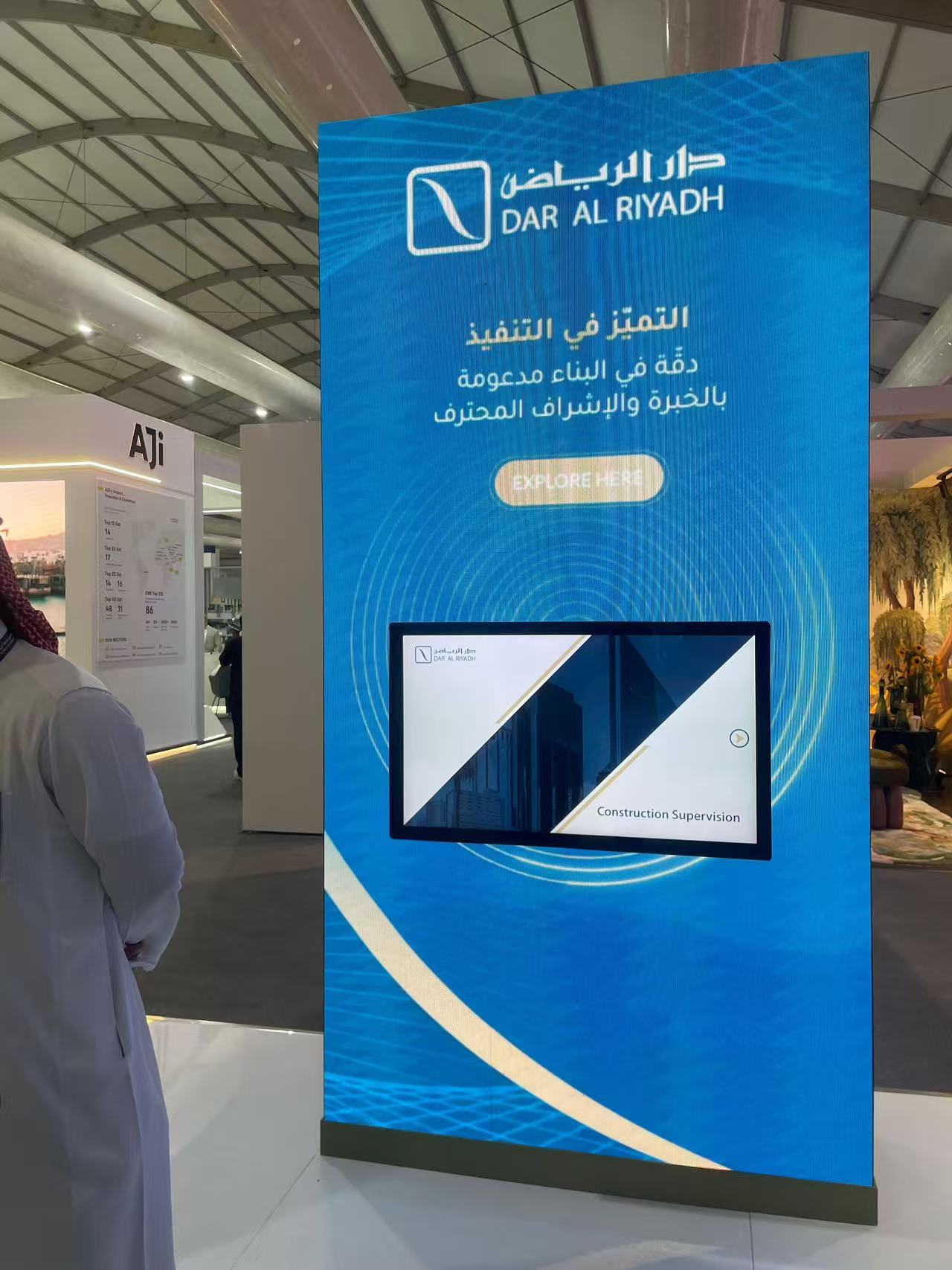
Application Scenarios
Retail and Self-Service
Touch screen kiosks are common in stores now. They help you look up products and check prices. You can pay for your items using the kiosk. Shopping is faster and easier with these machines. You do not have to wait for a worker. Kiosks let you shop any time, even if staff are busy. Stores use kiosks to save money and help workers do other jobs.
Benefit | Impact on Retail Automation | Enhancing Customer Service |
|---|---|---|
Extended business hours | Improved operational efficiency | |
Reduced labor costs | Streamlined processes | Increased productivity |
Personalized recommendations | Convenient self-service | Enhanced in-store experience |
Kiosks suggest products you might like and let you try things on a screen.
They answer questions and help you check out fast.
Stores can stay open longer without hiring more people.
Self-service kiosks make fewer mistakes and speed up buying. This makes shopping better for everyone.
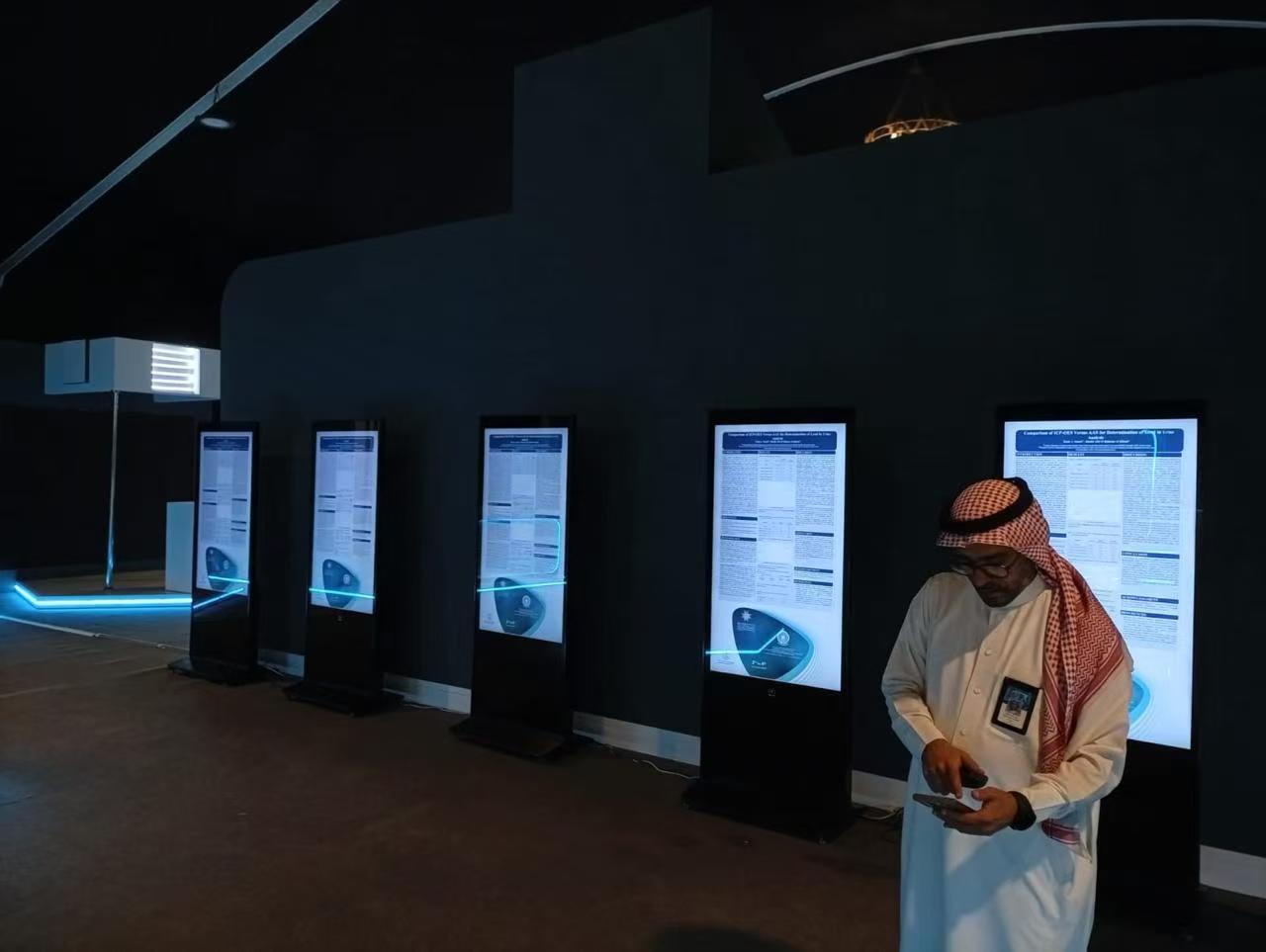
Hospitality and Guest Services
Hotels and resorts use kiosks for check-in and check-out. You can get your room key in under two minutes. These kiosks work all day and night. You do not have to wait for a front desk worker. Hotels can use fewer workers and still give good service.
Benefit Description | Measurable Impact |
|---|---|
90 seconds | |
Service availability | 24/7 |
Reduction in front desk staffing | 30% |
Increase in ancillary revenue | 15-25% |
Guest satisfaction rating | 4.8/5 |
You get faster service and more choices. Hotels can make more money and keep guests happy.
Healthcare and Wayfinding
Hospitals use kiosks to help you find your way. You can search for a doctor or department. The kiosk shows a map and gives you steps to follow. You can print the directions or send them to your phone.
Kiosks have big text, sound help, and routes for wheelchairs.
You can pick your language.
Digital signs make waiting feel shorter.
Hospitals use kiosks to help patients and visitors move around. This helps people feel less stressed and makes things run smoother.
Transportation and Ticketing
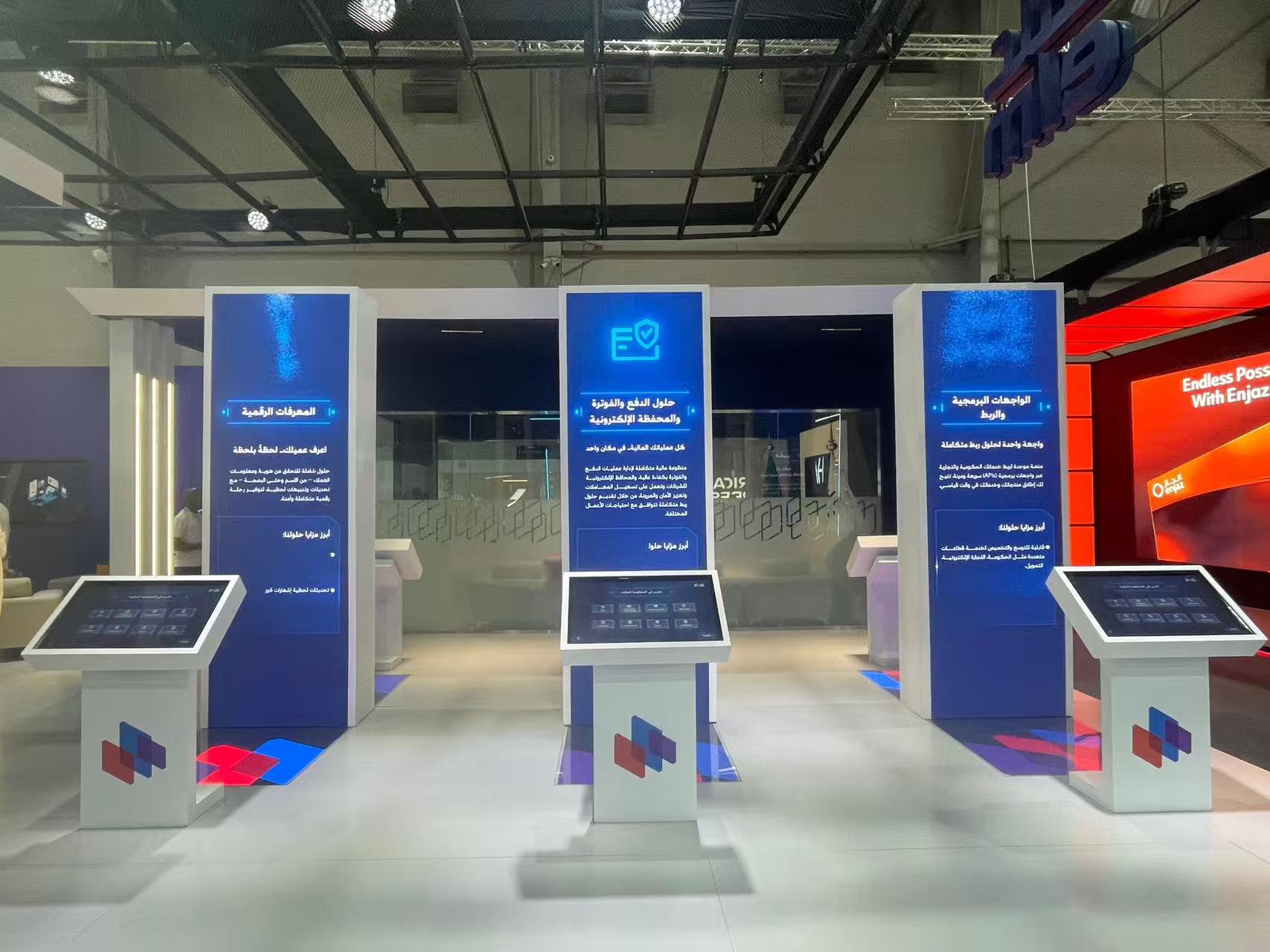
Airports, train stations, and bus stops use kiosks for tickets. You can buy a ticket in less than three minutes. These kiosks help more people at once and make lines shorter.
Kiosks sell over 40% of tickets.
You can buy tickets by yourself.
You wait less time in line.
This touch screen solution makes travel easier and faster for everyone.
Education and Public Spaces
Schools and libraries use kiosks to share information. You can check schedules or sign up for clubs. Kiosks help you find your classroom or join activities.
Kiosks show class times and news.
You can give feedback or ask questions.
They help manage student groups and projects.
Features like Braille and headphone jacks make kiosks easy for everyone.
Universities use kiosks for maps and directions. These tools make learning and campus life more fun and helpful.
Installation and Maintenance Best Practices
Site Preparation
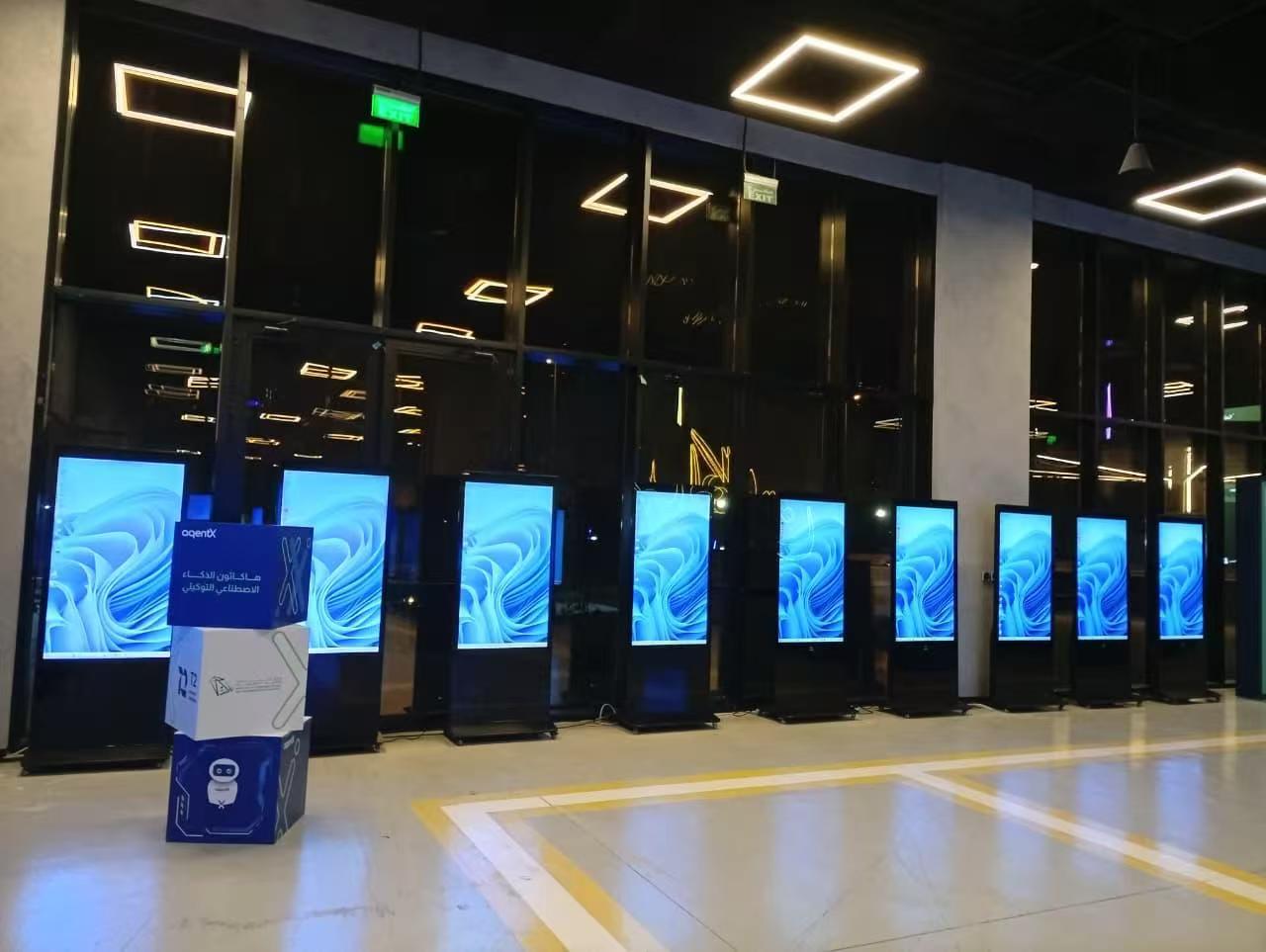
You must get your site ready before you put in a kiosk. First, check the area to see if it works for your needs. Look for a loading dock so you can bring in the kiosk. Make sure the floor is safe and will not get damaged. Measure the space to see if the kiosk will fit. Check if the floor is strong enough to hold the kiosk. Find good spots to anchor the kiosk so it will not move. Make sure you have power and network connections nearby. This helps you set up the kiosk safely and without trouble.
Check the area for details.
Look for a loading dock and floor safety.
Measure the space and anchoring spots.
Find power and network connections.
Tip: Getting ready early stops problems and makes installation easy.
Installation Steps
There are easy steps to follow when you install a kiosk. Put the kiosk in the right spot and make sure it is anchored. Plug in the power and network cables. Set up the software and get the system ready. Test the kiosk to see if it works right. Checking everything helps you find problems early.
Put the kiosk in place and anchor it.
Plug in power and network cables.
Set up and adjust the software.
Test all parts to make sure they work.
Note: Testing after you finish helps you find problems and makes sure the kiosk is ready.
Maintenance and Remote Support
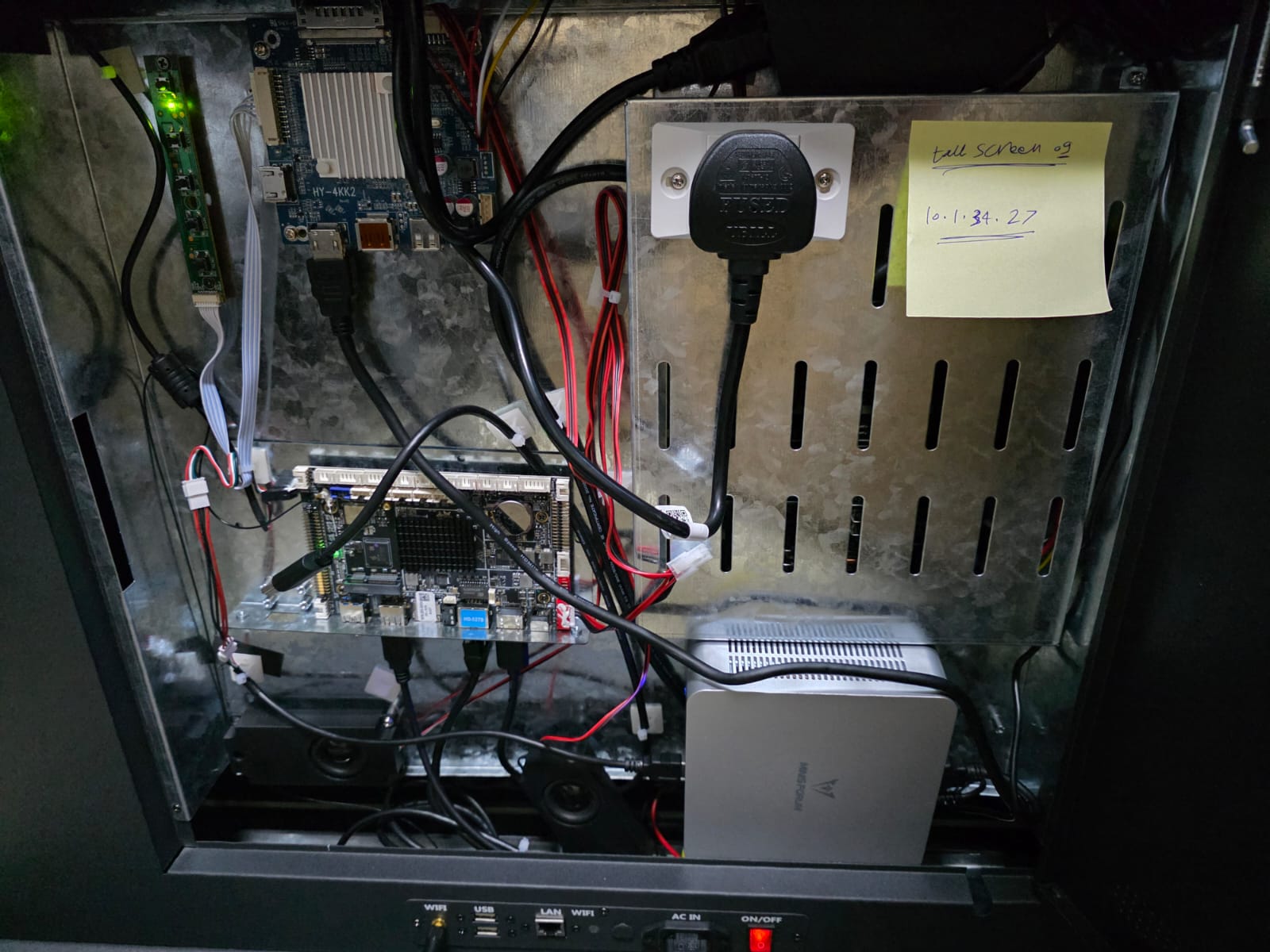
Taking care of your kiosk helps it last longer. Clean the touch screen and outside every week with special wipes. Check the inside parts every month to see if fans and wires are okay. Update the software every few months to fix problems and keep it safe. You can use remote tools to change things and watch kiosks from far away. Good security settings keep hackers out. Having clear steps for updates makes your job easier. Support helps you fix problems fast and keeps users happy.
Frequency | Description | |
|---|---|---|
Cleaning | Weekly | Clean the screen and outside to keep it working well. |
Hardware Inspection | Monthly | Check inside parts to make sure they work. |
Software Updates | Quarterly | Update software to keep it safe and working better. |
Cleaning often helps your kiosk last longer.
Maintenance stops screens from freezing or not working.
Fixing things early saves money and keeps people coming back.
Tip: Remote support tools help you save time and manage many kiosks easily.
You should pick the best touch screen solution for your business. This helps you get good performance and save money. Think about what your business needs before you choose. When you know your goals, you can compare different options. This makes your work faster and helps your team do better. If you put kiosks in the right place, they last longer and work well for everyone. Touch screen kiosks are great for stores, hotels, hospitals, travel, and schools. Before you set up a kiosk, check how fast it works and how much work it saves. Look at the price, what it can do, and what you need to run it. Planning ahead gives you better results and helps your business do well for a long time.
FAQ
What is an LCD touch screen kiosk solution?
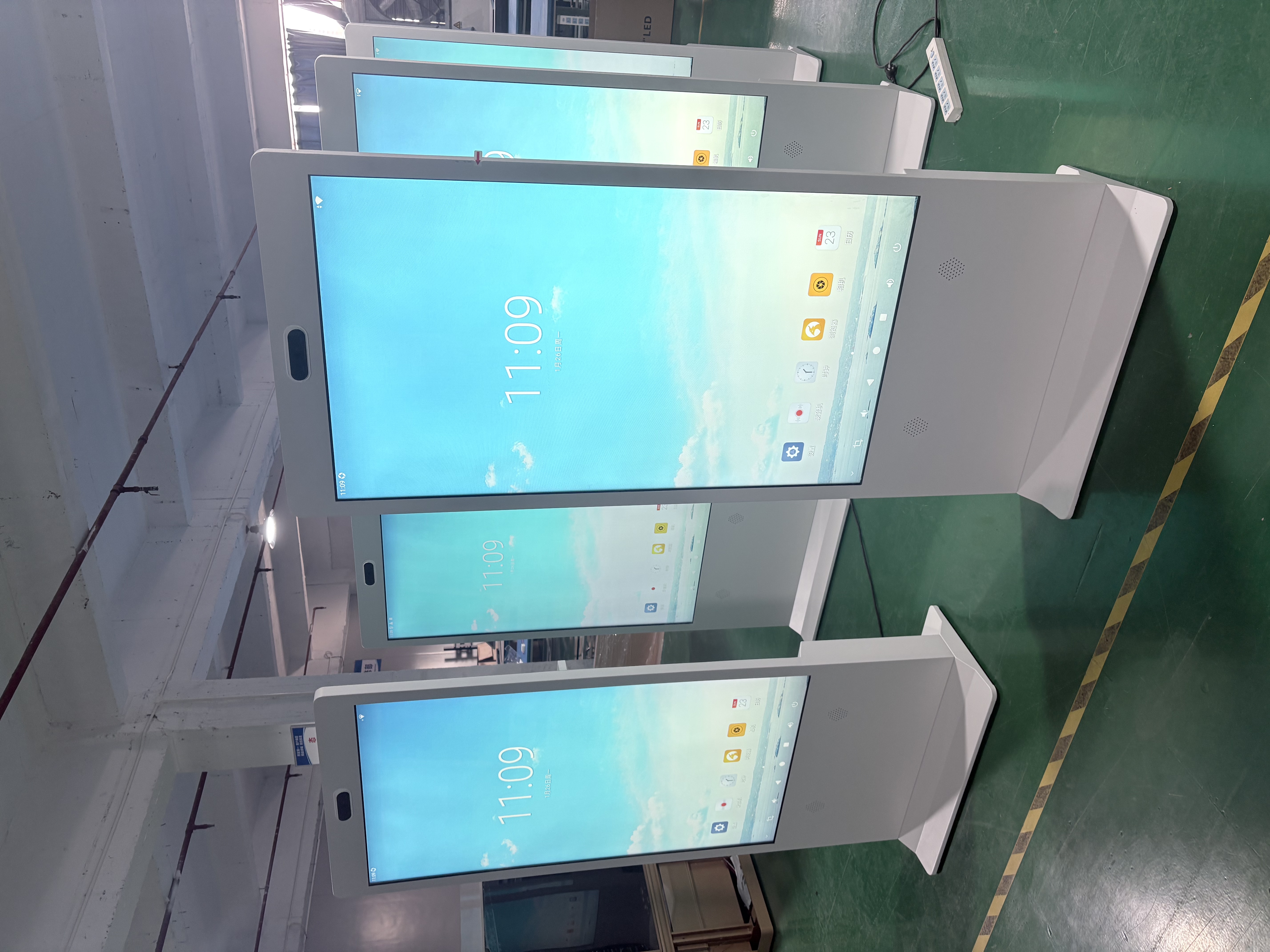
An LCD touch screen kiosk lets you use digital content. You can get information, finish tasks, or buy things fast. These kiosks work well in many public places.
Where should I install a touch screen kiosk?
Put kiosks where lots of people walk by. Good places are lobbies, hallways, entrances, and waiting rooms. These spots make it easy for people to use the kiosk.
What industries benefit most from touch screen kiosks?
Many types of businesses use kiosks. You find them in stores, hospitals, hotels, travel places, and schools. Each business uses kiosks to give better service and work faster.
How do I keep a kiosk secure?
Keep your kiosk safe with strong cases and good passwords. Update the software often. Put the kiosk where people can see it. Watch what happens on the kiosk to protect user data.
How often should I maintain a kiosk?
Clean the screen every week and check the parts every month. Update the software every few months. Taking care of your kiosk helps it last longer and work better.
See Also
Discover The Essential Features Of Today's Touch Screen Kiosks
A Comprehensive Guide For Installing Your Touch Screen Kiosk
Top LCD Kiosks With Touch Screen Capabilities For 2026
Uncover 10 Unexpected Applications For Touch Screen Kiosks 2026
Evaluating Business Touch Screen Kiosks For Value And Efficiency
