Top Tips for Hiring Professional Video Wall Installers
TOUCH IR FRAME FOR VIDEO WALL
Add.: 2F, Bldg 10, Changfeng Industrial Park, Dongkeng, Fenghuang, Guangming, Shenzhen, China 518132
Mobile/WHATSAPP: 86-138 25769658
Email: marketing@topadkiosk.com topadkiosk@gmail.com
Skype: pghenry1
Wechat: adkioskhenry
English Web.: https://www.topkioskdisplay.com/
http://www.ad-kiosk.com/
https://www.toplcddisplay.com/
http://www.multitouchdigitalsignage.com/
https://www.youtube.com/channel/UCYVYNJHxLVEcQD8fuUxXNTA/videos?view_as=subscriber
https://www.facebook.com/TOPADKIOSKSHENZHEN/?ref=bookmarks
You want your video wall installation to last and perform at its best. Hiring the right professionals makes a huge difference. If you trust experts, they clean screens, check connections, and update software, which keeps your wall bright and sharp for years. Visit https://www.topkioskdisplay.com/ to see how specialists help you avoid costly mistakes.
Key Takeaways
Pick video wall installers who have done this before. This helps make sure the work is good and you will not have problems later. - Check if the installers have certificates. These show they know what to do and follow the rules for the job. - Talk clearly with your installer. This helps everyone know what to expect and stops any surprises when they put in the video wall.
Choosing the Right Video Wall Installers
When you want someone to put in your video wall, you need to pick a good team. Picking the right people saves you time and money. It also helps you avoid problems. Here is what you should look for.
Experience and Past Projects
Experience is very important for video wall installation. You want installers who have done many jobs before. This is even more important if you want LED video walls or have a special space. For example, Rythm EFX has worked for over ten years. They can make video walls fit different places. This shows they notice small details and fix hard problems. Midwest Audio Visual says a skilled installer lines up screens well. They also keep the brightness the same on every screen. If you hire someone with these skills, your video wall will look great. Constant Tech says control rooms need experts who know the risks. If you pick someone without this knowledge, your video wall might not work right.
Tip: Ask installers about their hardest jobs. Listen to how they fixed problems and met special needs.
Certifications and Training
Certifications show an installer cares about their work. They prove the team has learned the right skills. They also show the team follows the rules for the industry. Here are some certifications you might see:
Certification Name | Description |
|---|---|
Women’s Business Enterprise National Council (WBENC) Minority Certification | Many companies and government groups accept this. It shows the business meets high standards. |
APEx Certification | Given to companies that follow AVIXA rules and have certified workers. It means they care about doing a good job. |
DCI Certification | Sets rules for digital cinema. It helps make sure everything works together and looks good. |
dvLED Installation Certification Program | For skilled installers who already have AV industry certifications. It shows they know how to do advanced video wall installation. |
Installers need to keep learning, not just get certified. When they keep training, they learn about new technology and better ways to work. This helps them fix problems and take care of your system. After the job is done, a trained team can teach your staff how to use the system.
Ongoing training helps teams run and care for video wall systems.
It helps staff fix problems fast.
Training after installation teaches your team how to use the system every day.
Portfolio and References
A good portfolio shows what an installer can do. You should look for work in places like stores, offices, schools, and hospitals. Here are some things you might see in a good portfolio:
Sector | |
|---|---|
Corporations | Public Information Displays, Digital Wayfinding Displays, Entrance Areas, Conference and Meeting Rooms |
Creative | Media Facades, Semi-transparent Displays, Amorphous Displays, Media Installations |
Retail | LED Walls, Shopping Window Displays, Stair and Ticker Displays, Sales Counters, Steles and Pillars |
Advertising | Outdoor Screens, Indoor Screens |
Sports | LED Cubes, Scoreboards, Fascias, Perimeters |
You might also see work in hotels, hospitals, and schools. For example, a hospital video wall can show calming pictures or important news. In a school, it can show announcements and get students interested.
References from old clients are as important as a portfolio. When you talk to past customers, you find out if the installer is reliable. These references are like reviews. They show if the installer finished the job and made clients happy.
References help you know if the installer is trustworthy.
They show if the installer finishes on time and fixes problems.
Good references mean you can trust the installer with your video wall installation.
Note: Always ask for references and talk to them. A good installer will be glad to give you this information.
Picking the right video wall installers takes some work, but it is worth it. If you look at experience, certifications, and real results, your project will go well.
Video Wall Installation Process
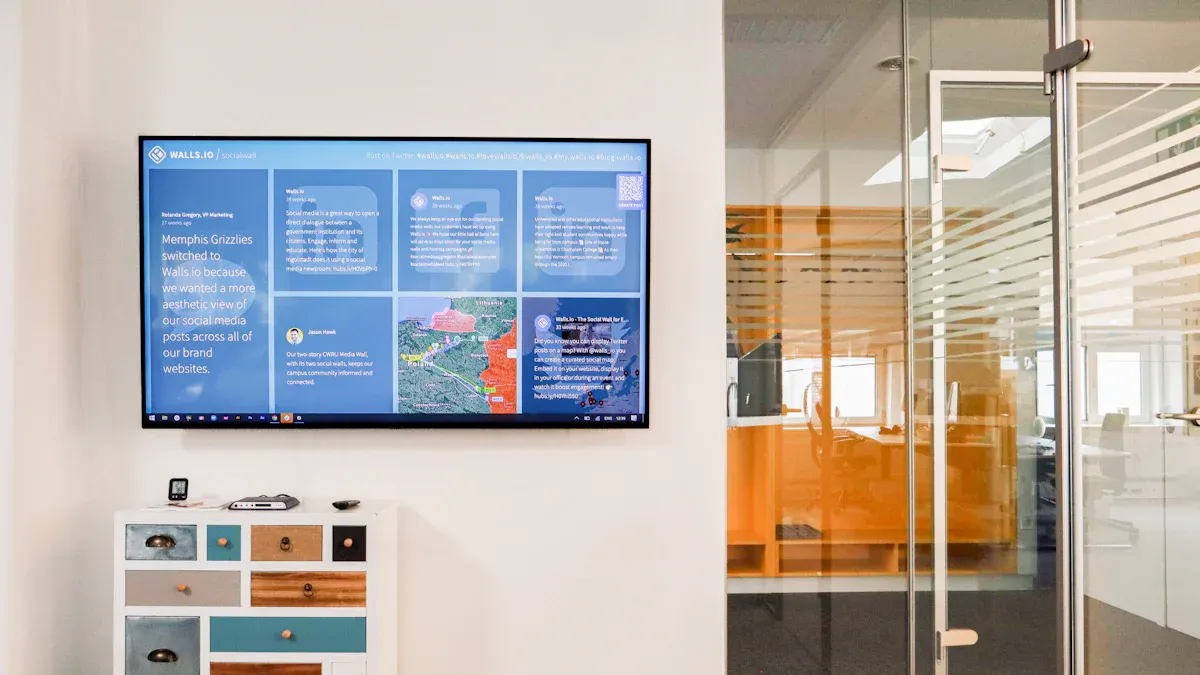
Getting your video wall up and running takes more than just hanging screens on a wall. You need a clear plan and careful steps to make sure everything works right and looks great. Here’s how you can make your video wall installation a success.
Site Assessment and Specifications
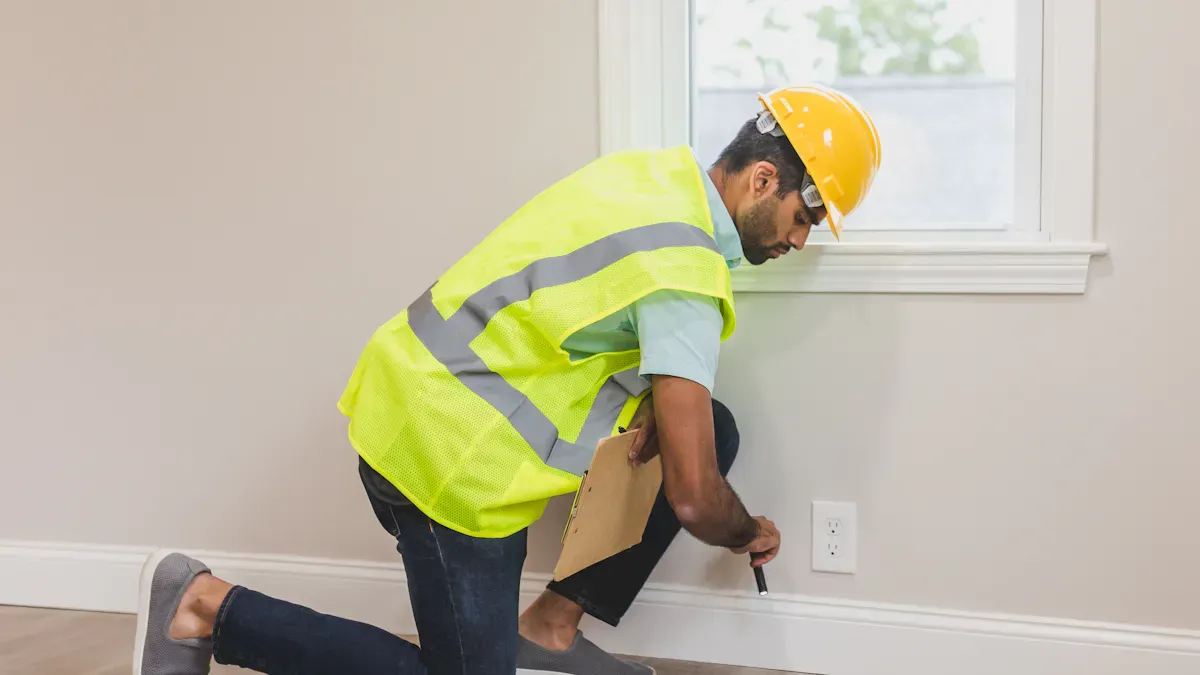
Before you start, you need to look at your space and figure out what you need. This step helps you avoid surprises later. You want to know how big your room is, where people will sit or stand, and what you want your video wall to do.
Here’s a quick look at what you should check:
Aspect | Why It Matters |
|---|---|
Helps you decide where to put the video wall for the best view and teamwork. | |
Video Wall Functionality | Makes sure your wall fits your goals, like showing info, ads, or live feeds. |
When you walk through your site, pay attention to these things:
Available power supply and how much it can handle
How strong the wall or ceiling is for holding the screens
How bright the room is and if sunlight will hit the screens
How far people will be from the video wall and what angles they’ll see it from
Where your signal sources are and how you’ll run cables to the wall
Tip: Take notes and photos during your site check. This helps you plan and talk with your installer later.
Technology Options: LCD vs. LED
Now you need to pick the right type of video wall. The two main choices are LCD and LED. Each one works better in different spaces.
LCD video walls give you sharp images even when people stand close. They work well in smaller rooms or places where people walk right by the screens.
LED video walls shine in big rooms. They look bright and clear from far away. If you want a huge display or need to cover a wide area, LED might be your best bet.
Here are some things to think about:
LED walls work best for large rooms and long viewing distances.
LCD walls keep images crisp up close.
LED walls with smaller pixel gaps look better but cost more.
The size of your room and how many people use it can help you choose.
When you install your video wall, you also need to pick the right mounting system. You can mount screens on the wall, set them on the ground, or hang them from the ceiling. Make sure your choice matches the strength of your building.
Don’t forget about heat. LED screens can get hot, so you need good airflow. Plan your cable paths so you can reach them later for repairs or upgrades.
Note: Ask your installer to show you both LCD and LED options. Seeing them in person can help you decide.
Installation Requirements and Compliance
You want your video wall installation to be safe, neat, and legal. Here’s a simple step-by-step guide to help you get it right:
Planning:
Decide what you want your video wall to do.
Match the right technology to your space.
Design a clean path for your video signals.
Installation:
Use safe ladders or lifts to reach high spots.
Mount the screens using the right brackets for your wall or ceiling.
Keep cables tidy and out of the way.
Make sure there’s enough space behind the wall for air and repairs.
Commissioning:
Check all settings and make sure the screens line up.
Adjust the brightness and colors so every screen matches.
Test the whole system before you start using it.
You also need to follow the rules. Some projects, like those for the government, need TAA compliance. This means your screens must come from approved countries. If your video wall is in a hallway or public space, you must follow ADA rules. For example, screens can’t stick out more than four inches from the wall unless they’re high enough.
Here’s a quick table to help you remember:
Compliance Standard | What It Means |
|---|---|
TAA Compliance | Needed for government jobs. Screens must come from approved countries. |
ADA Compliance | Screens in walkways can’t stick out more than 4 inches unless they’re above a certain height. |
Cable management is also key. If you keep your cables neat, you avoid signal problems and make your wall look better. You also make it safer for everyone.
Benefit | Why It Matters |
|---|---|
Avoiding Signal Interference | Stops buzzing or fuzzy pictures. |
Enhancing Reliability | Keeps your screens working without random shut-offs. |
Improving Aesthetics | Makes your space look clean and professional. |
Futureproofing Adaptabilities | Lets you upgrade or fix things easily later. |
Facilitating Code Compliance | Helps you pass safety checks. |
Streamlining Troubleshooting | Makes it easier to find and fix problems. |
Cordoning Safety Hazards | Reduces tripping and keeps people safe. |
Callout: Good planning, the right technology, and careful installation make your video wall last longer and work better.
By following these steps, you set yourself up for a smooth video wall installation. You get a display that looks great, works well, and meets all the rules.
Ensuring a Smooth Installation
Communication and Expectations
You want your video wall installation to go smoothly from start to finish. Good communication makes this possible. When you and your installer talk openly, you both know what to expect. Here are some ways to keep things clear:
Set project goals and timelines together.
Share your content ideas early so the installer can plan for the best display.
Talk about where to place the video wall for the best viewing angles.
Discuss calibration and color checks to keep your screens looking sharp.
Plan regular updates and check-ins to catch problems before they grow.
Tip: Early coordination with your installer helps avoid last-minute surprises and builds trust.
Service Agreements and Warranties
A strong service agreement protects you and your investment. Make sure your agreement covers:
What services the installer will provide, like inspections and repairs
How often maintenance will happen
How fast the team will respond if something breaks
Which equipment is included
Payment details and schedules
How you or the installer can end the contract
What happens if the service does not meet your needs
How to solve disagreements
Warranties give you peace of mind. They cover parts and labor, so you do not pay extra if something fails. Many installers also offer on-site and remote support, which means you get help fast and keep downtime low.
Maintenance Planning
Regular care keeps your video wall running well for years. Here is a simple plan:
Check for flickering or color issues.
Update software when needed.
Calibrate colors and brightness.
Fix problems right away.
Train your staff to spot and solve small issues.
Routine maintenance prevents overheating and extends the life of your system. Some video walls even let you schedule downtime to protect the electronics and save energy.
Mistakes to Avoid in Video Wall Installation
Overlooking Compliance and Safety
You might think skipping safety checks saves time. But this can cause big problems later. If you ignore compliance, your video wall might not pass inspections. It could even hurt someone. Some installers use cheaper screens without safety ratings like UL. These screens may not pass fire or electrical tests. You could get fined or have legal trouble if something goes wrong. Insurance might not pay for damage.
Here are some common safety mistakes:
Safety Precaution | Why It Matters |
|---|---|
Pre-Installation Planning | Checks if the site is strong and safe |
Load Calculation | Makes sure the wall can hold the weight |
Secure Mounting | Keeps screens from falling and causing accidents |
Working at Height | Keeps workers safe from falling |
Callout: Always ask your installer about compliance. Safe video walls protect people and your investment.
Ignoring System Integration
You want your video wall to work with your other tech. If you skip system integration, your screens might not connect to your AV equipment. This can cause glitches or make the system stop working. Problems happen when you mix different brands or old and new devices.
Challenge | Description |
|---|---|
AV Compatibility | Makes sure all parts work together |
Room Acoustics & Lighting | Needs expert planning for the best results |
Controller Configuration | Helps the system work well and stay reliable |
Proper system integration helps your video wall work with your AV setup. You get better teamwork and more ways to show content.
Video walls help people share ideas in meetings.
Integration lets you share screens without wires and use many displays.
You avoid expensive repairs and wasted time.
Mistakes in compliance and integration can make your project hard. Stay alert and ask questions to keep your video wall safe and smart.
You want your video wall to look good and last long. Follow these steps:
Pick installers who have certificates and real skills.
Plan everything, like checking the site and keeping cables neat.
Talk clearly with your team.
Use a checklist for each part.
Ask experts for help so your video wall works great!
We need to provide a step-by-step guide on how to install a video wall. The user asks "How to install a video wall step by step". Should be detailed, practical, covering planning, mounting, cabling, configuration, calibration. Include safety tips and common pitfalls. Use clear English.
Installing a video wall is a structured process that blends physical mounting, cable management, and software configuration. Done correctly, it creates a stunning, seamless display. Below is a professional, step‑by‑step guide that covers everything from planning to final calibration.
📋 Pre‑Installation: Planning & Preparation
1. Define the video wall layout
Number of displays (e.g., 2×2, 3×3, 1×4).
Orientation (landscape or portrait).
Total resolution (e.g., 4 screens = 3840×2160 if each is 1920×1080).
2. Choose the right hardware
Commercial displays (not consumer TVs) – designed for 24/7 operation, narrow bezels, and daisy‑chaining.
Video wall controller – hardware (e.g., Novastar, Matrox) or software‑based (e.g., Userful).
Mounting structure – floor stand, wall bracket, or custom frame. Must support the total weight.
Cables – high‑quality HDMI/DP cables, CAT6 (for AV over IP), power cords.
3. Site survey
Measure wall dimensions, stud locations, and ceiling height.
Check power outlets – each display needs its own nearby outlet or a power distribution unit.
Ensure ventilation – leave at least 2–4 inches (5–10 cm) behind and between screens.
Lighting – avoid direct light on the seams; use blackout curtains if needed.
4. Gather tools
Laser level, stud finder, drill, socket set, screwdrivers.
Cable ties, labels, zip ties.
Laptop with video wall management software.
🔧 Step 1: Mount the Display Structure
1.1. Attach wall mounts or floor stands
For wall mounting: locate studs, mark level line, drill pilot holes, and bolt the brackets securely.
For floor stands: assemble the frame on the floor, then tilt it up into position. Level it using adjustable feet.
1.2. Install the first (reference) display
Hook the first display onto its bracket but do not fully tighten – you will align later.
Use a laser level to ensure it is perfectly horizontal and vertical.
1.3. Install remaining displays
Work row by row from top to bottom (or left to right).
Leave the bezel protection film on until final alignment.
Keep a consistent gap (typically 0.5–1.5 mm) between bezels. Many mounts have micro‑adjustment screws.
1.4. Rough alignment
Use the micro‑adjustments on each mount to bring screens into a flat plane.
Check that all bezels are aligned and the seams are straight.
Pro tip: For large video walls, install a reference grid of laser lines across the entire area before hanging any screen.
🔌 Step 2: Cable Management & Connections
2.1. Plan cable routing
Run cables vertically or horizontally behind the screens, using cable channels or raceways.
Keep power and signal cables separated to avoid interference.
2.2. Connect power
Plug each display into a surge‑protected power strip or UPS.
Do not daisy‑chain power cords unless the manufacturer explicitly allows it.
2.3. Connect signal cables
Choose a signal distribution method:
Daisy‑chain (DisplayPort / HDMI with MST) – not all displays support it.
Video wall controller – one output per display.
AV over IP – each display gets an encoder/decoder connected via network switch.
Label both ends of every cable with display position (e.g., “Row2‑Col3”).
2.4. Connect control
RS‑232 or Ethernet for remote power on/off, source switching, and brightness control.
Connect to the network switch and configure IP addresses.
2.5. Secure and tidy
Use Velcro ties (not zip ties) to bundle cables – easier to modify later.
Ensure no cables are pinched or stretched when moving screens.
🖥️ Step 3: Initial Power‑On & Basic Setup
3.1. Power up one display at a time
Check each display powers on and shows a default image.
Verify backlight uniformity and look for dead pixels.
3.2. Set basic OSD parameters
Input source (HDMI/DP/DVI).
Brightness, contrast, colour temperature – set all displays to the same factory preset.
Disable any power saving or auto‑sleep modes.
3.3. Enable daisy‑chain or controller mode
If using MST daisy‑chain, set the first display as “Primary” and others as “Secondary”.
If using a controller, set each display to the input that the controller uses.
⚙️ Step 4: Video Wall Configuration (Software)
4.1. Using a hardware controller
Connect the controller to your laptop via USB or network.
Open the controller’s management software (e.g., Novastar VMP, Matrox PowerWall).
Define the grid layout (rows × columns) and total resolution.
Assign each physical display to a logical position (e.g., display #1 = top‑left).
Send the configuration to the controller.
4.2. Using display‑internal video wall feature
Many commercial displays (Samsung, LG, NEC) have built‑in video wall mode.
Access the OSD > Video Wall.
Set “Video Wall” = On.
Set “Position” (e.g., Row 2, Column 3) for each screen.
Enable “Bezel Compensation” (adjusts image to account for physical bezel width).
4.3. Using software‑only solution (e.g., Userful, Orad)
Install the software on a powerful PC with multiple GPU outputs.
Configure each output to drive a specific display.
The software “stretches” the desktop across all outputs.
4.4. Test the image
Display a full‑screen grid pattern (e.g., 10×10 squares).
Check that content flows seamlessly from one display to the next.
🎯 Step 5: Fine‑Tuning & Calibration
5.1. Mechanical fine‑alignment
Use the micro‑adjustment screws on mounts to eliminate any visible gap or overlap.
Press on screen corners to ensure they are flush with neighbours.
5.2. Brightness & colour matching
Display a full white image.
Adjust each screen’s brightness until they visually match (use a light meter if possible).
Use a colour‑calibration tool (e.g., X‑Rite) or manual RGB balance to match colours across all displays.
5.3. Bezel compensation
Measure the physical bezel width (left/right, top/bottom).
Enter those values in the video wall controller or display OSD.
Verify that a straight line crossing a bezel appears continuous (no break or overlap).
5.4. Edge blending (for projection walls) – not needed for LCD/LED walls.
5.5. Save configuration
Store the configuration in the controller’s permanent memory.
Take photos of the OSD settings of one display as a backup.
✅ Step 6: Final Testing & Handover
6.1. Run a full‑screen video
Use a high‑motion test pattern to check for tearing or sync issues.
Play real content (e.g., a corporate video) and observe from different angles.
6.2. Test remote management
Turn the entire wall on/off via RS‑232 or network.
Change input source from a central controller.
6.3. Document the installation
Create a one‑page diagram showing:
Display positions and serial numbers.
Controller model and settings.
Cable labels and network layout.
Hand over to the client with user instructions (how to change content, basic troubleshooting).
6.4. Clean up
Remove protective films from bezels.
Wipe screens with microfiber cloth (no solvents).
Dispose of packaging.
⚠️ Common Pitfalls to Avoid
Mistake | Consequence | Prevention |
|---|---|---|
Using consumer TVs | Overheating, mismatched colours, short lifespan | Buy commercial displays with video wall features |
Ignoring bezel compensation | Broken lines across seams | Measure bezels and enable compensation in software |
Poor ventilation | Displays overheat and shut down | Leave adequate gap, install fans if needed |
Mismatched brightness/colour | Patchy appearance | Calibrate all screens together |
Loose mounting screws | Screens can fall over time | Torque to spec, re‑check after 24 hours |
Not labeling cables | Impossible to troubleshoot later | Label both ends during installation |
🛠️ Recommended Tools & Accessories
Laser level – ensures perfect horizontal/vertical alignment.
Stud finder – for secure wall mounting.
Cable tester – verifies HDMI/DP cables before installation.
Microfiber cloths – for final cleaning.
Label maker – for cable identification.
Bezel alignment tool – a flat metal ruler with magnets (or DIY with a credit card).
📅 Estimated Time
2×2 video wall (4 displays) – 3–5 hours for two experienced installers.
3×3 video wall (9 displays) – 6–8 hours.
Large custom wall (e.g., 6×4) – 1–2 days plus calibration.
💎 Summary
Installing a video wall successfully requires meticulous planning, proper hardware, and patient alignment. Follow these steps in order:
Plan – layout, hardware, site survey.
Mount – secure structure, hang displays, rough align.
Cable – power, signal, control – label everything.
Configure – controller or built‑in mode – set grid and positions.
Calibrate – mechanical fine‑tuning, brightness, colour, bezel compensation.
Test & handover – full video test, remote control, documentation.
When in doubt, hire a professional AV integrator – especially for large or load‑bearing installations. A well‑installed video wall will provide years of trouble‑free operation and stunning visual impact.
please contact Shenzhen TopAdkiosk Display Technology Co.
FAQ
How do you install a video wall step by step?
Check your space.
Plan the layout.
Mount the screens.
Connect cables.
Test the system.
Tip: Always follow safety rules.
How long does video wall installation take?
Most video wall installs take one to three days. The time depends on your wall size, room setup, and any custom features you want.
What maintenance does a video wall need?
You should clean screens, check cables, update software, and test colors often. Regular care keeps your video wall bright and working well.
See Also
Selecting The Ideal LCD Video Wall For Your 2026 Space
Best 10 Digital Signage Solutions For Video Walls In 2026
Selecting The Finest Video Wall Signage In Singapore For 2026
