Top Raspberry Pi OLED Displays Worth Trying in 2026
Shenzhen TopAdkiosk Display Technology Co., Ltd.
Add.: 2F, Bldg 10, Changfeng Industrial Park, Dongkeng, Fenghuang, Guangming, Shenzhen, China 518132
Mobile/WHATSAPP: 86-138 25769658
Email: marketing@topadkiosk.com topadkiosk@gmail.com
Skype: pghenry1
Wechat: adkioskhenry
English Web.: https://www.topkioskdisplay.com/
http://www.ad-kiosk.com/
https://www.toplcddisplay.com/
http://www.multitouchdigitalsignage.com/
https://www.youtube.com/channel/UCYVYNJHxLVEcQD8fuUxXNTA/videos?view_as=subscriber
https://www.facebook.com/TOPADKIOSKSHENZHEN/?ref=bookmarks
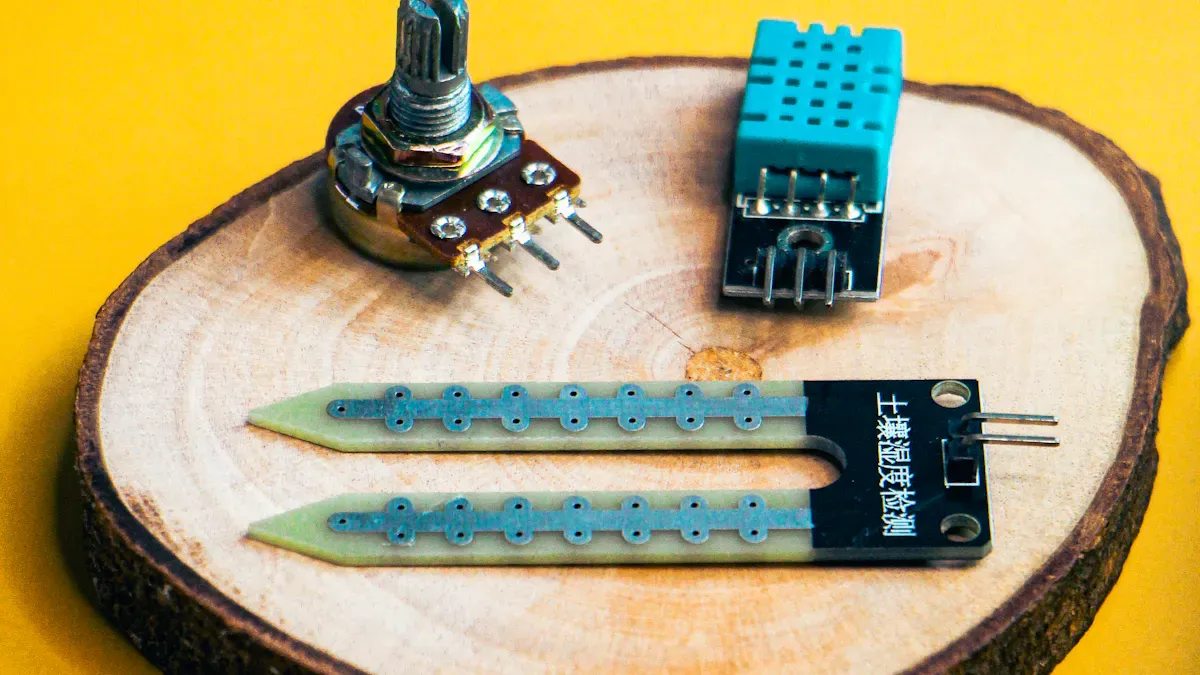
You want the best raspberry pi oled display for your project in 2026. Top choices like the OLED Bonnet, Waveshare 2.23" OLED, and Adafruit FeatherWing OLED give you:
Bright and clear visuals that help your projects look great
Simple setup with most Raspberry Pi models
Low prices that most people can afford
These screens are good for beginners and experts. You can trust the community to help and the screens to work well for any project.
Key Takeaways
OLED displays show clear pictures and use little power. They are great for many Raspberry Pi projects.
Pick the screen size and resolution that fits your project. This helps you get the best results.
Make sure the display works with your Raspberry Pi model. This will help you set it up easily.
Find community help and guides if you have problems. These can help you fix issues.
Look at the price and features of each display. This helps you choose the best one for your project.
Why Pick a Raspberry Pi OLED Display in 2026
OLED Benefits for Raspberry Pi
You want your Raspberry Pi project to be special in 2026. OLED screens do more than just show pictures. They let you design in new ways. The colors are bright and the screens are very thin. In 2026, many people use OLED because these screens can bend or curve. This helps you make cool shapes for your projects. You can put them in wearables, foldable gadgets, or even signs for businesses.
Here is a quick list of why you might pick an OLED screen for your Raspberry Pi in 2026:
Reason for Preference | Description |
|---|---|
Design Freedom | Flexible OLED displays can be curved, folded, or shaped, letting you make different designs. |
Image Quality | OLED gives deep blacks, strong contrast, and bright colors without a backlight. |
Weight and Thickness Reduction | OLED screens are thinner and lighter than LCDs, so they are easy to carry and look nice. |
Versatility in Applications | Great for foldables, curved phones, smart wearables, car displays, and small devices. |
OLED screens do not need a backlight. This means they use less power. You get true blacks and bright whites. This is good for digital signs and other display projects.
OLED displays can turn off pixels all the way, so you get amazing pictures, especially in dark scenes.
Why OLED Matters for 2026 Projects
In 2026, more Raspberry Pi projects will use OLED screens. These displays match new tech trends. You can use them in smart home gadgets, dashboards, or business signs. OLED screens work for both big and small projects. They give you sharp images and colors that look right.
Here is how OLED and LCD screens are different in 2026:
Feature | OLED Displays | LCD Displays |
|---|---|---|
Picture Quality | Very high contrast, real black color | Always has backlight, blacks look gray |
Color Accuracy | Delta-E under 2, pure white color | Backlight changes color quality |
Contrast Ratio | Infinite contrast, pixels turn off | Lower contrast because of backlight |
OLED screens are great for projects that need exact colors. In 2026, many people pick OLED for digital signs because the screens look clear and sharp. You can trust a raspberry pi oled display to give you the best results for your 2026 projects.
OLED screens have high color accuracy with delta-E under 2.
No backlight means you get true whites and blacks.
Best for projects that need exact color.
If you want your 2026 project to look new and professional, OLED is the top choice.
Criteria for Selecting Popular Screens for Raspberry Pi
When you pick a screen for your Raspberry Pi, you want it to work well for you. In 2026, people who build things check a few key things before they choose an OLED display. Here are the main things to think about:
Resolution and Display Quality
You want your screen to show words and pictures clearly. A higher resolution lets you see more details. For example, a 128x64 screen shows more than a 128x32 screen. If you need to see small writing or graphics, pick a screen with more pixels.
Size and Form Factor
The size of your screen is important for your project. Small screens are good for tiny devices or things you wear. Bigger screens are better for dashboards or signs. You should also see if the screen can bend or if it is stiff. This depends on what shape you need.
Tip: Make sure the screen fits your project’s space and how far away you will look at it.
Compatibility with Raspberry Pi Models
Not every screen works with all Raspberry Pi models. Most popular screens, like the MakerFocus SSD1306 or AZDelivery OLED, use I2C or SPI to connect. Your screen should use 3.3v because the Raspberry Pi I2C bus does not work with 5v screens. Here are some screens that work:
OLED Model | Resolution |
|---|---|
MakerFocus SSD1306 128x32 OLED | 128x32 |
MakerFocus SSD1306 128x64 OLED | 128x64 |
AZDelivery 0.91 inch OLED I2C | 128x32 |
Price and Value
You want a screen that does not cost too much. Check prices, but also look at what you get. Some screens cost more because they have better pictures, touch, or can bend. Good sellers give better help and their screens last longer.
Community Support
A big group of users can help you fix problems fast. Pick screens with busy forums, GitHub pages, and good drivers. Screens with common chipsets, like SSD1306, have more guides and tips to help you.
Best Raspberry Pi OLED Displays Reviewed for 2026
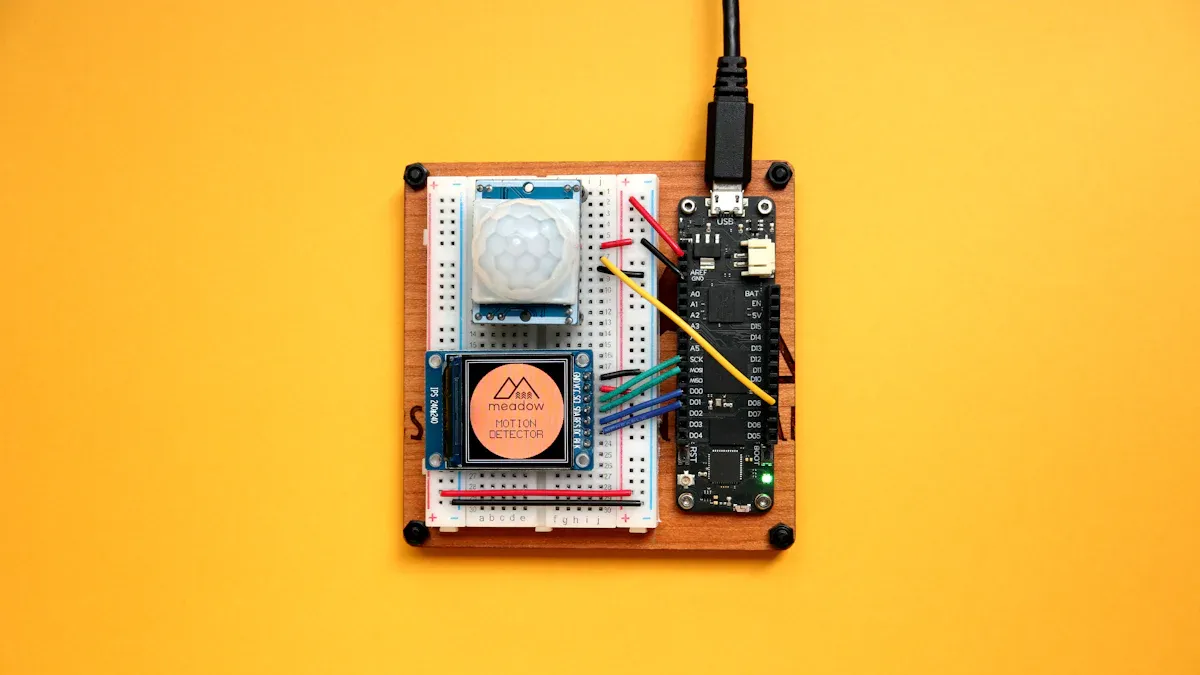
OLED Bonnet Features
The OLED Bonnet is a small screen for Raspberry Pi projects in 2026. It has 128x64 pixels and sits right on top of your Raspberry Pi. There are three tiny buttons you can press. You use these buttons to move through menus or start actions. The screen uses I2C, so you only need a few wires. It is good for dashboards, wearables, and small signs. The display is bright and clear, so your project will stand out.
OLED Bonnet Pros and Cons
You might want to know what is good and bad about the OLED Bonnet. Here is a quick list:
Pros | Cons |
|---|---|
Easy to put on Raspberry Pi | Button spots can be confusing |
Bright and sharp screen | Micro USB cable is in a weird place |
Uses little power | GPIO pins are not the same as some Pi models |
Good for smart display projects | Some problems with browsers |
Tip: The Bonnet is best for small smart display setups where space is tight.
OLED Bonnet Compatibility and Setup
You can set up the OLED Bonnet fast with most Raspberry Pi models. It uses I2C, so you do not need many wires. Just plug it into the GPIO pins. It works with Pi 4, Pi 5, and Zero series in 2026. You should check the GPIO pins if you get a new board. The Bonnet is good for dashboards, clocks, and signs. There are lots of guides online to help you start.
OLED Bonnet User Feedback
People like the OLED Bonnet because the screen looks nice and the fonts are easy to read. Many users enjoy the animations and how the display looks. Some people get confused by the button spots. Others think the micro USB cable is in a strange place. You might see that the GPIO pins are not the same as old Pi boards, so upgrades can be hard. Some users want better browser support and more choices for money in wallet projects. People also say they do not feel safe using the Bonnet for real money because of security worries.
Feedback Theme | Description |
|---|---|
Nice Interface | The screen looks good with cool fonts and animations. |
Browser Problems | Some people do not like that you must use Google Chrome. |
Button Spots | The button spots can be confusing and hard to use. |
GPIO Pin Changes | The GPIO pins are not the same as the main device, so upgrades are harder. |
Micro USB Cable | The micro USB cable is in a spot that is not easy to use. |
Website Look | Some people like other wallet websites better for picking coins. |
Other Currencies | It is hard to use the wallet for coins that are not Ethereum. |
Security Worries | People do not feel safe using the wallet for real money. |
Waveshare 2.23" OLED Features
The Waveshare 2.23" OLED is a bigger screen for Raspberry Pi projects in 2026. It is 2.23 inches wide and has 128x32 pixels. You get a wide and clear view for dashboards and signs. The screen works with SPI and I2C. You can use it with many Raspberry Pi models. It comes with a female pin header, so you can put it right on a Raspberry Pi Pico. You also get manuals and code examples for C/C++ and MicroPython. This makes it easy to start your project.
Waveshare 2.23" OLED Pros and Cons
You may want to know if the Waveshare 2.23" OLED is good for your project. Here are the main points:
Pros | Cons |
|---|---|
Big, clear screen for signs | Lower resolution than some smaller screens |
Works with SPI and I2C | Made mostly for Pico boards |
Easy to attach with pin header | Might need adapters for other Pi models |
Good guides and code examples | Not as small as other screens |
Note: The Waveshare 2.23" OLED is best for dashboards, signs, and when you want a bigger screen.
Waveshare 2.23" OLED Compatibility and Setup
You can use the Waveshare 2.23" OLED with many Raspberry Pi models in 2026. It works with 4-wire SPI and I2C. This gives you more ways to connect your screen. The display is made for the Raspberry Pi Pico series. You can attach it right with the female pin header. You get guides and code for C/C++ and MicroPython. This helps you set up your screen fast. If you use a different Raspberry Pi, you might need an adapter or jumper wires.
Feature | Description |
|---|---|
Interface | Works with 4-wire SPI and I2C for more options |
Compatibility | Made for Raspberry Pi Pico boards |
Guides and Code | Comes with guides and code for C/C++ and MicroPython |
Connection | Has a female pin header for easy Pico attachment |
Waveshare 2.23" OLED User Feedback
People like the Waveshare 2.23" OLED because it is easy to set up and the screen is clear. Many use it for dashboards and signs in 2026. The guides and code help you start fast. Some wish the screen had more pixels. Others want better support for old Raspberry Pi models. Most people say the screen is good for projects that need a wide view.
Adafruit FeatherWing OLED Features
The Adafruit FeatherWing OLED is a small screen for Raspberry Pi projects in 2026. It is about 1.3 inches wide. You get 128x64 white OLED pixels for sharp and clear images. The screen does not need a backlight, so it uses less power. There is a reset button and three small buttons (A, B, C) you can press. The FeatherWing uses I2C, so you only need two pins plus power and ground. You can stack it with other FeatherWings. It also has an auto-reset circuit and a STEMMA QT connector for sensors.
Feature | Description |
|---|---|
Size | About 1.3" across, small and easy to carry. |
Pixels | 128x64 white OLED pixels for sharp and clear images. |
Power Use | No backlight needed, so it uses less power. |
Buttons | Has a reset button and three small buttons (A, B, C). |
Connection | Uses I2C, so only two pins plus power and ground are needed. |
Compatibility | Works with all Feather boards and can stack with other FeatherWings. |
Extra Features | Has an auto-reset circuit and a STEMMA QT connector for sensors. |
Adafruit FeatherWing OLED Pros and Cons
You may want to know if the Adafruit FeatherWing OLED is right for your project in 2026. Here is a quick look:
Pros | Cons |
|---|---|
Small and easy to carry | Setup can be hard for beginners |
Sharp and clear images | Some guides are old |
Uses little power, no backlight needed | Needs extra software to work |
Easy to stack with other FeatherWings | Not all tools come with the default Raspbian |
Good for sensor projects |
Tip: The FeatherWing OLED is a good pick for small, portable projects and sensor dashboards.
Adafruit FeatherWing OLED Compatibility and Setup
You can set up the Adafruit FeatherWing OLED with your Raspberry Pi in 2026. The steps are pretty simple. You connect the screen with I2C. You might need to add extra software because the default Raspbian does not have the tools for this screen. Some guides are old, so look for new ones. The FeatherWing works with all Feather boards and stacks with other FeatherWings. You can use the STEMMA QT connector for sensors in your project.
The setup is pretty simple.
Some problems come from old guides and needing extra software.
The default Raspbian does not have the tools for this screen, so you must download them.
Adafruit FeatherWing OLED User Feedback
People like the Adafruit FeatherWing OLED because the images are sharp and it is easy to stack. Many use it for small, portable projects in 2026. Some people find the setup hard because the guides are old. Others wish the software came ready to use. Most say the screen is good for sensor dashboards and small signs. You can trust this screen for projects that need a small, clear display.
Popular Screens for Raspberry Pi: Comparison Table
You want to find the best screen for your Raspberry Pi in 2026. This table shows the main features of the most popular screens. It also lists what each screen is good at and what is not so good. You can use this table to help you choose the right screen for your project.
Feature | OLED Bonnet | Waveshare 2.23" OLED | Adafruit FeatherWing OLED |
|---|---|---|---|
Size | 1.3" | 2.23" | 1.3" |
Resolution | 128x64 | 128x32 | 128x64 |
Interface | I2C | SPI / I2C | I2C |
Buttons | 3 user buttons | No buttons | 3 user buttons + reset |
Power Use | Low | Low | Very low |
Setup Difficulty | Easy | Moderate | Moderate |
Compatibility | Pi 4, Pi 5, Zero | Pico, Pi models (adapter) | Feather boards, Pi (adapter) |
Community Support | Strong | Good | Strong |
Best Use | Dashboards, wearables | Signs, dashboards | Sensor dashboards, portable |
Weaknesses | Button layout, USB | Lower resolution | Setup guides outdated |
Tip: Always check if the screen works with your Raspberry Pi. Some screens need adapters or extra software to work right.
Each screen is good for different things. OLED Bonnet is easy to set up and has a bright screen. Waveshare 2.23" OLED is bigger, so it is nice for signs. Adafruit FeatherWing OLED is great for sensor projects and small devices you can carry. The table helps you compare the screens and pick the one that fits your project in 2026.
If you want to know more, you can read what other users say. You can also look at setup guides or join forums to ask questions about each screen.
How to Choose the Right Raspberry Pi OLED Display
Matching Features to Project Needs
You want your Raspberry Pi project to work well in 2026. Start by thinking about what your project needs from a screen. Some projects need a small display for wearables. Others need a bigger screen for dashboards or signage. Use this table to match features to your project:
Factor | Description |
|---|---|
Resolution and Size | Pick a higher resolution for sharp images. Small screens fit portable projects. Large screens suit desktops or signage. |
Brightness and Contrast | Choose higher brightness for outdoor or bright rooms. Lower brightness works for dim spaces. |
Interface and Connectivity | SPI is faster, but I2C is easier to set up. Make sure your Raspberry Pi supports the connection. |
Power Consumption | Lower power use is better for battery projects. Check specs for each screen. |
Tip: Always check the space in your project before you buy a screen.
Tips for Beginners and Advanced Users
You can avoid problems by following some simple steps. If you are new, start with I2C screens because they use fewer wires. Advanced users may want SPI for faster data. Here are some tips for everyone:
Check the pin arrangement before you connect the screen.
Always turn off your Raspberry Pi before plugging in wires.
Wrong power connections can break your screen.
You can follow these steps for a safe setup:
Find the pin labels: GND, VCC, SCL, SDA.
Match the pins to your screen model.
Connect each pin with care.
Interface | Description | Pros/Cons |
|---|---|---|
I2C | Uses fewer pins, slower | Easier wiring, slower speed |
SPI | Uses more pins, faster | Faster, but harder to wire |
Common Pitfalls
Many people run into the same problems when picking a screen in 2026. You can avoid these mistakes by checking details before you buy. Look at this table for common pitfalls and how to avoid them:
Common Pitfalls | How to Avoid |
|---|---|
Dead pixels from unknown brands | Buy one sample before buying many |
Misleading product images | Read the full product details |
No level shifter for voltage | Check voltage compatibility with your Pi |
Poor pinout documentation | Pick screens with clear guides and support |
Incomplete specs from sellers | Buy from trusted sellers with full information |
Note: Good documentation and support help you set up your screen faster and with fewer problems.
You have now learned about the top Raspberry Pi OLED displays for 2026. These displays show clear pictures and are simple to set up. There are lots of people online who can help you if you get stuck. Pick the display that works best for your project. It does not matter if you are making a wearable or a digital sign. If you switch to an OLED display, your project will look better and you can try new designs. People who build things notice new trends like screens with more pixels and kits that come with extra parts. Look at the table below to see what is coming:
Trend | What You Gain |
|---|---|
Brighter, sharper displays | |
Higher resolutions | More detail for your projects |
Bundled solutions | Easier setup with accessories |
You can read guides and join forums to learn more. This will help you start your next display project.
Comparing Different OLED Displays for Raspberry Pi
Choosing an OLED display for your Raspberry Pi is essentially finding the right balance between display content, screen size, interface complexity, power consumption, and cost.
OLED offers several significant advantages over traditional LCD screens, which can help you better define your requirements:
Excellent display quality – Each pixel emits its own light; there is no annoying backlight. This delivers true blacks, extremely high contrast, and near‑180‑degree viewing angles, making displayed content sharp and clear.
Very low power consumption – Because there is no backlight, OLED screens consume far less power than traditional LCDs, which is especially beneficial for battery‑powered portable projects.
Faster response times – The response time is extremely fast, with almost no motion blur – ideal for displaying dynamic information or simple animations.
🖥️ Quick Comparison Table of OLED Screen Types
The table below summarises the common types of OLED screens available for Raspberry Pi, giving you a clear overview of different specifications.
Type / Size | Typical Resolution | Driver Chip | Recommended Interface | Features & Use Cases | Approx. Price (USD) |
|---|---|---|---|---|---|
0.96″ / 1.3″ small |
| SSD1306 | I2C | Display basic system info (CPU/RAM/IP), simple wiring, rich development resources – the most common choice for Pi status monitoring | $2 – $5 |
1.3″ HAT (with extras) |
| SH1106 | SPI / I2C | Includes joystick/buttons on a GPIO expansion board – great for handheld games, interactive control panels | ~ $6 |
1.5″ (square / grayscale) |
| SSD1327 | I2C | Higher resolution, 16‑level grayscale – richer graphics and icons; excellent for dashboards or UI interfaces | ~ $7 |
2.23″ Bonnet |
| SSD1305 | I2C | Larger size, readable from a distance; Bonnet board‑to‑board connection – no complex wiring | ~ $16 |
Any size / full colour | Up to | Built‑in driver | HDMI | Powerful graphics capability – supports HD video and complex interactions. Ideal for media centres, small monitors, or desktop companion screens | From $55 |
Additional note: Besides the standard I2C/SPI screens, medium‑sized OLEDs (2–4 inches) are less common, but specific models like the “5.5″ 256×64” or “2.45″ 304×96” offer different aspect ratios and larger display areas for specialised projects.
⚙️ Key Technical Points: Driver Chips & Interfaces
Driver Chips
SSD1306 vs SH1106 – This is a subtle but important difference. The code libraries for SSD1306 are extremely rich and mature. The SH1106 has an internal 132×64‑bit framebuffer, but the physical screen shows only the middle 128 columns. Driving it with an SSD1306 library may cause a 2‑pixel horizontal shift. In that case, you usually need to update the driver or port the code.
Grayscale & full‑colour drivers – Chips like the SSD1327 and SSD1322 are designed for grayscale displays, delivering 16 levels of grey for richer, more layered visuals. Full‑colour displays have more complete built‑in driver solutions and support HDMI output.
Interface Choice
I2C (Inter‑Integrated Circuit) – The “light connection” choice. Requires only 2 GPIO pins, very simple wiring. Excellent for displaying low‑update‑rate static information like CPU temperature or IP address. However, data transfer is relatively slow.
SPI (Serial Peripheral Interface) – The “high‑performance” choice. Uses more GPIO pins but offers faster data transfer – ideal for dynamic scenarios like refreshing graphs or playing simple animations.
HDMI – For full‑colour high‑definition screens, HDMI is the “all‑in‑one” interface. It transmits high‑definition video signals, but occupies the Pi’s HDMI port. Both micro‑HDMI (on Pi Zero series) and standard‑size HDMI ports are well supported.
🎓 Selection Guide – Choosing the Right OLED for Your Project
Beginner / basic system monitoring
Recommended: 0.96″ or 1.3″ small I2C OLED
Key advantages: Most abundant community resources, fewest wires, countless code examples – almost zero threshold to get started.Advanced interactive or portable projects
Recommended: 1.3″ HAT or 1.5″ grayscale / colour OLED
Key advantages: HAT adds interactive controls; grayscale displays allow more sophisticated UIs – both are excellent for building unique projects.Pursuing the best visual experience
Recommended: 5.5″ or larger HDMI‑connected high‑definition OLED
Key advantages: Unmatched colour and detail; touch capability unlocks even more application scenarios.
🛒 Shopping Checklist
Device compatibility – 99% of screen modules are compatible with your Raspberry Pi, but for dedicated expansion boards like HATs or Bonnets, verify that the pin definitions match your Pi model (e.g., Pi 5).
Physical dimensions – Based on your enclosure or project space, check the outer dimensions of the circuit board and the active display area.
Pin usage – Plan which GPIO pins will be occupied. I2C uses GPIO 2 (SDA) and GPIO 3 (SCL). SPI uses more pins (MOSI, MISO, SCLK, CE0, etc.) – ensure they do not conflict with your other sensors.
There are many choices on the market. Would you mind sharing your specific project plan? For example, what do you intend to build with your Raspberry Pi, your approximate budget, and whether this is your first screen project or you already have some experience? With those details, I can recommend the most suitable option for you.
FAQ
What Raspberry Pi models work with these OLED displays?
Most OLED displays in this guide work with Raspberry Pi 4, Raspberry Pi 5, and Raspberry Pi Zero. Some displays need adapters for Pico or Feather boards. Always check the product details before you buy.
Do I need special software to use an OLED display?
Yes, you need drivers or libraries. Many displays use the SSD1306 or SH1106 chipset. You can install libraries like Adafruit_SSD1306 or luma.oled with a simple command. Most guides show you how.
Can I use these screens for battery-powered projects?
You can use OLED screens for battery-powered projects. OLEDs use less power than LCDs. Pick a screen with low power use for longer battery life. Check the specs before you start.
What should I do if my OLED screen shows nothing?
First, check your wiring. Make sure you connect the pins correctly. Try running a test script from the library. If the screen stays blank, check your power supply and look for help in forums.
See Also
Key Transparent OLED Display Developments to Anticipate in 2026
Emerging Transparent OLED Innovations Influencing 2025 Screen Designs
Evaluating Top Transparent OLED Display Options for 2025
