Top-rated 24-inch LCD Monitors for Home and Office in 2026
If you want the best 24-inch monitor for your home or office, you have some fantastic options in 2026. Picking the right model can boost your comfort and productivity every day. Whether you work from home, run a business, or create digital art, you’ll find something that fits. Check out some top picks below:
Model | Highlight |
|---|---|
Asus ProArt PA248CRV | USB-C charging, 16:10 screen, great for laptops |
Dell 24 Touch USB-C Hub Monitor (P2424HT) | Touchscreen, USB hub, ergonomic stand |
BenQ GW2486TC | Budget-friendly, perfect for home or personal use |
You’ll see that a monitor lcd 24 brings a balance of size and features for any workspace.
Add.: 2F, Bldg 10, Changfeng Industrial Park, Dongkeng, Fenghuang, Guangming, Shenzhen, China 518132
Mobile/WHATSAPP: 86-138 25769658
Email: marketing@topadkiosk.com topadkiosk@gmail.com
Skype: pghenry1
Wechat: adkioskhenry
English Web.: https://www.topkioskdisplay.com/
http://www.ad-kiosk.com/
https://www.toplcddisplay.com/
http://www.multitouchdigitalsignage.com/
https://www.youtube.com/channel/UCYVYNJHxLVEcQD8fuUxXNTA/videos?view_as=subscriber
https://www.facebook.com/TOPADKIOSKSHENZHEN/?ref=bookmarks
As long as we have the blueprints, Shenzhen TopAdkiosk Display Technology Co., Ltd no worse than anyone else.
please contact Shenzhen TopAdkiosk Display Technology Co.
A 24-inch monitor fits well in small rooms. It gives you enough screen space but does not take over your desk.
Try to find monitors with USB-C ports and stands you can adjust. These features make your workspace more comfortable and easy to use.
Think about how you will use the monitor most. Is it for gaming, work, or art? Pick a monitor that matches what you need.
Some monitors, like the Sceptre C248W-1920RN, are not expensive. They work well for daily jobs and do not cost too much.
Monitors with IPS panels show colors better and let you see from more angles. This is important if you do creative work.
Why Choose a 24-inch Monitor?
Home Use Benefits
You want your home workspace to feel comfortable and organized. A 24-inch monitor fits perfectly on most desks, even if you have a small room or share your space. You get enough screen space for browsing, streaming, or working on homework without feeling crowded. Many people like this size because it helps you stay productive without taking over your desk.
A 24-inch monitor gives you plenty of room for documents and web pages.
You can set it up in a small home office or bedroom.
You do not need to move your head much to see the whole screen, so your neck feels better after long sessions.
You will notice that this size strikes a nice balance between being big enough for work and small enough for comfort.
Office and Business Advantages
If you work in an office, you know how important it is to see everything clearly. A 24-inch monitor makes it easy to edit documents, manage spreadsheets, and join video calls. The screen fits right in your line of sight, so you do not have to move your eyes too much. This helps you stay focused and reduces eye strain.
The 1080p resolution on a 24-inch monitor keeps text and images sharp.
You can use it for single tasks or multitasking with split windows.
It does not take up too much space, so you can keep your desk tidy.
Many offices choose this size because it works well for most tasks and keeps everyone comfortable.
24-inch vs Other Sizes
You might wonder how a 24-inch monitor compares to other sizes. Here is a quick look:
Feature | 24-Inch Monitor | 27-Inch Monitor |
|---|---|---|
Ideal viewing distance | 20-30 inches (50-80 cm) | 28-40 inches (70-100 cm) |
Recommended resolution | 1080p (Full HD) | 1440p (QHD) |
Best for | Focused tasks, gaming, small spaces | Multitasking, creative work, immersive gaming |
A 24-inch monitor lets you sit closer, which is great for smaller desks. You do not need to lean back or move your chair. Larger monitors need more space and can make you move your head more, which can get tiring. If you want a monitor that saves energy, you will also find that many 24-inch models use less power than bigger screens.
You can see why so many people choose a 24-inch monitor for home and office. It gives you the right mix of comfort, clarity, and space-saving design. If you want to upgrade your setup, this size is a smart choice for most users.
Top Picks: Best 24-inch Monitors 2026
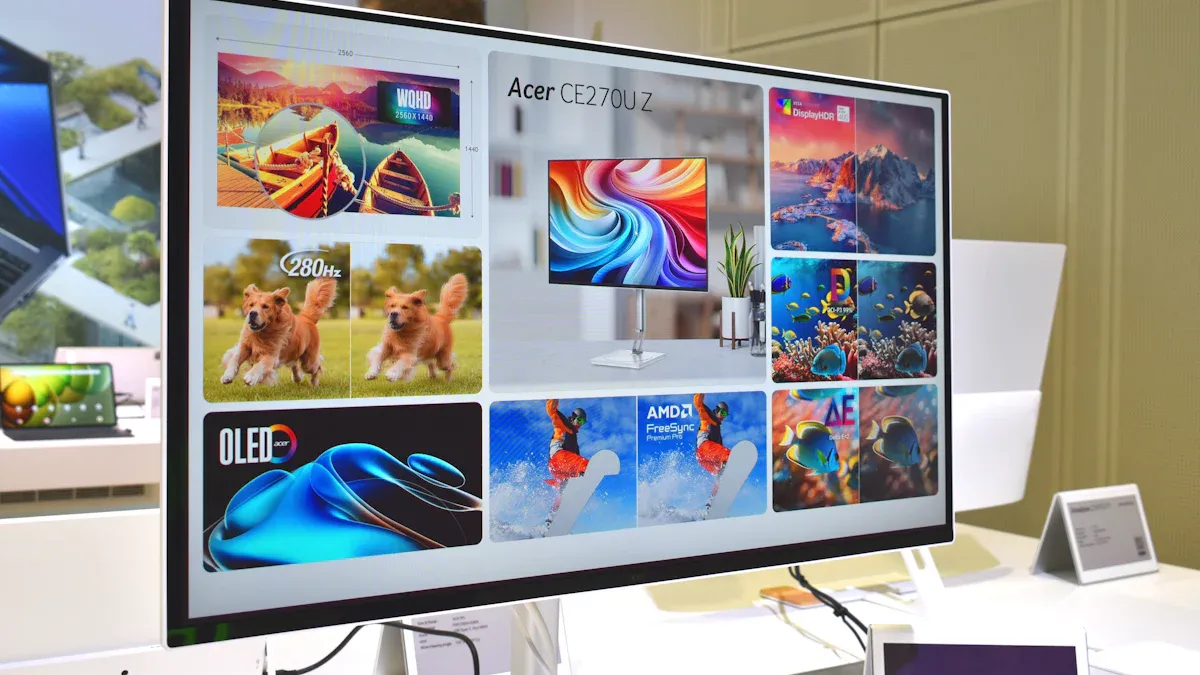
You want a monitor that fits your needs and your desk. Let’s look at the best choices for 2026. Each 24-inch monitor brings something special to the table. You can find one for gaming, business, creative work, or just saving money.
Dell Alienware AW2523HF
If you love gaming, you will enjoy the Dell Alienware AW2523HF. This monitor gives you a super-fast refresh rate and sharp visuals. You can play games without lag or blur. The design looks cool and modern. You can adjust the height, tilt, swivel, and rotation to fit your setup.
Here’s a quick look at the main features:
Feature | Detail |
|---|---|
Screen Size | 24.5 inches |
Max Resolution | 1920×1440 |
Refresh Rate | |
Response Time (GTG) | 1ms |
Peak Brightness | 400 nits |
Contrast | 1,000:1 |
Speaker | None |
Weight | 12.2 pounds |
Dimensions | 21.9 x 15.4-19.7 x 9.6 inches |
https://www.youtube.com/watch?v=sM3GnlaLPxU
Pros:
You get a high refresh rate for smooth gameplay.
The color accuracy is great for games and videos.
You can adjust the monitor to fit your desk.
Cons:
The contrast ratio is not very high, so dark scenes may look flat.
There are no built-in speakers or USB-C port.
You will find this monitor perfect for competitive gaming. If you want fast action and clear visuals, this is a top pick.
Dell 2424HT Touchscreen
You want a monitor that feels modern and easy to use. The Dell 2424HT Touchscreen lets you tap, swipe, and scroll right on the screen. This makes it great for business, creative work, or even teaching. You can connect your devices with USB-C and use the built-in hub for extra ports.
Key Features:
Touchscreen lets you interact with apps and documents.
USB-C hub makes connecting devices simple.
Ergonomic stand helps you adjust the monitor for comfort.
Pros:
You can use touch for quick actions.
The stand lets you tilt and swivel for the best view.
USB-C hub saves space and keeps your desk tidy.
Cons:
The refresh rate is lower than gaming monitors.
Touchscreen may not be needed for everyone.
This monitor works well for business, creative work, and classrooms. If you want a flexible and interactive monitor, this is a smart choice.
Asus ProArt PA248CRV
You want colors to look true and bright. The Asus ProArt PA248CRV gives you amazing color accuracy. You can use it for editing photos, videos, or graphic design. The monitor comes factory calibrated, so you get the best colors right out of the box.
Feature | Description |
|---|---|
Color Accuracy | 97% DCI-P3 and 100% sRGB coverage for precise color reproduction. |
Factory Calibration | Delta E < 2 for high color fidelity. |
Ergonomic Stand | Tilt, swivel, pivot, and height adjustments. |
Connectivity | USB-C, HDMI, DisplayPort, USB hub. |
Eye Care Technology | Ultra-Low Blue Light and Flicker-Free. |
Eco-friendly Materials | 85% recycled plastics and eco-friendly packaging. |
Ideal Use Cases | Video editing, color grading, graphic design. |
Pros:
You get top color accuracy for creative work.
The monitor is easy on your eyes with blue light and flicker-free tech.
You can connect many devices with USB-C and other ports.
Cons:
The price is higher than basic monitors.
Gaming features are not as strong as other models.
If you work with photos or videos, you will love this monitor. It is also a good choice for anyone who wants a comfortable and eco-friendly workspace.
Dell P2424HT
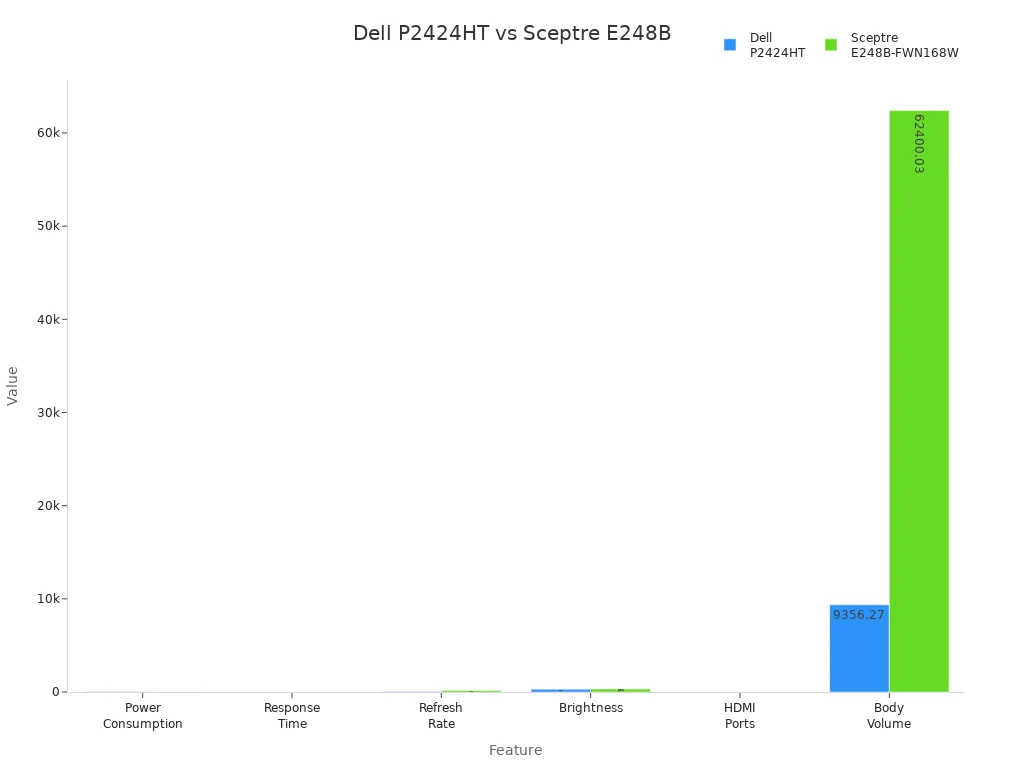
You want a monitor that fits your business needs. The Dell P2424HT gives you a touchscreen, low power use, and a stand that swivels. You can use it for meetings, presentations, or multitasking at your desk. The monitor keeps your workspace neat and helps you stay productive.
Feature | Dell P2424HT | Sceptre E248B-FWN168W |
|---|---|---|
Power Consumption (W) | 26 | |
Response Time (ms) | 8 | 1 |
Refresh Rate (Hz) | 60 | 165 |
Brightness (nits) | 300 | 320 |
HDMI Ports | 1 | 2 |
Touch Screen | Yes | No |
Body Volume (cm³) | 9356.27 | 62400.03 |
Swivel Stand | Yes | No |
Pros:
You get a touchscreen for easy navigation.
The monitor uses less power, saving money.
The stand lets you swivel for better viewing.
Cons:
The refresh rate is lower than gaming monitors.
Only one HDMI port.
This monitor is a great fit for business and office work. You can use it for presentations, multitasking, or meetings. If you want the best business monitor for your workspace, this is a strong pick.
Best Budget 24-inch Monitor
You want to save money but still get a good monitor. The Sceptre C248W-1920RN is the best budget business monitor for 2026. You can use it for work, school, or casual gaming. The curved screen makes movies and games look nice.
Feature | Details |
|---|---|
Monitor Name | Sceptre C248W-1920RN |
Price | |
Panel Type | Curved VA panel |
Refresh Rate | 75Hz |
Color Coverage | 98% sRGB |
Contrast Ratio | 3000:1 |
Screen Curvature | 1800R |
Rating | 4.6 stars from over 22,500 reviews |
Gaming Features | Adaptive Sync, suitable for casual gaming |
Pros:
You get a curved screen for a better viewing experience.
The price is low and fits most budgets.
Good color coverage and contrast.
Cons:
The refresh rate is not as high as gaming monitors.
The build quality is basic.
If you need a monitor for everyday tasks or want a budget business monitor, this is a smart choice. You can use it for work, school, or watching videos.
Best Business Monitor
You want a monitor that helps you work better. The best business monitor for 2026 should have an IPS panel, full HD resolution, and ergonomic adjustments. You can tilt, swivel, and change the height for comfort. These features make your workday easier and help you stay focused.
Tip: Look for a monitor with a USB-C port and a built-in hub. This makes connecting your laptop or other devices simple.
What to look for in the best business monitor:
IPS panel for clear colors and wide viewing angles.
Full HD resolution for sharp text and images.
Ergonomic stand for comfort.
USB-C and HDMI ports for easy connections.
You will find that the Dell P2424HT and Dell 2424HT Touchscreen are top picks for business. They give you the features you need for office work, meetings, and multitasking. If you want a monitor that fits your business needs, these models are the best business monitor choices for 2026.
You can see that every 24-inch monitor in this list has strengths. You can pick one for gaming, creative work, business, or saving money. Think about what you need most, and you will find the right monitor for your workspace.
Key Features of Monitor LCD 24
Panel Types (IPS, VA, TN)
When you shop for a monitor lcd 24, you’ll see three main panel types: IPS, VA, and TN. Each one gives you a different experience. Check out this table to see how they compare:
Panel Type | Color Accuracy | Viewing Angles | Response Time |
|---|---|---|---|
IPS | Superior | Wide | Now competitive |
VA | Better than TN | Decent | Slower |
TN | Good | Narrow | Fastest |
IPS panels give you bright colors and wide viewing angles. You’ll love them for art, movies, or any task where color matters.
VA panels offer better colors than TN and work well for everyday use.
TN panels respond the fastest, so gamers often pick them, but colors and angles are not as strong.
Resolution & Image Quality
You want your monitor lcd 24 to look sharp. Most 24-inch monitor models use Full HD (1920x1080), which works great for browsing, streaming, and gaming. Some monitors offer Quad HD or even 4K, giving you more detail for creative work or multitasking. Here’s a quick look:
Resolution Type | Resolution (Pixels) | Impact on Image Quality |
|---|---|---|
Full HD (FHD) | 1920x1080 | Great for daily tasks and games |
Quad HD (QHD) | 2560x1440 | Sharper, more workspace |
4K (UHD) | 3840x2160 | Super crisp, best for editing and multitasking |
A higher screen resolution means you see more detail, but you may need a powerful computer to run it well.
Connectivity & Ports
You want your monitor lcd 24 to connect easily to your devices. Most monitors include HDMI, DisplayPort, and USB-C. Some high-end computer monitors even have Thunderbolt. Here’s what you’ll find:
Connectivity Type | Description |
|---|---|
HDMI | Works with most laptops and desktops |
DisplayPort | Great for high refresh rates and resolutions |
USB-C | Lets you charge and send video with one cable |
Thunderbolt | Super fast, found on premium monitors |
Ergonomics & Adjustability
You spend hours in front of your monitor lcd 24, so comfort matters. Look for features like height adjustment, tilt, and swivel. These help you set the monitor at eye level, reduce glare, and share your screen with others.
Height adjustment keeps your neck and shoulders relaxed.
Tilt lets you find the best angle for your eyes.
Swivel makes it easy to show your work to someone nearby.
Extra Features (Touch, USB-C, Eye Care)
Many 24-inch monitor models now include cool extras. You might find touch screens for easy navigation, USB-C for simple connections, and eye care technology to reduce blue light. Some monitors also support 120Hz refresh rates or Adaptive Sync for smoother gaming.
Tip: If you want a monitor lcd 24 that’s easy on your eyes, look for one with eye care features. Your eyes will thank you after a long day!
Pros and Cons Overview
Summary Table
You want to know what makes each monitor stand out. Here’s a quick table to help you compare the main pros and cons of the top picks. This way, you can see what fits your needs best.
Model | Pros | Cons |
|---|---|---|
Dell Alienware AW2523HF | Super-fast refresh rate, great for gaming, adjustable stand | No built-in speakers, lower contrast, no USB-C, can be too bright for dim rooms |
Dell 2424HT Touchscreen | Touchscreen, USB-C hub, ergonomic stand, easy navigation | Lower refresh rate, touch may not work on all devices, needs Windows for gestures |
Asus ProArt PA248CRV | Top color accuracy, USB-C, eco-friendly, eye care tech | Higher price, not for fast gaming, stand may wobble if you type hard |
Dell P2424HT | Touchscreen, low power use, swivel stand, good for business | Only one HDMI port, lower refresh rate, touch not universal for Mac/iPad |
Sceptre C248W-1920RN | Curved screen, budget-friendly, good color and contrast | Basic build, fewer ports, TN panel, stand takes up space, not for small desks |
Note: Some monitors can drain your laptop battery faster when you use USB-C. You might also notice a slight lag with HDMI compared to USB-C.
Price Comparison
You want to get the best value for your money. Prices for monitors in 2026 can vary a lot based on features and brand. Here’s a simple table to help you compare:
Model | Price Range |
|---|---|
Sceptre C248W-1920RN | $90 – $120 |
Dell P2424HT | $210 – $270 |
Dell 2424HT Touchscreen | $250 – $320 |
Asus ProArt PA248CRV | $340 – $420 |
Dell Alienware AW2523HF | $350 – $430 |
Basic monitors cost less and work well for email or web browsing.
Budget displays may not have USB ports or webcams.
IPS panels are now common, even in cheaper monitors, but TN panels still show up in some low-cost models.
If you only need simple features, you don’t need to spend extra.
You can see that the right 24-inch monitor for you depends on your budget and what you want to do with your monitor.
Buying Guide: Choosing Your 24-inch Monitor
Assessing Your Needs
You want a monitor that fits your life. Start by thinking about how you use your computer. If you need a monitor for general tasks like browsing or writing, you can pick a simple model. If you work with photos or videos, you need a monitor with high resolution and color accuracy. For business, you might want the best business monitor with features like a USB hub and ergonomic stand. If you want to save money, look for a budget business monitor that covers basic needs.
General use monitors work well for everyday tasks.
Professional monitors help with graphic design and editing.
Size matters. Make sure your monitor fits your desk.
Resolution affects how clear things look.
Energy efficiency saves money over time.
Tip: Think about your workspace and what you do most. This helps you pick the right monitor.
Essential Features
You need to focus on features that matter. A 24-inch monitor gives you enough space for work or play. For office work, the best business monitor should have an IPS panel for clear colors and wide viewing angles. If you play games, look for a monitor with a high refresh rate. For school or work, a budget business monitor with 1080p resolution works well.
Screen size fits small desks and offices.
Resolution at 1080p keeps images sharp.
Refresh rate matters for gaming.
Ergonomics help you stay comfortable. Look for height adjustment and blue light filters.
Connectivity is important. USB-C, HDMI, and DisplayPort make it easy to connect devices.
Feature | Why It Matters |
|---|---|
Screen Size | Fits your space and needs |
Resolution | Makes images and text clear |
Refresh Rate | Smooth for games and videos |
Ergonomics | Keeps you comfortable |
Ports | Connects to laptops and PCs |
Note: The best business monitor often includes USB-C and a hub for easy connections. A budget business monitor may skip extras but still covers basics.
Where to Buy & Warranty Tips
You can buy a monitor online or in stores. Check reviews and ratings before you decide. Look for deals and bundles. If you want the best business monitor or a budget business monitor, compare prices and features. Always check the warranty. A good warranty protects your monitor if something goes wrong.
Buy from trusted stores or websites.
Read reviews from other buyers.
Look for sales or bundles.
Check the warranty length and what it covers.
Ask about return policies.
Tip: Try to see the monitor in person if you can. This helps you check the screen and build quality.
You have lots of great monitor choices for home, office, or creative work. Think about your space and what you want from a monitor. Use the tables and buying guide to compare each monitor and find the best fit. If you want to save money, look for deals online or visit a store to see the monitor in person. Picking the right monitor can make your daily tasks easier and more fun!
Best 24‑Inch LCD Monitors to Buy in 2026
While high‑end 27‑inch 4K OLED and Mini‑LED displays steal the headlines, the 24‑inch category remains a sweet spot for millions of users. It offers an ideal balance of screen real estate, pixel density, desk footprint, and price – whether for office work, study, content creation, or competitive gaming.
Below is a curated list of the best 24‑inch LCD monitors in 2026, organised by use case.
📊 2026 Best 24‑Inch LCD Monitors – Quick Overview
Use Case | Model | Key Specs | Highlights | Estimated Price |
|---|---|---|---|---|
Professional / Colour‑Critical | Eizo ColorEdge CG2400S | 24.1″ / WUXGA (1920×1200) / IPS / 75Hz | Industry colour reference, built‑in calibrator, HDR workflow support | High (pro range) |
Budget Gaming | AOC Q24G4E | 24″ / 1080p / IPS / 165Hz / 1ms (GTG) | Great value – 165Hz, fast response, smooth esports performance | ~$140 USD |
Budget 2K / Versatile | HKC G24H2 | 23.8″ / 1440p / Fast IPS / 180Hz | Factory colour accuracy (ΔE≈0.88), great for design + gaming | ~$155 USD |
Pro Esports | Philips 25M3A | 24″ / 1080p / Fast IPS / native 300Hz | Blazing 300Hz native, 95% DCI‑P3, ideal for FPS | ~$145 USD |
Home / Office | Samsung Essential S3 | 24″ / 1080p / IPS / 100Hz | Affordable, slim bezels, eye comfort features | ~$90 USD |
Portable / Ultra‑Clean Desk | Blackview Table 10 | 24.1″ / 1080p / IPS / 100Hz | USB‑C one‑cable, built‑in battery, truly portable | ~$185 USD |
Value 2K Gaming | AOC Q24B36X | 24″ / 1440p / IPS / 144Hz | Sharp 1440p on 24″, IPS panel, very good price/performance | ~$146 USD |
🖥️ Office & General Use – Comfort & Clarity
For daily productivity, home study, or casual use, a 24″ monitor with good ergonomics and eye‑friendly features makes a big difference.
Samsung Essential S3
A solid all‑rounder. The 100Hz refresh rate makes scrolling and window movement noticeably smoother than traditional 60Hz panels. Its near‑borderless design fits neatly on any desk, and built‑in low‑blue‑light and flicker‑free modes reduce eye strain during long work sessions.
Blackview Table 10 (Portable)
Ideal for mobile workers or anyone who wants an ultra‑clean desk. A single USB‑C cable carries video, data, and power (no extra wall plug needed). The built‑in battery lets you use it in coffee shops or on trains without hunting for an outlet.
🎮 Gaming – Speed First, but Colour Matters
Smaller screens (24–25″) are favoured by competitive FPS players because everything stays within the central field of vision. 2026 brings high refresh rates down to very accessible prices.
AOC Q24G4E – Best Budget Gaming
165Hz refresh rate and 1ms (GTG) response time make this an excellent entry point for esports titles like Valorant, CS2, or League of Legends. Motion blur is minimal, and the IPS panel keeps colours decent.
Philips 25M3A – Pro Esports Choice
Built for hardcore FPS players. Native 300Hz refresh (up to 310Hz overclocked) gives a tangible advantage in split‑second reaction games. It also covers 95% of DCI‑P3, so colours pop without sacrificing speed.
KTC H25T7‑3 Enhanced – Another Fast Option
24.5″ with 260Hz refresh rate and a fully adjustable stand (height, tilt, swivel). Excellent value for the refresh rate offered.
AOC Q24B36X – 2K Gaming Value
If you want sharper image quality than 1080p but still need good motion clarity, this 1440p / 144Hz IPS monitor hits a sweet spot. The higher pixel density on 24″ makes text and game details look crisp.
🎨 Professional & Design – Colour Accuracy Above All
For photographers, video editors, and print designers, colour precision (ΔE) and resolution matter most.
Eizo ColorEdge CG2400S – The Gold Standard
Used by professional photographers and printing houses worldwide. It comes factory‑calibrated (ΔE < 1.5) with a built‑in calibration sensor – you can re‑calibrate without external probes. The 1920×1200 (16:10) aspect ratio gives extra vertical space for toolbars, and the high contrast (1800:1) helps with shadow detail. This is a long‑term investment, not a budget buy.
HKC G24H2 – Best Value for Colour Work
Surprisingly accurate for its price. Covers 130% sRGB and 95% DCI‑P3 with a factory ΔE of only 0.88 – good enough for semi‑professional photo editing and video grading. The 180Hz refresh rate is a bonus for reviewing motion content smoothly.
💎 How to Choose – Decision Guide
2026’s 24‑inch monitor market is polarised: either ultra‑fast refresh rates for gaming, or ultra‑accurate colour for design. For most general users, a “hybrid” 1440p / 144‑165Hz model like the AOC Q24B36X or HKC G24H2 is the future‑proof sweet spot.
Your Priority | Recommended Model(s) |
|---|---|
Absolute lowest latency for FPS gaming | Philips 25M3A (300Hz), KTC H25T7‑3 (260Hz) |
Budget gaming with good all‑round performance | AOC Q24G4E (165Hz) |
Sharp 2K clarity + gaming | AOC Q24B36X, HKC G24H2 |
Professional colour work (photography/print) | Eizo ColorEdge CG2400S |
Home / office / web browsing | Samsung Essential S3 |
Portable / clean desk setup | Blackview Table 10 |
If you share your primary use (gaming, office, design), preferred resolution (1080p/1440p), and rough budget, I can help narrow down the list even further.
FAQ
What makes a 24-inch monitor good for small desks?
You get a compact screen that fits most desks. You can see everything without moving your head much. This size keeps your workspace tidy and comfortable.
Can I use a 24-inch monitor for gaming?
Yes, you can! Some models, like the Dell Alienware AW2523HF, offer fast refresh rates and sharp visuals. You enjoy smooth gameplay and quick response times.
Do I need an IPS panel for office work?
You benefit from IPS panels because they show clear colors and wide viewing angles. Your documents and images look sharp. You stay comfortable during long work hours.
How do I connect my laptop to a 24-inch monitor?
You use HDMI, USB-C, or DisplayPort cables. USB-C lets you charge your laptop and send video with one cable. Check your laptop ports before buying.
Are touchscreens useful on monitors?
Touchscreens help you interact with apps and documents quickly. You tap, swipe, or scroll right on the screen. You find them handy for business, creative work, or teaching.
See Also
Top LCD Kiosks Perfect For Retail Spaces In 2026
Selecting The Ideal LCD Digital Signage For Your Business In 2026
Finding The Perfect LCD Video Wall For Your Area In 2026
