Top Features to Look for in a Floor Standing Touch Screen Kiosk
Shenzhen TopAdkiosk Display Technology Co., Ltd.
Add.: 2F, Bldg 10, Changfeng Industrial Park, Dongkeng, Fenghuang, Guangming, Shenzhen, China 518132
Mobile/WHATSAPP: 86-138 25769658
Email: marketing@topadkiosk.com topadkiosk@gmail.com
Skype: pghenry1
Wechat: adkioskhenry
English Web.: https://www.topkioskdisplay.com/
http://www.ad-kiosk.com/
https://www.toplcddisplay.com/
http://www.multitouchdigitalsignage.com/
https://www.youtube.com/channel/UCYVYNJHxLVEcQD8fuUxXNTA/videos?view_as=subscriber
https://www.facebook.com/TOPADKIOSKSHENZHEN/?ref=bookmarks
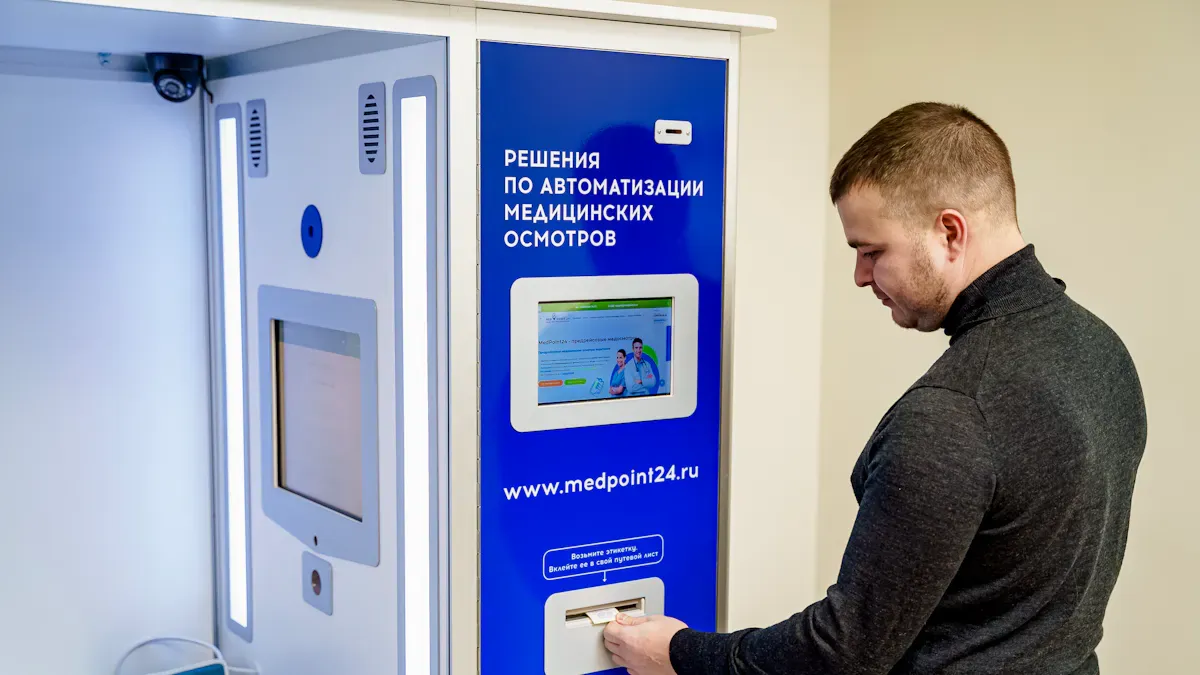
When you pick a kiosk, look for features that help people and businesses. Choose a floor standing touch screen kiosk with good touch screens, strong build, and easy to use. These things make digital interactive kiosks work faster and with fewer errors. This means customers are happier and workers do not make as many mistakes. Businesses save money because these kiosks can sell more things to customers. Floor-standing touch screen kiosk models help sell extra items easily. For more details, visit https://www.topkioskdisplay.com/.
Key Takeaways
Pick a kiosk made with tough materials and a strong build. This helps it last longer and saves money on repairs. - Choose the best touch screen type, like capacitive or infrared. Think about where and how you will use it. - Find a kiosk with multi-touch features. This makes it easier and more fun for people to use. - Make sure the kiosk has a high-resolution screen. It should fit your space and show clear pictures. - Look for features that help everyone use the kiosk. These include adjustable height and controls that are easy to reach.
Touch Screen Technology in Floor Standing Kiosks
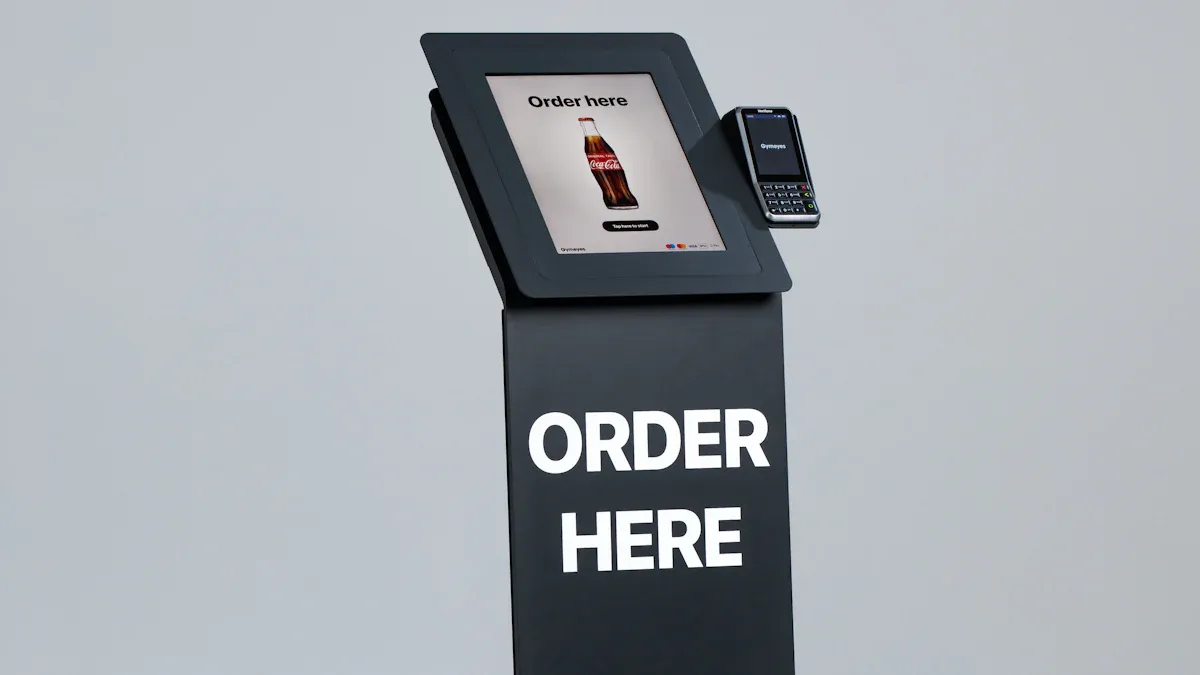
When you pick a floor standing touch screen kiosk, you should know about the different touch screen technologies. Picking the right one can make the kiosk easier to use and last longer. This part talks about the main types of touch screens, why multi-touch is helpful, and why screen size and resolution are important.
Capacitive vs. Infrared Touch
There are two main types of touch screen technologies in floor standing touch screen kiosks. These are projected capacitive (PCAP) and infrared (IR). Each type has special features that change how people use interactive kiosks.
Feature | Projected Capacitive (PCAP) | Infrared (IR) |
|---|---|---|
Touch Precision | High precision, smooth touch experience | Good precision, but less than PCAP |
Durability | High-strength tempered glass, scratch resistant | Durable, sensors avoid contact wear |
Maintenance | Low maintenance, easy to clean | Low maintenance, no physical wear |
User Interaction | Supports multi-touch and gestures | Supports multi-touch and gestures |
Input Tools | Requires direct touch with fingers | Works with bare hands, gloves, or objects |
Size Compatibility | Typically smaller screens | Supports large displays up to 150 inches |
Cost | Generally higher cost | Lower cost, good cost performance |
Capacitive touch screens let you touch the screen smoothly and accurately. They have glass that does not scratch easily and let you use more than one finger at once. You must use your finger to work them. Infrared touch screens have sensors around the edge of the display. You can use your finger, gloves, or even a stylus. Infrared screens are good for bigger displays and usually cost less. Both types do not need much care, but you clean them in different ways. Infrared screens are simple to clean because you do not need to open the display. Capacitive screens need gentle cleaning so you do not hurt the glass.
Tip: If your kiosk will be in a busy place, think about how easy it is to clean and take care of the screen. Dust can bother infrared screens, and capacitive screens need soft cleaning so they do not get damaged.
Multi-Touch Capabilities
Multi-touch is a very important feature in today’s interactive touch screen kiosks. Most floor standing touch screen kiosks now have 10-point multi-touch technology. This means the screen can notice up to ten touches at once. You can zoom, swipe, and turn pictures or maps with more than one finger. Multi-touch makes self-service kiosks easier for everyone to use.
Multi-touch technology lets people use digital kiosks in a way that feels normal. You can use gestures to look for things, fill out forms, or pay for things. This makes using the kiosk faster and more fun. Businesses like this because customers can finish tasks quickly, which keeps lines short and makes people happier.
Screen Size and Resolution
The size and resolution of your kiosk’s screen are very important for users. A high-resolution display makes pictures and words look sharp and clear. This helps people read instructions and see details without hurting their eyes. The most common screen sizes for floor standing touch screen kiosks are from 24 inches to 86 inches. Smaller screens are good for simple jobs, and bigger screens are better for groups or detailed things.
Screen Size | Resolution Options |
|---|---|
24" | 1920×1080 |
32" | 1920×1080 |
43" | 4K |
46" | 4K |
55" | 4K |
65" | 4K |
86" | 4K |
Picking the right screen size and resolution depends on where you put the kiosk and what you want people to do. A big, high-resolution display is great for interactive kiosks in shopping malls or airports. Smaller screens are good for small spaces or easy check-in jobs. Good display quality keeps people interested and helps your business get noticed.
Note: Always choose the screen size and resolution that fit your needs. Bigger is not always better. Think about your space, your users, and what you want to show.
Touch screen technologies, multi-touch features, and display quality all help make a good user experience. When you look for touchscreen display solutions, focus on these features to get the best value for your business.
Durability and Protection Features
When you pick a floor standing touch screen kiosk, you want it to last. Durability means the kiosk can handle lots of use and bad weather. It also means it can stand up to people who might try to break it. You should look for features that protect your kiosk and keep it working well.
Scratch, Water, and Dust Resistance
Check if the kiosk can fight off scratches, water, and dust. These things help the kiosk stay clean and work well in busy places. Many floor standing touch screen kiosks use IP and NEMA ratings to show how much protection they have.
IP Rating | Dust Protection Level | Water Protection Level |
|---|---|---|
IP65 | 6 (Complete prevention of dust) | 5 (Protection against water jets) |
IP66 | 6 (Complete prevention of dust) | 6 (Protection against powerful water jets) |
IP67 | 6 (Complete prevention of dust) | 7 (Protection against temporary submersion) |
NEMA Rating | Description | Correlation with IP Rating |
|---|---|---|
NEMA 4 | Basic outdoor protection against rain, snow, and dust | ≈ IP65 |
NEMA 4X | Adds corrosion resistance | ≈ IP66 |
NEMA 6P | Highest protection, withstands temporary submersion | ≈ IP67 |
If you want to use your kiosk outside, pick higher IP or NEMA ratings. These ratings mean the kiosk can handle rain, dust, and water jets. Indoor kiosks do not need as much protection, but you still want a screen that does not scratch easily. Good scratch resistance keeps the display looking nice and new.
Tip: Always choose the right protection for where you put the kiosk. Outdoor kiosks need more protection than indoor ones.
Build Quality and Materials
The materials and build quality decide how long a floor standing touch screen kiosk will last. Strong materials help the kiosk fight damage and wear. Most tough kiosks use aluminum profiles for the frame and tempered glass for the screen. These materials make the kiosk strong and safe for everyone.
Material Type | Description |
|---|---|
Aluminum Profile | Brushed frame |
Tempered Glass Panel | Durable touch screen surface |
You should also think about how the kiosk handles heat. Good thermal management stops the kiosk from getting too hot. This keeps the inside parts safe and working for a long time. The table below shows how build quality helps the kiosk last longer.
Factor | |
|---|---|
Thermal Management | High thermal conductivity materials prevent overheating, enhancing longevity. |
Material Durability | Use of aluminum alloy profiles increases resistance to wear and tear. |
Design Stability | Proper design ensures structural integrity over time, reducing failure rates. |
When you choose a kiosk, check if it uses strong materials and has a good design. This will help your self-service kiosks last longer and need less fixing.
Tamper-Proofing for Public Spaces
You want your floor standing touch screen kiosks to be safe in public. Tamper-proof features stop people from breaking in or hurting the kiosk. These features include strong cases, extra welds, and compression locks. Some kiosks also use stiffeners in important spots to make them even stronger.
Tamper-proof features stop people from getting inside.
Strong cases and extra welds make the kiosk tougher.
Compression locks keep the kiosk closed and safe.
Tamper-resistant designs help you save money. They stop people from breaking things and lower repair costs. The table below shows how these features help your business.
Evidence Type | Description |
|---|---|
Prevents vandalism and damage, leading to lower repair and replacement costs. | |
Durability | Vandal-resistant features extend the lifespan of kiosks, ensuring they remain functional. |
Maintenance Efficiency | Requires less maintenance due to durable materials, making them cost-effective. |
User Experience | Enhances user experience by ensuring kiosks remain operational, which is crucial for customer retention. |
Note: Tamper-proof kiosks keep your interactive touch screen kiosks safe and working. This means customers are happier and the kiosks work more often.
When you look for touchscreen display solutions, always check for durability, protection, and tamper-proof features. These features help your floor standing touch screen kiosks last longer and give you better value. You will see happier customers and lower costs over time.
User Experience and Accessibility
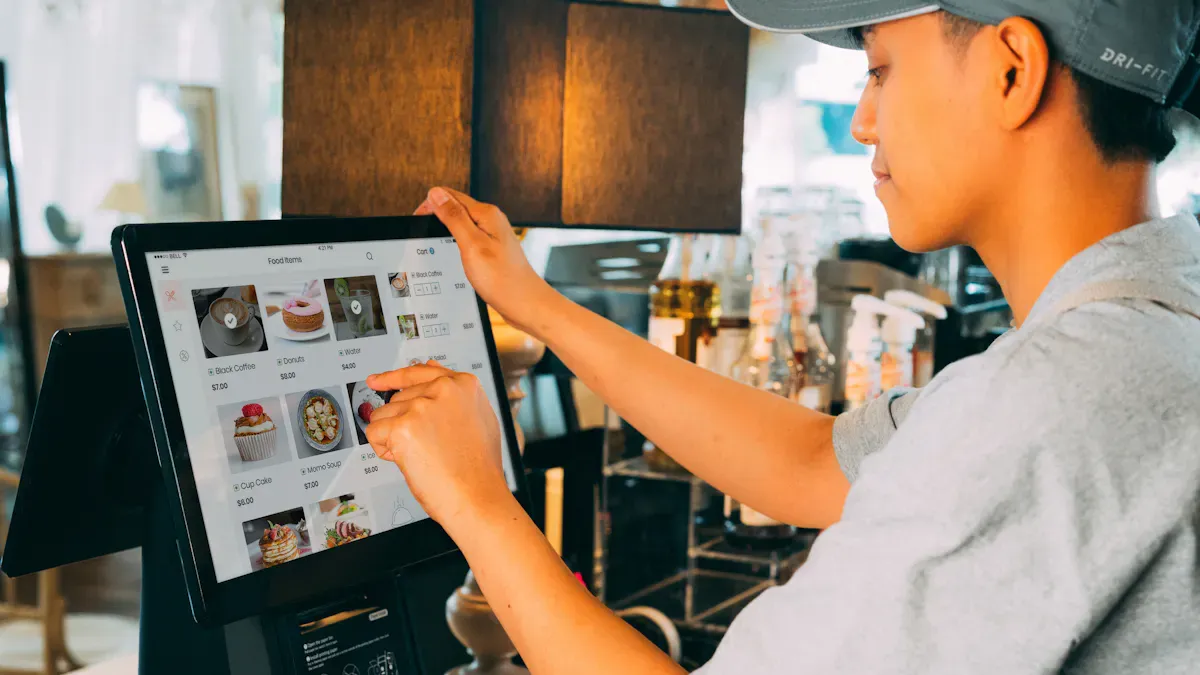
Responsive and Accurate Touch
You want the touch screen to work well every time. The kiosk should react fast and be correct when you touch it. This helps you finish things quickly and make fewer mistakes. When you use the kiosk, it should be easy to pick choices or type in words. Good touch accuracy makes people like using the kiosk more. It also makes customers want to use it again.
Accurate touch makes the kiosk easy and fun to use.
The kiosk can show lights or play sounds when you touch it. This lets you know your touch worked and helps you feel sure.
Progress bars or check marks show that the kiosk got your answer.
These things help you make fewer mistakes. You do not have to guess what to do. You can get your tasks done faster.
Accessibility Options (e.g., Adjustable Height)
Accessibility is important for all people. A floor standing touch screen kiosk should be easy for everyone to use. People in wheelchairs or with trouble moving need special features. Adjustable height and easy-to-reach buttons help a lot. The table below shows some rules for making kiosks easy to use:
Requirement Type | Measurement Details |
|---|---|
Unobstructed Front-Reach Access | |
Obstructed Front-Reach Access | Controls set back 0 to 20 inches, max height 48 inches |
Side-Reach Unobstructed Access | Controls 15 to 48 inches above the floor |
Side-Reach with Obstruction | Controls set back 0 to 10 inches, max height 48 inches |
Interface Design Considerations | Customizable for visual impairments, speech output, resets after use |
Position of the Kiosk | Allows unobstructed wheelchair access forward and parallel |
Unobstructed Forward Reach | Max height 48 inches, min 15 inches from the ground |
Obstructed High Forward Reach | Clear floor space extends beneath for a reach of 48 inches |
Obstructed Side Reach | Max height of obstruction 34 inches, depth 24 inches |
You should check for these features before you buy a kiosk. This makes sure everyone can use the kiosk safely and easily.
Customizable Interface for Digital Interactive Kiosks
Customizable software lets you change how the kiosk looks. You can add your own colors, logos, or menus. Many kiosks let people pick their language. This makes the kiosk easier for more people to use.
Customization Feature | Benefit |
|---|---|
Personalized Content | Meets customer needs and preferences |
Multilingual Capabilities | Supports users in their chosen language |
Flexible Display and Size | Matches business needs and space |
You can also change the screen for people who cannot see or hear well. These features make the kiosk better for everyone. When you choose a floor standing touch screen kiosk, look for these options. This will help your business and your customers.
Connectivity and Integration
Network and Peripheral Support
Your floor standing touch screen kiosks need strong connections. Wi-Fi and Ethernet help your kiosk get on the internet. If you want a backup, 4G or 5G can keep your kiosk online. This helps your interactive kiosks work even if the main network stops. Good network connections also help you collect data and learn how people use your kiosks.
Peripheral integration is important too. You can add things like scanners, printers, or touch pads. These devices help your kiosk do more jobs. The table below shows some devices you might use:
Peripheral Device Type | Description |
|---|---|
Scanners & Readers | Devices for scanning barcodes or reading identification cards. |
Touch Based Input | Includes ADA Kiosk Touch Pads, On-Screen Keyboards, and Kiosk Keyboards. |
Printing Options | Printers for producing physical receipts or documents. |
Voice & Video | Options for integrating audio and video capabilities. |
Convenience Options | Additional features to enhance user experience. |
These features help you serve more people. They also make customers happier.
Software Compatibility for Interactive Touch Screen Kiosks
You want your floor standing touch screen kiosk to work with many types of software. This makes it easy to update, manage, and add new things. The table below lists popular operating systems and what they do best:
Operating System | Best For |
|---|---|
iPad/iOS | Polished user experience, stability, security |
Windows | Enterprise integration, remote management |
Android | Budget-friendly, customization, specialized hardware |
Chromebook/ChromeOS | Budget-friendly, web-based applications |
Many floor standing touch screen kiosks use Windows 10 IoT for good security and easy management. Linux gives you freedom and no license costs. Android is good for stores and customer service. You can use software that fits your business and makes the kiosk easy for everyone.
Easy Updates and Maintenance
You need to keep your kiosks working well. Regular software updates add new things and fix problems. Hardware checks help you find issues before they get worse. You should also watch the temperature and humidity to keep your kiosks safe.
Best Practice | Description |
|---|---|
Software Updates | Ensure kiosks have the latest features and bug fixes to maintain performance and security. |
Hardware Inspection | Regular checks to identify and address potential issues before they escalate. |
Environmental Considerations | Monitor temperature and humidity to protect kiosks from damage. |
Automated update systems can save you time and money. These systems let workers fix problems from far away. They can even solve some problems by themselves, like restarting software or rebooting the device. This means your self-service kiosks are ready for customers more often. Good support and care make your touchscreen display solutions last longer and work better for your business.
Design, Installation, and Budget
Physical Footprint and Aesthetics
You should think about where to put your floor standing touch screen kiosks. The size of the kiosk tells you how much space you need. Before you set it up, check if you have power and internet there. Outdoor kiosks need more work, like putting down concrete and running wires. Bigger screens use more power than small ones. Pick the best way to connect, like Ethernet, Wi-Fi, or cellular, for your spot.
Factor | Description |
|---|---|
Site Preparation | Check power, network, and placement. |
Environmental Conditions | Outdoor kiosks need pads and conduits. |
Power Requirements | Larger kiosks need more power. |
Network Connectivity | Choose Ethernet, Wi-Fi, or cellular. |
How a kiosk looks is important for interactive touch screen kiosks. A good design makes it easier for people to use. Companies that care about design grow faster. You can use bright colors, cool shapes, or lights to make your kiosk special. Nice-looking kiosks help customers and make your brand look better.
Branding and Customization
Branding helps people notice your business. You can put your logo, colors, and pictures on floor standing touch screen kiosks. Customizing lets you make the kiosk match your brand. Many top kiosks in 2026 let you change colors and add pictures. For example, SmartServe Pro and TouchPoint Elite let you do this. Custom branding makes your kiosk different and helps people remember you.
Customization Option | Description |
|---|---|
Logo | Add your brand's logo. |
Color Scheme | Match your brand colors. |
Graphics | Use custom graphics. |
Custom kiosks can do many jobs. You can use them for self-service, ticketing, or giving information. A flexible design helps you reach more people.
Budget and Value Considerations
You need to think about how much kiosks cost. The price changes with features, size, and type. Indoor kiosks are cheaper than outdoor ones. Self-service kiosks and interactive displays have different prices. Commercial grade kiosks cost more but last longer and get better support.
Kiosk Type | Cost Range |
|---|---|
Indoor Kiosks | $1,500 to $10,000 |
Outdoor Kiosks | $5,000 to $20,000 |
Self-service Kiosks | $2,000 to $8,000 |
Interactive Displays | $8,000 to $20,000 |
Commercial Grade | $5,000 to $20,000 |
Consumer Grade | $1,500 to $8,000 |
You get more for your money with strong design and easy branding. Top interactive kiosks in 2026, like SmartServe Pro, help customers and save money. This helps your business do better.
Tip: Always pick a kiosk that fits your needs. Think about what you want it to do, how it looks, and your budget before you buy.
When you choose floor standing touch screen kiosks, focus on features that help your business and your customers. Use this checklist to guide your decision:
Will it integrate with your existing systems?
Is it ADA compliant and accessible to all guests?
Can it handle your environment?
How user-friendly is the interface?
What will it cost and what will you gain?
Who supports you after the install?
You get the best results when you match self-service kiosks and interactive kiosks to your needs.
Top Floor Standing Touch Screen Kiosks for Businesses in 2026
Choosing a floor standing touch screen kiosk for your business in 2026 is like building a computer – the key is not picking the most expensive configuration, but finding the right fit for your specific use case.
The overview below maps out the main product directions in the current market, helping you find the hardware foundation that meets your needs.
📊 Market Snapshot (2026)
Self‑service terminals dominate – Touch screen kiosks account for approximately 65% of the total kiosk market, making them the mainstream choice due to their powerful interactivity and ease of use.
Steady market growth – The global market continues to grow. For example, China’s retail interactive digital kiosk market is expected to grow at a CAGR of 5.4% between 2026 and 2032.
AI & intelligence – AI is increasingly used for personalised recommendations (e.g., self‑order kiosks suggesting add‑ons based on past orders) and in unmanned retail scenarios.
🏆 2026 Floor Standing Touch Screen Kiosk Comparison
🏢 By Application / Brand
Category | Representative Model | Key Features & Strengths | Recommended Scenarios |
|---|---|---|---|
Government & Information Security | OBOO 65‑inch | Localised OS: KylinOS or UOS, with domestic chips (Haiguang, Phytium) for data security. Large screen: 65‑inch 4K. Turnkey: ready to use, highly integrated. | Government service halls, command centres, corporate showrooms – environments with strict security requirements. |
Outdoor & Harsh Environments | JLOO 55‑inch | All‑weather protection: IP65/IP66, wide operating temperature -30°C to 60°C, IK10 vandal‑proof glass. Hybrid touch: supports glove or wet‑hand operation. | Outdoor tourist attractions, transport hubs, industrial parks – locations exposed to sun, rain, and dust. |
Retail & Food Service | TouchWo KD/GD Series | Scenario‑optimised: fast touch response, stable barcode scanning. Flexible configuration: optional scanners, printers, etc. | Fast‑food restaurants, bubble tea shops, supermarkets, convenience stores – high‑frequency use environments. |
General / High Value | Langxin Electronics 85‑inch | Mature & reliable: 21 years of experience, industrial design, supports 24/7 operation, MTBF >50,000 hours. | Government, healthcare, retail, schools – indoor scenarios demanding high stability. |
General / High Value | HUSHIDA 50‑inch | Mainstream choice: large touch screen, good value. Starting from ~¥5,900 (~$820 USD). Suitable for simple information queries and displays on a budget. | Hospitals, banks, shopping malls – public area wayfinding and information lookup. |
International Brands | Elo, NCR, Diebold | Technology & ecosystem leaders: e.g., NCR provides self‑service banking solutions; Elo has deep expertise in touch technology. | Large enterprises that require brand reputation, leading technology, and global service networks. |
🛠️ By Core Configuration / Technical Specification
Screen Size & Resolution – Common sizes range from 32 inches to 85 inches, with resolutions from 1280×1024 up to mainstream 1920×1080 and even 4K (3840×2160). For information‑rich applications, larger sizes and higher resolutions deliver a better experience.
Touch Technology
Capacitive – Mainstream choice. Supports multi‑touch, responsive, feels like a smartphone. Suitable for most indoor environments.
Infrared – Durable, highly stable. Suitable for high‑use public areas.
Hybrid touch – Combines infrared and capacitive technologies. Designed for outdoor or special environments, supports glove or wet‑hand operation.
Core System & Processor
Operating system – Typically Android or Windows, with customisation available. For government or high‑security needs, domestic OS like KylinOS or UOS are options.
Processor – Ranges from low‑power ARM processors to high‑performance domestic chips (e.g., Phytium D2000) and mainstream Intel/AMD processors – choose based on computing requirements.
Environmental Adaptability & Reliability
Ingress protection – Indoor units generally have no special rating. Outdoor units require IP65/IP66 for dust and water resistance.
Operating temperature – Standard units: 0~50°C. Outdoor or industrial units: wide temperature range -30°C to 60°C.
Durability – Outdoor screens often include IK10 vandal‑proof glass to resist physical damage.
Function Modules & Expandability – Supports integration of peripherals such as thermal printers, card readers (social security / medical cards), barcode scanners, cameras, document scanners – to meet diverse business needs.
💎 Summary
A simple decision‑making process:
Look at the “environment” – Indoor, outdoor, or special security requirements?
Look at the “capabilities” – What screen size? Touch sensitivity or ruggedness? Android, Windows, or domestic OS?
Look at the “peripherals” – Do you need integrated printers, scanners, etc.?
If you share your specific use case, budget, and preferred ecosystem, I can offer more targeted recommendations.
FAQ
What screen size should you choose for your kiosk?
You should pick a screen size based on your space and how people use the kiosk. Small screens work well for simple tasks. Large screens help groups or show detailed information.
How do you keep your kiosk safe outdoors?
You need a kiosk with a high IP or NEMA rating. These ratings protect against water, dust, and weather. Always check for strong materials and tamper-proof locks.
Can you update kiosk software easily?
Most kiosks let you update software remotely. You can use automatic updates to fix bugs and add new features. This keeps your kiosk running smoothly.
Are floor standing touch screen kiosks accessible for everyone?
Many kiosks offer adjustable height and easy-to-reach controls. You can find models that follow ADA guidelines. These features help people with disabilities use the kiosk.
What should you look for in top kiosks for 2026?
You should look for kiosks with fast touch response, strong build, and easy branding. Updated models support new software and offer better security. These features help your business stay ahead.
See Also
Discover The Essential Features Of Today's Touch Screen Kiosks
Evaluating Touch Screen Kiosks For Business: Performance And Value
Uncover 10 Unexpected Applications For Touch Screen Kiosks In 2026
A Comprehensive Guide To Setting Up A Touch Screen Kiosk
Six Essential Tips For Selecting Interactive Kiosks For Any Space
