Top Computer Cases with LCD Displays Reviewed for 2026
Shenzhen TopAdkiosk Display Technology Co., Ltd.
Add.: 2F, Bldg 10, Changfeng Industrial Park, Dongkeng, Fenghuang, Guangming, Shenzhen, China 518132
Mobile/WHATSAPP: 86-138 25769658
Email: marketing@topadkiosk.com topadkiosk@gmail.com
Skype: pghenry1
Wechat: adkioskhenry
English Web.: http://www.topadkiosk.com/
https://www.topkioskdisplay.com/
http://www.ad-kiosk.com/
https://www.toplcddisplay.com/
http://www.multitouchdigitalsignage.com/
https://www.youtube.com/channel/UCYVYNJHxLVEcQD8fuUxXNTA/videos?view_as=subscriber
https://www.facebook.com/TOPADKIOSKSHENZHEN/?ref=bookmarks
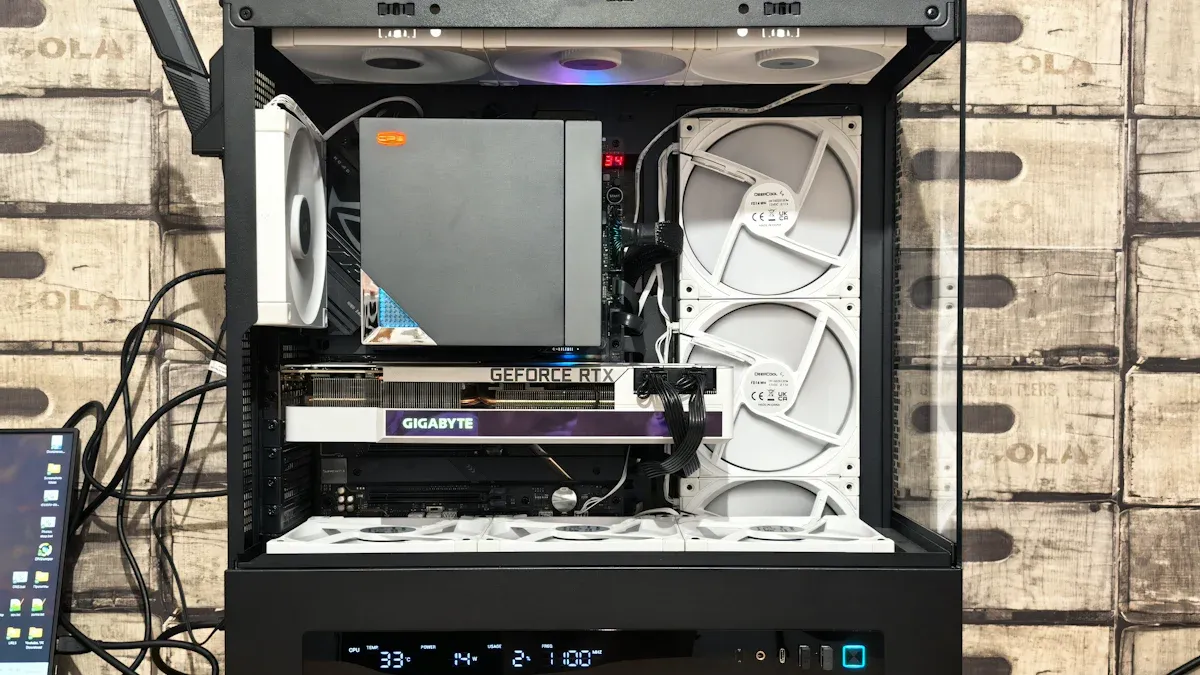
You want a pc case that stands out in 2026. The Hyte Y70, Phanteks XT Pro Ultra, Corsair Air 5400, Lian Li O11 Vision Compact, and NZXT H7 Flow RGB grab attention with their wraparound glass panels, ARGB fans, and strong cooling. If you crave real-time hardware stats, the ESGAMING LUMIA COVE WHITE offers a 5.5" LCD screen and supports many motherboard sizes. Gamers, creators, and budget builders all find a computer case with lcd display that fits their style and needs.
Key Takeaways
Pick a PC case with an LCD display that fits your style and needs. There are fancy designs and cheaper choices too.
Find LCD screens with clear pictures that show live stats. You can change settings to make it your own and add your style.
Make sure the case has good cooling and airflow. Cases with many fan slots and smart shapes keep your parts safe and working well.
Think about how strong the case is and what it’s made of. A tough case lasts longer and keeps your parts safe.
Compare the price and what you get. Sometimes, a case in the middle price range gives you the best deal without losing quality or speed.
Quick Comparison of PC Cases with LCD Displays
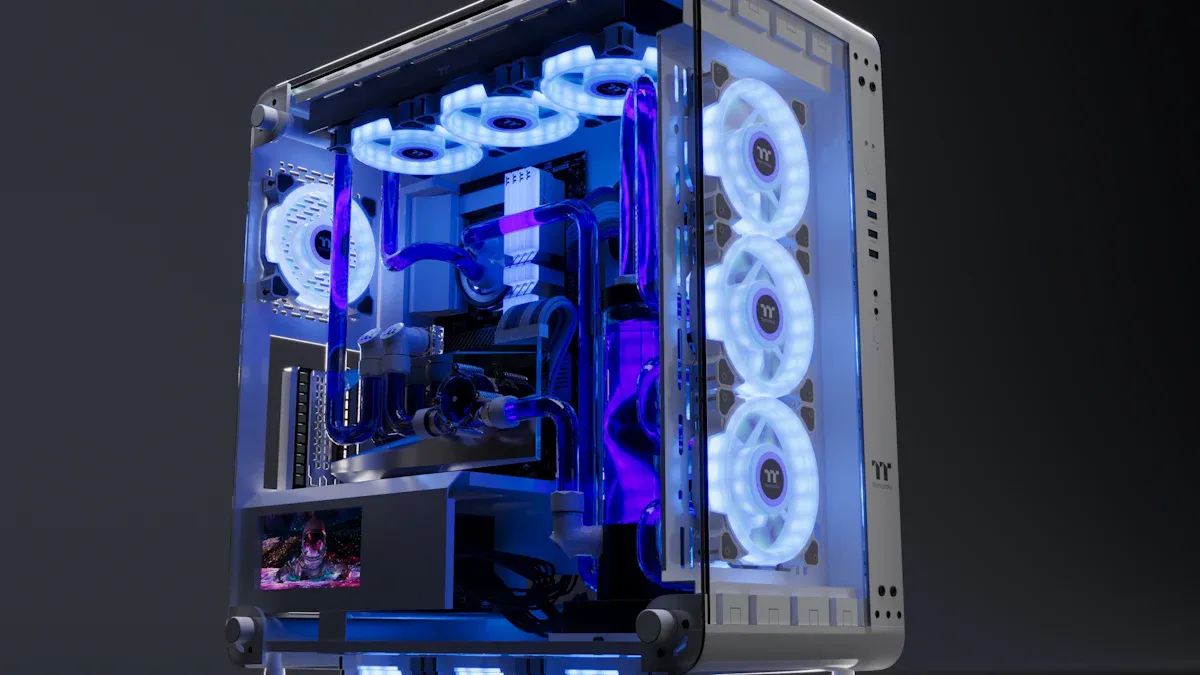
Specs Overview
You want to see how each pc case stacks up. Here’s a quick look at the top choices for 2026. The table below shows the main specs you care about: lcd display features, cooling systems, and design elements. You can spot the differences at a glance.
Case Name | LCD Display Features | Cooling Systems | Design Elements |
|---|---|---|---|
Hyte Y70 | Integrated lcd panel, customizable stats | Up to 10 fans, 360mm radiator support | Wraparound glass, sleek modern look |
Phanteks XT Pro Ultra | High-res lcd, touch controls | 9 fan mounts, advanced airflow | ARGB lighting, sturdy build |
Corsair Air 5400 | Large lcd, easy navigation | Dual chamber, 12 fan support | Classic ATX, minimalist design |
Lian Li O11 Vision Compact | Compact lcd, real-time monitoring | 8 fans, liquid cooling ready | Sliding glass, compact footprint |
NZXT H7 Flow RGB | RGB lcd, vibrant display | 7 fans, mesh airflow | RGB accents, clean lines |
Screen pixel display for digital aesthetics | Supports up to 12 fans, thermal isolation zone | Gull-wing door side panels, unique aesthetics | |
ESGAMING LUMIA COVE WHITE | 5.5" lcd screen for real-time stats | Supports 360mm liquid cooling | Sliding tempered glass panel, interactive display |
Feature Highlights
You want a pc case with lcd display that fits your style and needs. Let’s break down what makes each case special:
Hyte Y70: You get a customizable lcd panel and strong cooling. The wraparound glass gives your pc a futuristic look.
Phanteks XT Pro Ultra: Touch controls on the lcd make it easy to adjust settings. The case offers advanced airflow and ARGB lighting.
Corsair Air 5400: You enjoy a large lcd for easy navigation. The dual chamber design keeps your pc cool and organized.
Lian Li O11 Vision Compact: This case saves space and still gives you real-time monitoring on the lcd. The sliding glass panel makes upgrades simple.
NZXT H7 Flow RGB: You get vibrant rgb and a bright lcd. Mesh airflow keeps your pc running cool.
ESGAMING AIRCRAFT 007: Digital aesthetics shine with the pixel display. Unique gull-wing doors make your pc stand out.
ESGAMING LUMIA COVE WHITE: The 5.5" lcd screen shows real-time stats. The sliding glass panel and interactive display make it easy to check your pc’s performance.
Tip: If you want to install an lcd display inside your pc case, most models come with clear instructions and plug-and-play connectors. You just need to follow the manual and connect the display to your motherboard.
You can pick a case based on what matters most to you—lcd display quality, cooling, or design. Each case brings something unique to your setup.
Review Criteria for Best PC Case Selection
When you look for the best pc case with lcd display, you want to know what matters most. Let’s break down the main things you should check before you pick a computer case with lcd display.
LCD Display Quality
You want a clear lcd that shows your pc stats in real time. The best cases use high-resolution screens that make numbers easy to read. Some lcd panels let you customize what you see, like temperatures or fan speeds. Touch controls can make it simple to switch between info. If you want a premium experience, look for a case with a bright lcd and smooth graphics.
Customization Options
You might want to change the look of your pc. Many cases let you adjust the lcd display, add ARGB lighting, or swap panels. Some cases offer software that helps you set up your lcd with custom widgets. You can pick colors, animations, and even upload your own images. If you like to tinker, choose a case that gives you lots of options.
Cooling and Airflow
Your pc needs to stay cool. The best cases have space for many fans and support big radiators. Mesh panels and smart layouts help air move through the case. You want a pc case with lcd display that keeps your hardware safe and quiet. Look for cases with thermal isolation zones and easy fan installation.
Build Quality
You want your case to last. Makers use strong materials and smart techniques to build premium cases. Here’s a quick look at what goes into the top cases:
Material/Technique | Description |
|---|---|
SolidWorks | 3-D modeling for design and mock-ups |
CNC Cutting | Precision cuts for perfect fit |
Heat-Treated Angles | Extra strength and durability |
Quality Plated Steel Hardware | Reliable parts that last |
Proven Construction Techniques | Methods that ensure high-quality assembly |
Price and Value
You want a case that fits your budget. Some cases cost more because they offer better lcd displays, stronger build quality, or extra features. If you want value, compare what you get for the price. Sometimes a midrange case gives you everything you need without breaking the bank.
Tip: If you want to install an lcd display inside your pc case, follow the manual. Most cases use plug-and-play connectors. You just connect the lcd to your motherboard and set it up with software.
You can use these criteria to find the right case for your pc. Think about what matters most to you—lcd quality, customization, cooling, build, or price.
In-Depth Reviews of Top Computer Cases with LCD Display
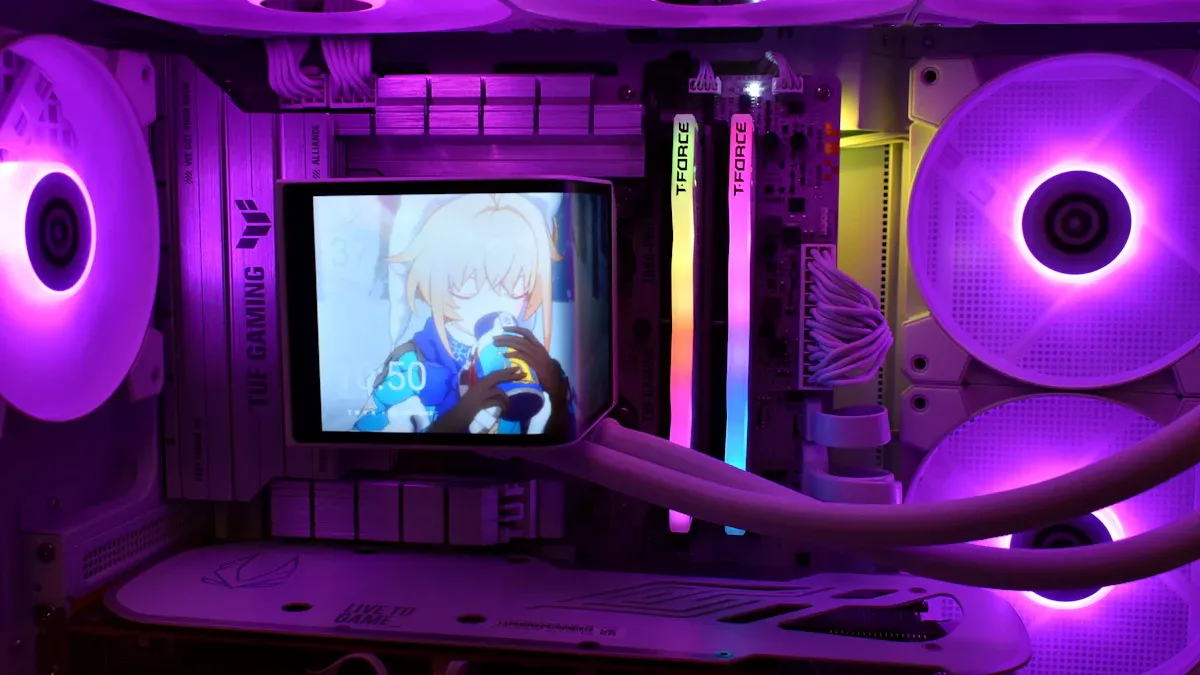
Hyte Y70 – Best All-Around PC Case with LCD Display
You want a case that does everything well. The Hyte Y70 stands out as the best pc case with lcd display for most users. You get an integrated lcd panel that shows real-time stats. You can customize the display with your favorite colors and widgets. The wraparound glass makes your pc look like a premium showcase case.
You can fit up to 10 fans inside. The case supports a 360mm radiator for water cooling. You will not worry about heat. The airflow keeps your pc cool and quiet. The build quality feels solid. The panels fit tight, and the materials feel premium.
You will find cable management easy. The case gives you plenty of space behind the motherboard tray. You can hide wires and keep your build clean. The lcd controls are simple. You can set up the display with just a few clicks.
Pros:
Bright lcd with lots of options
Great airflow and cooling
Premium design with wraparound glass
Easy to build in
Cons:
Higher price than some cases
Large size needs more desk space
If you want a pc case with lcd display that looks amazing and works for gaming, streaming, or creative work, the Hyte Y70 is a top pick.
Phanteks XT Pro Ultra – Best Value Computer Case with LCD Display
You want value without losing features. The Phanteks XT Pro Ultra gives you a high-res lcd with touch controls. You can tap the display to switch between stats or change lighting. The lcd feels smooth and responsive.
This case supports up to 9 fans. You get advanced airflow that keeps your pc cool. The ARGB lighting adds style. The build feels sturdy. The panels do not flex, and the finish looks clean.
You will find setup simple. The case includes tool-less drive bays and clear instructions. The lcd connects with plug-and-play cables. You can start using the display right away.
Pros:
Touch lcd for easy control
Strong airflow and cooling
Good price for the features
Sturdy build
Cons:
ARGB software can be tricky
Not as much space for big GPUs
If you want a computer case with lcd display that gives you premium features for less money, the XT Pro Ultra is a smart choice.
Corsair Air 5400 – Classic ATX PC Case with LCD Display
You want a classic look with modern tech. The Corsair Air 5400 brings a large lcd to a dual-chamber case. You can see all your pc stats on the display. The navigation feels easy with the lcd menu.
You can install up to 12 fans. The dual-chamber design keeps hot air away from your main components. The case stays cool even during long gaming sessions. The minimalist design fits any setup.
You will like the simple layout. The case gives you lots of room for cables and drives. The lcd is easy to set up. You just connect it and use the Corsair software.
Pros:
Large lcd for clear stats
Dual-chamber for better cooling
Simple, classic design
Easy cable management
Cons:
Not as flashy as other cases
Heavier than some mid-tower cases
If you want a pc case with lcd display that feels familiar but adds new tech, the Air 5400 is a solid pick.
Lian Li O11 Vision Compact – Best Midrange PC Case with LCD Display
You want a compact case that still shows off your build. The Lian Li O11 Vision Compact gives you a small lcd for real-time monitoring. The display sits in a spot you can see easily. You can check temps and speeds at a glance.
This case supports up to 8 fans. You can add liquid cooling if you want. The sliding glass panel makes upgrades simple. The case feels sturdy and well-made.
You will find building in this case easy. The compact size saves desk space. The lcd connects with a single cable. You can set up the display in minutes.
Pros:
Compact size with lcd display
Sliding glass for easy access
Good airflow for a small case
Clean, modern look
Cons:
Less room for big GPUs
Smaller lcd than other cases
If you want a computer case with lcd display that fits small spaces but still looks premium, the O11 Vision Compact is a great choice.
NZXT H7 Flow RGB – Strong Midrange PC Case with LCD Display
You want rgb and airflow in one package. The NZXT H7 Flow RGB gives you a bright lcd with vibrant colors. The display shows your pc stats and matches your lighting. The mesh front keeps air moving.
You can install up to 7 fans. The case supports big radiators for water cooling. The build quality feels premium. The panels snap on and off with no tools.
You will like the simple setup. The lcd connects with NZXT’s software. You can change the display and lighting with a few clicks. The case gives you enough space for most builds.
Pros:
Bright lcd with rgb effects
Great airflow with mesh panels
Tool-less design for easy building
Good value for the features
Cons:
Fewer fan slots than bigger cases
Software can be buggy
If you want a pc case with lcd display that combines rgb, airflow, and a premium feel, the H7 Flow RGB is a strong pick.
You can see that each case brings something special. Some focus on lcd quality. Others give you better airflow or a compact size. You can pick the case that fits your style and your pc needs.
Comparison & Recommendations for PC Cases with LCD Display
Strengths and Weaknesses
You want to know what makes each case stand out. Here’s a quick look at the strengths and weaknesses for each pc case with lcd display:
Case Name | Strengths | Weaknesses |
|---|---|---|
Hyte Y70 | Premium lcd, great cooling, showcase look | Large size, higher price |
Phanteks XT Pro Ultra | Touch lcd, value, sturdy build | ARGB software tricky, less GPU room |
Corsair Air 5400 | Big lcd, dual chamber, easy cable management | Heavy, less flashy |
Lian Li O11 Vision Compact | Compact, easy upgrades, good airflow | Small lcd, less GPU space |
NZXT H7 Flow RGB | Bright lcd, mesh airflow, tool-less build | Fewer fans, software bugs |
You can see that each case brings something different. Some focus on premium lcd quality. Others give you better airflow or a compact design. If you want a premium showcase case, the Hyte Y70 stands out.
Best PC Case for Gamers
If you love gaming, you want a case that keeps your gaming pc cool and looks awesome. The Hyte Y70 gives you a big lcd, strong airflow, and a design that shows off your build. You get space for top hardware and easy cable management. This case makes your setup look and feel premium.
Best PC Case for Creators
Creators need a case that fits their workspace and helps them monitor performance. The Lian Li O11 Vision Compact works well for you. It saves space, offers a clear lcd for real-time stats, and makes upgrades simple. You get good airflow and a modern look without taking up too much room.
Best PC Case for Enthusiasts
If you love building and customizing, the Phanteks XT Pro Ultra is your pick. You get a touch lcd, lots of customization, and strong cooling. The case gives you value and a sturdy build. You can tweak the lcd display and lighting to match your style.
Tip: To install an lcd display inside your pc case, follow the manual. Most cases use plug-and-play connectors. Just connect the lcd to your motherboard and set it up with the included software.
You can choose the best pc case for your needs. Think about what matters most—lcd quality, cooling, or design. Each case helps you build a pc that fits your style.
You have lots of choices for a computer case with lcd display in 2026. The Hyte Y70 stands out as the best premium pc case with lcd display. If you want value, pick the Phanteks XT Pro Ultra. Creators love the Lian Li O11 Vision Compact. Gamers enjoy strong cooling and a bright lcd display. When you install an lcd, just connect it to your motherboard and follow the manual. Think about your needs and style before you choose your case.
🎯 Step 1: Define Your Goal & Choose Your Screen
Before you start, it's helpful to know exactly what you want your secondary screen to do. This will guide all your decisions.
System Monitoring: This is the most popular choice. You can use software like AIDA64 or iCUE to display real-time CPU/GPU temperatures, usage, and fan speeds. A dedicated USB-powered screen with its own software is often an easier and safer option.
Aesthetics (Decoration): If your goal is purely visual, you can display custom videos, GIFs, or images. Versatile displays, like the 14.5" Corsair XENEON EDGE, can serve as a system monitor, a display for decor, or even a dedicated window for apps like Spotify.
Game Integration: Some hardware and software allow games to utilize a secondary display for things like maps or weapon stats.
The "what" you want to show will determine the "how" (USB vs. HDMI, software choice).
💻 Step 2: Hardware Setups
Based on your goal, you can choose from three main approaches, each with different technical requirements.
Option 1: Dedicated USB Screen (The Easier Path)
This method is ideal for system monitoring and achieving the final step aesthetically, as it works with a single USB cable for both power and data. Models like the Thermalright Trofeo Vision connect via internal USB header, freeing up your graphics card. Some designs even use magnetic mounting, so no tools are required. The trade-off is that USB screens rely on their own software and can be less plug-and-play than a standard monitor. This is recommended for most users.Option 2: DIY HDMI/DisplayPort Screen (The Advanced Path)
This is for users who want the highest visual quality and flexibility to display anything (like a movie). It connects to your GPU as a standard monitor, so it has higher resolution and refresh rate potential. For complete artistic freedom, you can build this from scratch using a raw LCD and a driver board, or use a kit for a specific case like the HYTE Y60. Because it uses a GPU output, it will impact gaming performance slightly and require more complex mounting.Option 3: Transparent Side Panel (The Experimental Path)
This unique aesthetic turns your entire side panel into a transparent screen. It's a complex project with high risk of breaking the panel or getting poor results if not done carefully. It involves dismantling an old monitor, removing the backlight, and carefully removing anti-glare layers to make the LCD clear. For best visibility, you'll need to install bright LED strips inside the case to illuminate your components from behind the screen.
🛠️ Step 3: Physical Installation
Once you have your hardware, it's time to mount it inside your case.
Find the Best Spot: Common choices include the front panel for easy access, the side panel behind the glass, the PSU shroud, or the rear fan mount (like the Corsair XENEON EDGE).
Mount the Screen:
Adhesive: For small, lightweight screens, high-strength mounting tape or double-sided thermal tape is often secure enough.
Magnetic: If your screen or mount has magnets and your case has a steel surface, this is the easiest no-tool method.
3D-printed Brackets: For a professional finish, design or download a 3D-printed bracket that screws into your case's existing holes. The HYTE Y60 kit includes an STL file for this purpose.
Drilling (Advanced): You can drill a VESA hole pattern into your case's side or floor panel to bolt a monitor directly to it.
Custom Cutout (Advanced): This requires cutting a precise hole in your case with a Dremel tool. Be sure to smooth the edges afterward to prevent injury.
Manage Cables Carefully: For a clean look, route cables through the back of your case behind the motherboard tray. Use the U-connectors that sometimes come with the screen to keep things compact.
For advanced screen removal, some builders mount the bare LCD by removing its plastic housing for a flatter profile. If you do this, be extremely careful with the bare circuit and ensure nothing short-circuits.
⚙️ Step 4: Software & Configuration
After the hardware is in, software configuration is the final step.
For DIY HDMI Screen: Go to Windows Display Settings and set it as an extended or duplicated display. Then use your chosen software and drag its window onto the small screen.
For Dedicated USB Screen: Install the screen's provided software. This program will pull your system data and display it on the screen without you needing to move windows around. If your USB screen doesn't come with software, you can still configure it to work with AIDA64.
⚠️ Important: Potential Issues to Watch For
Heat Sensitivity: LCDs can be sensitive to extreme heat. Ensure your internal case temperature isn't too high, as it could shorten the screen's lifespan.
GPU Performance: Running an HDMI screen will use a small amount of your GPU's power and VRAM. USB-powered screens do not.
Mouse Cursor Drift: With an extended display, your mouse can easily get "lost" on the small screen. You can solve this by positioning the small screen's virtual location in a corner of your main display, making it harder to accidentally move the cursor onto it.
EMI Interference: Computer components produce electromagnetic interference (EMI). If your screen is placed too close to a GPU or other parts without shielding, it might cause flickering or unusual image noise.
💎 Final Advice
Start by clarifying what you want the screen to do. For most users, the easiest and safest route is a single-cable USB-powered screen designed for system monitoring. These are affordable, mount easily with magnets or tape, and have software ready to go.
If you need absolute maximum quality or want to display uncompressed video, the DIY HDMI path is for you, though it is more complex to set up and manage.
Let me know the kind of screen you're planning to use or the software you're thinking of, and I can offer some more tailored advice.
FAQ
How do you install an LCD display inside your PC case?
You just follow the manual. Plug the LCD into your motherboard using the included cable. Secure the display in the spot inside your case. Power on your PC and use the software to set up your stats.
Can you use these cases for the enthusiast gaming sector?
Yes, you can. These cases work great for the enthusiast gaming sector. You get strong cooling and a stylish look. The LCD helps you track your PC’s performance during long gaming sessions.
Which case is best for high aesthetic demand?
If you want high aesthetic demand, pick a case with wraparound glass and a bright LCD. The Hyte Y70 stands out. You get a modern look and a display that shows off your build.
Do you need special tools to build in these cases?
No, you do not. Most cases use tool-less designs. You can add parts and manage cables with your hands. This makes building your PC easy and fast.
