Top OLED Display Modules for Arduino Projects
Shenzhen TopAdkiosk Display Technology Co., Ltd.
Add.: 2F, Bldg 10, Changfeng Industrial Park, Dongkeng, Fenghuang, Guangming, Shenzhen, China 518132
Mobile/WHATSAPP: 86-138 25769658
Email: marketing@topadkiosk.com topadkiosk@gmail.com
Skype: pghenry1
Wechat: adkioskhenry
English Web.: http://www.topadkiosk.com/
https://www.topkioskdisplay.com/
http://www.ad-kiosk.com/
https://www.toplcddisplay.com/
http://www.multitouchdigitalsignage.com/
https://www.youtube.com/channel/UCYVYNJHxLVEcQD8fuUxXNTA/videos?view_as=subscriber
https://www.facebook.com/TOPADKIOSKSHENZHEN/?ref=bookmarks
You can find the top Arduino display modules for your projects in 2026. Some popular options are ELEGOO 0.96" SSD1306, Waveshare 1.5" RGB, DFRobot SSD1306, and ER-OLEDM032-1W. These displays are small, have bright screens, save energy, and are easy to use with Arduino. The right display helps your Arduino wearable or smart gadget work well. You will see a quick comparison table next to help you pick the best Arduino with oled display module.
Key Takeaways
Pick the right OLED display for your Arduino project. Think about the size, resolution, and how much power it uses. This helps your project work well and fit together.
OLED displays show better pictures and use less energy than TFT and LCD screens. They are great for things you wear or gadgets that use batteries.
Use I2C to make wiring and setup easy with OLED displays. This way is simple and works for most Arduino projects.
Try different OLED modules like ELEGOO, Waveshare, and DFRobot to see which one is best for you. Each one has special features and different prices.
Use libraries like Adafruit SSD1306 to help you program OLED displays. This makes coding easier and adds more things your project can do.
OLED Display Comparison for Arduino
Specs Table
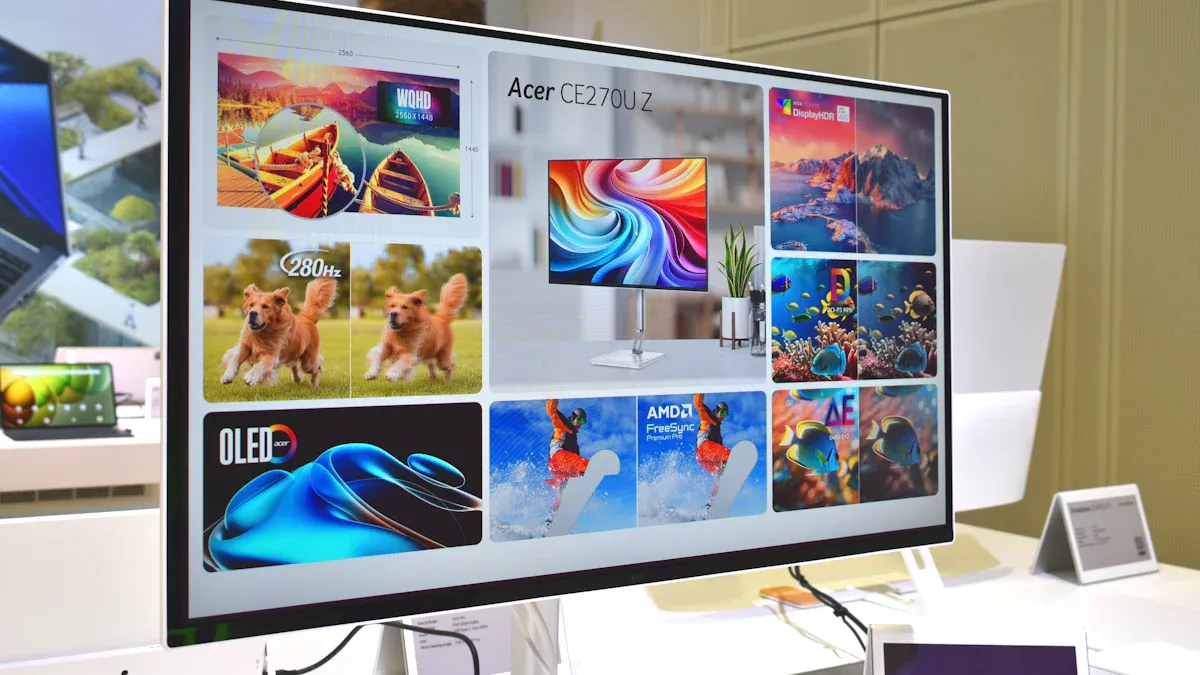
It is important to choose the right display for your Arduino project. The table below lists the main features of five popular modules. You can check the size, resolution, interface, power, compatibility, and price. This makes it easy to compare each display fast.
Module | Size | Resolution | Interface | Power | Compatibility | Price Range |
|---|---|---|---|---|---|---|
ELEGOO 0.96" SSD1306 | 0.96" | 128x64 | I2C/SPI | 3.3V/5V, Low | Arduino Uno, Nano | $7-$12 |
Waveshare 1.5" RGB OLED | 1.5" | 128x128 | SPI/I2C | 3.3V/5V, Low | Most Arduino boards | $18-$25 |
DFRobot SSD1306 OLED | 0.96" | 128x64 | I2C | 3.3V/5V, Low | Arduino, ESP32 | $8-$14 |
ER-OLEDM032-1W | 3.2" | 256x64 | SPI | 3.3V/5V, Med | Arduino Mega, Due | $35-$45 |
Arduino Official OLED | 1.3" | 128x64 | I2C/SPI | 3.3V/5V, Low | Arduino boards | $15-$20 |
Feature Highlights
Each display has something special. The ELEGOO 0.96" SSD1306 is good for small projects and wearables. It does not use much power and works with many Arduino boards. Waveshare 1.5" RGB OLED has bright colors and a bigger screen. It is great for smart gadgets that need more detail. DFRobot SSD1306 OLED is easy to use and shows clear text. It is good for simple Arduino projects and people who are just starting. ER-OLEDM032-1W has a wide screen and high resolution. You can use it for dashboards or large Arduino projects. Arduino Official OLED is reliable and has good library support.
Tip: Pick a display that fits your project size and power needs. If you want color, Waveshare 1.5" RGB OLED is a good pick. For simple text, ELEGOO or DFRobot modules are great.
All these displays use little power and connect easily to Arduino. Most support I2C or SPI, so wiring is simple. You get good library support for drawing shapes and text. Prices are different, so you can find one that fits your budget.
Why Pick OLED for Arduino Projects
OLED vs Other Displays
You want your Arduino project to be special. Picking the right display is important. OLED displays are better than TFT and LCD screens in many ways. They show deep blacks and bright colors. The contrast ratio can be as high as 100,000:1. OLED displays are thin and light. You can use them in small designs. TFT and LCD screens are thicker and cannot show real black.
Feature | OLED Displays | TFT/LCD Displays |
|---|---|---|
Image Quality | Deep blacks, vivid colors | Good, but limited by backlight spill |
Contrast Ratio | Up to 100,000:1 | Lower, true blacks not possible |
Design Flexibility | Thin and lightweight | Bulkier |
Ideal Use Cases | High-end electronics, wearables | Work-grade panels, general use |
You also want your project to save energy. OLED displays use less power than LED screens. LCDs need a backlight, which uses more energy. OLED screens work best with dark content. If you want high contrast and bright colors, OLED is the best for your Arduino board.
Benefits for Wearables and Gadgets
You want your wearable or gadget to be easy to use and look cool. OLED displays help you do this. They fit in small spaces and are very light. Some OLED modules can bend or curve. This makes them great for wearables. The screen stays clear from many angles. You can read it easily.
Here are some benefits:
Benefit | Description |
|---|---|
Flexibility | Curved and compact displays fit naturally into wearable designs |
Visibility | Clear visibility and customization in different conditions |
Power Efficiency | Low power use, ideal for battery-powered gadgets |
Ease of Integration | Small modules are easy to add to projects |
You can use OLED displays in many Arduino projects:
Wearable health monitors that show vital signs
Portable tools for measuring things
Control panels in factories with little space
Handheld devices that need clear feedback
Security gadgets that show status
IoT projects where space is important
OLED displays give you sharp graphics and high resolution. They respond quickly and have high contrast. Your Arduino with oled display will look modern and work well. You can trust OLED technology for clear screens and small size in your next project.
Reviews of Arduino Compatible Displays
ELEGOO 0.96" SSD1306 I2C OLED
The ELEGOO 0.96" SSD1306 I2C OLED is good for many Arduino projects. The screen is small, only 0.96 inches. It shows 128 by 64 pixels. This display uses I2C, so wiring is easy. You just connect the SDA and SCL pins to your Arduino. It does not need a backlight. This means you see clear images in dark places. Only the pixels you use light up. This saves power. It is helpful for wearables or gadgets that use batteries.
Display Size: 0.96 inches
Resolution: 128×64 pixels
Interface: I2C
Power: Low, only active pixels use energy
Integration: Connect SDA to D21 and SCL to D22 on ESP32 or similar pins on Arduino
Price: Affordable for most users
Unique Features: High contrast, no backlight, easy wiring
Tip: This display is great for small screens. It works well for wearables or simple gadgets. You get clear text and graphics. Your battery will last longer.
Waveshare 1.5" RGB OLED
The Waveshare 1.5" RGB OLED has bright colors and a bigger screen. It is good for smart gadgets that need more detail. The screen is 1.5 inches and shows 128 by 128 pixels. You connect it with a 3-wire or 4-wire SPI interface. It works with 3.3V or 5V power. This means it fits most Arduino boards. You get 65,000 colors. Your graphics will look bright and colorful. Waveshare gives you help for Arduino, Raspberry Pi, and STM32.
Feature | Specification |
|---|---|
Display Size | 1.5" (26.86 × 26.86 mm) |
Resolution | 128×128 pixels |
Interface | 3/4-wire SPI |
Power Requirements | 3.3V/5V |
Unique Features | 65K RGB colors, development resources for Raspberry Pi/Arduino/STM32 |
You can use this display for dashboards or any project that needs color. SPI wiring is simple. Waveshare helps you with coding and setup.
DFRobot SSD1306 OLED
The DFRobot SSD1306 OLED is good for simple Arduino projects. The screen is 0.96 inches and shows 128 by 64 pixels. It uses I2C, so wiring is easy. You connect it to your Arduino with normal pins. It uses little power. Your project can run longer on batteries. The display shows clear text and simple graphics. You can use it for wearables, tools, or beginner projects.
Display Size: 0.96 inches
Resolution: 128×64 pixels
Interface: I2C
Power: Low, good for battery-powered devices
Integration: Easy wiring, works with Arduino and ESP32
Price: Budget-friendly
Unique Features: Simple setup, clear text
Note: This display is good for students and beginners. You can make a health monitor or a small sensor with it.
ER-OLEDM032-1W 3.2" OLED
The ER-OLEDM032-1W 3.2" OLED has a wide screen and high resolution. It is good for dashboards or big Arduino projects. The screen is 3.2 inches and shows 256 by 64 pixels. You connect it with 8-bit parallel or SPI. The display uses the SSD1322 chip. It supports 4-bit gray-scale for each pixel. You get more detail and better graphics.
Specification | Details |
|---|---|
Display Size | 3.2 inches |
Resolution | 256x64 pixels |
Interface Options | 8-bit parallel (6800/8080), 3-wire SPI, 4-wire SPI |
Integration Process | Uses SSD1322 chip, configured for 256x64 display |
Unique Features | 4-bit gray-scale value per pixel |
You can use this display for control panels or dashboards. It is also good for any project that needs a wide screen. Wiring takes more care, but you get great graphics.
Arduino Official Store OLEDs
Arduino Official Store OLEDs work for many types of projects. You can use them in wearables, smart gadgets, or other Arduino projects. The displays can show time and temperature for clock projects. You can make a gadget that changes color and shows the color name. These displays use the SSD1306 chip. They connect easily to Arduino boards.
Real-time clock projects show time and temperature.
Smart gadgets display color names and interactive feedback.
General use fits dashboards, sensors, and portable devices.
You get good performance and library support. Setup is easy. You can use these displays with most Arduino boards.
Tip: Choose Arduino Official Store OLEDs for trusted quality. They are easy to use. You can build wearables, gadgets, or any project that needs a clear screen.
You can find the right display by matching size, resolution, and features to your project. Each module has special benefits for different Arduino boards.
How to Choose the Best Arduino TFT and OLED Displays
Size and Resolution
Pick a display size that fits your project. Small screens are good for wearables and tiny gadgets. Big screens show more information. Higher resolution gives you clearer pictures and more detail. Large arduino tft displays cost more and use more power. OLED displays are better for saving energy because they light up each pixel. A white oled display shows clear text and sharp images.
Feature | TFT Display | OLED Display |
|---|---|---|
Needs a backlight | Each pixel lights up, brighter | |
Contrast | Not as good as OLED | Better contrast, deeper black |
Power Usage | Uses more power | Uses less power |
Tip: Choose a screen size that fits your device and shows all your information.
Interface (I2C, SPI)
Pick the right interface for your arduino tft displays. Most displays use I2C or SPI. I2C uses two wires and is easy to connect. SPI uses four wires and sends data faster. Some displays can use both types. The SSD1306 driver IC helps OLED displays talk to Arduino. SPI is common for arduino tft displays because it is fast.
Feature | I2C | SPI |
|---|---|---|
Communication Method | Two wires (SDA, SCL) | Four wires (MOSI, MISO, SCK, CS) |
Speed | Up to 400 kHz | Up to several MHz |
Wiring Complexity | Easy | More wires |
Devices Supported | Many | Usually one per bus |
Note: Use I2C for simple wiring. Use SPI if you need speed.
Power and Efficiency
Check how much power your arduino tft displays need. OLED displays use less power because only the pixels you use light up. TFT displays use more power because the backlight is always on. If your project uses batteries, OLED is a smart choice.
Feature | OLED Display | TFT Display |
|---|---|---|
Good for dark screens | Backlight uses more power |
Color vs Monochrome
Pick between color and monochrome displays. Monochrome displays cost less and use less power. They are easy to wire and program. Color displays look bright and show more information. They cost more and use more power.
Parameter | Color Display | |
|---|---|---|
Cost | Cheaper | More expensive |
Ease of Use | Simple wiring | More wires |
Power Consumption | Lower | Higher |
Use Cases | Small, low-power projects | Bigger, bright projects |
Tip: Use monochrome for simple projects. Use color for dashboards or smart gadgets.
Budget and Availability
Match your budget to the best arduino tft displays. Character LCDs are the cheapest. OLED modules like SSD1306 are a good deal. TFT displays cost more, especially with touchscreens. E-paper displays are expensive.
Display Type | Notes | |
|---|---|---|
Character LCDs | $2–$6 | Cheapest, easy to find |
OLED Modules (SSD1306) | $4–$10 | Good performance and clear screens |
TFT Displays (1.8”–2.4”) | $8–$20 | Touchscreens cost more |
E-Paper Displays | $15–$40 | High price, special use |
Tip: Pick a display that fits your budget and is easy to find for your arduino board.
Find the best arduino tft displays by matching size, interface, power, color, and price to your project. Choose OLED for low-power and sharp visuals. For bigger screens and color, use arduino tft displays.
Integrating Arduino with OLED Display Modules
Wiring and Setup
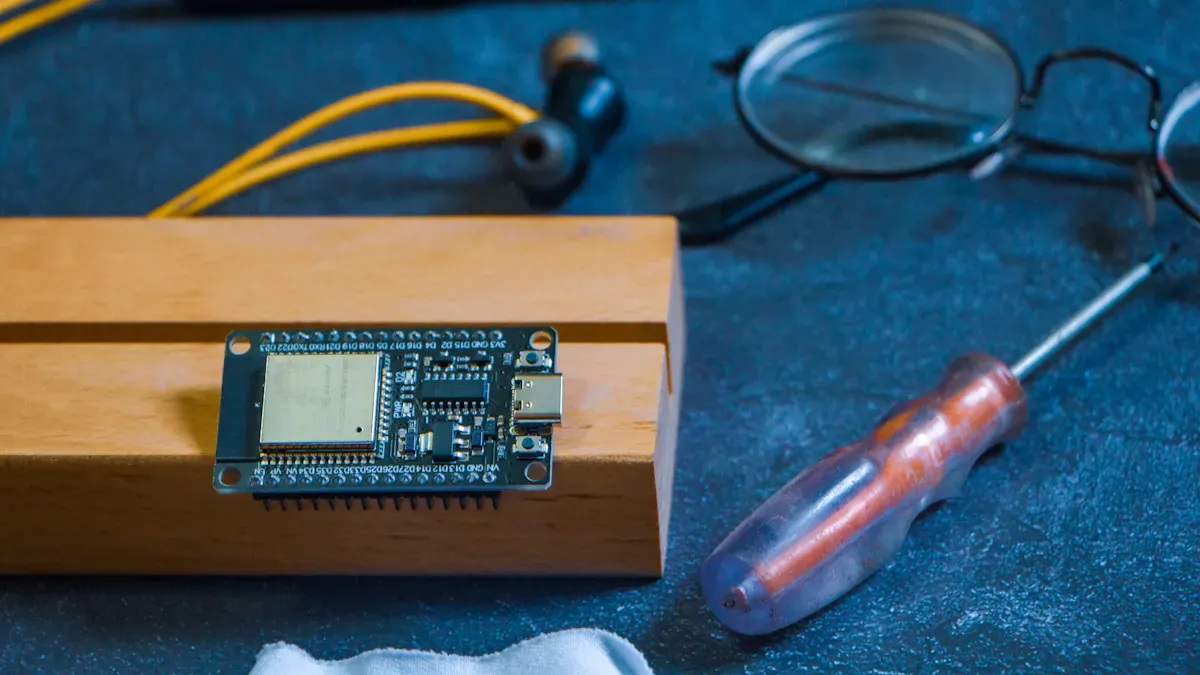
You can connect an OLED display to your Arduino board with just a few wires. Most modules use I2C, which makes wiring simple. Here is a table to help you connect the pins:
Pin | Wiring to Arduino Uno |
|---|---|
Vin | 5V |
GND | GND |
SCL | A5 |
SDA | A4 |
Follow these steps to set up your arduino with oled display:
Connect the Vin pin on the display to the 5V pin on your Arduino.
Connect GND to GND.
Attach SCL to A5 and SDA to A4.
Double-check your connections before powering up.
Tip: Always check your display’s datasheet for the correct pinout. Some modules may use different labels.
Libraries and Coding Tips
You need the right libraries to program your OLED display. The Adafruit SSD1306 and Adafruit GFX libraries are the most popular choices for Arduino. To install them:
Open Arduino IDE and go to Sketch > Include Library > Manage Libraries.
Search for "SSD1306" and install the Adafruit SSD1306 library.
Search for "GFX" and install the Adafruit GFX library.
Restart your Arduino IDE.
You can use these functions to control your display:
display.clearDisplay() – turns off all pixels
display.drawPixel(x, y, color) – draws a pixel
display.setTextSize(n) – changes the font size
display.setCursor(x, y) – sets where text starts
display.print("message") – prints text
display.display() – updates the screen
Check the I2C address of your display. Most use 0x3C, but some use 0x3D. Use I2C for easy wiring and fast setup.
Troubleshooting Common Issues
Sometimes your display does not work as expected. Here is a common problem and how to fix it:
Issue Description | Solution |
|---|---|
Lack of RESET pin on SH1107 OLED modules leads to inability to recover from partial power loss. | Make sure VCC is fully discharged before turning on the module. You can also modify the module to add a RESET pin for better control. |
If your display stays blank, check your wiring and I2C address. Make sure you installed the correct libraries. Try uploading a simple example sketch to test the display.
Note: Careful wiring and the right libraries help your Arduino project work smoothly with any OLED display.
Each OLED display works well for different Arduino projects. These displays are small and use little power. The screens look sharp and clear. This makes them great for wearables and gadgets. First, think about what your project needs. Check if the display works with your Arduino board. Look at the libraries you can use. To connect your display, wire VCC and GND. Then link SDA and SCL for I2C. Try new Arduino projects with these displays. Follow example code to help you start.
FAQ
How do you connect an OLED display to Arduino?
You connect the OLED display to arduino by wiring VCC to 5V, GND to GND, SCL to A5, and SDA to A4. Use jumper wires for a secure connection. Check your display’s datasheet for exact pin labels.
Which library should you use for OLED displays with Arduino?
You should use the Adafruit SSD1306 library with arduino. This library works well for most OLED modules. You can also try the U8g2 library for more advanced features and different display types.
Can you use multiple OLED displays with one Arduino board?
Yes, you can use more than one OLED display with arduino. Use displays with different I2C addresses or connect them using SPI. Make sure your code supports each display and check for address conflicts.
What projects work best with OLED displays and Arduino?
You can use OLED displays with arduino for wearables, clocks, sensors, and smart gadgets. These displays fit small spaces and show clear text or graphics. Many students use them for science fair projects or simple robots.
Why does your OLED display stay blank after uploading code to Arduino?
Your OLED display may stay blank if the wiring is wrong or the I2C address does not match. Double-check your connections. Make sure you select the correct address in your arduino code. Try running a basic example sketch to test the display.
See Also
Enhance Your Project With These OLED Display Tips
DIY Electronics: A Beginner's Guide To Transparent OLEDs
Understanding The Basics Of Transparent OLED Technology
