Top 10 Windows Digital Signage Software for Free and Paid Users
Shenzhen TopAdkiosk Display Technology Co., Ltd.
Add.: 2F, Bldg 10, Changfeng Industrial Park, Dongkeng, Fenghuang, Guangming, Shenzhen, China 518132
Mobile/WHATSAPP: 86-138 25769658
Email: marketing@topadkiosk.com topadkiosk@gmail.com
Wechat: adkioskhenry
English Web.: http://www.topadkiosk.com/
https://www.topkioskdisplay.com/
http://www.ad-kiosk.com/
https://www.toplcddisplay.com/

If you want good Windows digital signage, here are the top 10 for 2026. Free choices are Yodeck, OptiSigns, NoviSign, Rise Vision, Anthias, and Concerto. Paid options are AIScreen, Xibo, Screenly, AbleSign, ScreenCloud, Navori, and TelemetryTV. You can use digital signage on Windows to show news, ads, or information on screens in schools, stores, or offices. It lets you manage content easily, use videos and images, and set schedules. Prices can be free, a subscription, or a one-time license. For more information, go to https://www.topkioskdisplay.com/.
Key Takeaways
Try free digital signage tools like Yodeck and OptiSigns for simple needs. They work well for small businesses or classrooms.
Choose paid options if you want more features and better help. Navori and TelemetryTV have strong security and can grow with you.
Think about what you need before picking software. Decide what content you will show and how many screens you want.
Use free trials to try out software before you buy it. This helps you see if it works for you and is easy to use.
Find important features like easy scheduling, remote control, and real-time updates. These features can make your digital signage much better.
Top Windows Digital Signage Software List
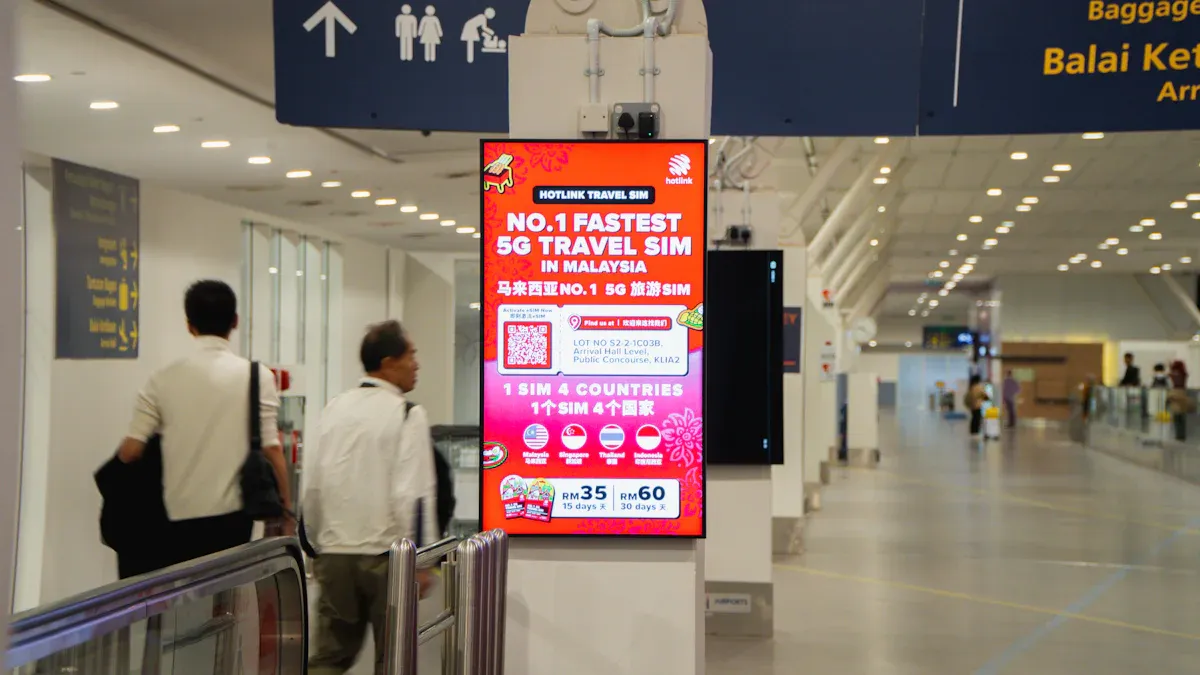
Free Solutions Overview
You can try free windows digital signage if you do not want to pay. These tools let you show pictures, videos, and news on a few screens. Most free plans have basic things like simple schedules and ready-made templates. For example, Yodeck lets you use one screen for free and gives you many templates. You also get free apps for different jobs and support with every plan.
Tip: Free solutions are good for small businesses, classrooms, or people who only need a few screens.
Here is a quick look at what you get and what you might not get:
Aspect | Free Solutions |
|---|---|
Screen Limitations | 1-3 screens |
Feature Restrictions | Basic features only |
Time-Limited | Sometimes trial periods |
Ad-Supported | May display ads |
Cost | Free or low initial cost |
You might need to pay if you want more screens or better features.
Paid Solutions Overview
Paid windows digital signage gives you more options and control. You can use many screens at the same time and get advanced tools. These platforms let you update right away, see reports, and use custom templates. You also get stronger security and help all day and night.
Note: Paid options are best for big businesses, schools, or groups that need to manage lots of screens.
The top 10 software was picked using these rules:
Features | |
|---|---|
Content Management | Easy to use, flexible schedules, updates, reports, templates |
Scalability | Remote control, works with many devices, safe, flexible prices |
Support and Training | Help anytime, updates often, guides, online community |
Paid solutions do not show ads and do not limit your screens. You pay every month or year, but you get all features and better help. This makes paid windows digital signage a smart choice if you need more.
Free Windows Digital Signage Solutions
Yodeck Overview
Yodeck is a very popular free windows digital signage platform. You can control your screens with an easy-to-use interface. You do not need to be a tech expert. Yodeck gives you many templates you can change to fit your needs. Security is important, so Yodeck has custom password rules and SSO integration with SAML. This keeps your content safe.
You get one free screen forever and unlimited cloud storage. You also get all features at no cost. This makes Yodeck a smart pick for small businesses or beginners. Many people like Yodeck because it is reliable and not expensive.
Platform | Average Rating | Number of Reviews | Key Feedback |
|---|---|---|---|
Yodeck | 4,400 | Praised for affordability and reliability |
Tip: To use Yodeck, sign up, download the player, and follow the simple steps on your Windows device.
OptiSigns Overview
OptiSigns has a free plan for windows digital signage. You might find it harder to use than some others. You must set up each device by hand, which takes more time. OptiSigns does not have tag-based playlists, so organizing content is less flexible. Security is basic, but you can still show images, videos, and web pages.
Feature | OptiSigns | Yodeck |
|---|---|---|
Usability | Faces challenges in usability | More user-friendly interface |
Setup | Manual provisioning required | Plug-and-play setup |
Content Management | Lacks tag-based playlists | Offers tag-based playlists |
Security | Basic security features | Enhanced security features |
Note: OptiSigns is good if you want something simple and free, and you do not mind extra setup work.
NoviSign Overview
NoviSign has a free tier so you can try digital signage before you pay. You can use drag-and-drop tools to make content, even if you are new. NoviSign lets you use interactive content, so people can touch screens or see moving displays. You can control your screens from anywhere with the cloud. You can also schedule content for video walls or meeting rooms.
Feature/Benefit | Description |
|---|---|
Free tier for testing | Explore digital signage without initial investment |
Customizable templates | Create unique content easily |
Drag-and-drop editor | Simplifies content creation |
Interactive content | Engages customers with dynamic experiences |
Cloud-based management | Manage content from anywhere |
Multi-screen scheduling | Ideal for video walls or meeting rooms |
Social media integration | Real-time updates through social feeds |
Tip: NoviSign is a smart choice for schools or small offices that want to try windows digital signage with no risk.
Rise Vision Overview
Rise Vision is a free cloud-based digital signage tool made for nonprofits and schools. You can update screens right away and control displays in many places. Rise Vision gives you templates you can change and easy ways to schedule messages. This helps you share news fast and keep your budget low.
Note: If you work at a school or nonprofit, Rise Vision helps you share your mission and keep everyone informed.
Anthias Overview
Anthias is an open-source digital signage platform for Windows. You can use it to show images, videos, and web content. Anthias lets you set simple schedules and control more than one screen. Since it is open-source, you can change it if you know some tech skills. Anthias does not have commercial support, but you can get help from other users.
Tip: Anthias is a good pick if you want to try digital signage and know how to set up software.
Concerto Overview
Concerto is another open-source windows digital signage option. You can use it for free, so it saves money for groups with small budgets. Concerto lets you change your setup and add more screens if needed. But you need to know Ruby on Rails and how to manage servers. There is no commercial support, but the community can help you fix problems.
Benefits of Concerto | Drawbacks of Concerto |
|---|---|
Cost Efficiency | Technical Skill Requirement |
Customization | Absence of Commercial Support |
Community Support | Hardware Demands for large installations |
Scalability |
Note: Concerto is best for people who know tech and want full control of their digital signage system.
Paid Windows Digital Signage Platforms
Paid windows digital signage platforms give you more choices. You can control lots of screens and use special features. These tools help you plan what shows, check devices, and grow your network. You also get better help and stronger safety for your content. Here are the best paid options.
AIScreen Overview
AIScreen is easy to use and has many features. You can make content with drag-and-drop tools. There are over 1,500 templates to pick from. AIScreen works with lots of devices and can run offline. You can use AI tools to save time and learn about your viewers. The platform lets you set playlists and link to social media.
AIScreen has different plans:
Plan Type | Price | Features |
|---|---|---|
Free Plan | $0/month | First screen free. |
Essential Plan | $10/month | All media types, playlists, 100+ apps, 1,500 templates, unlimited storage, offline mode, 7-day support. |
Business Plan | $17/month | Live URL, dashboards, Instagram Wall, screen power management, Google Workspace integration. |
Enterprise Plan | $30/month | SSO, enterprise support, plug-and-play hardware, custom integration, premium support. |
You can start with one free screen. Upgrade your plan as you need more. AIScreen’s cloud lets you manage content from anywhere.
Xibo Overview
Xibo is a cheaper way to manage digital signage. You can pick cloud or self-hosted setups. Xibo costs less than many other choices. It is good if you want to save money. You can use smart schedules, check devices, and see reports right away.
Solution | Pricing | Free Trial |
|---|---|---|
Xibo | Cost-effective options | Yes |
Other | $20.00/month/user | Yes |
Another | $2.00/month | Yes |
You can control all screens and users from one place. Xibo supports widgets for weather, YouTube, RSS, and live streaming. You can collect feedback and use interactive features.
Screenly Overview
Screenly helps you show content on many screens easily. You can use playlists, set schedules, and check device health. Screenly updates in real time and works for small or big networks. You can use APIs to connect with other tools. The platform has strong safety and gets updates often.
Screenly’s interface is simple. You can manage content without mistakes. Grow your network as your business gets bigger.
AbleSign Overview
AbleSign is a reliable way to manage windows digital signage. You can plan content and set schedules that change. AbleSign checks device health and gives reports in real time. You can use widgets for weather, news, and social media. The platform lets you manage user roles and keeps your system safe.
You can set up AbleSign fast and start showing content right away. It works well for businesses with many locations.
ScreenCloud Overview
ScreenCloud is a cloud platform for digital signage. You do not need to code to use it. You can manage content with a simple interface. ScreenCloud connects with Google Slides and YouTube, so adding content is easy.
Differentiator | Description |
|---|---|
Cloud-based, no-code approach | User-friendly, no-code platform for quick deployment. |
App integrations | Connects with Google Slides, YouTube, and more. |
Ideal for small to mid-sized networks | Works best for smaller setups; costs rise for large networks. |
High usability | Easy to use and highly rated by users. |
Cost limitations at scale | Becomes expensive for over 50 screens. |
ScreenCloud is great if you want a simple setup. It is best for people who do not need hundreds of screens.
Navori Overview
Navori is known for strong performance and scaling. You can grow your network to thousands of screens. It stays fast and smooth. Navori works with many kinds of hardware and software. You can use APIs and connect with other apps.
Navori supports big networks and keeps screens in sync.
You can use smart schedules and plan content.
The platform plays content smoothly on all screens.
Navori helps you use your business data and systems.
Navori is a top choice for businesses with many locations or countries.
TelemetryTV Overview
TelemetryTV gives you strong security for digital signage. The platform uses advanced encryption and follows strict rules. You get updates often and tools for industries with rules.
Aspect | Free Digital Signage – Common Risks | TelemetryTV – Key Advantages |
|---|---|---|
Security & Privacy | Little encryption, irregular updates, risk of hacks. | Enterprise-grade encryption, regular patches, compliance-ready. |
TelemetryTV lets you check device health and see reports in real time.
You can use advanced logs and manage user roles.
The platform supports smart schedules and interactive content.
TelemetryTV is smart if you need strong safety and must follow industry rules.
What Makes Paid Solutions Different?
Paid windows digital signage platforms have features you will not find in free ones:
Device health checks and real-time reports.
Support for growing across branches and countries.
Better speed, safety, and scaling.
APIs and links to business tools.
Compliance tools like logs and user role management.
Smart schedules for real-time updates.
Widgets for weather, YouTube, RSS, and live streaming.
Ways to collect feedback and use interactive features.
Simple interfaces that help you avoid mistakes.
Pick a paid solution if you want more control, better help, and room to grow your network.
Windows Digital Signage Feature & Pricing Comparison
Picking windows digital signage software can be tricky. You want to know which one gives you the most for your money. The table below compares the best free and paid choices. It shows main features, price per screen, and how easy each is to use on Windows.
Software | Free Plan | Paid Plan (per screen/month) | Key Features | Windows Compatibility | Best For |
|---|---|---|---|---|---|
Yodeck | Yes | $8+ | Templates, cloud control, security | Yes | Small business, schools |
OptiSigns | Yes | $10+ | Images, videos, web pages | Yes | Simple needs |
NoviSign | Yes | $20 | Drag-and-drop, interactive, cloud | Yes | Offices, education |
Rise Vision | Yes | $0 (for nonprofits/schools) | Templates, instant updates | Yes | Nonprofits, schools |
Anthias | Yes | Free | Open-source, multi-screen | Yes | Tech users |
Concerto | Yes | Free | Open-source, scalable | Yes | Tech users |
AIScreen | Yes | $10-$30 | AI tools, 1,500+ templates, offline mode | Yes | Growing businesses |
Xibo | No | $8+ | Cloud/self-hosted, widgets, reports | Yes | Cost-conscious users |
Screenly | No | $29 | Playlists, real-time updates, APIs | Yes | Large networks |
AbleSign | No | $15+ | Scheduling, device health, widgets | Yes | Multi-location brands |
ScreenCloud | No | $20 | No-code, app integrations, easy setup | Yes | Small to mid networks |
Navori | No | $35+ | Enterprise scale, APIs, smooth playback | Yes | Big enterprises |
TelemetryTV | No | $20+ | Security, compliance, real-time reports | Yes | Regulated industries |
💡 Most paid plans cost $8 to $20 for each screen every month. Some platforms let you try free screens or trials before buying.
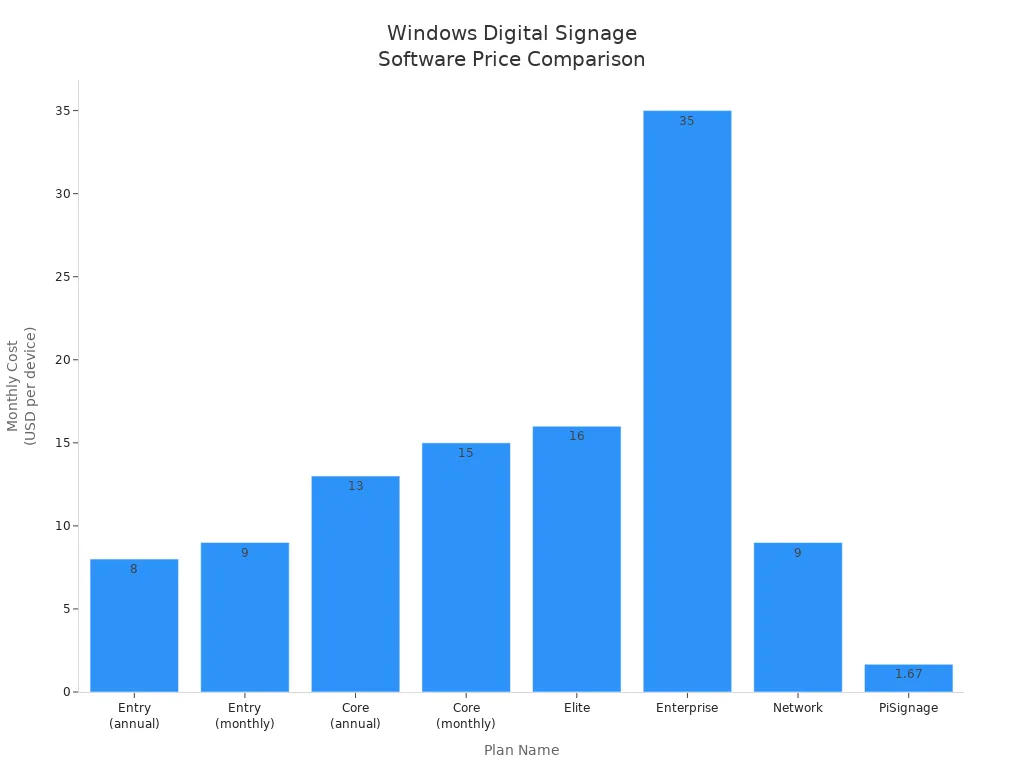
Free options are good for simple jobs or testing. Paid solutions have more features, better help, and stronger safety. If you want to change things a lot or manage many screens, paid plans give you more.
📝 Tip: Make sure the software works with your Windows devices and fits your budget. Try a free plan first to see if it works for you.
Choosing the Right Windows Digital Signage Software
Assessing Needs
Before picking a windows digital signage tool, think about your goals. Decide what you want to show on your screens. Stores often use screens for ads and sales. Restaurants need to change menus quickly. Offices use screens to share news and numbers. Think about where you will put your screens and who will see them.
You should also check your devices and how much you can spend. Make sure your hardware works with the software you want. Try a free trial if you can, so you know if it is easy. Here is a table to help you look at important things:
Factor | Description |
|---|---|
Software and Integration Options | See if the software is simple and lets you control screens from anywhere. |
Support and Service | Check what kind of help you get, like emergency contacts. |
Reliability and Uptime | Find out if the provider keeps screens working most of the time. |
Provider Reputation | Look to see if the company has helped other businesses like yours. |
Cost Effectiveness | Add up all costs, like hardware and support, to see if it fits your budget. |
Tip: Know your goals and your audience before you choose.
Quick Setup Guide for Windows Digital Signage
Make sure your Windows device meets the software’s needs.
Download and install the digital signage app you picked.
Connect your device to the internet.
Sign up or log in to the software dashboard.
Add your screen and upload your first content.
Set a schedule and check your display.
Key Features to Consider
When you compare choices, look for features that fit your needs. Some features help you manage content. Others make your screens safer or easier to use. Here are some important features to look for:
Easy ways to schedule and update content
Control screens in different places from far away
Templates and drag-and-drop editors
Reports and device health checks in real time
Connect with apps like YouTube or Google Slides
User roles and security settings
Note: Every business needs different features. Pick the ones that help you the most.
Upgrade Considerations
You might start with a free plan, but you may need more later. Most people upgrade when they want to control more screens or remove watermarks. You may also want better tools like analytics. Some people need more help or more storage. If your screens are slow, show ads, or have limits, it is time to look at paid plans.
People upgrade for these reasons:
Controlling more than one or two screens
Removing ads or branding
Using advanced tools like analytics and device checks
Wanting better security and privacy
Avoiding extra costs for hardware or hosting
Upgrading gives you smart playlists, device health checks, and support for many places.
You found out that Windows digital signage lets you show news, ads, and updates in places like stores, offices, schools, and hospitals. Free plans help you try out your ideas without paying money, but paid plans give you more tools and better help. Look at the table below to see a quick side-by-side comparison:
Feature | Free Plan | Paid Plan |
|---|---|---|
$0 (2 screens) | $1.67/month | |
Setup/License Fee | $0 | $25 one-time |
Offline Playback | Included | Included |
API Access | Included | Included |
Multi-User Management | Included | Included |
Start with a free trial if you can. Write down the features you want most. Get your Windows device ready, add the software, and begin showing your content.
Don’t forget to check the table and FAQs for answers to questions like “What is Windows digital signage?” and “Can I use it for free?”
How to Set Up Digital Signage on Windows Devices
Windows offers one of the most flexible and cost-effective platforms for digital signage. This step-by-step guide covers everything from hardware preparation to deployment and security hardening.
🧱 Part 1: Hardware & Software Prerequisites
Before diving into software installation, ensure your environment is properly equipped.
Category | Requirements |
|---|---|
Windows Device | Any Windows 10 or 11 PC, mini‑PC, tablet, or stick PC with 4GB+ RAM and 64GB+ storage (8GB/128GB recommended for video content) |
Display | Any monitor or TV with HDMI or DisplayPort input |
Connectivity | Stable internet (Ethernet recommended) |
OS Version | Windows 10 Pro or Windows 11 Pro (Home edition lacks kiosk lockdown features) |
Peripherals | Keyboard and mouse (for initial setup only) |
💡 Pro Tip: Repurpose older office PCs instead of buying new hardware. A used Windows 10 PC with 4GB RAM and an SSD works perfectly for basic signage needs.
⚙️ Part 2: Essential Windows Configuration
Before installing any signage software, configure Windows for uninterrupted 24/7 operation.
1. Prevent Sleep & Hibernation
Navigate to Settings → System → Power & Sleep. Set both Display and Sleep options to Never.
2. Disable Automatic Updates
To prevent unexpected reboots during business hours, set active hours in Settings → Windows Update → Advanced Options → Active Hours.
3. Disable Notifications
Go to Settings → System → Notifications & Actions and turn off all notifications to prevent pop‑ups from appearing over your content.
4. Set Display Mode
Connect your display and set it as the Primary display in Settings → Display.
5. Update Windows
Ensure your system has the latest updates installed for stability and security.
📺 Part 3: Choosing & Installing Digital Signage Software
Most modern digital signage solutions use a Cloud CMS + Local Player model: you manage content in a cloud dashboard, and the Windows app (the "Player") displays it on your screen.
Free Software Options
Software | Free Tier | Platform | Best For |
|---|---|---|---|
PosterBooking | 10 screens free | Windows, Fire Stick, Android | Small retail shops and cafes with multiple screens |
Yodeck | 1 screen free | Windows, Raspberry Pi, webOS, Tizen | Single‑screen deployments needing premium templates |
Screenly OSE | Unlimited screens (open source) | Raspberry Pi, Linux | Tech‑savvy teams comfortable with DIY hardware |
Xibo Community Edition | Unlimited screens (open source, self‑hosted) | Windows, Android, webOS, Tizen | Organizations with in‑house server infrastructure |
⚠️ Important: Most "free" tiers have limitations (screen caps, watermarks, no dedicated support). For mission‑critical deployments across multiple locations, paid plans with SLAs are strongly recommended.
Popular Commercial Software
Software | Pricing | Key Features |
|---|---|---|
ScreenCloud | Starts at $20/screen/month | Drag‑and‑drop editor, 100+ integrations, excellent Windows support |
OptiSigns | Starts at $10/screen/month | 500+ templates, social media feeds, POS integrations |
AIScreen | 14‑day free trial | 1,500+ templates, offline playback, split‑screen zones |
Look Digital Signage | Starts at $13.50/screen/month (annual) | AI content assistant, 14‑day free trial |
PosterBooking Pro | Starts at $10/screen/month | Upgrades free tier with analytics and advanced features |
General Installation Process
Most Windows signage apps follow the same simple pattern:
Download the installer from your provider's website.
Run the installer (e.g.,
Setup.exe) and follow the wizard (typically "Next → Next → Install → Finish").Launch the app. On first launch, the app will display a unique pairing code.
Pair with your CMS account:
Log into your provider's web dashboard.
Navigate to "Screens" or "Devices".
Click "Add Screen" and enter the pairing code displayed on your Windows device.
Configure auto‑start so the signage app launches automatically when Windows boots. Most apps offer this option during installation.
🔒 Part 4: Advanced Setup – Windows Kiosk Mode
For unattended public displays, lock down Windows to prevent users from accessing the desktop or changing settings.
Method 1: Windows Assigned Access (Kiosk Mode)
Go to Settings → Accounts → Family & other users.
Under "Set up a kiosk", click Get started.
Create a new local kiosk account.
Select your signage app as the only allowed program.
Configure automatic sign‑in to bypass login screens.
Method 2: SiteKiosk Online (Advanced Security)
SiteKiosk provides enterprise‑grade lockdown with browser restrictions, session timeouts, and remote management. After downloading the pre‑configured installer, the device registers automatically with your SiteKiosk Online account. It also offers Test mode to verify appearance under an admin account and Auto start mode for production kiosk operation.
Additional Hardening Tips
Disable Edge swiping via Registry to prevent users from accessing system tasks (navigate to
HKEY_LOCAL_MACHINE\SOFTWARE\Policies\Microsoft\Windows\EdgeUIand create a new DWORD namedAllowEdgeSwipeset to0).In Group Policy Editor (
gpedit.msc), turn off app notifications on the lock screen underComputer Configuration → Administrative Templates → System → Logon.
🧪 Part 5: Testing & Deployment
Before Full Rollout
Test on a single device for 24–48 hours to verify stability.
Upload sample content (images, videos, web pages) to confirm playback.
Simulate network interruptions to ensure offline playback works (if supported).
Verify remote management by pushing a content update from the cloud dashboard.
For Multi‑Screen Networks
Use your CMS's group management features to organize screens by location or purpose.
Create playlists and schedules to automate content rotation (e.g., breakfast menu in the morning, lunch menu in the afternoon).
Enable remote monitoring to receive alerts for offline devices or playback errors.
🩺 Troubleshooting Common Issues
Issue | Likely Cause | Solution |
|---|---|---|
Screen goes blank after hours | Power settings not configured | Set Power & Sleep to "Never" |
App doesn't start automatically | Auto‑start not enabled | Add the app to |
Pairing code not displayed | Firewall blocking connection | Allow the signage app through Windows Defender Firewall |
Content not updating | Network connectivity issue | Check Ethernet/Wi‑Fi connection; verify CMS credentials |
Users accessing Windows desktop | Kiosk mode not enabled | Configure Assigned Access or use SiteKiosk |
📝 Quick Reference Checklist
Before deploying, ensure you've completed these critical tasks:
Task | Status |
|---|---|
Windows Pro (not Home) installed | ☐ |
Auto‑sleep and hibernation disabled | ☐ |
Automatic updates configured with active hours | ☐ |
Notifications disabled | ☐ |
Signage software installed and paired | ☐ |
Auto‑start configured | ☐ |
Kiosk mode / Assigned Access configured (if public) | ☐ |
Content uploaded and schedule created | ☐ |
Backup hardware available for critical displays | ☐ |
Setting up digital signage on Windows is straightforward, and the platform's flexibility makes it ideal for everything from a single coffee shop menu board to a corporate network spanning hundreds of screens. Start with one screen to validate your configuration, then scale confidently to multiple locations.
Would you like a comparison of the leading Windows‑compatible CMS platforms or help selecting the right hardware for your specific deployment?please contact Shenzhen TopAdkiosk Display Technology Co.
FAQ
How do you set up digital signage on Windows devices?
Download your chosen software.
Install it on your Windows device.
Connect your device to a display screen.
Log in and upload your content.
Schedule when you want your content to play.
Can you use Windows digital signage software for free?
Yes, you can use free plans from Yodeck, OptiSigns, or Rise Vision. These let you try basic features. You may see limits on screens or features.
What types of content can you show?
You can show images, videos, news, menus, and social media feeds. Some software lets you use live data or interactive content.
Is digital signage safe to use?
Most paid platforms use strong security. You get encryption and user controls. Free options may have fewer safety features.
How many screens can you control?
The number depends on your plan. Free plans often allow 1-3 screens. Paid plans let you manage many screens across different locations.
See Also
Simple Steps to Set Up Digital Signage Software
Best 10 Digital Signage Solutions for Video Walls in 2026
Understanding the Basics of Digital Signage Technology
