Step-by-Step Guide to Installing PCAP Touch Screen on LCD Displays
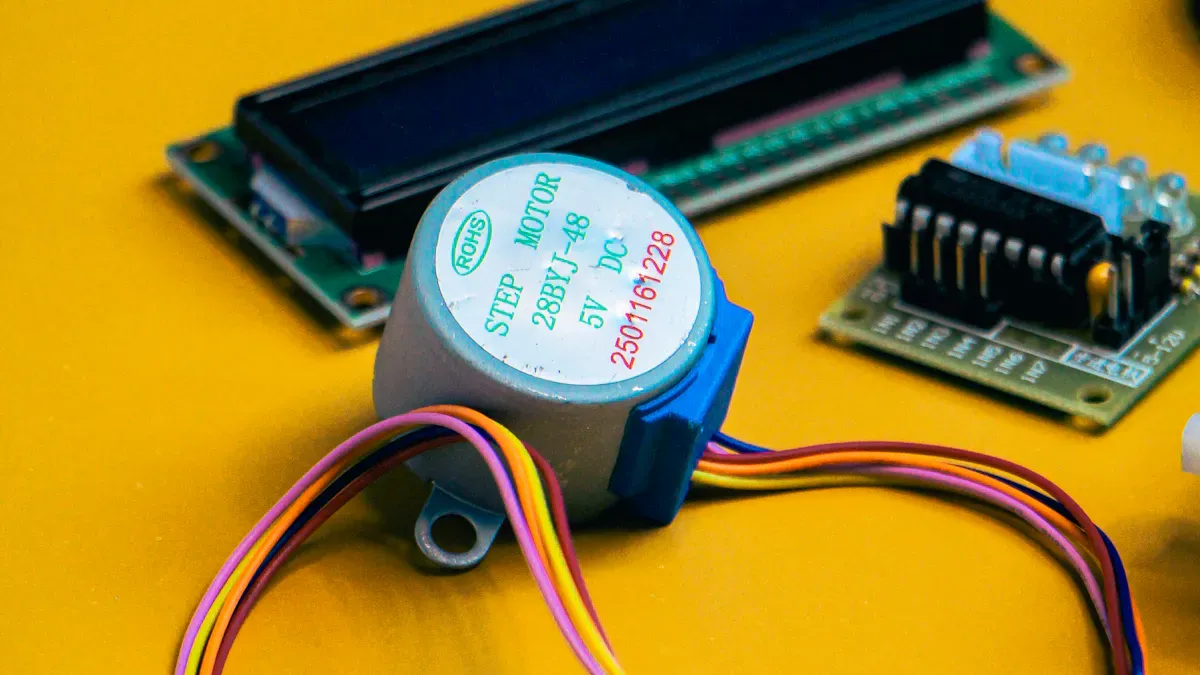
If you want to install a PCAP TOUCH SCREEN on your LCD display and achieve excellent results, using a pcap touch screeen for lcd display is a popular choice both at home and in the workplace. Devices like phones, kiosks, and ATMs rely on pcap touch screeen for lcd display because it offers responsive touch and delivers clear visuals. By following each step carefully, you ensure your equipment stays safe and functions optimally. Proper setup of your PCAP TOUCH SCREEN helps you avoid errors and gives your project a professional appearance.
Shenzhen TopAdkiosk Display Technology Co., Ltd.
Add.: 2F, Bldg 10, Changfeng Industrial Park, Dongkeng, Fenghuang, Guangming, Shenzhen, China 518132
Mobile/WHATSAPP: 86-138 25769658
Email: marketing@topadkiosk.com topadkiosk@gmail.com
Skype: pghenry1
Wechat: adkioskhenry
English Web.: http://www.topadkiosk.com/
https://www.topkioskdisplay.com/
http://www.ad-kiosk.com/
https://www.toplcddisplay.com/
http://www.multitouchdigitalsignage.com/
https://www.youtube.com/channel/UCYVYNJHxLVEcQD8fuUxXNTA/videos?view_as=subscriber
https://www.facebook.com/TOPADKIOSKSHENZHEN/?ref=bookmarks
Key Takeaways
Make sure the PCAP touch screen lines up with the LCD display. This helps stop problems with how it works. - Pick the correct tools and materials for installing. This keeps your equipment safe and helps you set it up right. - Be careful and follow safety steps like grounding. Stay away from static electricity so nothing gets damaged while you install. - Clean and take care of your touch screen often. This makes it work better and last longer. - Check and adjust the touch screen after you put it in. This makes sure it responds to your touch the right way.
PCAP Touch Screen Overview
How PCAP Touch Screens Work
You use a PCAP TOUCH SCREEN by touching it. The screen has glass with a clear conductor layer. This layer is usually made from indium tin oxide. When you touch the screen, the electric field changes. Sensors notice this change in capacitance. They find the exact spot where you touched. The touch sensor sits above the LCD display. This gives you sharp images and fast feedback. Shenzhen TopAdkiosk Display Technology Co., Ltd. offers PCAP TOUCH SCREEN solutions. Their screens use this technology for strong performance.
Key Features and Benefits
PCAP TOUCH SCREEN has many helpful features. The glass or acrylic lens does not scratch easily. The screen reacts quickly to gentle touches. It also lets you use multi-touch gestures. If the lens breaks, the screen still works. Algorithms inside help stop mistakes like palm touches. The borderless design looks sleek and fits many places. Below is a table comparing PCAP and infrared touch screens:
Feature | PCAP Touch Screens | Infrared Touch Screens |
|---|---|---|
Touch Recognition | Conductive properties of human body | Infrared light detection |
Precision and Sensitivity | High precision, multi-touch support | Multi-touch support |
Aesthetics | Borderless, sturdy glass panel | Sensors on bezel |
Environmental Resistance | Not affected by light changes | Sensitive to environmental factors |
Durability | Scratch and impact resistant | Durable, low-maintenance |
Common Applications
PCAP TOUCH SCREEN technology is used in many fields. Healthcare uses these screens for medical devices and monitoring. Manufacturing uses them for touch monitors in tough places. Retail stores have them in kiosks and checkouts. Offices use them for displays in meetings and teamwork. Transportation uses PCAP TOUCH SCREEN panels in vehicles. Shenzhen TopAdkiosk Display Technology Co., Ltd. provides screens for all these uses. Their screens help you get reliable and fast touch solutions.
Preparation and Safety
Tools and Materials Needed
You need certain tools and materials before you start. Using the right items helps you avoid mistakes. It also keeps your equipment safe. Here is a table showing what you need:
Essential Tools and Materials | Description |
|---|---|
Common Ground Components | LCD metal frame, metal enclosure, mainboard, power supply, touch controller |
Grounded Power Connection | Three-prong grounded power connection to reduce electrical noise |
EMI Shielding Materials | Copper foil, aluminum foil, conductive fabric, grounded insulating tape for interference prevention |
Aluminum Shielding Layer | Insert between overlapping FPC cables to prevent signal interference |
You can buy these materials in kits from trusted suppliers. Shenzhen TopAdkiosk Display Technology Co., Ltd. sells these kits.
Safety Precautions
You must follow safety rules when working with electronics. This keeps you safe and protects your devices. Here are some important tips:
Handle all parts gently so you do not break them.
Keep an air gap bigger than 1.1mm between the touch panel and LCD.
Make sure all parts use a common ground. This lowers static buildup.
Do not put high-frequency signal lines close to the touch panel. This stops electromagnetic interference.
Tip: Always check your workspace for static electricity before starting. Static can damage sensitive parts.
Workspace Setup
A good workspace helps you install your PCAP TOUCH SCREEN safely. You should set up your area to match these conditions:
Condition | Recommendation |
|---|---|
IP Rating | |
Brightness | Choose high-brightness panels for sunlight visibility |
Temperature Range | Work in areas from -20°C to 60°C for best results |
Touch Sensitivity | Make sure your setup supports gloves and multi-touch |
Keep your workspace clean and dry. Good lighting helps you see small parts. A grounded mat protects your devices from static.
LCD and PCAP Touch Screen Preparation
Cleaning and Inspection
You need to clean your LCD display and PCAP TOUCH SCREEN before installing. Make sure there is no dust or fingerprints on the surfaces. Remove any small particles you see. Clean in steps to get rid of all dirt and chemicals. Use special cleaning liquids to make the surface very clean. This helps the parts stick together well. If you have an ultrasonic cleaner, use it to clean tough dirt. Plasma treatment and surface activation can help the parts bond better and last longer.
Here is a table showing common cleaning agents and inspection methods:
Cleaning Agent/Technique | Description |
|---|---|
Multi-stage cleaning processes | Remove organic residues, particulates, and ionic contaminants from glass surfaces. |
Specialized solvents | Achieve pristine surface conditions necessary for reliable adhesion. |
Ultrasonic cleaning | Enhance the removal of contaminants from surfaces. |
Plasma treatment | Modify surface chemistry to promote strong bonding between the substrate and thin-film deposits. |
Surface activation treatments | Create reactive sites that enhance adhesion strength and improve long-term reliability. |
Quality control testing | Verify cleanliness levels through contact angle measurements and surface contamination analysis. |
Tip: Check the LCD and touch screen for scratches or cracks before you continue.
Compatibility Check
Check if your LCD display and PCAP TOUCH SCREEN work well together. Look at what your project needs and your budget. Make sure the display can handle moisture and has the right IP rating. It should also resist shaking and bumps. Check if the mounting system fits your touch screen. Make sure the display has the right ports for video and other connections.
Here is a table to help you check compatibility:
Compatibility Factor | Description |
|---|---|
Technology Selection Criteria | Evaluate application requirements, environmental conditions, and budget considerations. |
Environmental Requirements | Assess moisture protection, IP ratings, and vibration resistance for specific applications. |
Integration and Mounting Considerations | Ensure compatibility with mounting systems and existing infrastructure. |
Connectivity and Interface Requirements | Check for multiple video input options for flexibility in system connections. |
If you use Shenzhen TopAdkiosk Display Technology Co., Ltd., you can find models that fit many of these needs.
Installation Steps
Aligning the PCAP Touch Screen
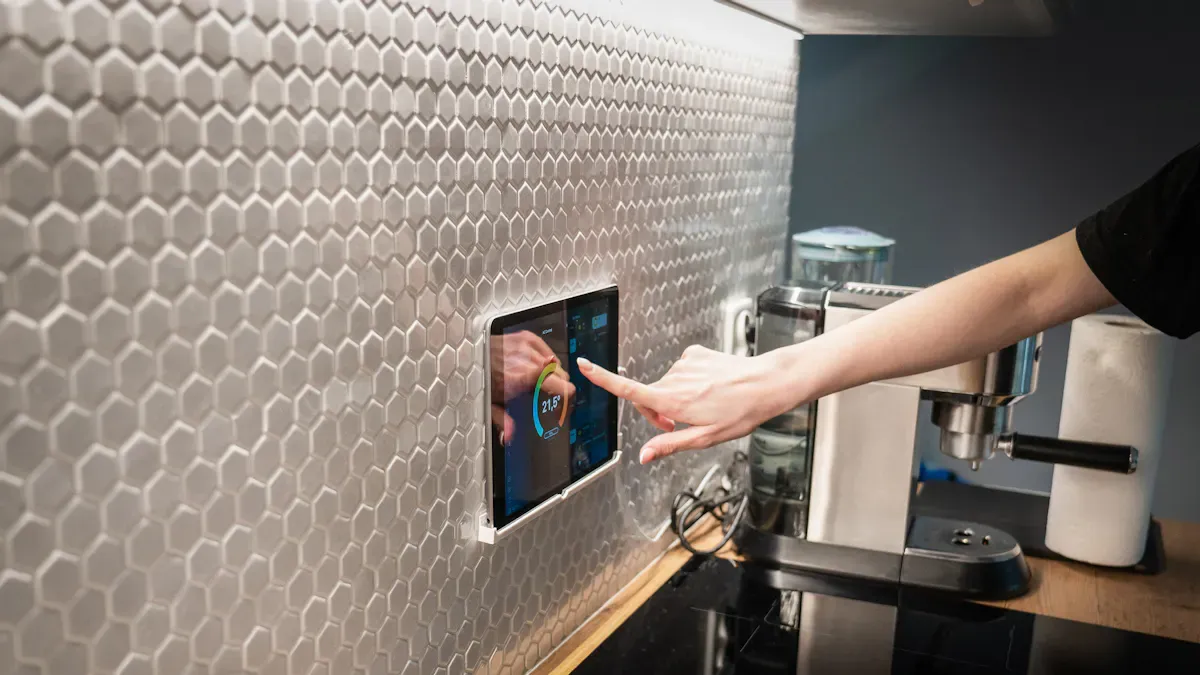
You need to align the PCAP TOUCH SCREEN with your LCD display before you attach anything. Place the touch screen gently on top of the LCD. Make sure the edges match up with the display borders. Check that the sensor area covers the whole viewing area. Look for any gaps or misalignment.
Many people make mistakes during this step. You might think a problem means the touch sensor or controller is broken. Sometimes, the real issue is poor alignment or not checking the system as a whole. You should also think about the environment. Heat, light, or static can affect how the touch screen works. Always check electrical grounding, EMI exposure, and touch controller compatibility before you move forward.
Tip: Take your time with alignment. Small errors here can cause big problems later.
Common Mistakes to Avoid
Do not rush the alignment process.
Do not ignore grounding or EMI issues.
Do not skip checking if the touch controller matches your display.
Do not forget to consider where you will use the device.
Attaching to the LCD Display
After you align the PCAP TOUCH SCREEN, you need to attach it to the LCD. You can use different adhesives or mounting methods. The right choice depends on where you will use the display and what you need for your project.
Adhesive Type | Description |
|---|---|
Silicones | Good for optical bonding. They give clear images and last a long time. |
Epoxy Resins | Very strong. Work well in many environments. |
Polyurethanes | Not used as much now. They can turn yellow over time. |
SOCA | Uses gel adhesive in a vacuum. Gives the best optical clarity. |
LOCA/OCA | Very clear adhesives. Help you see the screen in bright sunlight. Good for cars and outdoors. |
For indoor displays, you can use silicone or epoxy resin. For outdoor screens, LOCA bonding works best because it helps you see the display in sunlight. If you need the highest clarity, SOCA is a good choice.
Note: Always follow the adhesive instructions. Use the right amount and let it cure fully.
Connecting Cables
You must connect the cables from the PCAP TOUCH SCREEN to the LCD controller. This step is important for signal quality and touch response. Use care when you handle the cables.
Here are some best practices for connecting cables:
Best Practice | Description |
|---|---|
Reduces electrical noise. Keeps touch working well. | |
Common Ground Requirement | All parts, like the LCD frame and power supply, must share a common ground. |
Optimize Touch Controller Placement | Keep the controller away from high-frequency parts to avoid interference. |
Prevent FPC Signal Interference | Do not let FPC cables overlap. If they must, use shielding to stop crosstalk. |
Use a three-prong grounded power connection.
Add EMI shielding if you cannot move the touch controller away from noisy parts.
Route FPC cables carefully to avoid signal problems.
Tip: Double-check all connections before you power on the device.
Securing the Assembly
Once you connect everything, you need to secure the assembly. Make sure the PCAP TOUCH SCREEN and LCD do not move. Use the right screws or clips for your frame. Tighten them evenly, but do not use too much force. Check that the screen sits flat and does not bend.
You should also check the final assembly for dust or fingerprints. Clean the surface if needed. Look at the edges to make sure there are no gaps. If you see any problems, fix them before you finish.
A well-secured assembly will last longer and work better. Shenzhen TopAdkiosk Display Technology Co., Ltd. offers mounting kits that help you secure your PCAP TOUCH SCREEN for lcd display projects.
Reminder: Careful assembly helps your touch screen last longer and perform better.
Testing and Troubleshooting
Initial Power-On and Testing
When you finish installing, you need to test your PCAP TOUCH SCREEN. Check if everything works before you use it.
Visual Inspection: Look at the screen for cracks or scratches. Make sure nothing blocks the surface.
Basic Functionality Tests: Tap and swipe on different spots. See if the screen reacts to your touch.
Sensitivity Testing: Touch the screen with light and hard pressure. Try using more than one finger to see if multi-touch works.
Tip: If you notice any problems, stop and check your connections first.
Calibrating the PCAP Touch Screen
Calibration makes your touch screen work correctly. Use both hardware and software calibration methods. The table below shows common calibration steps and what they do:
Description | |
|---|---|
Hardware Configuration | Sets up basic touch controller settings like scan speed and sensitivity. |
Software Calibration | Adjusts the touch points to match the display. |
Multi-Point Calibration | Uses several points for better accuracy. |
Noise Floor Calibration | Filters out false touches from electrical noise. |
Gesture Recognition Tuning | Improves how the screen reads swipes and pinches. |
Palm Rejection Calibration | Helps the screen ignore accidental touches. |
Environmental Baseline | Checks performance in normal conditions. |
User Acceptance Testing | Lets you test the screen to make sure it feels right. |
Repeat calibration if you move the device or update the system.
Troubleshooting Common Issues
Sometimes, your PCAP TOUCH SCREEN may not work right. Here are some common problems and ways to fix them:
If the screen does not respond, static electricity may be the cause. Discharge static and check grounding.
Ghost touches can happen if there is too much humidity. Use a screen made for tough places.
Calibration issues can start after updates. Run the calibration tool and restart your device.
Dirt or moisture can block touch. Clean the screen with a soft, dry cloth.
Things like temperature, moisture, and dust can change how your screen works. Keep your device clean and dry. Watch for changes in touch sensitivity. Advanced screens use special patterns and controller settings to help stop problems from water or dirt.
Note: Clean your screen often and check your workspace. This helps your touch screen last longer and work better.
You can put a PCAP touch screen on your LCD display by doing these steps: First, match the PCAP viewing area with your display’s active area. Next, cover the silver routing using the front frame. If your frame conducts electricity, add insulation. Use materials that do not conduct to keep wires apart. Try not to let static electricity build up while you work.
To keep your touch screen working well, follow these tips: Clean the screen with a microfiber cloth. Put on a screen protector. Do not press too hard. Check the mounting hardware often. Keep your device safe from heat and moisture.
Description | |
|---|---|
Proper Grounding | Stops electrical problems and interference. |
Thermal Management | Keeps your device from getting too hot. |
Moisture Protection | Stops water from hurting electronics. |
Vibration/Shock Protection | Protects parts from bumps and shakes. |
You get the best results when you pay attention to small details. If you need help, look back at this guide for fixing problems or future projects. Shenzhen TopAdkiosk Display Technology Co., Ltd. gives you reliable PCAP touch screen solutions for LCD displays.
FAQ
How do you clean a PCAP touch screen before installation?
You use a microfiber cloth and special cleaning solution. Remove dust and fingerprints. Make sure the surface is dry. Shenzhen TopAdkiosk Display Technology Co., Ltd. recommends gentle cleaning for their pcap touch screeen for lcd display.
What tools do you need for installing a PCAP touch screen?
You need a screwdriver, cleaning supplies, adhesive, and grounding materials. You also need EMI shielding tape. Shenzhen TopAdkiosk Display Technology Co., Ltd. offers kits for pcap touch screeen for lcd display projects.
Can you use multi-touch gestures on all PCAP touch screens?
Most PCAP touch screens support multi-touch gestures. You can pinch, swipe, and zoom. Shenzhen TopAdkiosk Display Technology Co., Ltd. pcap touch screeen for lcd display supports multi-touch for smooth operation.
What should you do if the touch screen does not respond?
Check cable connections and grounding. Clean the screen. Restart the device. If problems continue, contact Shenzhen TopAdkiosk Display Technology Co., Ltd. for support with your pcap touch screeen for lcd display.
How do you protect your PCAP touch screen from water and dust?
Choose a screen with a high IP rating like IP65 or IP67. Use proper sealing and mounting. Shenzhen TopAdkiosk Display Technology Co., Ltd. pcap touch screeen for lcd display offers models with strong protection.
See Also
Comprehensive Instructions for Setting Up Touch Screen Kiosks
Creating High-Quality Touch and Non-Touch LCD Mirror Displays
Top LCD Kiosks with Touch Screen Features for 2026
