Step-by-Step Guide to Installing a Touch Screen Kiosk

You will learn how to install a touch screen kiosk step by step. Careful planning helps the process go smoothly. It also helps you avoid problems you did not expect. Businesses and public places are using touchscreen kiosks more now. This is because of digital infrastructure projects and smart city plans. If you prepare well, you can handle each stage easily. You will not feel stressed or overwhelmed. Get ready for useful tips and easy steps that help you do well.
Key Takeaways
Set clear goals for your kiosk. This can help guests have a better time, make things work faster, or help you earn more money.
Pick a good spot for your kiosk. Make sure people can see it and reach it easily.
Choose the right hardware parts. Get a good touch screen display and computer hardware so your kiosk works well.
Use strong network and security steps. This will keep user data safe and help your kiosk work right.
Take care of your kiosk often. Update it to make sure it works well and stays safe for everyone.
Planning Your Touch Screen Kiosk Project
When you start planning your touch screen kiosk project, you set the stage for success. You want your kiosk to work well for your business and your customers. Let’s break down the key steps you need to follow.
Define Kiosk Goals
First, ask yourself what you want your kiosk to do. Do you want to improve guest experience, make operations smoother, or boost your revenue? Many businesses use touch screen kiosks for self-service check-in, food ordering, or payment. These are some of the most common applications and use cases. Here’s a quick look at popular goals in retail and hospitality:
Goal | Description |
|---|---|
Guest Experience | Reduce wait times and give guests more control over their interactions. |
Operational Efficiency | Automate tasks like check-in and payment to save time and cut costs. |
Revenue Generation | Use the kiosk to upsell services, like room upgrades or special packages. |
You might also want to reduce staff workload or increase bookings. Think about what matters most for your business.
Assess Site and Utilities
Next, check the spot where you want to put your touchscreen kiosk. The right location helps people see and use it. You should also make sure everyone can reach it, including people with disabilities. Here are some things to consider:
Factor | Description |
|---|---|
Place your kiosk in a busy area so more people use it. | |
Accessibility | Make sure the kiosk is easy for everyone to use. |
Network Infrastructure | Check for strong internet or WiFi. |
Power Supply Needs | Make sure you have enough power and backup options. |
Don’t forget to plan for anchoring points. A secure kiosk stays safe and works better.
Budget and Timeline
Now, let’s talk money and time. The cost of a digital kiosk can range from $1,500 to $20,000. Most self-service kiosks fall between $2,000 and $5,000. Set a budget that fits your needs. Make a timeline for each step, from ordering hardware to final setup. Watch out for common mistakes, like not checking technical needs or picking the wrong display size. Careful planning helps you avoid these problems and keeps your kiosk project on track.
Hardware Selection for Touch Screen Kiosks
Choosing the right hardware makes your touch screen kiosk reliable and easy to use. You want to focus on essential hardware components that fit your goals and the place where you will install the kiosk. Here’s a key components overview to help you get started.
Choose Touch Screen Display
Selecting the right touch screen display is one of the most important parts of a touch screen kiosk. Most interactive display screens work best between 19 and 32 inches. If you go bigger, users may need to step back to see everything. Think about where you will put the kiosk and how people will use it. Interactive display screens should be bright and clear, even in sunlight. Many businesses now use System-on-Chip (SoC) displays because they are compact and easy to install.
Select Computing Hardware
You need a computer that matches your needs. Fast computers help with videos and graphics. Mini PCs are popular because they save space and use less energy. Here’s a table to help you compare what matters:
Description | |
|---|---|
Display Size | 19"–32" is best for comfort and visibility. |
Processing Power | Choose the fastest you can afford, especially for multimedia. |
Durability | Secure stands and enclosures keep kiosks stable. |
Connectivity | Make sure you can add things like barcode scanners and printers. |
User Interface Design | Think about who will use it and if they need special features. |
Many touch screen kiosks now use AI-ready hardware for better performance and future upgrades.
Pick Enclosure and Mounting
The enclosure protects your touchscreen kiosk from damage and weather. Most kiosks use treated wood or stainless steel for strength. You might also see aluminum, tempered glass, or composite panels. These materials keep your kiosk dry and safe during storms. Powder coating adds a tough finish, and weather seals stop water from getting inside. Secure mounting stops the kiosk from tipping over.
Add Peripherals
You can add extra devices to make your kiosk more useful. Common add-ons include:
Receipt printers for transaction records
Sound and video features for people with vision or hearing needs
These peripherals help your kiosk serve more people and do more jobs. The demand for self-service solutions keeps growing, so adding the right parts can make your kiosk stand out.
Tip: Always check that all parts work well together before you buy. This saves time and money later.
With the right hardware, your touch screen kiosk will run smoothly and last for years.
Software Setup for Touchscreen Kiosk
Getting the right software is just as important as picking hardware. You want your touchscreen kiosk to work well and be easy to use. Here are the main steps you should follow.
Choose Operating System
There are a few popular operating systems for kiosks. Most touchscreen kiosks use one of these:
Windows
Android
ChromeOS
Pick the system that works with your hardware and apps. Each system has its own good points. Android and Windows are great for many business uses. ChromeOS is simple and safe. iOS/iPadOS looks modern and stylish.
Install Kiosk Software
Next, you need to put in kiosk software that fits your needs. Good kiosk software helps you control what shows on the screen and keeps things safe. Look for these features:
Tools for self-service payments and checkouts.
Ways to connect and interact with users.
Strong network and internet security are very important. Kiosk software should keep user data safe and erase info after each use. This keeps privacy and security strong.
You also want software that does not need much local storage. It should update fast and let you manage who can use it. Automatic backup and disaster recovery stop you from losing data. If you want to add more kiosks later, pick software that can grow with you.
Configure User Interface
The user interface is what people see and touch on the screen. It should be simple and easy to use. Here are some tips for touchscreen kiosk software:
Use the same colors, icons, and buttons everywhere.
Make sure buttons are big enough for fingers.
Give clear instructions at every step.
Add features for people with disabilities, like text-to-speech.
Support different languages and cultures.
Test your design with real people and make changes if needed.
Feature | Description |
|---|---|
User Interface Design | Easy to use and good for everyone. |
Speed Optimization | Fast response to every touch. |
Accessibility Features | Helps users with different needs. |
Hardware Compatibility | Works well with your hardware. |
“We learned from government and healthcare projects that good kiosk software supports ADA, Section 508, and HIPAA rules.”
If you follow these steps, it will be easy to manage your kiosk content. People will enjoy using your touchscreen kiosk every time.
Touch Screen Kiosk Installation Process
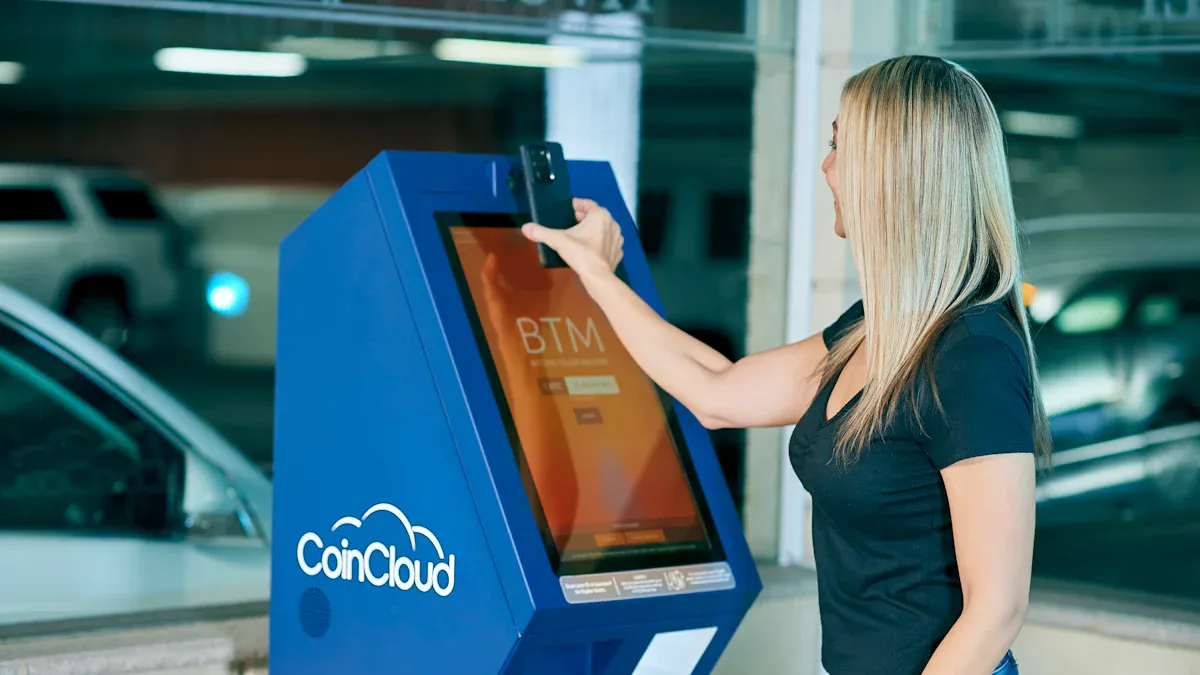
Getting your touch screen kiosk up and running takes careful steps. You want to make sure the installation process goes smoothly, so your kiosk works well for everyone. Let’s walk through each part of the process, from preparing the site to putting all the hardware together.
Site Preparation and Anchoring
Before you start, you need to check the spot where you plan to install your kiosk. A site survey helps you look at the area and spot any problems early. You want to make sure you have easy access to power and network connections. This step also helps you plan for anchoring, which keeps your kiosk safe and steady.
Anchoring is very important, especially for tall kiosks or those with a narrow base. If your kiosk tips over, it can hurt someone or break the equipment. Some places, like California, have rules about anchoring because of earthquakes. Always check local installation requirements before you begin.
Here’s a quick checklist for site preparation:
Walk around the site and look for any obstacles.
Check for power outlets and network ports nearby.
Plan where you will anchor the kiosk to the floor or wall.
Make sure the area is easy for everyone to reach, including people with disabilities.
Tip: If you plan to use your kiosk for self-service kiosks in busy places, anchoring becomes even more important. You want your touchscreen kiosk to stay put, no matter how many people use it.
Secure Mounting and Power Connection
Once you have prepared the site, you can start mounting your kiosk. Use the right bolts, nuts, and brackets for your wall or floor type. Heavy kiosks need strong anchors. If you are not sure which hardware to use, check the manufacturer’s guide or ask a professional.
You also need to connect your kiosk to power. Make sure you use a grounded outlet to keep your equipment safe. Grounding helps protect your kiosk from power surges and electrical faults. If your kiosk needs a network cable, run it through a safe path so no one trips over it.
Here’s a simple table to help you pick the right mounting hardware:
Wall/Floor Type | Mounting Hardware Needed | Notes |
|---|---|---|
Drywall | Toggle bolts, wall anchors | Use for light kiosks only |
Concrete | Expansion bolts, masonry anchors | Best for heavy kiosks |
Wood | Wood screws, lag bolts | Check for studs |
Note: Always double-check that all bolts and nuts are tight. Loose hardware can make your kiosk wobble or fall.
Hardware Assembly
Now it’s time to put all the parts together. Gather your tools and materials before you start. You will need mounting hardware, electrical tools, and testing equipment. Good cable management keeps your kiosk looking neat and makes future repairs easier.
Here’s a handy checklist of tools and materials you might need:
Mounting hardware (bolts, nuts, brackets)
Electrical tools (screwdrivers, wire strippers)
Testing equipment (multimeter, cable tester)
Calibration devices
Cable management supplies (conduit, cable ties, covers)
Start by assembling the main frame or enclosure. Attach the touch screen display and connect it to the computing hardware. Add any extra devices, like card readers or printers, based on your common applications and use cases. Make sure all cables are secure and hidden from view.
After assembly, test each part to make sure everything works. Use your testing equipment to check power, network, and display connections. If you find any problems, fix them before you finish the installation process.
Pro Tip: Take your time during assembly. Careful work now means fewer problems later and a longer life for your touch screen kiosk.
By following these steps, you make sure your kiosk is safe, sturdy, and ready for action. Whether you use it for information, payments, or other applications, a good installation process sets you up for success.
Network and Security Configuration
Setting up network and security is very important for your touch screen kiosks. You want your kiosk to work well and keep user information safe. Let’s see how you can set up network access and protect your kiosk from danger.
Set Up Network Access
Your kiosk needs a strong network to work right. Start by connecting it to the internet with a wire or WiFi. Wired networks are usually more steady, but WiFi is good in many places. Make sure your network uses firewalls to stop bad traffic. You can use a VPN to keep data safe as it moves.
Here are some good tips for network setup:
Use SSL/TLS to keep data safe online.
Keep kiosks on their own part of the network.
Update your router and firewall settings often.
Tip: Always test your network before people use the kiosk. This helps you find problems early.
Implement Security Measures
You want to keep your kiosk safe from hackers and thieves. There are many ways to do this. Use encryption to protect user data. Set up access control so only trusted people can change things. Multi-factor authentication (MFA) adds extra safety.
Here’s a table of top security measures and what they do:
Security Measure | Description |
|---|---|
Encryption Techniques | Keeps personal details safe from others. |
Access Control Policies | Decides who can see or change information. |
Multi-Factor Authentication | Needs two types of proof to log in. |
Auto-Logout Features | Logs out users after each session to keep info safe. |
Uses strong cases and limits who can open the kiosk. | |
Session Timeouts | Logs out users if they walk away or forget. |
Secure Data-Wiping Mechanisms | Erases all user data after each session. |
Tamper Detection Sensors | Warns you if someone tries to break in or change hardware. |
You should also lock down the operating system. Turn off tools and services you do not need. Use secure APIs and check all user input. Encrypt data when it is stored and when it is sent. Follow rules like GDPR and PCI-DSS if you take payments.
Remember: Good security keeps your kiosk working and protects your users.
If you follow these steps, your touch screen kiosks will be safer and work better for everyone.
Testing and Troubleshooting
Testing makes sure your touchscreen kiosk works the way you want. You want to catch problems before your users do. Troubleshooting helps you fix issues fast so your kiosk stays reliable.
Hardware and Software Testing
You should test your kiosk in different ways before you let people use it. Start with hands-on testing. Try out the touchscreen kiosk yourself and see how it feels. Watch how others use it, too. This helps you spot things you might miss.
Next, check if your hardware and software work well together. Install your software on the real kiosk hardware. Make sure everything runs smoothly. You also want to test how your kiosk connects with other systems, like payment or booking tools.
Here’s a table that shows the main testing steps:
Testing Phase | What You Do |
|---|---|
Hands-On Testing | Try the kiosk in real life and watch users interact with it. |
Technical Validation | Check if hardware and software work together on the actual device. |
Integration Testing | Test connections with other systems, like data imports or logins. |
User Acceptance Testing | Let real users try the kiosk and give feedback before you launch it. |
Tip: Always ask real users to test your kiosk. They can find things you might not notice.
Common Issues and Fixes
Even the best touch screen kiosks can have problems. You want to know what to look for and how to fix it. Here are some common issues and what you can do:
Issue Type | How to Fix It |
|---|---|
Calibration Drift | Recalibrate the screen. If it keeps happening, check for deeper problems. |
Touch Sensitivity Problems | Clean the screen and check settings. Test sensitivity step by step. |
Multi-Touch Issues | Run special tests. You may need to replace a part if it does not work. |
Dead Zones | Call a pro if parts of the screen do not respond. You might need repairs. |
Brightness/Contrast Issues | Test the backlight. Replace hardware if needed. |
Color Accuracy Problems | Adjust display drivers. |
Visual Artifacts | Test to find the cause. Replace the panel if needed. |
Temperature Problems | Learn how heat or cold affects your kiosk. Adjust settings if needed. |
Moisture/Humidity Effects | Make sure your kiosk is sealed and in a dry spot. |
Electromagnetic Interference | Test for outside signals. Move or shield the kiosk if needed. |
Vibration/Shock Effects | Inspect for loose parts and fix them. |
If you test your touchscreen kiosk well and know how to fix these issues, you will keep your kiosk running smoothly for everyone.
Maintenance and Support for Touch Screen Kiosks
Keeping your touch screen kiosk in top shape means you need a good maintenance plan. You want your kiosk to work well every day and last for years. Let’s look at what you should do to keep things running smoothly.
Regular Maintenance
You should check your kiosk often. Cleaning and inspecting it helps you spot problems before they get big. Here’s a simple table to show how often you should do each task:
Frequency | Maintenance Task |
|---|---|
Daily | Wipe the screen with a microfiber cloth. Sanitize keypads and scanners. Check the printer for jams. Make sure the screen responds to taps. |
Weekly | Inspect cables and power connections. Reboot the system. Test the card reader and barcode scanner. Look for any damage. Review software logs for errors. |
Monthly | Use compressed air to clean cooling fans. Check inside for dust. Inspect power and network cables for fraying. Run system diagnostics. Test all input devices. |
Tip: If you use remote monitoring tools, you can track hardware health and get alerts before something fails.
Software Updates
You want your touchscreen kiosk to stay safe and fast. Updating software helps block security threats and keeps everything working well. Most experts say you should update your software every three months. Always install the latest patches for your operating system and apps. Set up a regular backup schedule for your data and logs. This way, you can recover quickly if something goes wrong.
Update OS patches and security updates regularly.
Use remote tools to manage updates and check system health.
User Support
Sometimes users need help with your kiosk. You should make it easy for them to get support. Add clear instructions on the screen. Show users how to get help if they have trouble. You can set up a phone number, chat, or email for support. Train your staff to answer common questions about the touch screen kiosk. Fast support keeps users happy and your kiosk running.
Remember: Good maintenance and support keep your touch screen kiosks reliable and easy to use.
You now know how to set up a touch screen kiosk from beginning to end. If you follow all the steps, things will go easier. You will be ready and get help when you need it. Here’s a quick list of what you gain:
Benefit | What You Get |
|---|---|
Fewer problems and easier starts | |
Proper Preparation | Kiosks that are safe, secure, and working |
Ongoing Support | Quick repairs and less time not working |
Testing and doing regular checkups keep your kiosk safe and simple to use. For more advice, look at guides about touchscreen kiosk software and help.
FAQ
What is a touch screen kiosk?
A touch screen kiosk is a self-service station with a digital display. You can use your finger to interact with menus, make payments, or get information. These kiosks work in places like malls, airports, and hotels.
How long does it take to install a touch screen kiosk?
You can usually install a touch screen kiosk in one to two days. This includes setting up hardware, connecting power, and testing software. Large projects may take longer.
Do I need special tools to set up a touch screen kiosk?
Most setups need basic tools like screwdrivers, wrenches, and cable ties. Some kiosks may need a drill or a level. Always check the instructions from the manufacturer.
How do I keep my touch screen kiosk clean?
Wipe the screen daily with a microfiber cloth. Use gentle cleaners made for electronics. Avoid spraying liquid directly on the screen. Clean other parts like card readers and printers often.
Can I update the software on my touch screen kiosk?
Yes! You can update software using remote tools or by plugging in a USB drive. Regular updates help your kiosk stay secure and work better.
See Also
Discover The Essential Features Of Today's Touch Screen Kiosks
Uncover 10 Unexpected Applications For Touch Screen Kiosks In 2026
Evaluating Business Touch Screen Kiosks For Quality And Cost
