Step-by-Step Guide to Using Digital Signage Player Apps
You can boost your business’s visibility with a digital signage player app. This handy tool lets you show eye-catching messages, menus, or promotions on screens around your space. Many businesses now choose free and ad-free options for Android TV and Google TV because they work smoothly and offer great support. Smart TVs are also catching on since they look sharp and save money. If you want a simple way to share your content, you’re in the right place.
Key Takeaways
Digital signage player apps help businesses get noticed. They show interesting content on screens.
Setting up a digital signage app is easy. First, make an account. Next, connect your device. Then, pick a template. After that, upload your content. Finally, set a schedule for it.
Use good images and videos to make your content pop. Keep your content new so people pay attention.
Remote management lets you control many screens from anywhere. You can update them fast and easily.
Check your internet and device settings often. This helps stop problems like blank screens or slow loading.
What Is a Digital Signage Player App?
A digital signage player app lets you show things on screens. You can use it in your business, school, or group. It helps you put up menus, ads, news, or messages. These apps work on many devices like Android, Google TV, and Fire Stick. Many people pick free and ad-free apps because they are simple to use and set up.
Main Functions
A digital signage player app is a smart way to share info. It connects to your screens and lets you pick what shows up. You can do this even if you are not close by. You can upload pictures, videos, or slides. You can also choose when they show up. The app keeps your content playing all day. It does not stop. It works with Wi-Fi, Bluetooth, or Ethernet. This gives you many ways to connect.
Here’s a quick look at how a digital signage player app is different from old signs:
Feature | Digital Signage Player | Traditional Signage Solutions |
|---|---|---|
Connectivity Options | Supports Bluetooth, Ethernet, and Wi-Fi | Limited connectivity options |
Operating System | Specialized OS optimized for digital signage | General-purpose OS |
Continuous Operation | Runs continuously without interruption | May require manual operation |
Remote Management | Includes tools for remote management | Typically lacks remote management capabilities |
Power Consumption | Uses low-power CPUs to minimize energy costs | Often higher power consumption |
Security Features | Built-in security features like secure boot | Generally less secure |
Key Benefits
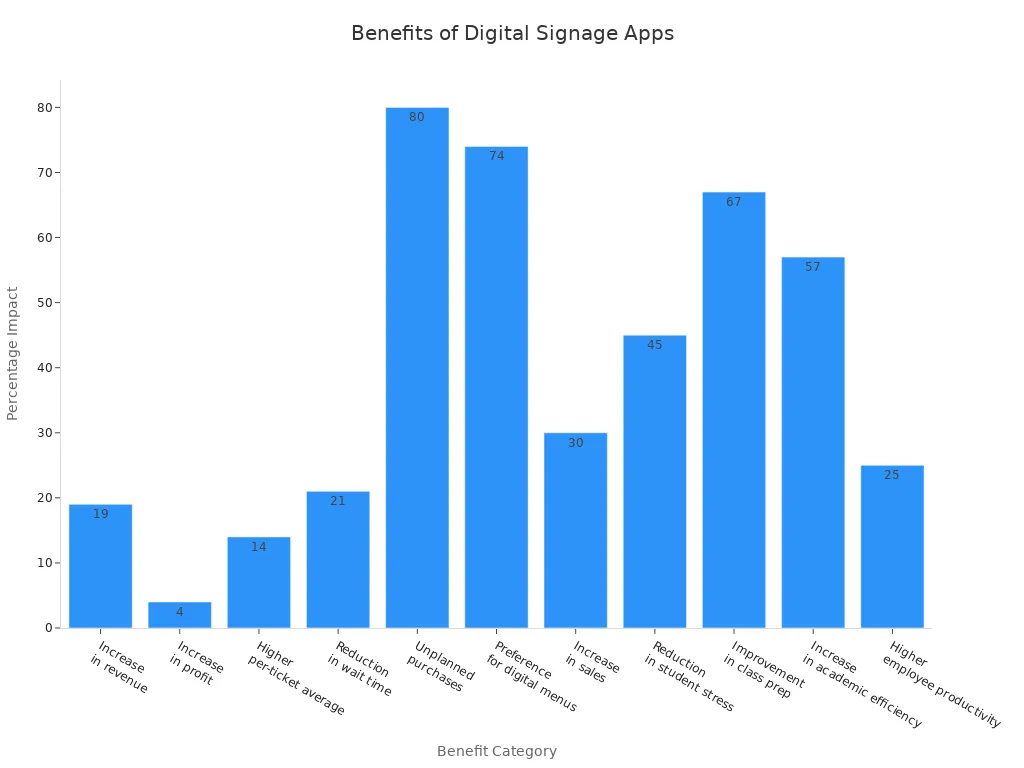
When you use a digital signage player app, your business feels more fun. You can change your screens in just a few seconds. Many businesses get more sales and happier customers. For example, 80% of customers buy things they did not plan to after seeing digital signs. Up to 30% of businesses say they sell more. Schools see less stress and better class prep when they use digital signage.
You can get these good things without spending much money. Free and ad-free apps for Android, Google TV, and Fire Stick make it easy for anyone to start.
Getting Started with Digital Signage Player Apps
So, you want to set up your first digital signage player app? Great choice! You can do this in just a few steps. Let’s walk through the basics so you feel confident from the start.
Account Setup
You need an account before you can show anything on your screens. Most platforms, like AbleSign, PosterBooking, or ScreenCloud, make this easy. Here’s what you usually do:
Sign Up: Go to the website or open the app. Enter your email and create a password. Some apps let you use your Google or Microsoft account.
Connect Your Device: Download the app on your TV, tablet, or streaming stick. You might see a code on your screen. Enter this code in your account to link the device.
Choose a Template: Pick a template that fits your business. You can find menus, welcome screens, or event boards.
Add Content: Upload your images, videos, or messages. Some apps let you add live news or weather, too.
Schedule and Publish: Decide when your content should play. Set times for each item, then hit publish.
Tip: If you ever get stuck, most platforms have a help section or community forum.
Device Requirements
Not every screen works the same way. You want your digital signage player app to run smoothly, so check your device first. The best experience comes from using a native app on your TV’s operating system. For example, Android TV, Google TV, Samsung Tizen, or LG webOS work well. Native apps give you better stability and fewer crashes.
Here’s a quick checklist for your device:
Brightness: 300–400 nits or higher
Resolution: Full HD (1080p) or 4K
Operating System: Android TV or Google TV OS
Panel Type: LED for a longer life
Connectivity: Stable Wi-Fi and at least one HDMI port
You can also look at this table for more details:
Specification | Description |
|---|---|
Processing Power | Multi-core CPUs and strong GPUs for smooth 4K video playback |
Connection Type | Ethernet for steady internet; Wi-Fi for smaller setups |
Output Ports | HDMI 2.0 or USB-C for high-res displays |
Durability & Form | Small, fanless boxes are easy to hide and last longer |
Note: Native apps on smart TVs usually work better than using a web browser.
App Installation
Now you’re ready to install the app. Most digital signage player apps are free and easy to find in the Google Play Store or Amazon Appstore. Search for the app by name, then tap “Install.” Open the app and follow the prompts to link your device.
Sometimes, you might run into a few bumps:
Outdated content can show up if you forget to update your schedule.
Weak Wi-Fi or slow internet can cause blank or frozen screens.
If your screen is in a bad spot or your design is hard to read, people might not pay attention.
You can avoid these problems by keeping your content fresh, checking your internet connection, and placing your screens where people can see them.
Pro Tip: Test your setup with a short video or image before you go live. This helps you catch any issues early.
You’re now ready to start sharing your message with the world. With the right setup, your digital signage player app will keep your screens looking sharp and up to date.
Linking and Setting Up Screens
Setting up your screens is where the magic happens. You get to see your content come alive in your space. Let’s break down how you can connect your devices, link your screens, and make sure everything runs smoothly—even when you’re not around.
Connecting Devices
You want your screens to show your content without any hassle. Here’s how you can connect popular devices like Android TV, Google TV, or Fire Stick to your displays:
Pick a media player that works for you. Many people use Amazon Fire TV Stick or Chromecast with Google TV.
Plug your media player into your TV’s HDMI port. Make sure you connect it to Wi-Fi or Ethernet for a steady internet connection.
Power up your TV and switch to the right HDMI input.
Download your digital signage player app from the Google Play Store or Amazon Appstore.
Open the app and log in. You’ll usually see a pairing code on your screen.
Enter this code in your account on your phone or computer to link the device.
Tip: If you use a Fire TV Stick, remember to connect the USB power cord to a wall outlet for the best performance.
You can repeat these steps for each screen you want to set up. This way, you can manage many displays in different rooms or even different buildings.
Linking Screens in the App
Once your devices are connected, you need to link your screens inside the app. This step lets you control what shows up and when. Most apps make this easy with a pairing code or a quick setup wizard.
Here’s what you should think about before you link your screens:
Requirement Type | Details |
|---|---|
Number of Displays | How many screens do you want to manage? |
Locations | Are your screens in one place or spread out? |
Content Needs | Do you want videos, slides, or live data? |
Network | Is your internet strong enough for all screens? |
User Access | Who will update the content? |
Growth Plans | Will you add more screens later? |
Security | Do you need to follow any rules or keep things private? |
Most digital signage solutions need internet access for you to control everything from one place. If you have lots of screens, a dashboard helps you see them all at once. You can even set up outage mode, so your screens keep playing the last playlist if the internet goes down.
Note: For video-heavy content, you’ll want a strong network. Try to have at least 2-5 Mbps for setup and 1-3 Mbps per screen for smooth videos.
Permissions and Auto-Launch
You want your screens to work all day, even if the power goes out or someone restarts the TV. That’s where permissions and auto-launch settings help.
Android TV and Google TV usually support auto-start after a reboot. You might need to give the app extra permissions so it can launch by itself.
Some smart TVs need you to start the app each day. Commercial displays, like Samsung’s Smart Signage, can auto-start and let you manage everything from far away.
For better security, set up user accounts with only the permissions they need. Turn off guest accounts and use kiosk mode to lock the screen to your app.
If you want even more safety, use multi-factor authentication. This means you need more than just a password to log in.
Pro Tip: Auto-launch keeps your screens running, even after a power cut. You won’t have to restart the app by hand.
When you set up your digital signage player app with these steps, you get a system that’s reliable, secure, and ready to grow with your business.
Content Management and Playlists
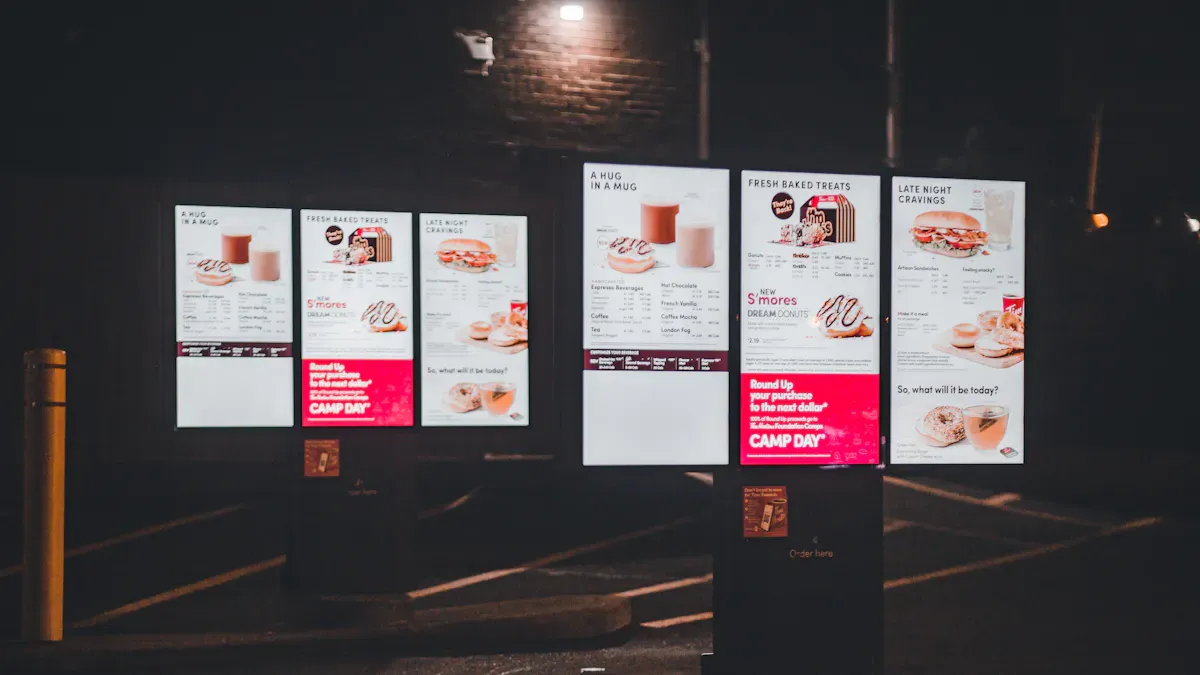
You want your screens to look great and stay fresh. That’s where content management comes in. With a digital signage player app, you can design, upload, and schedule everything from one place—even if you’re not in the building.
Designing Content
Start by thinking about what you want to show. Do you want to share menus, news, or special offers? Here are some tips to help you make content that grabs attention:
Keep animations simple so people don’t get dizzy.
Add smooth transitions between slides to show when something new appears.
Use pictures and words that make people feel something. Happy faces or bright colors work well.
Change your content for different places or groups. Local news or deals feel more personal.
Match how long each slide stays up with how long people look at the screen.
Update your content often so it never feels old.
If you want to get even better results, try these steps:
Set a clear goal for your screen.
Think about who will see your content.
Make your designs bold and easy to read.
Use movement, but not too much.
Add buttons or touch features if your screen supports it.
Uploading Media
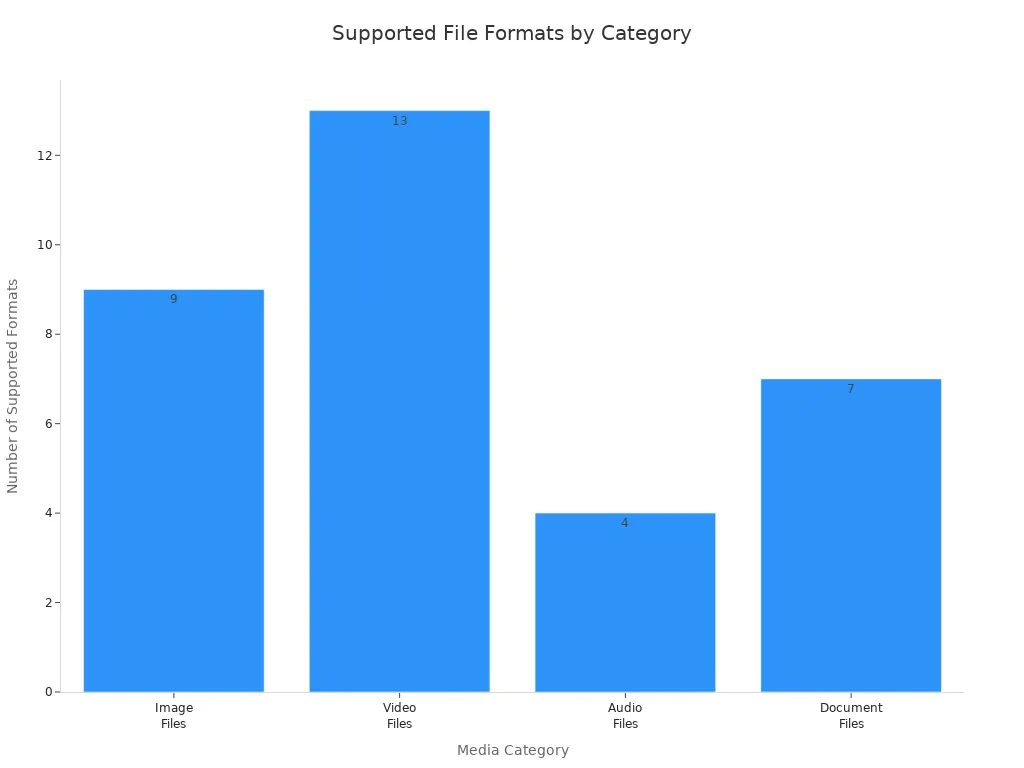
You can upload many types of files to your screens. Most apps support popular formats for images, videos, and even documents. Here’s a quick table to help you pick the right file:
Category | |
|---|---|
Images | JPG, JPEG, PNG, GIF, SVG, BMP, WEBP |
Videos | MP4, AVI, MOV, MKV, WEBM, WMV, FLV, MPEG |
Audio | MP3, WAV, AAC, OGG, M4A |
Documents | PDF, DOC, PPT, XLS, RTF |
You can upload your files from a computer or even your phone. Most digital signage player apps let you drag and drop files into a web dashboard. You can also organize your files into folders for easy access.
Tip: Use high-quality images and videos for the best look on big screens.
Managing Playlists
Playlists help you control what shows up and when. You can group slides, videos, or messages together and set them to play at certain times. For example, you can show breakfast menus in the morning and switch to lunch at noon—no need to change anything by hand.
You can manage everything from a web browser. The app lets you:
Schedule playlists for different days, times, or even regions.
Update all your screens at once, no matter where they are.
Keep content playing even if the internet goes out, thanks to offline mode.
Organize screens into groups, like “Lobby” or “Cafeteria,” for easy updates.
If you have screens in different time zones, you can set each one to show the right content at the right time. This makes your job much easier and keeps your message on point.
Troubleshooting Digital Signage Player Apps
Common Issues
Sometimes, you might have problems with your digital signage player app. Here’s a table that shows the most common issues and what they mean:
Issue Type | Description |
|---|---|
Power Problems | Device will not turn on or keeps turning off. |
Connectivity Issues | Lost internet or network settings stop your content from showing. |
Screen/Display Problems | Blank screens, flickering, or bad image quality from connection problems. |
Software Issues | Slow screens, display mistakes, or missing content from old software or firmware. |
If your screen is blank or frozen, check the power first. Make sure the HDMI cable is plugged in tight. Also, check if the TV is on the right input. If you lose your network, test your WiFi signal. Look for any lost packets. Sometimes, using a wired connection works better.
Tip: If your screen flickers or is slow, update your app and device firmware. This can fix many display problems.
Optimization Tips
You want your screens to work well every day. Try these tips:
Optimization Tip | Description |
|---|---|
Limit 4K video to high-end devices | Only use 4K videos on strong devices to stop crashes. |
Reduce web-based widget load | Don’t use hard websites that slow down your player. |
Avoid excessive animations | Keep animations easy, especially on cheaper devices. |
Enable Auto-Launch | Set your app to start by itself after a restart. |
Prefer wired Ethernet connection | Wired internet is more steady than WiFi. |
Use surge protectors | Surge protectors keep your devices safe from power spikes. |
Optimize images | Use smaller images so your device works less. |
Wipe your equipment with soft cloths to keep it clean. Update your software often and add security patches. If you have lots of screens, use a special VLAN and tools to watch uptime.
Note: Commercial-grade hardware lasts longer and does not need as much fixing.
Support Resources
If you need help, you have choices:
Look at the app’s help section or FAQ.
Go to community forums to get tips from other users.
Contact the maker’s support team for harder problems.
Clean your screens and devices often to stop dust.
Check your software and hardware every few months to make sure all is good.
If your problem stays, try a reset or ask support for help. You’ll be back to normal soon!
You have learned how to set up a digital signage player app. Start with simple steps and see your screens light up. Free and ad-free choices help anyone begin fast. When you feel ready, you can try more cool features.
Feature | What It Does |
|---|---|
Keeps all your screens neat and always updated | |
Real-Time Updates & Automation | Lets you change what shows up right away |
Remote Management | Lets you control your screens from far away |
User Management | Helps your team work together and avoid errors |
Go ahead and give it a try! You can share what you learn or find new ways to use digital signage in your place.
FAQ
How do I update content on my digital signage player app?
You can log in to your dashboard from any computer or phone. Upload new images or videos. Pick which screens you want to update. Hit save. Your screens will show the new content right away.
Can I use my old TV as a digital signage screen?
Yes! You just need a device like a Fire Stick or Android TV box. Plug it into your TV. Install the digital signage player app. Connect to Wi-Fi. Now your old TV works like a smart display.
Is it possible to schedule different content for different times?
Absolutely! Most digital signage player apps let you set playlists for breakfast, lunch, or special events. You pick the time for each playlist. The app switches content for you.
What file types can I upload?
Most apps support JPG, PNG, MP4, PDF, and more. Check your app’s help section for a full list. Use high-quality files for the best look.
Do I need the internet all the time?
No. Your screens keep showing the last downloaded content if the internet goes out. When you reconnect, the app updates everything for you.
See Also
Your Comprehensive Guide to Choosing Outdoor Digital Signage
Easy Steps for Installing and Configuring Digital Display Signage
Simple Methods for Installing Digital Signage Software Effectively
