Complete Guide to Smart Mirror Apps and Screen Sharing
Shenzhen TopAdkiosk Display Technology Co., Ltd.
Add.: 2F, Bldg 10, Changfeng Industrial Park, Dongkeng, Fenghuang, Guangming, Shenzhen, China 518132
Mobile/WHATSAPP: 86-138 25769658
Email: marketing@topadkiosk.com topadkiosk@gmail.com
Skype: pghenry1
Wechat: adkioskhenry
English Web.: http://www.topadkiosk.com/
https://www.topkioskdisplay.com/
http://www.ad-kiosk.com/
https://www.toplcddisplay.com/
http://www.multitouchdigitalsignage.com/
https://www.youtube.com/channel/UCYVYNJHxLVEcQD8fuUxXNTA/videos?view_as=subscriber
https://www.facebook.com/TOPADKIOSKSHENZHEN/?ref=bookmarks
You may ask what a smart mirror does. A smart mirror shows your reflection and gives you helpful information. It can show things like the weather, reminders, or news. It mixes style and technology. This can make any room smarter. Screen sharing lets you put your device’s screen on a bigger display. This way, everyone can see it. These tools are good for working together at your job. They help with fun lessons in school. They also make your home smarter.
In classrooms, teachers use screen sharing to make learning fun and interactive.
Businesses use screen sharing for meetings and easy presentations.
At events, sharing apps help many people see important information.
Benefit | Description |
|---|---|
Convenience | Puts information in one spot and looks nice in your room. |
Multifunctionality | Lets you use voice and hand movements without touching. |
Integration | Works with smart home technology to make things better. |
A smart mirror does more than just show your face. It brings many features together. You can change how it works for you. It connects with other smart devices. The SMART Mirror app is easy to set up. It is great for working with others. This guide will help you use smart mirrors and screen sharing every day.
Key Takeaways
Smart mirrors show your reflection and helpful info like weather and reminders. They help make your daily routine better. Screen sharing lets you show your device’s screen on bigger screens. This makes it easier to work together in classrooms and offices. Pick the right screen sharing protocol, like AirPlay or Google Cast, for your devices. This helps you get the best experience. The SMART Mirror app is great for teachers. It has tools like remote control and a grid view for student work. Keep your information safe by using secure apps and special session codes when you share your screen.
What Is a Smart Mirror?
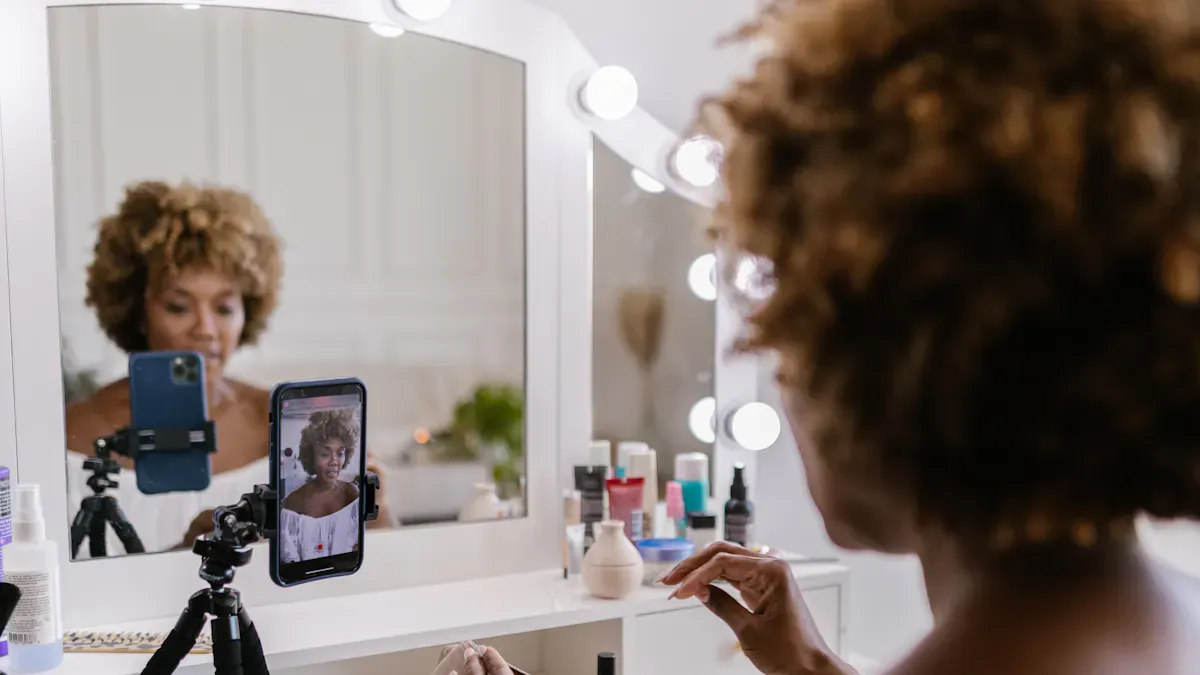
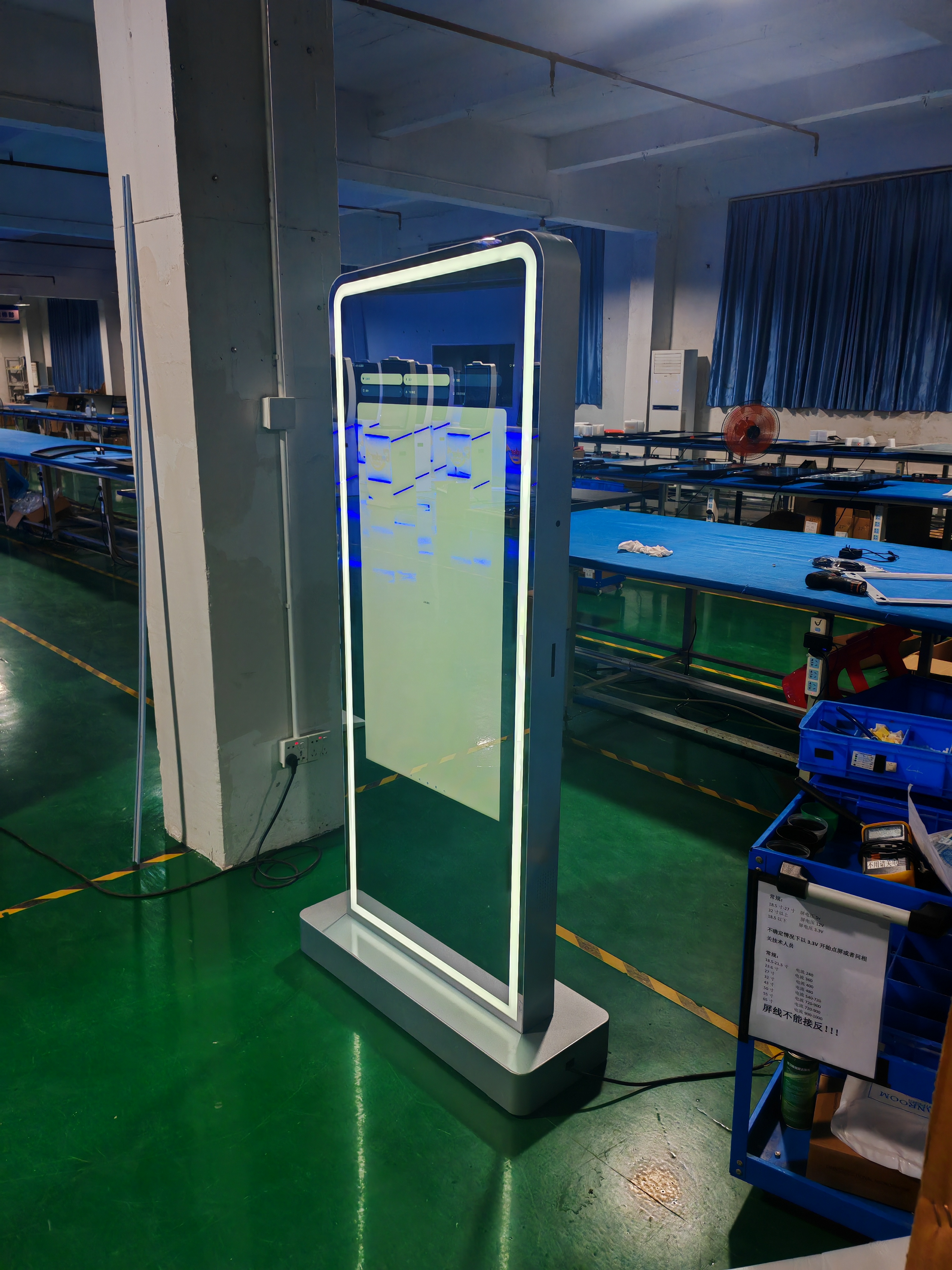
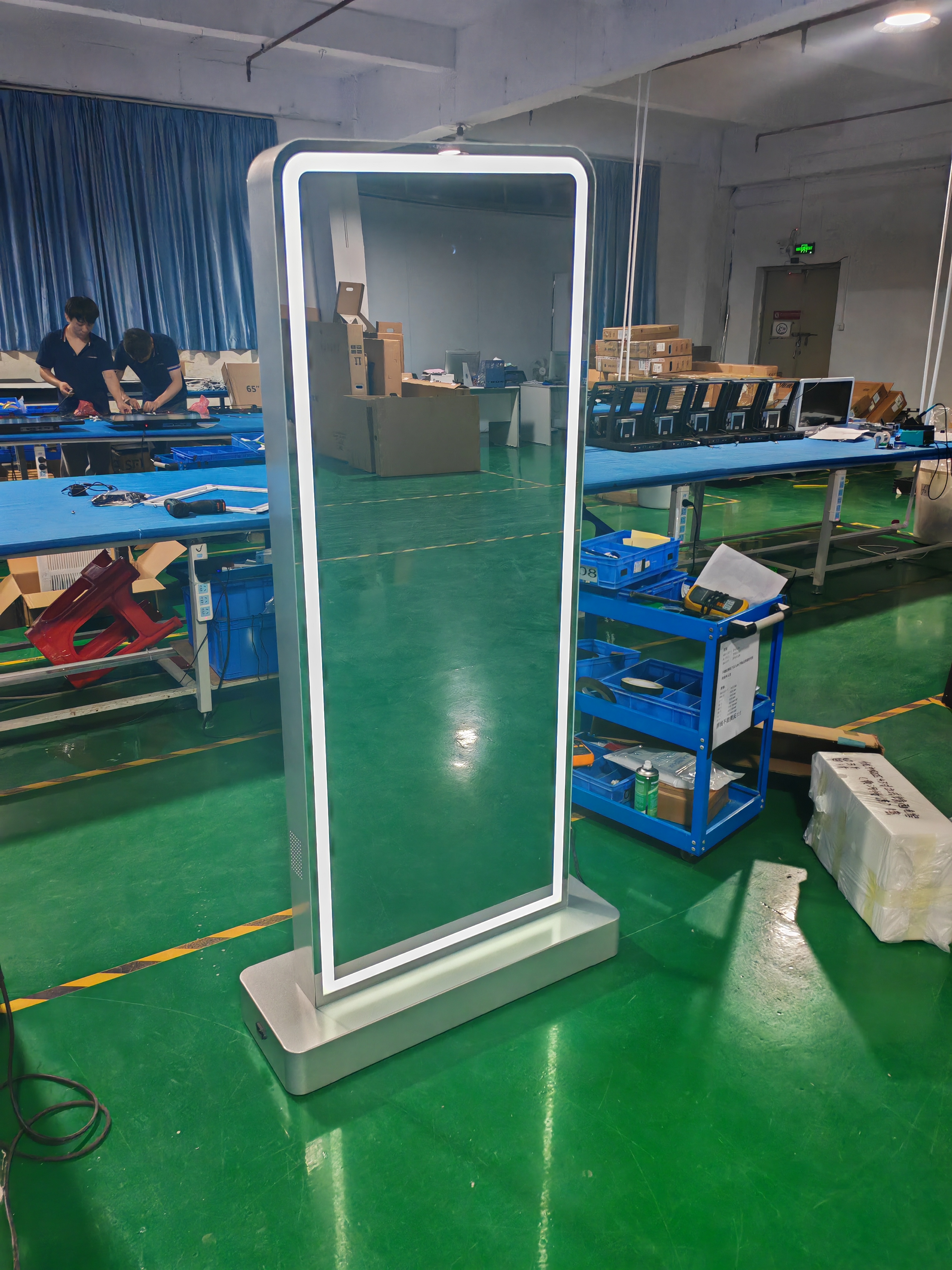
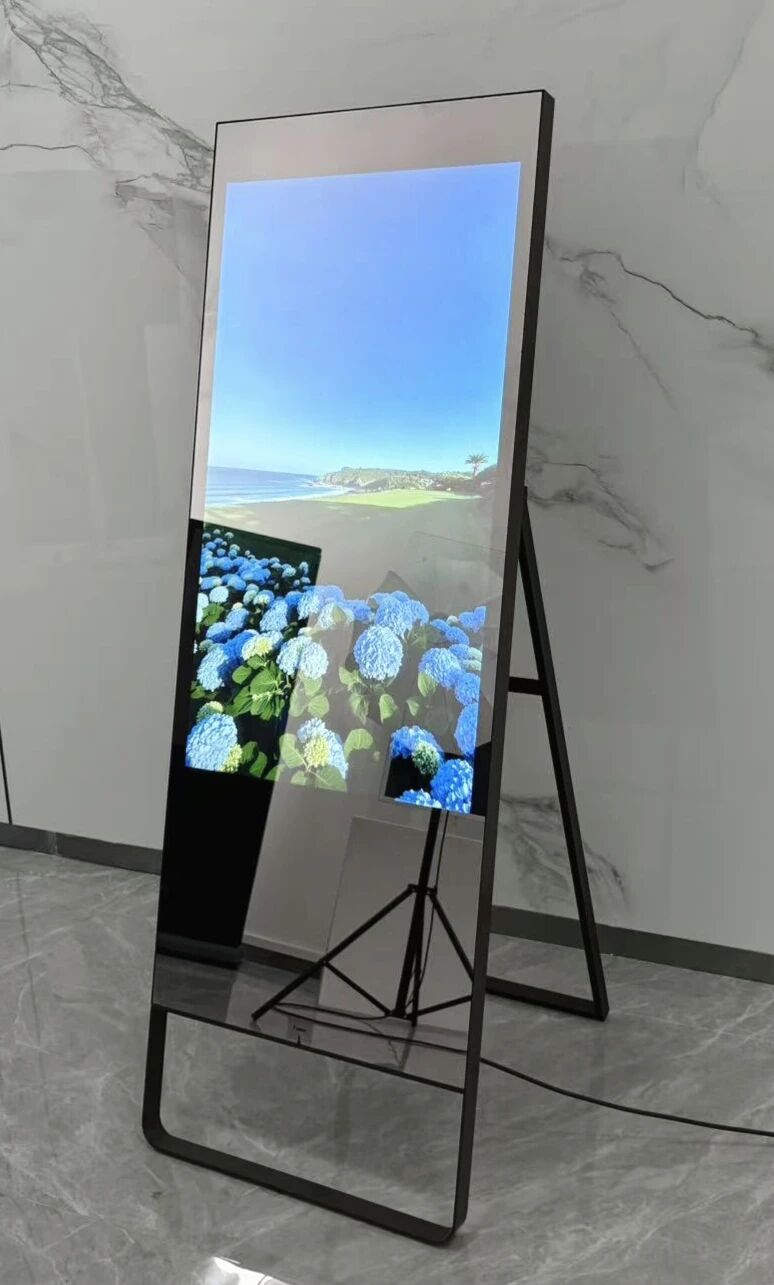
A smart mirror is more than just a regular mirror. You see your reflection, but you also get helpful information right on the glass. You can check the weather, see your calendar, or play music. Smart mirrors use technology to make your daily routine easier and more fun.
Key Features and Benefits
Smart mirrors stand out because they combine several high-tech parts. Take a look at what makes them special:
Component | Description |
|---|---|
Microcomputer | Runs the mirror’s software and apps. |
Touch Screen | Lets you tap and swipe to control features. |
Connection parts | Links the mirror to other devices and the internet. |
LED | Lights up the mirror and makes the display clear. |
Speakers | Plays sounds, alerts, or music. |
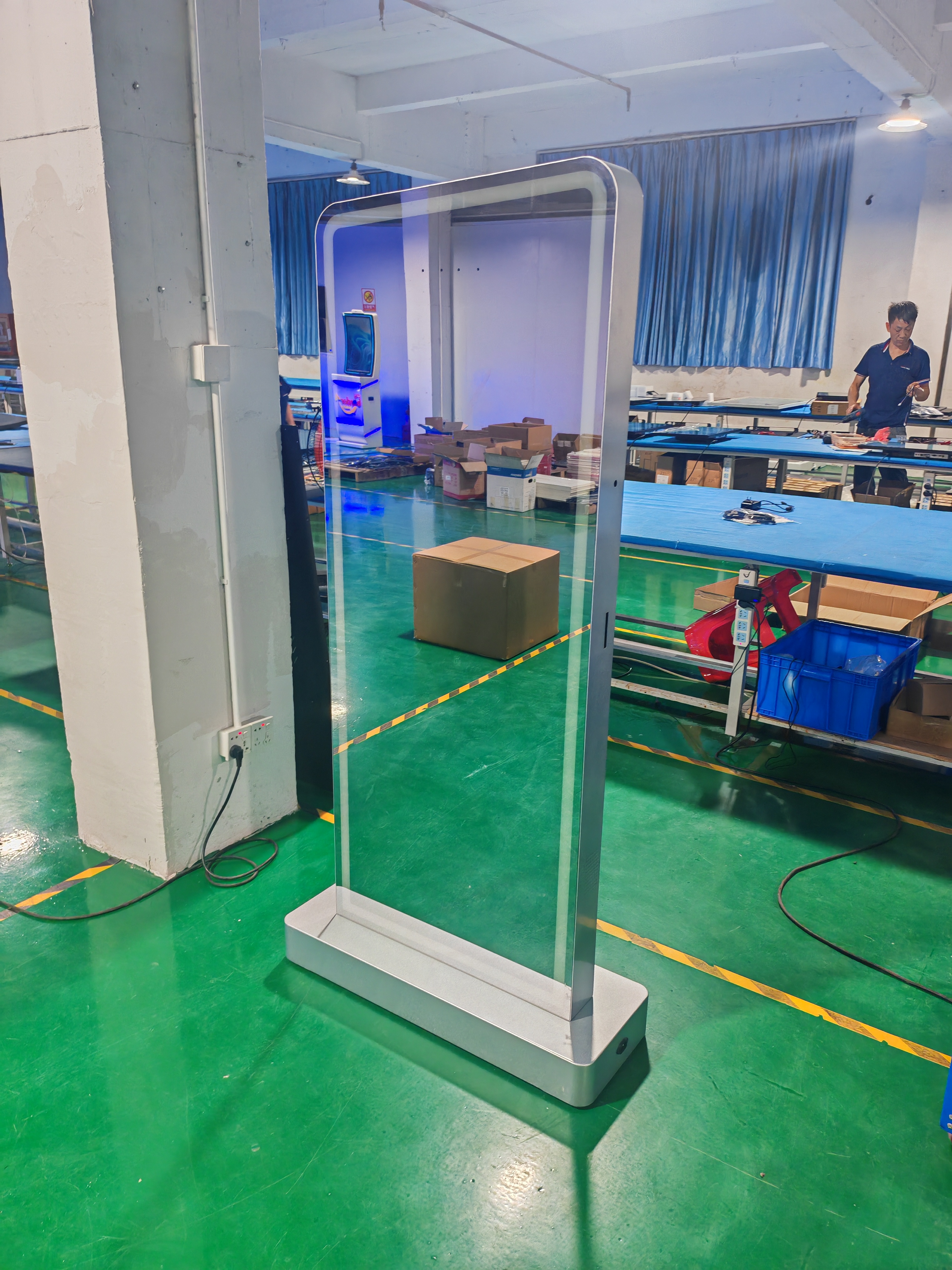
Two-way Glass Mirror | Shows your reflection and digital info at the same time. |
Smart Mirror MotherBoard | Handles all the processing and memory. |
WiFi Connection | Connects to online services and updates. |
Smart Mirror Link | Syncs with your phone or smart TV. |
You get lots of cool features with smart mirrors:
Presence detection using sensors
Gesture control for music and apps
WiFi and Bluetooth for easy syncing
Touch, voice, and gesture recognition
High-transparency glass with digital display
Plugins and web APIs for custom apps
Commercial options for beauty and health
Smart mirrors help you save time. You can check your schedule while brushing your teeth. You can control music with a wave. You can get reminders without picking up your phone. These mirrors fit right into your smart home.
Use Cases in Education and Collaboration
Smart mirrors make learning and teamwork easier. In classrooms, teachers use smart mirrors to show lessons and interactive content. Students can see information and join activities without leaving their seats. You can use voice commands to answer questions or get help.
In offices, smart mirrors help teams share ideas. You can display notes, charts, or meeting reminders. Everyone sees the same information, so you work together better. You can connect your phone or laptop to the mirror and share your screen.
Smart mirrors also help at home. You can set reminders for your family, check the news, or watch videos while getting ready. These mirrors bring people together and make daily tasks smoother.
Screen Sharing Explained
How Screen Sharing Works
You may wonder how screen sharing works. When you use screen sharing, your device sends what is on your screen to another device. This device could be a computer, tablet, or smart TV. You can show slides, apps, or your browser. You decide what others see. This makes it easy to help someone or show your work to a group.
Screen sharing uses different protocols to connect devices. Here are some common ones:
Protocol Name | Description |
|---|---|
Lets you share screens between Apple devices. | |
Google Cast | Works with Android and Google products. |
Smart View | Used by Samsung devices, based on Miracast. |
Miracast | Connects Windows and Android devices wirelessly. |
SSP | Works with many devices, not just one brand. |
Miscellaneous | Includes other third-party options. |
You do not need cables. You just tap a button or use an app. Screen sharing helps in classrooms, meetings, or at home. You can show your smart mirror display on a bigger screen for everyone to see.
Screen Sharing vs. Screen Mirroring
Screen sharing and screen mirroring sound alike, but they are different. Screen sharing lets you show only one app or window. You pick what others see. Screen mirroring copies your whole screen, including notifications and everything else.
Let’s compare them with older display methods:
Method | Pros | Cons |
|---|---|---|
Screen Sharing | Good for tech support calls when you need to see something. | Shows personal data, so it is not good for privacy; can be slow sometimes. |
Co-browsing | Helps people work together and keeps information safe. | Not as popular as older ways, so fewer people use it. |
Screen sharing gives you more control. You can hide private things. Screen mirroring shows everything, so you must be careful. Both ways help you work together, but screen sharing is better for privacy and focus.
Tip: If you want to share your smart mirror’s info with your family or coworkers, screen sharing is usually safer and more flexible.
Core Technologies Behind Smart Mirror and Screen Sharing
AirPlay, Google Cast, Miracast, DLNA
You have many ways to share your screen wirelessly. Each protocol works best with certain devices. Some are good for streaming, others for mirroring. Here’s a quick look at the most popular ones:
Protocol | Compatible Devices | Connection Method | Quality | Screen Mirror | Media Streaming |
|---|---|---|---|---|---|
DLNA | TVs, PCs, smartphones | Wi-Fi | Up to 1080P | No | Yes |
Miracast | Android, Windows, some TVs | Wi-Fi Direct | Up to 4K | Yes | No |
AirPlay | Apple Devices, AirPlay-enabled TVs | Wi-Fi | Up to 4K | Yes | Yes |
Google Cast | Android, Chrome browser, Chromecast TVs | Wi-Fi | Up to 4K | Yes | Yes |
AirPlay lets you send your screen from an iPhone, iPad, or Mac to an Apple TV or smart mirror. Google Cast works well with Android phones and the Chrome browser. Miracast is great for Windows laptops and many Android phones. DLNA is good for playing music or videos on your TV, but it does not show your whole screen.
Device Compatibility
You want your screen sharing to work easily. Not every protocol works with every device. Here’s a simple guide:
Device Type | Main Protocol(s) Used | Connection Strategy |
|---|---|---|
Apple Devices | AirPlay | Use AirPlay from Control Center or menu bar |
Android Devices | Miracast, Google Cast | Use built-in Cast/Mirroring options in settings |
Windows Laptops | Miracast | Use "Connect" or "Project" feature in Windows |
macOS Laptops | AirPlay | Use AirPlay icon in menu bar |
Others/Tablets | Varies | Check device manual & supported protocols |
If you use a smart mirror, check which protocols it supports. Some smart mirrors work with AirPlay. Others use Google Cast or Miracast. Keep your device software updated for the best screen sharing.
Choosing the Right Protocol
Pick the protocol that fits your devices and needs. Here are some tips to help you choose:
Use AirPlay if you have Apple devices and want easy screen sharing.
Choose Google Cast for Android phones or if you use the Chrome browser.
Go with Miracast for Windows laptops or Android devices.
Pick DLNA if you only want to stream music or videos.
Tip: Try your wireless display before important meetings or classes. Always have a backup plan, like an HDMI cable, just in case.
Screen sharing makes it easy to show your smart mirror’s display to others. You can share lessons, presentations, or family photos. With the right protocol, you get smooth, high-quality wireless display every time.
Popular Smart Mirror Apps and Solutions
If you want your smart mirror to do more, you need a good app. The best apps make it easy to share content. You can work together with others in the room. There are many choices for iOS, Android, and cross-platform. Let’s see what makes these apps special and how to pick the right one.
SMART Mirror App Overview
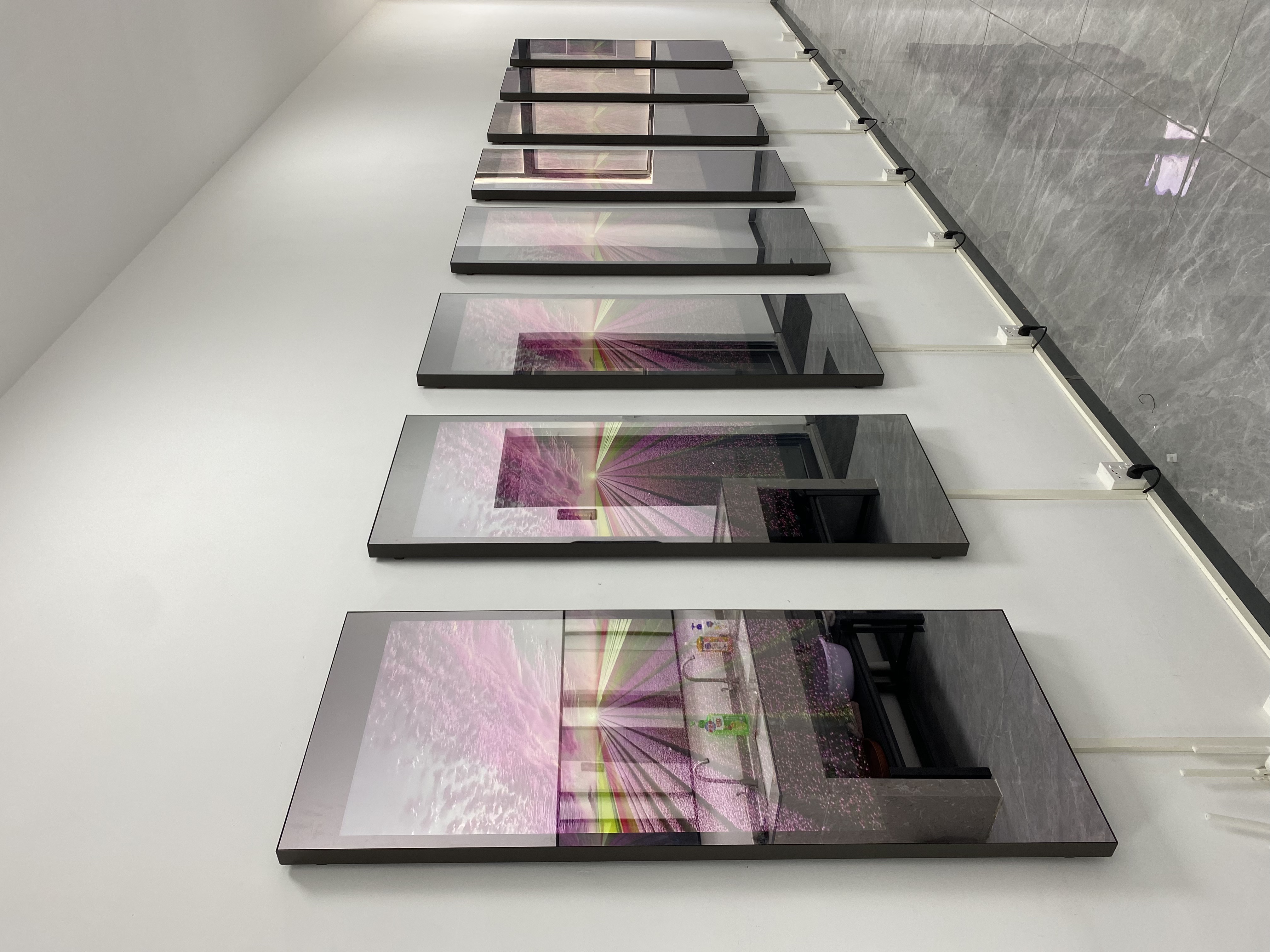
The SMART Mirror app is great for sharing in classrooms and groups. It gives you tools to control what people see. Teachers like it because they can manage the class screens. You can show only the right things to everyone. The 9-grid student view lets you see all students’ work at once. This helps you compare ideas and learn together.
You can highlight a student’s work with one tap. This helps everyone pay attention to what matters most. The preview feature lets you check content before sharing. This keeps lessons on track and avoids mistakes. The remote control lets you walk around and still manage the board. If Wi-Fi stops working, the app uses special tech to keep going. You also get easy sign-in with SSO, so you spend less time logging in.
Here’s a quick look at what makes the SMART Mirror app different:
Unique Feature | Description |
|---|---|
Superior screen sharing | Teachers can control all content sharing in the classroom. |
9-grid student view | See and compare many students’ work at the same time. |
Robust spotlighting | Highlight one student’s work for focused learning. |
Preview feature | Check content before sharing it with the group. |
Remote control | Move around while still controlling the smart mirror. |
Adaptive bandwidth | Keeps sharing smooth, even if the network is slow. |
Simplified sign-in | Use SSO for fast and safe access. |
You can use the SMART Mirror app to make lessons fun and keep everyone interested. It’s a good choice for teachers, students, and anyone who wants easy sharing.
Top Apps for iOS and Android
There are many apps for sharing content on your smart mirror. Some work best with certain devices. Others have more features or better quality. Here are some popular choices:
Smart View: This app works with Samsung devices. You can share photos, videos, and music. The setup is hard, and it only has basic resolution. Many people think it is not good for advanced sharing.
AirBeamTV: This app works with LG, Sony, Roku, Panasonic, and more. You get high-quality streaming and easy setup. People like the smooth experience and extra features, like low delay and encryption.
Google Home: You can use this app to cast your Android screen to a smart mirror or TV. It is simple and works with many devices.
ApowerMirror: This app works with both iOS and Android. You can mirror your screen, control your device from your computer, and record what you share.
Here’s a comparison of two top apps:
Feature/Aspect | Smart View | AirBeamTV |
|---|---|---|
Compatibility | Only Samsung devices | LG, Sony, Roku, Panasonic, and more |
Resolution Support | Basic resolution | High-resolution streaming |
Setup Process | Cumbersome, many steps | User-friendly, simple setup |
User Satisfaction | Limited by functionality | High satisfaction, seamless experience |
Advanced Features | Basic media sharing | Low latency, encryption, advanced sharing |
If you want a simple app for basic sharing, Smart View is fine. If you want more features and better quality, AirBeamTV is a better pick.
Cross-Platform Options
Sometimes you need to share from different devices. Cross-platform smart mirror apps make this easy. You can use any device with a web browser. These apps work with iOS, Android, Windows, and more. You can mirror many screens at once, cast videos or PDFs, and send messages to everyone.
Some cross-platform apps let you project from Apple, Google, or Microsoft devices to any display. You can connect up to 16 devices at the same time. This is great for group work, meetings, or family events. The interface is simple, so you don’t waste time learning new things.
Here’s what you get with top cross-platform apps:
Feature | Description |
|---|---|
Cross-Platform | Works with any device or browser |
Low Latency | Quick sharing with almost no delay |
Multi-Media Support | Cast videos, photos, PDFs to many devices at once |
Broadcast Messages | Send text or images while sharing |
Mirror Multiple Screens | See many mirrored screens on one device |
Simple UI | Easy to use, modern interface |
Multi-Device Mirroring | Share from several devices at the same time |
Wireless Network | Uses AirPlay, Miracast, and other protocols for easy connections |
High-Quality Streaming | Low delay and HD quality for all your content |
If you want to work together with friends or coworkers, cross-platform apps give you the freedom you need.
Feature Comparison
Picking the right smart mirror app depends on what you want to do. Some apps are best for school. Others are better for home or business. Here’s a table to help you compare the main features and what devices they support:
App Name | Platforms Supported | Screen Mirror Feature | Content Sharing | Multi-Device Support | Advanced Controls | Best For |
|---|---|---|---|---|---|---|
SMART Mirror | iOS, Android, Web, Windows | Yes | Yes | Yes | Yes | Education, Collaboration |
AirBeamTV | iOS, Android, Smart TVs | Yes | Yes | Limited | Yes | Home, Presentations |
Smart View | Samsung Devices | Yes | Yes | No | No | Basic Home Use |
ApowerMirror | iOS, Android, Windows | Yes | Yes | Yes | Yes | Meetings, Home |
Google Home | Android, Chromecast | Yes | Yes | Yes | No | Home, Quick Sharing |
You can see the SMART Mirror app is best for school and teamwork. It has strong controls, good sharing, and works with many devices. AirBeamTV is good for home and presentations. Smart View is simple but does less. ApowerMirror and Google Home are good for meetings and quick sharing.
Tip: Think about what you want to do most. Do you want to share lessons, run meetings, or just show photos at home? Pick the app that fits your needs for the best results.
No matter which app you pick, your smart mirror can be a great tool for sharing. You can connect with others, show your ideas, and make every meeting or lesson more fun. Try different apps to see which one works best for you.
Setting Up Smart Mirror and Screen Sharing
Step-by-Step Setup Guide
Getting your smart mirror and screen sharing system ready is easier than you might think. You just need a few tools and a simple process. Here’s how you can set up everything at home or in a classroom:
Open the SMART Mirror app on your device.
Sign in as a teacher and follow the instructions on the screen.
Connect to a display by clicking on the discovered device or entering a session ID.
Go to the Participants tab and invite students to share their screens.
Approve or deny what gets shared on the main display.
Use the grid view if you want to see several screens at once.
Access remote control features in the Session tab.
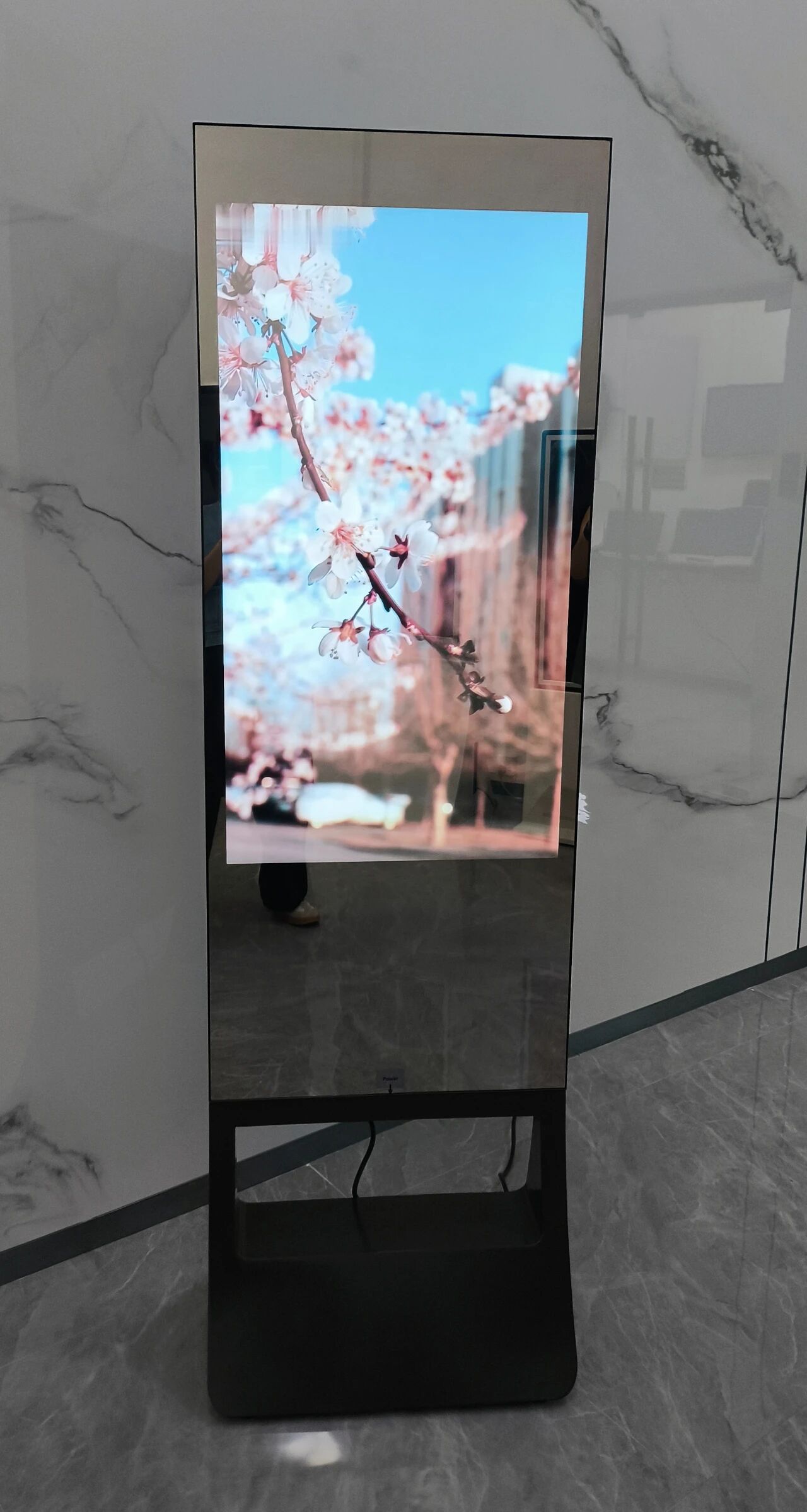
You’ll need a computer monitor or TV, a Raspberry Pi or similar device, and a frame for your smart mirror. If you want touch controls, add an IR Touch Overlay. Make sure the SMART Mirror app works with your device, whether you use Windows, Mac, iOS, or Android.
Connecting Multiple Devices
You might want to connect more than one device to your smart mirror. This is great for group work or family activities. To do this, turn on Moderator mode or allow unlimited connections in your app settings. Use the grid view to see everyone’s shared screens at the same time. These flexible screen sharing options help you manage busy classrooms or lively meetings.
Managing Privacy and Notifications
Keeping your information safe matters. Leading smart mirror apps use strong privacy features. Here’s a quick look:
Feature | Description |
|---|---|
Protects your screen content during sharing. | |
Secure Protocols | Uses trusted methods to keep your data private. |
Unique Connection Codes | Only people with the right code can join your session. |
No Data Storage | The app does not save or record your screen content. |
Mindful Sharing | Always share with trusted devices and people. |
You can also set up unattended access for IT admins and use real-time remote control for support. Device management tools help you monitor and support all connected devices.
Optimizing Performance
You want your smart mirror and screen sharing to run smoothly. Try these tips:
Use a strong Wi-Fi connection and keep devices close to the router.
Close apps you don’t need to free up memory.
Lower the screen resolution if you notice lag.
Keep your device software and drivers updated.
Use a wired connection, like USB, for the most stable experience.
If you follow these steps, you’ll mirror your screen with less lag and better quality. Try different methods to see what works best for your space.
Troubleshooting Common Issues
Connection Problems
You might run into connection issues with your smart mirror or screen sharing setup. Don’t worry—most problems have simple fixes. Try these steps if your device won’t connect or keeps dropping:
Plug your display into the network with an Ethernet cable for the best speed.
Turn off power-saving mode on your device. This helps your device work at full power.
Lower your device’s resolution. This can make the image load faster.
Make sure your device and the display use the same Wi-Fi network.
Check that screen sharing is turned on in your device settings.
Restart your phone or tablet to clear out old network info.
Restart the display and wait a few minutes if it doesn’t show up.
Switch Airplane mode on and off to reset your network.
Ask your network admin for help if nothing works.
Tip: Wired connections are usually more stable than Wi-Fi.
Audio/Video Sync
Sometimes, the sound and picture don’t match up. This can make videos hard to watch. Here’s what you can do:
Use a wired network for both your device and the display.
Turn off power-saving mode to keep everything running smoothly.
Lower the screen resolution to help the video keep up.
Start the video on your device before you share it.
Make sure the sound isn’t muted on your device or in the SMART Mirror app.
Network lag can also cause delays. Devices may disconnect and reconnect, which can mess up the timing.
Security and Privacy Concerns
Smart mirrors can collect a lot of personal data, like voice, video, and even health info. You want to keep your data safe. Here’s how you can protect yourself:
Make sure your data gets processed on your device before it goes online. Look for apps that use secure, encrypted connections.
Use mirrors with a switch that lets you turn sensors on or off.
Stay aware of what information your smart mirror collects.
Note: Smart mirrors sometimes use AI. This can raise questions about fairness and privacy.
Improving Stability
You want your smart mirror and screen sharing to work without interruptions. Try these ideas:
Use apps with adaptive bandwidth. These apps adjust to your network speed.
Pick solutions with auto-recovery. If the network drops, the connection comes back on its own.
If you follow these tips, you’ll enjoy a smoother, safer smart mirror experience. 😊
You’ve learned how smart mirrors and screen sharing can make your day easier and more fun. Smart mirrors help you check emails, play music, and even boost security with face detection. When you pick an app, look for good compatibility, low latency, and easy setup. Here’s a quick guide:
Criteria | What to Look For |
|---|---|
Compatibility | Works with your device |
Resolution | Clear picture, smooth video |
Security | Strong encryption, safe sharing |
Try the SMART Mirror app for teamwork or class. If you want to dig deeper, check out Smart Mirror Resource or troubleshooting guides for more help. 😊
FAQ
What is a smart mirror?
A smart mirror shows your reflection and displays helpful info like weather, news, or reminders. You can use it to check your schedule, play music, or even control smart home devices.
Can I use any device for screen sharing?
Most smart mirrors support popular devices like phones, tablets, and laptops. You just need to check if your device supports AirPlay, Google Cast, or Miracast.
Is screen sharing safe?
Screen sharing is safe if you use trusted apps and secure networks. Always share your screen with people you trust. Look for apps with encryption and privacy controls.
Why is my smart mirror lagging?
Slow Wi-Fi or too many open apps can cause lag. Try moving closer to your router, closing unused apps, or lowering the screen resolution for smoother sharing.
How do I keep my smart mirror private?
You can set strong passwords, use unique session codes, and turn off sensors when not needed. Always check privacy settings in your smart mirror app.
See Also
Ultimate Guide to Creating a Raspberry Pi Smart Mirror
Creating High-Quality Touch and Non-Touch LCD Mirror Displays
Next-Gen Interactive Screen Technologies Set to Emerge in 2026
Comprehensive Instructions for Setting Up Touch Screen Kiosks
