How to Set Up and Use Interactive Touch Screen Digital Signage in 2026
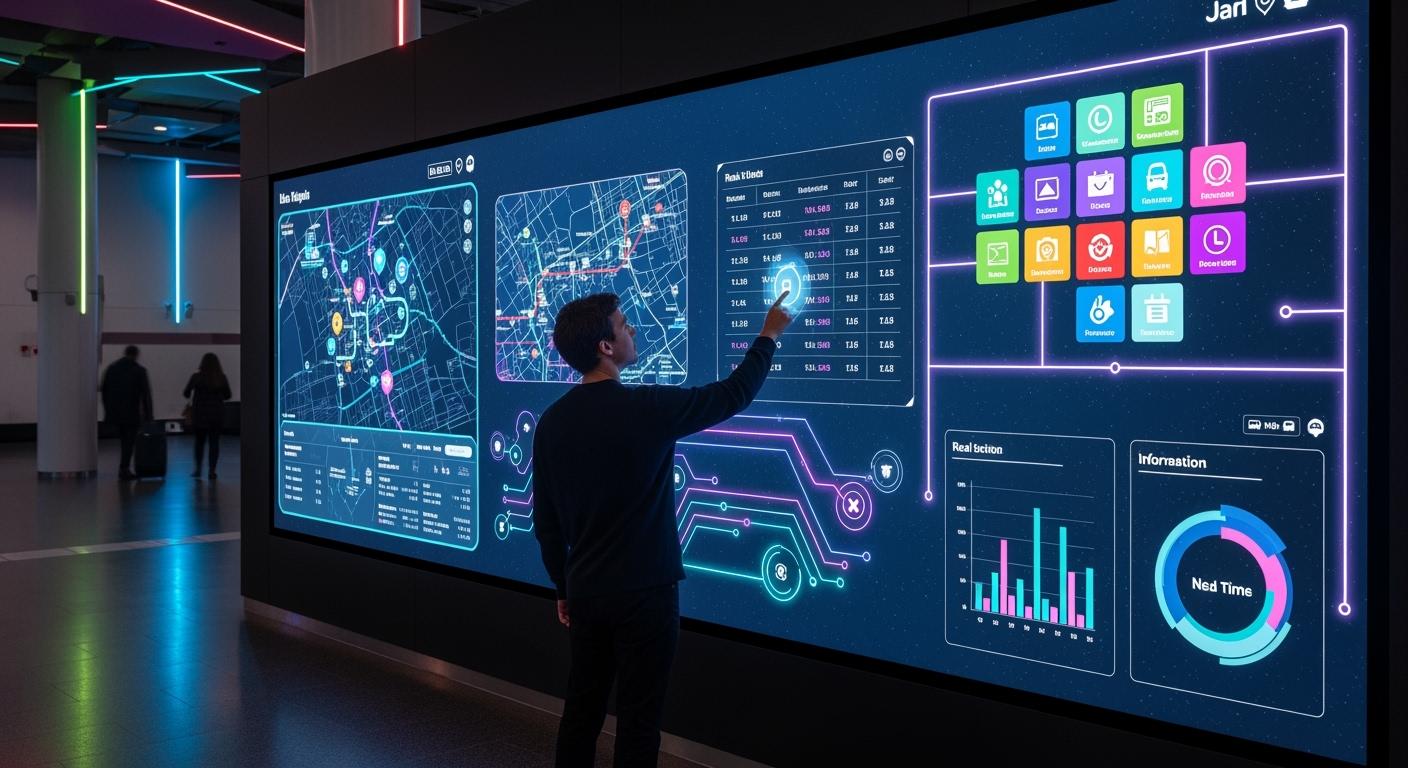
You can set up interactive touch screen digital signage that reacts to every touch. It provides you with information right away and is easy to use. Choosing the best hardware and software is crucial for a good system. The interactive features of touch screen digital signage allow you to connect with customers effectively. In 2026, advancements in technology will make interactive digital signage more affordable than ever.
Shenzhen TopAdkiosk Display Technology Co., Ltd.
Add.: 2F, Bldg 10, Changfeng Industrial Park, Dongkeng, Fenghuang, Guangming, Shenzhen, China 518132
Mobile/WHATSAPP: 86-138 25769658
Email: marketing@topadkiosk.com topadkiosk@gmail.com
Skype: pghenry1
Wechat: adkioskhenry
English Web.: http://www.topadkiosk.com/
https://www.topkioskdisplay.com/
http://www.ad-kiosk.com/
https://www.toplcddisplay.com/
http://www.multitouchdigitalsignage.com/
https://www.youtube.com/channel/UCYVYNJHxLVEcQD8fuUxXNTA/videos?view_as=subscriber
https://www.facebook.com/TOPADKIOSKSHENZHEN/?ref=bookmarks
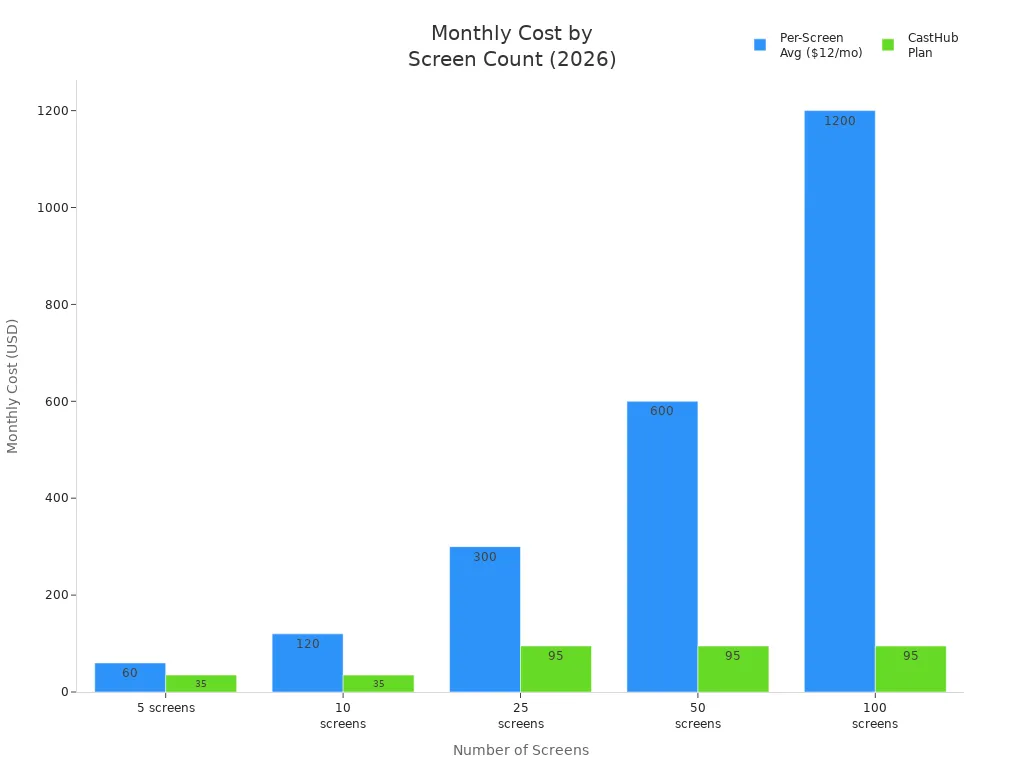
Modern platforms can help you save up to 92% on software costs as you add more screens. If you follow the right steps, you can create a seamless interactive experience with touch screen digital signage for any location.
Key Takeaways
Pick the best hardware for your touch screen. Bigger screens with 4K resolution are easier to see. High brightness helps people view the screen well.
Use a cloud-based software platform to control your digital signage. This lets you update screens from far away. You can manage many screens in one place.
Make layouts that are easy to touch. Use big buttons and clear menus. This makes it simple for users and helps them interact more.
Change content often so it stays new and fun. Use scheduling tools to set updates by time or audience. This keeps things interesting for everyone.
Use strong security steps to keep user data safe. Make sure the system is protected. Check the system often and train staff to stay safe.
Choose Hardware for Interactive Touch Screen Digital Signage
Select the Right Touch Screen
Start by picking a screen that fits your space. Think about who will use it. Bigger screens are better in busy places. They catch people’s eyes and are easy to see. A 4K screen shows clear and sharp images. This helps people see details and interact with the screen. Brightness is important if you use the screen outside. Pick a screen with at least 1000 nits. This makes it easy to read in sunlight.
Here is a table with key specs for busy places:
Specification | Importance |
|---|---|
Screen Size | Bigger screens are easier to see. |
Resolution | 4K screens show sharp and clear images. |
Brightness | Bright screens are easy to read. |
Connectivity | Wi-Fi, HDMI, and USB help update content. |
Interactive Features | Touch screens let people use the display. |
Durability | Strong screens last longer and resist damage. |
Energy Efficiency | Using less power saves money and energy. |
Capacitive and infrared touch screens are strong and last long. Capacitive screens can handle lots of touches and look clear. Infrared screens last even longer and are good for public places.
Tip: The Elo 3204L 32-inch touch screen can handle 40 touches at once. It is made to work all day and night.
Connect Media Player and Display
Connect your media player to the screen to show content. Most people use HDMI for video. USB is used for extra devices. Wi-Fi lets you update content from anywhere. Ethernet gives a steady connection for updates.
Wi-Fi: Lets you manage content from far away.
Ethernet: Good for steady and fast updates.
HDMI: Connects the player to the screen.
USB: Lets you add more media.
Pick a media player that works with your screen’s resolution. Make sure it supports interactive features. Hide cables and keep connections safe.
Install and Mount the Screen
Install your screen so everyone can use it safely. Wall mounts save space and look tidy. Floor stands are good for open spaces. Mount screens at a height that is easy for wheelchair users. Keep the screen no higher than 40 inches from the floor. Leave space around the screen so people can walk up and use it.
Put screens between 27 and 80 inches from the floor.
Wall-mounted screens should be less than 4 inches from the wall.
Leave at least 30 by 48 inches of space on the ground.
Add braille and raised graphics to help everyone.
Note: Do not use flashing content. Use big, bold text with strong contrast to follow ADA rules.
When you set up your interactive touch screen digital signage, you make it safe and easy for everyone to use.
Set Up Digital Signage Software
Setting up the right software is an important step for interactive touch screen digital signage. You need a platform that helps you control content, supports touch features, and keeps your system safe. In 2026, cloud-based solutions let you control screens from anywhere.
Pick Cloud-Based Signage Platforms
You should pick a cloud-based platform for your digital signage system. Cloud platforms let you control many screens at the same time. You can change content from your office or your home. These platforms also help you add more screens as you grow.
Here is a table comparing top cloud-based platforms in 2026:
Platform | Key Features | Pros | Cons |
|---|---|---|---|
SaaS, hardware agnostic, offline playback, scheduling | All premium features, unlimited support | None mentioned | |
OptiSigns | Cloud management, scheduling, user access control | Centralized management, quick deployment | Limited creative tools |
Intelligent Digital Signage | Remote publishing, user permissions | Remote updates, centralized management | Limited design tooling |
Broadsign Engage | Cloud publishing, workflow controls, integrations | Content approvals, multi-location support | Heavy setup for small teams |
OnSign TV | Browser workflow, media playlists, real-time updates | Centralized control, remote management | None mentioned |
Most cloud platforms give you:
One place to control all screens.
Remote checks and fast updates.
User access control for better safety.
Lower costs with health checks and alerts.
You can pick NowSignage if you want all features and strong support. OptiSigns is good for fast setup and easy use. Broadsign Engage works well for big networks with lots of screens.
Set Up Interactive Touch Screens with Software
After you choose your platform, you need to set up interactive touch screens with the software. Start by putting the software on your media player or display. Most platforms give you an easy app or web link. You log in with your account and connect your screen to the content system.
You can use either proprietary or open-source software. Here are some differences:
Open-source software gives you full control and lets you change features. You do not pay high license fees.
Proprietary software is easier to set up and comes with support. You may pay for licenses and get less freedom.
Commercial platforms often cost less for most uses and work well.
To use touch features, make sure your software supports interactive layouts. You can add buttons, menus, and forms that react to every touch. Most platforms let you drag and drop these into your content. Test each touch spot to see if it works right.
Tip: Use a platform that lets you update screens from far away. This way, you can change content or fix problems without going to each screen.
Configure Security and Updates
Security is very important for any digital signage system. You must protect user data and keep your screens safe from threats. Here are the main security features you should set up:
Description | |
|---|---|
Data Encryption and Secure Data Transfer | Protects information during transmission using TLS/SSL. |
User Authentication and Access Controls | Only lets authorized users access the system. Use strong passwords and multi-factor authentication. |
Real-Time Monitoring and Incident Management | Sends alerts if something goes wrong. Helps you respond quickly. |
Network Security Best Practices | Use secure Wi-Fi and network segmentation to block unauthorized access. |
Compliance with Data Privacy Regulations | Follow laws like GDPR. Handle user data responsibly and show privacy notices. |
Automated Software Updates for Security | Keep your software up to date to fix new security risks. |
Employee Training on Security | Teach your team about privacy and how to report problems. |
You should also check that your platform supports automatic updates. This keeps your system safe without extra work. Make sure you set up user roles and permissions. Only trusted people should change content or settings.
Cloud-based platforms help you follow privacy laws. They use less data, clear privacy notices, and strong security. If you collect any data, tell users and keep it safe.
Note: Always use strong passwords and change them often. Teach your staff to spot and report security problems.
When you set up digital signage software the right way, you make a safe, interactive experience for everyone. You can control content, use touch features, and protect your system easily.
Manage Interactive Content and Layouts
Create Touch-Friendly Layouts
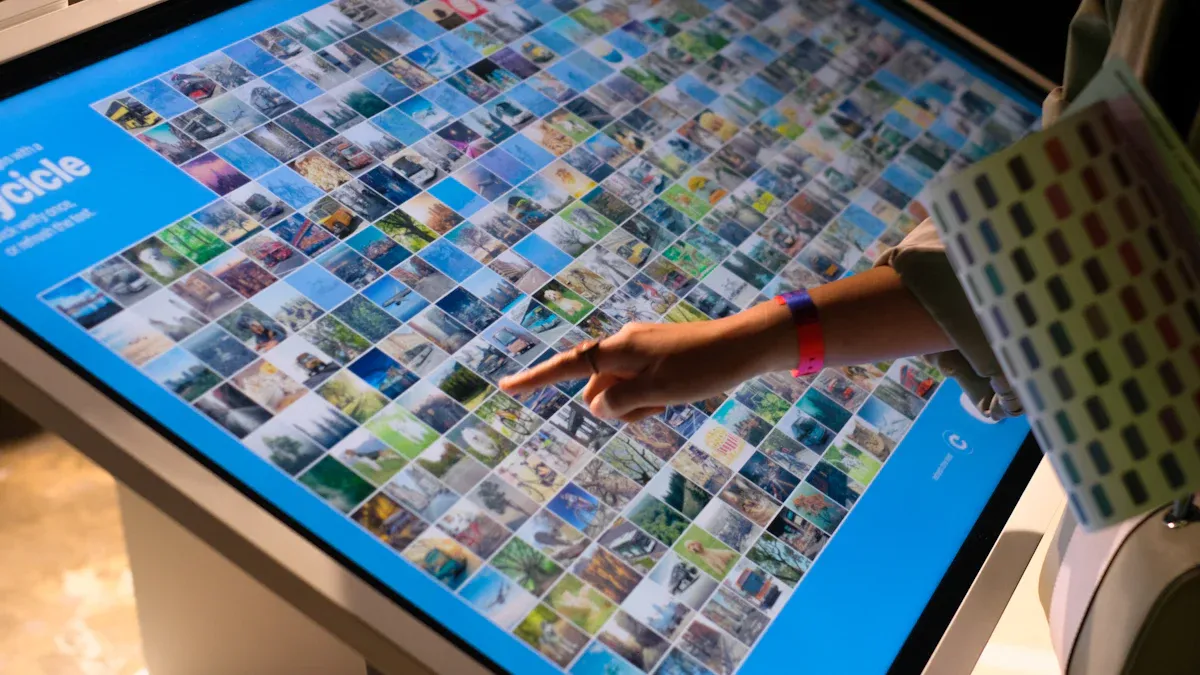
You need to make layouts that are easy to use. Large buttons help everyone use the screen. Clear menus stop confusion. Keep space between touch targets. This helps users not press the wrong item. Fast feedback shows the screen got their touch. Good navigation helps people find things quickly.
Here is a table with important design principles for touch-friendly layouts:
Design Principle | Description |
|---|---|
Visual Hierarchy and Progressive Disclosure | Guide attention with clear layers of information. |
Touch Target Size and Spacing | Make buttons big enough and spaced out for easy use. |
Response Time and Feedback | Give instant feedback when users interact with the screen. |
Intuitive Navigation and Way-Finding | Help users move through content and know where they are. |
If you use these ideas, you make a better experience for everyone.
Schedule and Publish Content
You can use scheduling tools to show content at the right time. These tools let you set rules for different groups or times. You do not need to update screens by hand. Rule-based scheduling keeps your content fresh. Workflow management helps many people update content.
Feature | Description |
|---|---|
Rule-based scheduling | Show content based on time, location, or audience. |
Workflow management | Let many users update and schedule content together. |
Templates | Use ready-made layouts to reach the right people at the right time. |
Automation tools | Set up content to change for events or emergencies. |
Efficiency | Save time and avoid mistakes with automatic updates. |
Flexibility | Change content quickly to match trends or needs. |
Digital signage can run on its own. You always show the right message.
Design for User Engagement
You should make content that gets people to interact. Polls and quizzes let users share opinions or test knowledge. Gamified content adds fun and rewards. This makes people want to join in. Storytelling guides users through a journey. It helps them remember information.
Here are some strategies for engaging content:
Strategy | Description |
|---|---|
Engaging Interactive Content | Turn displays into experiences that invite exploration. |
Visual Design and Branding | Use consistent colors and logos for easy recognition. |
Storytelling Through Interaction | Lead users through a story to keep their attention. |
Track how people use your content. Count how many touch the screen or answer questions. See how long they stay on each page. Collect feedback with surveys. Measure how your content changes sales or wait times. This helps you make your digital signage system better and more useful.
Ongoing Management and Troubleshooting
Test Touch Functionality
You need to keep testing your interactive touch screen digital signage. This helps it work well all the time. Let real visitors try the screen. Watch how they use it. See if they get confused or miss any buttons. If you notice problems, change your design. Check your screens every month to make sure they are still accurate. The touch points should match what is on the display. Look at system logs for errors or warnings. Check for new software updates and install them if needed. Use analytics to see if users have trouble with some features. Every few months, check the hardware and make sure the screen is safe and tight.
Monitor and Maintain Signage
You should always watch and take care of your digital signage system. This helps you stop problems before they get big. Remote monitoring tools let you see all your screens from one place. You can manage content, check device health, and fix problems without going to each screen. You can update software and solve issues from far away. This means less downtime and keeps your network safe. You also choose when to send updates. This lets you test them before they go to every screen.
Benefit | Description |
|---|---|
You can manage and watch all displays, players, and content from one spot. This makes things easier. | |
Real-time Monitoring | You can check device status and fix problems without being there. |
Remote Updates and Troubleshooting | You can update and fix things from far away. This means less downtime and less need for tech staff. |
Enhanced Security | Watching all the time helps you find threats fast. This keeps your signage network safe. |
Control over OS and Software | You can test updates before sending them out. This lowers the risk of bugs or problems. |
Train your staff to upload and schedule content. They should know how to restart screens and check internet connections. Make sure they can use reports to see if content works well. Give each team member the right access level. This keeps your system safe.
Troubleshoot Common Issues
You might have some common problems with interactive digital signage. Use this table to find out what is wrong and how to fix it:
Issue Type | Symptoms | Common Causes | Solutions |
|---|---|---|---|
Performance Degradation | The screen is slow or animations do not move smoothly. | The browser cache is full, memory leaks, network problems, or too many apps running. | Restart on a schedule, clear the cache, check the network, turn off extra apps, and check installed software. |
Touch Input Accuracy Problems | Touches do not work right or need many tries. | The screen needs calibration, the protector is in the way, there is electrical noise, or the screen is damaged. | Recalibrate the screen, change the protector, move the device, or replace broken parts. |
Content Update Failures | New content does not show up or old content stays. | The network is down, content is cached, there is not enough storage, or there are software bugs. | Check the network, clear the cache, free up space, restart the software, or call support. |
You can fix most problems by restarting the device, checking cables, or updating software. If you still have trouble, ask your platform’s support team for help. Regular checks and good training help your interactive signage work well.
You can set up interactive touch screen digital signage by taking simple steps. First, pick the right hardware for your needs. Next, install secure software to protect your system. Then, design layouts that make people want to use the screen. Keep your displays interesting by updating them often with new content.
Centralized remote management and strong security help you earn trust. These features keep your system working well.
Use commercial-grade screens for better quality.
Install screens at heights everyone can reach.
Update content often so people stay interested.
Best Practice | Description |
|---|---|
Content Updates | Keep messages fresh and relevant to get attention. |
Implement Interactivity | Let users control what they see for more engagement. |
Try interactive solutions in 2026 to make experiences people remember. This helps your brand look better to everyone.
FAQ
How do you clean an interactive touch screen safely?
Use a soft cloth that does not leave lint. Wet it with water or a cleaner made for screens. Do not spray liquid right on the screen. Never use strong chemicals or rough things.
Can you update content remotely on digital signage?
Yes, you can change content from anywhere with cloud-based platforms. Log in, pick your screen, and upload new content. Remote updates save time and keep displays new.
What should you do if the touch screen stops responding?
Restart the device first. Check all cables and connections. If it still does not work, recalibrate the screen or ask support for help. Regular checks stop touch problems.
Is interactive digital signage accessible for everyone?
You can make signage easy to use by adding big buttons and clear text. Mount screens where everyone can reach them. Add braille and audio cues for people with disabilities.
How often should you check for software updates?
Check for updates every month. Automatic updates keep your system safe and working well. Always read update notes before you install them.
See Also
A Comprehensive Guide to Setting Up Digital Signage
Top Touch Screen Kiosks Available in 2026
Detailed Instructions for Installing Touch Screen Kiosks
