School Digital Signage Explained for Educators and Administrators
Add.:https://www.youtube.com/watch?v=M19NwsalCVQ 2F, Bldg 10, Changfeng Industrial Park, Dongkeng, Fenghuang, Guangming, Shenzhen, China 518132
Mobile/WHATSAPP: 86-138 25769658
Email: marketing@topadkiosk.com topadkiosk@gmail.com
Skype: pghenry1
Wechat: adkioskhenry
English Web.: https://www.topkioskdisplay.com/
http://www.ad-kiosk.com/
https://www.toplcddisplay.com/
http://www.multitouchdigitalsignage.com/
https://www.youtube.com/channel/UCYVYNJHxLVEcQD8fuUxXNTA/videos?view_as=subscriber
https://www.facebook.com/TOPADKIOSKSHENZHEN/?ref=bookmarks

School digital signage uses screens all over your school. These screens share important news, updates, and alerts. You can see these screens in hallways, cafeterias, and entrances. In the United States, 87% of K-12 schools use this technology to talk to people.
Modern systems let you change information right away.
You can keep everyone updated without using paper.
Misconception
Clarification
Modern Content Management Systems are easy to use and do not need advanced tech skills.
You can make your school's communication better by learning how digital signage works. For more information, go to https://www.topkioskdisplay.com/.
Key Takeaways
Digital signage helps schools share news fast and easy. It makes communication better for everyone.
You do not need special skills to use digital signage. Modern systems are simple and easy to use.
Digital signs help students feel more involved. They show achievements and events. This helps the school community feel closer.
Using digital signage saves resources. It cuts down on paper waste and printing costs. It also gives updates right away.
In emergencies, digital signage shows clear alerts on all screens. This helps everyone know how to stay safe.
What Is School Digital Signage?
Definition and Main Features
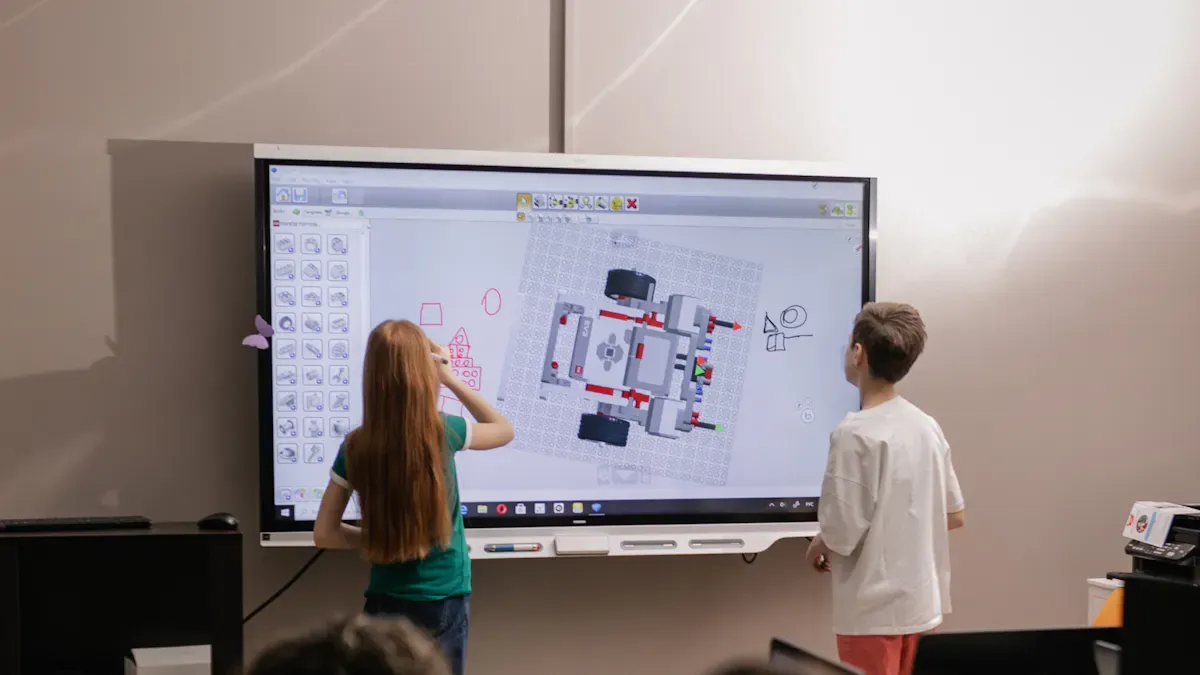
School digital signage is a group of screens around your school. These screens help you share news with students, staff, and visitors. You do not have to stop anyone’s day to give them updates. You can put these screens in hallways, cafeterias, entrances, or outside. Educational technology groups explain school digital signage in different ways:
Category | Description |
|---|---|
One-way displays | Non-interactive screens showing scheduled content, announcements, or slideshows |
Interactive touchscreens | User-controlled exploration of recognition databases, directories, or information |
Networked systems | Multiple displays managed centrally with coordinated content |
Standalone units | Individual displays operating independently |
Indoor displays | Standard brightness screens for interior common spaces |
Outdoor displays | High-brightness, weatherized units for exterior locations |
You can use digital signage to show announcements, videos, slideshows, and quizzes. These features make your work easier:
Remote Management: You can change screens from anywhere at school.
Content Scheduling: You set messages to show at certain times or events.
Safety and Crisis Communication: Screens show emergency alerts like "LOCKDOWN."
User-Friendly Interface: You use simple software to manage content.
Integration with Other Systems: You connect screens to learning tools or social media.
Interactive Features: You can use polls or quizzes to get students involved.
Analytics and Reporting: You see which messages work best.
Instant Alerting and CAP Integration: You send updates to all screens fast during emergencies.
Visual Wayfinding: Screens show how to leave the building safely.
Silent Notifications: You give instructions without loud sounds.
You can trust digital signage to share news fast and keep people safe. You do not need to be a tech expert to use these systems.
Digital Signage vs. Traditional Signage
You might wonder how digital signage is different from regular signs. Digital signage lets you change messages quickly and saves resources. You can update screens from one computer. With regular signs, you must print new posters and hang them up each time. This takes a lot of time and paper.
Digital signage lets you update messages right away.
Regular signs need new printing and hanging for every change.
Digital signage can show videos and interactive things to get attention.
Nielsen Research (2023) says 80% of groups who switched to digital signage saw better results. They shared news faster and made messages fit their needs.
Digital signage and regular signs use resources differently:
Digital Signage | Traditional Signage | |
|---|---|---|
Paper | Minimal | High |
Labor | Low | High |
Upfront Cost | High | Low |
Long-term Cost | Low | High |
You spend less time and money over time with digital signage. You help your school use less paper and keep news up to date. You also make your school safer and more fun for everyone.
Uses of Digital Signage for Schools
Announcements and Events
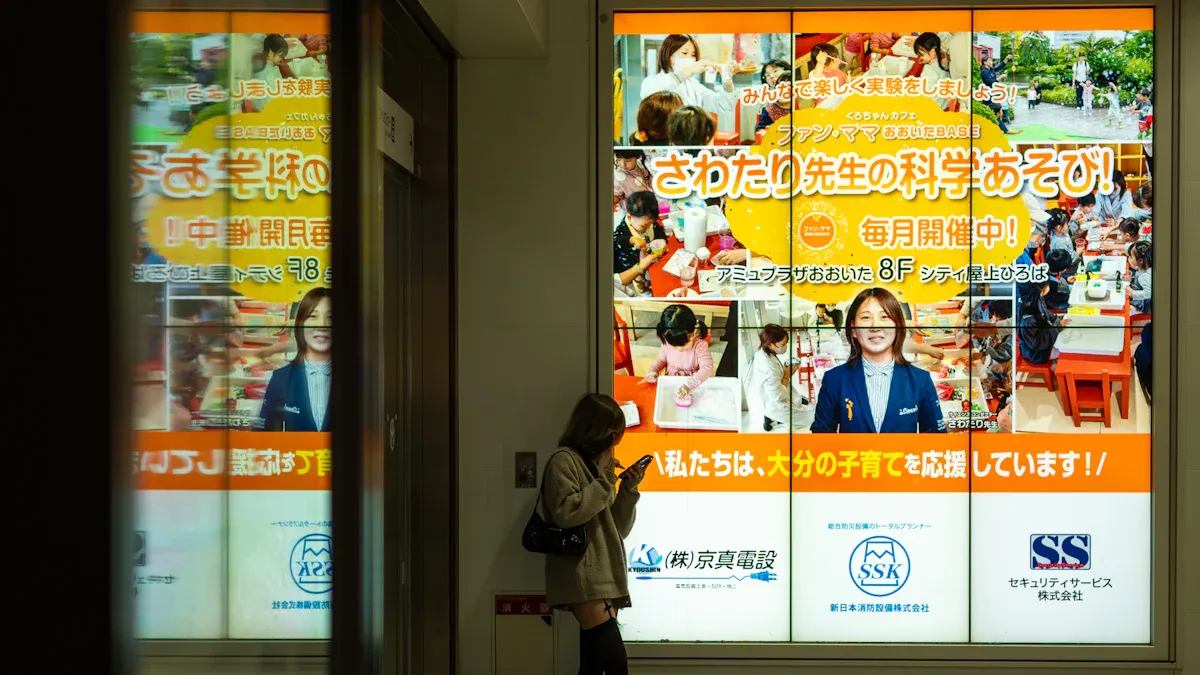
Digital signs help you share news and talk about events. You can put screens at the front door, in hallways, and in the cafeteria. These screens show daily schedules, lunch menus, and weather. They also tell people about assemblies, club meetings, and sports games. You can change the information on the screens right away. This means your messages are always up to date.
Evidence Source | Description |
|---|---|
MVIX | Digital signage helps K-12 schools share timely updates, promote upcoming events, and send emergency notifications. It displays campus maps, event listings, emergency alerts, dining menus, social media feeds, and other important information. |
Kuusoft | Digital signage allows schools to share emergency notices, security reminders, educational goals, and extracurricular activity information, enhancing visibility and consistency. |
You can use videos, GIFs, and quizzes to make announcements fun. These tools grab attention and help more people see your messages.
Student Recognition and Engagement
Digital signs are a great way to celebrate students. You can show off their good work and share sports scores. This makes students feel happy and proud. Research says digital signs get up to 400% more views than regular signs. People also remember more information from digital signs. When you use digital content, you help build a strong school community.
Show student artwork or writing
Announce honor roll and awards
Share photos from school events
Navigation and Daily Information
It can be hard to find your way in a big school. Digital signs with maps and lists help you find classrooms and offices. They also show where events are happening.
Finding your way around a big school is not easy, especially if you are new. Interactive wayfinding kiosks give you step-by-step directions to help you get around.
You can also see bus times, staff names, and paths for people who need help moving around. This information helps everyone feel sure about where to go.
Emergency Alerts and Safety
Digital signs help keep your school safe. If there is an emergency, you can use any screen to show alerts. These signs are easy to see and do not get lost in noise. Everyone can see what to do right away. Visual alerts help all students, even those who cannot hear well, stay safe.
Show lockdown or evacuation steps
Share health and safety tips
Give real-time emergency updates
School digital signage can show both still and moving content. You can use videos, GIFs, and interactive things to make your messages clear and interesting.
How School Digital Signage Works
Basic Technology Overview
Digital signs help you share news at school. These signs have three main parts: screens, media players, and software. The screens show messages with bright colors and clear pictures. Many schools use displays that look good inside and outside. Media players let the screens show videos, photos, and slides. Some screens have media players built in, so you do not need extra boxes. The software helps you pick what goes on each screen.
Here is a table that lists the main parts of a digital signage system:
Component | Description |
|---|---|
Display | Modern screens with high resolution, bright images, and energy-saving features. |
Media Player | Small device or built-in chip that sends content to the display. |
Content Management System | Software that helps you create, schedule, and update messages from anywhere. |
These tools help your school be safer and better for learning.
Content Management and Remote Control
You use a content management system to control the signs. This system lets you manage all screens from one computer. You can send the same message to every screen or pick different ones for each spot. You do not have to walk to each screen to change things.
Feature | Description |
|---|---|
Centralized Content Management | Control messaging across multiple locations easily. |
Flexible Scheduling | Schedule updates to ensure timely and relevant content across campus screens. |
Real-time Updates | Deliver immediate updates about campus news and events. |
Remote Monitoring | Monitor displays from a distance to ensure they are working correctly. |
This system helps you keep everyone safe and informed.
Updating and Scheduling Content
You can change digital signs fast. The software lets you plan messages for special days or events. You can set messages to show at certain times and stop when you want. This keeps your news fresh and helpful.
Best ways to update and schedule content are:
Connect your digital signage software to your school calendar for automatic updates.
Set messages to expire so old news does not stay on the screen.
Make a plan to create new content often.
Keep messages short and easy to read.
Change content often so people keep paying attention.
Use smart scheduling to show the right message at the right time.
These tools make sure your digital signs always show the most important news.
Benefits of School Digital Signage
Instant Communication
You can share news with your school very fast. Digital signs let you change messages right away. If lunch changes, you can update the menu in seconds. You can also tell everyone about schedule changes or weather alerts quickly. People see the new message as soon as you send it. This helps students, staff, and visitors always know what is happening.
Engagement and School Spirit
Digital signs help your school feel like a team. You can show off student awards and sports wins. You can also highlight special events and club activities. When you display student work, it makes everyone proud. This helps students want to join in more. The table below shows how digital signs help your school community:
Benefit Description | Source |
|---|---|
Promotes school events, achievements, and extracurricular activities, fostering community and motivating student participation. | Digital Signage for Schools: Enhancing Learning and Campus Communication |
Displays school values, achievements, and unique identity, boosting morale and pride among students. | |
Highlights student achievements and contributions, fostering a positive school culture. | Digital Signage for Schools: Complete 2025 Guide and Provider Rankings |
Features local news and community events, showcasing school involvement and community engagement. | |
Celebrates school uniqueness and achievements, fostering pride and belonging. | Beyond the Bulletin Board: Why Teachers Are Ditching Paper for Digital Signage |
Safety and Emergency Alerts
School digital signage helps keep everyone safe. Digital signs send emergency alerts to every screen in the building. These alerts reach classrooms, hallways, and other places in seconds. The messages are clear and easy for all ages to understand. You can connect the system to emergency tools for fast evacuation notices. The table below shows how digital signs make schools safer:
Safety Feature | Description |
|---|---|
Centralized control | Sends emergency notifications to all displays, even during use |
Clear messaging | Makes sure all students understand what to do in an emergency |
Fast alerts | Broadcasts emergency alerts to every display in seconds |
Campus-wide coverage | Delivers visual messages to all areas for timely information |
Cost and Resource Savings
Using digital signs saves your school money and supplies. You do not need to print posters or flyers for every update. This saves paper, ink, and printing costs. You also save time because you can update all screens from one spot. Here are some ways schools benefit:
Fewer costs for ink and printing
Time saved with instant updates
Less work needed to put up and take down signs
You can see your savings by tracking money, time, and better communication. Many schools have fewer safety problems and less confusion after using digital signs. This helps everyone learn better and feel safer.
Getting Started with Digital Signage
Assessing Needs
You can start your digital journey by thinking about your goals. Ask yourself what you want to achieve with digital signs. Do you want to share daily news, celebrate students, or send emergency alerts? Next, look at your school and decide where you need displays. Busy hallways, entrances, and cafeterias are good choices. Choose the right hardware for each spot. Think about screen size, brightness, and how people will see the display. Plan how you will create and manage content. Use simple tools that let you schedule and update messages. After you set up your system, check how well it works. Ask for feedback and make changes to improve your strategy.
Steps to assess your needs:
Choose the best locations for your displays.
Select hardware that fits your space.
Plan for easy content creation and management.
Set up and monitor your displays.
Review and improve your approach regularly.
Choosing Solutions
When you pick digital signage solutions, look for displays that last a long time. Commercial-grade screens can run for many hours each day. Make sure your network is strong and reliable. Wired connections often work best for digital displays. Choose software that is easy for staff to use. A good content management system lets many people create and update messages. You should also plan how you will make and approve content. Set a budget that covers all your needs, so you do not run out of resources.
Tip: Train your staff to use the system. This helps everyone feel confident and keeps your digital signs fresh and useful.
Implementation Tips
You may face some challenges when you start using digital signage. Keep your content interesting and up to date. Make a schedule for new messages so your screens never look old. Use templates to keep your displays looking professional. Pay attention to what your audience likes. Use analytics to see which messages get the most views. Give your staff training and support. Break information into small parts to make learning easy. Use scheduling tools to show the right message at the right time, like class schedules or emergency alerts.
Getting started with digital signage displays can help your school share news, keep people safe, and build a strong community.
You have learned that school digital signage can change how schools share news and stay safe. Digital signs help you tell people important things, celebrate students, and give safety instructions during emergencies. Studies say digital signage helps students pay attention, learn better, and feel safer at school.
You can send fast alerts and easy steps during drills or real emergencies.
Digital signs use less paper and are simple to update.
One system controls all screens, which saves time and work.
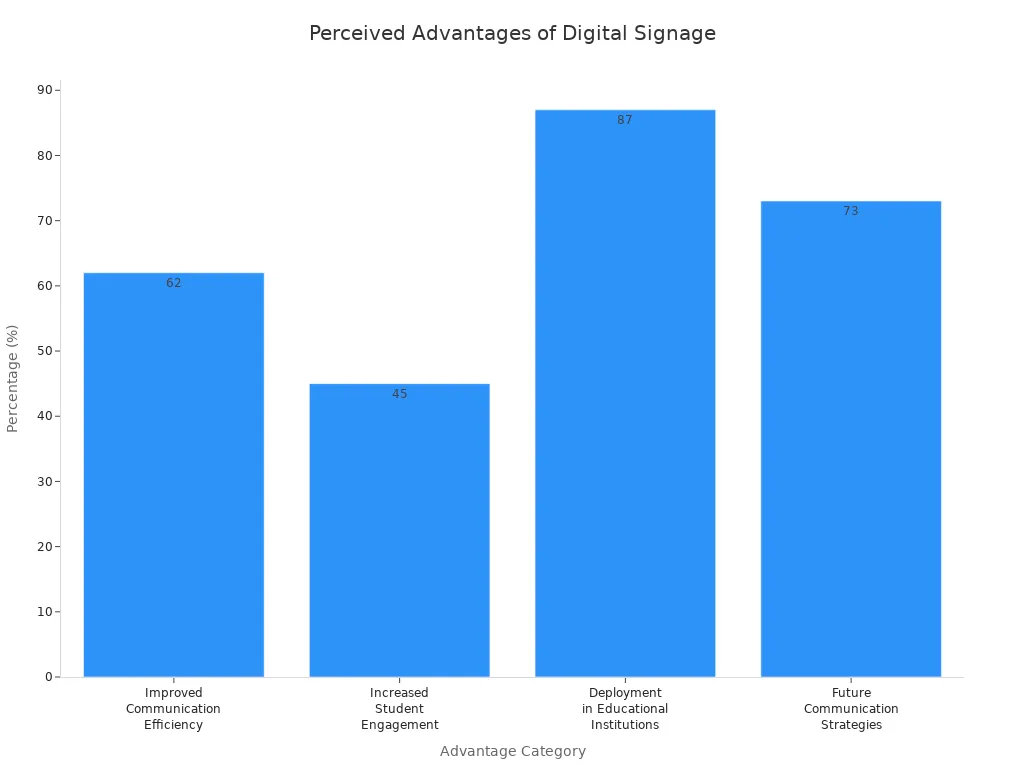
Evidence Type | Description |
|---|---|
Improved Communication Efficiency | 62% of schools said they share news better after using digital signage. |
Increased Student Engagement | Adding interactive parts can help students pay attention up to 45% more. |
Deployment in Educational Institutions | About 87% of schools now use digital signage systems. |
Future Communication Strategies | 73% of schools think digital signage is important for future plans. |
If you want to begin, make a simple plan for your content and pick staff to run the screens. Fun messages and clear steps will help everyone in your school know what is happening and feel part of the group.
What Is School Digital Signage and How Does It Work?
School digital signage refers to the use of digital displays (LCD, LED, or touchscreen kiosks) placed throughout a school campus to communicate information, announcements, emergency alerts, schedules, and educational content. It replaces traditional bulletin boards, paper posters, and hallway flyers with dynamic, centrally managed screens.
Digital signage in education serves students, staff, and visitors. Common locations include main entrances, hallways, cafeterias, gymnasiums, libraries, and administrative offices.
📺 How School Digital Signage Works
A school digital signage system operates through a simple, four‑component architecture:
text
Content Creator → Content Management System (CMS) → Media Players → DisplaysContent Creation – School administrators, teachers, or designated staff create messages, schedules, event posters, lunch menus, or emergency alerts. Content can include text, images, videos, countdown timers, social media feeds, weather widgets, and live data (e.g., bus delays).
Content Management System (CMS) – A cloud‑based or on‑premises software platform where users upload, schedule, and publish content. The CMS allows:
Scheduling content to appear at specific times (e.g., lunch menu only during lunch periods).
Assigning different content to different screens (e.g., cafeteria screens show menus, hallway screens show event posters).
Remote management from any computer or mobile device.
User permissions (e.g., principal can post emergency alerts; student council can post club meetings).
Media Players – Small devices (or built‑in “SoC” – system‑on‑chip) connected to each display. They receive content from the CMS over the school’s network (Ethernet or Wi‑Fi) and play it on the screen. Common players include BrightSign, Android‑based boxes, or integrated players in commercial displays (e.g., Samsung Tizen, LG webOS).
Displays – Commercial‑grade LCD screens (typically 43″ to 75″) mounted in hallways, lobbies, or cafeterias. Outdoor displays (e.g., at school entrances or bus zones) require weatherproofing (IP65+), high brightness (2,500+ nits), and thermal management.
🏫 Typical Uses in Schools
Location | Content Examples |
|---|---|
Main entrance / lobby | Welcome messages, school mission, daily announcements, upcoming events, visitor information |
Hallways | Class schedules, club meeting reminders, honor rolls, inspirational quotes, safety reminders |
Cafeteria | Daily lunch menus (including allergens), nutrition facts, cafeteria rules, event promotions |
Gymnasium | Game schedules, team rosters, practice times, spirit week countdowns |
Library | New book arrivals, study tips, reading challenges, library hours |
Administrative office | Staff meeting notices, professional development schedules, emergency procedures |
Outdoor / bus zone | Bus delay alerts, weather closures, after‑school activity updates, parent pickup instructions |
✅ Key Benefits for Schools
Instant updates – Change messages across the entire campus in seconds, without printing or posting.
Emergency communication – Immediately display lockdown alerts, weather closures, or safety instructions on every screen.
Cost savings – Eliminate paper, toner, and staff time spent on physical bulletin boards.
Higher engagement – Motion, color, and video capture student attention more effectively than static posters.
Centralised control – One staff member can manage all screens from a single dashboard.
Scheduling – Automatically show morning announcements before school, lunch menus at midday, and after‑activity reminders in the afternoon.
Integration with bell/schedule systems – Some CMS platforms can pull live schedule data (e.g., period changes, room assignments) from the school’s existing systems.
🚀 Getting Started – Simple Steps for Schools
Define your goals – What do you want to communicate? (announcements, menus, safety, schedules)
Choose screen locations – High‑traffic areas where students and staff naturally gather.
Select hardware – Commercial displays (indoor or outdoor), media players, and mounting brackets.
Choose a CMS – Look for education‑friendly features: easy scheduling, user permissions, and templates. Many providers offer discounts for schools (e.g., OptiSigns, Yodeck, ScreenCloud, Rise Vision).
Install & configure – Mount screens, connect players to the network, and set up the CMS.
Train staff – Designate a few people (front office, IT, student leaders) to manage content.
Launch & iterate – Start with a few screens, gather feedback, and expand over time.
💰 Cost Overview (USD)
Component | Estimated Cost |
|---|---|
55″ commercial indoor display | $800 – $1,500 |
Media player (BrightSign / Android) | $200 – $500 |
CMS subscription (per screen/month) | $10 – $30 (school discounts often available) |
Installation & mounting | $200 – $500 per screen |
Total per screen (first year) | $1,200 – $2,800 |
Many schools start with 3–5 screens in key locations and expand as they demonstrate ROI.
🧠 Quick Comparison: Digital vs. Traditional School Signage
Feature | Traditional (Paper) | Digital |
|---|---|---|
Update speed | Days (design, print, post) | Seconds (from a dashboard) |
Cost per change | High (reprinting) | Zero (after hardware) |
Emergency alerts | Not feasible | Instant, campus‑wide |
Student engagement | Low (ignored) | High (motion, colour, video) |
Scheduling | Manual | Automatic (dayparting) |
School digital signage is not just about replacing cork boards – it’s about creating a more informed, connected, and responsive school environment. With cloud‑based management and affordable hardware, even schools with modest budgets can deploy an effective system in just a few weeks.
FAQ
What is school digital signage and how does it work?
School digital signage uses screens to share news and alerts. These screens also show events happening at school. You control what is on the screens with easy software. You can change messages from one computer. The screens update right away all over the school.
Do I need special training to use digital signage?
You do not need special skills to use it. Most systems have simple software for everyone. You can move messages or pictures with drag and drop. Most teachers and staff learn it in just one short lesson.
Where should I place digital signage screens in my school?
Put screens where many people walk by each day. Good places are entrances, hallways, and cafeterias. You can also put them near offices. This helps everyone see new updates.
Can digital signage help during emergencies?
Yes! Digital signage can send alerts to all screens at once. You can show lockdown steps or evacuation maps. You can also share safety tips. Everyone sees the alert right away.
What types of content can I display?
You can show words, pictures, videos, and slideshows. Some systems let you use quizzes or GIFs. You can even add social media feeds. This makes your messages fun and easy to see.
See Also
Understanding Digital Signage And Its Importance Today
Exploring The Significance Of Digital Signage In Business
Step-By-Step Guide To Setting Up Digital Displays
