Simple Tips to Prevent Your LED Wall from Going Black
Shenzhen TopAdkiosk Display Technology Co., Ltd.
Add.: 2F, Bldg 10, Changfeng Industrial Park, Dongkeng, Fenghuang, Guangming, Shenzhen, China 518132
Mobile/WHATSAPP: 86-138 25769658
Email: marketing@topadkiosk.com topadkiosk@gmail.com
Skype: pghenry1
Wechat: adkioskhenry
English Web.: https://www.topkioskdisplay.com/
http://www.ad-kiosk.com/
https://www.toplcddisplay.com/
http://www.multitouchdigitalsignage.com/
https://www.youtube.com/channel/UCYVYNJHxLVEcQD8fuUxXNTA/videos?view_as=subscriber
https://www.facebook.com/TOPADKIOSKSHENZHEN/?ref=bookmarks
You can prevent your LED wall from going black by following a few simple steps. Imagine being in a bustling store when suddenly your LED wall went black. This issue frequently occurs in malls or airports, where a black screen can disrupt daily operations. Typically, these problems stem from power supply failures, wiring issues, or environmental factors. You don’t need any special skills to ensure your display remains functional. For more helpful tips, visit https://www.topkioskdisplay.com/.
Key Takeaways
Check power connections and cables often to stop blackouts. Loose or broken cables cause many problems.
Make sure your LED wall stays cool and dry. Watch the temperature and humidity to stop overheating and water damage.
Update firmware and back up settings often. This keeps your LED wall working well and helps you fix problems fast.
Teach your staff how to solve simple problems. A trained team can fix small issues before they get worse.
Inspect and clean your LED wall on a regular schedule. Taking care of it helps it work better and last longer.
Why Your LED Wall Went Black
If your LED wall turns black, you may wonder why. Many things can cause this problem. Knowing the reasons helps you stop it from happening again.
Power Interruptions
Power problems are a main reason for a black screen. Your display needs steady power to work well. Surge protectors and special circuits help stop overloads. If the power supply stops, the screen goes dark right away. Loose wires or quick voltage drops also make the screen black.
Tip: Always check your power cords and use surge protectors for your LED wall.
Here is a table with common reasons for LED wall blackouts:
Cause | Explanation |
|---|---|
Firm Connections | Loose cables can make the screen black from shaking or unplugging. |
Stable Power Supply | Special circuits and surge protectors stop power problems. |
Keep it Cool | Too much heat can shut down the screen and make it black. |
Software Update | Updates fix bugs but can cause trouble if not tested first. |
Strong Signal Chain | Wrong settings or cables mess up the signal chain. |
Routine Maintenance | Regular checks find problems before they get worse. |
Train Your Staff | People pressing the wrong button often cause black screens. |
Signal or Data Loss
Signal loss can make your LED wall turn black fast. You may have trouble from weak signals over long wires, power issues, or electrical noise. Bad soldering and connector problems also break the signal.
Weak signals over long wires
Power and grounding problems
Signal noise and interference
Bad soldering and connector issues
Software or timing problems
Things like weather, electrical noise, and old drivers can hurt the signal too. If you see flickering or missing pictures, check your signal chain first.
Hardware Failures
Broken hardware can make your LED wall go black. You should check these parts often:
LED modules
Power supply units
Control cards or receiving cards
Data cables or signal connections
Video processor or media player
Problems with power, control systems, or loose cables are common. Checking your LED wall often helps you find problems early.
Environmental Impacts
The environment can cause your LED wall to go black. High heat can break parts and shorten their life. Humidity can rust circuits and cause damage. Water can get inside and cause cracks or rust.
Water causes cracks and rust
You should watch the temperature and humidity to keep your LED wall safe. Keeping it cool and dry stops many problems.
Common Causes of LED Black Screen Issues
Power Fluctuations
Power changes can make your LED wall go black. If the power is not steady, the screen might turn off or show mistakes. Fast voltage changes can hurt the small parts inside. You should use a voltage stabilizer to keep power even. If your LED wall goes black after a storm, check the power first.
Tip: Use a surge protector to keep your LED wall safe from sudden power spikes.
Loose or Damaged Cables
Loose or broken cables often cause the screen to go black. If a connector moves or a cable snaps, the screen may stop working. Here are some facts:
79% of 'no signal' problems come from cable trouble.
Even a tiny gap in a connector can cause big signal loss.
Cables with too much resistance do not work well and can cause blackouts.
Check all cables and connectors often. Change any that look old or bent. Tight connections help your screen work well.
Outdated Firmware or Settings
Old firmware or wrong settings can also make the screen go black. If you use old software, your LED wall may not work with new parts. Problems can happen if the receiver card firmware does not match other cabinets. Software bugs or lost settings can make the screen go black or show mistakes.
Issue Type | Impact on LED Wall Reliability |
|---|---|
Incorrect Screen Configuration | Can cause missing images, wrong alignment, or black spots on the screen. |
Configuration File Loss | May cause lost or bad settings, making repairs take longer and causing more problems. |
Improper Refresh Rate or Grayscale | Can make the screen flicker, flash, or look uneven, hurting how well it works. |
Update your firmware and save your settings often. This helps stop black screen problems.
Overheating or Moisture
Too much heat or water can make your LED wall break faster and go black. High heat makes parts wear out quicker and can cut their life in half. Humidity over 85% makes failures happen 30% more often. In cities near the sea, fixing water damage can cost a lot.
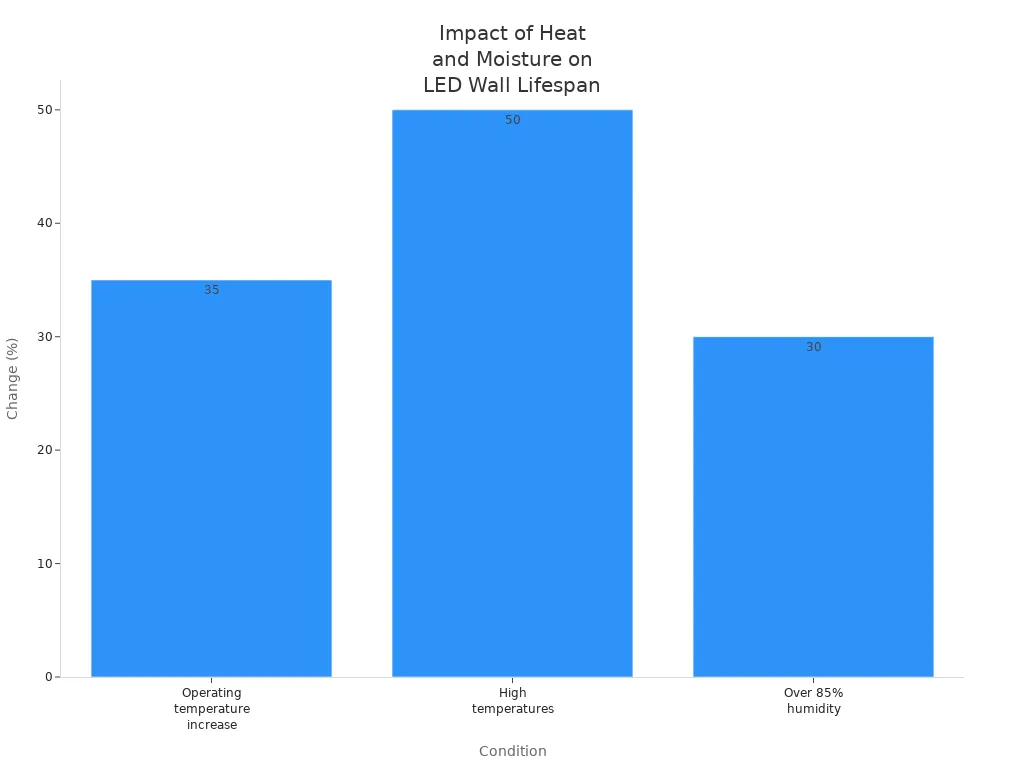
Condition | Effect on Lifespan |
|---|---|
Operating temperature increase | Parts age about 35% faster |
High temperatures | Life can be cut by about half |
Over 85% humidity | Failures happen 30% more often |
Coastal city high humidity | Repairs can cost a lot |
Keep your LED wall cool and dry. Watch for flickering or sudden blackouts. Acting early can save you money and time.
Prevent Black Screen with Power Protection
A strong power system is very important for every led wall. If you want to stop black screen problems, focus on power protection. Power problems are a main reason why a led wall went black. You can avoid these problems by using the right tools and following good steps.
Use Voltage Stabilizers and UPS
Voltage stabilizers and UPS help your led wall work well. They keep your display safe from sudden voltage changes and power loss. Using these devices helps stop black screens and makes your led wall last longer.
Here is a table with good voltage stabilizer and UPS specs for led displays:
Specification | Voltage Stabilizer Details | UPS Details |
|---|---|---|
Input Voltage | AC150-270V (A), AC135-AC270V (B), AC105-AC270 (C), AC80V-AC270V (D) | 150-270 VAC |
Output Voltage | 220V ±10% adjustable | 230 VAC |
Frequency | 50Hz/60Hz | 45-65 Hz |
Efficiency | ≥90% | - |
Power | 3000VA, 5000VA, 8000VA, 10000VA, 12000VA | 1000 VA / 600 W |
Protection | Over Voltage, Under Voltage, Over Loading, Over Temperature | Over Voltage, Under Voltage, Overload, Overheating, Short Circuit |
Delay Time | Long (255s) / Short (5s) | - |
Output Connectors | - | 2 x Schuko |
Wave Form | No additional distortion | Pure Sine Wave |
Noise Level | - | < 10 dB |
Tip: Pick a voltage stabilizer and UPS that fit your led wall. Always check the specs before you buy.
Voltage stabilizers keep voltage steady and protect your led wall from spikes or drops. Surge protectors help by sending extra power safely away. A UPS gives battery backup when the power goes out, so your led wall keeps working and you do not lose data.
Device Type | Functionality | Role in Preventing Blackouts |
|---|---|---|
Voltage Stabilizers | Regulate voltage levels to ensure consistent output despite fluctuations. | Prevents damage from voltage dips or spikes. |
Surge Protectors | Divert excess electricity from surges into the ground. | Protects devices during voltage spikes. |
Uninterruptible Power Supply (UPS) | Provides battery backup during outages, allowing devices to run temporarily. | Prevents data loss and maintains operations during outages. |
Proper Power Connections
You need to connect your led wall power supply the right way. Bad connections can cause flickering, signal loss, or a black screen. Always follow the maker’s instructions for power supplies, control systems, and video processors.
Here are some good steps for safe power connections:
Install all power supplies and control gear as the led wall maker says.
Make sure you have enough power for your led wall.
Use good grounding to stop electrical trouble and signal noise.
For AC connections:
Connect the brown wire to the live spot (“L”).
Connect the blue wire to the neutral spot (“N”).
Connect the yellow-green wire to the ground spot (“G”).
For DC power cables:
Connect the red cable to the positive spot (V+).
Connect the black cable to the negative spot (V-).
Note: Check every connection before you turn on your led wall. One loose wire can make your display go dark.
UPS for Network Equipment
Your led wall needs more than just main power. Network gear like routers, switches, and video processors need protection too. If these lose power, your led wall may show errors or go black, even if the main screen has power.
You should plug all network gear into a UPS. This keeps your signal chain strong and helps stop black screens during power loss. A UPS for network gear makes sure your led wall stays on and shows content without stopping.
Put a UPS near your network rack.
Plug all key network gear into the UPS.
Test the UPS often to make sure it works.
A steady power supply for your led wall and network gear is the best way to stop black screens. When you use voltage stabilizers, surge protectors, and UPS, you protect your led wall and keep it bright.
Cable and Connection Checks
You should check cables and connections often to keep your led wall working well. Many times, led display problems happen because of bad cables or loose plugs. If you look at these parts often, you can stop your led wall from turning black.
Inspect and Replace Cables
Look at every cable in your led display system. Wires that are frayed, rusty, or loose can make your led wall stop working. If you see any damage, change the cable right away. Use a checklist to find problems early.
Status | |
|---|---|
Splicing Check | Pass/NG |
Splicing gaps (tolerance < 5% pitch) | Pass/NG |
Splicing evenness (tolerance < 5% pitch) | Pass/NG |
Power cable socket integrity | Pass/NG |
Signal cable socket integrity | Pass/NG |
Check wires and plugs for signs of damage or wear. Watch for frayed wires, rust, or loose plugs. Fixing these problems early stops bigger issues with your led display.
Check all cables once a month.
Change broken cables fast.
Only use good quality cables for your led wall.
If your led wall turns black, check each cable and plug first. Fixing a cable can often make your led display work again.
Secure All Connections
Make sure every plug in your led display is tight. Loose plugs can make the screen flicker, lose signal, or go black. Always connect cables the right way and use special outlets for your led wall.
Task | Frequency |
|---|---|
Cable & Connector Check | Quarterly |
Make sure all cables are plugged in tight.
Use special outlets for your led wall.
Do not use extension cords.
Check and fix plugs often.
Tight plugs help your led display work well. If you see flickering or the screen goes black, check every plug. Tight plugs stop signal loss and power problems.
Tip: Checking cables and plugs often helps you find problems before your led display stops working. This keeps your led wall bright and safe.
Update and Backup to Prevent LED Black Screen
Keeping your led wall running well means you need to update and back up your system often. These steps help you avoid sudden black screens and make troubleshooting easier if your led wall goes dark.
Regular Firmware Updates
You should check for new firmware for your led wall every few months. Firmware is the software that controls how your led display works. Makers often release updates to fix bugs, add features, or improve stability. If you skip updates, your led wall may show errors or even go black.
Visit the led manufacturer's website to find the latest firmware.
Read the update notes before you start.
Follow the step-by-step guide from the led maker.
Restart your led wall after each update.
Tip: Always test your led wall after updating. If you see problems, you can roll back to the old version.
A table can help you track your update schedule:
Led Wall Location | Last Firmware Update | Next Scheduled Update |
|---|---|---|
Main Lobby | Jan 2024 | Jul 2024 |
Conference Room | Feb 2024 | Aug 2024 |
Backup Configuration Files
Backing up your led wall settings saves you time and stress. If your led wall goes black, you can restore your settings fast. Most led systems let you export configuration files to a USB drive or computer.
Save a backup after every big change to your led wall.
Store backups in a safe place, like a cloud drive or external hard disk.
Label each backup with the date and led wall location.
Note: If your led wall stops working, load your backup file to fix settings quickly.
You should keep at least two copies of each backup. This habit helps you recover from mistakes or hardware failures. Good backups make troubleshooting much easier if your led wall suddenly goes black.
Environmental Care for Black Display Screen
Monitor Temperature and Humidity
You need to keep your LED wall in the right environment to prevent problems. Temperature and humidity play a big role in how well your display works. If the room gets too hot or too humid, your LED wall may stop working or show errors. Most manufacturers recommend these ranges:
Temperature: 68-77°F (20-25°C)
Humidity: 40-60%
Use a digital thermometer and hygrometer to check these levels every day. If you see the numbers go outside these ranges, adjust your air conditioning or use a dehumidifier. Keeping your display in the right conditions helps you avoid a black display screen and keeps your equipment running longer.
Protect Against Water and Dust
Water and dust can damage your LED wall quickly. You should use protective enclosures, especially if your display is outdoors or in a busy area. Waterproof LED screens are built to handle rain and dust, so they keep working even in tough weather. Look for enclosures with a high IP rating, which shows how well they block water and dust.
GORE Protective Vents help by letting air move in and out, which stops pressure from building up inside the enclosure.
These vents also keep out dust and debris, and they lower the risk of condensation.
Check your enclosure seals often. If you see cracks or gaps, fix them right away. A good enclosure keeps your LED wall safe from the elements.
Schedule Downtime for Cooling
LED walls can get hot after running for many hours. You should plan regular breaks to let your display cool down. This helps prevent overheating, which can cause parts to fail. Make a schedule for downtime, especially during the hottest parts of the day or after long events.
Turn off the display for 15-30 minutes during low-traffic times.
Use fans or air conditioning to help cool the area faster.
By giving your LED wall time to cool, you help it last longer and work better.
Cleaning and Maintenance to Prevent Blackouts
Keeping your LED wall clean and well-maintained helps you avoid unexpected screen blackouts. You can prevent many problems by following a few simple steps. Regular care keeps your display bright and working longer.
Clean Screen with Soft Cloth
Dust and dirt build up on your LED wall over time. This buildup blocks airflow and can cause overheating. When your display gets too hot, it may stop working or show errors. Cleaning your screen helps it stay cool and look clear. You also protect the internal parts from damage.
Follow these steps to clean your LED wall safely:
Power off your LED wall and unplug it before cleaning.
Use a soft, lint-free microfiber cloth to wipe the surface. Avoid rough materials that can scratch the screen.
If needed, dampen the cloth with distilled water or a mild cleaner made for electronics. Never use harsh chemicals, alcohol, or ammonia.
Do not spray liquid directly on the screen. Always put the cleaner on the cloth first.
Use a soft brush or compressed air to remove dust from corners and vents.
Clean your screen once a month if indoors. Clean more often if your display is outside or in a dusty place.
Tip: Many LED wall kits come with special cleaning tools. Use them for best results.
Regular cleaning keeps your LED wall working at its best. You also make sure it lasts longer and looks great.
Routine Inspections
You should check your LED wall often to catch problems early. Routine inspections help you spot dead pixels, color changes, or loose parts before they cause bigger issues. Early detection is key to stopping screen blackouts.
Here is a simple checklist for your inspections:
Inspection Task | What to Look For | How Often |
|---|---|---|
Pixel Check | Dead or stuck pixels | Monthly |
Color Consistency | Uneven colors or brightness | Monthly |
Module Alignment | Gaps or misaligned panels | Monthly |
Cable and Plug Check | Loose or damaged connections | Monthly |
Ventilation and Dust | Blocked vents or dust buildup | Monthly |
You can do most checks yourself, but you should also schedule professional maintenance as your manufacturer suggests. This routine maintenance helps you avoid costly repairs and keeps your display running smoothly.
Staff Training for Quick Fixes
Your staff plays a big role in keeping your LED wall working. When you train your team, they can spot and fix small problems before they turn into screen blackouts. Teach your staff how to clean the screen, check cables, and report issues right away.
Key training topics include:
How to power off and clean the screen safely
How to check for loose cables or plugs
What signs to watch for, like flickering or color changes
When to call a professional for help
Note: A well-trained team can fix many small problems fast. This reduces downtime and keeps your LED wall bright.
By making cleaning, inspections, and staff training part of your regular routine, you protect your investment. You also make sure your LED wall stays reliable and free from screen blackouts.
Troubleshooting LED Black Screen Problems
When your display stops working, you need to act fast. You can often spot early warning signs before a led wall went black. If you know what to look for, you can fix the problem before it causes blackouts.
Early Warning Signs
Watch your display for these signs. They tell you a problem may happen soon:
You see partially dead lights, strange colors, or a completely black screen.
The display flickers, shows streaks, or looks distorted.
The display starts up slowly or works in an unstable way.
You hear odd noises or feel the display getting very hot.
If you notice any of these, do not ignore them. Early action can stop bigger problems.
Quick Response Steps
If your display goes black, follow these steps to find the problem and get your display working again:
Look at the display surface for damage or loose parts.
Check all cables and connectors for tightness and damage.
Test each display module one by one.
Check the power supply outputs for correct voltage.
Examine the control system for errors.
Reload your configuration files if needed.
If you cannot fix the problem, contact technical support.
These steps help you find the cause of the problem quickly. You can often fix small issues and avoid long blackouts.
When to Call a Professional
Sometimes, you need expert help to solve a display problem. Use this table to know when to call a technician:
Condition for Professional Help | Description |
|---|---|
Basic troubleshooting fails | If you cannot fix the problem with the steps above, call a professional. |
Multiple components failing | If several parts of the display do not work, you need expert help. |
If you see major damage, let a technician handle the repair. | |
Safety concerns | If the display is high up or outdoors, call a professional for safety. |
You keep your display safe and working when you know when to ask for help. Quick action and regular checks help you avoid blackouts and keep your display bright.
You can keep your LED wall bright by following these simple steps:
Check power and cables often.
Update firmware and back up settings.
Clean and inspect your display every month.
Watch for early warning signs and act fast.
Try these tips on your LED wall. If you have a story or question, share it in the comments!
How to Troubleshoot an LED Wall That Went Black
An LED screen going black can be worrying, but most issues can be resolved with a systematic check. This usually points to a problem with power, signal, or the control system.
Here is a clear step‑by‑step guide to help you diagnose the problem.
🔍 Step 1: Diagnosis & Initial Inspection
Stay calm and observe carefully – this helps narrow down the cause quickly.
Observe the symptom:
Whole screen completely dark – Check the main power supply or master control system first.
Part of the screen is black – Likely an issue with the power supply, receiving card, or data cable for that section.
Screen is lit but shows no content – The problem is probably with the signal source or sending card.
Safety first – Before any inspection, disconnect the main power to ensure safe operation.
🛠️ Step 2: Core Hardware Troubleshooting
Most black‑screen issues come from the following core hardware.
1. Power Supply System (PSU)
This is the most common cause.
Check that all power cables are firmly connected and that no fuse / circuit breaker in the distribution box has tripped.
Look at the power indicator LEDs on the back of the LED modules – modules with no light may have lost power.
Use a multimeter to measure the output voltage of the power supply. Replace it if the voltage is abnormal.
2. Signal & Control Cables
Loose or damaged signal cables can also cause a black screen.
Check all ribbon cables and network cables – are they firmly seated, bent, or broken?
Swap a suspected faulty cable with a known working cable from an adjacent module to see if the problem moves.
3. LED Modules
If only a small area or a few modules are black, the modules themselves may be at fault.
Check the power and data connections on the back of the affected modules.
If you have spare modules, replace the suspect one. If the black area disappears, the original module is faulty.
4. Control System (Sending Card & Receiving Cards)
Receiving cards – Check the status LED (usually blinking green). If it is off or stays solid without blinking, the card may be damaged.
Sending card – Verify that the control PC recognises the sending card and that the video signal (e.g., HDMI) is properly connected.
Software issues – Incorrect resolution or other parameters in the control software, or a corrupted configuration file on the sending card, may require reconfiguration or reloading.
5. Signal Source & Host PC
Check that the content‑playing computer or server is running – not sleeping or frozen.
Ensure the playback resolution matches the supported specifications of the LED wall. Mismatched resolution can also cause a black screen.
🖥️ Brand‑Specific Quick Troubleshooting
Different brands have unique hardware and software. Here are quick tips for common brands.
NovaStar
LCT software shows "No Hardware" – Check the USB cable between the PC and the sending card, and ensure the driver is installed correctly.
LCT software shows "No Screen Info" – In the “Screen Connection” page, click “Read from Hardware”, then resend the configuration and save it.
Incomplete display after smart config – Check that the receiving card’s config file, scan mode, etc., match the actual cabinet settings.
Receiving card fault – Check network cable connections; try replacing the receiving card.
Other Common Brands
Huidu – Check the sending card status LED; resend the program.
Linsn – Verify the sending card’s operating status; reconfigure the sending card resolution; check receiving card cascading.
🧑🔧 Step 3: Advanced Diagnostics & Fault Isolation
If basic steps don’t work, try these methods.
Swap testing – Replace a suspected faulty component (receiving card, power supply, cable) with a known good one of the same model. If the fault moves, you have identified the problem – this is highly efficient.
Segment isolation – For a large‑area or full‑screen blackout, trace the signal path: source → sending card → first receiving card → subsequent cards. Check the input and output at each stage to narrow down the problem.
Software & firmware – Resend the receiving card configuration file in the control software, or check whether the firmware versions of the sending and receiving cards are compatible.
🚨 Quick Symptom‑Solution Table
Symptom | Possible Cause | Suggested Fix |
|---|---|---|
Whole screen completely dark | Main power failure, tripped breaker | Check distribution box, power cables, and breakers. |
Control PC off or frozen | Restart the control PC; ensure video output is working. | |
Sending card faulty or not working | Check sending card indicator LED; try restarting or replacing. | |
Main video signal cable (DVI/HDMI) loose | Reseat and secure the video cable. | |
Part of screen black | Power supply for that area faulty | Measure output voltage with a multimeter. |
Receiving card for that area faulty | Check receiving card LED; try replacing. | |
Ribbon / network cable loose or damaged | Reseat or replace the suspect cable. | |
Screen lit but no image | Control software misconfiguration (e.g., sending card not enabled) | Check software settings; resend configuration. |
Source resolution mismatch with sending card settings | Set PC output resolution to match the LED wall’s specifications. |
👨💻 When to Call a Professional?
If you have completed all the basic checks and the problem persists, or if you encounter any of the following, contact your equipment supplier or a qualified technician:
Physical hardware damage – Burn marks, deformation on power supplies, receiving cards, or modules.
Need to measure high‑voltage components live – For example, checking the distribution cabinet or power supply inputs.
Complex software configuration – Advanced parameter settings or firmware upgrades that you are not familiar with.
💡 Preventive Maintenance Tips
Good habits can significantly reduce LED wall failure rates:
Regular inspections – Monthly check all cable connections and cooling fans.
Keep it clean – Regularly clean dust from the screen surface and ventilation openings, especially in dusty environments.
Environmental monitoring – Ensure proper ventilation, temperature, and humidity. Overheating accelerates component ageing.
Software backups – Periodically back up your control software configuration files.
🗺️ Troubleshooting Flowchart
In short, troubleshooting a black LED wall is like solving a logic puzzle – the key is to stay calm and systematically narrow down the possibilities. By following the steps above, most problems can be identified and resolved effectively.
Let me know if you need a printable version or more details on any specific step!
FAQ
How do you fix an LED wall that went black?
You should check the power supply first. Inspect all cables and connectors. Reload your configuration files. If you cannot fix the issue, call a technician. Quick action helps you fix the problem before it gets worse.
What tools help you fix common LED wall problems?
You can use a soft cloth, a voltage tester, and a backup configuration file. These tools help you fix loose cables, dirty screens, and software errors. You fix most issues with simple tools and regular checks.
Can you fix a black screen without professional help?
You can fix many black screen problems yourself. Check cables, power, and settings. If you see damage or cannot fix the issue, call a professional. You fix small problems faster when you act early.
How often should you fix and inspect your LED wall?
You should fix and inspect your LED wall every month. Routine checks help you fix dead pixels, loose parts, and overheating. You fix issues early and keep your display bright.
What signs show you need to fix your LED wall soon?
You see flickering, dead pixels, or strange colors. The screen gets hot or makes odd noises. You fix these signs right away to prevent a blackout. Early fixes keep your LED wall working.
See Also
Enhance Your Project With These OLED Display Tips
Exploring The Main Differences Between LED And LCD Walls
Utilizing A 3D LED Fan For 2025 Advertising Triumph
