How to open multi window on one big LCD video wall and big screen by one computer
How to make open multi window on one big lcd video wall and big screen? 1, Prepare a large sreeen, 2, prepare a good computer with high graphic card, 3, prepare multi screen processor, 4, buy software to open multi window in computer. by Shenzhen TopAdkiosk Display Technology Co., Ltd.
Add.: 2F, Bldg 10, Changfeng Industrial Park, Dongkeng, Fenghuang, Guangming, Shenzhen, China 518132
Mobile/WHATSAPP: 86-138 25769658
Email: marketing@topadkiosk.com topadkiosk@gmail.com
Skype: pghenry1
Wechat: adkioskhenry
English Web.: http://www.topadkiosk.com/
https://www.topkioskdisplay.com/
http://www.ad-kiosk.com/
https://www.toplcddisplay.com/
http://www.multitouchdigitalsignage.com/
https://www.youtube.com/channel/UCYVYNJHxLVEcQD8fuUxXNTA/videos?view_as=subscriber
https://www.facebook.com/TOPADKIOSKSHENZHEN/?ref=bookmarks
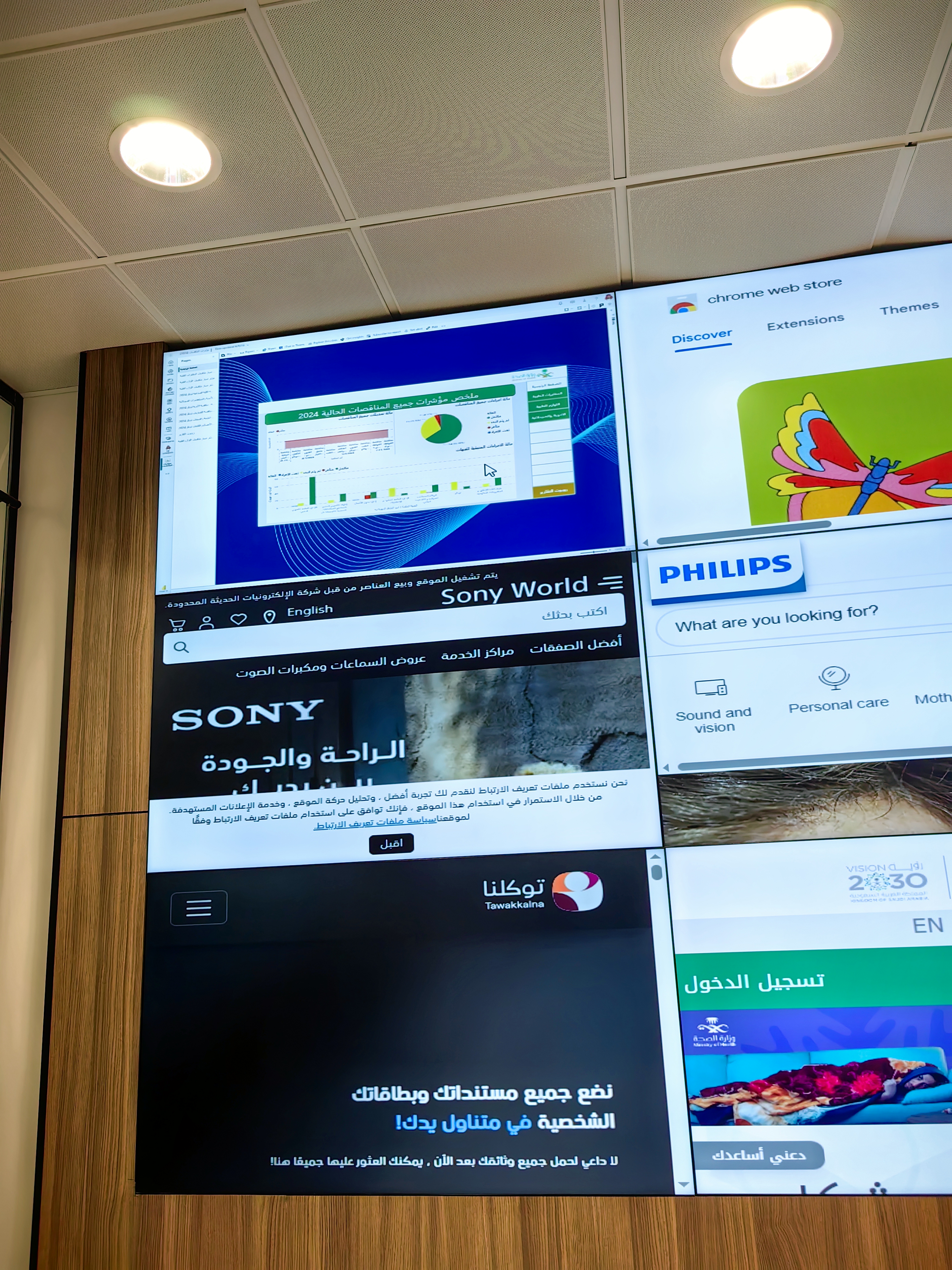
You can set up multi window displays on a big LCD video wall or big screen using just one computer and the right tools. Many businesses utilize this method to engage audiences and share information effectively.
Industry/Application | Use Case Description |
|---|---|
Used for strong ads that grab attention and showcase products in innovative ways. | |
Manufacturing and facilities | Displays important data about machines on the factory floor. |
Entertainment and events | Enhances shows by presenting live actions and replays at concerts and sports events. |
Command and control rooms | Allows workers to monitor multiple information streams and make quick decisions. |
Broadcasting | Provides dynamic backgrounds for news and talk shows. |
Education and museums | Makes learning engaging and helps visitors interact with multimedia content. |
You can also implement this setup for 3D LED FAN hologram fan 3D displays, creating impressive and eye-catching visual effects.
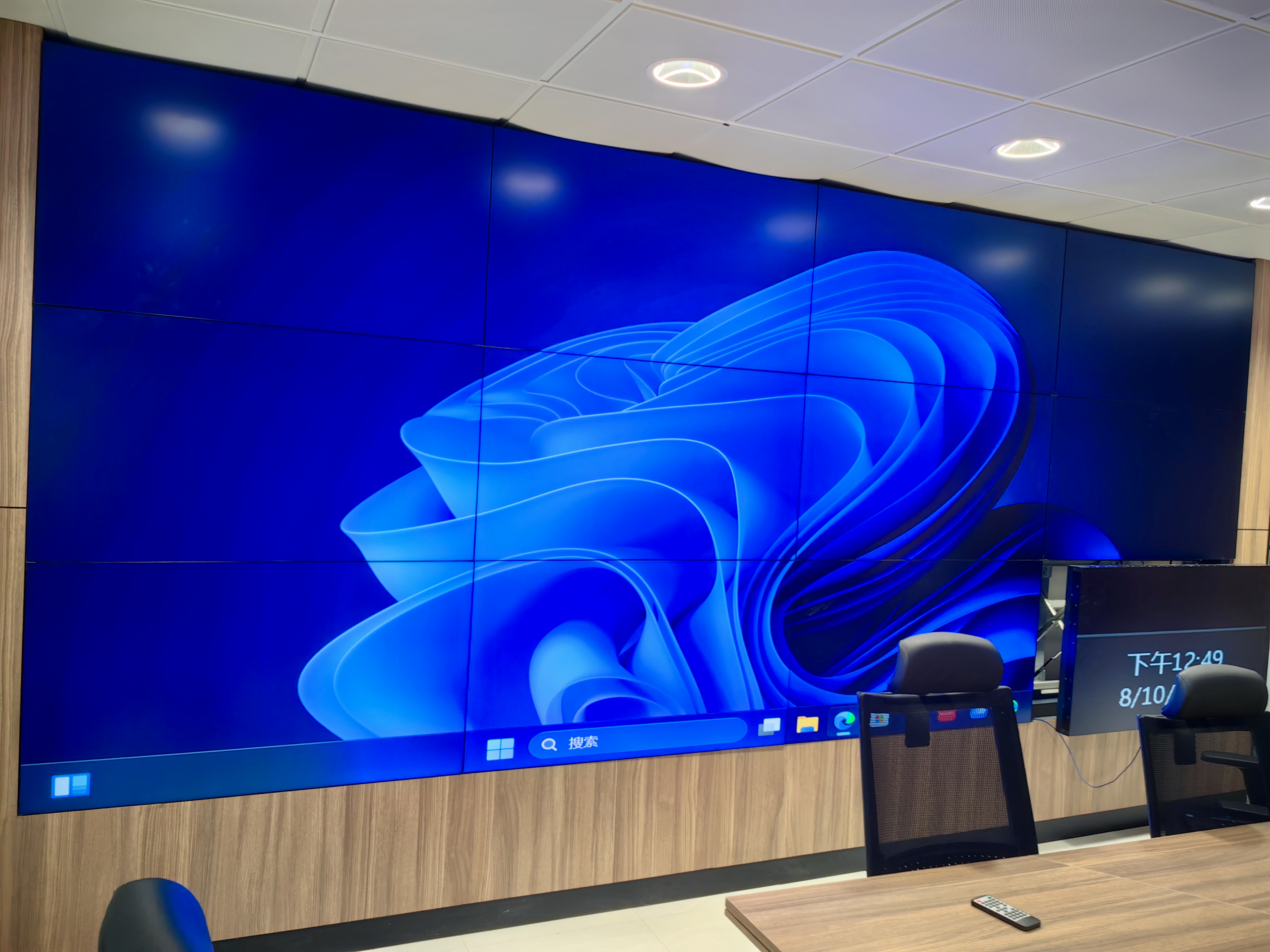
Key Takeaways
Pick a strong computer and graphics card with many outputs. This helps you get a smooth multi-window display.
Use video wall controllers to manage and split signals well. This lets you show images on many screens.
Choose the right software tools, either built-in or third-party. These help you control and arrange windows on your video wall.
Plan your display layout with care. Make sure all screens are lined up and set up right for the best performance.
Check and improve display settings often. This keeps the picture looking good and stops common problems.
Hardware essentials
Setting up a multi window display on a big LCD video wall or large screen starts with the right hardware. You need to make sure each part works together for a smooth experience.
Computer and graphics card
You need a computer with enough power to handle several displays at once. The graphics card is very important for a multi window setup. Here is a simple way to get started:
Choose a graphics card with at least six outputs, such as the Firepro W600. This card gives you strong performance for large video walls.
Set up four outputs for a Portrait 2x2 layout. Use another output for a landscape monitor if you want extra flexibility.
Make Display 1 your Main Display in Windows. Change the other displays to Portrait mode for a tall, stacked look.
Use AMD Firepro Settings to create an Eyefinity group. This tool helps you manage all your screens as one big display.
Use ACTIVE miniDisplayPort-to-DVI adapters if you connect more than two screens. These adapters keep your signal strong and stable.
This setup lets you open and arrange multiple windows across your video wall with ease.
Video wall controllers
A video wall controller acts as the brain of your display system. It splits the signal from your computer and sends it to each screen. You can use a hardware controller or a software-based solution. Hardware controllers work well for large or complex setups. Software controllers give you more control from your computer. Both options help you manage your multi window layout and make changes quickly.
Cables and connections
You need the right cables to keep your video wall running smoothly. Each cable type has a special job. The table below shows common cables and their uses:
Cable Type | Connection Use |
|---|---|
HDMI | Connects computers or media players to sending boxes. |
DisplayPort | Links DP output of video source to DP input on sending box. |
Fiber Optic | Sends signals over long distances with little loss. |
Ethernet | Moves data from fiber converter to receiver card. |
Good cables and solid connections help you avoid signal loss and keep your multi window display sharp and reliable.
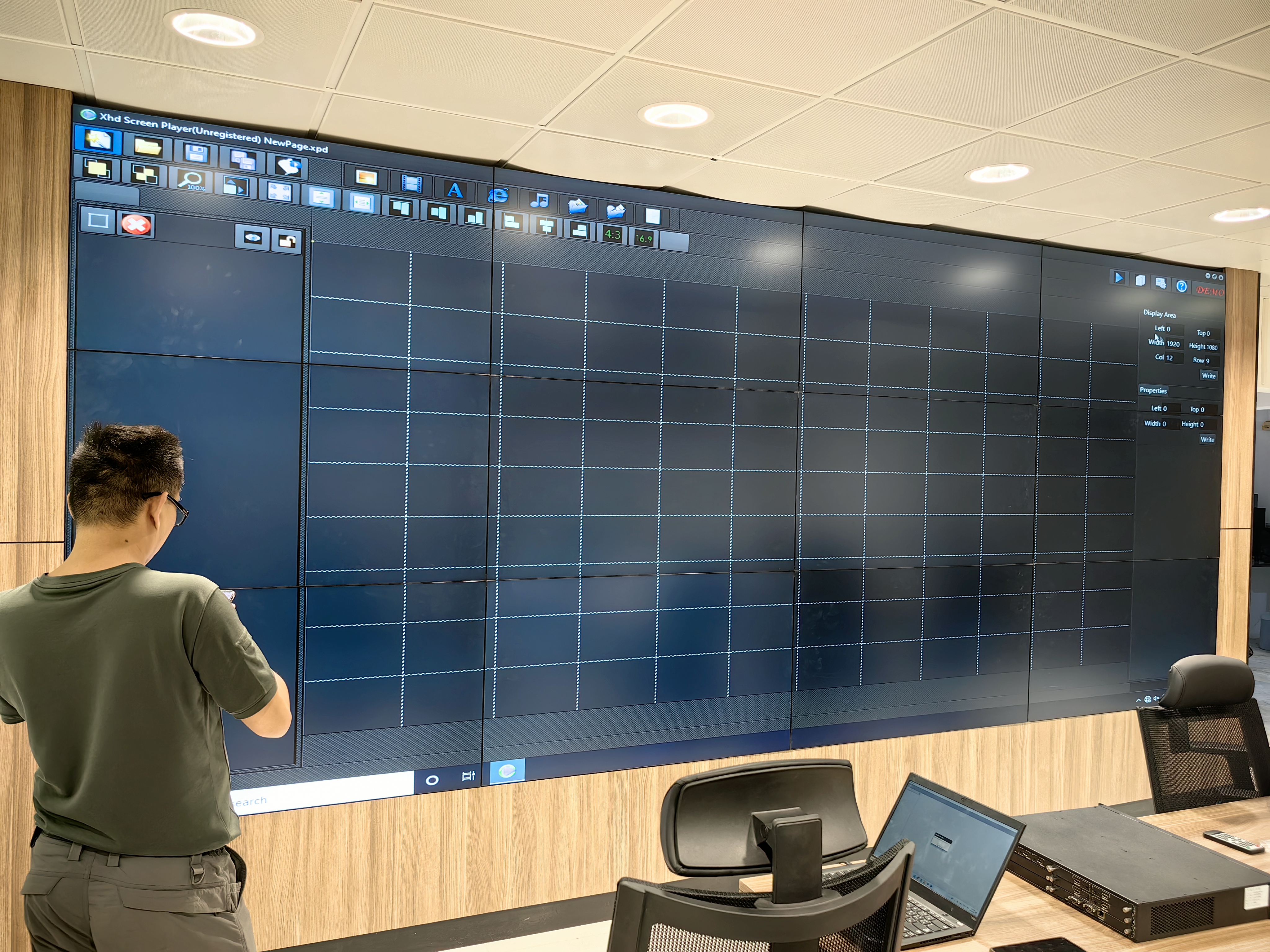
Multi window software options
If you want to open and control many windows on a big LCD video wall or large screen, you need special software. You can use built-in tools, third-party video wall software, or virtual monitor solutions. Each choice gives you different features and ways to control your screens.
Windows built-in tools
You can use tools that come with your computer. Windows Display Settings lets you stretch your desktop across more than one screen. You can move windows anywhere on your video wall by dragging them. The Intel Graphics Control Panel helps you set up your displays and change settings. These tools are good for simple multi window setups. You can open many apps and put them on different screens. This way is fast and easy for basic needs.
Third-party video wall software
If you want more options and better features, third-party software is a smart pick. Many companies use programs like Navori and AIScreen to control multi window displays.
Navori lets you split content on many screens. You can make digital signage layouts without needing to be a tech expert. The software keeps everything working together and supports very clear pictures.
AIScreen gives you one place to control everything. You can make grid layouts and put different content on each screen. This makes your video wall more fun and interesting.
Another good choice is ProVideoPlayer. The table below shows some important features:
Feature | ProVideoPlayer |
|---|---|
Multi-screen management | Plays videos at the same time on many screens or video walls. |
Control | Lets you handle hard setups and control each screen by itself. |
Customizable layouts | Helps you make content for any screen size or shape. |
Advanced video tools | Gives you video tools and smooth changes for nice presentations. |
Third-party software often gives you better ways to manage content, use interactive features, and control your screens from far away compared to built-in tools.
Virtual monitor solutions
For harder setups, you can use virtual monitor software. These programs let you make pretend screens inside your computer. You can open and move windows like you have more real monitors. This helps when you want to test layouts or need more choices for your multi window display. Virtual monitor solutions work well with both built-in and third-party tools.
Tip: Try out different software to see which one works best for your video wall. Each tool has special features that can make your multi window setup better.
Multi window setup steps
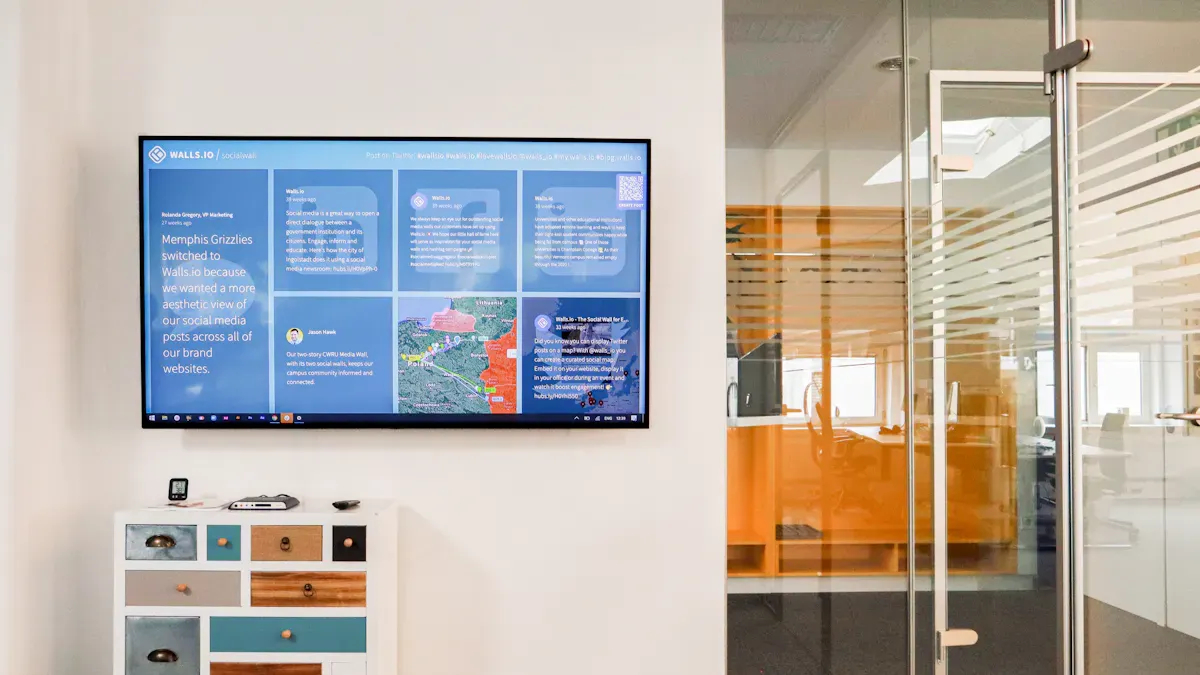
Setting up a multi window display on a big LCD video wall or large screen involves careful planning and precise steps. You can follow these steps to connect, configure, and arrange your displays for the best results.
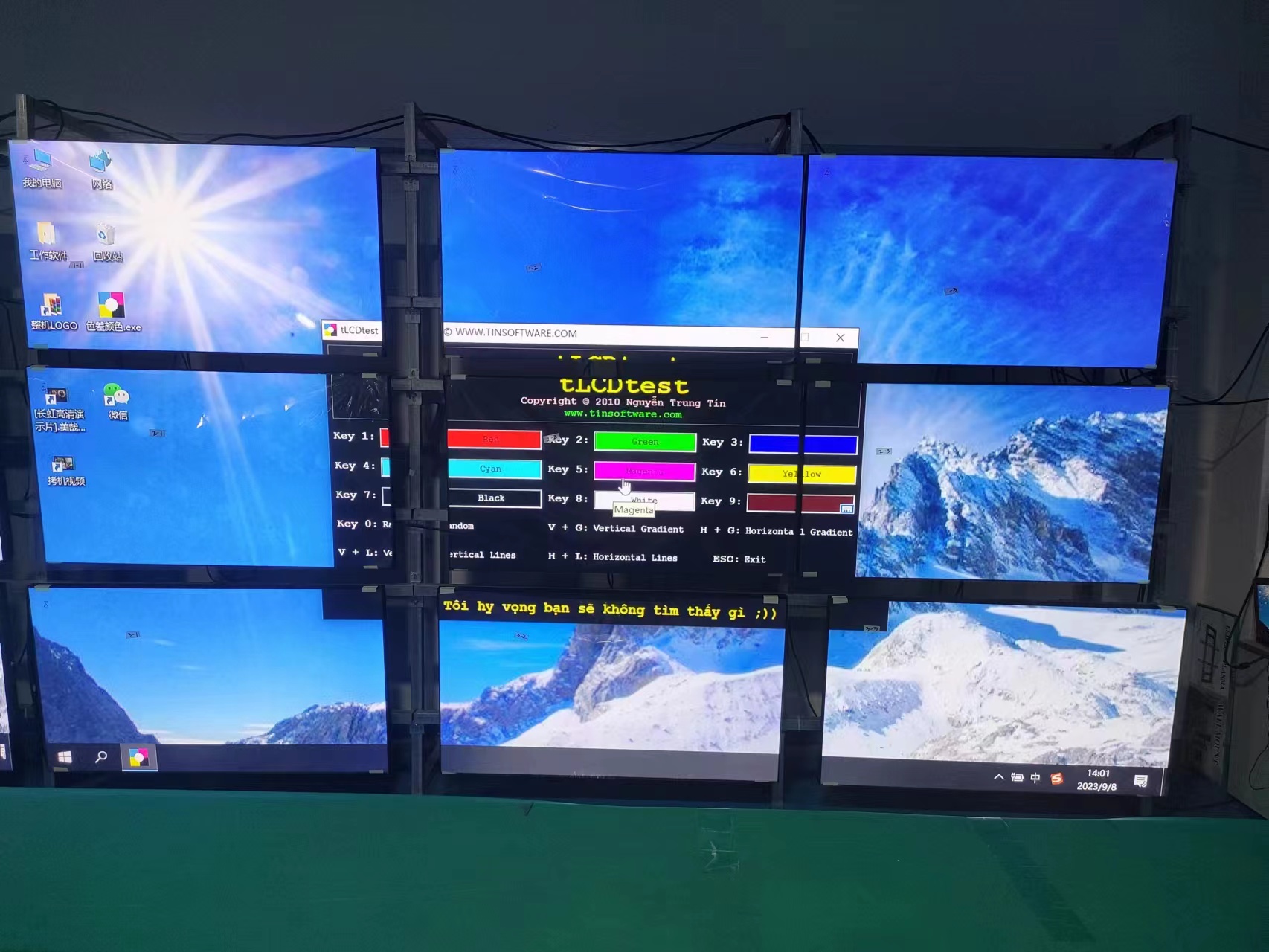
Connecting and configuring displays
Start by planning your display layout. Measure the area where you want to install the screens. Choose the right screen sizes for your space. Sketch the configuration on paper to visualize how the video wall will look.
Next, install the displays. Use strong mounts to keep each screen secure. Make sure all screens are level and lined up correctly. Double-check the positioning before moving on.
Connect each display to the video wall controller. Use secure cables like HDMI or DisplayPort. Connect the controller to your computer or media source. Check that each cable fits tightly and that there are no loose connections.
Power up the system. Turn on all displays and the controller. Check the input sources on each screen. Inspect every connection to make sure the signal reaches each display.
Configure the software. Set the correct resolution for each screen. Arrange the display outputs in your computer’s settings to match the physical layout. Adjust color settings so all screens look the same.
Tip: Many problems come from incorrect settings, not hardware failures. If you see small text or blurry images, check the resolution. Make sure it matches the display’s native resolution. If you notice misalignment, review the sender box and computer settings. Always check the IP addresses if you have trouble connecting the control card.
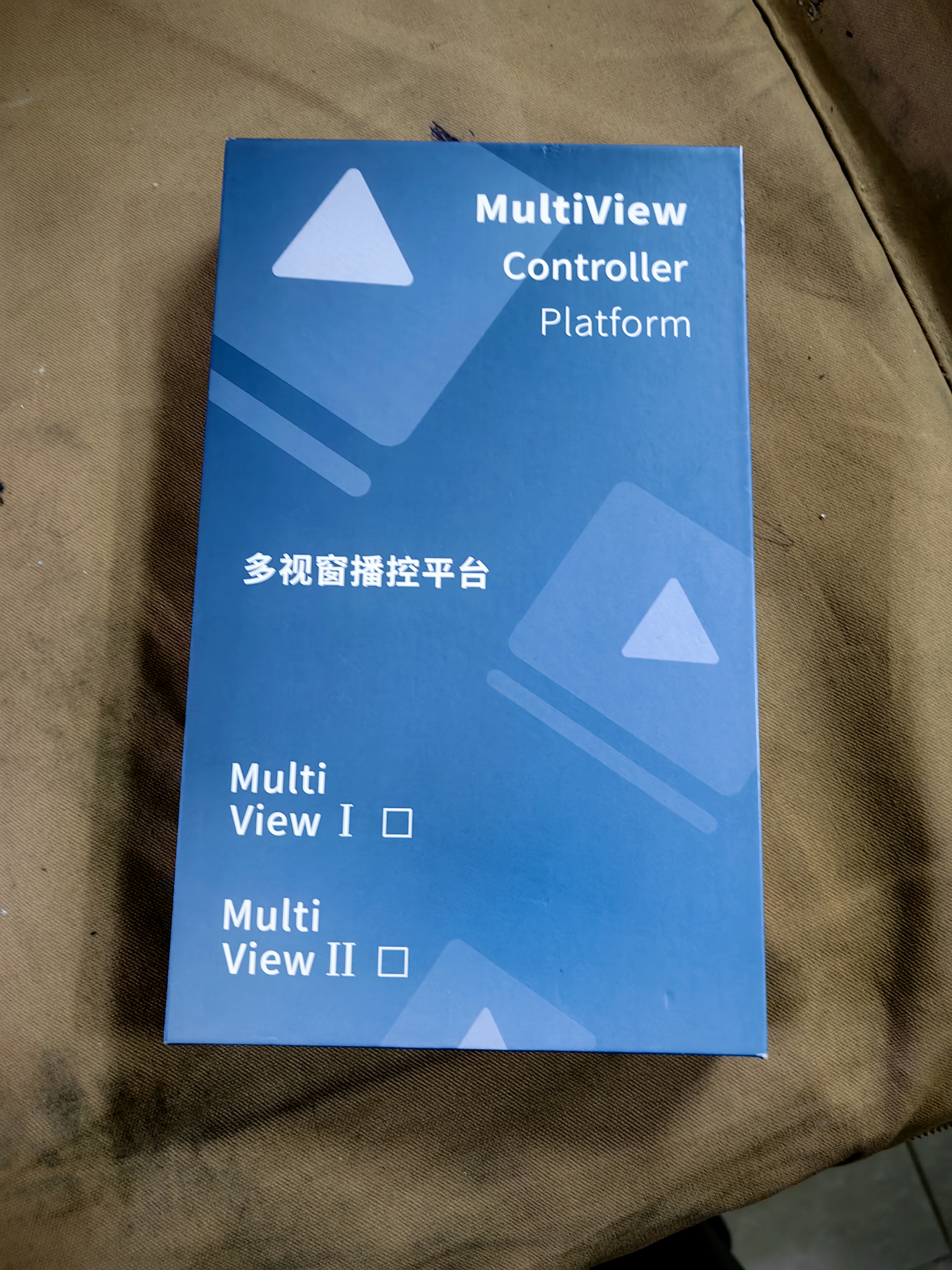
Arranging windows on the video wall
Arranging windows on your video wall helps you get the most out of your multi window setup. Think about the shape, size, and aspect ratio of each display. Plan how you want to use each part of the wall.
Decide how many input sources you want to show at the same time.
Talk with your team or end users about the best way to arrange the source windows.
Create storyboards to test different window layouts. Try to keep the original aspect ratio for each source window.
Use your video wall software to drag and drop windows into place. Make sure each window lines up with the correct screen.
Matching the physical layout of your screens with the logical layout in your software is important. This step helps you avoid confusion and makes the multi window experience smooth.
Note: If you see windows in the wrong place or the content looks stretched, check your display arrangement settings. Adjust the layout until the windows match the physical screens.
Optimizing display settings
Optimizing your display settings ensures your video wall looks great and works well. Adjust brightness, contrast, color temperature, and gamma on all screens. This step helps every screen look the same.
Use calibration tools in your video wall control software. These tools help you fine-tune color and brightness. Check your screens often to keep the visual quality high.
Think about the viewing distance. If people stand close to the video wall, use screens with small bezels. This choice makes the display look seamless. Pick display sizes that fit your space and purpose. For busy areas, larger screens work better.
Pay attention to the environment. Avoid placing screens where glare from lights or windows can affect visibility.
Set the same resolution and refresh rate for all screens. This step makes moving windows between screens smooth. If the refresh rates or resolutions do not match, you might see lag or strange effects when dragging windows.
Tip: For the best multi window performance, keep all screens at similar settings. This approach prevents problems and gives you a better viewing experience.
By following these steps, you can set up and manage a multi window display on your big LCD video wall or large screen using just one computer. Careful planning and regular checks help you avoid common issues and keep your system running smoothly.
Troubleshooting issues
Sometimes, setting up a multi-window video wall can cause problems. You can fix most issues by checking your setup and following easy steps.
Display detection problems
Some screens may not show up or may stop working. This happens for a few reasons:
Cables might be loose or broken.
The wrong input source could be picked.
Panel settings might be wrong.
Firmware could be old.
There may be connection problems.
To fix these display problems, try these steps:
Look at all cable connections. Make sure each cable is tight. Replace cables if they look broken.
Check the input source for every screen. Pick the right input on each display.
Go over the settings for panels that do not work.
Turn off and on the screens that have problems.
Update the firmware if there are new updates.
If nothing works, ask technical support for help.
Tip: Always check cables and input settings first. Most detection problems start with simple connection mistakes.
Window arrangement errors
Sometimes, windows do not line up right. Apps or tabs may move around. Images may not match on screens of different sizes. To fix window arrangement:
Right-click your desktop and open graphics settings like AMD Firepro Settings.
Pick the layout you want, such as 2x2. Drag each display into place.
Set Display 1 as your Main Display. Change other displays to Portrait mode if needed.
Use the Eyefinity Pro Configuration Tool to adjust your setup.
Use ACTIVE miniDisplayPort-to-DVI adapters for more than two outputs. This helps avoid alignment problems.
Note: Make sure your screens match in real life and in software. This stops confusion and display mistakes.
Performance and lag fixes
Problems like lag, flickering, or slow window movement can happen. You can make your video wall work better by:
Test your setup for lag or resolution problems before using it.
Use good content management software to organize your windows.
Watch performance with real-time diagnostic tools.
Make video files better by picking the right codecs and resolutions.
Update your video wall controller and software often.
Turn on Game Mode and turn off features like Noise Reduction or motion enhancement on your screens. This lowers input lag.
Tip: Updating and changing settings can make your video wall faster and smoother. 🖥️
You can use one computer to open many windows on a big LCD video wall or screen. First, get good hardware and simple software. Try out different tools and window setups to see what you like best. If you have trouble, ask for help or look for guides. The table below has important things to remember:
Explanation | |
|---|---|
Simplified Control Interface | Pick an interface that is easy and only has what you need. |
Pre-defined Window Layouts | Use layouts that are ready to go for more choices and easy use. |
Intuitive Configuration | Choose tools that make setup and changes simple to do. |
FAQ
How many windows can you open on a video wall with one computer?
You can open as many windows as your computer and graphics card support. Most setups allow you to display four to eight windows at once. The software and hardware you choose affect this number.
Do you need special software to manage multiple windows?
You can use built-in tools like Windows Display Settings. For advanced layouts, you may want third-party video wall software. These programs help you arrange and control windows easily.
Can you use different applications on each screen?
Yes, you can run different apps on each screen. Drag each window to the display you want. This lets you show data, videos, or presentations at the same time.
What should you do if a window does not appear on the correct screen?
Check your display settings. Make sure each screen is set up in your software. Drag the window to the right display. If problems continue, restart your computer or update your drivers.
Is it possible to use a laptop for a multi window video wall?
You can use a laptop if it has enough video outputs and power. Connect the laptop to a video wall controller or use adapters. Make sure your laptop supports the number of screens you need.
See Also
Selecting The Perfect LCD Video Wall For Your 2026 Needs
Best Ten Digital Signage Solutions For Video Walls In 2026
Simple Steps To Install And Configure Digital Signage Software
Key Differences You Should Know About LED And LCD Video Walls
