How to Optimize a Mini PC for Peak Performance
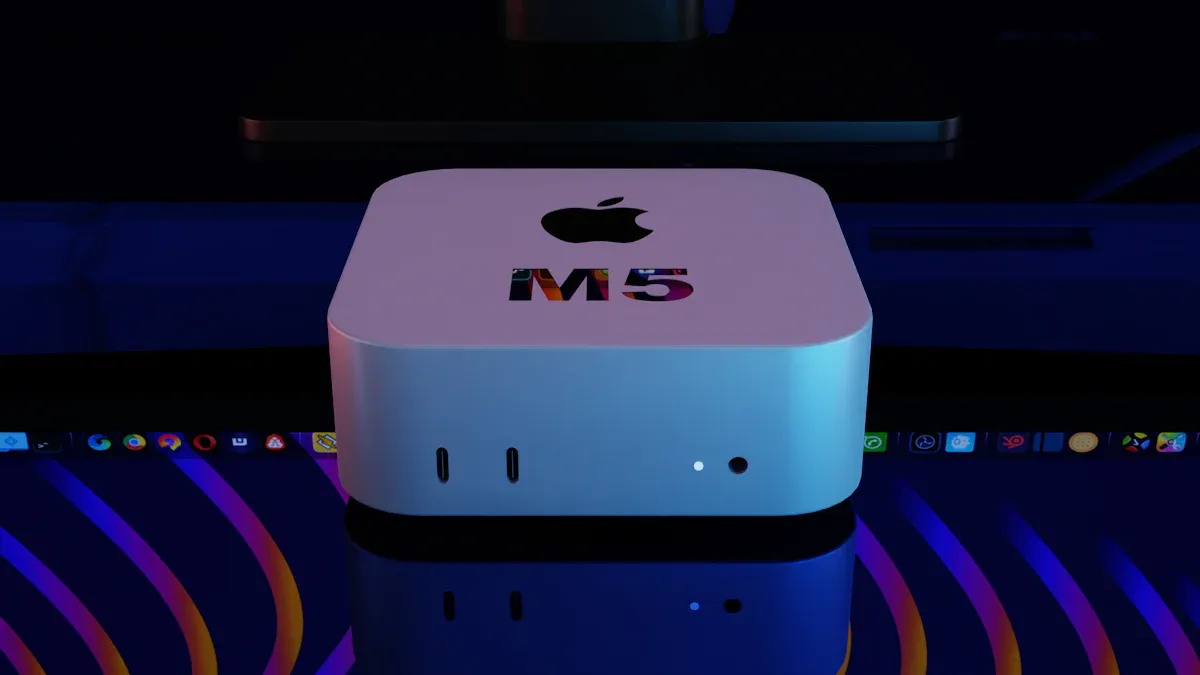
If you want your mini pc to run faster, start by cleaning up junk files, removing unused apps, and updating your software and drivers. Simple changes like better airflow or a quick RAM upgrade can boost performance.
Software tweaks can double how fast your system works.
You might even cut energy use by half.
New processing tools help your mini pc avoid slowdowns.
You don’t need to be a tech expert. Anyone can follow these steps and get more out of their device.
Key Takeaways
Clean your mini PC often by removing files you do not need. Uninstall bloatware to make your mini PC faster and more responsive.
Control which apps start and run in the background. This helps use less memory and makes your mini PC work better. Turn off apps you do not need at startup.
Always update your software, like the operating system and drivers. This helps your mini PC stay safe and run well.
Make your hardware better by adding more RAM or a bigger SSD. This can make your mini PC much faster for things like gaming or editing videos.
Check how your mini PC uses resources and change power settings. This helps your mini PC work well and use less energy. It also keeps your mini PC cool and steady.
Clean Up Your MINI PC
Digital clutter can slow down your mini pc and make it feel sluggish. When you keep your device tidy, you help it start up faster and run smoother. Let’s break down how you can clean up your mini pc and boost its speed.
Remove Unnecessary Files
Start by deleting files you no longer need. Old downloads, duplicate photos, and unused documents take up valuable space. When your mini pc’s storage fills up, boot times get longer and apps respond more slowly.
Tip: Use a tool like TreeSize to quickly spot large files you can remove.
Here’s what happens when you clear out digital clutter:
You free up disk space, which helps your mini pc start faster.
You reduce background processes from leftover files.
You notice better responsiveness right away.
Uninstall Bloatware
Many mini pcs come with extra software you never use. These programs, called bloatware, can include trialware, manufacturer apps, or even adware. They run in the background, eat up memory, and sometimes show annoying ads.
Common types of bloatware:
Trialware that stays after the trial ends.
Pre-installed utilities or apps you don’t need.
Adware that interrupts you or tracks your activity.
Bloatware can slow down your mini pc, drain the battery, and even create security risks. Remove these apps using the built-in uninstaller or a tool like Revo Uninstaller Pro for a deeper clean.
Deep Clean Tools
Sometimes, you need more than just deleting files. Deep clean tools help you find hidden junk and optimize your mini pc. Hone is great for overall system boosts. BleachBit focuses on privacy and deep cleaning. Bitdefender Total Security adds a layer of protection while cleaning.
Note: Always back up your important files before using deep clean tools. Start with safe settings and learn what each option does.
Try running Hone’s Boost Ups for a quick tune-up. Use one tool at a time to avoid problems. With regular cleaning, your mini pc will stay fast and reliable.
Manage Startup and Background Apps
You want your mini pc to run at its best. Startup and background apps can slow things down. Let’s look at how you can take control.
Disable Startup Programs
When you turn on your mini pc, some apps start right away. Many of these apps are not needed. They use memory and make your device boot slower. You can stop them from starting automatically.
Here’s how you do it:
Open Task Manager. Press
Ctrl + Shift + Esc.Click the "Startup" tab.
Find apps you don’t need at startup.
Right-click and choose "Disable".
Tip: Only keep security software or essential utilities enabled. Most other apps can wait until you need them.
Control Background Processes
Background processes run even when you don’t see them. They use CPU and memory. Too many can make your mini pc feel sluggish.
You can check what’s running:
Open Task Manager.
Look at the "Processes" tab.
End tasks you don’t recognize or need.
Note: Don’t end system processes. Stick to apps you installed.
A mini pc with fewer background apps will respond faster. You’ll notice better performance right away.
Monitor Resource Usage
You should keep an eye on how your mini pc uses resources. This helps you spot trouble before it slows you down.
Here’s a simple table to track what to watch:
Resource | What to Check | Why It Matters |
|---|---|---|
CPU | High usage spikes | Can cause lag |
Memory | Low available RAM | Slows down apps |
Disk | High activity | Delays file access |
If you see high numbers, close apps or restart your mini pc. Regular checks keep your device running smoothly.
Keeping startup and background apps in check is one of the easiest ways to boost your mini pc’s speed.
Update MINI PC Software
It is easy to keep your mini pc fast. Updates help fix problems and make your device safer. They also add new things you can use. If you update often, your mini pc works better.
Update Operating System
You should check for updates a lot. Windows and Linux give out patches to help your mini pc. Here is how you do it:
On Windows, open Settings. Go to "Update & Security." Click "Check for updates."
On Linux, use your updater tool.
Tip: Turn on automatic updates. This way, your mini pc always gets fixes.
Updates can make your mini pc safer and faster. Sometimes, you get new menu choices after an update.
Update Drivers
Drivers help your hardware work with your operating system. Old drivers can make your mini pc crash or glitch. You should update drivers for your graphics card, network adapter, and sound card.
Go to the mini pc maker’s website for new drivers.
Use Device Manager on Windows to check for updates.
On Linux, use your package manager.
If you play games or use creative apps, new drivers can make graphics and sound smoother.
Keep Apps and Emulators Current
Apps and emulators need updates too. Developers fix bugs and add features often. Old apps can slow your mini pc or cause errors.
Open each app and look for an "Update" button.
Go to official websites for the newest versions.
Delete old versions to free up space.
Note: Updated apps run faster and use less memory. This helps your mini pc stay quick and reliable.
Keep updating, and your mini pc will work its best.
MINI PC Hardware and Airflow
Elevate for Better Airflow
You can give your mini pc a quick boost by lifting it off your desk. Place it on a small stand or even a few bottle caps. This simple trick lets more air flow under and around your device. Good airflow helps your cpu and gpu stay cool. When your mini pc stays cool, you get better stability and a longer life for your hardware.
Tip: Never block the vents with books or papers. Keep space around your mini pc for the best cooling.
Clean Vents Regularly
Dust loves to hide in vents. If you let it build up, your mini pc can overheat and slow down. You should clean the vents every three to six months. If you use your mini pc for gaming or keep it in a dusty room, clean it more often. Use a can of compressed air or a soft brush. Always turn off your mini pc before cleaning.
A clean mini pc runs quieter and cooler. You will notice a performance boost, especially during long work or gaming sessions.
Upgrade RAM and SSD
Want to see a real jump in speed? Try upgrading your RAM and SSD. More RAM lets you open more apps at once. A faster SSD loads files and programs quickly. If you use your mini pc for graphic design or video editing, you will see a big difference. For example, graphic design apps like Photoshop run smoother with more RAM. Video editors need at least 16GB for standard work. High-res projects may need 64GB or more for top performance.
Upgrading these parts gives your mini pc a new life. You get enhanced gaming performance, faster boot times, and better stability for all your tasks.
Use eGPU for Graphics
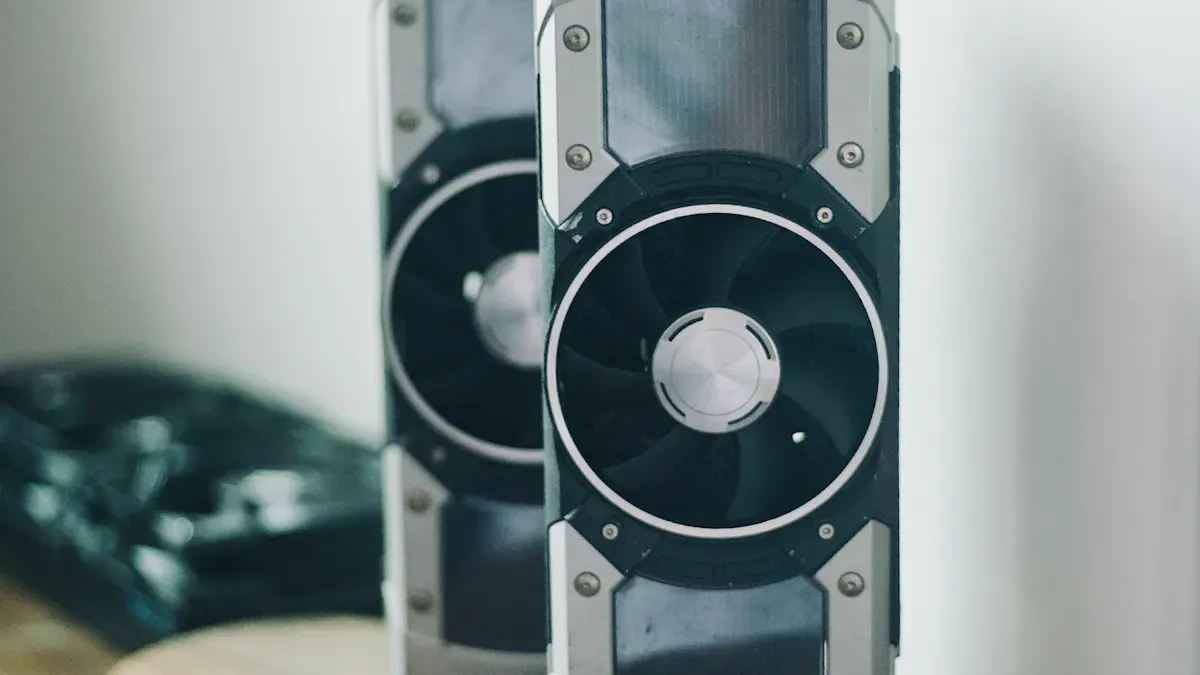
Some mini pc models let you add an external gpu, called an eGPU. This upgrade is great for gaming or creative work. An eGPU gives you a huge performance boost in graphics-heavy apps. You can enjoy smoother gameplay and better visuals. Make sure your mini pc supports this configuration before buying an eGPU.
Note: Check your mini pc’s manual for eGPU support. Not all models have this feature.
With the right hardware tweaks, you can turn your mini pc into a powerful tool for work and play.
System and BIOS Tweaks
You can make your mini pc work better with some easy changes. These changes are in your system and BIOS settings. They help your mini pc run smoother and use less power. Your device will also stay stable.
Optimize Power Settings
Power settings are important for your mini pc. They help you choose between speed and saving energy. You can change these settings to fit what you need. Here’s a simple guide:
Power Setting | Description |
|---|---|
Set the power mode for best energy efficiency | This setting helps save energy and keeps good speed. |
Set the screen brightness for best energy efficiency | Lowering brightness saves battery power. |
Put my device to sleep after 3 (or 10) minutes | Your mini pc sleeps when you are not using it. |
Turn off my screen after 3 (or 10) minutes | The screen turns off to use less power. |
Save power by screen contrast and brightness for content | The screen changes brightness for what you see. |
Change brightness automatically with lighting | Sensors change the screen brightness to save energy. |
Automatically put my device to sleep when I leave | Your mini pc goes to sleep when you walk away. |
Automatically dim my screen when I look away | The screen dims when you are not looking. |
Turn off my screen saver | Turning off the screen saver saves power. |
Stop USB devices when my screen is off | USB devices stop using power when the screen is off. |
Try these settings to keep your mini pc cool and save energy.
Adjust Visual Effects
Visual effects can slow down your mini pc. They look nice but use more power. If you turn off animations and shadows, your mini pc will feel faster. Here’s what happens:
System Type | CPU Usage (Visual Effects) | Responsiveness Impact |
|---|---|---|
Older systems (5+ years) | Each click or action feels slower. | |
Modern systems (dedicated) | 2-5% | You may not notice much delay. |
Integrated graphics | Higher load, drains battery | Your mini pc slows down a lot. |
You can turn off visual effects in your settings. Apps will open faster and your battery will last longer.
Update BIOS
Updating your BIOS can help your mini pc work with new hardware. It can also fix bugs and make your mini pc more stable. But you must be careful. Here are the good and bad things about updating BIOS:
Risks | |
|---|---|
Works with more hardware | Power could go out during update |
Makes your mini pc more stable | You might use the wrong update file |
Adds security fixes | Some updates are not needed |
Gives new features |
Always check your mini pc’s website for the right BIOS file. Follow the steps from the maker. Never stop the update once it starts. After you update, use tools to check if everything works.
Prepare Windows USB Installer
If you need to reinstall Windows, a USB installer helps a lot. Download the tool, plug in a USB drive, and follow the steps. This tool helps you set up, test, and fix your mini pc. You can solve problems quickly and keep your mini pc working well.
Tip: Keep your USB installer in a safe place. You might need it for a quick fix.
With these changes, your mini pc will stay fast and stable. You can even try overclocking for more power.
Advanced MINI PC Tips
You can make your mini pc faster and more stable with some advanced tricks. These tips help you get the best performance, no matter if you use your mini pc for work, watching videos, or playing games.
Disable Search Indexing
Windows search indexing works in the background. It can slow down your mini pc, especially if your SSD is small. Turning off search indexing gives you more resources. You will see your mini pc speed up right away. Here is how to do it:
Press
Win + Rand typeservices.msc.Find "Windows Search" in the list.
Right-click and pick "Properties".
Set Startup type to "Disabled".
If you search for files a lot, you may want to keep indexing on. But for most people, turning it off makes your mini pc feel faster.
Adjust Virtual Memory
Virtual memory helps your mini pc do more things at once, even if you do not have much RAM. You can change the paging file to get better speed and stability. Experts say you should set the paging file to about half the size of your system RAM.
To change this, go to System Properties, then Advanced, and change the settings under Performance. This helps your mini pc run smoother, especially if you open many apps or play games.
Free Up Disk Space
If your disk space is low, your mini pc can slow down or crash. You can make your mini pc faster by deleting old files and programs you do not use. Try these steps:
Use tools like Disk Cleanup.
Delete temporary files and empty your recycle bin.
Move big files to an external drive.
Getting more storage can make your mini pc much faster, especially if you switch from a hard drive to an SSD.
If you want a fresh start, you can reinstall Windows from a USB drive.
Putting a new copy of Windows 11 on your mini pc from a USB drive is a good idea. This helps you avoid malware and problems that might come with the version that was already installed. You get a clean start and can fix any issues.
After you install Windows, use the driver bundle from your mini pc’s maker for the best setup and stability.
Installing the right drivers is important. Using the driver bundle from the maker can fix problems and make your mini pc work better.
With these advanced tips, your mini pc can be a strong and reliable device for gaming, work, or anything you do every day.
You can help your mini pc work well by doing a few easy things. Delete old files, turn off apps you don’t need at startup, and update your software often. Check your hardware to make sure everything is okay. Try some advanced changes if you want your mini pc to go even faster.
If you take care of your mini pc and add small upgrades, it will stay quick and work better for a long time.
Do these steps again from time to time. Your mini pc will run smoothly every day if you keep up with these habits.
FAQ
How often should you optimize your MINI PC?
You should check your MINI PC every month. Clean up files, update software, and review your setup. Regular care keeps your device fast and helps you avoid slowdowns.
What’s the best way to improve general computing performance?
You can boost general computing performance by upgrading RAM, using a fast SSD, and keeping your setup clean. These steps help your MINI PC run smoother for everyday tasks.
Can you use a MINI PC for heavy computing?
Yes, you can use a MINI PC for heavy computing. Upgrade your setup with more RAM and an eGPU. This lets you handle gaming, video editing, and other demanding jobs.
How do you set up a MINI PC for gaming?
Start with a clean setup. Add an eGPU if your MINI PC supports it. Upgrade RAM and SSD. Install the latest drivers. These changes help your MINI PC deliver better gaming performance.
What should you do if your MINI PC overheats?
Check your setup for blocked vents. Clean dust from the device. Elevate your MINI PC for better airflow. These steps help keep your MINI PC cool and stable.
See Also
Effective Solutions for Common Kiosk Problems and Maintenance
Current Trends in Android Motherboards You Must Understand
Essential Tips for Enhancing Your OLED Display Projects
Evaluating Business Touch Screen Kiosks for Value and Efficiency
