Step by Step Guide to Magic Player App for Modern Digital Displays
Add.: 2F, Bldg 10, Changfeng Industrial Park, Dongkeng, Fenghuang, Guangming, Shenzhen, China 518132
Mobile/WHATSAPP: 86-138 25769658
Email: marketing@topadkiosk.com topadkiosk@gmail.com
Skype: pghenry1
Wechat: adkioskhenry
English Web.: http://www.topadkiosk.com/
https://www.topkioskdisplay.com/
http://www.ad-kiosk.com/
https://www.toplcddisplay.com/
http://www.multitouchdigitalsignage.com/
https://www.youtube.com/channel/UCYVYNJHxLVEcQD8fuUxXNTA/videos?view_as=subscriber
https://www.facebook.com/TOPADKIOSKSHENZHEN/?ref=bookmarks
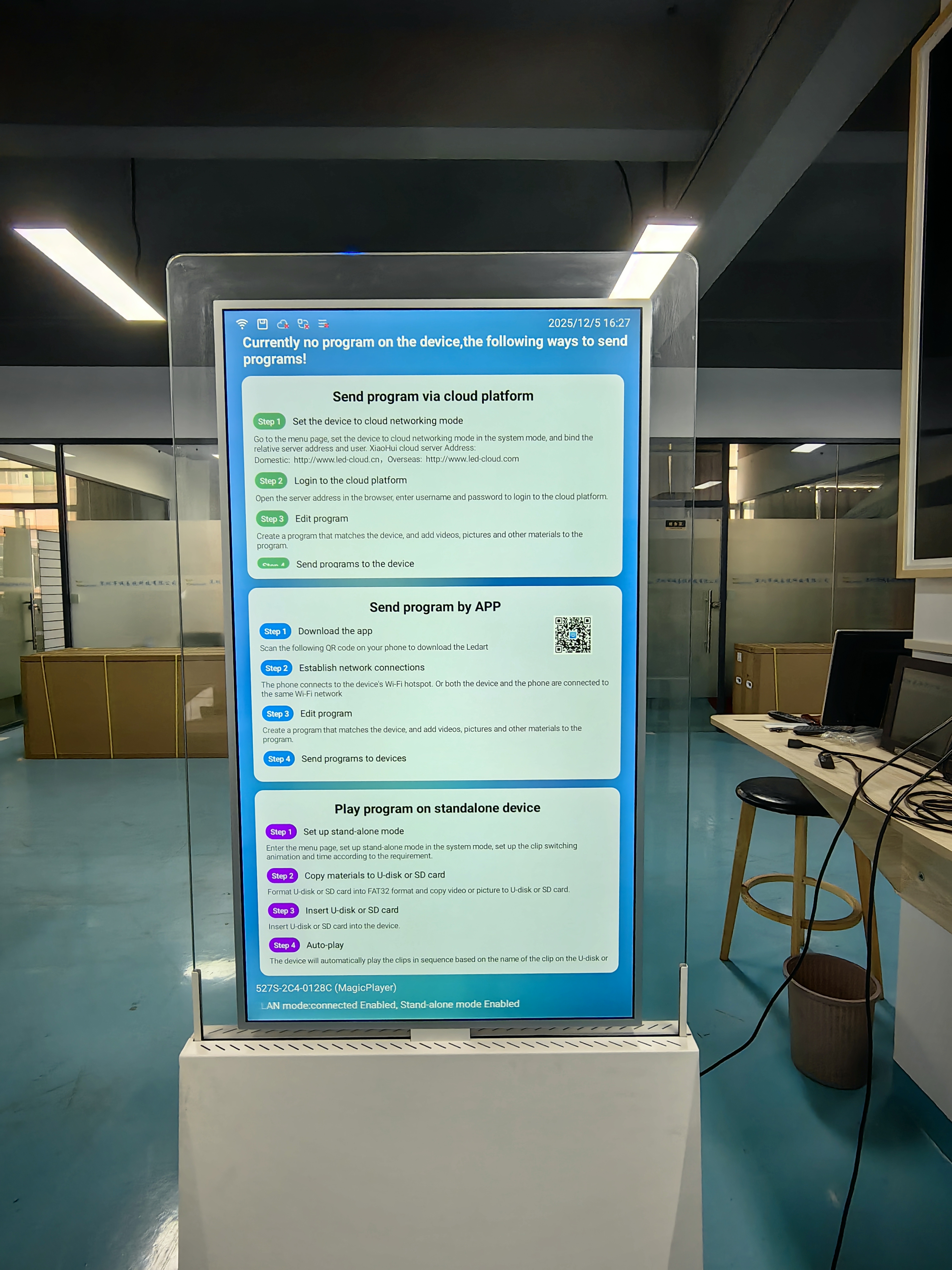
Step 1: Connect the Display to the Internet
Most cloud updates require the device to be online.
Go to the Settings menu on the Magic Player device or the connected screen.
Navigate to Network or Wi-Fi.
Connect to a stable 2.4GHz Wi-Fi network (or Ethernet).
Note: Some older Magic Player firmware might show a "Device ID" or "Bind Code" on the screen once connected.
Step 2: Find and Install the Management App
Search for the corresponding CMS app on your phone:
Search Terms: "Magic Player CMS", "Magic Player Cloud", or check the device manual for the specific app name (manufacturers often rebrand the software).
Alternative: Some units use a web-based mobile interface. You can access it by typing the device's IP address (found in settings) into your phone's browser, or scanning a QR code displayed on the screen.
Step 3: Bind the Device to Your Account (Pairing)
This links your phone to the specific screen.
Open the App and log in (or register an account).
Look for "Add Device", "Bind Device", or a "+" icon.
Enter the Code: Input the Device ID or Bind Code shown on the TV screen.
Troubleshooting Tip: If you see "Offline," the player has lost internet connection; check the router or the device’s network settings.
Step 4: Upload and Publish Content
Go to the "Library" or "Material" section to upload photos/videos from your phone gallery.
Go to "Playlist" or "Schedule" .
Create a new list, add your uploaded materials, and arrange the play order.
Click "Publish" or "Send" . The system will push the content to the cloud, and the Magic Player will download it automatically (this may take a few seconds to a minute).
⚠️ Common Issues & Quick Fixes
"Failed to Bind": Ensure both the phone and the Magic Player are on the same local network (Wi-Fi) during initial pairing if not using a QR code.
USB Only Mode: Some older Magic Player units do not support phone cloud updates via CMS. If you cannot find a bind option, the device likely requires a USB flash drive for updates or uses a different proprietary app.
App Crashes: If the app keeps crashing on your phone, try clearing the app cache or using a web browser instead.
You can use the magic player app to easily control digital displays. The magic player app lets you make bright digital signs or run fun shows. You can manage your content with the magic player app. It helps you schedule and update things automatically. The magic player app helps your screens look better and work well. Both new users and experienced people can use the magic player app’s simple tools and strong features.
Tip: Try the magic player app to manage content automatically and control it right away.
Key Takeaways
The Magic Player App makes digital signage easy to manage. You can upload, schedule, and control content on many screens.
Use the app’s automation tools to set times or events for content. This keeps your displays new and interesting.
Pick the best way to download the Magic Player App for your device. You can use a pendrive, mobile, or cloud.
Check your digital signage system often. Update the software and do regular maintenance. This helps your system work its best.
Use templates and the same design style to show your brand. This makes your digital signage messages easy to see and understand.
Magic Player App Overview
Key Features
The Magic Player App is a strong tool for digital signage. It lets you control what shows on your screens. You can add videos, pictures, and words. You can pick when things show up on the screen. You can also set rules for each message. The app works with lots of file types, so you do not need to worry about formats. You can use your phone, computer, or cloud to manage it.
Here are some main things this app can do:
You can upload and manage content easily
You can schedule your digital signage in many ways
You can control your digital signage player from far away
It works with high-definition digital displays
The app updates itself for you
You can use it with many screens at once
Note: The digital signage player keeps your screens new and updated without much work.
Use Cases for Digital Signage and Shows
You can use the digital signage player in many places. Stores use it to show sales or new items. Schools use it to share news and events. Airports use it to show flight times and alerts. You can use it for fun shows too. It can play videos, slideshows, or interactive things on stage. Restaurants use it for menu boards. Hospitals use it for information screens. This digital signage player helps your messages look good and easy to see.
Use Case | Example |
|---|---|
Retail | Product ads, sales promotions |
Education | Announcements, event schedules |
Transportation | Flight info, safety messages |
Entertainment Shows | Visual effects, live updates |
Hospitality | Welcome screens, menus |
Digital Signage Player Compatibility
Supported Devices and Systems
You want your digital signage player to work with lots of devices. The magic player app works with many operating systems and models. Most people pick Android devices because they are simple to use. You can use the magic player app on many Android devices. This lets you choose different screen sizes and types.
Here is a quick look at some popular digital signage player choices and their systems:
Digital Signage Player | Supported Operating Systems |
|---|---|
Android, Chrome OS, Windows |
You can use other digital signage player models that run on Android. This makes it easy to find a device that fits your needs. Many schools, stores, and offices use Android-based digital signage player devices. You can manage your screens from your phone, tablet, or computer. This helps you keep your digital signage player updated and working well.
Tip: Pick a digital signage player that fits your screen size and location for the best results.
Hardware Integration
You need your digital signage player to work well with your hardware. The magic player app has strong integration features for business use. You can control and secure your digital signage player from one place. This makes it easy to manage many screens at the same time.
Here are some important hardware integration features:
Feature | Description |
|---|---|
Centralized Management | Remotely manage, control, and secure displays with local and remote options. |
API Customization | Use over 400 API options to customize your digital signage player setup. |
Security Features | Protect your digital signage player with KNOX, ISO certificates, and licenses. |
User Management | Set access and permissions for each digital signage player user. |
CMS Support | Connect your digital signage player to many content management systems. |
You can use these features to make your digital signage player safe and easy to control. Many businesses use centralized management to update all their digital signage player screens at once. You can also set user roles and permissions for your digital signage player. Only trusted people can make changes. This keeps your digital signage player network safe and reliable.
Installing Magic Player App
You can start using the magic player app by following a few easy steps. This section will help you understand how to get the app and set it up on your digital signage player. You will learn about different ways to download the app and how to finish the setup. Many users find that installing magicinfo is simple when they follow these steps.
Download Methods (Pendrive, Mobile, Cloud)
You have several ways to get the magic player app onto your device. Each method works well for different situations. Here are the main ways you can download the app:
Pendrive (USB Drive):
You can use a pendrive to move the app file from your computer to your digital signage player. First, download the app file onto your computer. Next, copy the file to your pendrive. Plug the pendrive into your digital signage player and open the file to start installing magicinfo.Mobile Download:
You can use your phone or tablet to download the magic player app. Go to the app store or the official website. Search for the app and tap download. Once the download finishes, open the file and begin installing magicinfo on your device.Cloud Download:
You can also use cloud storage to get the app. Save the app file to your cloud account, such as Google Drive or Dropbox. On your digital signage player, log in to your cloud account. Find the app file and download it directly to your device. This method makes installing magicinfo easy if you manage many screens in different places.
Tip: Choose the download method that fits your device and your location. If you have many screens, cloud download can save you time.
Setup Steps
After you download the magic player app, you need to set it up. The setup process helps you connect your app to your screens and start showing content. Follow these steps to finish installing magicinfo:
Open the App File:
Find the app file on your device. Tap or click to open it. Your device will ask if you want to install the app. Choose "Install" to begin installing magicinfo.Accept Permissions:
The app may ask for permission to use storage, network, or display settings. Allow these permissions. This step is important for installing magicinfo and making sure the app works well.Connect to the Internet:
Make sure your device connects to Wi-Fi or a wired network. The magic player app needs internet access to download updates and manage content. Reliable internet helps with installing magicinfo and keeping your screens up to date.Sign In or Register:
Open the app after installation. You may need to sign in with your account or create a new one. This step links your device to your content management system. It also helps with installing magicinfo on more than one device.Link Your Screens:
The app will guide you to add your digital signage screens. Follow the on-screen steps to connect each screen. This step is key for installing magicinfo across your network.Test the App:
Play a sample video or image to check if the app works. If you see your content on the screen, you have finished installing magicinfo. If not, check your internet and try again.
Note: Always check for updates after installing magicinfo. Updates can fix bugs and add new features.
Here is a quick checklist for installing magicinfo:
Step | What to Do | Why It Matters |
|---|---|---|
Download App | Use pendrive, mobile, or cloud | Get the latest version |
Install App | Open file and accept permissions | Start installing magicinfo |
Connect Internet | Use Wi-Fi or wired network | Enable updates and content |
Sign In/Register | Enter account details | Link device to your system |
Add Screens | Follow app instructions | Control all your displays |
Test Content | Play sample media | Confirm successful setup |
When you follow these steps, you make installing magicinfo easy and fast. You can now move on to managing your content and making your digital signage stand out.
MagicINFO Integration
Connecting with Samsung MagicINFO
You can link your magic player app to Samsung magicinfo. This helps you control your digital signage better. After you finish magicinfo installation, you can connect your screens to the magicinfo platform. This lets you use the magicinfo content management system to organize your content. You can add new screens by following the magicinfo installation guide. When you finish installing magicinfo, you will see all your screens in one place. Magicinfo lets you upload videos, images, and messages. The magicinfo platform helps you keep your screens updated. You can use magicinfo installation steps to add more screens as your network grows. Magicinfo makes it simple to control your screens from home or work. You can use magicinfo to check if your screens are working. If a screen has a problem, you can use magicinfo to send updates or restart it. Magicinfo installation gives you an easy way to manage your signage network.
Benefits of Integration
When you use the magic player app with Samsung magicinfo, you get many good things. Magicinfo gives you tools for automation and remote control. You can use magicinfo to plan when your content shows up. Magicinfo lets you set rules for each message. You can use magicinfo to control all your screens at once. Magicinfo installation saves you time and effort. You do not have to go to each screen to make changes. Magicinfo lets you update your screens from anywhere.
Here are some main features you get when you use magicinfo with your screens:
Feature | Description |
|---|---|
You can control your screens from far away. You can change settings and fix problems. | |
Automatic Backup | Magicinfo can switch to a backup device if a screen or player stops working. |
Centralized Control | You can use one magicinfo platform to manage all your screens in different places. |
Magicinfo installation helps your screens keep working without trouble. Magicinfo gives you peace of mind because your screens will keep running. Magicinfo also helps you reach more people and get their attention. You can use magicinfo to show the right message at the right time. Magicinfo installation makes your signage network strong and simple to use.
Manage Content on Digital Signage Media Player
Upload and Organize Media
You can make your digital signage media player special by adding and sorting your content in smart ways. The magic player app gives you many ways to add new things. You can upload files from your computer using the Add Media → Upload tab. You can drag and drop pictures, videos, audio, or documents. You can also look through your folders to find what you want. If you want to save time, you can add content from a web link. Just paste the URL, and your digital signage player will get the file for you.
Cloud storage makes it even easier to manage your content. You can bring in files from Dropbox, OneDrive, or Google Drive. This helps you keep your digital signage media player up to date with new digital content from anywhere. You can sort your content into folders or playlists to find it fast. Good sorting means your digital signage player always shows the right things at the right time.
Tip: Give your files and folders clear names. This helps you manage your digital signage media player without getting mixed up.
Scheduling and Automation
Scheduling is very important for running a digital signage media player. You can set your content to play at certain times or on certain days. The magic player app lets you make schedules that fit what you need. Rule-based automation makes your digital signage player even better. You can set rules so your content changes based on things like weather, time, or how much stock you have. This keeps your digital signage media player fun and new.
Rule-based automation shows content when it is needed most.
Your digital signage media player can change messages by itself.
You can make special rules for your digital signage player to reach different groups.
Do not use your digital signage media player like a plain poster. Fun content and smart scheduling help you get people’s attention and share important digital messages. Your digital signage player becomes a tool for sharing news right away, not just a screen on the wall.
Note: The best digital signage media player setups use automation to keep content new and useful.
Configure Display Settings
Screen Layouts and Resolution
You can make your digital signage look clear and nice by picking the right screen layout and resolution. The magic player app helps you set up your screens for the best look. Screen resolution is important because it changes how sharp your pictures and videos are. If you use a higher resolution, like 1080p, your images will look bright and full of detail. You want people to notice your message, so you should pick the best aspect ratio and resolution for your screen.
Aspect Ratio | Resolution | Recommended Use |
|---|---|---|
16:9 | 1080p | Standard signage setups |
16:9 | 4K | High-detail content or close viewing |
9:16 | N/A | Vertical displays |
1:1 | N/A | Square content layouts |
Most places should use screens that are between 42 and 55 inches. If your screen is too small, people may not see your message well. If your screen is too big, you might spend more money than you need. The magic player app lets you change layouts for horizontal, vertical, or square screens. You can match your layout to your content, so everything looks tidy and easy to read.
Tip: Check your screen resolution before you upload new content. This helps your pictures and videos stay sharp.
Multi-Client Control
It can be hard to manage lots of screens, but the magic player app gives you tools to help. Multi-client control lets you handle many displays from one place. You can change settings, update content, and fix problems without going to each screen. This saves you time and keeps your displays looking the same.
Benefit | |
|---|---|
Centralized Control | Manage multiple screens from one platform, no matter where they are |
Remote Management | Troubleshoot and adjust settings from anywhere |
Scalability | Easily manage campaigns as your business grows |
Remote control lets you fix problems and change content from anywhere.
Keeping the same content on all screens makes your brand strong.
The magic player app helps your business grow by making it easy to add more screens. You can run local campaigns or show different messages to different groups. As you add more screens, you still have control and can make sure every display works well.
Operating Magic Player App
Running Playlists and Presentations
You can use the magic player app to run playlists and presentations with ease. Playlists help you organize your content and show it in the order you want. Presentations let you display slides, videos, or images for your audience. You can follow these steps to create and run a playlist:
Open the magic player app and go to the side navigation menu.
Select "Session Replay" to view your available content.
Use filters to find the right events, properties, or time ranges.
Choose the media you want to include in your playlist.
Click "Save Playlist" at the top and give your playlist a name.
Press "Save" to finish.
Tip: Dynamic playlists update themselves as new content matches your filters. You can also bookmark important replays for quick access later.
The magic player app uses smart tools to help you. AI-powered insights can show you patterns in your content. This helps you pick the best media for your audience. You can keep your playlists fresh and interesting by letting the app update them automatically.
Remote and Live Control
You can control your digital signage from anywhere using the magic player app. Remote control lets you change content, adjust settings, or fix problems without standing in front of the screen. Live control gives you the power to update displays in real time.
Use the dashboard to see all your screens at once.
Select a screen to send new content or change the playlist.
Pause, play, or skip items in your presentation with one click.
Control Type | What You Can Do |
|---|---|
Remote | Update content, fix errors, schedule |
Live | Change playlists, show urgent messages |
Note: Fast remote and live control helps you keep your displays up to date and ready for any event.
Troubleshooting and Support
Common Issues and Fixes
You may face some problems while using the magic player app. Most issues have simple solutions. Here are some common problems and how you can fix them:
Check your Internet connection. Your device needs WiFi or mobile data to load new content and updates. If your screen does not update, make sure your network works well.
Restart your device. Sometimes, a quick restart can solve many small problems. This helps clear out any temporary glitches.
Update the app. Always use the latest version of the magic player app. Updates fix bugs and add new features. Go to your app store and check for updates.
Force close the app. If the app slows down or freezes, close it completely and open it again. This can help with performance issues.
Uninstall and reinstall the app. If nothing else works, remove the app and install it again. Make sure you back up your settings or content before you do this.
Tip: Most problems with the magic player app can be fixed by checking your connection or restarting your device.
Maintenance Tips
You want your digital signage to work well every day. Good maintenance keeps your magic player app running smoothly. Follow these steps to keep your system in top shape:
Check and stabilize your Internet connection. A strong network helps your content load without delays.
Reboot your media player or system often. This clears the cache and fixes small errors.
Update your CMS platform or firmware. New updates prevent bugs and keep your system safe.
Verify your playlist and content settings. Make sure all files exist and match your screen’s resolution.
Switch to cloud-based signage management for better control and easy monitoring.
Clean your display surfaces every week. Dust can block your message and lower screen quality.
Inspect electrical parts each month. Early checks can stop bigger problems later.
Perform software updates every few months. Regular updates improve stability.
Recalibrate brightness once a year. This keeps colors true and protects your screen.
Replace old hardware every 3–5 years. New parts help prevent failures and keep your system healthy.
Note: Regular care and updates help your magic player app and digital signage last longer and work better.
Best Practices for Digital Signage Player
Optimizing Content
You can help your digital signage player stand out by using smart content ideas. Try different text styles and colors to see what looks best. This helps you grab attention and makes reading easier. Keep your text short and simple. Most people look at signs from far away, so big fonts and bright colors are best. Use the 3×5 rule. Only use three lines and five words per line. This keeps your digital signage player messages clear and easy to read.
Tip: Templates are great for your digital signage player. They save time and help all screens look the same.
Design that stays the same makes your brand stronger. Using the same template for each digital signage player stops mistakes and helps people find info fast. Quick changes let you share new news or deals right away. You can sort your digital signage player content into playlists and folders. This makes it simple to update and manage your digital signage player network.
Best Practice | Description |
|---|---|
Design Consistency | Keep a uniform look to build your brand identity. |
Template Reuse | Use templates to save time and avoid mistakes. |
Quick Updates | Publish new content quickly for timely messaging. |
Clarity and Consistency | Make information easy to read and find. |
Security and Updates
You must keep your digital signage player safe from threats. Test your system often to find problems before they happen. System hardening means you update your digital signage player and use safe settings. Security checks and scans help you find risks. Build safety into your digital signage player from the start.
Always update your digital signage player software. Updates fix bugs and stop security holes. Split your network so important signage stays safe if one part is attacked. Teach your team to spot threats and use good habits. Back up your digital signage player data often. This lets you get your signage back fast if something goes wrong.
Note: Strong security and updates are big benefits of digital signage player systems. You keep your signage working and your digital content safe.
You can get the benefits of digital signage player by using these best practices. Your digital signage player will stay safe, strong, and useful.
You can use the magic player app to control your digital displays easily. First, use content management and templates to make your screens look the same. You can manage your screens from far away and set times for content to play. Live updates help you save time and keep people interested. Try using split-screen layouts to show more things at once. Keep your system safe by updating it often. Look at advanced features if you want to add more screens. If you need help, visit the app’s support page or ask other users in the community.
FAQ
How do you update the Magic Player App?
You open the app store on your device. Search for "Magic Player App." Tap "Update" if you see it. You can also check the app’s settings for updates. Updates keep your app safe and add new features.
Can you use the Magic Player App without the internet?
You can play saved content without the internet. You need the internet to download new content, update schedules, or manage screens remotely. For best results, keep your device connected.
What file types does the Magic Player App support?
The app supports many file types. You can use:
Images: JPG, PNG, GIF
Videos: MP4, AVI
Documents: PDF, PPT
Tip: Check your file before uploading to avoid errors.
How do you reset your Magic Player App if it stops working?
You can restart your device first. If the problem stays, open your device settings. Find the Magic Player App and tap "Force Stop." You can also uninstall and reinstall the app. This often fixes most issues.
See Also
A Comprehensive Guide to Setting Up Digital Signage
Top 7 Trends in Digital Signage Technology for 2026
Simple Steps to Install and Configure Signage Software
