Magic Player app made easy for your digital screens
Add.: 2F, Bldg 10, Changfeng Industrial Park, Dongkeng, Fenghuang, Guangming, Shenzhen, China 518132
Mobile/WHATSAPP: 86-138 25769658
Email: marketing@topadkiosk.com topadkiosk@gmail.com
Skype: pghenry1
Wechat: adkioskhenry
English Web.: http://www.topadkiosk.com/
https://www.topkioskdisplay.com/
http://www.ad-kiosk.com/
https://www.toplcddisplay.com/
http://www.multitouchdigitalsignage.com/
https://www.youtube.com/channel/UCYVYNJHxLVEcQD8fuUxXNTA/videos?view_as=subscriber
https://www.facebook.com/TOPADKIOSKSHENZHEN/?ref=bookmarks
You can make your digital signs easier with the MAGIC PLAYER APP. This tool lets you play media files on screens in a few steps. You do not have to be an expert to use it. The interface is simple, so anyone can manage content and keep screens updated.
You can trust the MAGIC PLAYER APP to work with many devices and to run well for a long time.
Key Takeaways
The MAGIC PLAYER APP makes digital screens easy to manage. You do not need special skills to use it. Anyone can use it.
Put the Magic Signage CMS on your smartphone. This lets you manage content easily. Follow easy steps to start.
Use an HDMI cable to connect your device to screens. Change display settings to get the best picture.
Use folders and playlists to organize your media. This keeps your content new and easy to find.
Check your screens often. Use support options if you have problems. Quick fixes help everything work well.
MAGIC PLAYER APP Setup
The MAGIC PLAYER APP helps you control digital screens with ease. You can use it to show videos, images, and ads on many types of displays. The app works well for schools, shops, offices, and public places. You do not need special skills to use it. The main features include simple content management, fast updates, and support for many devices.
Tip: Before you start, check that your devices meet the app’s requirements. This will help you avoid problems later.
Install Magic Signage CMS
You need the Magic Signage CMS to manage your content. You can install it on your smartphone. Follow these steps:
Open the Google Play Store on your smartphone.
Search for "Magic Signage CMS."
Tap "Install" and wait for the download to finish.
Open the app after installation.
Sign up or log in with your account.
Compatibility Table:
Device Type | OS Version | Storage Needed |
|---|---|---|
Smartphone | Android 7.0+ | 100 MB |
Make sure your phone has enough space and runs Android 7.0 or higher.
When you open the CMS for the first time, you will see a welcome screen. The app will guide you to connect your account and set up your first project.
Install Magic Signage Player
The Magic Signage Player lets your screen show the content you choose. You can install it on an Android TV or a set-top box. Here is how you do it:
Turn on your Android TV or set-top box.
Go to the Google Play Store.
Search for "Magic Signage Player."
Select the app and press "Install."
Open the app when the installation is complete.
Supported Devices:
Android TV (version 7.0 or higher)
Android-based set-top boxes
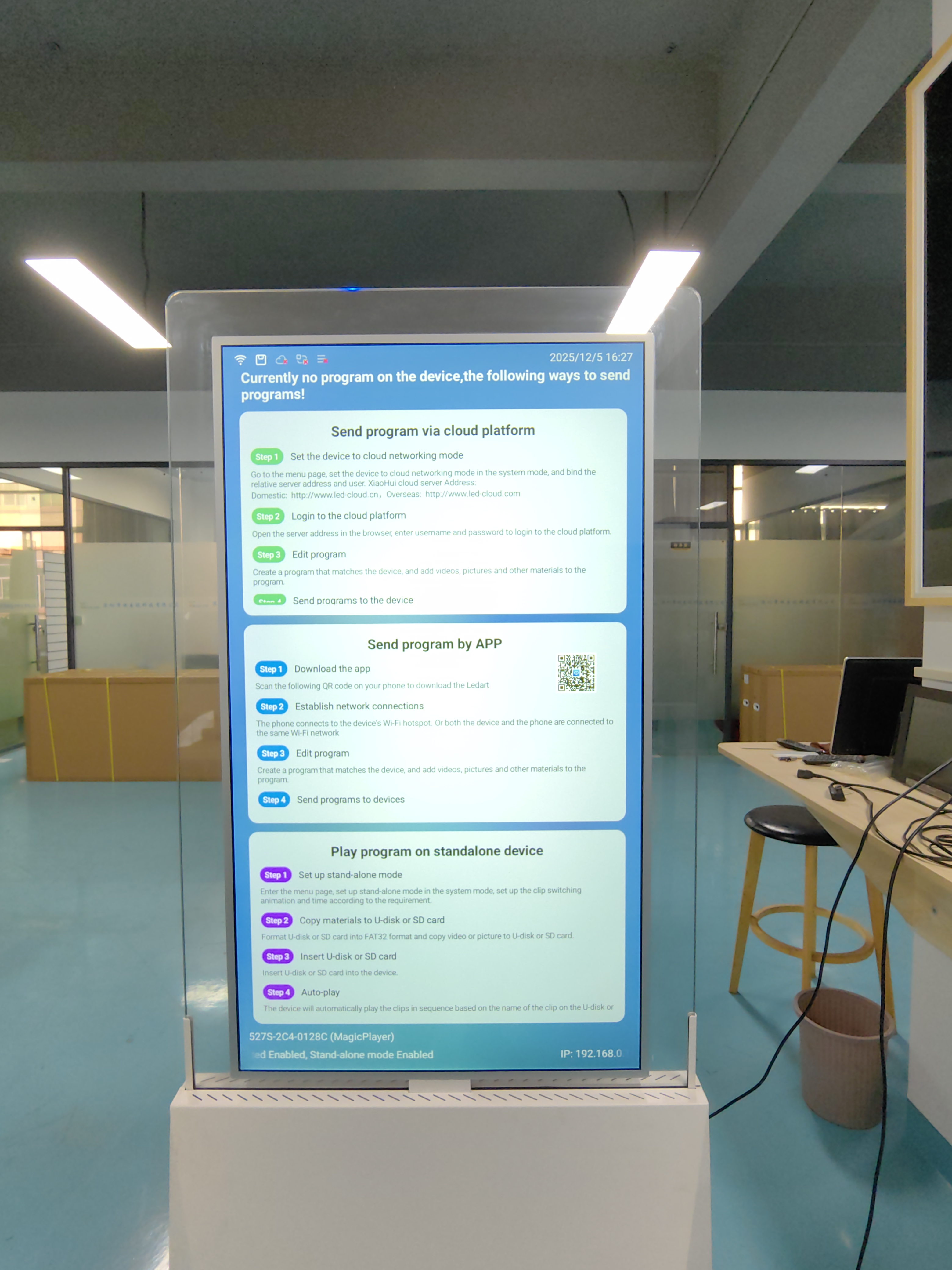
When you launch the Player for the first time, you will see a code on the screen. You need this code to link the Player to your CMS app. Enter the code in the CMS to connect your device.
Note: Always use the latest version of the app for the best performance.
You have now installed both the CMS and the Player. You are ready to connect your screens and start showing your content.
Screen Connection & Configuration
Connect to Digital Screens
You can connect your device to a digital screen in just a few steps. First, make sure your Android TV or set-top box is plugged into the screen using an HDMI cable. Turn on both the screen and the device. You should see the home screen of your device. Open the MAGIC PLAYER APP Player on your device. The app will show a pairing code. Use your smartphone with the Magic Signage CMS to enter this code. This step links your device to your account.
Tip: Place your screen in a spot where everyone can see it. Make sure the power cable is secure.
Adjust Display Settings
You want your content to look clear and bright. Go to the settings menu on your Android TV or set-top box. Find the display or screen settings. Adjust the resolution to match your screen’s best quality, such as 1080p or 4K. You can also change the brightness and contrast. If you see black bars or the image looks stretched, use the screen fit or aspect ratio option.
Check these settings:
Resolution (1080p, 4K)
Brightness
Contrast
Screen fit or aspect ratio
If your screen looks blurry, try a different HDMI port or cable.
Check Device Compatibility
Before you start, check that your device works with the MAGIC PLAYER APP. Your Android TV or set-top box should run Android 7.0 or higher. You can find this information in the device’s settings under "About" or "System." If your device does not meet these requirements, you may need to update the software or use a different device.
Device Type | Minimum OS Version |
|---|---|
Android TV | Android 7.0 |
Set-top box | Android 7.0 |
Always use devices that meet the app’s requirements for smooth playback and fewer issues.
Media Management in MAGIC PLAYER APP
Managing your media is easy with the MAGIC PLAYER APP. You can upload, organize, and update your content in just a few steps. This helps you keep your digital screens fresh and interesting.
Upload and Format Media
You can add many types of files to your library. The app supports popular formats for images, videos, and documents. Here are the main file types you can use:
Images: JPG, BMP, GIF (Premium only), PNG (Premium only)
Office Documents: PDF, Word, PowerPoint
Video files: MP4, MOV, MPG2
Streaming Content: MMS, RTP, RTSP, HTTP, HLS
Tip: Use clear and high-quality files. This makes your content look better on the screen.
Before uploading, check that your files match these formats. If you use the right format, your media will play smoothly. Try to keep your file sizes small for faster uploads.
Organize Content
You can keep your media library neat with folders and playlists. Folders help you sort videos and audio files. The app can even sort files from other apps for you. Playlists let you group media files together. You can share or embed these playlists to show the right content at the right time. All your uploaded files are easy to search, so you can find what you need fast.
Folders for sorting files
Playlists for grouping and sharing
Searchable media files
Organizing your content saves you time and helps you manage large libraries.
Update Ads (Pendrive, App, Cloud)
You can update ads and other content in three ways. Use a USB pendrive for quick changes if you are near the screen. You can also update content directly from the app on your phone. For remote updates, use the cloud feature. This lets you change content from anywhere.
USB pendrive for local updates
App for direct uploads
Cloud for remote management
Update your ads often. Fresh content keeps your audience interested.
Regular updates and good organization make your screens more effective. You can reach your viewers with the right message every time.
Playlists & Scheduling
Create Playlists
You can group your media files into playlists. This helps you organize content for different times or events. Open the app and tap on the "Playlists" section. Select the files you want to add. Give your playlist a name that matches its purpose, like "Morning Ads" or "Lunch Specials". You can add images, videos, and even documents to the same playlist.
Tip: Use short names for playlists so you can find them quickly.
Set Playback Order
You control the order in which your content plays. Drag and drop files in your playlist to set the sequence. Place the most important content at the top. If you want a video to play before an image, move it up in the list. The app will follow the order you set every time the playlist runs.
Steps to set playback order:
Open your playlist.
Tap and hold a file.
Drag it to a new position.
Release to save the order.
This feature helps you make sure your message appears at the right time.
Schedule Content
You can schedule when each playlist plays on your screens. Tap the "Schedule" button in the app. Choose a playlist and set the start and end times. You can pick days of the week or special dates. The app will switch playlists automatically based on your schedule.
Playlist Name | Start Time | End Time | Days |
|---|---|---|---|
Morning Ads | 8:00 AM | 12:00 PM | Mon-Fri |
Lunch Specials | 12:00 PM | 2:00 PM | Mon-Sun |
Evening Offers | 5:00 PM | 9:00 PM | Fri-Sun |
Scheduling helps you show the right content to your audience at the best time.
You can use the MAGIC PLAYER APP to manage playlists and schedules with just a few taps. This makes your digital signage more effective and easy to control.
Maintenance & Troubleshooting
Monitor Playback
You need to check your screens often to make sure your content plays as planned. Open the app and look at the playback status for each device. You will see if your videos, images, or ads are running. If you notice a blank screen or an error message, take action right away. Watching your screens helps you spot problems early. You can also set up alerts in the app to get notified if something stops working.
Tip: Check your screens at the start and end of each day. This habit helps you keep your digital signs reliable.
Fix Common Issues
Sometimes, you may face problems with your screens or content. Here are some common issues and how you can solve them:
Issue | Description | Recommended Solution |
|---|---|---|
Unable to connect to the MagicINFO server | Users cannot connect to the server. | Go to Home, select player, then go to Network channel to reconnect the player. |
Unable to play content or change the content | Content does not play or update. | Check if the display has internet access. Make sure the schedule links to the display. |
The display shows 'no cable connected' | Display says there is no connection. | Set the display to the right source. Check for a poor internet connection. |
If you follow these steps, you can fix most problems quickly. Always check your cables and internet first. These are the most common reasons for issues.
Access Support
If you cannot solve a problem, you can reach out for help. The MAGIC PLAYER APP gives you many support options. You can use live chat for instant answers. You can send an email and get a reply in 12 to 24 hours. You can also open a ticket for bigger issues. The knowledge base and video tutorials help you learn at your own pace.
Support Channel | Response Time |
|---|---|
24/7 Live Chat | Instant support |
Email Support | 12-24 hours |
Ticketing System | Varies by issue |
Knowledge Base | N/A |
Video Tutorials | N/A |
Note: Save your device details and error messages before you contact support. This helps you get faster help.
Regular checks and quick fixes keep your screens running well. Use support when you need extra help.
You can use the MAGIC PLAYER APP to control digital screens easily. If you follow each step, your screens set up fast. They keep working well after setup. Doing updates and maintenance often helps your screens work better. The table below shows how taking care of your screens can make them perform best:
Case Study Description | Result | Impact on Performance |
|---|---|---|
Performance optimization of an ad-serving platform | Average ad load times decrease by 50% | Higher ad completion rates and increased revenue |
Continuous database performance optimization | Reduces latency and improves throughput | Ensures software runs at peak performance |
If you have trouble, use support to get quick help.
FAQ
How do you update content on your screens?
You can update content using a USB pendrive, the app on your phone, or the cloud. Choose the method that fits your location and needs. The app makes updates quick and simple.
What file types does the MAGIC PLAYER APP support?
You can upload images (JPG, BMP, GIF, PNG), videos (MP4, MOV, MPG2), and documents (PDF, Word, PowerPoint). The app also supports streaming links like MMS, RTP, RTSP, HTTP, and HLS.
Can you use the MAGIC PLAYER APP without internet?
You can use a USB pendrive to update content if you do not have internet. For remote updates or cloud features, you need an internet connection.
What should you do if your screen shows a blank display?
Check your cables and internet connection first. Make sure your device is on the right input source. Restart the MAGIC PLAYER APP if needed.
How do you get help if you have a problem?
You can use live chat for fast answers. You can also send an email or open a support ticket. The knowledge base and video tutorials give you step-by-step help.
See Also
Transform Dull Advertisements With A 3D Hologram Fan
Top Digital Signage Solutions Gaining Popularity In 2026
Explore 10 Innovative Digital Menu Board Designs For 2026
Discover 10 Unexpected Applications For Touch Screen Kiosks In 2026
Seven Key Trends Influencing Digital Signage Technology In 2026
