How to Fix G-Sync Compatibility Issues on LG OLED Displays
Shenzhen TopAdkiosk Display Technology Co., Ltd.
Add.: 2F, Bldg 10, Changfeng Industrial Park, Dongkeng, Fenghuang, Guangming, Shenzhen, China 518132
Mobile/WHATSAPP: 86-138 25769658
Email: marketing@topadkiosk.com topadkiosk@gmail.com
Skype: pghenry1
Wechat: adkioskhenry
English Web.: https://www.topkioskdisplay.com/
http://www.ad-kiosk.com/
https://www.toplcddisplay.com/
http://www.multitouchdigitalsignage.com/
https://www.youtube.com/channel/UCYVYNJHxLVEcQD8fuUxXNTA/videos?view_as=subscriber
https://www.facebook.com/TOPADKIOSKSHENZHEN/?ref=bookmarks
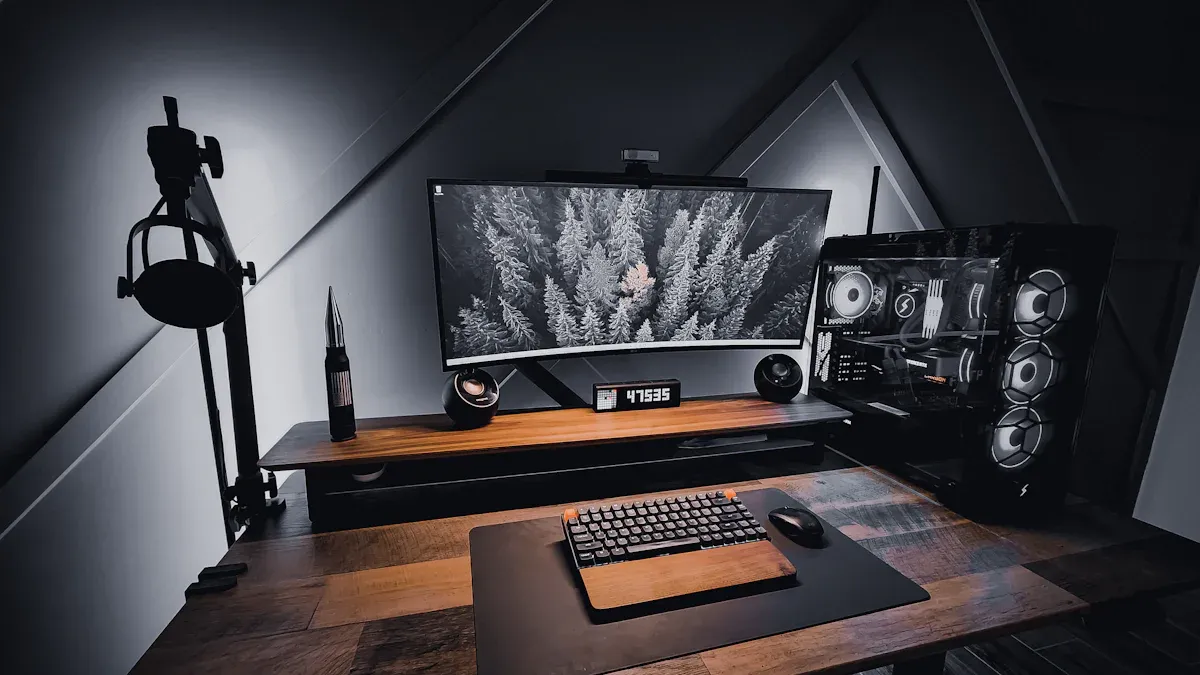
You can fix most G-Sync problems on your LG OLED TV with a few easy steps. Try running 'restart-only.exe' as an administrator. Update your TV’s firmware to the latest version. Use the right HDMI port and cable for your TV. Turn on G-Sync in your TV settings and in the NVIDIA Control Panel. If you see the message lg oled selected display is not valid as gsync compatible, these steps usually fix it.
Follow these steps to stop flickering, stuttering, or G-Sync not turning on.
Key Takeaways
Make sure you update your LG OLED TV firmware often. This helps G-Sync work better and improves performance.
Use the HDMI port that says 'HDMI 2.1'. Also, use a certified HDMI 2.1 cable for the best connection.
Turn on G-Sync in your TV settings. Turn it on in the NVIDIA Control Panel too. This makes gameplay smooth.
If you see errors, run 'restart-only.exe' as an administrator. This refreshes your system settings.
After updates, check your settings again. This stops G-Sync problems and keeps performance good.
Quick Fixes
You can fix most G-Sync problems on your LG OLED by doing a few easy things. These steps help stop flickering, stuttering, or the error message "lg oled selected display is not valid as gsync compatible." Try each step one at a time to get quick results.
Update LG OLED Firmware
Look at your TV’s firmware version. Companies make updates to fix problems and help devices work better together. Go into your TV’s settings. Find where you update the software. Download and install the newest firmware. New firmware often helps G-Sync work and makes your TV run better.
Use Correct HDMI Port and Cable
Plug your PC into the HDMI port that says “HDMI 2.1” or “ARC/eARC” on your LG OLED. Use a real HDMI 2.1 cable. This cable lets you use high refresh rates and variable refresh rate features. If you use the wrong port or cable, G-Sync might not work. Make sure your PC has an NVIDIA graphics card that works with G-Sync.
Tip: Check your cable and port before you try other fixes.
Enable G-Sync in NVIDIA Control Panel
Open the NVIDIA Control Panel on your PC. Pick “Set up G-Sync” from the menu. Turn on G-Sync for your LG OLED. Also turn on G-Sync in your TV’s settings. This makes sure your PC and TV work together for smooth games.
Run 'restart-only.exe' as Administrator
Some people say running 'restart-only.exe' as an administrator helps G-Sync work. Right-click the file and pick “Run as administrator.” This refreshes your system settings and can fix hard-to-solve problems.
Here is a table that shows common quick fixes from tech support:
Step | Description |
|---|---|
1 | Make sure your PC has an NVIDIA graphics card that works with G-Sync. |
2 | Turn on G-Sync in Windows using the NVIDIA Control Panel. |
3 | Check that your PC and monitor are connected with a DP cable. |
4 | If you still have problems, turn off the monitor's Overclock setting. |
5 | Update your NVIDIA graphics driver to the newest version if you need to. |
Most people find these steps fix G-Sync problems fast. You can enjoy smooth pictures and quick gameplay after you finish these steps.
Troubleshooting Steps
Fixing 'LG OLED Selected Display Is Not Valid as G-Sync Compatible' Error
You may see the message lg oled selected display is not valid as gsync compatible when you try to use G-Sync on your LG OLED. This error means your TV or PC settings do not match what G-Sync needs. Follow these steps to fix it:
Check your hardware. Make sure you have an NVIDIA graphics card that supports G-Sync. Connect your PC to your LG OLED with a DisplayPort (DP) cable if possible. If you use HDMI, make sure it is HDMI 2.1.
Open the NVIDIA Control Panel. Right-click your desktop and select NVIDIA Control Panel. Go to the Display menu and click Set up G-SYNC. Select Enable G-SYNC, G-SYNC Compatible.
Confirm your TV settings. Turn on G-Sync in your LG OLED’s settings. Use the correct HDMI port labeled HDMI 2.1 or ARC/eARC.
If you still see lg oled selected display is not valid as gsync compatible, check the Overclock setting on your TV. Turn it off. Overclock can cause G-Sync to fail.
Update your TV firmware and NVIDIA drivers. New updates fix many compatibility problems.
Tip: Restart your PC and TV after changing settings. This helps the changes take effect.
Toggle Refresh Rate in NVIDIA Control Panel
Sometimes, changing the refresh rate in the NVIDIA Control Panel helps G-Sync work better. You can do this by:
Opening the NVIDIA Control Panel.
Selecting Change resolution under Display.
Picking your LG OLED display.
Setting the refresh rate to 120Hz or 60Hz, depending on what your TV supports.
If you see flickering or stuttering, try switching between these refresh rates. This can help resolve the lg oled selected display is not valid as gsync compatible error.
Enable V-Sync in NVIDIA Settings Only
You should enable V-Sync in the NVIDIA Control Panel, but turn it off in your games. G-Sync works best when V-Sync is on in the driver settings and off in-game. This setup reduces tearing and input lag. If you enable V-Sync in both places, you may notice more stuttering and delays, especially when your frame rate drops below the TV’s refresh rate. G-Sync keeps your gameplay smooth by matching the TV’s refresh rate to your graphics card output.
Note: G-Sync performs best at lower frame rates, like 45 to 60 fps. At higher frame rates, the benefits decrease.
Adjust VRR and Picture Modes
Variable Refresh Rate (VRR) can cause flickering, especially in dark scenes or when frame rates change quickly. You can fix this by keeping your frame rate steady. If flickering continues, try using anti-flicker modes on your LG OLED. These modes limit the VRR range and reduce gamma shifts. The high anti-flicker mode stops flicker but may cause stuttering or tearing.
For the best G-Sync performance, use the recommended picture modes:
Picture Mode | Setting | Value |
|---|---|---|
SDR | Game Mode | ON |
SDR | HDMI Ultra HD Deep Color | ON |
SDR | Instant Game Response | ON |
HDR | Game | ON |
HDR | OLED LIGHT | 100 |
HDR | Contrast | 100 |
Dolby Vision | Cinema Home | ON |
Dolby Vision | OLED LIGHT | 100 |
Dolby Vision | Dynamic Contrast | High |
Try these settings to reduce flickering and stuttering. Adjust them if you notice problems during gameplay.
Test with Different Games or Apps
Some games or apps may not support G-Sync fully. If you still see lg oled selected display is not valid as gsync compatible, try running a different game or app. This helps you find out if the problem comes from the game or your TV settings. Testing with several games lets you see if G-Sync works as expected.
If G-Sync works in one game but not another, check the game’s graphics settings. Make sure V-Sync is off in-game and G-Sync is enabled in the NVIDIA Control Panel.
Advanced Fixes
Roll Back NVIDIA Drivers
Sometimes, new graphics drivers can cause problems with G-Sync on your LG OLED. If you notice issues after a recent update, you can roll back to an older driver. Open the Device Manager on your PC. Find your NVIDIA graphics card under Display adapters. Right-click and choose Properties. Go to the Driver tab and select Roll Back Driver. This step can help if you see the lg oled selected display is not valid as gsync compatible error after updating your drivers.
Tip: Always restart your PC after changing drivers to make sure the changes work.
Factory Reset LG OLED
If you still have problems, try a factory reset on your LG OLED. This step returns your TV to its original settings. Go to the Settings menu on your TV. Find the option for General, then choose Reset to Initial Settings. You will need to set up your TV again, but this can fix hidden issues that block G-Sync.
Use a high-quality HDMI 2.1 cable. Cables longer than 10 feet can cause problems unless you use an AOC cable. Many users recommend the Ruipro brand for stable G-Sync performance.
Adjust the chroma subsampling setting to 8-bit YCC 422 SDR. This change can help reduce bandwidth issues, but results may vary.
Contact LG or NVIDIA Support
If you have tried all the steps and G-Sync still does not work, contact LG or NVIDIA support. Explain the steps you have taken and mention any error messages, such as lg oled selected display is not valid as gsync compatible. Support teams can guide you through advanced troubleshooting or let you know if your hardware needs repair.
Note: Keep your TV’s model number and your graphics card details ready when you contact support. This information helps them solve your problem faster.
Prevention Tips
Keep Firmware and Drivers Updated
It is important to keep your LG OLED TV firmware and NVIDIA graphics drivers updated. Updates fix problems and help devices work together better. If you use old software, you might see errors like lg oled selected display is not valid as gsync compatible. Check for updates once a month. Go to your TV’s settings and find the update option. Download the newest driver for your graphics card from NVIDIA’s website.
Tip: Set reminders to check for updates. This habit helps you stop sudden G-Sync problems.
Recheck Settings After Updates
After you update your TV or graphics drivers, check your settings again. Updates can change or reset some options. Make sure G-Sync is turned on in both your TV and the NVIDIA Control Panel. Use the right HDMI port and cable. Check your picture mode and VRR settings. If you see flickering or stuttering, try changing the refresh rate or picture mode.
Here is a quick checklist:
G-Sync turned on in TV settings
G-Sync turned on in NVIDIA Control Panel
HDMI 2.1 port and cable used
Picture mode set to Game or Cinema
VRR turned on
Setting | Where to Check | Why It Matters |
|---|---|---|
G-Sync | TV & NVIDIA Control Panel | Stops compatibility errors |
HDMI Port & Cable | TV hardware | Lets you use high refresh rates |
Picture Mode | TV settings | Helps stop flickering |
VRR | TV settings | Makes gameplay smooth |
Follow Community Solutions
You can learn from other people who fixed G-Sync problems. Go to forums like Reddit, AVS Forum, or NVIDIA’s support site. Search for your TV model and the error message lg oled selected display is not valid as gsync compatible. Read posts and guides from people with the same problem. Try their ideas if you still have trouble.
Note: Community tips can fix rare problems that official guides miss. You can ask questions and share what happened to you.
If you follow these prevention tips, your LG OLED and G-Sync will work well. You will avoid common errors and get better gaming performance.
You can fix G-Sync problems on your LG OLED by updating the firmware. Make sure you use HDMI 2.1 for your connection. Turn on G-Sync in your TV and on your graphics card. Some people use old graphics cards or forget to update drivers. This causes mistakes. If you see the error "lg oled selected display is not valid as gsync compatible," check your hardware and settings.
Use a graphics card that works with G-Sync, like NVIDIA 3000 series or newer.
Turn on G-Sync in both your TV and graphics card.
Update your NVIDIA drivers often.
Tip: Always check your settings after each update. This helps G-Sync work well.
What Are the Characteristic Features of an OLED Display?
OLED (Organic Light Emitting Diode) displays have several defining characteristics that set them apart from LCDs. Here's a comprehensive breakdown.
💡 Core Principle: Self-Emissive Pixels
Unlike LCDs, which require a backlight, each pixel in an OLED display emits its own light. This means a pixel can be turned completely off to display true black. This self-emissive nature is the foundation for all of OLED's picture quality advantages.
✨ Key Strengths
Feature | What It Means |
|---|---|
Infinite contrast ratio | Black pixels are completely off (not just dimmed), producing true black. Contrast ratios can reach 1,000,000:1 or higher. |
Perfect viewing angles | Colors and brightness remain accurate even at extreme angles (up to 90 degrees). No color shift or contrast loss. |
Extremely fast response time | Microsecond response (typically 0.01ms vs. LCD's 1-10ms). Eliminates motion blur entirely – ideal for fast-paced gaming and sports. |
Vibrant, saturated colors | Wide color gamut (often 100%+ of DCI-P3) and high color volume. |
Ultra-thin & lightweight | No backlight unit means less thickness and weight. |
Flexible & foldable | Can be manufactured on plastic substrates, enabling curved, bendable, rollable, and foldable displays (e.g., foldable phones, curved monitors). |
Power efficient for dark content | Dark pixels use little to no power. Black-themed UIs save significant battery life. |
Wide temperature tolerance | Operates reliably from -40°C to +70°C. More robust than LCD in extreme environments (military, automotive, outdoor). |
Excellent vibration/shock resistance | Solid-state construction – no liquid crystal fluid to leak or misalign. |
⚠️ Key Limitations
Limitation | Explanation |
|---|---|
Burn-in (image retention) | Organic materials degrade over time. Static elements (logos, HUDs, taskbars) may "burn in" as permanent ghost images. This is OLED's biggest weakness. |
Shorter lifespan (especially blue) | Blue OLED pixels have a shorter lifespan than red or green. Manufacturers compensate with larger blue pixels or RGBW designs, but lifespan remains lower than LCD. |
Higher cost | Complex manufacturing, lower yields, and expensive materials make OLED panels more expensive than equivalent LCDs. |
Lower peak brightness (often) | While improving, many OLEDs struggle to match high-end LCDs (e.g., Mini-LED) in full-screen brightness for HDR highlights or outdoor visibility. |
PWM dimming & eye strain | To control brightness at low levels, many OLEDs use PWM (Pulse Width Modulation) – rapidly flickering pixels on/off. Some users experience eye fatigue or headaches. |
Susceptibility to moisture & oxygen | Organic materials degrade when exposed to air. Requires rigorous encapsulation (sealing). Poor sealing leads to dark spots or complete failure. |
Potential color/white uniformity issues | Manufacturing variations can cause color shifts or uneven brightness across large panels, especially at low brightness. |
🔬 Technology Branches
Type | Description | Typical Use |
|---|---|---|
AMOLED (Active-Matrix) | Each pixel has its own TFT (thin-film transistor) for precise, independent control. High resolution, low power. | Smartphones, TVs, smartwatches, laptops. |
PMOLED (Passive-Matrix) | Simpler, row/column driving. Lower resolution, higher power draw, cheaper. | Small, simple displays (fitness trackers, medical devices, small indicators). |
📊 OLED vs. LCD: At a Glance
Feature | OLED | LCD (Typical) |
|---|---|---|
Black level | True black (pixel off) | Grayish (backlight bleed) |
Contrast ratio | Infinite (~1M:1) | 1,000:1 to 5,000:1 |
Response time | ~0.01 ms | 1–10 ms (slower) |
Viewing angle | Excellent (no shift) | Poor to fair (color/contrast degrade) |
Burn-in risk | Yes (permanent possible) | No |
Peak brightness | Moderate (500–1000 nits typical) | High (1000–2000+ nits possible) |
Power consumption | Varies (low for dark, high for bright) | Constant (backlight always on) |
Lifespan | ~30k–100k hours (depends on usage) | ~60k–100k+ hours |
Manufacturing cost | Higher | Lower |
Flexibility | Bendable, foldable, rollable | Rigid (few flexible options) |
🎯 When to Choose OLED vs. When to Be Cautious
Highly Recommended | Why | Use with Caution | Why |
|---|---|---|---|
Home theater / movies | True black, infinite contrast, immersive | PC monitor with static UI | Burn-in risk (taskbar, icons, windows) |
Fast-paced gaming | No motion blur, fast response | Digital signage / kiosks (24/7 static content) | Accelerated pixel aging, burn-in |
Smartphones & wearables | Thin, power-efficient for dark mode, vibrant colors | Outdoor / direct sunlight use | Brightness may be insufficient |
Foldable devices | Enables flexible form factors | Medical / critical monitoring (long fixed patterns) | Burn-in could be safety issue |
Extreme environments | Wide temp. range, shock resistant | Users sensitive to flicker | PWM dimming may cause eye strain |
🔧 Mitigating Burn-in (Modern OLEDs)
Manufacturers have introduced several techniques to reduce burn-in risk:
Pixel shifting – shifts static content by a few pixels periodically.
Pixel refresh / compensation cycles – measures and evens out pixel degradation.
Logo detection dimming – reduces brightness of static logos.
Screen savers & automatic brightness limiting (ABL) – protects against prolonged static display.
With normal mixed usage (movies, games, web browsing), modern OLEDs can last 5+ years without noticeable burn-in. However, they are still not ideal for static, 24/7 operation.
Bottom Line
Choose OLED if you prioritize: ultimate contrast, perfect blacks, fast motion handling, wide viewing angles, and vibrant colors – for movies, gaming, or premium mobile use – and you vary your content (not static all day).
Avoid OLED if you need: long-term static image display (monitoring, digital signage), very high bright-room luminance, or you are sensitive to PWM flicker – or you want a budget option.
If you tell me your specific use case (e.g., gaming monitor, TV for movies, office work, outdoor display), I can give more tailored advice.
FAQ
What does "LG OLED selected display is not valid as G-Sync compatible" mean?
You see this message when your TV or PC settings do not match G-Sync requirements. Check your HDMI port, cable, and make sure G-Sync is enabled on both your TV and in the NVIDIA Control Panel.
Why does my LG OLED flicker when G-Sync is on?
Flickering often happens because of unstable frame rates or VRR settings. Try using Game Mode, keep your frame rate steady, and adjust the anti-flicker setting on your TV.
Which HDMI port should I use for G-Sync on my LG OLED?
Use the HDMI port labeled "HDMI 2.1" or "ARC/eARC." Only these ports support the high refresh rates and VRR needed for G-Sync. Always use a certified HDMI 2.1 cable.
Do I need to enable V-Sync in games when using G-Sync?
No, you should enable V-Sync only in the NVIDIA Control Panel. Turn it off in your game settings. This setup helps G-Sync work best and reduces screen tearing.
How can I keep G-Sync working after updates?
After each update, check your TV and PC settings. Make sure G-Sync is still enabled. Use this checklist:
G-Sync on in TV and NVIDIA Control Panel
HDMI 2.1 port and cable
Game Mode active
Tip: Set reminders to check settings monthly.
