LCD screen display problem solutions from real users
Shenzhen TopAdkiosk Display Technology Co., Ltd.
Add.: 2F, Bldg 10, Changfeng Industrial Park, Dongkeng, Fenghuang, Guangming, Shenzhen, China 518132
Mobile/WHATSAPP: 86-138 25769658
Email: marketing@topadkiosk.com topadkiosk@gmail.com
Skype: pghenry1
Wechat: adkioskhenry
English Web.: http://www.topadkiosk.com/
https://www.topkioskdisplay.com/
http://www.ad-kiosk.com/
https://www.toplcddisplay.com/
http://www.multitouchdigitalsignage.com/
https://www.youtube.com/channel/UCYVYNJHxLVEcQD8fuUxXNTA/videos?view_as=subscriber
https://www.facebook.com/TOPADKIOSKSHENZHEN/?ref=bookmarks

You might get upset when you encounter an lcd screen display problem. Lots of people have faced these issues and discovered easy ways to resolve them. You do not have to be a tech expert to implement these fixes. Real users share their advice, and you can benefit from their experiences.
Community ideas can fix lcd screen display problems quicker than waiting for help!
Key Takeaways
Use pixel-cycling software or press gently to fix dead pixels. Try these steps before asking for help from a professional.
Check cables if your screen flickers or looks dim. Replace cables if needed. A new cable can often solve the problem.
If your screen turns black, check all connections. Make sure everything is plugged in tight. Try resetting BIOS settings to fix it.
Change display settings like brightness and contrast. This can help colors look better and stop ghosting.
Clean your screen often. Do not leave static images on it. This helps prevent burn-in and makes your LCD last longer.
Common lcd screen display problem fixes
Dead pixels and repair methods
Dead pixels can make your lcd screen display problem very frustrating. You might see tiny dots that stay black or show the wrong color. Here are the most common reasons you get dead pixels:
Manufacturing defects in the panel
Physical damage from bumps or pressure
Electrical issues that mess with pixel control
Natural wear after long use
You can try these user-reported fixes before you give up on your screen:
Pixel-cycling software: Run a program like JScreenFix or UDPixel. These apps flash colors quickly and sometimes wake up stuck pixels.
Gentle Pressure Technique: Turn off your screen. Use a soft cloth and gently press on the dead pixel. Turn the screen back on while holding the pressure for a few seconds.
Screen Tapping Method: Lightly tap the area with your fingertip or a stylus while the screen is on.
Warm-up periods: Let your display run for a while at different brightness levels. Sometimes, pixels start working again.
Professional inspection: If nothing works, ask a technician to check if the pixel is truly dead or just stuck.
Tip: Don’t press too hard! You could make the lcd screen display problem worse.
Screen flickering and dimness
Flickering or dim screens can make it hard to use your device. Many users have found simple ways to fix this lcd screen display problem. Check out this table for quick solutions:
Solution Type | Description |
|---|---|
Shielded Cables | Use cables with ferrite cores to block interference. |
Repositioning | Move your monitor or other electronics to reduce interference. |
Electromagnetic Shielding | Add shielding or grounded enclosures for power sources. |
High-Quality Cables | Use short, good-quality cables to keep the signal strong. |
Power Source Isolation | Plug your monitor into a different outlet away from noisy appliances. |
Graphics Driver Update | Update your graphics drivers to the latest version. |
Hardware Replacement | Replace damaged backlight strips or the whole display if needed. |
TCON Board Replacement | Swap out the TCON board if it fails. |
You can start by checking cables and updating drivers. If the problem stays, you might need to replace hardware parts.
No display or black screen
Nothing shows up on your screen? This lcd screen display problem happens a lot. Here are the main causes:
Power supply issues
Driver board malfunctions
You can try these steps to fix it:
Check all Connections: Make sure every cable is plugged in tight and not damaged.
Reset BIOS: Go into your BIOS settings and restore defaults. This can fix RAM or startup issues.
Check the Voltage Selector Switch: Make sure the switch matches your region’s voltage.
Disconnect Peripherals: Unplug everything except the monitor to see if something else is causing trouble.
Roll Back or Update Display Adapter Driver: Try updating or rolling back your display driver.
Check Temperature: Look at your CPU temperature in BIOS. Overheating can cause a black screen.
Note: If your screen stays black, the backlight or power supply might need repair.
Color issues and lines
Weird colors or lines can ruin your viewing experience. Users often report these problems:
Horizontal lines (often from internal panel failures)
Vertical lines (usually from T-Con board or circuit issues)
Here’s what you can do:
Replace the T-Con board if you see vertical lines. This board sends signals to your display.
If that doesn’t work, try replacing the main board. It handles video processing and can also cause line problems.
If you see both horizontal and vertical lines, you may need a full panel replacement.
Blurred images and ghosting
Blurry images or ghosting can make everything look messy. You can try these user tips:
Change the response time setting on your monitor to reduce ghosting.
Don’t leave the same image on your screen for too long.
Keep your screen in a room with normal temperature and humidity.
Run a pixel refresher program to help the liquid crystals move again.
Use moving screen savers instead of static ones.
Adjust contrast and brightness to make ghost images less visible.
Moving images help prevent ghosting. Try not to pause your screen for hours.
You can solve many lcd screen display problem issues with these simple steps. If nothing works, you might need professional help.
Troubleshooting steps from the community
You can solve many lcd screen display problem issues by following a few simple steps. Real users have shared these methods, and you do not need special tools or skills to try them.
Test with another device
Start by connecting your screen to a different device. For example, plug your monitor into another computer or use a different cable. If the lcd screen display problem goes away, your original device may be the cause. If the problem stays, your screen might need more attention.
Tip: If you see the same issue on both devices, your screen likely has a hardware problem.
Check cables and connections
Loose or damaged cables often cause display issues. Unplug all cables, then plug them back in firmly. Look for bent pins or frayed wires. Try using a new cable if you have one. Many users fix flickering or black screens just by swapping out a faulty cable.
Adjust display settings
Sometimes, the wrong settings can make your screen look strange. Go to your device’s display settings. Change the brightness, contrast, or color calibration. Set the refresh rate to match your monitor’s specs. If you see lines or odd colors, a quick adjustment can help.
Update or reinstall drivers
Outdated or corrupt drivers can cause many lcd screen display problem symptoms. Open your device manager and update your display drivers. If updating does not work, uninstall the driver and restart your computer. It will reinstall the correct driver automatically.
Note: Many users report that updating drivers fixes flickering and color issues right away.
Inspect for backlight issues
A dim or black screen often points to a backlight problem. Shine a flashlight at an angle on your screen. If you see faint images, your backlight may have failed. This happens when LED strips wear out. You might need a repair, but at least you know what to tell the technician.
Sign of Issue | What You See |
|---|---|
No display or black screen | Screen stays dark, even when device is on |
Screen brightness changes or looks dull | |
Faint images under bright light | You see shapes only when shining a flashlight on screen |
By following these steps, you can figure out if your lcd screen display problem comes from hardware or software. If you still have trouble, you will know what to tell a repair expert.
When to seek professional help

Signs of hardware failure
Sometimes, you try every trick in the book, but your LCD screen still acts up. That’s when you need to spot the signs that say, “It’s time to call an expert.” You don’t want to waste time or make things worse. Here are some clear signals that your screen needs professional attention:
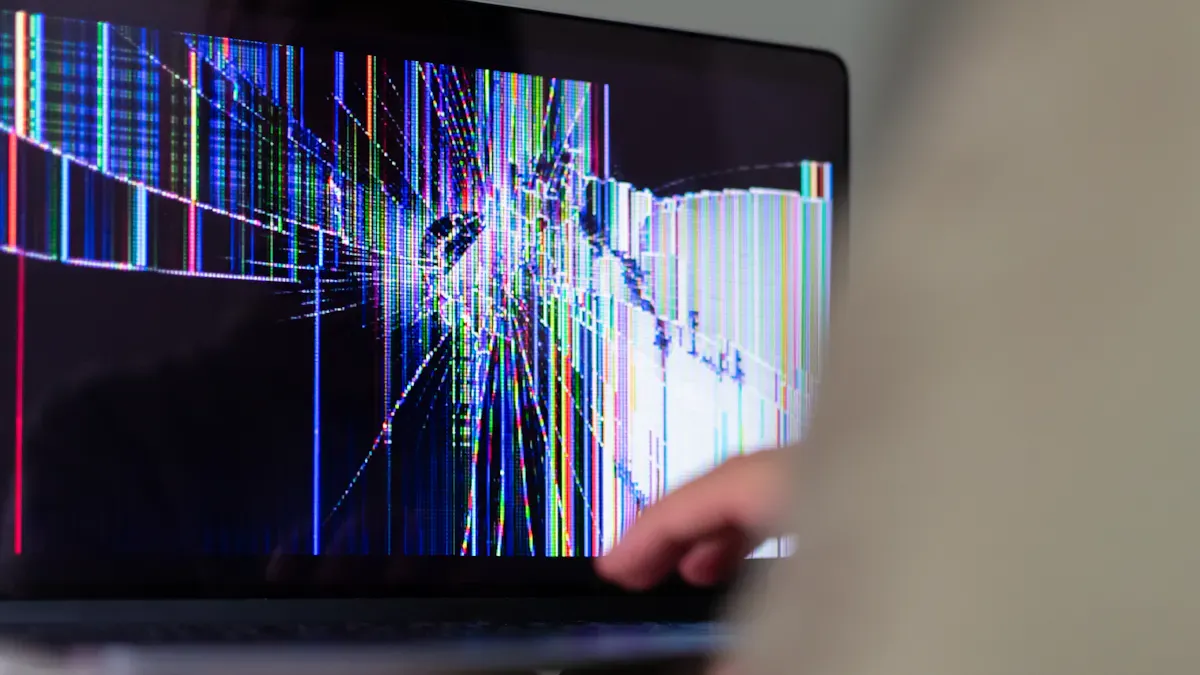
Broken glass on the display, especially if you see cracks or the picture looks distorted.
LCD leaking, which shows up as dark blobs or strange colors spreading across the screen.
Severe pressure damage, like big white spots or areas that never change color.
Permanent bright spots or white spots that stay no matter what you do.
Backlight degradation, where your screen gets dimmer and adjusting brightness doesn’t help.
Connection failures, such as flickering, missing lines, or parts of the screen not working.
Problems after humidity or temperature changes, like foggy images or weird colors.
Power fluctuations that cause your screen to turn off or act unstable.
Driver or controller faults, which can make the display glitch or freeze.
Physical stress from drops or bumps, leading to new defects.
You might also notice these common problems:
Dead pixels that never go away, even after trying pixel-fixing tools.
Flickering that doesn’t stop, even with new cables or drivers.
A backlight that fails, leaving your screen dark or barely visible.
If you see any of these issues, don’t try to fix them yourself. You could make things worse or even hurt yourself.
User experiences with repair services
Many users share their stories about getting LCD screens fixed. Some people feel nervous about repair shops, but most find that experts can solve tough problems. Here’s what you can expect:
Technicians often replace broken glass or damaged panels quickly.
Shops can fix backlight issues or swap out faulty boards.
Most repairs come with a short warranty, so you feel safe.
Some users say repairs cost less than buying a new screen.
Others mention that severe damage, like LCD leaking, usually means a full replacement.
Tip: Always ask for a repair quote before you agree to anything. That way, you know what to expect and can decide if repair or replacement makes more sense.
If you spot any warning signs, don’t wait. Professional help can save your screen and your wallet.
Preventive tips for lcd screens
Best care practices
You want your LCD screen to last as long as possible. Good news—simple habits can make a big difference. Here’s what real users suggest:
Clean your screen with a soft, dry microfiber cloth. This keeps dust away and stops smudges from building up.
Avoid pressing hard on the screen. Even a little pressure can cause dead pixels or cracks.
Keep your device in a cool, dry place. Heat and humidity can damage the display.
Adjust brightness and contrast to comfortable levels. Lower settings help your backlight last longer.
Use energy-saving modes when you can. These settings reduce stress on your screen.
Power off your display when you’re not using it. This gives the components a break.
Don’t let the same image stay on the screen for hours. Change content or use a moving screensaver to prevent burn-in.
Use a surge protector. Power surges can ruin your screen in seconds.
Shield your screen from direct sunlight. Sunlight can fade colors and overheat the panel.
Add a screen protector or anti-glare filter. These help prevent scratches and reduce eye strain.
Tip: Regular cleaning and gentle handling go a long way. You don’t need fancy products—just a soft cloth and a little care.
Recommended tools and resources
You don’t need a toolbox full of gadgets to keep your LCD screen in top shape. Here are some handy items that users love:
Tool or Resource | What It’s For |
|---|---|
Microfiber cloth | Safe cleaning, no scratches |
Screen protector | Shields against scratches, smudges |
Anti-glare filter | Reduces reflections, eases your eyes |
Small screwdrivers | Opening cases for repairs |
Pry tools | Gently separates screen parts |
Electronics cleaning bundle | Removes dust from vents and fans |
Nitrile gloves | Keeps fingerprints off the screen |
Heat gun or hairdryer | Loosens adhesive for repairs |
Replacement parts | Swaps out damaged components |
You can find many of these tools in repair kits or online. If you ever need to open your device, always work slowly and keep track of small screws.
Remember: A little prevention saves you time and money. Treat your LCD screen with care, and it will serve you well for years.
You can fix lots of LCD screen problems with easy steps. You can learn from other people’s ideas. Here are some quick ways to solve common issues:
Problem Type | Quick Fixes |
|---|---|
Try moving screen savers and higher refresh rates | |
Cracked Screens | Change the panel and use a protective case |
Color Distortion | Adjust display settings and calibrate the screen |
Touch Issues | Recalibrate or check cables |
People often suggest cleaning your screen and changing brightness. They also say to reset your settings if things look wrong. Your advice could help someone else, so share your tips in the comments. Community ideas help everyone keep their screens working well! 😊
🛠️ Step-by-Step Troubleshooting for LCD Screen Issues
Follow these steps in order—from simplest to most advanced. Most issues can be resolved by steps 1–5.
🔍 Phase 1: Quick External Checks (2 minutes)
Step 1: Power & Cable Connection
Is the screen completely black? Check the power LED. If off, verify the power cable is firmly plugged into both the wall and the display. Try a different outlet.
Laptop only? Press the function key (e.g.,
Fn + F8or a monitor icon) to cycle display modes (PC screen only / Duplicate / Extend / Second screen only).Check video cables – HDMI, DisplayPort, DVI, VGA, or USB-C. Reseat both ends. Try a known-good cable.
Step 2: Brightness & Input Source
Screen looks black but faint image visible? Increase brightness/backlight using the monitor's OSD (On-Screen Display) buttons or keyboard brightness keys.
"No Signal" message? Press the monitor's Input/Source button to select the correct port (HDMI 1, DisplayPort, etc.). Make sure your computer is powered on.
🖥️ Phase 2: Isolate the Problem (5 minutes)
Step 3: Test with Another Device or Cable
Connect a different computer, laptop, or game console to the LCD. If the issue disappears, your original source device (GPU, cable, or driver) is at fault.
If the issue remains, the LCD itself is likely the problem.
Step 4: Test the LCD on Another Computer
Take your LCD to another known-working computer. If the issue follows the screen, it's a display problem. If it works fine, the original computer's graphics driver or settings may be corrupted.
Step 5: Boot into Safe Mode (for laptops or all-in-ones)
If the screen shows distorted graphics, lines, or odd colors, boot into Safe Mode (Windows: repeatedly press F8 or Shift + Restart). If it looks normal in Safe Mode, the issue is a corrupted graphics driver or misconfigured software.
🔬 Phase 3: Visual Diagnosis – What Do You See?
Use this table to identify the most likely cause based on the symptom.
Symptom | Most Likely Cause | Quick Fix |
|---|---|---|
No image, power LED off | Power supply, cable, or outlet | Check power cord, try different outlet, test with another power adapter (laptop) |
No image, power LED on (blinking or solid) | Backlight failure (LEDs) or dead LCD panel | Shine a flashlight close to the screen. If you see a faint image, backlight is dead – replace backlight or screen assembly. |
"No Signal" but cables are fine | Input source selection, faulty cable, or GPU issue | Cycle input source, replace cable, test with another device |
Screen flickering / shaking | Loose cable, refresh rate mismatch, or electrical interference | Reseat video cable, set correct refresh rate (60Hz typical), move away from large magnets or power supplies |
Horizontal or vertical lines | Loose ribbon cable (internal), failing panel, or GPU | For laptops: gently press around bezel – if lines change, loose internal cable. External monitor: test with another device – if lines stay, panel is failing. |
Dead pixels (small black or white dots) | Manufacturing defect or physical damage | Use pixel-repair videos (rapid color cycling) – works for stuck pixels, not dead ones. Acceptable threshold: 3-5 dead pixels (varies by warranty). |
Backlight bleed (uneven bright edges) | Poor panel sealing or pressure | Check if bezel is warped. Slight bleed is normal for IPS panels. Severe bleed may require panel replacement. |
Image retention / ghosting | Temporary image sticking | Display a pure white screen or use a pixel-exercising video for 30 minutes. Avoid leaving static images for hours. |
Colors are wrong / washed out | Incorrect color profile, gamma, or cable seating | Reset monitor to factory defaults, check Color Management settings in OS, try a different cable (HDMI vs. DisplayPort). |
Screen is dim even at 100% brightness | Aging backlight (CCFL or LED) | For CCFL (old LCDs): replace inverter or backlight. For LED: panel aging – consider replacement if too dim. |
🧪 Phase 4: Advanced Diagnostics (requires tools)
Step 6: Check for Physical Damage
Cracked or shattered glass – This is unrepairable (other than full panel replacement). If you see spiderweb cracks or a black ink-spot spreading, the LCD is physically damaged.
Pressure marks – Dark or light blotches that change when you press the bezel. These can sometimes be massaged out gently (use a microfiber cloth and light pressure in circular motions).
Step 7: Test the Backlight (for "black but powered" screens)
Turn off the lights in the room. Shine a bright flashlight (phone torch works) at an angle onto the screen.
If you see a faint, normal image – The backlight inverter or LED driver is dead. This can be repaired (replace driver board or backlight strip).
If you see nothing (no image at all) – The LCD controller board or T-con board may be faulty, or the panel is completely dead.
Step 8: Reseat Internal Cables (for confident users)
Laptops / all-in-ones – Carefully open the chassis, locate the LCD cable (a flat ribbon cable connecting motherboard to screen). Unplug and reseat it firmly. Check for bent pins or tears.
External monitors – Most have internal cable connections accessible after removing the back cover. Look for loose LVDS or eDP cable between the panel and the main board.
Step 9: Test or Replace the Power Board / Driver Board
Buzz or no power – Listen for a faint whine or ticking. This suggests a failed capacitor on the power supply board. Capacitor replacement (soldering) may fix it.
Interchangeable boards – For popular monitors, you can buy a replacement power board or main board (e.g., from ShopJimmy, eBay) for $20–50. Swap to see if the issue resolves.
🔧 Phase 5: When to Repair vs. Replace
Use this decision matrix:
Issue | Repair Cost (DIY) | Repair Cost (Professional) | Replacement Cost | Verdict |
|---|---|---|---|---|
Dead backlight (CCFL) | $10–20 (inverter) | $80–120 | $150–300+ | Repair if monitor is high-end |
Dead backlight (LED) | $20–40 (strips) | $100–150 | $150–300+ | Repair if >27" or premium |
Cracked panel | Not feasible | $200–500+ (panel alone) | $150–400 | Replace – panel costs exceed monitor value |
Faulty capacitor / power board | $5–10 (capacitors) | $50–80 | $150–300+ | Repair (easy soldering job) |
Loose internal cable | $0 (just reseat) | $40–60 | – | Repair |
Dead pixels (few) | None | Not repairable | – | Live with it unless under warranty |
Lines (vertical/horizontal) | Unlikely (panel failure) | $150–400 | $150–400 | Replace unless under warranty |
Image retention (temporary) | Free (use white screen) | – | – | No repair – use screen savers |
No signal / input detection | $20–40 (main board) | $80–120 | – | Repair if monitor is >$300 new |
General rule: If the panel itself is physically intact, repair can be cost-effective. If the LCD glass is cracked or has lines that change with pressure, it's almost always cheaper to replace the entire monitor.
💡 Preventative Tips to Avoid Future Issues
Use a surge protector – Power spikes kill LCD power boards and backlights.
Avoid static images – Use screen savers or set shorter sleep timers to prevent burn-in/image retention (especially for OLED and older LCDs).
Clean safely – Never spray liquid directly on screen. Use a microfiber cloth dampened with distilled water or 70% isopropyl alcohol.
Ventilation – Ensure monitor vents aren't blocked. Overheating can cause capacitor failure and flickering.
Handle with care – LCD glass is thin. Never press hard on the screen, and always lift by the stand or frame, not the panel.
📞 When to Call a Professional
You've completed steps 1–5 and the issue still exists.
You hear crackling or smell burning – immediately unplug.
The monitor is under warranty – contact manufacturer first.
You're uncomfortable opening electronics that contain high-voltage capacitors (even when unplugged).
If you describe your specific symptom (model, what you see, what you've tried), I can give a more targeted diagnosis.
FAQ
What should I do first if my LCD screen goes black?
Try these steps:
Check if the power cable is plugged in.
Press the power button.
Test with another device.
Shine a flashlight on the screen to spot faint images.
How can I fix a stuck or dead pixel?
You can use a pixel-fixing app like JScreenFix. Gently tap or press the spot with a soft cloth. If the pixel stays dead, you may need a repair.
Why does my screen flicker sometimes?
Flickering often comes from loose cables or old drivers. Try unplugging and replugging your cables. Update your display drivers. If flickering continues, your backlight or T-Con board may need help.
Can I clean my LCD screen with regular cleaners?
No, you should not use regular cleaners. Use a microfiber cloth. If needed, use a little water or a special screen cleaner. Avoid spraying anything directly on the screen.
What’s the best way to prevent ghosting or image burn-in?
Change your screen content often. Use moving screen savers. Lower your brightness when possible. These habits help keep your display clear and sharp.
See Also
Understanding The Pros And Cons Of LCD Display Screens
Leading Brands And Manufacturers Of LCD Display Screens
Creating A High-Quality Touch And Non-Touch LCD Mirror Display
