What Causes White Clouding on LCD Monitors and How to Prevent It
Shenzhen TopAdkiosk Display Technology Co., Ltd.
Add.: 2F, Bldg 10, Changfeng Industrial Park, Dongkeng, Fenghuang, Guangming, Shenzhen, China 518132
Mobile/WHATSAPP: 86-138 25769658
Email: marketing@topadkiosk.com topadkiosk@gmail.com
Skype: pghenry1
Wechat: adkioskhenry
English Web.: https://www.topkioskdisplay.com/
http://www.ad-kiosk.com/
https://www.toplcddisplay.com/
http://www.multitouchdigitalsignage.com/
https://www.youtube.com/channel/UCYVYNJHxLVEcQD8fuUxXNTA/videos?view_as=subscriber
https://www.facebook.com/TOPADKIOSKSHENZHEN/?ref=bookmarks
You might see a lcd monitor white cloud or bright white spots on your screen. These problems usually happen because of hardware issues inside your monitor, not software errors. The most common reasons are pressure on the panel from dropping or squeezing, problems with the backlight or diffuser layers, stuck pixels, and trouble with the glue used in advanced screens. If you notice these marks, you probably have a physical problem with your display.
Key Takeaways
White clouding on LCD monitors happens because of hardware problems. It is not caused by software problems. Some common reasons are pressure damage, backlight bleed, and dust.
To stop white clouding, be gentle with your monitor. Always pick it up from the base. Do not press on the screen.
Clean your monitor often with a microfiber cloth. Do not spray liquid right on the screen. This can stop damage.
If you see white spots, look at your monitor closely. Use test patterns to find out what is wrong. This helps you know if you can fix it or need a new one.
Act fast when you see new clouding. Doing something early can stop more damage. It also keeps your monitor working well.
Main Causes of LCD Monitor White Cloud
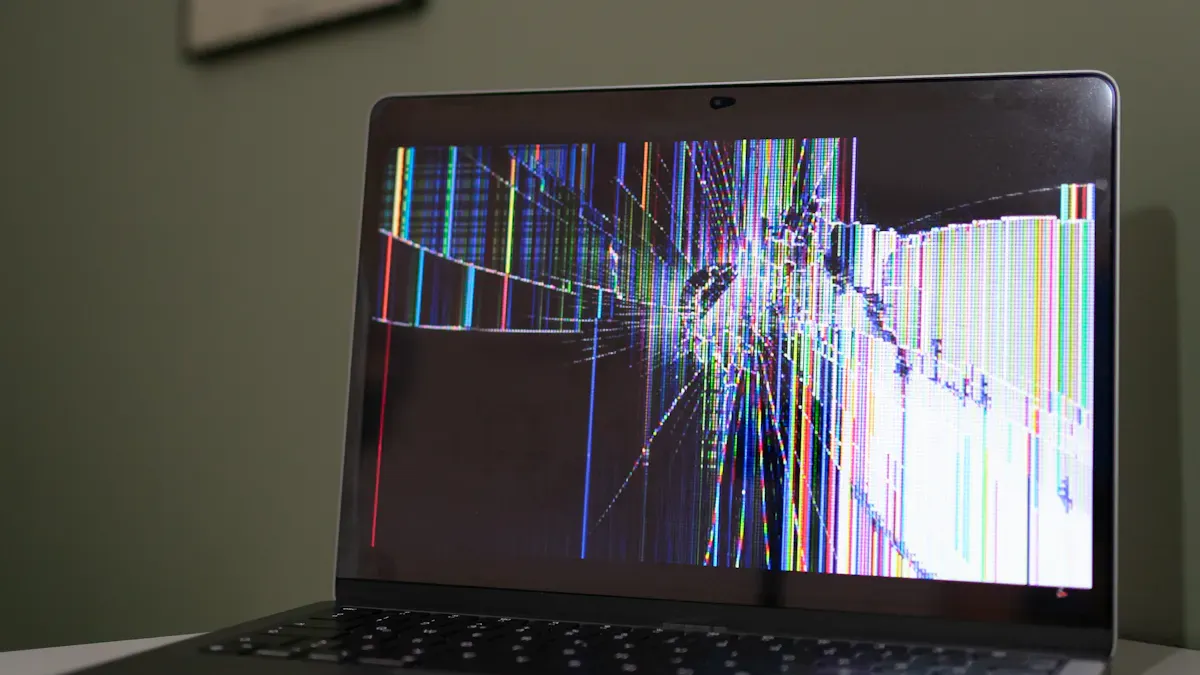
White clouding on LCD monitors usually happens because something is wrong inside the screen. It is not often caused by pixel problems or software bugs. Some issues, like broken or leaking LCDs, cannot be fixed. You will need a new panel if this happens. Here are the main reasons you might see a lcd monitor white cloud.
Pressure Damage
Pressure damage can happen if you press hard on your monitor or drop it. This force bends or squeezes the layers inside the screen. When this happens, light does not move through the screen evenly. You may see cloudy spots or bright patches where the screen changed shape. Sometimes, pressure damage happens when the monitor is made in the factory. Mechanical stress can cause tension in the panel and lead to clouding.
Here is a table showing some mechanical and optical causes of white clouding:
Cause of White Clouding | Description |
|---|---|
Impurities in the liquid crystal matrix | Foreign particles can block light from passing evenly. |
Uneven distribution of LCD matrix | Material spread unevenly causes irregular spots. |
Non-uniform TFT thickness | Different thickness affects how light moves. |
Mechanical stress during assembly | Stress from making the monitor can cause clouding. |
Backlight Bleed
Backlight bleed happens when extra light comes out from the edges of your screen. You notice this most when the screen is dark. The edges look brighter, and you may see halos or light patches. These bright spots can make the lcd monitor white cloud effect worse.
Bright spots
Halos
Light patches along the edges, especially in dark scenes
Backlight bleed makes the edges of your monitor look lighter than the middle. This uneven lighting can distract you and make the picture look worse.
Dust and Debris
Dust and debris can get inside your monitor when it is made or over time. These tiny bits block or scatter light. You may see cloudy areas or white spots where dust sits between the layers. Keeping your monitor clean and using it in a dust-free room helps stop this problem.
Failed or Leaking LCDs
Sometimes, the liquid crystals inside your monitor leak or break. This problem cannot be fixed. You may see dark spots, ink-like smears, or gray screens. The screen may lose contrast or stop working.
Causes of Irreparability | |
|---|---|
Dark spots | Internal damage to the LCD panel |
Ink-like diffusion | Broken parts inside the monitor |
Liquid crystal leakage | Cannot be fixed once it leaks |
Grayish screens | |
Color shifts | |
Reduced contrast | |
Complete screen failure |
If you see these signs, you will probably need to get a new panel.
Aging Components
As your monitor gets older, its parts can wear out. The glue holding layers together may get weak. Light filters can turn yellow, changing how colors look. The backlight may fade in some spots, causing uneven brightness and white spots. Heat, sunlight, and humidity can make these problems happen faster. Tiny cracks may form in the seals from heating and cooling again and again.
Glue breaks down, causing problems inside the monitor.
Backlights fade unevenly, making white spots.
Humidity and sunlight make aging happen faster.
Heat cycles create small cracks in seals.
You can slow down aging by keeping your monitor cool, dry, and away from sunlight.
Identify LCD Monitor White Cloud Causes
When you notice a lcd monitor white cloud, you can use a few simple steps to find out what is causing it. Careful observation helps you decide if you can fix the problem or if you need a new monitor.
Visual Inspection
Start by looking closely at your screen in a well-lit room. Check for bright spots, halos, or cloudy patches. You might see dark dots, yellow or pink tints, or areas that look brighter than others. These signs can point to pressure damage, dust, or backlight issues. If you spot any ink-like smears or gray areas, you may have a leaking LCD.
Tip: Use a flashlight at an angle to highlight uneven spots or debris on the surface.
Test Patterns
Test patterns help you see problems that are hard to spot with normal images. You can use special images or software to show different colors and shades. The table below shows which patterns work best:
Test Pattern | Description |
|---|---|
Mid-gray | Shows clouding clearly by revealing small changes in brightness. |
Near-black | Makes backlight bleed and glow easy to see, especially in dark areas. |
Solid primary colors (RGB) | Helps you find color patches or weak subpixels. |
You can also look for these signs:
Dark dead pixels (black dots)
Yellow or pink tinting
Brightness changes across the screen
Cloudy areas on white backgrounds
Spot Location and Timing
The place and time you see white spots can tell you a lot. Spots that stay in one place and never move often come from pressure damage or stuck pixels. Bright patches near the edges, especially in dark scenes, usually mean backlight bleeding. If you see new spots after moving or bumping your monitor, pressure damage is likely. Spots that grow or change shape over time may point to aging parts or LCD defects.
Cause | Description |
|---|---|
Pressure Damage | Bright spots from physical force, often permanent. |
Backlight Bleeding | Glowing patches from uneven light, most visible on dark backgrounds. |
Stuck Pixels | Small bright dots that never change color. |
LCD Defects | Odd brightness from manufacturing flaws or old parts. |
If you follow these steps, you can better understand what causes the lcd monitor white cloud and decide what to do next.
Fix LCD Monitor White Cloud
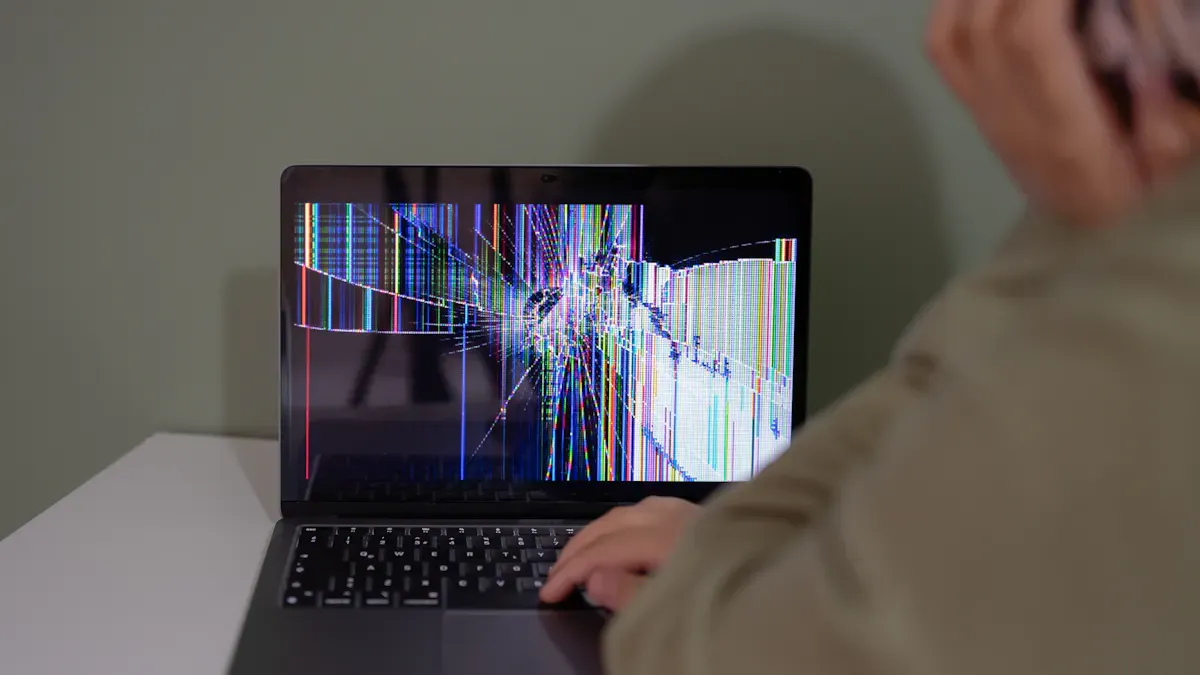
If you see a lcd monitor white cloud on your screen, you might wonder if you can fix it yourself or if you need help. Some problems have simple solutions, while others mean you need a new monitor. Let’s look at what you can do.
DIY Solutions
You can try a few easy steps at home to fix minor white clouding. These work best for small problems like dust, light pressure marks, or backlight bleed.
Clean the Screen Carefully
Use a soft, dry microfiber cloth to wipe the screen. Do not press hard. If you see dust or smudges, a gentle cleaning can help.Reduce Backlight Brightness
Lower the backlight setting in your monitor’s menu. This step can make white clouding less visible by reducing stray light. It does not fix the hardware, but it can make the clouding less distracting, especially in dark rooms.Check for Loose Cables
Make sure all cables are tight and secure. Sometimes, a loose connection can cause display problems.Gently Massage the Area
For very minor pressure spots, you can try softly massaging the area with a clean cloth. Do this gently and only if the spot is small. This method does not always work, but it can help in some cases.
Tip: Always turn off and unplug your monitor before cleaning or touching the screen.
Professional Repair
If DIY steps do not help, you may need a professional. Some problems inside the monitor need special tools and skills.
Internal Cleaning
A technician can open the monitor and remove dust or debris trapped inside. This step can fix cloudy spots caused by particles.Backlight Adjustment or Replacement
If the backlight is uneven, a repair shop can adjust or replace it. This can help with backlight bleed or faded areas.Panel Reseating
Sometimes, the layers inside the monitor shift during shipping or use. A professional can reseat these layers to improve the display.
You should choose professional repair if your monitor is still under warranty or if you do not feel comfortable opening electronics.
When Replacement Is Needed
Some lcd monitor white cloud problems cannot be fixed. If you see large white patches, ink-like smears, or a white circular region that does not go away, you likely have a failed or leaking LCD. In these cases, you need to replace the panel or buy a new monitor. No cleaning or repair can fix a broken or leaking LCD.
If you try changing cables or connections and the clouding stays, this is a clear sign that the screen needs replacement. Monitors with these problems often get worse over time. You should not keep using a monitor with a leaking or failed LCD.
Problem Type | Can You Fix It? | What To Do |
|---|---|---|
Dust or debris | Yes | Clean or get professional help |
Minor pressure marks | Sometimes | Try gentle massage or reduce backlight |
Backlight bleed | Sometimes | Lower backlight or get repair |
Failed or leaking LCD | No | Replace panel or monitor |
White circular region | No | Replace monitor |
Note: If your monitor is old or the repair costs more than a new one, replacement is the best choice.
By following these steps, you can decide if you can fix the problem yourself, need a repair shop, or should replace your monitor. Always act quickly when you see new white spots or clouding to prevent further damage.
Prevent LCD Monitor White Cloud
Proper Handling
You can stop most screen problems by being careful. Always pick up your monitor from the base or sides. Do not touch the screen with your fingers or anything else. Even a little pressure can make white spots appear.
LCD bruising happens when too much force pushes photospacers too far. This causes damage that will not go away.
If you press harder than about 4 kgw/cm², the LCD panel can bend and break. So, you must handle your monitor gently to keep it safe.
Do not press on the screen when you clean it.
Use gentle ways and the right tools.
If you use too much force to clean a mark, you might hurt the panel.
Cleaning Tips
Dust and dirt can make cloudy spots if they get inside. Clean your screen often, but do it the right way.
Use a special microfiber cloth for screens so you do not move dirt around.
Clean slowly and gently to lift dirt without pushing it in.
Do not spray liquid right on the screen to avoid water damage.
Spray cleaner on the cloth, not the screen, and make sure the cloth is just a little wet.
Press lightly and let the cleaner help with tough smudges.
Use a small vacuum with a soft brush to clean dust from the edges and corners.
Tip: Always turn off and unplug your monitor before you clean it.
Safe Storage
Keep your monitor in a cool, dry place. Do not put it in sunlight or near heat. Stand the monitor up straight and do not put heavy things on it. Cover the screen with a soft cloth to keep dust away. Good storage helps stop lcd monitor white cloud and makes your monitor last longer.
You now know the main causes of lcd monitor white cloud. Pressure, dust, backlight problems, and aging parts can all lead to this issue. Regular checks help you spot problems early. Handle your monitor with care and clean it gently. If you see white spots or clouding, act fast. Quick action can stop more damage and keep your screen clear.
How to Fix a White Cloud on an LCD Monitor
A white cloud (also called “white haze,” “bright cloud,” or “clouding”) appears as an irregular, hazy white patch on an LCD screen, most visible when the display is showing a dark or black image. It is not a dead pixel or stuck pixel – it is usually caused by uneven pressure, backlight diffusion issues, or moisture ingress.
Below is a systematic guide to diagnosing and attempting to fix the problem.
🔍 1. Identify the Cause
Appearance | Most Likely Cause | Repairable? |
|---|---|---|
Soft, blurry white patch, changes with slight pressure on the screen | Uneven backlight diffusion (light guide plate scratched or displaced) | ⚠️ Partially – requires disassembly |
Cloud persists after wiping the screen; no physical damage | Backlight diffusion sheet degradation or dust intrusion | ⚠️ Requires cleaning or replacing diffusion layers |
Cloud appears after a liquid spill or high humidity | Moisture trapped between layers (polariser or backlight) | ✅ Sometimes – drying may help |
Cloud is sharply defined, with rainbow tints | Pressure damage (fingers, heavy object) to the polariser or LCD cell | ❌ Usually permanent, may require panel replacement |
Cloud is uniform across large areas (not spotty), with uneven backlight | Aging LED backlight or deformed light guide plate | ⚠️ Replace backlight or diffusion stack |
Important: If the white cloud has existed for a long time and never changes, it is likely permanent physical damage. If it appeared recently after a spill or impact, there is a higher chance of improvement.
🛠️ 2. Non‑Invasive Attempts (Low Risk)
Before opening the monitor, try these safe methods.
2.1 Gentle Massage (For Pressure‑Related Clouding)
Turn off the monitor and unplug it.
Wrap a soft, lint‑free microfiber cloth around your fingertip.
Very gently rub the white cloud area in small circles with light pressure.
Re‑power the monitor and check if the cloud has reduced.
Repeat 2‑3 times. Do not press hard – you may damage the liquid crystal alignment permanently.
When it works: Mild pressure marks from factory handling or temporary deformation.
2.2 Drying (For Moisture Clouding)
Place the monitor in a warm, dry room (not direct sunlight or heater).
Leave it for 2‑5 days, powered off.
In humid climates, place the monitor in a sealed bag with desiccant packs (silica gel) for 48 hours.
If the cloud shrinks, moisture was the cause. Continue drying until fully gone.
When it works: Water condensation between the polariser and glass, or inside the backlight.
🔧 3. Advanced Fixes (Requires Disassembly)
If non‑invasive methods fail, the issue is likely inside the backlight module. Disassembly is required. Warning: Opening an LCD monitor can void warranty, expose high‑voltage components (even when unplugged), and risk breaking the fragile panel. Only proceed if you have electronics repair experience.
3.1 Dust or Debris Inside Backlight
Disassemble the monitor (remove bezel, separate LCD panel from backlight unit).
Use compressed air or a lint‑free cloth to carefully clean the light guide plate and diffusion sheets.
Reassemble carefully, ensuring no new dust enters.
3.2 Light Guide Plate Scratches or Deformation
If the white cloud follows a visible scratch or dent on the diffuser sheet, you may need to replace the light guide plate or diffusion films (available as repair kits for some models).
For inexpensive monitors, replacement is often not economical.
3.3 Uneven Backlight LED Pressure
Sometimes the white cloud is caused by a protruding LED or uneven reflector.
Gently reposition the LED strip or add a small piece of diffusion tape over the bright spot.
❌ 4. When to Accept Defeat and Replace
The white cloud does not change after drying and gentle massage.
You see additional symptoms: flickering, colour distortion, or dark patches.
The monitor is more than 5‑7 years old – repair cost (labour + parts) may exceed replacement cost.
The panel itself is physically damaged (cracks, pressure marks that persist).
In these cases, replacing the monitor is the most cost‑effective solution.
✅ Summary Decision Flowchart
text
White cloud appears
        │
        ▼
Is it sharp / rainbow‑tinted? ──Yes──► Pressure damage → Replace panel/monitor
        │
        No
        ▼
Was there a spill or high humidity? ──Yes──► Try drying 2‑5 days
        │                                            │
        No                                           Cloud gone? → Done
        │                                            │
        ▼                                            No
Gentle massage (light pressure)                     │
        │                                            ▼
        ▼                                     Likely backlight issue
Cloud reduced? ──Yes──► Done
        │
        No
        ▼
Open monitor and clean / reposition diffusion layer
        │
        ▼
Still cloudy? → Replace monitor
💡 Prevention Tips
Avoid pressing on the screen – even with fingers, when cleaning or moving.
Control humidity – use a dehumidifier in very damp rooms.
Clean properly – only use microfiber cloths and distilled water; never spray liquid directly on the screen.
Handle carefully – when transporting, support the monitor from the edges, not the centre.
⚠️ Final Warning
Many white clouds are permanent – especially those caused by physical pressure or ageing of the optical films. Do not spend excessive time or money on a low‑end monitor. For an expensive professional display, a qualified repair shop may be able to replace the backlight diffusion stack. For a typical consumer monitor, replacement is usually the practical answer.
FAQ
What is the difference between white clouding and dead pixels?
White clouding looks like bright, hazy patches. Dead pixels appear as tiny black or colored dots. You can fix white clouding sometimes, but dead pixels usually stay unless you replace the screen.
Can you fix white clouding with software?
No, you cannot fix white clouding with software. This problem comes from hardware issues inside your monitor. You need to clean, repair, or replace parts to solve it.
Does white clouding get worse over time?
Yes, white clouding can get worse. Heat, sunlight, and age make the problem grow. You should check your monitor often and act quickly if you see new spots.
Is it safe to keep using a monitor with white clouding?
You can use a monitor with white clouding, but the picture quality will not be as good. If the clouding spreads or you see leaks, you should replace the monitor soon.
See Also
Creating A Premium Touch And Non-Touch LCD Mirror Display
Selecting The Ideal LCD Rack Monitor For Your Requirements
Understanding LCD Display Screens And Their Functionality
Exploring The Main Differences Between LED And LCD Video Walls
