5 smart ways to keep your LCD for computer monitor spotless
Add.: 2F, Bldg 10, Changfeng Industrial Park, Dongkeng, Fenghuang, Guangming, Shenzhen, China 518132
Mobile/WHATSAPP: 86-138 25769658
Email: marketing@topadkiosk.com topadkiosk@gmail.com
Skype: pghenry1
Wechat: adkioskhenry
English Web.: https://www.topkioskdisplay.com/
http://www.ad-kiosk.com/
https://www.toplcddisplay.com/
http://www.multitouchdigitalsignage.com/
https://www.youtube.com/channel/UCYVYNJHxLVEcQD8fuUxXNTA/videos?view_as=subscriber
https://www.facebook.com/TOPADKIOSKSHENZHEN/?ref=bookmarks
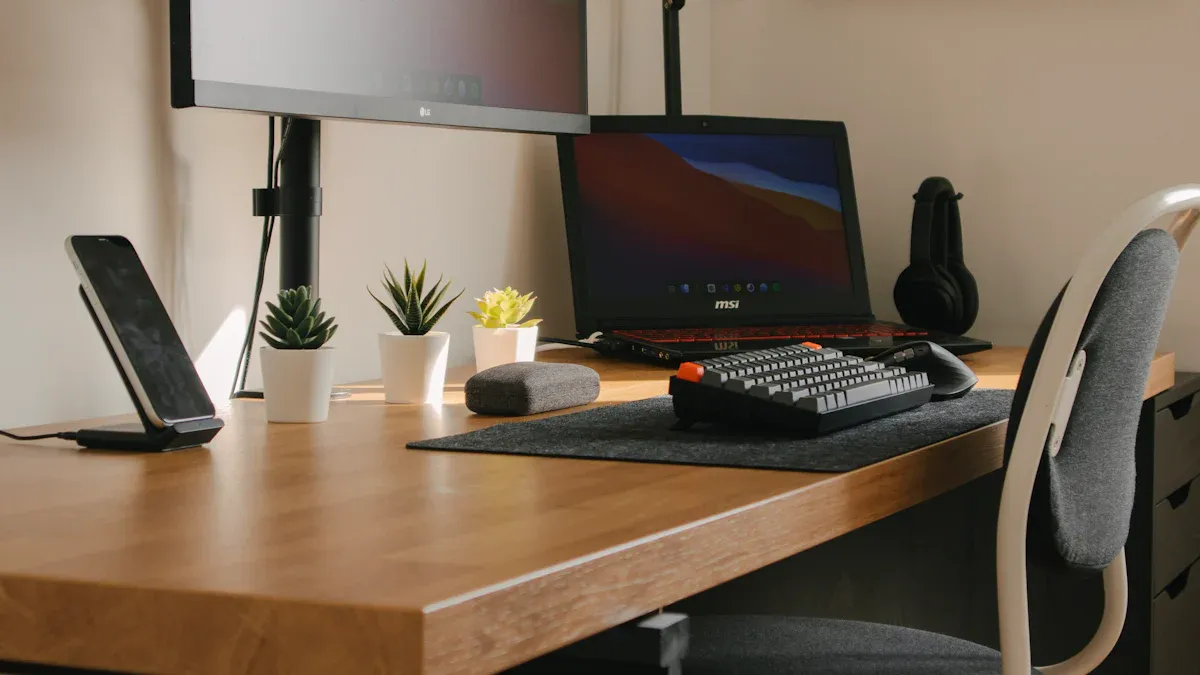
If you want your lcd for computer monitor to look spotless, start with gentle cleaning using a clean microfiber cloth. Keeping your monitor cleaner means you get better screen clarity and protect your device’s life. When you clean computer screen the wrong way, you risk scratches, streaks, or even permanent damage. Here are some quick tips to help you avoid trouble:
Tap water can leave streaks on your screen.
Harsh chemicals may ruin anti-glare layers.
Rough cloths can cause micro-scratches.
Make cleaning your monitor a safe habit for a bright, sharp display. For more ideas, check out https://www.topkioskdisplay.com/.
Key Takeaways
Use a clean microfiber cloth to softly wipe your LCD monitor. This stops scratches and keeps the screen looking clear.
Do not use strong chemicals like glass cleaner or ammonia. These can hurt your monitor's protective layer.
Always turn off and unplug your monitor before you clean it. This keeps you safe from electric shock and helps you see smudges better.
Wet the cloth with a safe cleaning solution, not the screen itself. This keeps water away from the monitor's edges.
Clean your monitor often, about once a week, to keep it clear and make it last longer.
Microfiber cloth for lcd for computer monitor
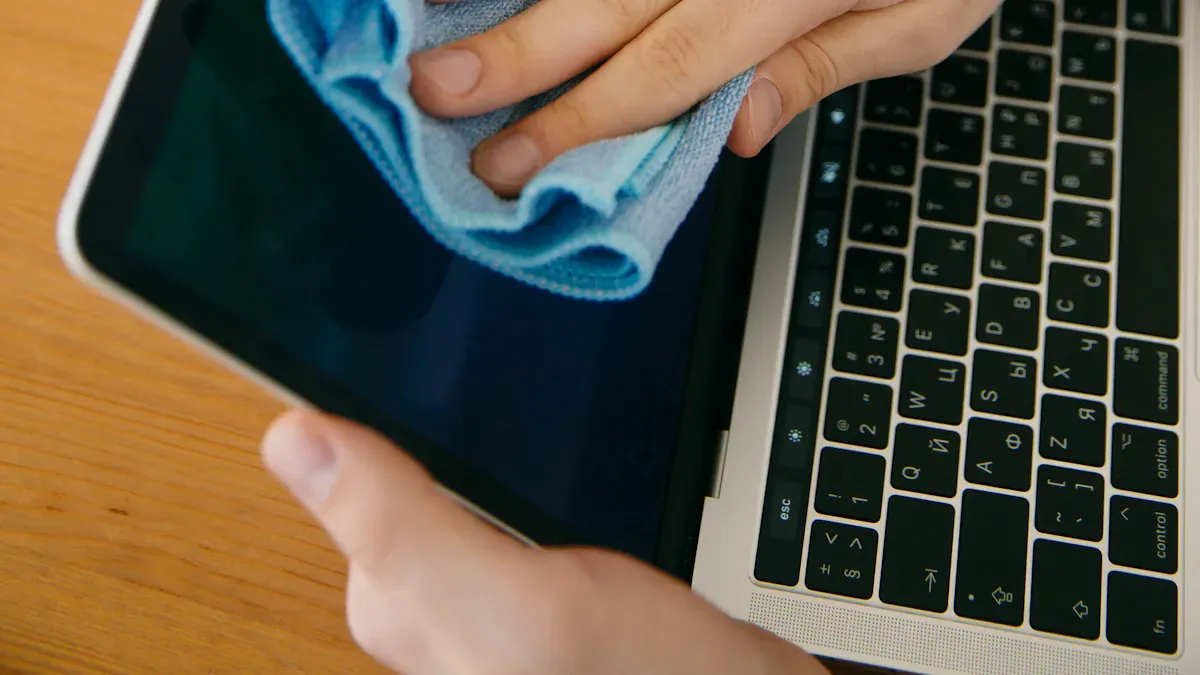
Why use microfiber
If you want your lcd for computer monitor to look great, use a microfiber cloth. This cloth is soft and does not scratch the screen. It picks up dust, fingerprints, and smudges easily. Microfiber holds dirt in its tiny threads. This stops dirt from spreading on your screen. Using microfiber helps your monitor stay clear. You will see bright colors and sharp images every time.
Microfiber cloth works better than other things. Paper towels or rough fabrics can scratch your lcd for computer monitor. They can also leave small bits of lint on the screen. This can make the display less clear and even harm it over time. To keep your monitor spotless, always use microfiber.
How to clean your monitor with microfiber
Make sure your microfiber cloth is clean and dry before you start. If the cloth is dirty, it can rub old dirt or oil onto your lcd for computer monitor. Wipe the screen gently in circles. This removes fingerprints and smudges without streaks. Do not press hard. Light pressure is enough to clean dust and keep your monitor clear.
Tip: Never use paper towels or rough materials to clean your monitor. They can scratch the screen or leave lint, which makes your monitor look dirty.
If you see tough spots, breathe lightly on the screen to add a little moisture. Then wipe again with the microfiber cloth. For normal cleaning, just use this easy method. Your lcd for computer monitor will look new and show clear, sharp images every day.
Avoid harsh cleaning chemicals
What not to use
You want your lcd for computer monitor to stay bright and clear. Some people use regular household cleaners, but these can hurt your screen. Many of these cleaners have chemicals that can damage your monitor. This can make your screen look worse. Here are some things you should never use on your lcd for computer monitor:
Glass cleaner
Ammonia
Bleach
Thinner
Acetone
Ethyl alcohol
Ethyl acid
Methyl chloride
Toluene
Abrasive cleaners
Compressed air
Glass cleaning products are a problem because they have strong chemicals. These chemicals can make the LCD display turn yellow and get weaker.
If you use these, you might scratch or streak your screen. You could even cause damage that will not go away. These chemicals can take off the protective layer. This makes fingerprints and smudges harder to clean. You should not use anything that can hurt your monitor or make it last less time. Taking care of your monitor means picking the right products every time.
Safe cleaning alternatives
There are safer ways to clean your lcd for computer monitor. For safe cleaning, use gentle things that protect your screen. These will help your monitor look new. Here are some good choices:
Distilled water
A 50-50 mix of distilled water and white vinegar
A 1:1 mix of distilled water and 70-75% isopropyl alcohol
Use these with a lint-free, soft cloth or cleaning wipes for monitor. Always make the cloth damp first. Do not spray liquid right on the screen. This way, you can clean fingerprints and smudges without hurting your monitor. Cleaning your monitor often with these helps keep it clear and bright. You will see better and your monitor will last longer. Remember, gentle cleaning means fewer scratches and a spotless screen.
Power down before cleaning
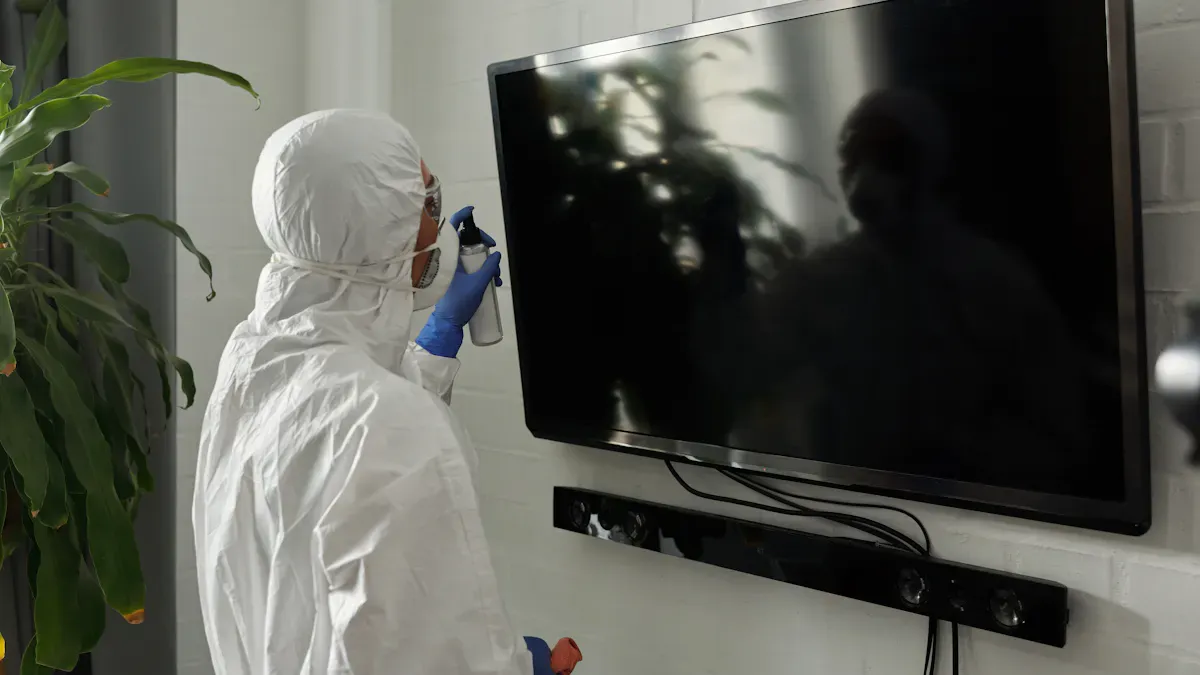
Unplug for safety
Always turn off your lcd for computer monitor before cleaning. Unplug it to keep yourself safe. Skipping this step may seem faster, but it is not safe. Unplugging stops electrical dangers. Cleaning can make moisture get into the screen edges. This can cause short circuits or hurt the inside parts. You do not want to break your monitor by forgetting to unplug it.
Here’s why unplugging is important:
You stop electrical risks while cleaning.
You keep moisture out of the monitor.
You protect the inside parts from harm.
Safety tip: Never spray water or cleaner right on the screen. Moisture can get inside and cause trouble. Always dampen your cloth first.
Prevent streaks and damage
Turning off your lcd for computer monitor helps you see dirt and fingerprints. When the screen is dark, smudges are easier to spot. You can clean them better and not miss any spots. Matt Ferretti from Consumer Reports says a powered-down monitor shows streaks and fingerprints more clearly.
Cleaning works best when you see what needs to be cleaned. You get a spotless screen and stop fingerprints from staying. Cleaning a monitor that is on can leave streaks. The heat dries the cleaner too fast. You want your lcd for computer monitor to look clear and sharp, so always turn it off before cleaning.
You see fingerprints and streaks more easily.
You avoid streaks from monitor heat.
You make cleaning work better.
If you follow these steps, your lcd for computer monitor stays safe and clean. You protect your device and get a spotless screen every time.
Apply cleaning solution properly
How to dampen the cloth
When you clean the monitor screen on your lcd for computer monitor, you want to make sure you use the right method. Start by turning off your monitor. Grab a clean microfiber cloth. Pour a little distilled water or a safe cleaning solution onto the cloth. You do not want the cloth to be soaked. Just make it damp. If you use too much liquid, moisture can seep into the edges of your monitor. That can cause problems inside the device.
Here’s a simple way to dampen your cloth for monitor cleaning:
Pour distilled water or a safe solution into a small bowl.
Dip one corner of the microfiber cloth into the liquid.
Squeeze out extra moisture so the cloth feels damp, not wet.
Wipe the lcd for computer monitor gently.
If you see stubborn smudges, you can use a tiny amount of 70-75% isopropyl alcohol mixed with distilled water. This helps remove tough spots without harming your monitor. Always use a gentle touch. You want to clean the monitor screen without pressing too hard.
Tip: Never use a soaked cloth. Too much liquid can damage your lcd for computer monitor.
Never spray directly on lcd for computer monitor
You should never spray cleaning solution right onto your lcd for computer monitor. Electronics manufacturers warn against this because liquid can get into the cracks and cause the monitor to malfunction. Spraying water or detergent directly on the screen can lead to permanent damage.
Here’s why you should avoid spraying:
Liquid can seep into the edges and harm the electronics.
Spraying can cause streaks and make monitor cleaning harder.
You risk damaging the display if moisture gets inside.
Always apply cleaning solution to the cloth first. This keeps your lcd for computer monitor safe and spotless. You get a clear screen and avoid problems. Remember, monitor cleaning works best when you use gentle methods and keep moisture away from the device.
Clean your monitor regularly and gently
Cleaning schedule
You want your lcd for computer monitor to look sharp every day. Regular cleaning helps you keep the screen clear and bright. You do not need to clean your monitor every day, but you should not wait too long either. Here’s a simple schedule you can follow:
Clean your monitor once a week if you use it often or if you see dust and fingerprints.
If your room is dusty or you touch the screen a lot, try cleaning your monitor every few days.
For a less-used lcd for computer monitor, cleaning every two weeks works well.
Sticking to a schedule keeps dust and fingerprints from building up. You will notice your monitor stays clearer and lasts longer. Regular cleaning also makes each session easier because dirt does not have time to stick.
Gentle techniques for lcd for computer monitor
You want to avoid scratches and damage when cleaning your monitor. Using gentle techniques is the best way to protect your lcd for computer monitor. Check out this table for easy tips:
Technique | Description |
|---|---|
Gentle and Non-Abrasive Materials | Use microfiber or soft lint-free cloths for cleaning. No rough fabrics. |
Light Pressure | Wipe with a soft touch. Do not press hard. Use small circles for cleaning. |
Well-Lit Environment | Clean your monitor in good light. You will see dust and fingerprints better. |
Avoid Harsh Chemicals | Stay away from ammonia-based cleaners. They can harm your lcd for computer monitor. |
No Direct Spraying | Never spray liquid on the screen. Always dampen the cloth first. |
Soft Materials Only | Skip paper towels. They can scratch your lcd for computer monitor. |
Minimal Moisture | Use just a little liquid. Too much can seep inside and cause damage. |
Regular Dusting | Dust your lcd for computer monitor often to keep it spotless. |
When cleaning your monitor, always let the screen dry completely before you turn it back on. This step keeps your lcd for computer monitor safe from moisture damage. You get a spotless screen and a longer-lasting device. Cleaning your monitor the right way means you see bright colors and clear images every time.
You have learned five easy ways to keep your lcd for computer monitor clean. Use a microfiber cloth to wipe the screen. Do not use harsh chemicals because they can hurt your monitor. Turn off your monitor before you clean it. Put cleaning solution on the cloth, not on the screen. Clean your monitor gently and do it often. These steps help your screen stay clear and work longer. Try these tips now and enjoy a bright, sharp display every time you use your computer.
Best Budget LCD Monitors for Home and Office Use (2026)
In 2026, you don’t need to spend a fortune to get a great LCD monitor. For under $300, you can now find 1440p resolution, 144Hz refresh rates, and even Mini‑LED backlighting – features that were once reserved for premium models. The key is matching your budget to your actual needs.
📊 Quick Selection Guide
Price Range | Resolution | Recommended Panel / Refresh Rate | Best For | Example Models |
|---|---|---|---|---|
Under $100 | 1080p (Full HD) | IPS, 60–240Hz | Basic office work, secondary screen, light entertainment | Redmi G25 2026 |
$100 – $200 | 1080p / 1440p | IPS, 75–180Hz | Mainstream office, online classes, daily home use | BenQ GW2486TC |
$200 – $300 | 1440p / 4K | IPS, 120–200Hz | Value‑driven productivity, professional workflows, gaming | AOC Q27G3XMN |
🖥️ Recommended Models by Category
Here are some of the best‑regarded budget monitors in 2026.
Entry‑Level High‑Refresh (Under $100)
Redmi A24 2026 (approx. $90–$110) – A 24″ 1080p monitor that brings a 144Hz refresh rate to an extremely low price. The smoother scrolling is noticeable when working with long documents, spreadsheets, or browsing. Colour performance is decent for basic design and layout work.
Best All‑Rounder Around $200
BenQ GW2486TC (approx. $180–$200) – Widely praised as the "entry‑level king". This 24″ 1080p IPS monitor offers an ergonomic stand, 100Hz refresh rate, full sRGB coverage, and USB‑C with 65W power delivery. Perfect for laptop users who want a one‑cable clean desk setup.
Best Value for Home / Light Gaming
Xiaomi Redmi A27 2026 (approx. $150–$180) – A 27″ 1440p (2560×1440) monitor with 100Hz refresh rate, good colour, and an adjustable stand. Ideal for daily study, entertainment, and casual gaming. For higher performance, consider the Redmi G27Q 2026 (approx. $200–$230) with 1440p, 200Hz, FreeSync Premium, and HDR400.
Best for Budget Productivity / Design
Innocn 27X2U 2026 (approx. $250–$280) – A 27″ 4K IPS monitor aimed at designers and content creators on a budget. It offers sharp 4K detail, good colour accuracy, and a full set of ports (HDMI, DisplayPort, USB‑C). A solid choice for editing photos or working with spreadsheets that need high resolution.
💡 How to Choose the Right Monitor for You
Follow this simple process to find your perfect match.
Step 1 – Define your primary use
Office / web browsing – Prioritise ergonomics, flicker‑free operation, and USB‑C connectivity.
Creative work (design, photo, video) – Look for good colour accuracy (sRGB/DCI‑P3 coverage) and higher resolution (1440p or 4K).
Casual gaming – A 144Hz or higher refresh rate and FreeSync/G‑Sync compatibility are worth the extra cost.
Step 2 – Choose size and resolution
24″ → Best with 1080p (sharp enough, easy to drive).
27″ → Sweet spot for 1440p (much sharper than 1080p at this size).
32″ → Consider 4K if you sit close and do detailed work.
Step 3 – Check connectivity
Ensure the monitor has ports that match your computer: HDMI, DisplayPort, or USB‑C (with power delivery is a bonus).
VESA mount compatibility is useful if you want to use an aftermarket monitor arm.
Step 4 – Look for eye‑comfort features
TÜV Rheinland certified flicker‑free and low blue light modes are valuable if you spend many hours in front of the screen.
❓ Frequently Asked Questions
Q1: 1080p vs 1440p – which should I choose on a tight budget?
For general office work on a 24″ screen, 1080p is perfectly fine and very cost‑effective.
If you do design, video editing, or want a sharper image on a 27″ screen, spend a little more for 1440p – the difference is noticeable.
Q2: Do I need a high refresh rate for office work?
Not strictly, but a 100Hz or 144Hz monitor makes scrolling through documents, web pages, and spreadsheets feel noticeably smoother. It’s a nice‑to‑have, not a must‑have, for office use.
Q3: Where should I buy to get the best price?
Monitor prices fluctuate. Check Amazon, Newegg, and Best Buy. Use price tracking tools (e.g., CamelCamelCamel) and look out for major sales events like Prime Day and Black Friday.
💎 Summary
You don’t need to break the bank for a great monitor in 2026. For under $200, the BenQ GW2486TC offers an unbeatable combination of USB‑C, ergonomics, and solid image quality – ideal for home office use. For a larger screen and sharper image, the Xiaomi Redmi A27 2026 (1440p) is excellent value. Gamers on a budget should look at the Redmi G25 2026 for high refresh rates under $100.
FAQ
How often should you clean your lcd for computer monitor?
You should clean your lcd for computer monitor once a week. If you see dust or fingerprints, wipe it more often. Regular cleaning keeps your screen clear and helps your monitor last longer.
Can you use baby wipes on an lcd for computer monitor?
No, you should not use baby wipes. They can leave streaks or contain chemicals that harm your lcd for computer monitor. Stick with a clean, dry microfiber cloth for best results.
What should you do if you spill water on your lcd for computer monitor?
Unplug your lcd for computer monitor right away. Wipe off any water with a dry microfiber cloth. Let the monitor air dry before you plug it back in. This helps prevent damage.
Is it safe to use alcohol wipes on an lcd for computer monitor?
You can use alcohol wipes if they contain 70-75% isopropyl alcohol and no added chemicals. Test on a small spot first. Always wipe gently to protect your lcd for computer monitor.
Why does your lcd for computer monitor look streaky after cleaning?
Streaks happen if you use too much liquid or the wrong cloth. Use a clean, dry microfiber cloth and a small amount of distilled water. Wipe in circles for a spotless lcd for computer monitor.
See Also
Selecting The Ideal LCD Rack Monitor For Your Requirements
Essential OLED Display Tips To Enhance Your Project
Best OLED Monitors To Purchase For Exceptional Display Quality
Selecting The Optimal LCD Round Display For 2025 Projects
Creating A High-Quality Touch And Non-Touch LCD Mirror Display
