LCD Display Monitor facts you should know before buying
Shenzhen TopAdkiosk Display Technology Co., Ltd.
Add.: 2F, Bldg 10, Changfeng Industrial Park, Dongkeng, Fenghuang, Guangming, Shenzhen, China 518132
Mobile/WHATSAPP: 86-138 25769658
Email: marketing@topadkiosk.com topadkiosk@gmail.com
Skype: pghenry1
Wechat: adkioskhenry
English Web.: http://www.topadkiosk.com/
https://www.topkioskdisplay.com/
http://www.ad-kiosk.com/
https://www.toplcddisplay.com/
http://www.multitouchdigitalsignage.com/
https://www.youtube.com/channel/UCYVYNJHxLVEcQD8fuUxXNTA/videos?view_as=subscriber
https://www.facebook.com/TOPADKIOSKSHENZHEN/?ref=bookmarks
When you pick an LCD Display Monitor, you want good value. Think about screen quality, size, and comfort. Make sure the ports work with your devices. Find features that protect your eyes and help you work better. Be careful of these common mistakes:
Choosing a size that does not fit your space
Not thinking about panel types or color accuracy
Forgetting about stands you can move
Not checking for ports your devices need
Getting features you will not use
Smart choices help you get the best monitor.
Key Takeaways
Pick a screen size that fits your desk. This helps you work better and feel comfortable. - Find a monitor with high resolution and refresh rates. This makes images look clear and smooth. It is important for gaming and design. - Make sure the monitor has the right ports for your devices. This way, you do not need extra adapters. - Look for ergonomic features like stands you can adjust. These help you avoid strain and make viewing easier. - Do not make common mistakes when buying. Make a checklist of what you need. Be sure the monitor matches your needs.
LCD Display Monitor Display Quality
Resolution and Image Clarity
When picking an LCD Display Monitor, resolution stands out first. More pixels mean the screen shows sharper images. Pictures and text look clearer and easier to see. Small words and tiny details are easier to read. High resolution can help your eyes feel less tired because things look crisp.
Higher resolution gives you clearer pictures and sharp details.
You will see the difference with small text or detailed photos.
4K monitors show very clear images for work and fun.
Here is a simple guide for which resolution fits each use:
Use Case | Recommended Resolution | Aspect Ratio |
|---|---|---|
Office Work | 1920×1200, 2560×1440 | 16:10, 16:9 |
Gaming | 2560×1440, 3840×2160 | 16:9, 21:9 |
Video Editing | 3840×2160, 4096×2160 | 16:9, 17:9 |
Industrial | 1024×768, 1280×1024 | 4:3, 5:4 |
If you want the best picture, pick a monitor with high resolution that fits your needs.
Refresh Rate and Smoothness
Refresh rate tells how often the screen changes each second. A higher refresh rate makes moving things look smoother. This matters for gaming and watching videos. If you play fast games, a high refresh rate helps you see quick action better. It also stops problems like screen tearing and ghosting.
Some monitors have refresh rates like 144Hz or 180Hz. These monitors make motion look smooth and improve gaming. For regular tasks, 60Hz is usually fine. For gaming or video editing, you may want a higher refresh rate.
Refresh Rate | Suitable Activities |
|---|---|
144Hz and above | Gaming, video editing, motion graphics |
75Hz to 120Hz | Graphic design, video playback |
60Hz | Everyday tasks, web browsing, casual video streaming |
A higher refresh rate means less blur when things move. For the best results, look for a monitor with fast response time too.
Color Accuracy
Color accuracy is important if you work with photos, videos, or design. You want colors on your screen to look real. Accurate colors matter for graphic design and video work. You should adjust your monitor to get the best colors. Many experts use standards like sRGB or Adobe RGB to make sure colors are right.
Accurate colors help you make better designs and videos.
Adjusting your monitor makes colors look true.
Standards like sRGB and Adobe RGB help keep colors correct.
A wide color range lets you see more colors, which is good for professional work.
Some monitors show colors better than others, so check before buying.
Color accuracy is not just for experts. Even for everyday use, good colors make movies and games look nicer.
Panel Types (IPS, TN, VA)
Panel type changes how your LCD Display Monitor looks and feels. There are three main types: IPS, TN, and VA. Each one has its own strengths.
Feature | TN Panel | VA Panel | IPS Panel |
|---|---|---|---|
Viewing Angles | Poor | Decent | Excellent |
Contrast Ratio | Low (1000:1) | High (3000:1+) | Medium (1000:1) |
Color Accuracy | Low | Good | Best |
Response Time | Fastest (0.5ms) | Slowest (Varies) | Fast (1ms - 0.5ms) |
Best Use Case | Pro Gaming | Movies / Casual Gaming | Design / Office / Gaming |
TN panels are very fast. Gamers who play competitive games often pick TN for speed.
IPS panels have the best colors and wide viewing angles. Designers and office workers like IPS.
VA panels show deep blacks and good colors. They are good for watching movies or casual gaming.
Tip: Think about how you will use your monitor. If you want speed, pick TN. If you want great colors and wide angles, choose IPS. For deep blacks and good contrast, VA is a solid choice.
Picking the right panel type helps you get the best from your LCD Display Monitor.
Size and Ergonomics
Screen Size Options
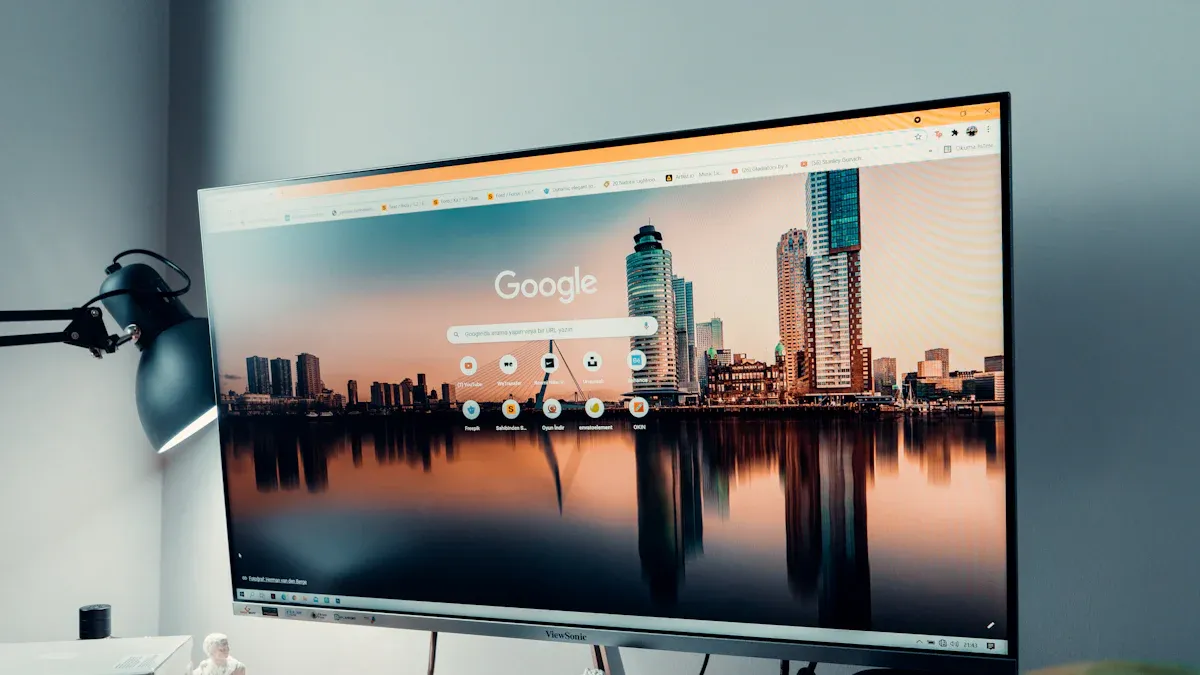
Picking the right screen size makes work easier. Small screens fit in tight spots. They help you focus on simple tasks. Bigger screens give you more space. You can open many windows at once. This helps you do more things without switching programs. Here is a table showing common sizes and their uses:
Screen Size Range | Description | Use Case |
|---|---|---|
24-27 inches | Fits small spaces and helps you focus. | Good for email, web browsing, and editing documents. |
32-34 inches | Lets you multitask and do creative work. | Great for graphic design or video editing with many apps open. |
37 inches & Beyond | Gives you lots of room to work. | Best for big desks, shows lots of windows, and helps you work faster. |
Big monitors and ultrawide screens show more at once. This can help you get more done and keep your eyes from getting tired.
Aspect Ratio Choices
Aspect ratio is the shape of your screen. The most common is 16:9. It works well for most things. Some screens are 21:9 or 32:9. These are wider and good for gaming or creative jobs. Here is a table comparing popular aspect ratios:
Aspect Ratio | Advantages | Disadvantages |
|---|---|---|
16:9 | Used a lot, looks comfortable, easy to see from far away | May not fit new tech needs |
21:9 | More space, good for multitasking, better for games, works with new screens | Uses more power, less vertical space, not good for long papers |
32:9 | Works like two screens, fits more stuff | May not work with all devices, costs more, can make your eyes tired, takes up space |
Choose an aspect ratio that fits what you do most. For example, 21:9 is great for editing videos or wide spreadsheets.
Adjustable Stands and Comfort
A good stand lets you move your monitor up and down. You can tilt it to get the best view. This keeps your neck and back healthy. You can set the screen at eye level. This helps you feel better and reduces strain. Here is a table of ergonomic features and their benefits:
Ergonomic Feature | Benefit |
|---|---|
Height Adjustment | Lets you line up the screen with your eyes. |
Tilt Adjustment | Helps you see better and stops glare. |
Customization | Lets you set up your monitor for comfort. |
Tip: Put your monitor so the top is at or just below your eyes. This can help you feel better every day.
Viewing Angles
Viewing angle matters if you share your screen or move around. Wide angles keep colors and images clear from different spots. Modern LCD Display Monitors with IPS panels can reach 178 degrees. This means you see a sharp picture even from the side. Wide angles are good for group work or watching videos with friends.
Wide viewing angles let you see clearly from different places.
They keep colors and contrast the same.
Great for sharing or flexible work areas.
Picking the right size, shape, and comfort features helps you work well all day.
LCD Display Monitor Connectivity
Ports (HDMI, DisplayPort, USB)
You need to check the ports on your LCD Display Monitor before you buy it. Ports let you connect your monitor to computers, game consoles, and other devices. Each port type has its own use. Some ports work better with new devices, while others help with older equipment.
Here is a table to help you understand the most common ports:
Port Type | What It Does | Works With |
|---|---|---|
USB-C | Sends video, audio, and power. Very flexible. | New laptops, tablets, smartphones |
DisplayPort | Sends video and audio. Handles high resolutions well. | Computers, high-end monitors |
HDMI | Sends high-quality video and sound. Very popular. | TVs, gaming consoles, PCs |
DVI | Sends video only. Used for older screens. | Older computers and monitors |
VGA | Sends analog video. Not common now. | Old projectors, legacy devices |
Tip: Always match the ports on your monitor with the ones on your devices. This helps you avoid buying extra adapters.
Device Compatibility
You want your LCD Display Monitor to work with all your devices. Check what ports your computer, laptop, or game console uses. If you use a new laptop, look for USB-C or HDMI. If you have an older desktop, you might need DVI or VGA. Some monitors have many ports, so you can connect more than one device at a time.
Make a list of your devices.
Check which ports they use.
Pick a monitor that matches most or all of them.
This step saves you time and money.
VESA Mounting Options
VESA mounting lets you attach your monitor to a wall or a special arm. You will see small holes on the back of your monitor for this. VESA mounts help you save desk space and set your screen at the best height. You can move your monitor easily if you use a VESA arm.
Look for "VESA compatible" in the product details.
Measure your space before you mount your monitor.
Use a strong mount for bigger screens.
Note: VESA mounting gives you more ways to set up your workspace. You can make your desk look neat and feel comfortable.
Special Features and Value
Blue Light Filters
You spend a lot of time looking at screens. Blue light filters help protect your eyes. These filters reduce the amount of blue light your LCD Display Monitor gives off. You may notice less eye strain, especially after long hours. Blue light filters can also help you sleep better and lower the risk of long-term eye problems.
Blue light reduction makes your eyes feel more comfortable.
You may sleep better if you use these filters in the evening.
These features help prevent digital eye strain.
Flicker-Free Technology
Flicker-free technology keeps your screen’s light steady. Some monitors use a method that turns the backlight on and off very quickly. Your eyes cannot see this flicker, but it can still make them tired. Flicker-free monitors use a constant light source. This helps your eyes feel less tired and keeps you comfortable during long work or gaming sessions.
Flicker-free screens protect your eyes from strain and fatigue. You can work or play longer without discomfort.
Built-in Speakers
Some monitors come with built-in speakers. You do not need extra speakers on your desk. This saves space and keeps your setup simple. Built-in speakers work well for video calls, watching videos, or listening to music at your desk. If you want better sound, you can still add external speakers.
Adaptive Sync (G-Sync/FreeSync)
Adaptive Sync technology helps your games look smooth. G-Sync and FreeSync match your monitor’s refresh rate to your graphics card. This stops screen tearing and makes motion look better. G-Sync gives you very smooth performance, even at low frame rates. FreeSync also works well, but the quality can change depending on the monitor.
G-Sync | FreeSync | |
|---|---|---|
Smoothness (Low FPS) | Excellent | Good |
Risk of Ghosting | Very Low | Moderate |
Lifespan and Backlighting (CCFL vs LED)
Monitors use either LED or CCFL backlighting. LED monitors last longer and use less power. They keep their brightness for many hours. CCFL monitors lose brightness faster over time.
Lifespan (MTBF) | Brightness Decay After 3 Years | Brightness Decay After 5 Years | |
|---|---|---|---|
LED | 50,000 hours | 53% | N/A |
CCFL | N/A | 28% | 20% |
LED screens stay bright for the first 2,000 hours, then slowly dim.
CCFL screens hold brightness for a while but fade more after several years.
Choose LED for a longer-lasting and more energy-efficient monitor.
Price, Warranty, and Common Mistakes
Price Ranges and Brand Reputation
LCD display monitor prices are not always the same. Famous brands cost more because people trust them. These brands use new technology, which can make prices higher. If you want special features, you might pay extra. Here are some things that change the price:
Factor | Description |
|---|---|
Brand Reputation | Famous brands cost more because people trust them. |
Technological Capabilities | Brands with new technology can charge more for their monitors. |
Customer Support | Brands with good support and warranties may cost more. |
Customization | Special displays cost more because they use unique parts. |
Shenzhen TopAdkiosk Display Technology Co., Ltd. is a trusted brand. They have many LCD display monitor products for different needs. To learn more or buy, visit www.topadkiosk.com, email sales@topadkiosk.com, or check their LinkedIn page.
Warranty and Support
Warranty helps you feel safe when you buy a monitor. Most big brands give you a warranty for one to three years. Hanns G gives three years for parts and labor. BenQ has a special warranty for bright pixels. Replacement screens sometimes have short warranties, like 30 to 90 days.
Manufacturer | Warranty Period |
|---|---|
Hanns G | 3 years for parts and labor |
BenQ | Limited Warranty with Zero Bright Dot Guarantee |
Replaced LCD Screen | 30 to 90 days or more, depending on the brand |
Always look at the warranty before buying. Good support can help you if your monitor breaks.
Energy Efficiency
Monitors that save energy help you spend less money. LED backlighting uses less power than old types. Find monitors with energy-saving features. These monitors are good for the planet and keep your desk cooler.
Tip: Pick a monitor with an energy-saving label to save money.
Mistakes to Avoid When Buying
People often make mistakes when buying monitors. You can avoid these problems by using a simple checklist:
Do not pay extra for features you will not use.
Make sure the monitor fits your desk and workspace.
Check if the monitor has the right ports for your devices.
Do not forget about comfort—stands you can move help you feel better.
Look at the warranty and support before you buy.
Smart choices help you get the most from your LCD Display Monitor.
When you want to buy an LCD Display Monitor, focus on the important things. Make sure your devices and cables fit the monitor’s ports. Some marketing words do not mean you get all the features. Look for strong build quality and stands you can move. Check if the monitor has VESA mount options. Always look at the warranty and support before buying.
Make a checklist before you buy:
Make sure your hardware and cables work with the monitor
Watch out for tricky marketing words
Look for strong build and useful features
Check the warranty rules
Pick features that match what you need
Smart choices help you avoid mistakes and get the best value.
FAQ
What screen size should you choose for your desk?
You should measure your desk space first. For small desks, a 24-inch monitor works well. For larger desks, you can use a 27-inch or bigger screen. Bigger screens help with multitasking.
Do you need a high refresh rate for office work?
No, you do not need a high refresh rate for office tasks. A 60Hz monitor is enough for emails, browsing, and documents. High refresh rates help mostly with gaming or video editing.
How do you reduce eye strain when using a monitor?
You can turn on blue light filters and use flicker-free technology. Adjust the brightness and keep the monitor at eye level. Take breaks every 20 minutes to rest your eyes.
What ports should you check before buying?
Check if your devices use HDMI, DisplayPort, or USB-C. Match these ports with your monitor. This helps you avoid buying extra adapters.
Can you mount your LCD Display Monitor on a wall?
Yes, you can mount your monitor if it is VESA compatible. Look for mounting holes on the back. Wall mounts save desk space and help you set the best viewing height.
See Also
Understanding The Pros And Cons Of LCD Display Screens
Selecting The Ideal LCD Rack Monitor For Your Requirements
Best OLED Monitors To Consider For Exceptional Display Quality
