Inverter LCD Display Setup Made Simple for Everyone
Shenzhen TopAdkiosk Display Technology Co., Ltd.
Add.: 2F, Bldg 10, Changfeng Industrial Park, Dongkeng, Fenghuang, Guangming, Shenzhen, China 518132
Mobile/WHATSAPP: 86-138 25769658
Email: marketing@topadkiosk.com topadkiosk@gmail.com
Skype: pghenry1
Wechat: adkioskhenry
English Web.: http://www.topadkiosk.com/
https://www.topkioskdisplay.com/
http://www.ad-kiosk.com/
https://www.toplcddisplay.com/
http://www.multitouchdigitalsignage.com/
https://www.youtube.com/channel/UCYVYNJHxLVEcQD8fuUxXNTA/videos?view_as=subscriber
https://www.facebook.com/TOPADKIOSKSHENZHEN/?ref=bookmarks
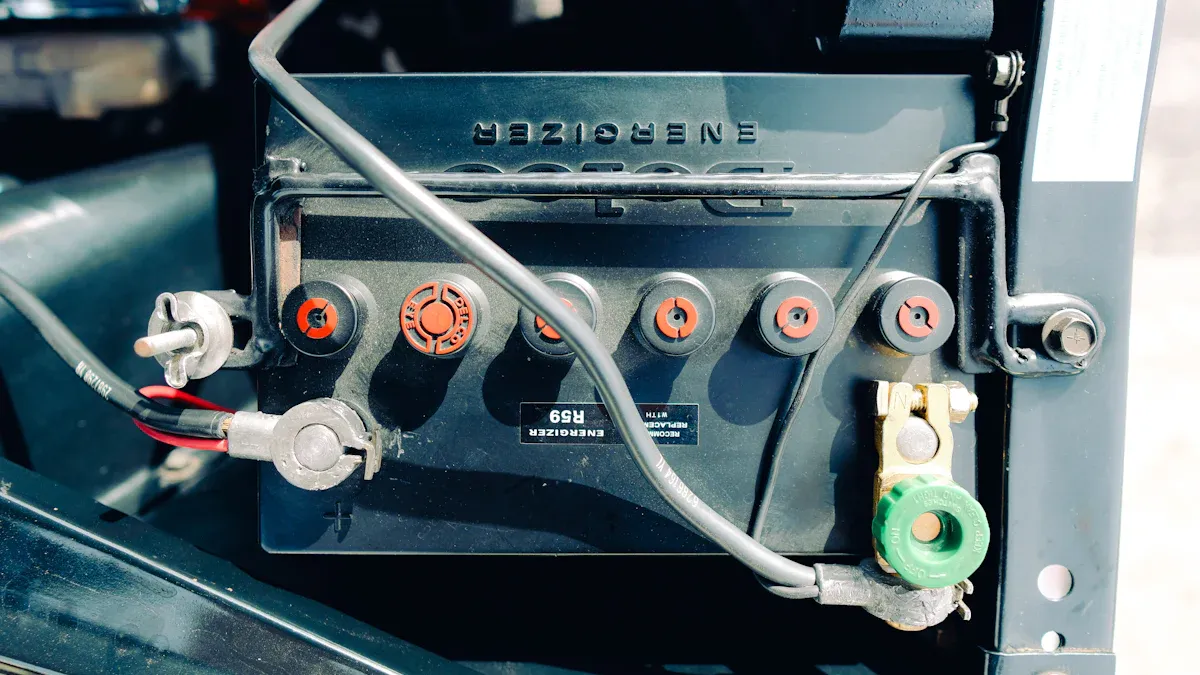
You can set up your inverter lcd display easily. You do not need to be an expert. Many models let you see important info quickly. Features can be different in each model:
Feature Type | Advanced Models | |
|---|---|---|
Display Type | Character LCDs (16x2, 20x4) | Graphic LCDs (128x64, color TFTs) |
Pros | Cheap, uses little power | Shows more info, looks nicer |
Cons | Only text, not much info | Costs more, uses more power |
Ideal Use Case | Simple status updates | Detailed checking |
Most displays are easy to see in sunlight. They are strong and simple to use. This makes setup easy for everyone.
Key Takeaways
Setting up your inverter LCD display is simple. You do not need to be an expert. Always read your inverter manual first. It gives you steps and safety rules. Clean your LCD display often. This helps you see the screen better. It also keeps it working well. Set things like output voltage correctly. This is important for your solar system to work well and last long. Check your display often. This helps you find problems early. It also helps your system make more energy.
Powering On the LCD Display
Finding the LCD and Buttons
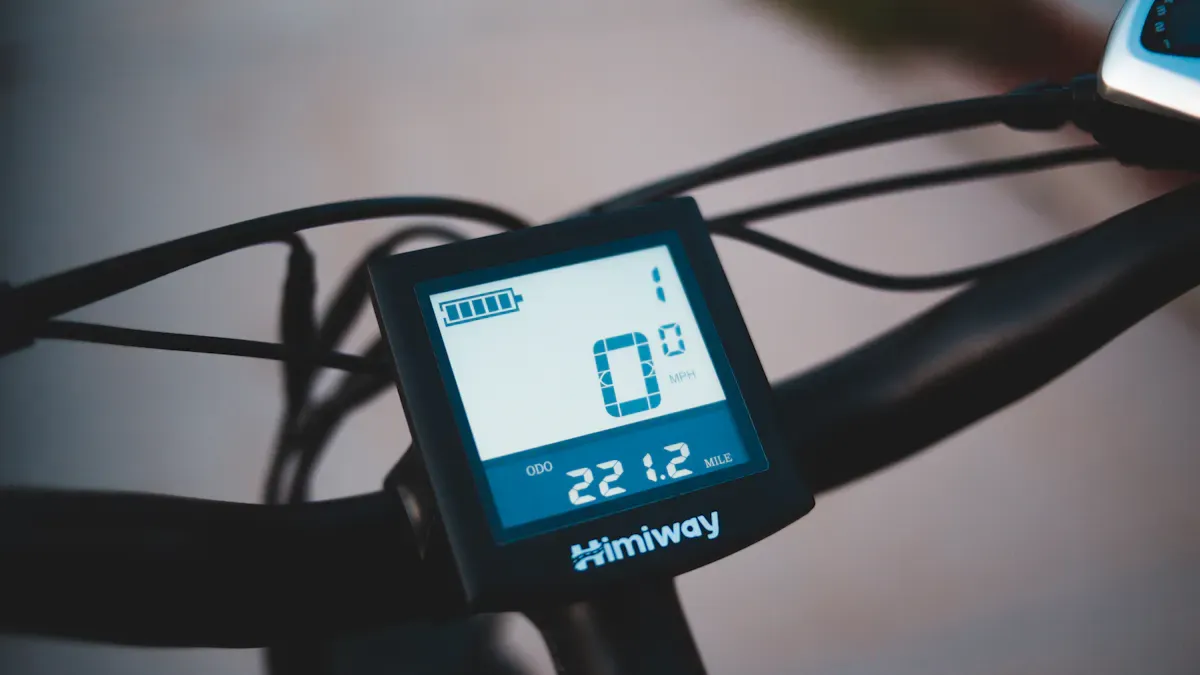
First, find the inverter lcd display on your device. Most inverters put the lcd screen on the front. Look for a rectangle that shows numbers or icons. There are buttons close to the screen. These buttons let you move through menus and change settings. Common button names are "Menu," "Up," "Down," and "Enter." Some models use touch areas instead of real buttons. If you cannot find the display or buttons, check your inverter manual.
Tip: Make sure your hands are dry before you touch any buttons. Wet hands can make you press buttons by mistake or cause damage.
Activating the LCD Light
To turn on the display light, press the button with a lightbulb icon or the one labeled "Light." This button helps you see the screen when it is dark. If your inverter lcd display does not light up, check the power supply. Some screens only light up when the inverter is on. Wait a few seconds after you press the button. The display should show your inverter’s current status.
Note: If the display stays blank, check for loose wires or a tripped breaker. You may need to restart the inverter.
Accessing the Main Menu
Press the "Menu" button to get to the main menu. The main menu lets you see and change settings. Use the "Up" and "Down" buttons to look through options. Press "Enter" to pick a menu item. Some inverters need you to hold the "Menu" button for a few seconds to unlock advanced settings. The main menu shows things like battery level, output voltage, and system status.
Before you turn on the inverter lcd display, follow safety steps. The table below lists important safety rules:
Safety Step | Description |
|---|---|
System Shutdown | Turn off AC disconnect at the main panel. Turn off DC disconnect near the inverter. Wait 5 minutes before touching panels. |
Personal Protective Equipment | Wear shoes that do not slip, insulated gloves, and safety glasses. |
Covering Sensitive Components | Use waterproof covers for vents and display screens. Let air move around. |
Water Management | Make sure water goes away from electrical parts. |
GFCI Protection | Use cleaning tools with ground fault circuit interrupter protection. |
System Restart | Turn on AC and DC disconnects in reverse order. Check for moisture. Watch for strange display behavior. |
You can keep your inverter lcd display safe and working by following these steps. Always check for moisture and odd readings after you restart the system.
Configuring Inverter LCD Display Settings
Navigating Menus
You can start configuring your inverter lcd display by learning how to move through the menus. Most lcd screens show a simple menu when you press the "Menu" button. Use the "Up" and "Down" buttons to scroll through the options. The "Enter" button lets you select a setting. Some models use touch-sensitive areas instead of buttons. If you see arrows or icons on the display, these guide you to the next step.
Tip: If you get lost in the menu, look for an option called "Back" or "Exit." This will return you to the main screen.
You may find menus for battery settings, output voltage, system status, and monitoring. Take your time to read each menu item. The lcd will often show a short description or icon to help you understand what each setting does.
Setting Output Voltage and Battery Points
You need to set the output voltage and battery points for your solar inverter display to work well. These settings control how your inverter manages power and protects your batteries. If you set the wrong values, your system may not run as expected.
Here are some problems that can happen if you do not set these points correctly:
Voltage sag under load can happen when the inverter does not get a steady input voltage. This can lower the power output.
Uneven battery aging in systems with more than one battery can cause voltage supply problems. This can affect how well your inverter works.
As batteries get older, their internal resistance goes up. This can lower the voltage that reaches the inverter.
Loose connections and corroded terminals can add resistance. This can cause voltage drops.
If you use cables that are too small, they may not handle the load. This means less voltage gets to the inverter.
Long cable runs without the right size can make voltage drop problems worse. This can lower the overall output.
To set these points, follow these steps:
Go to the "Settings" or "Configuration" menu on your lcd.
Find the "Output Voltage" option. Use the "Up" and "Down" buttons to pick the right voltage for your system.
Look for "Battery Low Cut-Off" or "Battery Shutdown Point." Set this to protect your batteries from deep discharge.
If your inverter lcd display has a "Charge Start" or "Charge End" setting, adjust these to match your battery type.
Check all values before you save.
Note: Accurate settings help your inverter run smoothly and keep your batteries healthy.
Saving Changes
After you adjust the settings, you must save your changes. Most lcd screens ask you to press "Enter" or "OK" to confirm. Some models show a message like "Settings Saved" or "Success." If you do not save, the display will return to the old values when you exit the menu.
Here is a quick checklist to make sure you save your settings:
Review all changes on the lcd before you confirm.
Watch for a confirmation message on the display.
Return to the main menu and check the status to see if your new settings are active.
If you see an error or warning, repeat the steps or check your inverter manual.
Remember: Accurate configuration is vital for good performance and long life of your inverter system.
You can now use your inverter lcd display to monitor and adjust your system with confidence.
Reading and Understanding Solar Inverter Display
Key Metrics and Icons
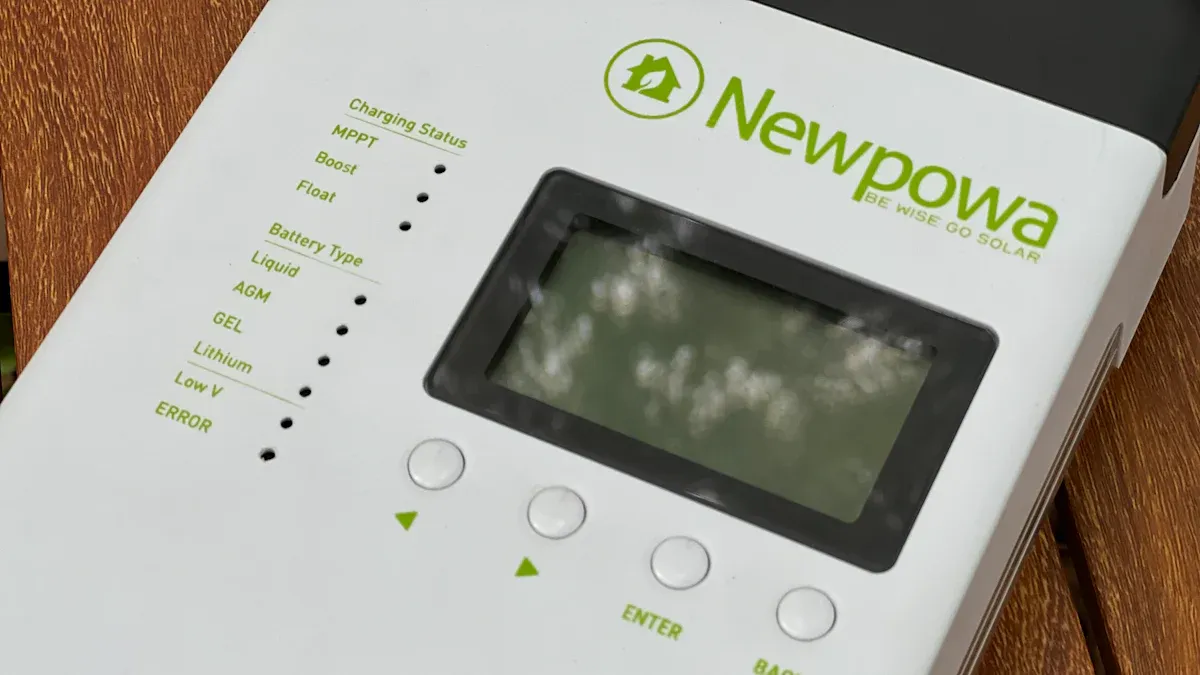
When you look at your lcd, you see numbers and symbols. Each icon or number tells you something about your system. Here are some common things you will see on a solar inverter display:
Current Power Output: This shows how much power your system makes right now. It is usually measured in kilowatts (kW).
Total Energy Produced: This tells you how much energy your system has made since it was set up. The amount is measured in kilowatt-hours (kWh).
Voltage and Current: These numbers show the electrical force and flow from your solar panels to the inverter.
Frequency: This shows how often the AC power changes, like 50 or 60 Hz.
Grid Status: This lets you know if your system is connected to the grid or if there is a problem.
Error Codes: These warn you if the inverter finds a problem.
Temperature: This shows how hot the inside of the inverter is to keep it safe.
You can use these icons and numbers to check your system’s health and status quickly.
Fault Codes and Alerts
Sometimes, your lcd will show fault codes or alerts. These messages help you find and fix problems. Here is what you can do:
Always check the code in your manual or error log. Do not just trust the display.
Think about what was happening when the alert showed up. Was it very hot? Were you using a lot of power?
Look at your system. Sometimes a code means a wire is loose or a panel is in the shade.
Do not reset the inverter right away. Try to find out what caused the problem first.
Tip: Write down any codes or messages before you make changes. This helps if you need to ask for help later.
Monitoring Power Output
You can use your inverter lcd display to see how much power your system makes. This helps you spot problems early and keep your system working well. Different monitoring systems have different features and benefits:
Key Features | Benefits | |
|---|---|---|
String Inverter | Shows total production, basic numbers, and error codes. | Simple and cheap, but does not show problems with single panels. |
Microinverter | Gives data for each panel and very close monitoring. | Makes your system work better by up to 15% with special care. |
Power Optimizer | Gets the most from each panel and sends DC power to one inverter. | Lets you watch each panel and saves some money. |
Enphase Enlighten | Shows real-time and old data, easy graphs, and phone alerts. | Easy to use and helps you find weak panels fast. |
SolarEdge Monitoring | Shows how each panel works and the system layout. | Makes it easy to find and fix problems from anywhere. |
By checking your lcd often, you can make sure your solar inverter display works well. You will know when to charge your batteries, watch for errors, and keep your system running smoothly.
Troubleshooting and LCD Maintenance
Fixing Display Issues
Sometimes your inverter lcd display might go blank or freeze. There are many reasons this can happen. First, check if the power outlet works. Plug in another device to test the outlet. If it does not work, try a different outlet or check the circuit breaker. Next, look at the power cord. Make sure both ends are plugged in tight. If you see any damage or wires sticking out, get a new cord. Never use a cord that is broken. Some lcd displays need you to hold the power button for a few seconds. Look for a switch on the back of the unit.
Here is a quick troubleshooting table:
Step | What to Check | What You Are Looking For | Solution |
|---|---|---|---|
1 | Power outlet | Live outlet | Try another outlet or reset breaker |
2 | Power cord | Firm connection, no damage | Reseat or replace cord |
3 | Power button | Correct position, long press needed | Hold button for 5–10 seconds |
You might also see error codes or warnings about grid voltage, battery communication, or temperature. Check your inverter manual to find out what these codes mean.
Cleaning and Care Tips
Cleaning your lcd display often keeps it easy to read. Use a soft, dry cloth to wipe off dust and fingerprints. Do not use strong cleaners or rough things. Microfiber cloths and special lcd cleaners are good choices. You can also mix vinegar and water, dampen a microfiber cloth, and gently clean the screen.
Cleaning Method | Description |
|---|---|
Microfiber Cloth and LCD Cleaner | Gently wipe screen with special cleaner and microfiber cloth |
Vinegar and Water Solution | Mix equal parts, dampen cloth, wipe screen gently |
Clean your display often so dirt does not build up. Do not let water get inside the unit. High humidity can make water drops form inside, which makes cooling harder and hurts performance. Very hot or cold temperatures can slow the screen or break the backlight.
Keeping Settings Accurate
Check your lcd settings often to make sure they are right. Things like heat and humidity can change how your display works. If you see strange numbers or the status looks wrong, check your settings again. Doing regular checks helps you find small problems early. This can help your system make up to 30% more energy and last five to ten years longer.
Here is a comparison of proactive maintenance and reactive repairs:
Benefit | Proactive Maintenance | Reactive Repairs |
|---|---|---|
Cost | More cost-effective | Higher costs |
Downtime | Reduced downtime | Longer downtime |
Equipment Lifespan | Extends lifespan | Shorter lifespan |
If you cannot fix the problem, look at your inverter manual or a troubleshooting guide like the H100 Troubleshooting Manual. You can also ask a professional for help. Keeping your inverter lcd display clean and working right helps you check charge, status, and performance easily.
You can use this guide for any inverter LCD display setup. When you power on the display, set your preferences, and check the status, you make sure your solar system works at its best. Real-time data from the display helps you spot problems early and keep your energy production high. With these steps, you gain confidence and control over your solar power.
Power on and activate your display.
Configure settings for your needs.
Read key numbers and check status.
Keep your display clean and working.
You can understand your inverter LCD display with these simple steps!
Using an Inverter to Run an LCD Monitor
1. Choose the Right Power Inverter: For sensitive electronics like monitors, a pure sine wave inverter (vs. a cheaper modified sine wave one) is highly recommended.
2. Pick Your Power Source: You'll need a 12V battery, like a car or deep-cycle battery.
3. Make the Connections:
Work in a well-ventilated area and keep the inverter away from heat sources.
Connect the inverter to the battery using the heavy-duty cables provided.
Connect the inverter's AC outlet to your monitor as you would a wall socket.
4. Calculate Total Runtime: Use the monitor's power rating to figure out how long your setup will last on a fully charged battery.
🛠️ Replacing an LCD Backlight Inverter
1. Inspect & Obtain the Part: Confirm the specific part number printed on the inverter board and purchase an exact replacement.
2. Perform the Replacement: Disassemble the monitor (following a model-specific guide), replace the old inverter with the new one, and carefully reassemble everything.
🖥️ Path 1: Using an Inverter to Run an LCD Monitor
Here's the most likely scenario: you have a standard LCD monitor and you need to power it where there's no wall outlet—like in an RV, a car, or at an outdoor worksite.
📝 Step-by-Step Setup Guide
Step 1: Choose the Right Power Inverter
For powering sensitive electronics, the quality of the inverter's output is crucial.Pure Sine Wave (Recommended): This produces clean power that is identical to (or often better than) the power from a wall outlet, ensuring your monitor runs smoothly without flickering, overheating, or incurring long-term damage.
Modified Sine Wave (Not Recommended): While cheaper, this type of inverter can cause screen flicker, audio buzz, and may even damage sensitive power supplies over time. It is a risk not worth taking for modern LCDs.
Step 2: Pick Your Power Source
You'll need a 12V DC battery to power the inverter.Vehicle Battery: An easy option for temporary use, but it is crucial to keep your car's engine running to prevent draining the battery and leaving you stranded.
Dedicated Deep-Cycle Battery: This is the best choice for extended or regular off-grid use. A deep-cycle battery is specifically designed to be discharged and recharged repeatedly.
Step 3: Make the Physical Connections
Safety First: Only make connections in a well-ventilated, dry area away from fuel sources or flammable materials.Connect Inverter to Battery: Connect the inverter to your 12V battery using the included heavy-duty cables. Ensure the inverter's power switch is in the OFF position.
Connect Monitor to Inverter: Plug your LCD monitor's standard AC power cord into the inverter's AC outlet, just as you would into a wall socket.
Turn the System On: Turn on the inverter first, then power on your monitor.
Step 4: Calculate Total Runtime
To estimate how long your monitor will run on a battery, use this simple formula:Time (Hours) = Battery Capacity (Ah) × 12V × 0.8 / Monitor Power (W)
The 0.8 accounts for the energy lost to heat and system inefficiencies. For example, a 50Ah battery powering a 40W monitor could run for
(50 × 12 × 0.8) / 40 = approximately 12 hours.
🛠️ Path 2: Replacing an LCD Backlight Inverter
The second, more technical scenario involves repairing an older LCD monitor. Older LCDs use Cold Cathode Fluorescent Lamps (CCFLs) for backlighting, which require a special circuit board called an inverter to convert low-voltage DC power into the high-voltage AC needed to light the lamps.
When a CCFL backlight fails, the screen may appear very dim or completely dark, even though you can still see a faint image in the right light.
This repair involves working with high-voltage components that can deliver a dangerous shock, even when unplugged. If you're not comfortable with this, seeking a professional repair is a perfectly good alternative.
Step 1: Inspect & Obtain the Correct Inverter Board
Before buying anything, open up your monitor and verify the part number on the inverter board to ensure you buy the exact model. Universal inverters exist, but getting an exact match is the most reliable path for a successful repair.Step 2: Perform the Replacement & Reassemble
Disassemble Carefully: Completely power down and unplug your monitor. Use a guide specific to your monitor model to safely open the casing.
Replace the Inverter: Locate the old inverter board, disconnect all cables, and install the new one by making the exact same connections.
Reassemble, Test, and Enjoy: Put the monitor back together, power it on, and enjoy your fully functional display.
Hopefully, this guide has helped clarify both sides of "inverter LCD display" for you. Are you working off-grid, or is this for a repair project? Knowing which path you're on could help me give you even more specific advice.
FAQ
How do you set up the lcd on your solar inverter?
You press the power button to turn on the lcd. You use the menu button to find settings. You adjust the output voltage for your solar system. You save changes before you exit. This helps your solar inverter display show the correct status.
Why does your lcd screen go blank sometimes?
Your lcd may go blank if your solar inverter loses power. Check the outlet and power cord. Make sure your solar panels get sunlight. If the lcd stays blank, look for loose wires or ask a solar technician for help.
What do the icons on your lcd mean?
Icons show solar power output, battery charge, and grid connection. You see numbers for voltage and current. The lcd also shows error codes. You check these icons to know if your solar system works well.
How often should you clean your lcd display?
You clean your lcd every few weeks. Use a soft cloth to wipe dust. Do not use water or strong cleaners. Clean screens help you read solar data and keep your solar system running well.
What should you do if you see a warning on your solar inverter display?
You write down the warning code. You check your solar inverter manual for the meaning. You look at your solar panels and wires. If you cannot fix the problem, you call a solar expert. This keeps your solar system safe.
See Also
A Comprehensive Guide to Setting Up Digital Signage
Essential Tips for Enhancing Your OLED Display Project
DIY Guide for Beginners on Transparent OLED Displays
Finding the Right LCD Kiosk Installation Service Locally
Complete Instructions for Installing Your Touch Screen Kiosk
