How to Use an Interactive Whiteboard for Remote Teaching in 2026
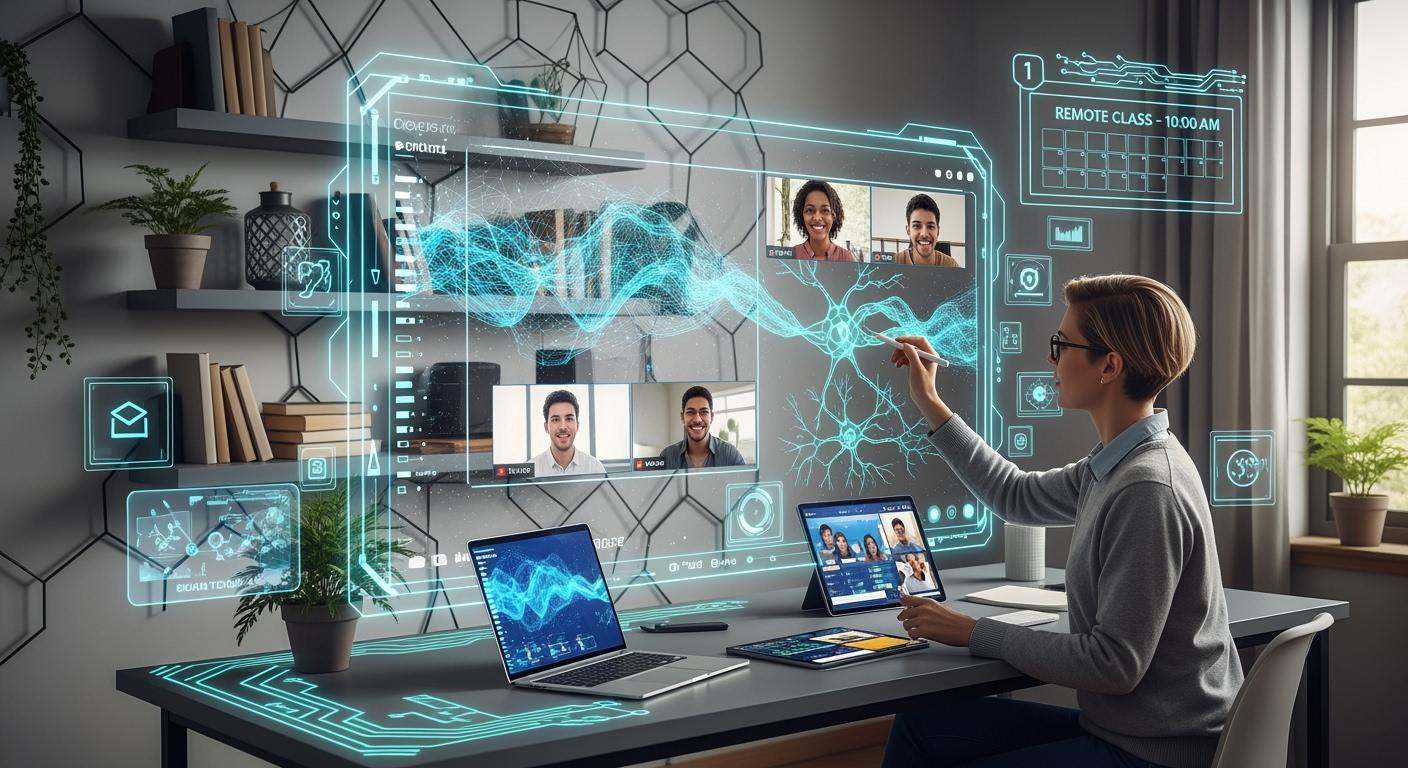
You can use an interactive whiteboard for remote teaching by sharing your screen live and letting students work with lesson materials. This tool helps make classes more fun and lets students look at lessons again easily.
Shenzhen TopAdkiosk Display Technology Co., Ltd.
Add.: 2F, Bldg 10, Changfeng Industrial Park, Dongkeng, Fenghuang, Guangming, Shenzhen, China 518132
Mobile/WHATSAPP: 86-138 25769658
Email: marketing@topadkiosk.com topadkiosk@gmail.com
Skype: pghenry1
Wechat: adkioskhenry
English Web.: http://www.topadkiosk.com/
https://www.topkioskdisplay.com/
http://www.ad-kiosk.com/
https://www.toplcddisplay.com/
http://www.multitouchdigitalsignage.com/
https://www.youtube.com/channel/UCYVYNJHxLVEcQD8fuUxXNTA/videos?view_as=subscriber
https://www.facebook.com/TOPADKIOSKSHENZHEN/?ref=bookmarks
Interactive whiteboards are important in remote learning today because they help students join in and understand things better by seeing them.
Teachers with any amount of tech experience can use these boards to get students interested and make online lessons work better.
Key Takeaways
Interactive whiteboards make remote teaching better. They let students work together at the same time. Students can join in and stay interested.
Teachers can set up interactive whiteboards with many devices. This makes lessons easy for all students to join.
Digital annotation tools on whiteboards help students take part. These tools help students remember information more.
Collaborative projects on whiteboards build teamwork. They help students stay focused during lessons.
Updating software often and managing student access keeps learning safe. It also makes the learning environment work well.
Interactive Whiteboard Basics
Core Features
An interactive whiteboard is a screen you can touch. You can write, draw, and move things with your finger or a pen. Teachers use it to show lessons and share files. Students and teachers can work together at the same time. In 2026, these whiteboards have many tools for remote teaching. These tools help teachers teach better and make learning easier. Here is a table that lists the most common features you will see:
Feature | Description |
|---|---|
Native LMS Access | Connects directly to Google Classroom or Canvas for easy lesson sharing. |
Touch and Annotation | Supports multi-touch and stylus input for smooth writing and drawing. |
Collaboration Tools | Lets students join and work together from their own devices. |
Setup Simplicity | Offers quick setup with automatic updates and single login. |
High Precision Touch | Feels like a real whiteboard, making lessons more engaging. |
Teaching Aids | Includes timers, geometry tools, and split screens for different activities. |
Class Recording | Allows you to record lessons for students to review later. |
File Saving | Saves your work so you can use it again or share with others. |
You can use smart whiteboards for many activities. You can draw pictures or do group work with your class.
Advantages for Remote Teaching
Digital whiteboards help you teach well online. You can show your screen to all students at once. Everyone can see the lesson, even if they are far away. You can use pictures and charts to explain hard ideas. You can connect your whiteboard to Zoom or Microsoft Teams. This lets you teach in different ways. Students can join in, write answers, and work on group projects. This technology makes learning more fun and active. It helps you give each student what they need. You can use different tools for different ways of learning.
Tip: Follow the step by step guide for remote classes. This helps students start using digital whiteboards fast.
Digital Annotation
Digital annotation lets you and your students write or draw on lesson slides. This helps students join the lesson, not just watch. You can give feedback right away by marking answers or drawing shapes. Students can add their own notes or drawings too. Digital whiteboards let you save these notes. Students can look at them again later. This keeps everyone involved and helps them remember the lesson.
Setup Guide for Remote Teaching
Getting your interactive whiteboard ready helps you make lessons exciting. It also helps students pay attention. Follow these steps to set up your remote class. This will help your lessons run smoothly.
Device Connection
You can connect lots of devices to interactive displays. Most whiteboards work with tablets, laptops, and smartphones. Students can join from any device with a browser. Some smart whiteboards, like the Vibe Board S1, let 32 students join at once. They do not need to install extra software. This makes it easy for everyone to join in and work together.
To connect your devices, do these steps:
Turn on your interactive whiteboard. Make sure it has internet.
Check your laptop or tablet is on the same network.
Open the whiteboard software on your display.
Use screen sharing so students can show their work.
Adjust your camera so students see you and the board.
Tip: Put your interactive display where all students can see it. If you teach younger kids, use a stand that moves.
Launching Digital Whiteboard Apps
You can use many online whiteboard apps for remote learning. Popular apps are Jotboard, Google Jamboard, Limnu, ShowMe, and Explain Everything. These apps help you make fun lessons and let students work together.
To start your digital whiteboard app:
Make an account, often with your Google account.
Start a new board and name it for your lesson.
Get your slides or activities ready before class.
Share the board link with your students.
Use the app’s tools to draw, write, and add pictures.
Note: Take care of your interactive whiteboard. Check for updates before class to keep it working well.
Student Access and Permissions
Controlling student access is important for safe remote learning. You can set who can edit or view your whiteboard. This helps you organize group work and keep lessons safe.
Here is a simple table to help you set permissions:
Step | Action |
|---|---|
1 | Put students into groups for activities |
2 | Let each group edit their huddle |
3 | Set a time limit for group talks |
4 | Watch progress using the huddle canvases |
5 | End group talks and go back to teaching |
You can use the 'Invite' button to make a link or QR code. Set permissions to 'Co-creation' if you want students to edit. Set to 'Broadcast' if you want them to only view. Always watch student activity to keep your whiteboard safe.
Tip: Get training on your interactive whiteboard. This helps you teach better and avoid problems.
Interactive whiteboards help you use technology in your classroom. They support video calls and real-time activities. This makes remote learning more fun. With the right setup, you can use digital whiteboard software to make exciting lessons and help students learn every day.
Real-Time Engagement Strategies

Interactive whiteboards help you get students more involved in class. You can use different ways to make lessons fun and interesting. These tools let students work together at the same time. They can share ideas and learn as a group.
Collaborative Projects
A digital whiteboard gives students a place to work together. They can think of ideas, draw, and solve problems as a team. Working together in real time keeps everyone busy and helps them pay attention. With smart whiteboards, students can draw, write notes, and share their thoughts. This makes group work feel like being in a real classroom. You can save what the class does, so students can look at it later. Teachers can check how each student is doing and help when needed.
Benefits of Collaborative Projects:
Strategy | Description |
|---|---|
Enhances Active Participation | Drawing and writing tools help students join in lessons. |
Encourages Group Work | Shared spaces let students talk and learn from each other. |
Real-Time Feedback | Teachers can answer questions and help right away. |
Group Discussions
Interactive displays make it easy to have group talks. You can use things like the Raise Hand button or live chat for sharing ideas. Breakout rooms let small groups talk about topics and then tell the class what they learned. These activities help students feel sure of themselves and listen to others. When students talk in real time, you can see who is joining in and who needs help.
Use instant messages to share ideas fast.
Try breakout rooms for small group talks.
Let students type answers and send them together.
Visual Learning Activities
Visual learning works well with interactive whiteboards. You can make maps, charts, and flowcharts to explain hard things. Interactive slides and picture reviews help students remember lessons. With interactive displays, students can draw or move things to show what they know. This hands-on way makes learning more fun and active.
Tip: Use real-time quizzes and polls to keep students excited and get feedback fast.
Schools that use interactive whiteboards see more students join in. Middle schools see 50% more students take part, and high schools see 35% more. These tools make remote learning better for everyone.
Digital Whiteboard Troubleshooting
When you use an interactive whiteboard for remote teaching, you might have some problems. Knowing how to fix these problems helps your class go well and keeps students paying attention.
Technical Issues
Sometimes, your interactive whiteboard does not work right. You could have trouble with touch, software, or hardware. Here is a table that lists the most common technical problems and what they mean:
Technical Issue | Description |
|---|---|
Calibration Problems | The whiteboard does not react or lines do not match your touch. Bright lights can cause this. |
Software or Driver Issues | Old or broken software can stop the board or make touch controls act weird. |
Hardware Malfunctions | Damage or loose cables can stop the board from turning on or working when you touch it. |
To fix these problems, try these steps: 1. Look at all cables and plugs. Make sure nothing is loose or broken. 2. Calibrate your whiteboard by using the maker’s steps. 3. Restart your computer or the whiteboard. 4. Check that your software and devices work together.
Tip: Always update your software so you can avoid many problems.
Managing Participation
You want every student to join and feel part of the class. Interactive whiteboards give you many ways to help students work together and stay interested.
Strategy | Description |
|---|---|
Fostering collaboration | Students work together and share ideas, even if they are far away. |
Boosting engagement | Use drawing, writing, and games to keep students busy during lessons. |
Live notetaking | Let students write notes on the board while you teach. |
Accommodating all students | Change how you teach to help different students learn. |
Ask students to draw or write on the board at the same time. - Use breakout rooms for small group work. - Add games or rewards to help students stay excited.
Privacy and Security
It is very important to keep student data safe. Interactive whiteboards use different tools to protect information.
Encryption keeps data safe when you save or send it. - Multi-factor authentication asks for more than one way to show who you are, like a password and a fingerprint. - Real-time threat monitoring looks for problems and tells you right away.
The security tools work in the background, so you do not need to do extra steps. Data stays safe while you teach, and the system checks for threats all the time.
You can make remote teaching better with an interactive whiteboard. Use real-time tools to make lessons more fun. These tools help students learn more easily. Here are some steps you can follow:
Choose how you will use them in class.
Buy and set up the new technology.
Interactive whiteboards give you many good things:
Benefit | Description |
|---|---|
Tools like text-to-speech and closed captioning help everyone join in. | |
Personalized Learning | Lessons made for each student help them grow and learn more. |
Global Collaboration | Students can meet others from around the world and work together. |
Interactive Lessons | Students take part and get feedback right away to understand better. |
Future-Proof Learning | Students learn digital skills that will help them in the future. |
Interactive whiteboards help you make your classroom lively, welcoming, and ready for the future.
FAQ
What devices can you use with an interactive whiteboard?
You can use laptops, tablets, or smartphones. Most interactive whiteboards work with anything that has a web browser. This helps every student join your lesson easily.
How do you keep your interactive whiteboard safe from hackers?
Make strong passwords and turn on multi-factor authentication. Keep your software up to date. Only give your whiteboard link to your class. These steps help keep your students' information safe.
Can you record lessons on an interactive whiteboard?
Yes, you can record your lessons. Most interactive whiteboards have a recording tool built in. You can save the video and share it with students who missed class.
What should you do if the interactive whiteboard stops working?
First, check all the cables and restart the device. Update your software if you need to. If it still does not work, ask your tech support team for help.
See Also
Innovative Developments in Interactive Display Tech for 2026
Exploring Current Digital Signage Trends Influencing 2026
Latest Advancements in Digital Signage Tech for 2026
