Interactive Touch Table Guide for Easy Business Presentations
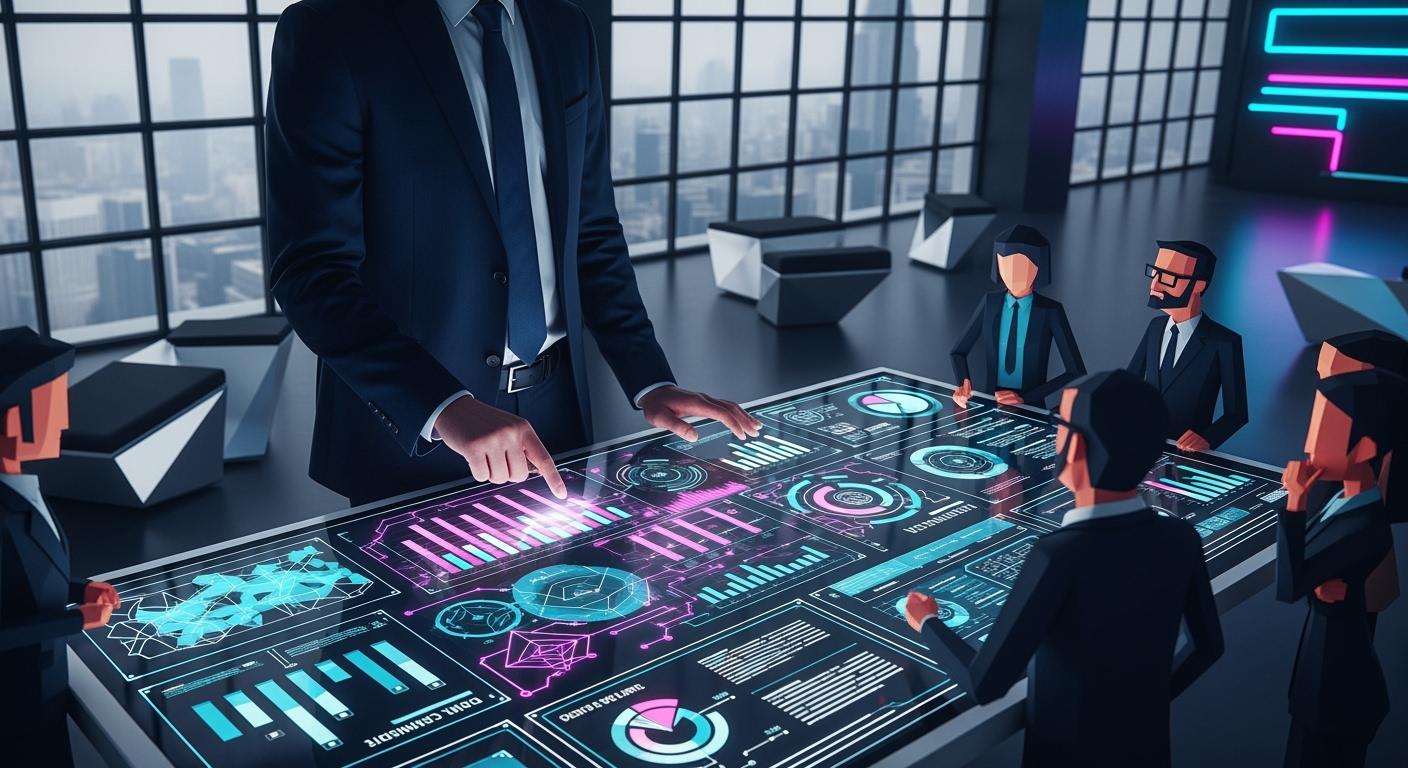
You can change your next presentation with an interactive touch table. This technology makes meetings more interesting for everyone. Many people can use the screen at the same time. This makes working together simple. Sharing files is fast and live editing helps everyone stay together. Visual tools let you show ideas quickly. You will see better results in your presentations and easier teamwork in every meeting.
Shenzhen TopAdkiosk Display Technology Co., Ltd.
Add.: 2F, Bldg 10, Changfeng Industrial Park, Dongkeng, Fenghuang, Guangming, Shenzhen, China 518132
Mobile/WHATSAPP: 86-138 25769658
Email: marketing@topadkiosk.com topadkiosk@gmail.com
Skype: pghenry1
Wechat: adkioskhenry
English Web.: http://www.topadkiosk.com/
https://www.topkioskdisplay.com/
http://www.ad-kiosk.com/
https://www.toplcddisplay.com/
http://www.multitouchdigitalsignage.com/
https://www.youtube.com/channel/UCYVYNJHxLVEcQD8fuUxXNTA/videos?view_as=subscriber
https://www.facebook.com/TOPADKIOSKSHENZHEN/?ref=bookmarks
Key Takeaways
Interactive touch tables help make presentations better. They let many people work together at the same time. This makes teamwork easier and more fun.
Use things like multi-touch support and real-time editing. These features help keep your audience interested and paying attention during meetings.
Setting up the table the right way is very important. Make sure everyone can see and reach the table easily. This helps everyone join in.
Add interactive things like live polling and gamification. These make your presentations more fun and easy to remember.
Pick the best software and hardware for your needs. Make sure they work well with what you already use. This makes your presentation process smoother.
What Is an Interactive Touch Table
An interactive touch table is a special device with a big touch screen. You can use it for business meetings and presentations. This technology lets many people use the screen at once. The table works for a long time and fits different business needs. You can find it in places like real estate offices, design studios, and car showrooms. The interactive touch table gives you and your team a space to share ideas and work together.
Core Features for Presentations
You get lots of helpful features with an interactive touch table. Here are some main ones:
Multi-touch support lets you and your team draw, write, or move things on the screen at the same time.
Large display shows charts, images, and slides clearly.
Easy sharing lets you bring in documents, photos, or videos fast.
Real-time editing lets you change things during your presentation.
Built-in tools help you highlight important points and keep everyone focused.
Tip: Use the touch screen to zoom in on details or switch slides with a simple swipe.
How It Works in Business Settings
An interactive touch table is different from a smart board. A smart board hangs on a wall and is best for one person at a time. The interactive touch table sits in the middle of the room. You and your team can gather around it and work together. This setup makes sharing and teamwork easier. You can move files, write notes, and change your presentation without stopping your meeting. The technology helps you make your presentations more interesting and professional.
Benefits for Presentations
Engagement and Visual Impact
An interactive touch table helps people pay attention in meetings. This technology makes it easy to keep everyone focused. The big touch screen shows pictures and charts very clearly. You can use your fingers to move slides or zoom in. People stay interested because they can touch and use the content.
Note: Using digital tools makes your presentation look new and professional.
You can point out important things and draw on the screen. It is simple to change slides or show videos and photos. This makes your presentations special at business events. The clear pictures help people remember what you say.
Evidence Description | Source Link |
|---|---|
Interactive tables provide an engaging, intuitive, and modern way to present information, encouraging active participation and increasing user attention and dwell time. | |
TSI Touch’s touch table solutions allow users to engage with digital content using familiar gestures, which captivates audiences and encourages collaboration. |
Real-Time Collaboration
You and your team can work together during presentations. The interactive touch table lets many people draw, write, or move things at once. This makes working together fast and easy. You can share ideas, write notes, and change documents right away. Sharing files is simple, so everyone can join in.
Drawing tools help you brainstorm ideas together.
You can write notes and switch slides as a group.
You can fix problems without stopping the meeting.
Evidence Description | Source Link |
|---|---|
Interactive tables enable collaborative work with simultaneous multi-user input, enhancing the overall presentation experience. | |
They support digital brainstorming with drawing and note-taking tools, which increases audience involvement. |
Your meetings become more fun and useful. The technology helps everyone feel like part of the team. People can share ideas and see results right away.
Setup and Preparation
Table Placement and Connectivity
First, you should think about where to put your interactive touch table. Measure the room so you know how much space you have. Draw a simple map of the floor. Pick a table size and shape that fits well. Make sure everyone can see the touch screen. Put the table in a spot where people can reach it easily. Everyone should be able to see the screen without trouble. Set up chairs and other furniture so people feel relaxed. Walk around to check if the setup is good for meetings.
Tip: Placing the table well helps everyone join in and work together.
It is easy to connect devices. You can use Wi-Fi or Bluetooth for wireless links. There are USB-B, HDMI, DVI-D, and VGA ports for other devices. Audio inputs let you add sound to your presentations. Some tables have a 4G module for mobile internet. The table below shows the usual ways to connect:
Connectivity Type | Description |
|---|---|
Wi-Fi | Works with wireless networks easily. |
Bluetooth | Lets you pair with other devices quickly. |
USB-B | Used for touch screen features. |
HDMI | For clear video input. |
DVI-D | Digital video connection. |
VGA | Analog video connection. |
Audio Inputs | Adds sound to your presentation. |
4G Module | Lets you use mobile internet if needed. |
Install the software you need for your presentations. Many interactive touch tables work with Microsoft PowerPoint, Prezi, IntuiFace, and Miro. These programs help you make fun content and let people work together during meetings.
Presentation File Import and Formats
Get your files ready before the meeting starts. Save your documents in formats the interactive touch table can use. Some common formats are PDF, Word, Excel, and PowerPoint. You can also use videos, pictures, audio files, and flash files. Export your work as pdf, ppt, or pptx so it is easy to share.
File Format Type | Compatible Formats |
|---|---|
Document Formats | PDF, Microsoft Word, Excel, PowerPoint |
Multimedia Formats | .avi, all picture formats, videos, audios, flash files |
Export Formats | pdf, ppt, pptx |
Note: Using the right file types makes your presentations smooth and lets everyone join in.
To add files, use a USB drive, cloud storage, or wireless transfer. You can drag and drop files onto the touch screen. This saves time and helps people work together right away.
Interactive Features for Presentations
You can use many interactive features to make your presentations better. Multi-touch technology lets several people use the table at once. Dynamic presentations use moving graphics to keep people interested. Gamification adds things like scores and leaderboards to make meetings fun. Real-time collaboration tools let everyone share ideas and edit together. Object recognition technology connects real items to digital content for cool experiences at events.
Feature | Description |
|---|---|
Multi-touch technology | Lets many people use the table at the same time. |
Dynamic presentations | Uses moving graphics to make things more fun. |
Gamification elements | Adds game-like parts to keep people interested. |
Real-time collaboration | Lets people work on things together at once. |
Object recognition tech | Connects real objects to digital content for fun experiences. |
Gamification makes presentations more fun and useful.
Scores and leaderboards help keep people excited.
Interactive challenges make boring topics more interesting.
Tip: Use interactive features to get people to join in and remember your presentations.
These tools help people share and work as a team. The interactive touch table helps you make presentations that are fun and look professional. You will see better results in your meetings and events when you use these features.
Running Your Presentation
Navigation and Annotation
You can use your fingers to control slides and add notes. Swipe left or right to go to the next or previous slide. Tap the screen to pick things or open files. You can write on the screen to show important ideas. The table below lists features you can use while you present:
Feature | Description |
|---|---|
Changes your handwriting into editable text. | |
Graphic & Shape Recognition | Makes your drawings look neat and straight. |
Annotate | Lets you draw or write notes on any part of your presentation. |
Ruler Tool | Gives you tools like a ruler or protractor for drawing lines and shapes. |
Google Slides | Lets you use interactive slides for group sessions. |
Smart search helps you find things fast. Smart tables let you organize information quickly. These tools make your presentation easy to follow and smooth.
Live Collaboration Tools
Interactive touch tables help teams work together in meetings. Multi-touch technology lets many people use the table at the same time. Everyone can write, draw, or move things together. Real-time annotation lets all users add notes or highlight details as you talk. Wireless connections make it easy to share files and screens. The table below shows tools that help teams work and interact:
Feature | Description |
|---|---|
Multi-touch technology | Lets several users interact with the content at the same time. |
Real-time annotation | Allows everyone to make notes during the presentation. |
Screen sharing capabilities | Lets you show your screen to others for group viewing. |
Integrated collaboration software | Combines tools for teamwork and communication. |
These features help everyone join in and work as a team. You can use them for business meetings or group projects.
Troubleshooting Common Issues
Sometimes, small problems can happen during your presentation. If the touch screen does not work, check the power and cables. Restart the device if you need to. For connection problems, make sure Wi-Fi or Bluetooth is turned on. If the table does not feel your touch, try fixing the screen in the settings menu. When software stops working, close the app and open it again. Always use file types that work with the table to stop errors. Quick fixes help you keep your meeting going well.
Tip: Test your setup before you start so you do not get surprised.
Best Practices for Effective Presentations
Maximizing Audience Interaction
You can make your presentations special by getting everyone involved. Interactive touch tables let you use many tools to include people. Try live polling, clickable charts, and gamified Q&A to keep everyone awake and interested. These tools help you connect with your audience. When people touch the screen, they feel closer to your message.
Here are some ways to help people join in:
Strategy | Description |
|---|---|
Interactive Elements | People can use the touch screen for polls or drawing. |
Engaging Storytelling | Share stories that match your topic so people remember. |
Audience-Driven Content | Change your content if your audience wants something new. |
Live Polling & Gamified Q&A | Use quizzes and polls to keep everyone busy and reward them. |
Animated Data | Show moving charts or graphs so information is easy to see. |
Explainer Videos | Play short videos to explain hard ideas and keep attention. |
Live Dashboards | Show real-time data instead of pictures for more interaction. |
You can use kiosks during breaks to get feedback or capture leads. This makes meetings more useful and helps you learn what your audience likes. Wireless screen sharing lets people show their ideas fast, which builds teamwork.
Let team members lead parts of the presentation.
Use dynamic Q&A to answer questions right away.
Add interactive charts to help people learn in different ways.
Try gamification to make learning fun and get more people to join.
Tip: The more you involve your audience, the better they remember your message.
Smooth Delivery Tips
A smooth delivery helps you look professional and keeps your audience focused. Practice your presentation, but do not memorize every word. This keeps your tone friendly and natural. Stand tall and make eye contact to show you are confident. Use clear gestures to highlight important points.
Here are some tips for a strong delivery:
Tip | Description |
|---|---|
Encourage Audience Interaction | Ask questions and invite people to join in. |
Practice But Don’t Memorize | Prepare well, but speak naturally so you do not sound stiff. |
Use Clear, Confident Body Language | Stand straight and look at your audience to build trust. |
Interactive features like live Q&A and clickable elements help you change your pace and content based on feedback. This makes a space where every voice matters. Shared experiences from interactive sessions help your team remember key ideas after the meeting ends.
Note: Good preparation and active participation help you and your team get better results.
Choosing the Right Smart Board for Conference Room

Essential Hardware Features
Picking a smart board for your conference room is important. Look for hardware that makes meetings easy and clear. The touch screen should react fast. Built-in audio and cameras help everyone see and hear well. Microphones block out noise and wide cameras show more people. These features make remote calls simple.
Check the operating system on the smart board. Some use Android, which starts quickly and has simple apps. Others use Windows OPS, which works with Microsoft Office. The table below lists key hardware features:
Feature | Description |
|---|---|
Built-in Audio and Camera | Microphones block noise and wide cameras help with clear calls. |
Operating System Options | Android is fast, Windows OPS works with Office. |
Integration Capabilities | Works with Zoom, Microsoft Teams, and more for better meetings. |
You can use kiosks with smart boards to collect information at events. This makes it easy to get details from visitors.
Software and Integration
The right software makes your smart board even better. Find tools that help you make and share presentations. Good software gives you templates and master slides for a neat look. Real-time collaboration lets your team work together without confusion. AI tools help you build slides and add media quickly. Offline access is helpful if you travel or have weak internet.
Here are important software features to look for:
Feature | Why It Matters |
|---|---|
Templates & Master Slides | Keeps slideshows neat and sharp. |
Real-Time Collaboration | Lets many users edit at once, so there are no version problems. |
AI Assistance | Makes slides and adds content faster. |
Offline Access | Lets you work anywhere, even without internet. |
Data Visualization | Turns numbers into clear charts and tables. |
Presenter View/Notes | Shows notes and timers only to you. |
Brand Governance | Keeps your company’s fonts and colors locked in. |
Export Options | Lets you save as PDF, PPTX, or video. |
Accessibility Tools | Makes slides easy for everyone to use. |
Security & Analytics | Protects your data and tracks engagement. |
Your smart board should work well with your current systems. Smart boards connect with Zoom, Microsoft Teams, Google Meet, and Webex. You can share screens wirelessly and connect any device. Built-in cameras, microphones, and speakers make hybrid meetings simple. Smart boards run on Android or Windows OPS, so you can use your favorite apps. Kiosks also work with smart boards to collect feedback or run polls.
Tip: Always check if your smart board matches your company’s software and hardware before you buy.
Interactive touch tables help make your business presentations better and more fun. You can set them up fast and start working with your team right away. These tables let everyone join, even if they are far away or in the room.
Benefit | How It Helps You |
|---|---|
Everyone can join, even from different places. | |
Team Communication | Share ideas and files with just one touch. |
Interactive Brainstorming | Work together on content at the same time. |
Measurable Engagement | Meetings are more useful and enjoyable. |
Try using an interactive touch table or smart board for your next meeting. Be ready to try new tools as technology changes.
FAQ
How do you clean an interactive touch table?
Use a soft, dry microfiber cloth to wipe the screen. For tough spots, lightly dampen the cloth with water. Avoid using harsh chemicals or sprays. Always turn off the table before cleaning.
Can you connect your laptop to an interactive touch table?
Yes! Most interactive touch tables support HDMI, USB, or wireless connections. You can share your screen or files easily. Check your table’s manual for the best connection method.
What file types work best for presentations?
You can use PDF, PowerPoint, Word, Excel, images, and videos. Most interactive touch tables support these formats. Using common file types helps your presentation run smoothly.
What should you do if the touch screen stops working?
First, check the power and cables. Restart the table if needed. If the problem continues, look in the settings menu for calibration options. Contact support if you cannot fix it.
See Also
Comprehensive Instructions For Setting Up A Touch Kiosk
Evaluating Touch Screen Kiosks For Business Efficiency And Cost
Six Essential Tips For Selecting Interactive Kiosks Effectively
Key Characteristics Of Contemporary Touch Screen Kiosks Explained
Discover Ten Unexpected Applications For Touch Kiosks In 2026
