Interactive Screen For Teaching boosts classroom engagement fast
Shenzhen TopAdkiosk Display Technology Co., Ltd.
Add.: 2F, Bldg 10, Changfeng Industrial Park, Dongkeng, Fenghuang, Guangming, Shenzhen, China 518132
Mobile/WHATSAPP: 86-138 25769658
Email: marketing@topadkiosk.com topadkiosk@gmail.com
Skype: pghenry1
Wechat: adkioskhenry
English Web.: http://www.topadkiosk.com/
https://www.topkioskdisplay.com/
http://www.ad-kiosk.com/
https://www.toplcddisplay.com/
http://www.multitouchdigitalsignage.com/
https://www.youtube.com/channel/UCYVYNJHxLVEcQD8fuUxXNTA/videos?view_as=subscriber
https://www.facebook.com/TOPADKIOSKSHENZHEN/?ref=bookmarks
You can change your classroom quickly with Interactive Screen For Teaching. Students get more interested and excited. You will see real results right away. Lessons become fun, interactive, and lively. Many teachers see students join in more and work together better after using this technology.
Benefit | Description |
|---|---|
Enhanced Engagement | Students using interactive screens pay more attention in class. |
Increased Student Motivation | Students feel happier about learning with interactive displays. |
Improved Collaboration | Interactive screens help students work together in groups. |
Interactive Learning Environment | Interactive displays make the classroom more lively and fun. |
Visit https://www.topkioskdisplay.com/ to find out how you can start today.
Key Takeaways
Interactive screens make students more interested because lessons are fun and hands-on. Using touch technology lets students join in, which helps them pay attention and want to learn. Collaboration tools on interactive screens help students work together and learn from each other. Adding multimedia makes lessons exciting and helps different students learn in their own way. Quick tips can help teachers use interactive screens well in their classrooms.
What Is an Interactive Screen For Teaching?
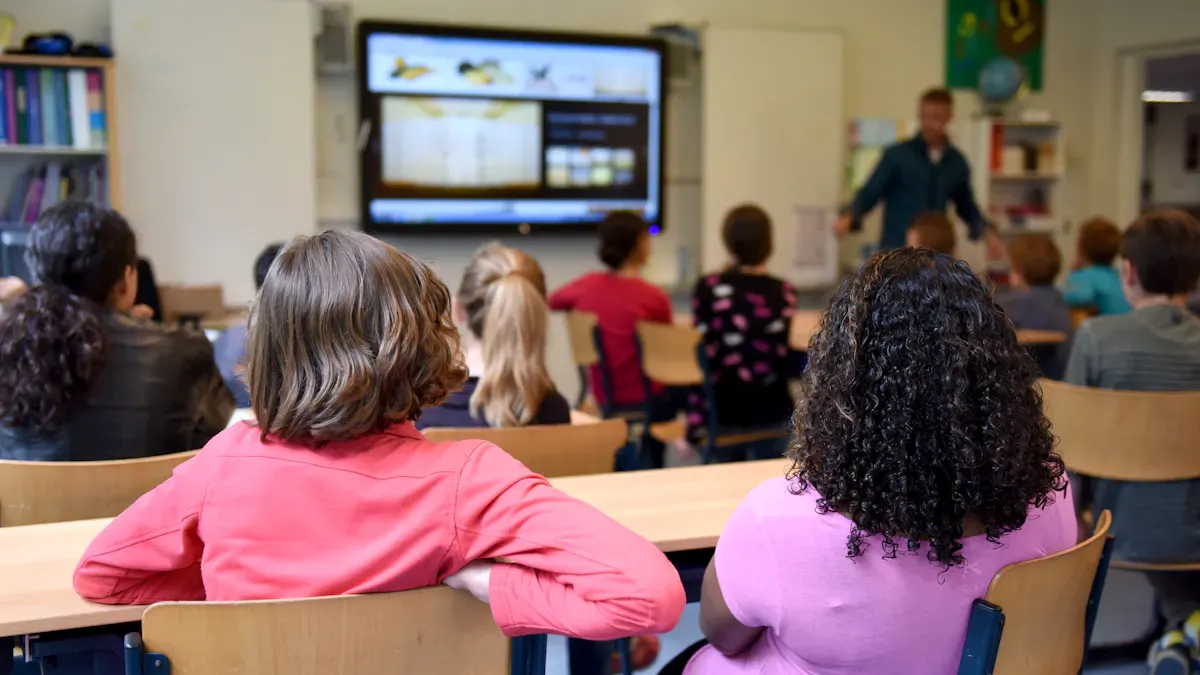
An Interactive Screen For Teaching is a new tool for classrooms. It lets teachers and students work with lessons at the same time. You can touch the screen, write on it, and move things around. This technology makes lessons more fun and hands-on. Students can take part, share their thoughts, and work together easily.
Key Features and Functions
There are many things that make Interactive Screen For Teaching special. The table below lists some top features:
Feature/Function | Description |
|---|---|
Collaboration and Adaptability | Lets students work together and supports different learning styles. |
Access to Educational Apps | Runs Android apps for a wide range of learning activities. |
Dynamic Lesson Delivery | Supports screen sharing and remote learning for flexible lessons. |
Split-Screen Capability | Allows multitasking and sharing content among students. |
Wireless Screen Sharing | Students can share their work from any device without cables. |
Independent Operation | Works without a PC, making it easy to use anywhere. |
High-Resolution Displays | 4K screens show clear and engaging visuals. |
Hands-On Learning Experiences | Lets students touch and interact with content directly. |
Multisensory Learning Support | Appeals to visual, auditory, and kinesthetic learners. |
Multiple Simultaneous Touchpoints | Many students can use the screen at the same time for group activities. |
Tip: Try using these features to make your lessons more active. Students will remember more if they join in.
Interactive vs. Traditional Screens
Interactive Screen For Teaching gives you more ways to get students involved than a regular screen. Here is a quick comparison:
Feature/Benefit | Interactive Screens | Traditional Screens |
|---|---|---|
Student Engagement | High; students take part in lessons | Low; students mostly observe |
Support for Learning Styles | Works for all types of learners | Mostly visual only |
Collaboration Opportunities | Great for group work and discussions | Limited group activities |
Real-time Interaction | Yes; instant feedback and changes | No; content stays the same |
Accessibility | Supports diverse needs | Fewer accessibility options |
You can let students move virtual models in science class or write on diagrams together. This hands-on way helps students learn hard ideas. You also get feedback right away, so you can change your teaching fast. Interactive screens help students think deeply and work as a team. This makes learning better and the classroom more exciting.
Boosting Engagement with Interactive Screens
Two-Way Communication in Class
You can make your classroom more active with two-way communication. Interactive Screen For Teaching lets you and your students talk and share ideas right away. When students ask or answer questions on the screen, they feel part of the lesson. You can see who understands the lesson fast. This helps you change your teaching if you need to.
Students remember more when they make their own questions and get feedback from you. Studies show interactive displays help students remember more and stay focused. When students work together on the screen, they learn better and feel closer to each other.
Study | Findings |
|---|---|
HCII Study | Students remembered more when they made their own questions and got feedback. |
Interactive Activities | Students did better than in regular lectures, even if they thought otherwise. |
Physical Activity | Students became more creative and shared more ideas. |
Touch Technology and Student Participation
Touch technology changes how students join in class. With Interactive Screen For Teaching, students can tap, drag, and write on the screen. This hands-on way makes lessons more fun. You will see students pay more attention and feel happier about learning.
Evidence Description | Source Link |
|---|---|
Students in classes that use interactive touch screens are more engaged and attentive. Teachers notice higher motivation and participation. | |
Interactive displays boost student motivation and eagerness to join group work. | |
Touch screens support multisensory learning, helping students remember more. |
You can let students solve math problems by moving numbers or draw diagrams in science. This makes learning active and fun. Students who use touch screens often show better focus and teamwork.
Collaborative Learning Tools
Interactive Screen For Teaching has tools that help students work together. You can split the screen for group projects or let students show their work to the class. These features make it easy for everyone to join in.
Feature | Impact on Group Activities |
|---|---|
Multi-user interactivity | Students and teachers can work together at the same time. |
Screen sharing | Students show their work to the whole class easily. |
Remote learning | Supports students who are not in the classroom. |
Split-screen capability | Lets groups work on different tasks at once. |
You can set up group challenges or team quizzes. Students learn to listen, share, and solve problems together. This builds confidence and helps everyone feel included.
Multimedia and Dynamic Lessons
You can make your lessons more interesting with videos, pictures, and games. Interactive Screen For Teaching lets you add these things easily. Students stay interested and remember more when they see and touch lesson content.
Students remember about 75% of what they learn through interactive lessons, but only 5% from just listening.
Interactive learning keeps students focused and active, which is important today.
You can show a science video, then let students draw their own results. You can use music, maps, or animations to explain hard ideas. This variety helps all types of learners do their best.
Tip: Try mixing videos, quizzes, and drawing tools in your lessons. You will see students pay more attention and join in more often.
Classroom Engagement Examples

Elementary School Scenario
Young students get excited when they use interactive whiteboards. These tools help them see and touch what they learn. Students can do math problems right on the board. They write notes on stories and move shapes around. This way, they get feedback right away. It helps them learn faster and feel good about their work. Interactive lessons let all students join in. Everyone can find a way to do well.
Students do math on the board.
They mark text and draw pictures during reading.
Group work lets everyone share ideas and get help.
Interactive whiteboards help students work together and join in more. You will see students become more active and happy to learn.
Middle and High School Use Cases
Older students also do better with interactive screens. You can use Quizizz to ask questions live. This keeps everyone paying attention. Group software lets students share ideas and solve problems together. Smart Boards let you use videos, pictures, and charts for hard lessons. Students feel safe sharing their thoughts in class.
Quizizz helps students join in with live questions.
Group software helps students work together.
Smart Boards use videos and pictures for different learners.
Classrooms change from just listening to more active learning. Students show more interest and pay attention longer.
Teacher Experiences and Quick Wins
Teachers see good results fast when they use interactive screens:
You notice students join in more right away.
Students listen longer and do more group work.
Students want to use interactive displays more.
Teachers see better teamwork and happier students.
Evidence | Description |
|---|---|
Students want to join lessons and work together more. | |
Enhanced Engagement | Interactive displays help students focus and feel good in class. |
Many teachers say their classrooms are more fun and students like learning more.
Fast Implementation Tips
Choosing and Setting Up Your Screen
You want your new classroom technology to work well. When picking a screen, think about a few things.
Cost: Check the price, how much it costs to set up, and future repairs.
Installation: Make sure your classroom has enough space and the right setup.
Training: Think about how much training you and your team will need.
Usage: Plan how you will use the screen in your lessons.
After you choose your screen, setting it up is easy.
Put the Rise Vision app on your device.
Pick the interactive whiteboard as your display.
Start showing your lesson content.
Tip: Get your classroom ready before students come in. This helps you start teaching right away.
Getting Started with Interactive Lessons
You can make lessons interactive from the first day. Use these best ideas to help you plan:
Best Practice | Description |
|---|---|
Start with Clear Learning Objectives | Decide what you want students to learn by the end of class. |
Balance Teacher-Led and Student-Led | Mix your teaching with student activities for more interest. |
Use Interactivity Intentionally | Add interactive parts at important times to help students understand. |
Plan for Differentiation | Give students different ways to join in, like pictures or layered tasks. |
Incorporate Ongoing Assessment | Use quick polls or activities to check if students understand as you teach. |
Easy Activities for Immediate Engagement
You can get students to join in with simple activities:
Storytelling: Let students tell their own stories about the lesson.
Live Polls: Ask questions and get answers right away.
Quizzes: Make learning fun and a little competitive.
Classroom Games: Build teamwork and excitement.
Peer-led Discussions: Help students talk and learn from each other.
Storytelling helps students connect lessons to real life and feel more sure of themselves. Live polls and quizzes keep everyone paying attention and involved.
Maximizing Student Involvement
You can help every student join in. Try these ideas:
Give feedback right away with digital quizzes and polls.
Add games and team challenges to keep students motivated.
Show videos, pictures, and sounds to reach all learning styles.
Students feel more included and excited when you use different ways to get them involved.
Overcoming Challenges Quickly
Handling Technical Issues
You might have tech problems when you start using new classroom tools. Fast fixes help you keep teaching without stopping. Here are some common problems and easy ways to fix them:
If touch does not work or is slow, clean the screen. Try calibrating touch and close apps you do not need. Wipe the screen and restart the device to help.
If the display will not turn on, check the power cord and plugs. Try another outlet and hold the power button for a few seconds.
If there is no sound, check the volume and where the sound comes from. Pick the right speakers and restart your devices.
If the screen flickers or looks blurry, check the HDMI cable and screen settings. Plug cables back in and change the resolution.
If the system freezes or apps stop working, check how much storage you have. Close extra apps, clear cache, and restart the display.
If you have Wi-Fi, Bluetooth, or USB problems, check the network and USB ports. Restart the network and try other devices.
If the IR pen or stylus does not work, check the battery and clean the sensor.
About 30% of teachers say tech problems are the biggest challenge when they start using new tools. Good systems and fast help make things much easier.
Managing Distractions
Students can lose focus because of devices. You can use simple ways to help everyone pay attention. The table below shows some good ideas:
Strategy | Description |
|---|---|
Set clear classroom device rules | Make rules for using devices to stop distractions. |
Use mobile device management tools | Watch and control devices to keep students on task. |
Implement strict app and content management | Block apps and websites that distract students. |
Screen classroom monitoring and control | Check student screens to make sure they are learning. |
Scheduled device access | Pick times for device use to build good habits. |
Amplify BYOD device integration | Make rules for personal devices so things stay fair. |
Encourage student-to-teacher and peer tracking | Use tools to see who is paying attention. |
Invest in continued teacher development | Get training to manage tech in the classroom. |
You can also use software to watch what students do online and help them get back on track. Plan short and fun lessons to keep students interested.
Ensuring Inclusive Participation
You want all students to join in and feel welcome. Interactive displays give many ways to help different learners.
Feature | Benefit |
|---|---|
Tailored for students with disabilities | Helps all students take part in class |
Integration with assistive technologies | Supports students who need special tools |
Positive classroom culture | Makes learning better for everyone |
Interactive whiteboards give more chances for every student.
Kinesthetic learners can move and use the board.
Visual and auditory learners learn from pictures and sounds.
Teachers can save notes for students who like to read.
Interactive displays work with tools like captions, highlighters, and text-to-speech. These help students who need extra support join in class.
Tip: Use different activities and tools so every student can join and do well.
You can transform your classroom fast with Interactive Screen For Teaching. You will notice higher engagement, better participation, and stronger digital skills. Students join in more, remember lessons, and enjoy learning.
Students take part in live polls and Q&A.
Gamified quizzes make lessons fun.
Virtual whiteboards help with teamwork.
To get started, follow these steps:
Mix teacher-led and student-led activities.
Use interactive features at key moments.
Offer different tasks for all learners.
Check understanding with quick assessments.
Build your skills with training.
Try a pilot class and gather feedback.
Make sure your tech works well.
Match your lessons to your curriculum.
Even small changes can make a big difference. Explore more resources to help you use this technology in your classroom.
FAQ
What is an Interactive Screen For Teaching?
You use an Interactive Screen For Teaching to make lessons hands-on. You can touch, write, and move things on the screen. This tool helps you and your students work together in real time.
How do I set up an Interactive Screen For Teaching?
You connect the screen to your device. You install the needed apps. You follow the setup guide. Most screens work right away after you plug them in and turn them on.
Can students use the screen at the same time?
Yes! Many students can touch and use the screen together. You can run group activities, games, or projects. This helps everyone join in and learn as a team.
What subjects work best with Interactive Screen For Teaching?
You can use the screen for any subject. Math, science, reading, and art all work well. You can show videos, draw diagrams, or play learning games.
Do I need special training to use the screen?
You do not need much training. Most teachers learn the basics in a short time. Many screens come with guides and support. You can start simple and try new features as you get comfortable.
See Also
Innovative Developments in Interactive Display Technology for 2026
Seven Strategies to Enhance Customer Interaction Using Digital Signage
Discover 10 Unexpected Applications for Touch Screen Kiosks in 2026
Top Reviews of Stunning High-Resolution LCD Kiosks for Exhibitions
Identifying LCD Display Kiosks with Touch Screen Features in 2026
