6 tips for choosing interactive kiosks for business and public spaces
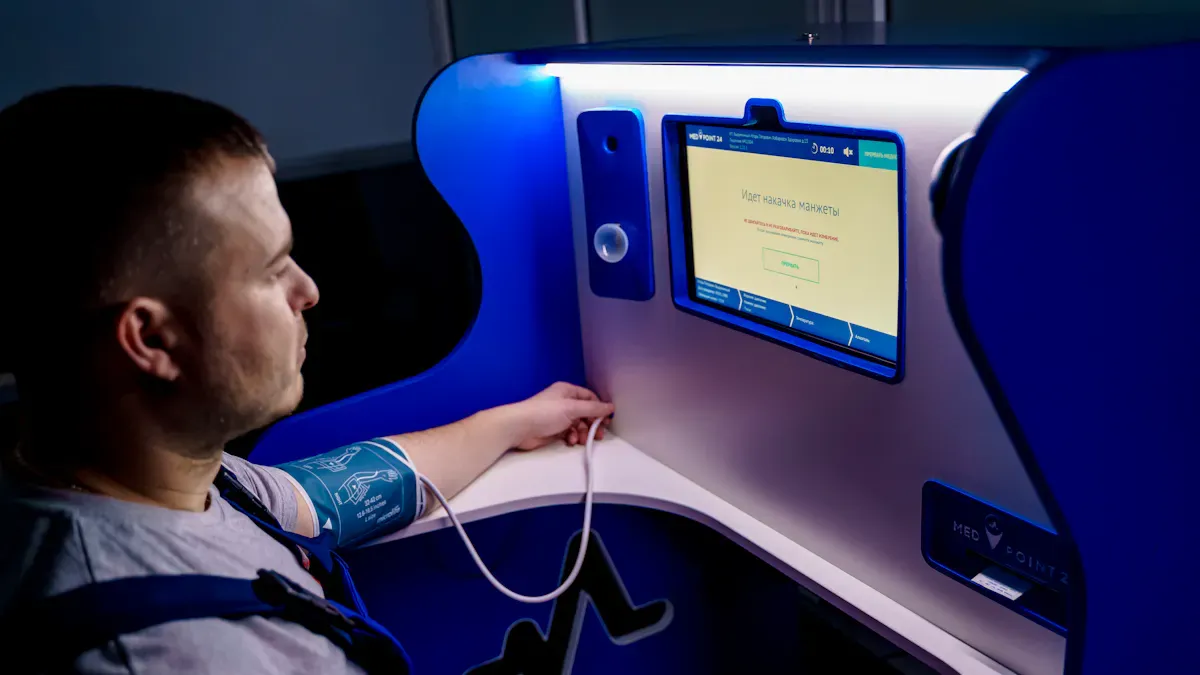
Selecting the right interactive kiosk solutions for retail can feel overwhelming. You need kiosks that engage customers, fit seamlessly into your store, and perform reliably every day. Many retailers face challenges like confusing interfaces, sluggish performance, and concerns about kiosk security. To avoid these issues, focus on six key factors: your business needs, the latest technology, smart design, reliability, content management, and return on investment. Use these guidelines as your checklist when exploring interactive kiosk solutions for retail. Discover how to choose an LCD display kiosk that truly meets your requirements and enhances your business.
Key Takeaways
Set clear goals for your kiosks. This helps them fit your business needs. It also helps customers get more involved.
Pick kiosks that are easy to use. Make sure they work for people of all ages. Think about different tech skills and accessibility needs.
Choose kiosks with good technology. Make sure they can work with your current business systems. This helps them work better.
Put kiosks where people can see and reach them easily. This helps more people use them. It also makes the customer experience better.
Update the content on your kiosks often. Check how well the kiosks are working. This keeps customers interested and informed.
Identify Business Needs & User Goals
Define kiosk objectives
Think about what you want your kiosks to do. Start by listing your main goals. Do you want to sell more products? Do you want to help people find places? Or do you want to get feedback from customers? Many businesses use kiosks for digital ads and brand promotion. They also use them for real-time updates. Kiosks can replace service desks with self-service options. This helps save money. You can use kiosks to get feedback quickly. You can share safety alerts or guide visitors with maps.
Here are some common goals for interactive kiosks:
Suggest products to help increase sales.
Share your brand and important messages.
Give self-service choices to save time and money.
Get feedback from customers right away.
Share updates or safety information.
Help people find their way with maps.
When you set clear goals, it is easier to pick the right kiosk.
Match features to user requirements
Think about who will use your kiosks. Consider their age and tech skills. Also think about their language and accessibility needs. Younger people may want to use their phones with kiosks. Older visitors may need bigger text or voice help. Look at how busy your space is. Decide if you need kiosks that can move.
Here is a table of popular features for kiosks:
Feature | Description |
|---|---|
Real-Time Updates | Share news or alerts right away. |
Data Collection and Analytics | See how people use the kiosk to make it better. |
Integration with Mobile Devices | Let users connect their phones for easier use. |
Emergency Notifications | Send safety messages quickly. |
Sustainability | Use less paper and waste. |
Revenue Generation | Make money with digital ads. |
Community Engagement | Share surveys or event info to connect with people. |
Adaptability | Change content for different needs or events. |
Remote Management | Update and check kiosks from anywhere. |
Tip: Try your kiosk with real users before you launch it. This helps you find problems and make the experience better.
When you match features to your users, your kiosk works well for your business and your customers.
Choose the Right Technology for Interactive Digital Kiosk
Touchscreen and interface options
The touchscreen is what people see first on a kiosk. You want a screen that works fast and feels nice to touch. Some kiosks have static screens. Others have touchscreens you can use. Static kiosks are cheaper and good for busy places. But they do not let people do much. Interactive kiosks let people do more things. They cost more and need more care.
Here’s a quick look at the pros and cons:
Type of Kiosk | Advantages | Disadvantages |
|---|---|---|
Static Kiosks | Budget-friendly, reliable, easy to use | No real interaction, less engaging |
Interactive Kiosks | Engaging experience, supports many tasks | Higher cost, more maintenance |
You can pick different ways to use the kiosk. Some kiosks use gesture controls or voice commands. Some let people connect their phones. Companies like Diebold Nixdorf and Zebra Technologies are top in the market. They use AI-driven screens and smart analytics. These features help you see how people use your kiosks. You can make their experience better.
Connectivity and integration
A good interactive digital kiosk connects to your business systems. You want kiosks that link to inventory, payment, and customer databases. This helps your business work better. For example, a store in Mumbai saw sales go up by 20%. They added connected kiosks. Shoppers could look at products and order without waiting.
Look for kiosks with strong internet and cloud-based management. Advantech and NCR Voyix make modular kiosks for smart cities and stores. Remember, advanced kiosks cost more at first. You also pay for software, payment, and network fees. Make sure you plan for these costs.
Tip: Always check if your kiosk can grow with your business. You want a system that changes as your needs change.
Kiosk Design & Form Factor

Space, foot traffic, and decor fit
You want your kiosks to be easy to see. They should not block people walking. First, check how much space you have. Busy places need kiosks that do not block paths. Small kiosks are good for stores with little room. If you put a kiosk where people walk, more people use it. Customers use kiosks more when they are easy to find.
Look at the area around your kiosk. A neat space helps people feel calm. Bright lights and clear signs make the place nice. You can add seats or privacy panels. These things help people use your kiosk. If you want less peer pressure, use angled screens or private spots.
Here are some simple tips for where to put kiosks:
Put kiosks in busy spots, but do not block paths.
Make sure there is space for people to stand without crowding.
Match the kiosk’s style with your store’s look.
Use signs to help people find the kiosk.
If you put your kiosk in a spot people do not expect, they may not use it. One big restaurant chain learned this lesson. They put kiosks far from the counter, and few people used them. If you pick the right spot, sales can go up by 10-15 percent.
Accessibility and ergonomics
Accessibility is important for every kiosk. You want everyone to use your kiosk, even people with disabilities. Make sure your kiosk follows rules like the Americans with Disabilities Act (ADA) and Section 508. These rules cover things like screen height and speech output.
Here is a table to help you remember important accessibility rules:
Accessibility Standard | Key Requirements |
|---|---|
ADA | Physical access, reach range, speech output |
CVAA | Video and telecom accessibility |
EAA | EU self-service accessibility |
Section 508 | Federal kiosk compliance |
ACAA | Airline kiosk accessibility |
Think about ergonomics too. Put kiosks where wheelchair users can reach them. Leave space for turning and moving easily. Make sure screens are at a good height for everyone. When you design for all users, you make a better experience and show your business cares.
Reliability & Maintenance
Hardware durability
You want your interactive kiosks to last a long time. If the hardware breaks, your kiosk stops working. This can make customers unhappy. Many things can cause hardware to break. Someone might drop the device. It could get too hot if there is not enough air. Bad cables or loose wires can cause problems. Power outages or surges can also hurt the kiosk. Dust, humidity, and strong shaking can damage parts inside.
Here are some reasons kiosks stop working:
Getting too hot from bad airflow
Bad cables or loose wires
Losing power or getting power surges
Dust, humidity, or strong shaking
Parts like hard drives, fans, and SSDs can wear out. Busy places mean kiosks get bumped and shaken more. You should check and clean your kiosks often. This helps them work well. Strong kiosks mean less downtime and happier customers.
Tip: Put kiosks in safe places. Use surge protectors to help stop damage.
Software stability and security
Software is as important as hardware. If the software crashes, the kiosk will not work right. You need to keep your software updated. Updates fix bugs and add new features. Security patches protect kiosks from hackers and other dangers.
Here’s why updates are important:
Security patches keep kiosks safe from new threats.
Updates help kiosks work better and faster.
Timely updates stop hackers from finding weak spots.
Automatic updates at night keep kiosks running without stopping service.
Updating software helps you avoid downtime and keeps kiosks safe. Taking care of hardware and software gives customers a smooth and safe experience.
Device Monitoring & Support for Interactive Kiosks
Remote management
You want your interactive kiosks to work all the time. Remote management makes this possible. You can check your kiosks from anywhere with an internet connection. You do not need to be in the store or office. This saves you time and helps you fix problems fast.
Here’s a quick look at what remote monitoring can do for you:
Benefit | Description |
|---|---|
Remote Access | Change content from any device, even if you are not on site. |
Monitor Health | See real-time updates about your kiosk’s system and hardware. |
Multi-user Access | Let different team members get alerts and make updates. |
Customizable Alarms | Set up alerts for different problems, so you know what needs attention first. |
Analytics | Learn how people use your kiosks and improve the experience. |
You can set alarms for things like low paper or a screen that stops working. You get alerts right away. This means you can fix small issues before they become big problems. You also get reports that show how people use your kiosks. These reports help you make better choices for your business.
Tip: Remote management tools let you update content or fix errors without sending someone to the kiosk. This keeps your interactive kiosks running smoothly and saves money.
Service and technical support
Good support keeps your kiosks working for your customer. You need to know how fast you can get help if something goes wrong. Some vendors answer support requests right away, especially if your kiosk is the only way to pay. Other vendors may take longer if you have many kiosks and only one is down.
Here’s a table to help you understand support options:
Support Model | Description |
|---|---|
Kiosk as only payment point | Needs fast help because it affects all sales. |
Kiosk among several units | Can wait a bit longer if others still work. |
Business hours support | Works for offices that close at night. |
24/7 operations | Gives help any time, but may cost more. |
You should ask your vendor what support they offer. Some give help during business hours. Others offer 24/7 support for busy places like airports or hospitals. Fast support means less downtime and happier customers.
Note: Always check if your vendor offers remote troubleshooting. This can solve many problems without waiting for a technician.
Content Management & Customer Experience
Easy content updates
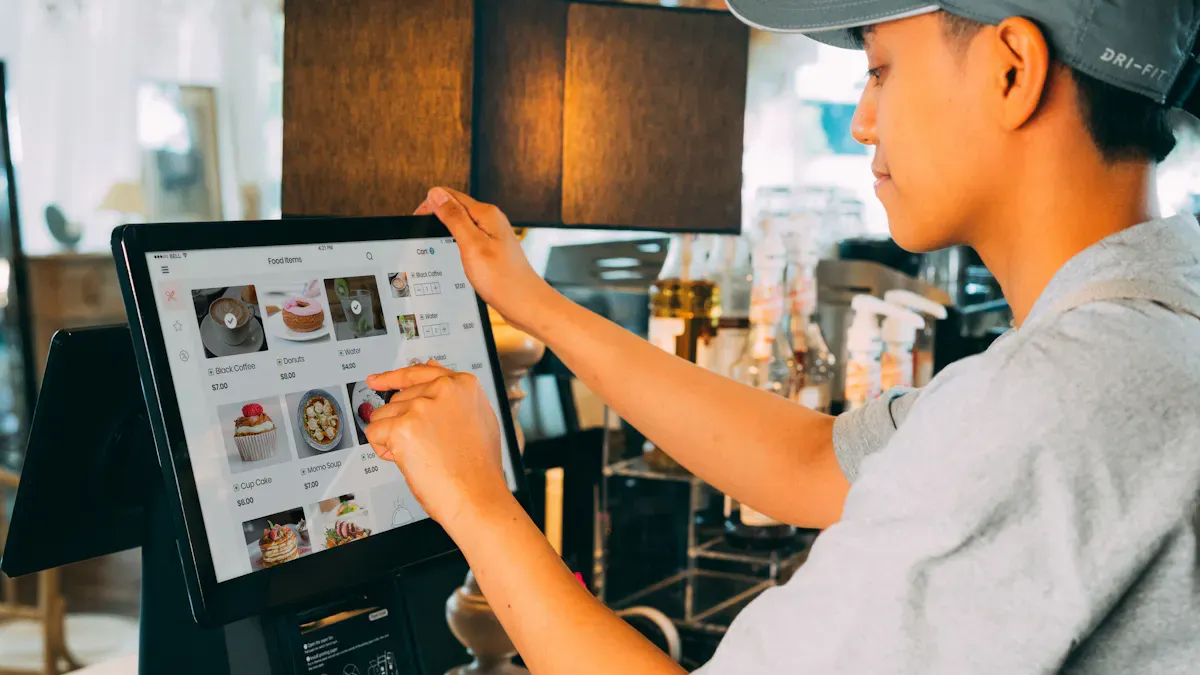
You want your interactive kiosks to show new information. When you keep things updated, people trust your business more. They also feel excited to use your kiosks. Imagine a customer seeing today’s deals or new events right away. This happens when you update content in real time.
Here are some ways to make updates easy and helpful:
Use kiosk software that lets you change messages from anywhere. You can update deals or alerts without being at the kiosk.
Set up real-time updates so visitors always see special offers or news.
Try adding augmented or virtual reality features. These make experiences fun and grab attention.
Check analytics to see what people like. This helps you improve your content and make better choices.
Tip: Regular updates keep your kiosks useful and help turn visitors into loyal customers.
Simplicity and clear navigation
A great self-serve experience starts with easy navigation. If people find what they need fast, they feel happy and want to come back. You should use clear labels and simple menus. This helps everyone, even those who are not tech-savvy.
Intuitive design makes kiosks enjoyable and easy to use. People finish tasks on their own, which leads to a better customer experience.
Use turn-by-turn directions or interactive maps. These tools guide visitors and help them find their way, especially in big spaces.
Personalized experiences, like greeting users by name or showing favorite products, make each visit special.
A user-friendly interface means less confusion and more smiles. When you focus on simplicity, you create a better customer experience and help your business stand out.
Brand Integration & ROI in Interactive Kiosk Solutions for Retail
Customization and branding
You want your store to be different from others. When you pick interactive kiosk solutions for retail how to choose an lcddisplay kiosk, think about how it matches your brand. The kiosk should look like it belongs in your store. It should not look out of place. You can use your store’s colors and logos on the kiosk. You can also pick materials that fit your style. Good lighting can make your best products stand out. Music or sounds can help set the right mood. The right materials make the kiosk nice to touch and use.
Here’s a table that shows how brand integration affects how customers feel:
Key Element | Description |
|---|---|
Inspirational Space | Makes people curious and ready to explore on their own. |
Connection to Narratives | Puts products in stories that matter to shoppers. |
Sensory Details | Uses touch, sound, and sight to create memories and boost your brand image. |
When you use interactive kiosk solutions for retail how to choose an lcddisplay kiosk, you can change many things. Shoppers can find new products, take fun quizzes, or compare items side by side. Some kiosks let people design their own products or order things not in the store. Guided selling helps everyone make choices more easily.
Measuring ROI
You want to see if your money is well spent. With interactive kiosk solutions for retail how to choose an lcddisplay kiosk, you can check important numbers. These numbers show how well your kiosks are doing. They also help you plan what to do next. Here are some ways to measure roi:
Metric | Description |
|---|---|
Total interactions | Counts how many people use the kiosk. |
Conversion rates | Shows how many users buy something after using the kiosk. |
Most popular content | Finds out which products or info get the most attention. |
Average engagement time | Measures how long shoppers spend at the kiosk. |
Lead quality distribution | Checks if the kiosk brings in good leads for your business. |
ROI calculations | Looks at the value you get compared to what you spend. |
You can also look at how much customers use the kiosk, how many sales happen, and the average order size. Happy customers usually mean better results. If you want good roi for a long time, keep checking these numbers and update your kiosks as your business changes. When you use interactive kiosk solutions for retail how to choose an lcddisplay kiosk, you make your brand stronger and your investment smarter. Interactive kiosks help you connect with shoppers and see real results.
You now have a solid checklist for picking the right interactive kiosk. Remember to:
Choose high-quality parts like LCD screens and sensors.
Match hardware and software to your goals and audience.
Think about space, usage, and where your kiosk will go.
Pick a trusted manufacturer.
Next, try these steps:
Set clear goals for your kiosk.
Place kiosks where people will see them.
Help users with friendly staff.
Check data often to keep improving.
Smart choices lead to better results and happy customers!
How to Control Outdoor LCD Display Kiosks
Controlling outdoor LCD display kiosks mainly involves three core methods: local manual control, remote cloud control, and intelligent automatic control. Below is a simplified guide to their core operations for quick上手.
1. Local Manual Control (On-Site Operation)
Simple and network-free, suitable for on-site adjustments and setup.
1.1 Remote Control Operation
Power On/Off: Press the remote’s "Power" button for 2-3 seconds; use the system’s "Shutdown" option first to protect components.
Brightness Adjustment: Press "Brightness" to set 5000-7000 nits (sunlight) or 2000-3000 nits (cloudy/night).
Content Switching: Press "Input/Source" to switch sources; insert a U disk first if using it.
1.2 Touch-Screen Operation
For touch-enabled kiosks, operate directly on the screen:
Unlock: Tap twice or enter the preset password.
Content Management: Tap "Content Manager" to edit playlists or switch content.
Parameter Settings: Tap the gear icon to adjust volume/brightness, and save after adjustment.
2. Remote Cloud Control (Batch/Long-Distance Management)
Manage multiple kiosks remotely via a cloud CMS, relying on stable internet (Wi-Fi/4G/5G/Ethernet).
2.1 Preparations
Connect the kiosk to the internet (Ethernet/Wi-Fi for fixed locations, 4G/5G for remote areas).
Log in to the CMS platform with the manufacturer’s account, and bind kiosks via their unique ID.
2.2 Core Remote Functions
Content Update: Upload content to CMS, create playlists, and click "Push to Device" for batch updates.
Device Monitoring: Check real-time status (power, network, temperature) on CMS; receive alarms for faults.
Parameter Adjustment: Batch adjust brightness/volume, or set energy-saving rules (e.g., reduce brightness at night).
Remote Restart/Shutdown: Send commands via CMS to fix malfunctions; restart weekly for stability.
3. Intelligent Automatic Control (Unattended Scenarios)
Sensors and auto-control systems adjust parameters automatically without manual intervention.
Auto Brightness: Light sensor adjusts brightness based on sunlight (higher in daylight, lower at night).
Auto Temperature: Heating/cooling system maintains -30°C to 60°C to protect internal components.
Timed On/Off: Set operating hours in CMS/local settings for automatic on/off.
4. Key Control Precautions
Avoid frequent forced power-off; use the system’s "Shutdown" option first.
Keep the remote away from rain/dust; do not scratch the touch screen with sharp objects.
Ensure stable internet for remote control; switch to backup networks if needed.
Avoid static images for over 8 hours; use loop play or screen savers to prevent burn-in.
Clean the screen/monthly with a soft cloth; avoid chemical cleaners.
Master these simplified steps to manage kiosks efficiently. Contact technical support for special malfunctions.
Henry Fang
General Manager
Shenzhen TopAdkiosk Display Technology Co., Ltd.
Add.: 2F, Bldg 10, Changfeng Industrial Park, Dongkeng, Fenghuang, Guangming, Shenzhen, China 518132
Mobile/WHATSAPP: 86-138 25769658
Email: marketing@topadkiosk.com topadkiosk@gmail.com
Skype: pghenry1
Wechat: adkioskhenry
English Web.: http://www.topadkiosk.com/
FAQ
What is an interactive kiosk?
An interactive kiosk is a touchscreen device that lets you give information, sell products, or help customers. You can use it in stores, airports, or public spaces. It works like a self-service station.
How do I keep my kiosk secure?
You should update your software often. Use strong passwords and lock the device when not in use. Ask your vendor about security features.
Tip: Set up automatic updates for extra protection.
Can I change the content on my kiosk easily?
Yes, most kiosks let you update content from a computer or phone. You can add new deals, news, or maps in real time. Look for kiosks with easy content management tools.
What should I do if my kiosk stops working?
First, restart the kiosk. Check the power and internet connection. If it still does not work, contact your support team or vendor.
Note: Many problems get fixed with a simple reboot.
Do interactive kiosks work for small businesses?
Yes, you can use kiosks in small shops, cafes, or offices. They help you save time and give better service. You do not need a big budget to start with a basic model.
See Also
Evaluating Performance And Value Of Business Touch Screen Kiosks
Essential Features To Look For In Modern Touch Screen Kiosks
Discover 10 Unexpected Applications For Touch Screen Kiosks In 2026
Seven Strategies To Enhance Customer Engagement With Digital Signage
