How to Install Free Digital Signage Software on Your Smart TV
Shenzhen TopAdkiosk Display Technology Co., Ltd.
Add.: 2F, Bldg 10, Changfeng Industrial Park, Dongkeng, Fenghuang, Guangming, Shenzhen, China 518132
Mobile/WHATSAPP: 86-138 25769658
Email: marketing@topadkiosk.com topadkiosk@gmail.com
Skype: pghenry1
Wechat: adkioskhenry
English Web.: https://www.topkioskdisplay.com/
http://www.ad-kiosk.com/
https://www.toplcddisplay.com/
http://www.multitouchdigitalsignage.com/
https://www.youtube.com/channel/UCYVYNJHxLVEcQD8fuUxXNTA/videos?view_as=subscriber
https://www.facebook.com/TOPADKIOSKSHENZHEN/?ref=bookmarks
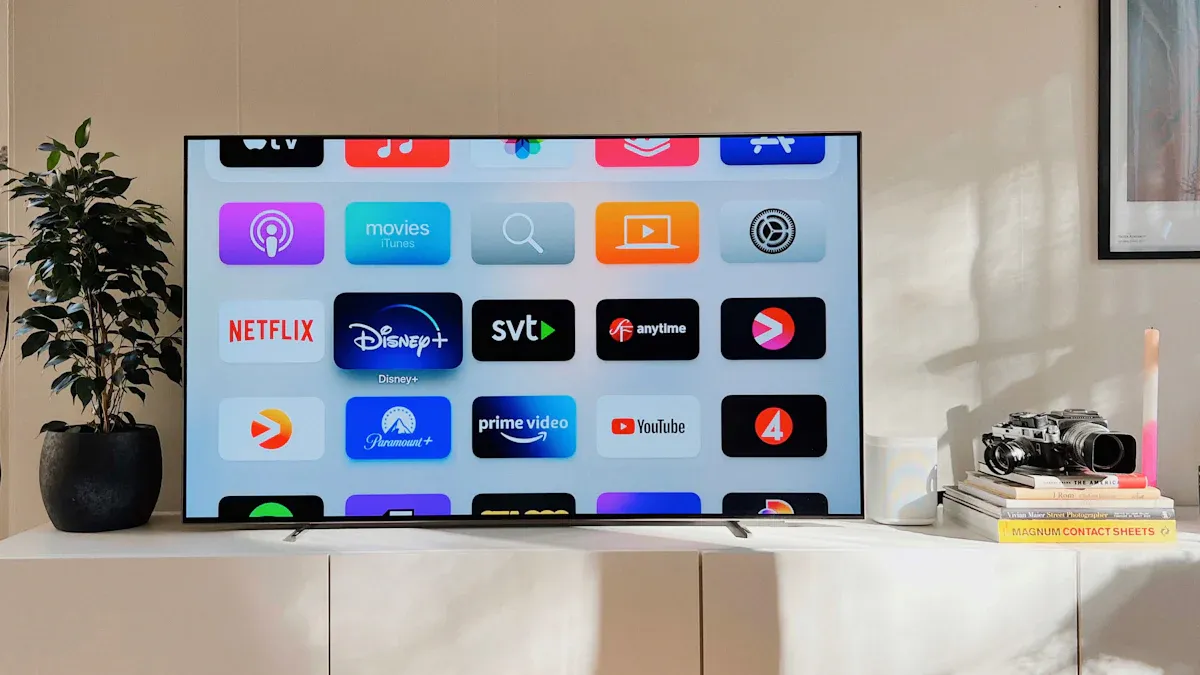
You can install free digital signage software for smart tv in just a few steps. The process feels quick and easy. You save money and get more control over your displays. Many paid platforms charge $8 to $20 per screen each month. With free solutions, you avoid these costs:
For 10 screens, you can save over $2,000 every year.
Some options even offer up to 93% savings compared to the industry average.
Enjoy flexibility and manage your content with ease.
Key Takeaways
Putting free digital signage software on your smart TV helps you keep your money. You do not have to pay monthly fees. You can save more than $2,000 each year if you use many screens.
You can change and update your content from any place. Use your phone or computer to send files and pick what shows on your screens.
Most free digital signage software works with well-known smart TVs. Make sure your TV connects to the internet well for the best results.
Free Digital Signage Software for Smart TV
What Is Digital Signage
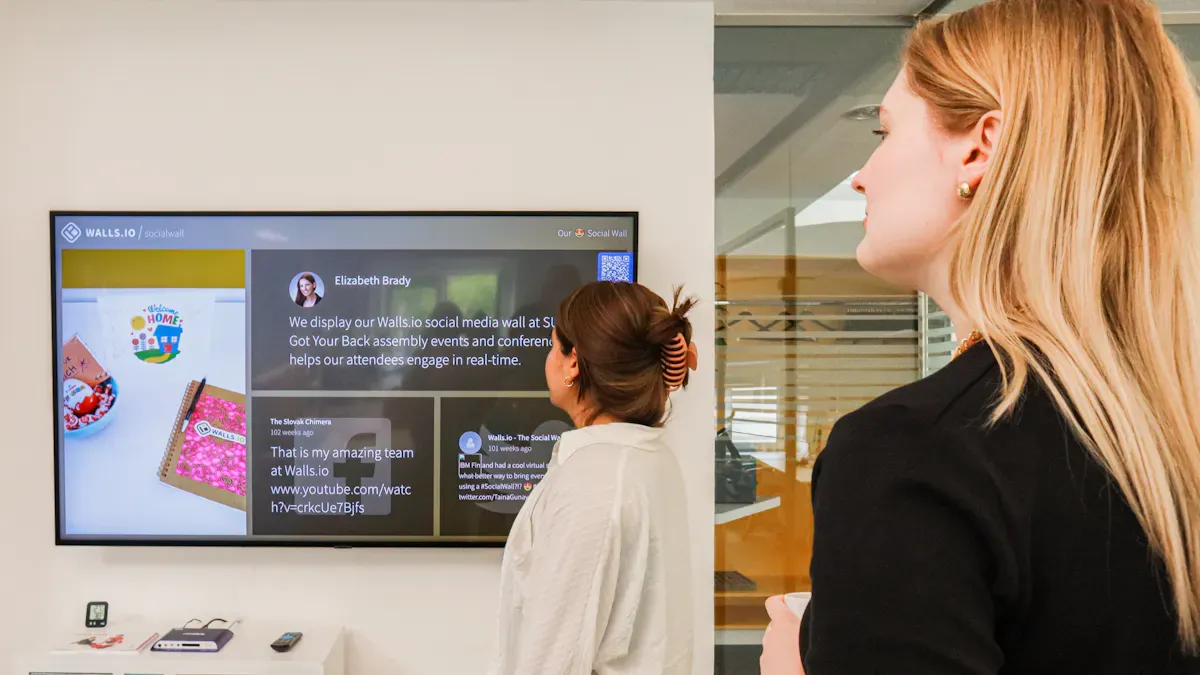
Digital signage lets your smart TV share information easily. You can use screens to show things like promotions or schedules. Businesses use digital signage to display menus, videos, or news. Schools and hospitals use these screens for class schedules, alerts, or health tips. Free digital signage software for smart tv turns any screen into a noticeboard. It grabs attention and helps people stay informed.
Some ways people use digital signage on smart TVs are:
Retail stores show new products or sales.
Restaurants update their menu boards.
Offices display welcome messages or team news.
Schools share daily schedules or alerts.
Hospitals give health information in waiting rooms.
Benefits of Free Solutions
Free digital signage software for smart tv gives you many benefits. You save money because there are no monthly fees. Setup is simple and managing screens is flexible. Most free digital signage software for smart tv lets you control screens from anywhere. You can upload your own content and schedule what plays. You can also connect with tools like Canva or YouTube for creative options.
Here are some popular free digital signage software for smart tv choices:
OptiSigns – Free for up to three screens, remote control, and cloud storage.
Yodeck – Free for one screen, with almost all features included.
Look – Easy setup and supports many screens with a 14-day free trial.
Tip: Most free digital signage software for smart tv works with Android, Android TV, and Amazon Smart TVs. You have lots of options.
These solutions let you control screens, schedule content, and use many media types. You can reach more people with fun content without spending extra money.
Requirements and Device Compatibility
Supported Smart TVs and Devices
You need your smart tv to work well with free digital signage software. Most new smart tvs are ready for this job. Here is a table that shows which brands and systems you can use:
Brand/Model | Operating System | Signage Support Features |
|---|---|---|
Samsung | Tizen | Native apps, auto-start, remote management (commercial) |
LG | webOS | Native apps, auto-start, remote management (commercial) |
Android TV/Google | Android | Broad compatibility, auto-start, kiosk mode |
Roku | Roku OS | Limited signage apps, minimal features |
Vizio | SmartCast | Needs external media player for signage |
Most free digital signage software works best with Android smart tvs. If your smart tv cannot run apps, you can use an Android TV box, Fire Stick, or Raspberry Pi. These devices help you set up fast and keep things simple. Many smart tvs have system-on-chip technology, so you do not need extra gadgets.
For the best picture, choose a smart tv with Full HD or 4K. Brightness is important too. Try to get 300–400 nits or more. This makes your content easy to see in any room.
Internet Connection Essentials
A good internet connection is important for your smart tv digital signage. You need Wi-Fi or Ethernet to get the app, connect to your cloud manager, and keep screens updated. Most smart tvs come with Wi-Fi, so you can start right away.
A smart tv with its own operating system
Strong Wi-Fi or Ethernet connection
Cloud-based digital signage CMS for easy setup and control
A strong internet keeps your content new and your screens working well. Some software lets your smart tv save content, so it still works if the internet goes out for a short time. For safety, use encrypted data and put your smart tv on a guest Wi-Fi.
Tip: If your smart tv stays offline too long, your signage may stop showing. Always check your setup and network to keep things running.
Step-by-Step Setup Guide
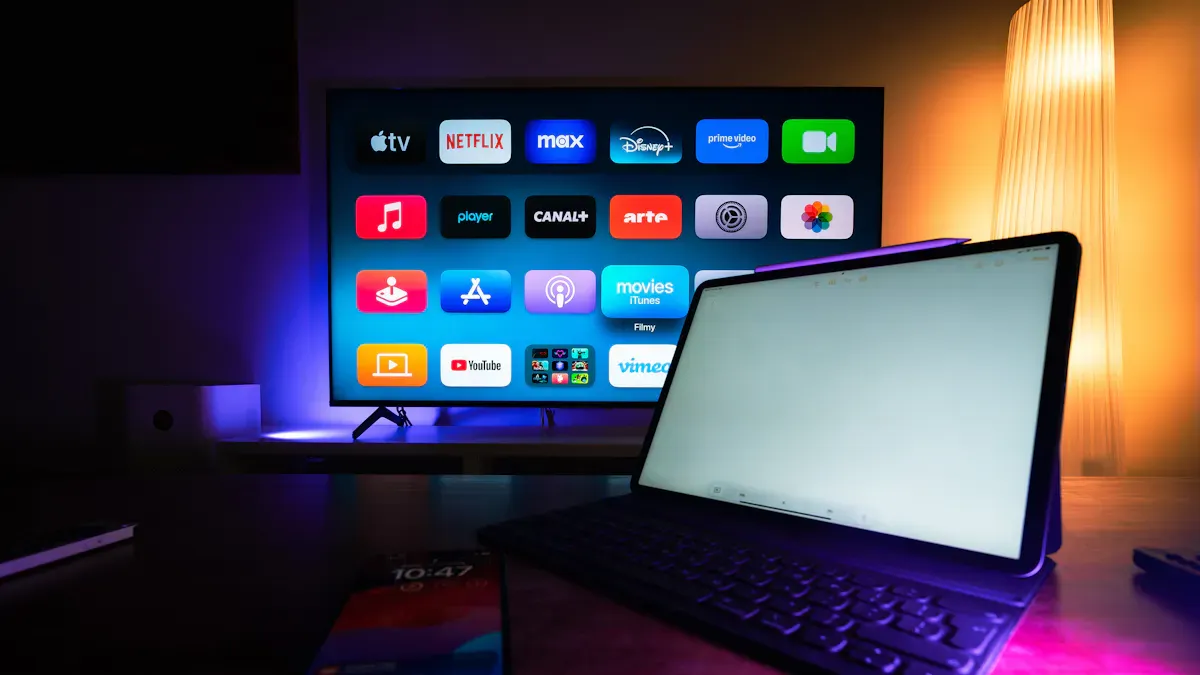
Ready to get your smart TV up and running with digital signage software? This step-by-step setup guide will walk you through everything you need to know. You can finish the installation in just a few minutes. Most people say it feels as easy as setting up Netflix. Let’s dive in!
Create a Free Account
You need an account before you can manage your screens. Here’s how you do it:
Sign up for a free account with your chosen digital signage software. For example, EasySignage lets you register without a credit card.
The sign-up process is quick. You only need your email and a password.
Your free account works for at least one screen, so you can start right away.
After you sign up, log in to your dashboard. This is where you’ll create and manage your content.
Note: Most platforms ask you to verify your email. This step keeps your account safe. Some services also offer two-factor authentication for extra security.
Download and Install the App
Now you need to install the app on your smart TV. The process is simple:
Turn on your smart TV and go to the home screen.
Open the app store (like Google Play Store or Samsung Apps).
Use the search bar to find your digital signage software. Try searching for names like “AIScreen Digital Signage Software” or “Wilyer.”
Select the app from the results and press “Install.”
Wait for the installation to finish, then open the app.
If you use an Android TV box, Fire Stick, or Raspberry Pi, follow the same steps in their app stores.
Tip: If you can’t find the app, check if your TV supports third-party apps. Some TVs need an external device for full compatibility.
Link Device to Account
You need to connect your TV to your account so you can control it from anywhere. Here’s how:
Open the digital signage software app on your TV.
The app will show a pairing code or ask you to log in.
On your computer or phone, go to the web dashboard.
Enter the pairing code or select your device from the list.
Your TV will link to your account. Now you can upload files, create playlists, and schedule content.
If you run into problems during this step, try these fixes:
Check your Wi-Fi connection. A strong internet signal is important.
Make sure the app is updated to the latest version.
Allow all permissions, especially “Display over other apps.”
Restart your TV if the app freezes or does not respond.
Callout: Some TVs may not auto-start the app after a power cycle. If your screen goes dark or freezes, a quick reboot usually solves the problem.
Manage and Display Content
You’re almost done! Now you can add and control what shows on your screen:
Upload images, videos, or documents to your dashboard.
Create playlists and set up smart scheduling. You can plan content for different times of day or special events.
Use remote management to update content from anywhere. You can even reboot your TV or update the app without leaving your desk.
Regularly update your app and TV firmware for the best performance.
Avoid static images for long periods. Use moving content or rotate playlists to prevent screen burn-in.
Give your TV a break during off-hours. This helps your screen last longer.
Tip: Most digital signage software has helpful guides, videos, and user forums. If you get stuck, check these resources or ask the community for help.
With this step-by-step setup, you can install the app, link your device, and start displaying content in minutes. You’ll find the setup guide easy to follow, and you’ll be ready to share your message with the world.
You can put free digital signage software on your smart TV fast. Here’s why it’s great:
Benefit | What You Get |
|---|---|
No extra devices or monthly payments | |
Easy Setup | Fast to install and easy to use |
Remote Updates | Change what’s on the screen from anywhere |
You can change things quickly, keep info fresh, and get people interested—just follow the steps and begin now!
Comparing the Best Free Digital Signage Software for Smart TVs in 2026
There are indeed several free digital signage solutions worth considering for smart TVs. However, understanding their trade‑offs is key to achieving a stable, reliable long‑term experience.
Below is a comparison of mainstream free options to help you quickly understand their features.
📊 2026 Free Digital Signage Software for Smart TVs – Comparison
Software | Free Plan | Screen Limit | Key Features | Best For |
|---|---|---|---|---|
Yodeck | 1 screen free forever | 1 screen | Full features, rich templates, easy setup, no branding | Single‑location shops, startups |
Trillboards | "All‑in‑One Free" | Not specified | Disruptively free: includes CMS, MDM, YouTube Premium content | SMBs wanting both own and third‑party paid content |
PosterBooking | 10 screens free forever | Up to 10 screens | No branding, generous screen allowance | Chain stores, multi‑screen scenarios |
SignageSpace | Free forever (no credit card required) | Not specified | Modern drag‑and‑drop editor, multi‑platform support | Users across different platforms |
OptiSigns | 3 screens free | Up to 3 screens | 160+ app integrations; ongoing technical support | Retailers needing multiple data integrations and support |
Free plan available | Not specified | WordPress/PHP based – easy for users familiar with that CMS | WordPress ecosystem developers | |
Display.Stream | Free plan available | Not specified | Web player and cloud platform, simple activation | Beginners wanting a very simple, fast deployment |
ScreenCloud / OnSign TV / truDigital | 14‑day full‑feature trial | Trial period only | Enterprise‑grade features | Professional users who need to evaluate functionality |
Xibo (Community Edition) | Open source (self‑hosted) | Unlimited | Highly customisable; supports Arexibo in Rust client; requires IT skills | Technical teams needing deep control |
💡 Special notes:
PPDS Publisher offers a native free CMS for Philips B‑Line commercial TVs and other specific models. Check device compatibility – some TVs may require a firmware update.
Display.Stream and AbleSign also offer free deployment plans, suitable for commercial scenarios where you want to quickly test results.
Third‑party Chinese free content creation tool: Star Multimedia Information Publishing System v3.85 Online Edition claims to be free for playback on various terminal devices.
🧭 Selection Guide – Finding the Right Free Solution for You
Start by answering two questions.
1. “Free” Actually Comes in Three Forms
In the digital signage world, “free” generally appears in three forms, each with different trade‑offs.
Open‑source solutions: The software itself is free (e.g., Xibo Community Edition). However, the technical barrier is higher – you must set up your own server, handle maintenance, and resolve compatibility issues yourself.
Free software tiers: Most cloud platforms offer this model (e.g., Yodeck, OptiSigns). They typically provide 1‑3 screens free forever – enough for basic applications. No server maintenance is required, making this a safe and fast option for most users.
Trialware: These typically offer a 14‑day fully functional trial, after which you must pay to continue (e.g., ScreenCloud, OnSign TV). They are suitable for evaluating whether a specific platform meets your professional needs before committing.
2. Do the Math – Is a Free Plan Really Cost‑Effective?
The core value of free software is lowering upfront hardware costs. However, if you plan to quickly expand beyond 10 screens, a paid plan may be more cost‑effective in the long run.
Screen count is the biggest hurdle: Most free plans limit you to 1‑3 screens. If you need many screens, the cost of multiple free accounts or upgrading may be higher than a single paid plan.
Support is a hidden cost: Free tiers usually do not include technical support. If a screen fails, relying on community forums or self‑help can consume significant time and effort.
Hardware costs are unavoidable: Even with free software, you still need to invest in players, TVs, mounting brackets, cables, etc. A basic media player (e.g., Raspberry Pi, Android TV stick) costs roughly $80–$150.
Other operator considerations: Some free software may not support auto‑start on boot, or may display watermarks that harm your brand image.
If you are willing to share how many screens you need and your primary use case (e.g., single‑location menu board vs. multi‑location chain management), I can help you make a more specific assessment.
FAQ
What is digital signage and how does it work on my smart TV?
Digital signage lets you show messages, images, or videos on your smart TV. You use apps to control what appears. You can update screens anytime.
Which free digital signage software is best for smart TVs in 2026?
You can try OptiSigns, Yodeck, and Look. Each one offers easy setup, remote control, and strong features. Check their websites for updates.
Can I manage digital signage content from my phone or computer?
Yes! You log in to your dashboard on your phone or computer. You upload files, create playlists, and change what your digital signage shows.
See Also
Easily Install and Configure Your Digital Signage Software
Simple Steps to Install and Set Up Digital Signage
Step-by-Step Guide to Setting Up Local Digital Signage
Understanding the Basics of Digital Signage Solutions
Comprehensive Guide to Choosing and Installing Outdoor Signage
