How to Implement Digital Signage and Wayfinding in Your Facility
Shenzhen TopAdkiosk Display Technology Co., Ltd.
Add.: 2F, Bldg 10, Changfeng Industrial Park, Dongkeng, Fenghuang, Guangming, Shenzhen, China 518132
Mobile/WHATSAPP: 86-138 25769658
Email: marketing@topadkiosk.com topadkiosk@gmail.com
Skype: pghenry1
Wechat: adkioskhenry
English Web.: https://www.topkioskdisplay.com/
http://www.ad-kiosk.com/
https://www.toplcddisplay.com/
http://www.multitouchdigitalsignage.com/
https://www.youtube.com/channel/UCYVYNJHxLVEcQD8fuUxXNTA/videos?view_as=subscriber
https://www.facebook.com/TOPADKIOSKSHENZHEN/?ref=bookmarks
Digital signage and wayfinding help people move around your facility. These use screens that show maps and directions. The screens are interactive and easy to use. They give clear instructions to visitors and staff. This makes it easier for everyone to find their way. It also helps stop confusion. More than 43% of colleges and universities use digital signage for wayfinding. To make these systems work, you need everyone to agree on the plan. You also need to plan carefully. Some common problems are keeping the system working, making updates fast, and designing for users.
Challenge | Description |
|---|---|
Ongoing Maintenance | You must keep systems updated and working after setup. |
Real-Time Updates | Fast messages stop wrong information from spreading. |
User-Centered Design | Thinking about users helps visitors find their way easily. |
Key Takeaways
Digital signage and wayfinding help people move around. They make it easier for visitors to find places. This lowers confusion for everyone.
Real-time updates keep information fresh. This makes things safer. Visitors get correct directions fast.
User-centered design is very important. Think about what all users need. Include people with disabilities. This helps everyone feel welcome.
Good planning needs talking to stakeholders. Signs should be put in smart spots. This makes them easy to see and use.
Testing and getting feedback from users is key. It helps make the system better. This makes sure it works for everyone.
Why Digital Signage and Wayfinding Matter
User Experience Benefits
Digital signage and wayfinding use screens and maps. These help people move around your facility. The systems show clear instructions and maps. This makes it easy to find rooms or exits. You can use signs to guide visitors at every turn. Digital wayfinding lowers stress for guests in big buildings. Interactive displays give users current information. Real-time updates help people feel comfortable and confident.
Visitors feel welcome and not lost.
Signs save time and help people get places faster.
Clear navigation helps everyone, even people with disabilities.
Studies say 53% of visitors have trouble finding their way, but digital wayfinding helps 62% more people discover places.
Communication and Safety
Digital signage and wayfinding share important messages fast. Signs can show emergency exits or safe zones. Real-time updates make sure everyone gets the right information quickly. This helps keep visitors safe and informed.
Digital signage works as a safety broadcast system.
Signs guide people to safety in emergencies.
You can update messages fast to stop confusion.
Facility Branding
Digital signage and wayfinding help build your brand. Signs can match your facility’s colors and style. Hospitals and universities use digital wayfinding for a professional look. This improves the visitor experience. For example, the University of North Carolina and Emory University use digital kiosks and apps. These help people find their way and feel confident.
Signs support your brand identity.
Consistent design makes your facility look modern and neat.
Visitors remember a good experience with easy navigation.
Key Elements of Digital Wayfinding
Digital signage and wayfinding use technology to help people move around. These systems use screens, maps, and software to show directions and important news. You can help visitors, share updates, and make your facility safer with the right setup. Picking technology that is easy to use and can grow makes your system simple to manage.
Displays and Hardware
You need strong hardware for your digital signage. Commercial displays with touch screens let people use maps and directions. These screens must be bright and easy to see in any light. Hardware also includes brackets, power supplies, and sometimes kiosks. The table below lists the main hardware parts:
Component | Description |
|---|---|
Digital mapping | Shows a correct and current map of your facility. |
Positioning | Finds where a visitor is using sensors or GPS. |
Routing/Directions | Gives the best path, thinking about accessibility and rules. |
Content management | Updates maps, store hours, and events for a better experience. |
Wayfinding Software
Wayfinding software runs your signage. It controls maps, routes, and updates. Good software checks how people use the system and helps you make it better. Look for these features:
Analytics to see search and navigation patterns
Easy design for all visitors
Works with other systems for more insights
Lets you share directions on phones with QR codes
The main goal is to make clear paths using signs and landmarks. Simple design helps everyone find their way.
System Integration
You can link your digital signage to other building systems. This makes updates quick and keeps information fresh. For example, you can change a map or message in minutes, not weeks. Integration also helps you collect data and manage resources better. This helps your facility grow and makes maintenance easier.
Connectivity Needs
Strong connections keep your signage working well. Wired Ethernet gives the most stable and safe connection. Wi-Fi or 4G/5G works for places that are far away or temporary but may not be as reliable. Good connections make sure your screens always show the newest information.
Tip: Pick hardware and software that can grow with your facility. Scalable solutions save time and money as your needs change.
Implementation Steps for Effective Wayfinding System
Setting up a wayfinding system takes a few simple steps. Each step helps make the system easy and reliable. These steps also help you reach your goals. Follow them to make your project work well.
Stakeholder Alignment and Planning
First, bring together everyone who uses or manages the system. Get ideas from workers, visitors, people with disabilities, and emergency responders. Facility managers, architects, IT teams, and brand teams are important too. Use interviews, workshops, and surveys to collect feedback.
Description | |
|---|---|
Primary Stakeholders | Building occupants, first-time visitors, people with disabilities, emergency responders. |
Secondary Stakeholders | Facilities management, architects, brand teams, IT teams, budget holders. |
Engagement Methods | Structured interviews, workshop sessions, user surveys, observation studies. |
Think about how big your facility is. Decide where to put signs and displays. Choose if you want to update the system often or not. Make sure someone will manage the system. Set clear goals for your project. Check if your hardware or software has any limits.
Think about your facility’s size and layout.
Decide how to manage and update the system.
Assign staff for updates and maintenance.
Set clear goals for your project.
Check for hardware or software limits.
Create a plan to guide your project. Study how people move in your building. Look at where people walk or drive. Find the best spots for signs.
Learn about your facility’s environment.
Watch how people move to pick sign locations.
Facility Mapping
Accurate maps are very important for wayfinding systems. Good maps help people find directions fast. Up-to-date maps make visitors trust the information. This means staff spend less time helping. It saves time and helps your facility run better.
Accurate maps give good directions.
Updated maps mean less staff help is needed.
Good mapping helps people use space well.
Use different technologies to build and update maps:
GIS collects and manages map data.
AR shows real-time directions.
3D rendering makes maps look real.
AI updates and analyzes maps automatically.
To build maps, follow these steps:
Store data in GIS databases or cloud platforms.
Make interactive maps and 3D models for signs.
Careful planning and a good strategy save time and money later.
Design and Branding
Wayfinding design should match your facility’s brand. Use the same colors, fonts, and symbols everywhere. This helps people trust your system. It also makes directions easier to follow. When signs look professional, visitors feel safe and welcome.
Consistency in color, font, and symbols helps users trust the system. Matching signs to your brand colors and symbols builds brand recognition. This creates a strong connection with visitors. Good wayfinding blends directions and branding. It guides users and tells your brand’s story. Clear signs make people feel safe and professional. This builds trust.
Best Practice | Description |
|---|---|
Strategic Placement | Place digital signage at entrances to show your brand and welcome visitors. |
Audience-Specific Content | Change content for different groups to keep it relevant and engaging. |
Integration of Branding | Make sure all signs look and feel like part of your facility’s brand. |
Use clear fonts for easy reading.
Pick standard colors for quick recognition.
Add universal symbols so everyone understands.
Good systems mix directions, branding, and art to reduce confusion and boost engagement.
Strategic Placement
Where you put signs is important. Place displays where people see them first, like entrances and busy hallways. Put signs in elevator waiting areas too. High-visibility placement helps more people find directions.
Criteria | Description |
|---|---|
Entrances | Place displays near entrances for visibility and to avoid crowding. |
Internal Transitions | Use signs in hallways and common areas for relevant information. |
Vertical Circulation | Put displays in elevator waiting areas for people who are waiting. |
Screen Sizing | Use smaller screens in tight spaces like elevator banks. |
Brightness Control | Adjust brightness for comfortable viewing without distraction. |
In stores, put screens at entrances and checkout areas.
In hospitals, place screens at 44 inches high for easy viewing.
Putting signs in busy areas like entrances and hallways is key. This makes sure people see and use the signs. More people interact with the system and find their way. In universities, signs in busy spots mean more people use the system.
Integration and Testing
After setting up your system, test it well. Make sure it works and is easy for everyone. Good integration lets you update directions and alerts quickly. Your system should be strong and safe from damage. Add features for accessibility, like different languages and ADA options.
Feature | Description |
|---|---|
Update alerts and information in real time. | |
Interactive Maps | Show evacuation routes and safe zones during emergencies. |
Robust Durability | Use weather-resistant and vandal-proof designs. |
Accessibility Options | Support multiple languages and ADA-compliant interfaces. |
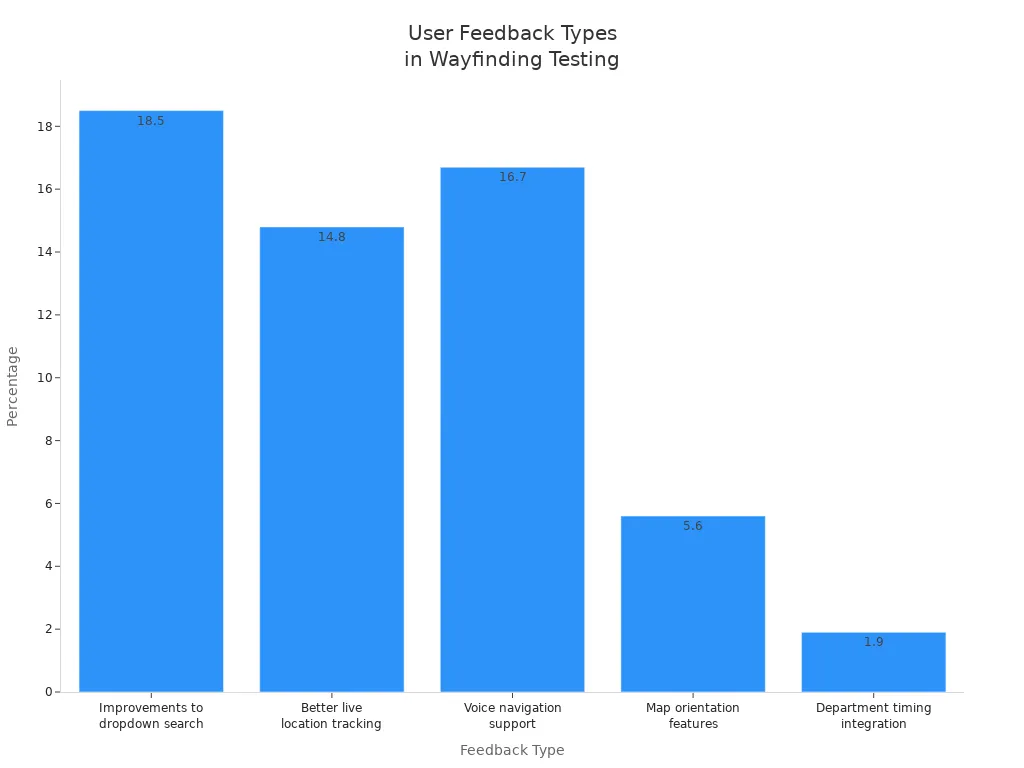
Test your system with real users. Ask what works and what needs fixing. Users often want better dropdown search, live location tracking, and voice navigation.
Feedback Type | Percentage |
|---|---|
Improvements to dropdown search | 18.5% |
Better live location tracking | 14.8% |
Voice navigation support | 16.7% |
Map orientation features | 5.6% |
Department timing integration | 1.9% |
Tip: Always ask users for feedback during testing. This helps you make your system better and easier for everyone.
By following these steps, you can build a wayfinding system that helps people move confidently. A well-planned and tested system saves time, reduces confusion, and supports your brand.
Enhancing User Experience with Digital Wayfinding
Mobile Integration
You can make it easier to get around by linking digital signs to phones. Many systems use QR codes now. When you scan a code, you get directions right away on your phone. You do not have to download an app. This saves time and helps everyone, even people who are new. Mobile apps can use GPS or Bluetooth to show where you are. This is very helpful in big places like hospitals or airports.
Benefit | Description |
|---|---|
Ease of Access | Get directions on your phone by scanning a QR code. |
No App Download Required | Use your phone’s browser, no extra apps needed. |
Efficient Management for Businesses | Update maps and routes quickly without new hardware. |
Tip: Put QR codes in busy spots so visitors can find them fast.
Accessibility and Creative Design
You should make sure everyone can use your wayfinding system. Add voice navigation and screen reader help for people who cannot see well. Use big letters and colors that stand out to help users see better. Make sure paths are wide enough for wheelchairs. Creative design makes signs more fun and interesting. You can use wall art or bright colors to show your brand’s story. Clear symbols and simple words help everyone understand directions.
Voice navigation helps people who cannot see well.
Big letters and bright colors make signs easy to read.
Fun designs, like murals, make spaces feel friendly.
Feature | Description |
|---|---|
Easy-to-see colors for users with visual impairments. | |
Audio Volume | Adjustable sound for better navigation. |
Space Accessibility | Wide routes for wheelchairs and strollers. |
Real-Time Updates
You can keep your wayfinding system current with real-time changes. Cloud software lets you update maps and alerts from one place. If there is an emergency, the system can show safe exits or warn about danger right away. Interactive kiosks and digital signs can also give step-by-step directions as things change. This helps everyone stay safe and find their way, even when things are not normal.
Show emergency alerts and new routes right away.
Update service hours or event spots in real time.
Guide users away from closed or unsafe areas.
Note: Real-time updates make your facility safer and help visitors trust your information.
You can make a good digital signage and wayfinding system by using easy steps. Make sure people can find places fast, with three taps or less. Test your system with real users, like older people and those who do not speak English. Keep maps up to date by syncing them with the cloud. Use QR codes so people can get directions on their phones. Plan for fixing and caring for your system from the start. Make signs simple and always look the same. Ask people what they think and change paths to help them. Begin with a small test in one area and ask staff and visitors to join. Update your system often and work together to keep it working well.
What Is Digital Signage?
Digital signage is a system that uses electronic displays (LCD, LED, projection) to show dynamic content such as videos, images, text, live data feeds, and interactive applications. Unlike static posters, digital signage content can be updated remotely, scheduled by time, and tailored to specific audiences or locations.
Common uses:
Advertising in retail stores, airports, and transit stations
Menu boards in restaurants
Internal communications in offices and factories
Emergency alerts in public spaces
What Is Wayfinding?
Wayfinding is the process of helping people navigate through a physical space. In the context of digital signage, digital wayfinding uses interactive screens, maps, and directional signs to guide visitors to their destination (e.g., a specific clinic, gate, store, or meeting room).
Common uses:
Hospital directories showing clinic locations
Airport gate information and walking times
Shopping mall maps with store search
University campus navigation
How Does Digital Signage Work?
A digital signage system consists of three core components:
1. Content Management System (CMS) – The Brain
A software platform (cloud‑based or on‑premise) where users create, schedule, and manage content.
Users can design playlists, set playback times (dayparting), and assign content to specific screens or groups.
2. Media Player – The Processor
A small computer (hardware or built‑into the display) that receives content from the CMS, stores it locally or streams it, and outputs the video signal to the screen.
Examples: Android‑based media stick, BrightSign player, Intel NUC, or built‑in SoC (system on chip) inside commercial displays.
3. Display – The Screen
The physical screen (LCD, LED, E‑paper, projection) that shows the content to viewers.
Commercial displays are designed for 24/7 operation, often with higher brightness for sunny locations.
Basic Workflow:
An administrator uploads content (images, videos, RSS feeds) to the CMS.
The CMS publishes the content to designated media players over the internet or local network.
Each media player decodes the content and sends it to its connected display.
The screen shows the content according to the schedule.
Optional components:
Sensors: motion, ambient light, or audience cameras for interactivity.
Integration: with POS, inventory, flight info, or emergency systems for real‑time updates.
How Does Digital Wayfinding Work?
Digital wayfinding builds on digital signage but adds interactivity and real‑time routing.
Components
Interactive touchscreen kiosk – A large display with a touch overlay.
Map software – Pre‑loaded vector maps of the building or campus, often with searchable points of interest (POIs) such as restrooms, exits, departments, stores.
Positioning technology (optional) – For dynamic starting points:
QR codes – User scans a code on a wall, their phone shows route.
Beacons (Bluetooth) – Detect guest location and show “You are here”.
No positioning – User manually taps “You are here” on a map.
How a Guest Uses It
Starting point – The kiosk shows a “You are here” marker (either automatic via beacon or manually selected).
Destination selection – The user browses a directory or types a name (e.g., “Dr. Smith’s office”, “Gate B23”).
Route calculation – The software calculates the shortest or most accessible path (e.g., wheelchair‑friendly).
Guidance display – The screen shows:
A static map with a highlighted route
Turn‑by‑turn text instructions (“Walk 30 metres, then turn left”)
A QR code to send the route to the user’s phone
Wayfinding along the path – Additional screens (corridor displays, ceiling‑mounted directional signs) reinforce the route with arrows and distances.
Advanced Features
Real‑time occupancy – Show “Men’s restroom: 3 stalls free” or “Clinic B: 5 people waiting”.
Emergency wayfinding – Automatically redirect guests away from blocked areas during a fire or security incident.
Multilingual support – Touchscreen switches language (English, Chinese, Spanish, etc.) on demand.
Summary Table
Aspect | Digital Signage | Digital Wayfinding |
|---|---|---|
Purpose | Communicate information or ads | Help people navigate a space |
Interaction | Usually one‑way (view only) | Interactive (touch, search, route) |
Content | Videos, images, text, live data | Maps, directories, turn‑by‑turn guidance |
Key hardware | Display + media player | Touchscreen kiosk + map software + (optional) beacons/QR codes |
Example | A digital menu board in a cafeteria | A touchscreen mall directory showing “you are here” and route to a shoe store |
Conclusion
Digital signage is about showing dynamic visual content to inform, advertise, or entertain.
Digital wayfinding is a specialised form of digital signage focused on helping people navigate physical spaces using interactive maps and real‑time routing.
Both rely on a content management system (CMS), media players, and displays. Wayfinding adds map software, touch interaction, and optional location sensing.
Together, they create smarter, more helpful environments – whether you are finding your gate at an airport, locating a patient room in a hospital, or discovering a sale in a shopping mall.
FAQ
What is digital signage and wayfinding, and how does it work?
Digital signage uses screens to show maps and directions. Wayfinding helps you find places inside a building. You can touch the screen or scan a QR code. The system gives you simple steps to get where you need to go.
How do you keep digital signage updated?
Cloud software lets you update digital signage from one computer. You can change maps, alerts, and messages fast. Real-time updates help visitors get the newest information right away.
Can digital wayfinding help people with disabilities?
Yes. Digital wayfinding has voice navigation, big text, and clear symbols. Screen readers help people who cannot see well. Wide paths make it easier for wheelchairs to move. The system helps everyone find their way.
Where should you place digital signage for best results?
Put digital signage at entrances, busy hallways, and near elevators. High-traffic spots help visitors see directions quickly. Signs in these places guide people and stop confusion.
See Also
A Comprehensive Guide to Installing Digital Display Signage
Understanding the Importance of Digital Signage Today
Key Considerations for Setting Up Outdoor Digital Signage
