Step-by-Step Guide to How Video Wall Controllers Work and Selecting the Ideal Controller
Add.: 2F, Bldg 10, Changfeng Industrial Park, Dongkeng, Fenghuang, Guangming, Shenzhen, China 518132
Mobile/WHATSAPP: 86-138 25769658
Email: marketing@topadkiosk.com topadkiosk@gmail.com
Wechat: adkioskhenry
English Web.: http://www.topadkiosk.com/
https://www.topkioskdisplay.com/
http://www.ad-kiosk.com/
https://www.toplcddisplay.com/
A video wall controller allows you to manage multiple screens as a single, unified display. Understanding how video wall controller works and how to choose the right system is essential for creating an effective setup. Careful planning is important, especially if you need to balance audio from various sources or want multiple users to access the system. Many users look for remote control features, which enable you to adjust the screens from a distance. This guide provides straightforward steps and helpful tips on how video wall controller works and how to choose the best option for your needs.
Key Takeaways
A video wall controller lets you control many screens as one big display. This helps you change layouts and control what shows on the screens easily.
Pick a controller that works with your screens. Make sure it supports the right resolution and works with your devices for the best results.
Plan your setup well. Do site checks and look at the building to stop mistakes and make sure everything works right.
Find features like remote control, the ability to add more screens, and ways to keep your system safe. These make your video wall easier and safer to use.
Check cables often and update the software. This keeps your video wall working well and looking good.
What Is a Video Wall Controller?
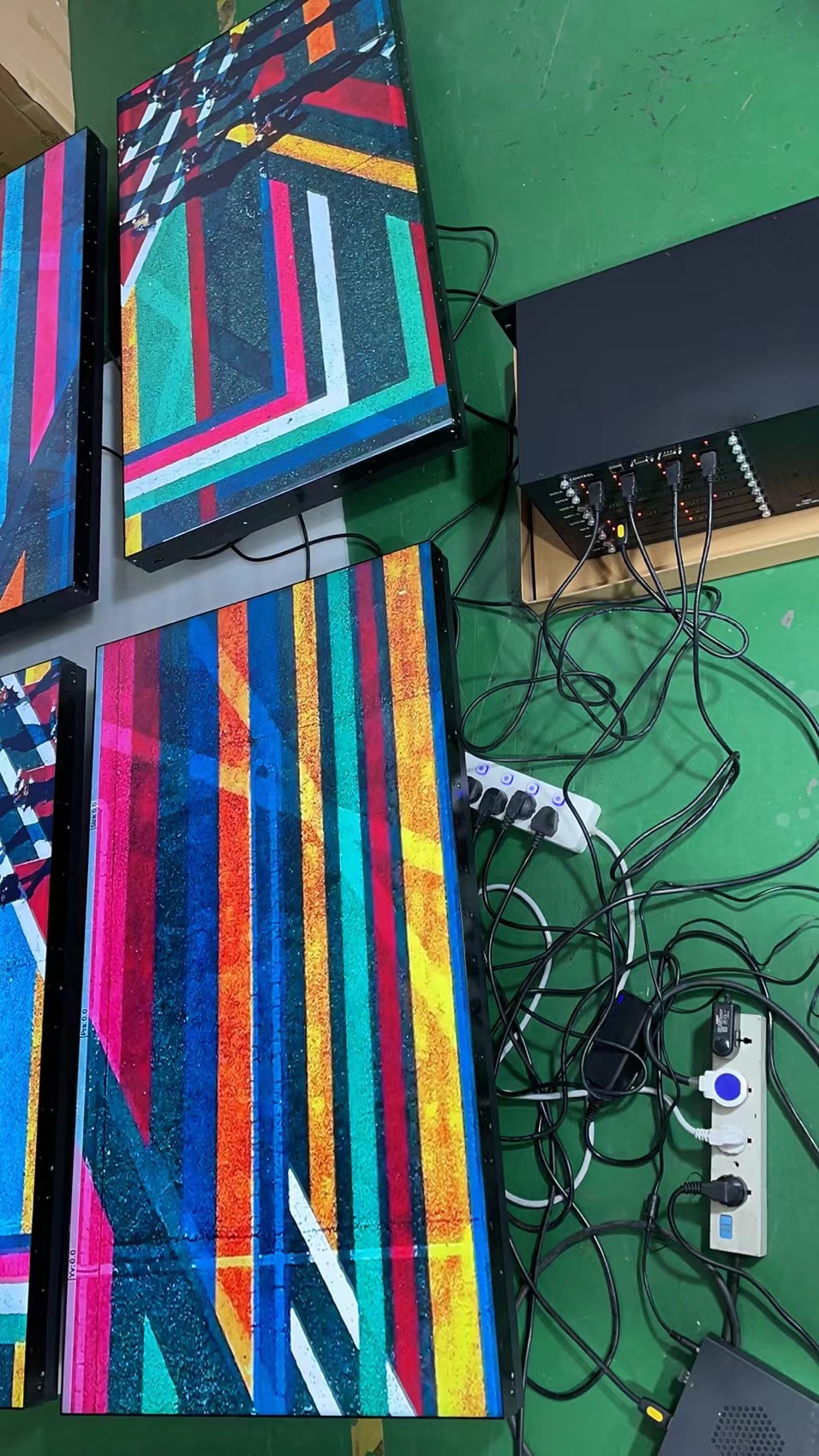
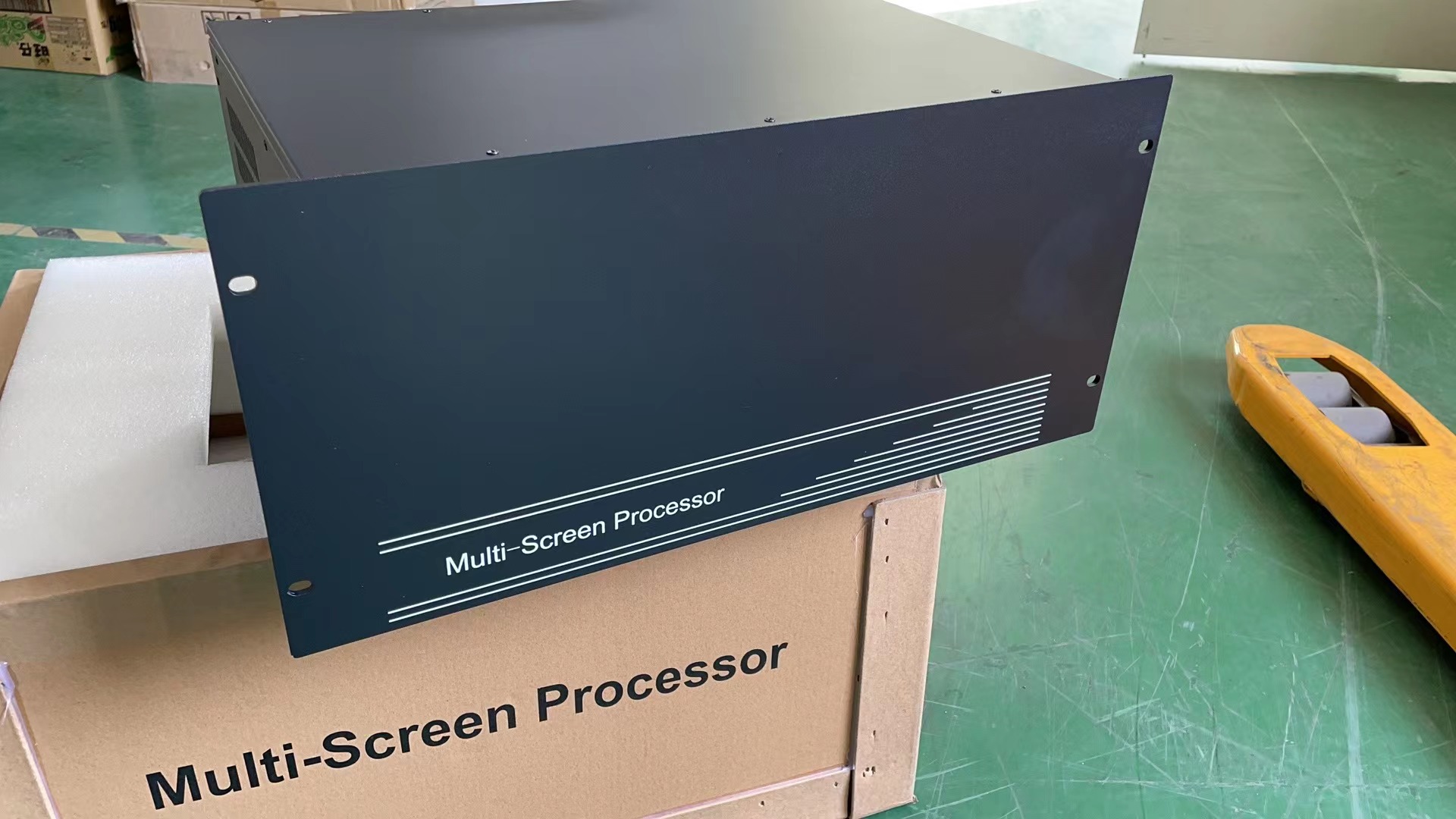
A video wall controller is also called a video wall processor. It is software that runs on special hardware. You use it to control what shows on many screens. This device helps you make cool displays for different needs. You can pick what goes on each screen. You can join screens to make one big picture. You can also show different things on each screen. The video wall controller lets you change and control many screens at once.
Core Functions
You use a video wall controller for many important jobs. What it does can change for each project. Most controllers have these main features:
Function | Description |
|---|---|
Video Wall Integration | Puts many video walls together and changes layouts easily. |
Simplifying Complex Architectures | Makes it easier and faster to manage everything. |
Saves money when you set up and take care of the system. |
A video wall controller lets you connect lots of screens. It helps you handle tricky setups and saves money.
Why It’s Essential
There are many reasons to use a video wall controller:
Video walls help teams share updates right away.
They are used in command centers to watch security videos and lots of data.
Video walls get people’s attention and help show important things.
They give you live data and help you know what is happening, which is important in emergencies.
You can show many types of data at the same time, so teams work better.
Video walls stop people from missing out on information, so everyone sees the same thing.
They let you use different kinds of content, like live streams, which makes work easier.
A video wall controller gives you these good things. You get more control, more choices, and better ways to use your screens.
How Video Wall Controllers Work
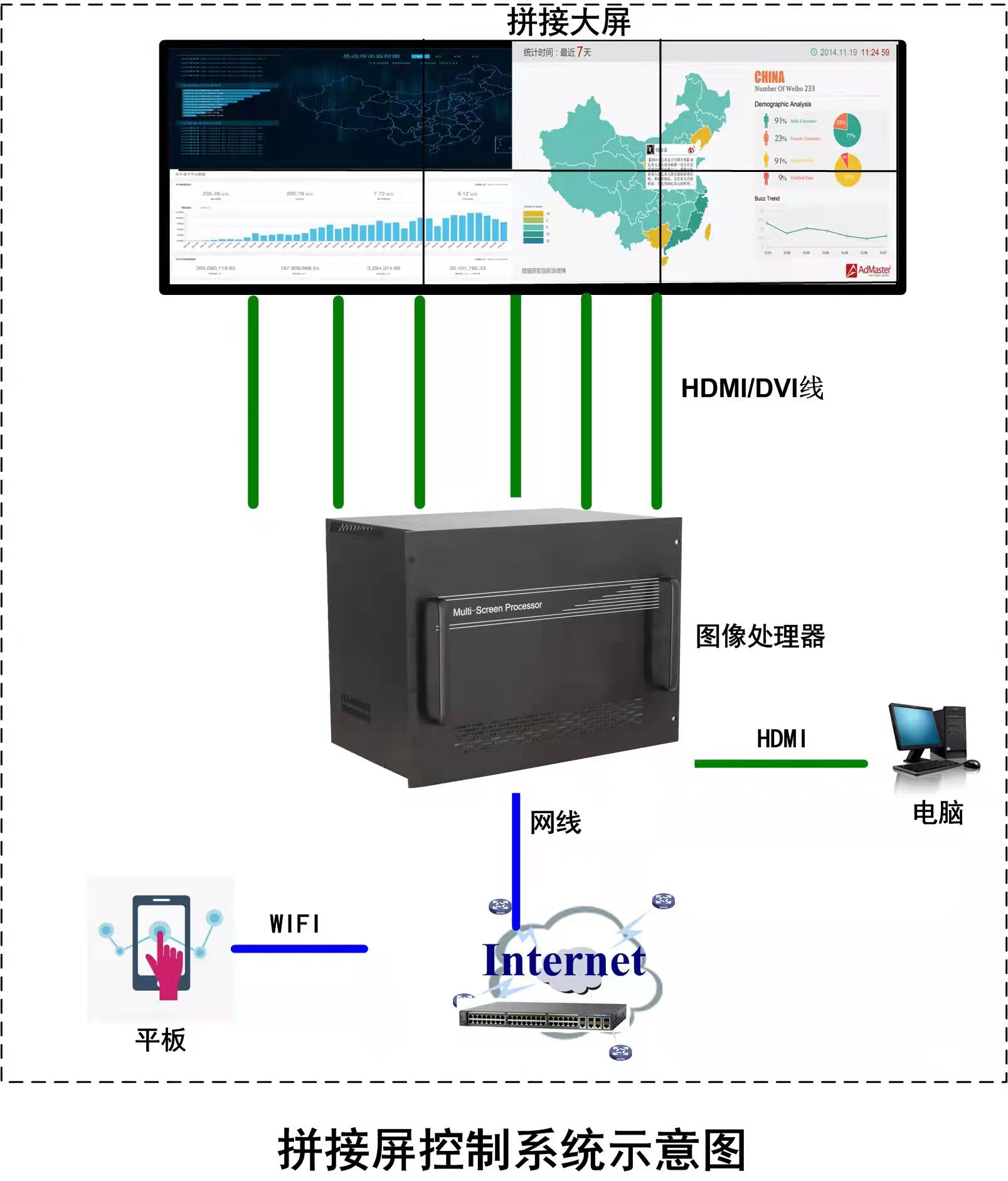
A video wall controller lets you control many screens together. You can show one big picture or different things on each screen. This part explains how the controller handles signals, changes resolution, sends content, and keeps everything working together.
Input Signal Management
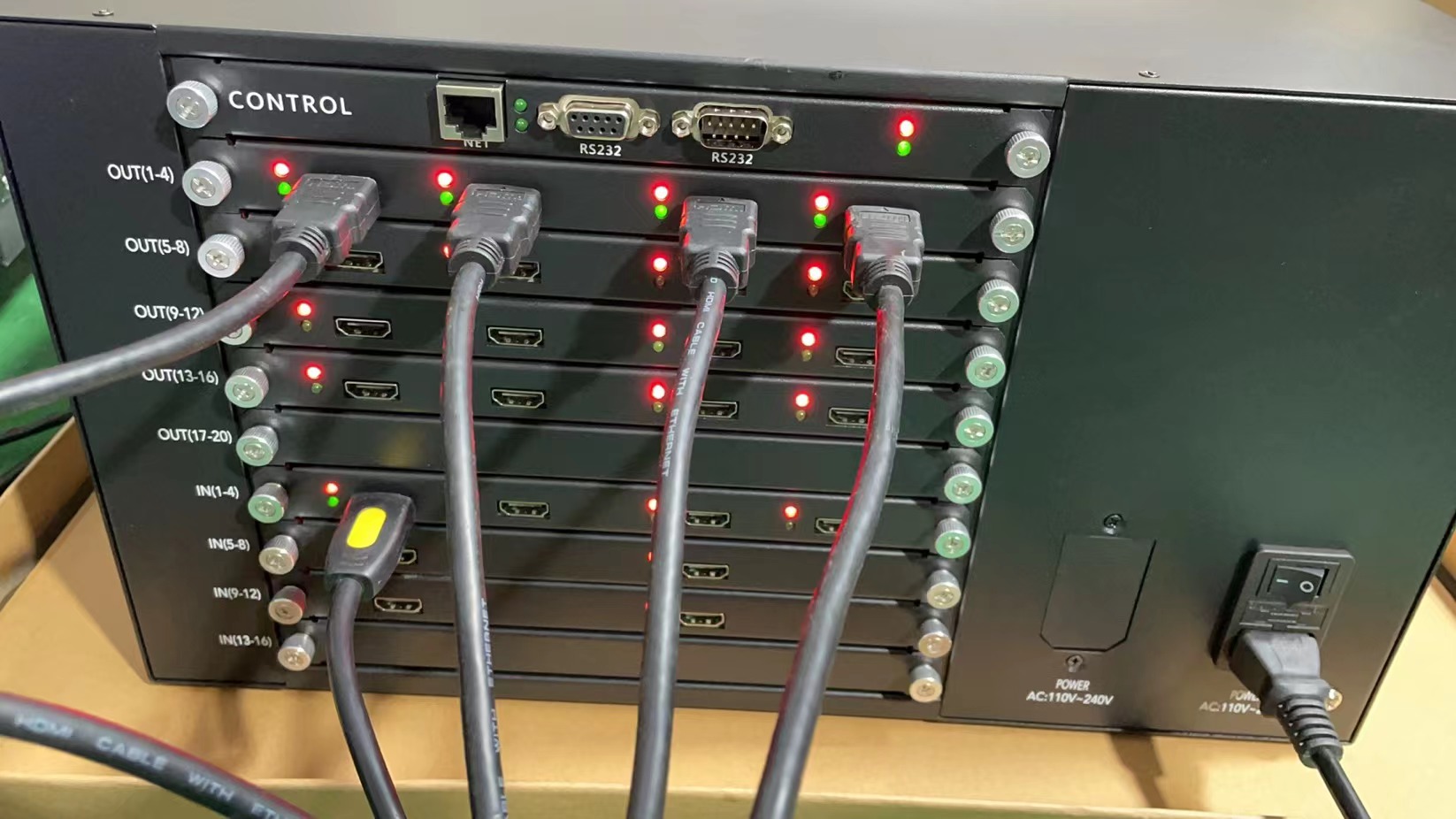
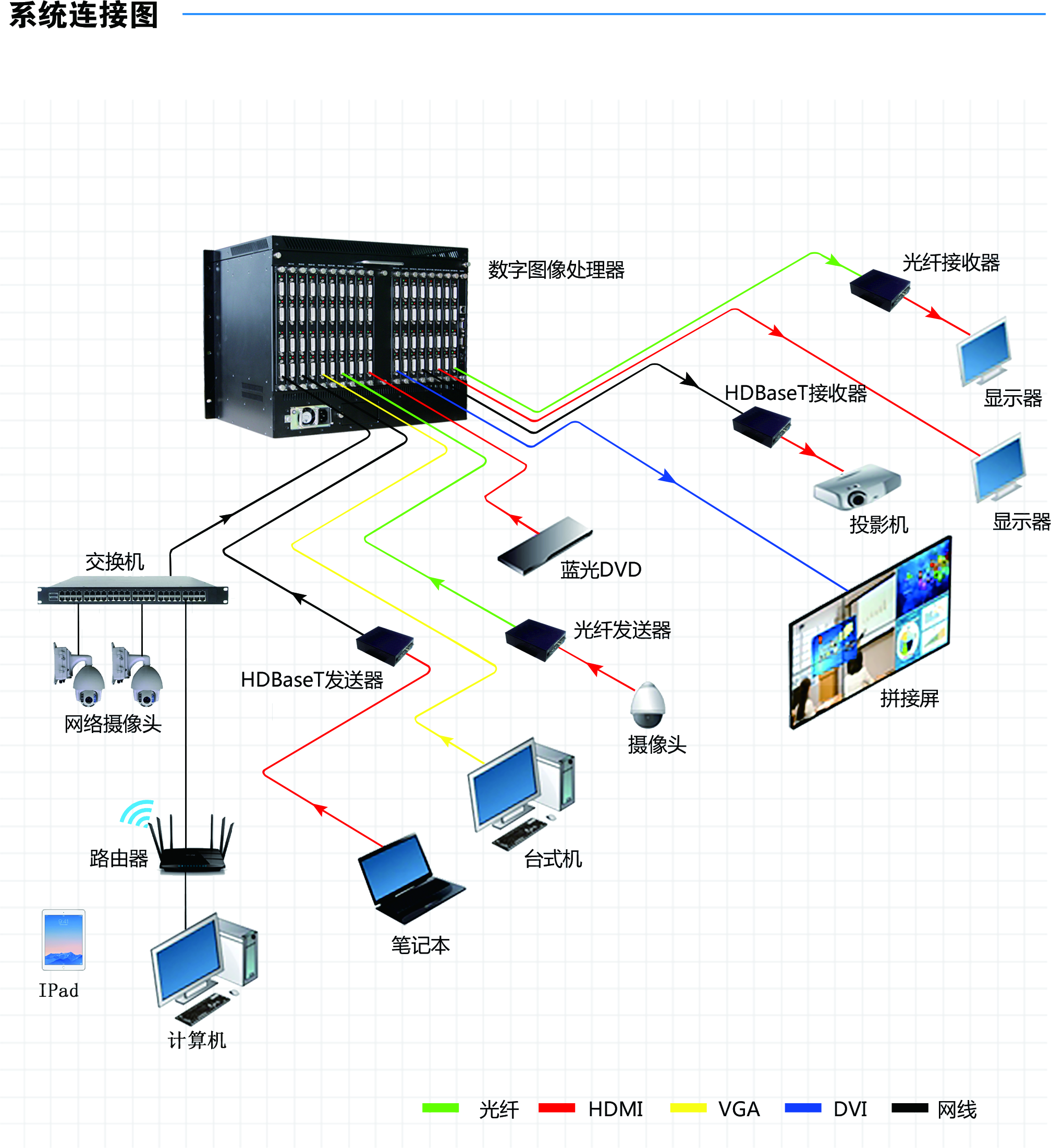
First, you connect your media sources to the video wall controller. These can be computers or cameras. The controller works with many input types like HDMI, DisplayPort, VGA, DVI, and IP streams. This means you can use almost any device. The controller takes these signals and makes them work with your screens.
Here are the steps for managing input signals:
Get your equipment. You need a video wall controller, screens, cables, mounting tools, power, and a media source.
Plan your layout. Measure your space and pick how to set up your screens.
Connect each screen to the controller with the right cables. Make sure all cables are tight so you do not lose signal.
Set up the software. Change the resolution, display output, and color settings for the best look.
Check your setup often. Make sure cables stay in and update your software for good performance.
Tip: Use good content and interactive things to keep your video wall fun and interesting.
The video wall controller also works with signals from different sources. It can change and fix signals to match your screens. This stops problems and makes sure your content always looks nice.
Feature | Description |
|---|---|
Works with many input sources and video formats for more choices. | |
Signal Modification | Changes signals to the right resolution for the best picture. |
Aspect Ratio Optimization | Keeps the right shape for your video wall, so images do not look weird. |
Resolution & Scaling
You want your video wall to look clear and sharp. The video wall controller helps by working with many resolutions. It can be standard, high-definition, 4K, or even 8K. It can make content bigger or smaller to fit your screens.
Feature | Description |
|---|---|
High Resolution Support | Handles 4K, 8K, or higher resolutions, depending on the model. |
Real-Time Content Processing | Changes video and images right away, including scaling, cropping, and format changes. |
Scaling of Displayed Content | Lets you resize and move windows anywhere on the video wall. |
Input Signal Resolution | Supported Formats |
|---|---|
HDMI Signals | Up to 4K30 resolution, from 640x480 60 Hz to 4K as 4096x2160 at 30Hz in progressive mode. |
Scale from any input resolution to any output resolution, such as from 640x480 to 1920x1080. |
The controller keeps pictures looking good when it changes size. It uses full color depth, so colors stay bright and real. It also finds input formats fast and matches output to your screens. This stops problems and keeps your display looking great.
Content Distribution
The video wall controller splits and sends content to each screen. It uses smart technology, like AV over IP, to move video and images smoothly. You can send any source to any screen, or show one source on all screens.
You can pick which content goes to each screen.
You can mix sources, like live video, graphics, or data feeds.
Central tools help you send sources where you want.
This lets you make custom layouts and change them anytime. You get a smooth look, with no gaps or delays between screens.
Synchronization
Synchronization is important for a smooth display. The video wall controller keeps all screens working together. Images and videos move at the same time. This stops lag, tearing, or frames that do not match.
The controller matches the timing for each screen.
It fixes differences in signal speed or refresh rates.
You see one picture, even with many screens.
Note: Good synchronization makes your video wall look professional and helps people focus on your content.
A video wall controller gives you control, choices, and a smooth viewing experience. You can set up your system how you want, show any content, and keep everything working well.
Types of Video Wall Controllers
When you pick a video wall controller, you will see three main types. Each type is good for different things. Knowing about these types helps you choose the best one for your screens.
Hardware Controllers
Hardware controllers are special devices made just for video walls. They work fast and are very reliable. These controllers are great if you need your display to stay on all the time. You can set them up quickly. They usually do not have much delay.
Type | Pros | Cons |
|---|---|---|
Hardware-Based | Higher cost, less flexible |
Feature | Hardware-Based Controllers | Software-Based Controllers |
|---|---|---|
Latency | Nearly zero latency | Minor processing delays |
Quality | Handles large-scale displays better | Can keep pace with the right resources |
Reliability | Aims for 24/7 uptime | May improve with updates |
Flexibility | Less flexible | Highly flexible |
Scalability | Limited by hardware | |
Cost | More expensive | Lower initial cost |
Usability | Plug and play | Needs setup and configuration |
Tip: Pick hardware controllers if you want a steady display for big jobs.
Software Controllers
Software controllers run on normal computers or servers. You put special programs on them to control your screens. These controllers cost less money. You can change your setup when you need to. You can also connect them to other apps and update them as you grow.
Software controllers work for many kinds of projects.
You can make your video wall bigger or smaller.
You can add more features by connecting to other apps.
Software controllers are best if you want to change your video wall often.
Hybrid Solutions
Hybrid solutions mix hardware and software features. You get the power of hardware and the easy changes of software. These systems have extra tools, like scheduling, slide shows, and remote control. You can save your screen layouts and take pictures of important things. Your content stays safe even if something breaks.
Feature | Description |
|---|---|
Schedule and Restore | Save your screen setups to use again later |
Slide Show | Switches between live video, text, and images by itself |
Source Snapshot | Takes pictures of important moments |
Video Engine | Plays videos smoothly, even in 4K |
Content Animation | Moves and changes what you see fast |
Continuous Synchronization | Keeps things running if a device stops working |
Protected Content | Backs up important information |
Fault Tolerant System | Uses extra controllers for safety |
Remote Management | Lets you control the wall from other devices |
Hybrid solutions give you strong power and easy control for tough jobs.
Key Features & Compatibility
When you pick a video wall controller, you need to know its main features. Make sure these features work with your screens and devices. You should check what goes in and out, what resolutions it supports, and how you control it. Also, see if it works with other systems. These things help you stop problems and make your video wall work well.
Input/Output Options
You have to connect your devices to the controller. Look at the ports on your screens and the controller. Most controllers have many kinds of ports. This means you can use different devices and send signals to all screens.
Input Connection Types | Output Connection Types |
|---|---|
HDMI | HDMI |
15-pin HD connector | HDMI Loop Out |
RCA composite video | 4 x HDMI |
3.5 mm stereo audio | 3.5 mm stereo audio |
RCA audio jacks | Digital coaxial audio |
USB Type A |
Controllers can use many formats. You can show pictures and videos from computers, cameras, or media players. This is helpful for control rooms, museums, and big events.
Tip: Always check your cables and ports before you start. This helps stop signal loss and picture problems.
Supported Resolutions
You want your video wall to look clear. Controllers can work with different resolutions. Some can even handle 4K or more. You need to match the controller’s resolution to your screens.
Controller | |
|---|---|
GeoBox G408 | 4096×2160 @ 60Hz, 7680×1200 @ 30Hz |
Novastar MCTRL700 | 3840×3840 |
If your screens have different resolutions, set the controller to scale the content. This keeps pictures sharp and stops them from looking stretched.
Control & User Interface
You use software or hardware to control your video wall. Many controllers use Windows for setup. Some have easy graphics, drag-and-drop, and remote control apps.
Feature | Description |
|---|---|
Operating System | Windows 10 Professional or Windows Server 2019 |
DXWallConfig Utility | Simple graphics interface for setup |
User Rights Management | Set user privileges easily |
Remote Control | Manage video wall from anywhere |
Scenario Management | Organize and change layouts quickly |
You can move things on the screen, snap windows to the edges, and control everything from one place.
System Integration
Controllers can work with other systems. You can connect them to AV-over-IP, building management, or other control systems. This makes your video wall part of a bigger system.
Product | Integration Features |
|---|---|
Atlona OmniStream | Built-in video wall, AV over IP, dual-stream encoders, PoE |
ZeeVee ZyPer Management | API for third-party control, modules for AV solutions |
RGB Spectrum Galileo | Wall mimic, scripting, automatic IP stream discovery |
You can use modules for popular systems like Crestron or Control 4. This makes it easy to manage your screens and content.
Note: Sometimes things do not work right. You might see HDMI problems, sound drops, or mouse errors. Always check your sources and cables. Use controllers that support HDMI, DVI, SDI, and other types to stop these problems.
Pick controller features that match your screens and devices. This gives you a video wall that works well and fits what you need.
Choosing the Right Video Wall Controller
Matching to Screen Setup
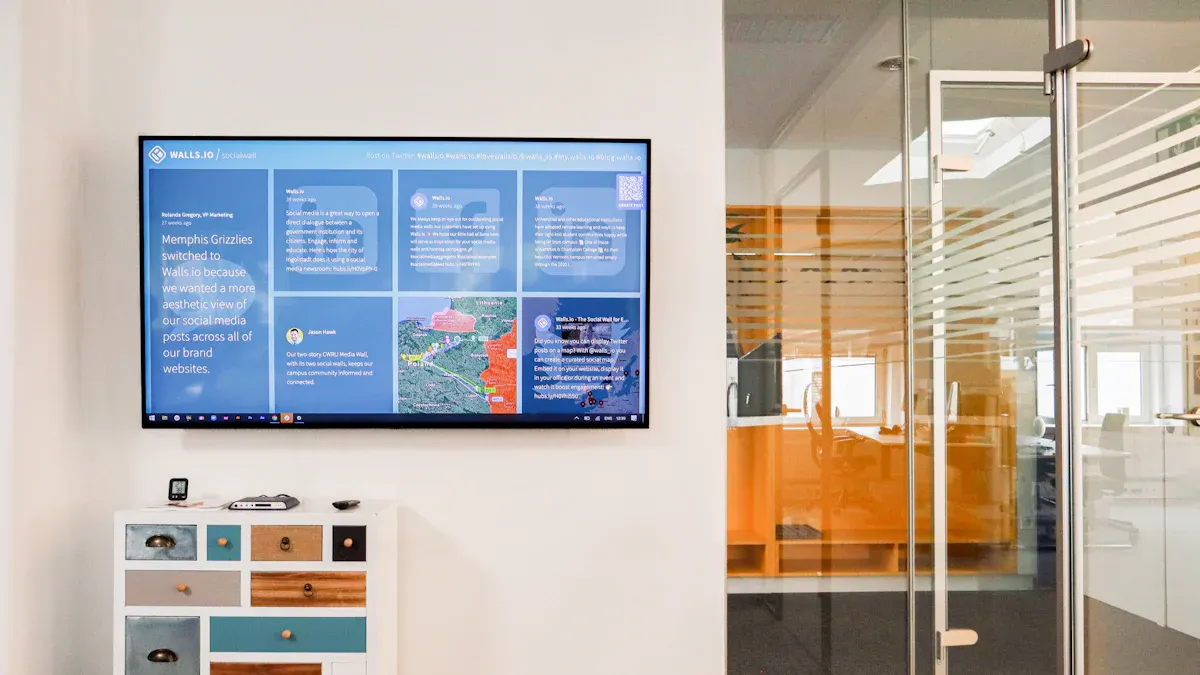
You need to match your controller to your screen setup for the best results. Start by looking at the size and number of screens you want to use. Each screen may have a different resolution or shape. You want every image to look sharp and clear, so your controller must support the highest resolution your screens can show.
Here is a table to help you check the main criteria:
Criteria | Description |
|---|---|
Resolution Support | Balances resolution across screens for clarity and detail. |
Input Syncing | Syncs multiple inputs with little lag for smooth performance. |
Output Quality | Keeps images from getting pixelated or stretched. |
You should also check if the controller can handle all your input sources. Some setups need many computers, cameras, or media players. The controller must sync these inputs so everything works together. Look for features that let you adjust color, contrast, and sharpness. These settings help you get the best picture on every screen.
Tip: Always check for access control features. These keep your content safe from unwanted changes.
Considering Use Case
Think about where you will use your video wall. Different places need different features. For example, a control room needs fast updates and clear images. A retail store may want bright colors and easy ways to change content.
Here are important factors to consider for different uses:
Supported Resolution – Make sure the controller works with your screens, whether they use standard, HD, or 4K.
Scalability – Pick a controller that lets you add more screens or sources as you grow.
Image Rotation – Choose a controller that can rotate images if you want to change how your content looks.
Output Flexibility – Count how many outputs you need. Get a controller with enough options.
Access Control – Use a controller that lets you set permissions for different users.
Ease of Setup and Operation – Select a controller that is simple to set up and use.
If you plan to expand your video wall, choose a controller that can grow with you. For busy places, pick one that is easy to use and lets you change layouts quickly. In a control room, you need strong syncing and high output quality.
Mistakes to Avoid
Many people make mistakes when picking a controller. You can avoid these problems with careful planning.
Do not skip a site survey. Walk through your space and check where you will put each screen.
Always do a structural review. Make sure your walls and mounts can hold the screens.
Do not use generic pixel pitch advice. Pick the right pixel size for your viewing distance and content.
Do not forget post-install calibration. Adjust your screens after setup for the best look.
Hiring someone without experience can cause problems. You should choose installers who know how to set up and calibrate video walls. They will help you get the best performance from your system.
Note: Careful planning and the right choices will help your video wall work well and last longer.
By following these steps, you can choose a video wall controller that fits your screens, your space, and your needs.
You now know how video wall controllers work and how to pick the right one. It is important to make sure your controller and screens work well together. You should also check if the features match what you need. Look at this checklist before you choose:
Checklist Item | Description |
|---|---|
Resolution | Pick a clear picture for your room |
Brightness | Make sure it fits your room’s light |
Scalability | Think about adding more screens later |
Durability | Make sure it works every day |
Try to use fewer cables, pick good quality cables, and test everything before you finish. This way, you can build a video wall that works well for you and does a great job.
FAQ
What does a video wall controller do?
A video wall controller helps you control many screens together. You can show one big picture or different things on each screen. It lets you change layouts and pick what shows up fast.
How do you connect devices to a video wall controller?
You use cables like HDMI or DisplayPort to connect your devices. The controller gets signals from computers, cameras, or media players. You can pick which device shows on each screen.
Can you use different screen sizes with one controller?
Yes, you can use screens that are not the same size. The controller makes pictures fit so everything looks right. You set the resolution for each screen to keep things clear.
What features should you look for when choosing a controller?
Look for input and output ports, what resolutions it supports, and easy-to-use software. Make sure it works with your screens and lets you add more devices if you need.
How do you keep your video wall running smoothly?
Check your cables and connections often. Update your software when you need to. Use access control to keep your content safe. Test your setup before you use it to make sure it works.
See Also
Selecting the Perfect LCD Video Wall for Your Area in 2026
Exploring the Main Distinctions Between LED and LCD Video Walls
Selecting the Ideal Video Wall Digital Signage in Singapore for 2026
Best 10 Digital Signage Solutions for Video Walls in 2026
Comprehensive Guide to Choosing and Installing Outdoor Digital Signage
