How to Set Up a Touch Screen Monitor Kiosk for Beginners
Shenzhen TopAdkiosk Display Technology Co., Ltd.
Add.: 2F, Bldg 10, Changfeng Industrial Park, Dongkeng, Fenghuang, Guangming, Shenzhen, China 518132
Mobile/WHATSAPP: 86-138 25769658
Email: marketing@topadkiosk.com topadkiosk@gmail.com
Skype: pghenry1
Wechat: adkioskhenry
English Web.: http://www.topadkiosk.com/
https://www.topkioskdisplay.com/
http://www.ad-kiosk.com/
https://www.toplcddisplay.com/
http://www.multitouchdigitalsignage.com/
https://www.youtube.com/channel/UCYVYNJHxLVEcQD8fuUxXNTA/videos?view_as=subscriber
https://www.facebook.com/TOPADKIOSKSHENZHEN/?ref=bookmarks
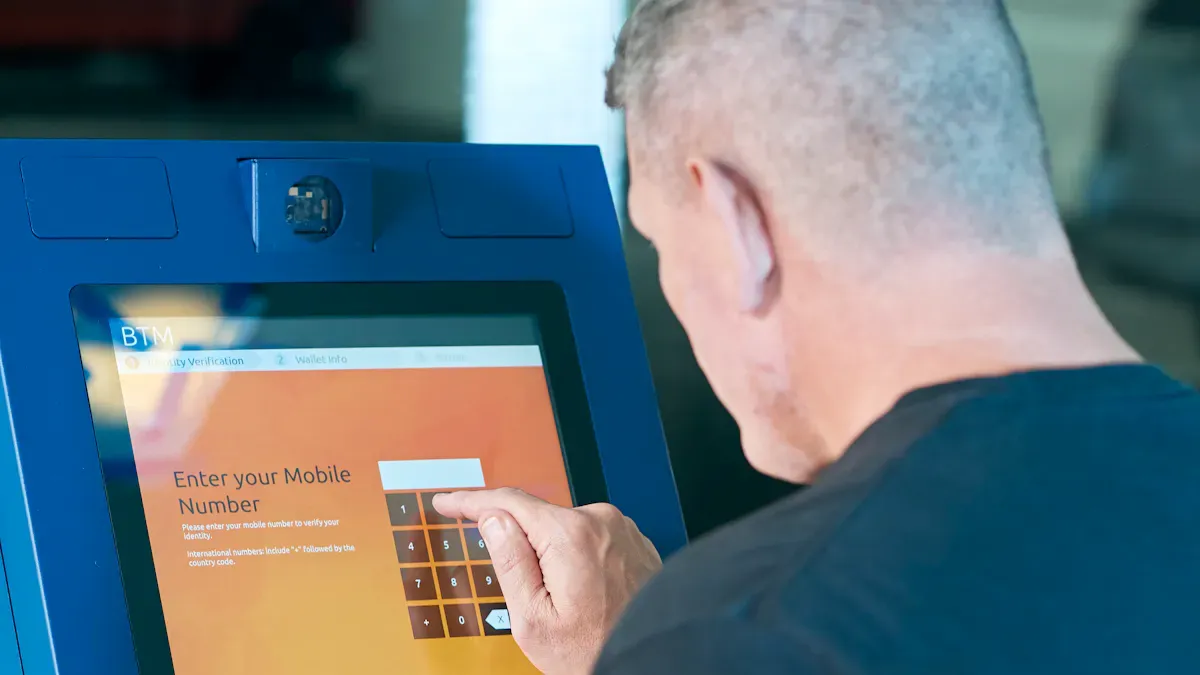
Setting up a touch screen monitor kiosk starts with choosing the right hardware. You also need to find a good place to put it. Do not worry if you are new to this. Each step will be easy to follow. The main parts you need are a monitor, a strong mount, and a small computer like a mini PC or NUC. Many businesses use kiosks because they help people do things faster and easier.
The interactive kiosk market is growing fast. Now, 84% of U.S. consumers use self-service kiosks. Also, 66% like them more than staffed options.
The global interactive kiosk market reached $34.79 billion in 2024. It is expected to keep getting bigger.
Here are some common ways people use kiosks:
Application Type | Description |
|---|---|
Retail Checkout | Self-service kiosks let customers scan and pay for items. This makes checkout faster and needs fewer workers. |
Airport Check-In | Kiosks help people check in and board quickly. This cuts down lines and helps things run better. |
Fast-Food Ordering | Customers can pick what they want and pay. This makes them happier and speeds up service. |
Banking Services | ATMs and kiosks give banking services all day and night. People can do transactions without a teller. |
Healthcare Registration | Kiosks help patients check in and make appointments. This cuts down on paperwork and waiting. |
Key Takeaways
Pick strong hardware for your kiosk. Use commercial-grade monitors and mini PCs so it lasts a long time and works well.
Find a good spot for your kiosk. Put it where lots of people can see and use it. Make sure everyone can reach it easily.
Add easy-to-use software. Choose an operating system and design that help users find what they need.
Test and take care of your kiosk often. Look for problems, clean the screen, and update the software to keep it working.
Use a simple checklist. Pick your hardware, get the spot ready, build the kiosk, set up the software, and take care of it.
Choose Touch Screen Monitor Kiosk Hardware
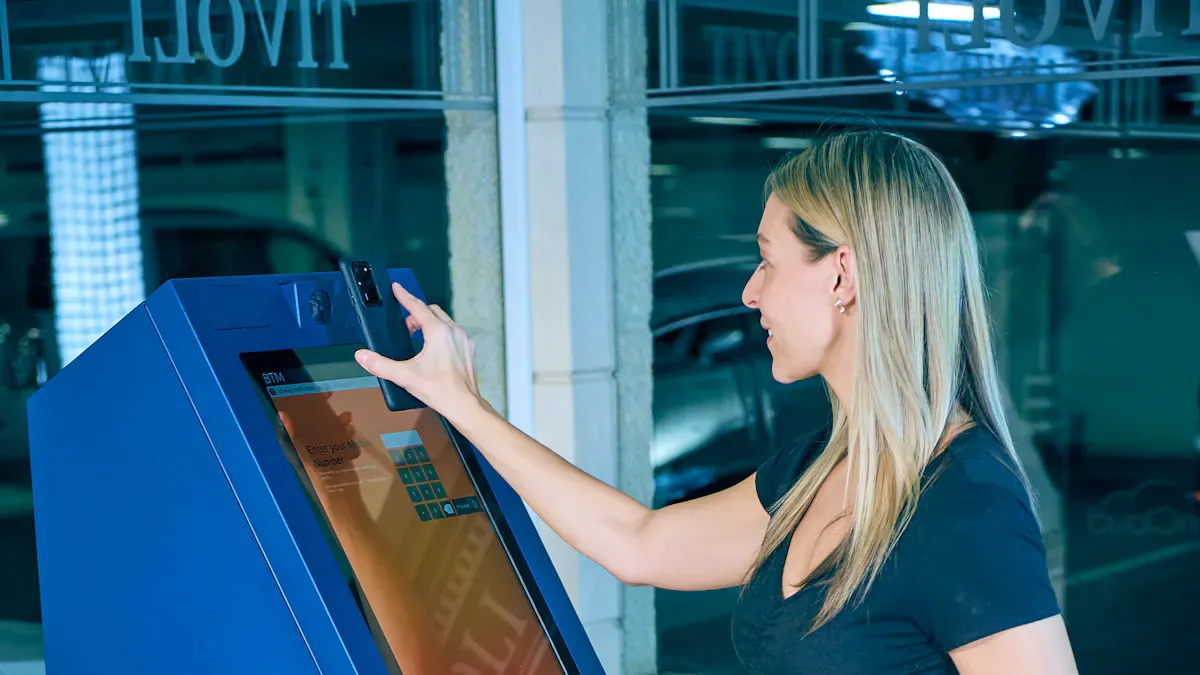
The first thing you do is pick hardware. Think about size, strength, and if parts work together. You want your kiosk to last and work well. Let’s see what you should check.
Selecting the Monitor and Mount
Pick a monitor that can handle lots of people using it. Consumer screens break easily in public places. Commercial displays are made to work all day and night. They resist fingerprints and scratches. They also stand up to cleaning chemicals. Look for a touchscreen with projected capacitive (PCAP) technology. This makes touch fast and accurate. High-brightness screens, at least 500 nits, help people see in bright rooms.
Tip: Get a monitor with wide viewing angles. This keeps the picture clear from different sides.
Some features to look for are:
Clear screen with lots of light passing through
Multi-touch lets you pinch and zoom
Tough surface that resists scratches and hits
Sensitive touch works with a gentle tap
Easy to use with fingers, no stylus needed
Simple to clean and needs little care
Wide viewing angles are good for groups
The screen size depends on what your kiosk does. For info kiosks, screens from 22 to 42 inches are best. If you need maps or menus, pick 32 inches or bigger. Self-service kiosks use screens from 15 to 27 inches. Payment kiosks use smaller screens, about 10 to 15 inches.
Screen Type | Recommended Resolution | |
|---|---|---|
Information Kiosks | 22 to 42 | 4K Ultra HD for 32+ inches |
Self-Service Kiosks | 15 to 27 | Full HD for 22 inches or less |
Payment Kiosks | 10 to 15 | N/A |
Smaller Screens | Up to 22 | Full HD |
Larger Screens | 32+ | 4K Ultra HD |
Mounting your monitor keeps it safe and steady. Fixing from below gives strong support and stops tampering. This keeps the monitor safe and avoids accidents. Fixing from above is not as safe and is best for short-term setups.
Mounting Method | Stability Level | Security Features |
|---|---|---|
Fixing from Below | High | Tamper-resistant, reduces accidental dislodging |
Fixing from Above | Moderate | Less secure, suitable for temporary setups |
Picking a Mini PC or NUC
You need a computer to run your kiosk software. Mini PCs and NUCs are good because they are small and dependable. The ASUS NUC 16 Pro Mini PC is a great pick. It fits in tight spots and works for two screens. You can control it from far away, which helps if you have many kiosks. The NUC series is used for digital signs and vending machines. Mini-PCs fit into your kiosk and do not take up much space.
Note: Pick a mini PC with good cooling. This stops overheating and keeps your kiosk working well.
Hardware Compatibility Tips
Make sure all parts work together. Most problems happen with consumer hardware. These are not made for nonstop use. Choose kiosk-grade parts for better reliability. Good cooling is important. Bad cooling can make hardware stop working. Printers and scanners must be high quality. If a printer breaks, customers cannot get tickets. Dirty or crooked sensors can cause scanning problems.
Issue Type | Description |
|---|---|
Most failures arise from using hardware not designed for continuous public use. | |
Thermal management | Poor thermal design can lead to hardware failures, emphasizing the need for proper cooling. |
Peripheral quality | Using kiosk-grade peripherals ensures reliability and reduces the risk of component failure. |
Hardware problems can come from CPUs, memory, or printers.
Scanning issues may happen if sensors are dirty or not straight.
Always use kiosk parts to avoid downtime.
Top Touch Screen Monitor Kiosks for 2026
Pick a kiosk that is easy to use and reliable. Here are some top picks for 2026:
Brand | Durability | Warranty | Technology |
|---|---|---|---|
High | 3 years (extendable to 5) | TouchPro PCAP technology |
Elo Touch Solutions: Very tough and has long warranties. Their TouchPro PCAP technology gives fast and accurate touch. Beginners like Elo because setup is simple and support is strong.
ASUS NUC 16 Pro Mini PC: Works well with two screens and fits in small spaces. You can control it from far away and open it without tools.
NUC Series: Trusted for digital signs and vending kiosks. These mini PCs are easy to set up and take care of.
Callout: When picking hardware, always check if parts work together and if support is good. This makes your touch screen monitor kiosk easier to set up and keep running.
Now you know how to pick the right hardware for your touchscreen kiosk. This helps you build a system that works well and lasts.
Prepare Location and Connections
Finding the Right Spot
You have to choose a good place for your kiosk. The right spot lets people see and use it easily. First, think about where you will put it. Indoor kiosks work best where you can control the lights. Outdoor kiosks need bright screens and strong covers for weather. Make sure everyone can reach and use your kiosk.
Environmental Factor | Considerations |
|---|---|
Indoor vs. Outdoor | Indoor kiosks have more control over lighting; outdoor kiosks need brighter screens and protective enclosures. |
Brightness Requirements | High-nit displays are necessary for visibility in bright environments. |
Durability | Outdoor kiosks require weather-resistant features; industrial areas need zero-bezel designs to prevent damage. |
Accessibility | Compliance with ADA guidelines for screen height and reach is essential. |
When you set up your kiosk, follow these tips:
Put the kiosk where lots of people walk by, like near doors or waiting spots.
Make sure people in wheelchairs can use the screen and buttons.
Add things like a speech engine or tactile keypad for people with disabilities.
Use privacy screens if you want to keep user info safe.
Pick a spot that is easy to clean and keep safe.
Tip: Antimicrobial coatings on the screen help stop germs from spreading. This is important in busy places.
Setting Up Power and Internet
Your kiosk needs steady power and a good internet connection. Most kiosks use outside DC power or USB Type-C. Check what power your device needs before plugging it in.
Power Option | Input Specifications | Power Consumption |
|---|---|---|
External DC | 12V – 24V DC +/- 5% | ON (80% Brightness): 9.36W |
ON (100% Brightness): 12.95W | ||
USB Type-C | 5V±5%@3A / 9V±5%@3A / 15V±5%@1.8A / 20V±5%@1.35A | SLEEP: 0.45W / OFF: 0.25W |
Use a surge protector to keep your kiosk safe from power surges. Wired Ethernet gives the most stable internet. Wi-Fi is okay if you cannot use cables, but make sure the signal is strong. Test your power and internet before you finish setting up.
Note: Always check that your power and internet cables are tight and hidden. This stops people from tripping or messing with them.
Install and Assemble Kiosk
Unboxing and Mounting
First, open your touch screen monitor and mini PC or NUC. Check if you have all the parts and tools you need. Most kiosks use VESA-standard mounting patterns. This helps you pick from floor stands, wall mounts, or desk arms. VESA makes it easy to change how you set up your kiosk later.
Read the instructions before you put up the monitor. Use the right screws and brackets for your mount. Make sure the mount is strong and does not shake. If your kiosk is in a public place, check that the mount cannot be tampered with. This keeps your equipment safe.
Tip: Ask a friend to help you lift and hold the monitor. This stops accidents and damage.
Connecting Components
After you mount the monitor, connect it to your mini PC or NUC. There are many ways to connect the screen and computer. The most common are HDMI, DisplayPort, USB-C, and VGA. Some setups use docking stations or adapters for more connections.
Connection Method | Description |
|---|---|
HDMI | Sends video and sound to the monitor. |
DisplayPort | Works for high resolutions and more than one screen. |
USB-C | Sends video and data, often with adapters. |
VGA | An older way to send video. |
Docking Stations | Give you many outputs with one connection. |
Adapters | Change one type of connection to another, like USB-C to HDMI. |
Plug in the power and network cables. Make sure each cable is tight. If the touch screen does not work, check all the cables. Try touching different spots on the screen. Calibrate the screen if the touch does not match where you tap. Keep cables away from high-voltage lines to stop problems. Restart the device or reinstall software if it still does not work.
Cable Management and Safety
Good cable management keeps your kiosk safe and tidy. Use custom-fitted inserts to hide cables inside the kiosk or wall. Table boxes and retractable units are good for different setups. Flexible cable solutions work for new or old kiosks.
Custom-fitted inserts make your kiosk look better.
Table boxes and retractable units fit different spaces.
Flexible setups work for new builds or upgrades.
Good cable management stops people from tripping and lowers electrical risks.
Neat cables make your kiosk look nice.
Organized cables make fixing problems easier.
Protected cables last longer and stop hardware strain.
Note: Always check that cables do not stick out. This keeps people safe and your kiosk looking good.
Configure Software for Touch Screen Monitor Kiosk
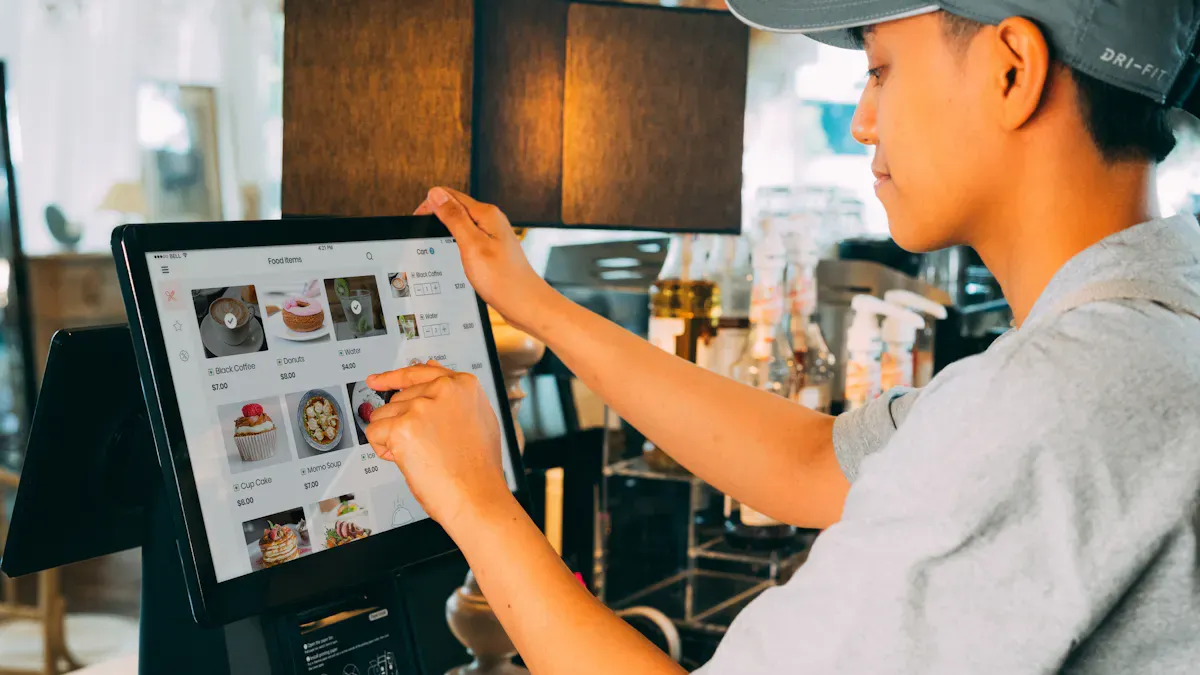
Setting up software is an important step. You want your kiosk to work well and be easy to use. This part will show you how to install the operating system, set up BIOS and drivers, design the interface, and add media and data.
Installing the Operating System
Pick an operating system that fits your needs. Most kiosks use Windows, iOS, Linux, Chrome OS, or Android. Windows is common because it works with many apps and is easy to update. Linux is free and good for custom setups. Chrome OS is simple and safe, so it is good for public places. Android is flexible and runs lots of apps. iOS is for Apple devices and gives a smooth experience.
To install the system, first download the installer from the official site. Put the installer on a USB drive or SD card. Plug it into your mini PC or NUC. Follow the steps on the screen to finish installing. Restart the device and check if the touchscreen works.
Tip: Pick an operating system that matches your software and hardware.
BIOS and Driver Setup
After you install the system, set up the BIOS and drivers. The BIOS helps your hardware start up. Check the BIOS to make sure your kiosk starts from the right device.
To set up the BIOS, turn on your mini PC or NUC and press the BIOS key. This is usually F2 or DEL. Set the boot order so your system loads first. Turn on USB and touchscreen support if you need it. Save and exit.
Drivers help your touchscreen talk to the computer. You need drivers for the monitor, touch sensors, and other parts. Some important drivers and software are Intuiface, OptiSigns, Google Slides, and Rocket Alumni Solutions.
Go to the maker’s website to get drivers. Download and install them one at a time. Restart after each one. Test the touchscreen to see if it works with taps and swipes.
Product Name | Description | Key Features |
|---|---|---|
Makes touch computers and POS systems for different businesses | Flexible, tough, and works well | |
Prism Touchscreen Computer | Fast panel PC for kiosks and interactive uses | 21.5” True-Flat PCAP touchscreen, Full HD screen |
Note: Keep your drivers up to date. This keeps your touchscreen fast and working well.
Kiosk Software and Interface Design
You need software that makes your kiosk easy to use. Good choices for beginners are Square Kiosk, Toast Kiosk, and NCR SelfServ. These are simple to set up and keep your kiosk safe. You can use drag-and-drop tools to build your kiosk without coding. A content manager helps you run many kiosks at once. Security keeps your kiosk safe from hackers. Analytics show how people use your kiosk. Accessibility tools help everyone use the screen.
Designing the interface is important. Follow these rules:
Principle | Description |
|---|---|
Define Purpose and Goals | Decide what your kiosk should do. This helps you make design choices. |
Identify User Personas | Think about who will use your kiosk. Make the interface fit their needs. |
Evaluate Environment | Look at where your kiosk sits. Choose hardware and software that work well in that space. |
Establish Success Metrics | Set goals to measure how well your kiosk works. |
Interface Design | Use clear navigation, big touch targets, and easy-to-read text. |
Content Organization | Arrange information so users find what they need quickly. |
Session Management | Set idle timeouts to keep your kiosk secure and easy to use. |
Accessibility Configuration | Add features like screen readers and high contrast modes. |
Use short guides or videos to help new users. Show all steps at the start so users know what to do. Keep things simple and use fewer taps.
Callout: Make your interface friendly and simple. This helps people feel good and want to use your kiosk.
Adding Multimedia and Data Sources
You can make your kiosk more fun by adding media. Museums and info kiosks use photos, videos, sound, and maps to share stories. Organize your content so people find things in two or three taps. Use search tools if you have lots of info.
Best ways to add media:
Add photo galleries, videos, and sound for a better experience.
Keep videos short, about one minute, unless you have a special spot for watching.
Use headphone jacks or special speakers for sound.
Put buttons and guides in the same place on every screen.
Use big touch targets, at least 44x44 pixels, for easy tapping.
Turn off gestures like pinch-zoom if you do not need them.
You can connect your kiosk to live data feeds. This lets you show things like weather, stock prices, or news. Use XML, RSS, or APIs to get info from other places.
Data Source Type | Description |
|---|---|
Connect to outside sources to show live info without typing it in yourself. |
Tip: Use media and live data to make your kiosk more helpful and fun. This helps your info kiosk stand out.
Now you know how to install software, set up drivers, design the interface, and add media and data. These steps help your touchscreen work well and give users a great time.
Test, Troubleshoot, and Maintain
Initial Testing Steps
You should test your kiosk before letting people use it. Start by turning on the device and checking if the touchscreen responds to your touch. Try tapping, swiping, and using all the main features. Make sure the screen matches your finger movements. Test the sound, camera, and any printers or card readers. Check if the internet connection works. Try restarting the kiosk to see if it starts up without problems.
Tip: Always test your kiosk in the real spot where people will use it. This helps you find problems early.
Common Issues and Fixes
You may find some problems when you test your touchscreen kiosk. Here are some common issues:
Calibration issues can make the touchscreen respond in the wrong place or not at all.
Scratches, cracks, or other damage can stop the touchscreen from working.
Loose cables can cause the screen or other parts to stop working.
Software errors may freeze the kiosk or make it slow.
If you see a calibration problem, use the system’s calibration tool to fix it. For scratches or cracks, you may need to replace the screen. Check all cables and connections if something does not work. Restart the kiosk or update the software if it freezes.
Note: Fix small problems quickly. This keeps your kiosk running and helps users have a good experience.
Cleaning and Updates
You need to keep your kiosk clean and up to date. Regular care helps your touchscreen last longer and work better. Follow these routines:
Description | |
|---|---|
Cleaning Protocols | Clean the kiosk’s body, display, and input parts often. |
Regular Hardware Checks | Look for signs of wear or damage to stop failures. |
Regular Cleaning of Sensitive Components | Clean printers and card readers to avoid jams and errors. |
Updating Software and Firmware | Update software to keep the kiosk safe and working well. |
Checking and Tightening Loose Connections | Check cables and connections every month to prevent problems. |
Callout: Use a soft cloth and safe cleaner for the touchscreen. Do not spray cleaner right on the screen.
You should set a schedule for cleaning and updates. This keeps your kiosk ready for users every day.
You have learned how to set up a touch screen monitor kiosk. Here is an easy checklist to help you remember what to do:
Pick hardware that is strong and works together
Get your spot ready and set up connections
Put your kiosk together and install it
Set up software and make the interface look good
Test your kiosk, fix problems, and take care of it
Clean your kiosk often and update the software. Begin your project with confidence. Taking care of your kiosk helps it work well every day. 👍
🚀 2026's Top Touchscreen Kiosk Monitors
💼 Best for High-Volume Retail & Hospitality
MWE (QIXZOCV) 49" FHD Interactive Kiosk: A robust Android-powered 49" screen best for large and bright retail spaces with its 178° wide viewing angle.
Posiflex JK-2710 27" Self-Service Kiosk: An all-in-one solution powered by Intel or Rockchip processors, ideal for streamlining tasks like order and payment processing.
Humanscale NexPoint™ Kiosk: An ADA-compliant and modular POS co-engineered with Lenovo, featuring an ergonomic design that supports natural posture for staff.
Advantech (TAIWAN): Their open-frame models are perfect for integration into custom furniture or OEM projects for brands needing tailored hardware.
🏥 Best for Healthcare & Professional Environments
Insight Touch 21" Medical AIO: This medical-grade unit is fully 60601-1 certified and can be deployed for patient check-in. It also supports HoverTap™ contactless technology, which allows for safe, touchless interactions, gloved use, and easy cleaning.
☀️ Best for Demanding Industrial & Outdoor Environments
Elo Touch 1593L / 3263L: Legendary for reliability, providing an ultra-durable, fully commercial-grade interface perfect for 24/7 environments.
TES TEC Outdoor Series: Features dual-mode CH-LCD tech that can maintain an image with near-zero power. With up to 1500 nits brightness and an IP66 dust/water resistance rating.
AIS Open Frame High-Brightness Monitors: A critical piece for manufacturers designing custom kiosks, providing up to 1500 nits of sunlight-readable luminance in open-frame formats.
ASDA AIoT Solutions: Taiwanese-based ASDA provides industrial-grade components, such as the Genio 720 board for edge-AI tasks, which are ideal for building durable and intelligent kiosks.
💻 Best for Large-Scale Enterprise Deployments
NCR Voyix & Diebold Nixdorf: The global standard for commerce and banking; NCR leads in retail/restaurant POS innovations, while Diebold dominates the connected commerce sphere in banking.
LG-MRI & GoldFinger Monitors: These brands provide customizable, powerful, and continuous-operating panels that maintain indoor brand image without requiring 1500-nit capabilities.
Peerless-AV: A top-tier manufacturer of digital signage and AV mounts, but also a key provider of fully integrated outdoor and commercial touchscreen kiosks built for durability.
💡 2026 Buying Guide: Key Tech Features
Go Industrial-Grade: Prioritize PCAP (Projected Capacitive) technology, which offers lag-free, multi-touch responsiveness and can work through gloves or a protective glass layer.
Ensure "24/7" Ratings: Commercial displays with enhanced cooling run 24/7 without overheating or "burn-in", whereas consumer monitors are typically rated for only 6-8 hours of daily use.
Seal and Protect: In high-traffic zones, an IP65 rating (dust-tight and water-jet resistant) is essential for longevity.
Look for the Bright Side: For window-facing or outdoor placement, demand high brightness (500+ nits). Many industrial monitors boast 1,000 to 1,500 nits to stay vibrant in direct sunlight.
💎 Final Recommendations
To make the final decision, define your deployment environment: for indoor retail, consider MWE (QIXZOCV) or Posiflex; for medical/restaurants, focus on Insight Touch with contactless tech; for industrial outdoor, specify Elo, TES TEC, or AIS; and for large-scale enterprises, integrate with NCR Voyix or Diebold Nixdorf.
If you'd like to share more details about your specific use case (like which environment you are targeting, or what your rough budget is), I can help you narrow down the options even further.
FAQ
What is an interactive info kiosk?
An interactive info kiosk gives people information fast. It uses a touch screen so you can pick what you need. You see these kiosks in malls, airports, and museums. They help you find your way, check times, or learn about events. Many businesses use them with digital signage to share news better.
How does digital signage work with an interactive info kiosk?
Digital signage shows videos, pictures, or messages on screens. When you add an interactive info kiosk, people can touch the screen for more info. You can change digital signage from one computer. This makes your messages easy to update and clear to see.
What are the main benefits of using digital signage in a kiosk?
Digital signage lets you update things fast and show bright screens. You can display ads, news, or maps. An interactive info kiosk lets people choose what they want to see. You save time and money because you do not print signs. Digital signage also catches people’s eyes.
Can I use digital signage software for my interactive info kiosk?
Yes, you can use digital signage software to run your interactive info kiosk. You can set up slides, videos, or menus. You can plan when things show and check reports. Many digital signage tools work with touch screens. This makes your kiosk simple to control.
How do I keep my interactive info kiosk and digital signage secure?
You should use strong passwords and update your software often. Put your interactive info kiosk in a safe place. Lock the screen when you are not using it. Digital signage systems need regular checks. You can set up alerts for problems. This keeps your kiosk and digital signage safe.
