How to Set Up a Digital Signage Player on Windows in 2026
Add.: 2F, Bldg 10, Changfeng Industrial Park, Dongkeng, Fenghuang, Guangming, Shenzhen, China 518132
Mobile/WHATSAPP: 86-138 25769658
Email: marketing@topadkiosk.com topadkiosk@gmail.com
Skype: pghenry1
Wechat: adkioskhenry
English Web.: https://www.topkioskdisplay.com/
http://www.ad-kiosk.com/
https://www.toplcddisplay.com/
http://www.multitouchdigitalsignage.com/
https://www.youtube.com/channel/UCYVYNJHxLVEcQD8fuUxXNTA/videos?view_as=subscriber
https://www.facebook.com/TOPADKIOSKSHENZHEN/?ref=bookmarks
You can set up a digital signage player windows system by doing a few easy steps. First, make your account with the platform you pick. Next, download the software and hook up your Windows device to a screen. After that, set up the software and plan your content. Setting up on Windows may need more special hardware and software than Android or Linux. You get strong connections with Microsoft tools, but you may need better hardware. This guide works for everyone, so the steps are simple and clear.
Key Takeaways
First, make an account on your digital signage platform. This lets you use the software you need.
Check if your Windows device has the right hardware. Make sure it has a good processor and enough memory.
Use a strong network connection. Wired is better. This helps your digital signage stay updated and easy to reach.
Upload new content often. Schedule it so your audience stays interested. This keeps your displays fun to watch.
Do maintenance the right way. Check your system every day. Do a deep check every month. This helps your system work well.
Digital Signage Player Windows Requirements
Hardware Checklist
You need the right hardware to use a digital signage player on Windows. First, get a Windows PC that fits the requirements to setup windows digital signage. You also need a display screen, an HDMI cable, and steady power. The table below lists the lowest and best hardware specs for 2026:
Component | Recommended Requirements | |
|---|---|---|
Operating System | Windows 11 Professional/Enterprise | Windows 11 Professional/Enterprise/IoT LTSC |
Central Processor | Dual-core 2.0GHz AMD Athlon/Ryzen 3 or Intel Celeron/Core i3 | Dual-core 2.5GHz AMD Ryzen 3/5 or Intel i3/i5 |
Memory | 4 GB | 8-16 GB |
Graphics Adapter | Integrated or discrete GPU | Integrated or discrete GPU |
Storage | 256 GB or greater | 1 TB or greater |
A small form factor PC or mini-PC saves space. Check if your device has enough USB ports for extra devices.
Software Choices
There are many software options for Windows digital signage. Here are some top free and low-cost picks in 2026:
ScreenCloud: Simple to use, works in the cloud, and is good for beginners. It gives a free trial and cheap monthly plans.
NoviSign: Great for schools and small businesses. It is easy to use and has flexible prices.
Yodeck: Free for one screen, with paid plans for more features. It lets you manage and schedule screens from far away.
VLC Media Player: Free and open-source. Best for simple video loops and playing offline.
Xibo: Open-source with a free Windows player. Good for advanced users who want more control.
Choose software that fits your needs and budget. Most platforms have templates, remote updates, and scheduling tools.
Network Setup
A strong network keeps your content new and your screens online. You must meet the requirements to setup windows digital signage for network speed. The table below shows how much bandwidth you need for each content type:
Content Type | |
|---|---|
Content Sync | 5-10 Mbps per player |
SD Video | 3-5 Mbps |
HD Video | 5-10 Mbps |
4K Video | 15-25 Mbps |
Use a wired Ethernet connection for the best results. If you use Wi-Fi, make sure the signal is strong and steady. Set up your firewall so the signage software can reach the internet.
Digital Signage Installation and Setup

Prepare Windows Device
Get your Windows device ready before you start. This helps your system work well. It keeps your content playing without stopping. Follow these steps for a good setup:
Turn on your Windows PC and log in.
Open the settings menu.
Find your browser, like Edge or Chrome.
Go to the website for your signage platform.
Download the player software from the site.
If you see a warning, check it and confirm the download.
Install the software when the download is done.
Set up auto-start and kiosk mode. This makes your signage app open by itself when the device starts. You can do this by adding the player software to the startup folder or using Task Scheduler. Kiosk mode locks the device so only your signage shows. This stops others from using the PC for other things.
Change your power settings so the screen stays on. Turn off sleep mode and screen savers. This keeps your display working all day. Test playback by running a sample video or image loop. Look for any lag or glitches.
Install Digital Signage Player Software
You need to install the signage app or player software. This turns your Windows device into a digital signage player. Most platforms have an easy installer. Here is how you can install the signage app or player software:
Download the installer from the website.
Double-click the file to start installing.
Follow the steps to finish setup.
If you see a prompt, allow the installation.
Open the app after it installs.
Set up auto-start and kiosk mode again if you skipped it before. Some software has kiosk mode built in. Others need you to use Windows Assigned Access or third-party tools. Test playback by playing a sample playlist. Make sure the app runs well and starts with Windows.
Connect to Display and Internet
Connect your Windows device to a display and the internet. Use the best connection for your screen. The table below compares HDMI and DisplayPort:
Feature | HDMI | DisplayPort |
|---|---|---|
Bandwidth | High | High |
Video Formats | Wide range | Wide range |
Audio Formats | Wide range | Wide range |
Connector Design | Standardized | Standardized |
Advanced Features | Limited | More advanced features |
HDMI works for most screens. DisplayPort gives more features if your display supports it. Plug the cable into your device and the display. Mount your screen on a wall or stand for a good view.
For internet setup, follow these tips:
Use wired Ethernet for the best service.
Pick Wi-Fi if you cannot use cables, but make sure the signal is strong.
Keep your network safe to stop unwanted access.
A strong and safe internet helps you upload and schedule content without trouble.
Pair with CMS and Schedule Content
Pair the player with your CMS to control what shows on your screen. Most platforms make this step easy. You will see a code or link on your Windows device after you install the signage app or player software. Enter this code in your CMS dashboard to pair the player with your CMS.
The table below shows how modern CMS platforms help you manage your content:
Feature | Description |
|---|---|
Seamless Integration with Windows Apps | Lets you create and schedule content using tools like Microsoft Office. |
Remote Management via Windows Servers | Lets you control many displays from one place. |
Compatibility with a Wide Range of Hardware | Works with many types of screens and devices. |
Advanced Security Features | Keeps your content and data safe. |
After you pair the player with your CMS, you can upload and schedule content. Here is a simple way to upload and schedule content:
Log into your CMS dashboard.
Make playlists or use templates for your content.
Use the scheduling tool to set when each item plays.
Sync the playlist to your Windows display.
Upload and schedule content often to keep your screens fresh. Regular updates help you reach your audience with new messages. Always test playback after you upload and schedule content. This makes sure your display works well.
Set up auto-start and kiosk mode again if you change your setup. This keeps your digital signage running without extra steps. If you want to set up windows digital signage for different places, repeat these steps for each device or location.
Now you can upload and schedule content, pair the player with your CMS, and set up windows digital signage for different places. This process works for everyone and helps you get the most from your digital signage installation.
Setup Windows Digital Signage for Different Scenarios
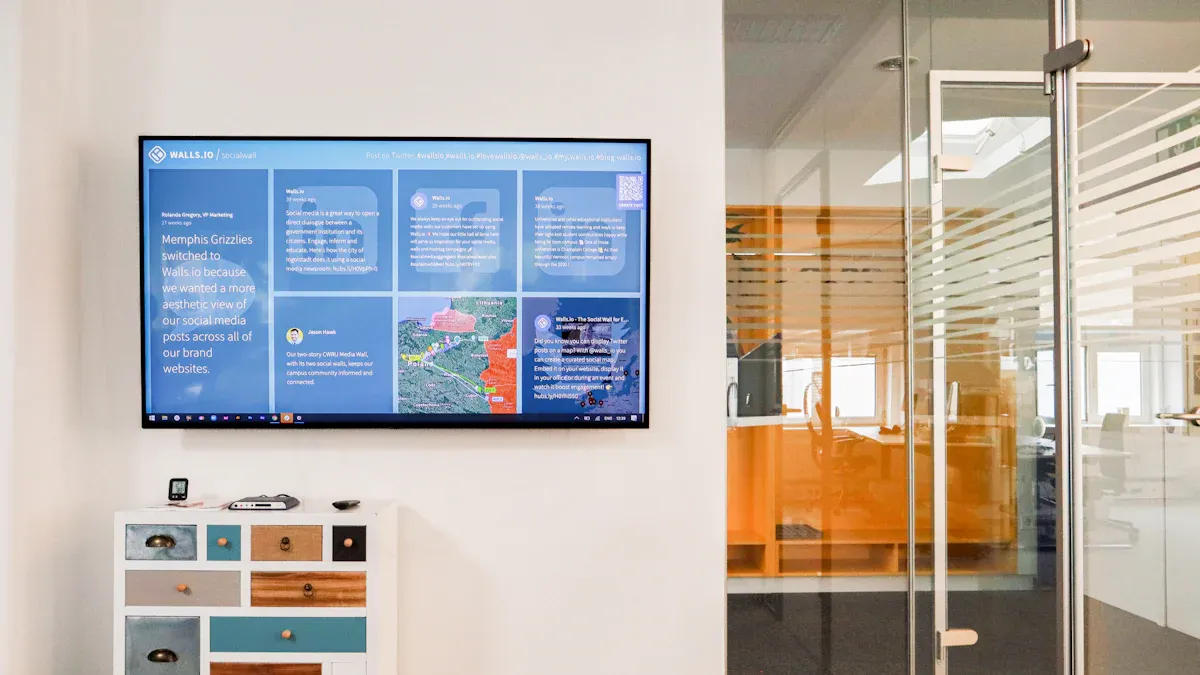
Multi-Display Options
You can use more than one screen with Windows digital signage. Multi-display setups help you reach more people. They make your space feel exciting. These setups work well in stores, offices, and places for fun. You need the right hardware and software to make it work well.
Category | Requirements |
|---|---|
Display Screens | LED, LCD, or touchscreens that work with Windows. |
Windows PC/Media Player | Device with Windows 10 or higher, at least 8GB RAM, and 128GB SSD. |
Graphics Card | Dedicated GPU for high-resolution or 4K content. |
Network Connectivity | Reliable internet for updates and remote management. |
Software | Windows-compatible signage software like Xibo, OnSign TV, or Scala. |
CMS | Platform for uploading and scheduling content. |
Tip: You can control all screens from one place. Show clear content and manage everything from far away.
Offline Playback
Sometimes your digital signage needs to work without internet. Offline playback keeps your screens showing content even if the network stops. Make sure your CMS has offline features. Caching saves your files on the device. Videos and images play even if you lose connection.
Offline caching keeps your content playing when the network is down.
Pick a CMS that lets you make offline playlists.
Test your setup by turning off the internet and checking if content still plays.
Note: Offline playback makes sure your message shows even if the network fails.
Budget-Friendly Setups
You can start with a cheap Windows digital signage system. These setups cost less but may not have all the best features. Free and low-cost players like VLC Media Player, Xibo, and Wallboard help you start without spending much money.
Budget options are simple and good for small businesses or schools.
Premium solutions give you more features and better help.
Some platforms, like Wallboard, let you try for free before you buy.
Remember: You can save money by starting small and adding more features later.
Troubleshooting Windows Digital Signage
Common Issues
Sometimes, windows digital signage systems have problems. Here are some easy troubleshooting tips for windows digital signage to fix common issues:
Make sure the power is on. Check if the display and media player are plugged in.
Look at the display settings. Set the screen to the right input.
Check all cables. See if any cables are loose or broken.
Test the media player. Make sure it works and connects to the display.
Update graphics drivers. This can fix many display issues.
Check for overheating. Make sure air can move around your device.
If the screen is dark, use a flashlight to check the backlight.
Tip: Match the resolution and refresh rate between your media player and display. This helps stop image problems.
Performance Tips
You want your windows digital signage system to work well every day. Try these best practices to setup windows digital signage for 24/7 operation:
Use SSD storage. It loads faster and is more reliable.
Make video files smaller. Smaller files play better.
Schedule content ahead of time. This saves time and keeps screens fresh.
Use a cloud-based CMS. You can manage content from anywhere.
Pick energy-efficient displays. This lowers costs and helps your system last longer.
Update your system often. This stops slowdowns and keeps everything safe.
Note: Free tools like Canva and Microsoft Designer help you update your content easily.
Mistakes to Avoid
Many people make mistakes when setting up windows digital signage. You can stop problems by following these best practices to setup windows digital signage:
Do not start with technology first. Set clear goals for your digital signs before picking hardware or software.
Do not use old software. Old programs can cause security risks and bad performance.
Do not forget content updates. Keep your messages new and interesting.
Do not put screens in bright sunlight. This can cause glare and overheating.
Clean screens and vents often. Dust can make your system overheat.
Check cables and connections every month. This keeps your system working well.
Remember: If you want to setup windows digital signage for 24/7 operation, plan for regular maintenance and use good hardware.
You now know how to use windows digital signage for many things. You can set up your device. You can install software. You can connect displays. You can manage content. You can use windows digital signage for internal announcements and alerts. You can use windows digital signage for office dashboards. You can use windows digital signage for meeting room and schedule displays. The steps are easy. Anyone can follow them.
If you follow best practices, your system works well. Use this table to plan your maintenance:
Maintenance Type | Frequency | Key Activities |
|---|---|---|
Daily Maintenance Routine | Daily (5-10 mins) | Look at the screen for quality. Check touch response. Make sure content loads. |
Weekly System Health Checks | Weekly (30-45 mins) | Test the network speed. Check the signal strength. |
Monthly Deep Maintenance | Monthly (2-3 hrs) | Check hardware. Look at power systems. Check cooling and connections. |
You can use windows digital signage for many goals. You can keep content new. You can update screens often. You can use windows digital signage for internal announcements and alerts. You can use windows digital signage for office dashboards. You can use windows digital signage for meeting room and schedule displays.
If you have problems, try these tips:
Make sure your device is plugged in.
Update your software. Test your display.
You can get more help in the FAQ or linked resources. Share your questions or feedback below. You can learn how to use windows digital signage for your business.
Top Free and Affordable Digital Signage Players for Windows in 2026
From completely free open‑source options to flexible, affordable cloud subscriptions, Windows‑based digital signage has never had more choices. Below is a curated list of standout software across different price and feature tiers.
🚀 Quick Selection Guide – Windows Digital Signage Players (2026)
Software | Pricing (per screen/month) | Windows Support | Key Features | Best For |
|---|---|---|---|---|
Yodeck | Freemium (1 screen free forever, then $8) | ✅ Native client | All‑in‑one cloud platform, easy setup, rich templates, powerful management | Most users – from hobbyists to small/medium businesses. Best entry‑level paid option. |
Castit | Completely free | ✅ | Cloud platform, slide creation, social media app integration | Extremely tight budgets; minimal, quick‑start needs. |
CloudShow | Freemium (1 device free, then paid) | ✅ | Cloud platform, decent basic feature set | Stepping stone between Castit and Yodeck; backup option. |
Sklera | Not disclosed | ✅ | Enterprise features, “watchdog” process keeps player always running | Professional / corporate environments needing high stability and system lockdown. |
SignPresenter | $10 | ✅ | Affordable, works well with cheap hardware (e.g., Fire TV Stick) | Budget‑conscious users or small businesses wanting a low‑cost paid plan. |
ScreenCloud | $20–36 | ✅ | Deep integration with Google Workspace, Microsoft 365, and other core business tools | Companies already heavily using Google or Microsoft ecosystems. |
Xibo | Open‑source (free) self‑hosted; cloud from ~$19 | ✅ Most feature‑rich | Powerful, flexible layouts, full data ownership, no screen limits | Mid‑to‑large organisations with internal IT teams that value privacy and long‑term cost control. |
🎯 Best Picks by Use Case
👑 Best Overall – Yodeck
If you want the best balance of free tier, ease of use, and powerful features, Yodeck is nearly perfect. Its one screen free forever policy lets you start with zero risk. As a mature SaaS product, Yodeck offers great templates and a smooth management experience. Ideal for individuals or small businesses just getting into digital signage.
💸 Most Budget‑Friendly – Castit
If your budget is literally zero, Castit is worth a look. It’s completely free and lets you create content quickly using built‑in tools and social media app integrations. While less feature‑rich than Yodeck, it’s a fast solution for simple needs like a small restaurant or retail store.
🏢 Enterprise / Professional Deployments
For professional environments, stability, reliability, and control are top priorities:
Maximum stability: Sklera – Its proprietary “watchdog” feature keeps the player running even if the Windows app crashes. It also supports registry tweaks to disable edge swipes (touchscreens), preventing user interference. Pricing is not public, so you’ll need to contact them.
Full technical control: Xibo (open‑source) – Gives you complete data ownership and avoids vendor lock‑in. Best for organisations with internal IT teams and strong data privacy requirements.
💼 Specialised Needs – Other Strong Contenders
If you need… | Consider… | Why |
|---|---|---|
The cheapest paid plan | SignPresenter ($10) | Low monthly cost; works well with inexpensive hardware like Fire TV Stick, lowering total deployment cost. |
Deep integration with your office suite | ScreenCloud ($20–36) | Directly turn Google Workspace and Microsoft 365 data into live signage content. Ideal for companies already deep in those ecosystems. |
A free alternative to Yodeck | CloudShow (free tier) | Decent feature set for a single free device; can be a backup evaluation option. |
💡 How to Choose
Your decision depends on how much time you want to invest and your budget.
Lowest cost / maximum control: Xibo (self‑hosted) – Requires IT skills but gives you full ownership and no recurring per‑screen fees after setup.
Best out‑of‑box experience: Yodeck – Start with one free screen, upgrade as you grow. Minimal hassle.
Zero budget, quick launch: Castit – Completely free, good for very simple single‑screen needs.
Business ecosystem integration: ScreenCloud – Worth the higher price if you live in Microsoft 365 or Google Workspace.
If you tell me how many screens you need to manage and whether you have internal IT support, I can narrow down the recommendation even further.
FAQ
What is a digital signage player and how does it work on Windows?
A digital signage player shows things on screens. On Windows, you put digital signage software on your computer. The software lets you play videos, pictures, or messages. You pick what shows using your dashboard.
How do I setup windows digital signage for multi-display setups?
You connect your Windows computer to more than one screen. You use digital signage software that works with many screens. You can make each screen show different things or the same message. This helps you reach more people in one place.
Can I setup windows digital signage for free?
Yes, you can setup windows digital signage without paying. You use open-source digital signage software like Xibo or VLC. These tools turn your Windows computer into a digital signage player. You do not need to buy a license.
What are the top free and affordable digital signage players for Windows in 2026?
You can try Xibo, VLC, and Wallboard for free. ScreenCloud and NoviSign have cheap plans. These digital signage player windows choices work on most Windows computers. They help you manage content and schedule screens easily.
How to use windows digital signage for financial and market data feeds?
You put digital signage software on your Windows computer. You connect the software to live data feeds. You set up your screens to show stock prices, news, or charts. This keeps your audience updated with the newest market information.
See Also
A Guide to Installing and Configuring Digital Signage
Key Guidelines for Setting Up Outdoor Digital Signage
Step-by-Step Instructions for Local Server Digital Signage
