How to Set Up Digital Signage on a Local Server Step by Step
You can set up a digital signage local server easily. If you use self-hosting, you control your system and updates. You own your license and do not pay fees again and again. Self-hosting gives you better security. You can change your setup to fit your needs. This works for a simple kiosk or a big display network. You will follow clear steps to install, set up, test, and keep it working.
Tip: Self-hosting usually costs less over time. It works well for small and big systems.
Key Takeaways
Self-hosting digital signage helps you save money. You pay once and do not pay every month. You can control updates by yourself.
Pick hardware and software that fit your needs. Good hardware makes everything work well. The right software makes content easy to manage.
A strong local network is very important. Use wired connections for better speed. Make sure your network is fast enough for smooth content.
Regular maintenance keeps your digital signage working well. Check screens often and update content. Test your network to make sure it works.
Begin with one screen before adding more. This lets you test your setup first. You can fix problems and improve things as you go.
Digital Signage Local Server Basics
What Is Digital Signage?
You see digital signage everywhere—at stores, schools, and airports. It uses screens to show videos, images, or messages. Unlike old signs, digital signage grabs your attention with moving pictures and sound. You can even make it interactive. People notice digital screens much more than static signs. In fact, digital signage captures 400% more views than regular displays. About 68% of customers say these screens make them want to buy something.
To set up a digital signage local server, you need a few things:
HDMI and Ethernet cables.
Mounting equipment for your screens.
Content management software to organize what you show.
A stable internet connection.
Power outlets for your devices.
Why Choose Self-Hosting?
Self-hosting gives you control. You decide when to update your system and what content to show. You do not pay monthly fees, so you save money over time. Here is a quick look at costs:
Model Type | Cost per Player | Total Cost for 7 Years |
|---|---|---|
Subscription Model | $20/month | $1,755 |
Upfront Purchase + Maintenance | $400 | $1,072 |
With self-hosting, you pay once and handle your own updates. You also keep your data private. If you want to grow your system, remember that you may need more hardware and software licenses. Expanding can take more work compared to cloud-based options.
Common Use Cases
You can use digital signage in many places:
Schools use it for announcements and event schedules.
Stores show sales and new products.
Offices display meeting times and news.
Hospitals share health tips and directions.
Digital signage works well for both small and large setups. You can start with one screen or build a network across many locations.
Digital Signage Setup Prerequisites
Hardware Selection
Picking the right hardware is important for smooth digital signage. Start with a computer or media player that fits your needs. If you want to show videos or use many screens, choose stronger hardware. Here is a table to help you compare:
Component | Minimum | Recommended |
|---|---|---|
OS | Windows 10 (64-bit) | Windows 11 (64-bit) |
Processor | Intel Core i3 / Ryzen 3 | Intel Core i5 / Ryzen 5 |
RAM | 4 GB | 8 GB |
Storage | 64 GB SSD | 128 GB+ SSD |
Graphics | Integrated (Intel UHD) | Dedicated GPU |
Display Output | HDMI 1.4 | HDMI 2.0 / DP 1.2 |
Check your connections before you start. Use HDMI 2.0 or better for clear pictures. SSDs are faster than HDDs. Good hardware keeps your network steady and screens bright.
Tip: For a small setup, you can use a Raspberry Pi or an old PC with open source digital signage.
Software Options
The right software makes it easy to manage your screens. You can pick open source digital signage or licensed programs. Open source digital signage saves money and gives you more freedom, but you might need more tech skills. Licensed software usually has more features and support. Here is a table of popular choices:
Software | Description | License |
|---|---|---|
Xibo | Full-featured, layout editor, cloud or local network support | AGPLv3 |
Anthias | Runs on Raspberry Pi or old PCs, easy scheduling | Free |
DigitalSignage.com | Customizable, integrates apps for public displays | Open-source |
Think about what you want. Do you want something simple, or do you like to try new things? Make sure your software works with your hardware and fits your network.
Network Requirements
A strong local network helps your digital signage work well. Here is a checklist to help you:
Use wired Ethernet for the best connection.
Your network speed should be at least 10 Mbps, but 100 Mbps is better.
Set up a special network just for your screens to keep things fast.
Test your network speed often.
Keep your network safe with passwords and updates.
If you use open source digital signage, you control updates and security. A good network means your content shows up on time, every time.
Digital Signage Local Server Installation
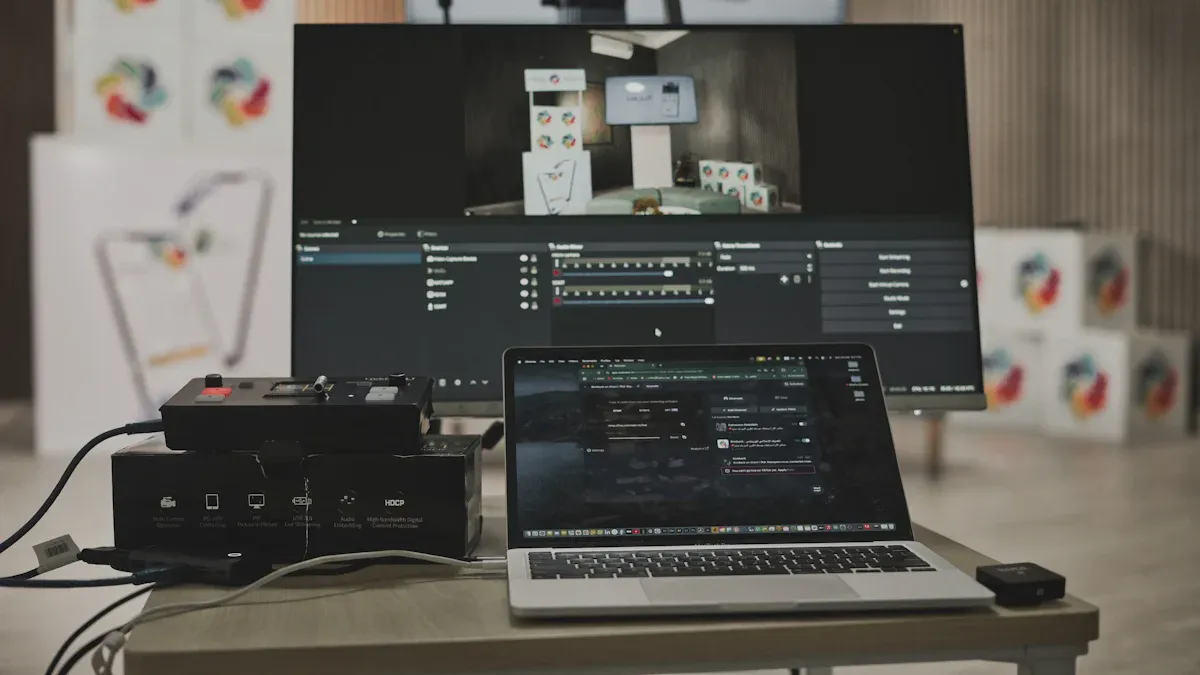
Setting up your digital signage local server is very important. You will get your screens working. You will connect your media player. You need to make sure everything works together. Let’s go through each step. This helps you avoid mistakes. You will start your digital signage deployment the right way.
Install Server Software
You must get your server ready before you begin your digital signage deployment. Here is a simple checklist:
Pick Your Server Machine
Choose a computer or device that fits your needs. Ubuntu Server 22.04 LTS works well for most setups. Make sure your hardware matches your screens and media players.Set Up the Network
Give your server a static IP address or DNS hostname. Open ports 80 and 443 on your firewall. This lets your media player connect easily. Set up SSH access if you want to manage your server from another computer.Install the CMS (Content Management System)
You can install your digital signage local server software in two ways:Manual Installation
This way gives you full control. You will:Use Git to clone the software repository.
Install things like Node.js, MongoDB, and ffmpeg.
Set up storage and user accounts.
Add SSL certificates for secure access. Manual installation takes longer, but you learn how it works.
Docker Installation
This way is faster and easier. You only run a few commands. Docker pulls the server image and runs it in a container. Updates are simple. You do not worry about software conflicts. Many people use Docker for their first digital signage deployment.
Tip: If you want new features or custom settings, use manual installation. If you want a quick setup, use Docker.
Security Steps
Always use HTTPS to keep your data safe. Set strong passwords for your admin account. Update your software often. Use firewalls and an intrusion detection system if you can. These steps protect your digital signage local server from hackers.
Set Up PiSignage Server
PiSignage is a popular choice for digital signage deployment. You can run it on a Raspberry Pi, old PC, or small server. Here is what you need before you set up pisignage server:
Requirement | Details |
|---|---|
MongoDB | For data storage |
Node.js | Version 12 or higher |
ffmpeg | For media processing |
Git | For downloading the source |
RAM | |
Storage | At least 10GB |
Now, let’s set up pisignage server step by step:
Install Prerequisites
Make sure your server has Node.js, MongoDB, ffmpeg, and Git. You can install these with your package manager.Download PiSignage
Use Git to clone the PiSignage server repository. This gives you the latest version.Configure the Server
Set up your database and storage folders. Create your first admin account. Decide if you want to use a local domain or just the IP address.Start the Server
Run the server using Node.js. If you use Docker, pull the PiSignage image and start the container.Secure Your Setup
Add an SSL certificate for HTTPS. Set strong passwords. Limit who can log in as admin.
Note: Many people forget to open the right ports or set up SSL. This can cause problems with your media player or make your digital signage local server less secure.
Connect Displays
You are almost ready to see your content on the big screen! Here is how to connect your media player and displays:
Connect the Media Player
Plug your media player into your display with an HDMI cable. Make sure the media player is on the same network as your server.Register the Media Player
Go to your PiSignage server dashboard. Add your media player by entering its device ID. Assign it to a group if you want to manage many screens at once.Test the Connection
Send a test image or video from your server to the media player. Check if it shows up on your display. If you see nothing, check your network, cables, and firewall settings.Troubleshoot Common Issues
Issue Description
Cause
Solution
Content does not update
Network or firewall problem
Make sure ports 80 and 443 are open. Use "URL Reload" for web content.
Video stops in the middle
Large file or slow network
Keep videos under 100MB. Use 720p unless you need 1080p.
Old content stays on screen
DNS or deployment timing
Use "Deploy Daily At" to schedule updates.
Media player does not connect
DHCP pool too small
Expand your DHCP pool for more devices.
Final Checks
Walk around and look at each display. Make sure every media player shows the right content. Test your system at different times of day.
Alert: Do not use WiFi for your media player if you can avoid it. Wired connections are much more reliable for digital signage deployment.
You have finished the hardest part of your digital signage local server setup. You can add more screens. You can update your content. You can keep your system secure. If you follow these steps, your media player and displays will work well together.
Configure and Manage Digital Signage
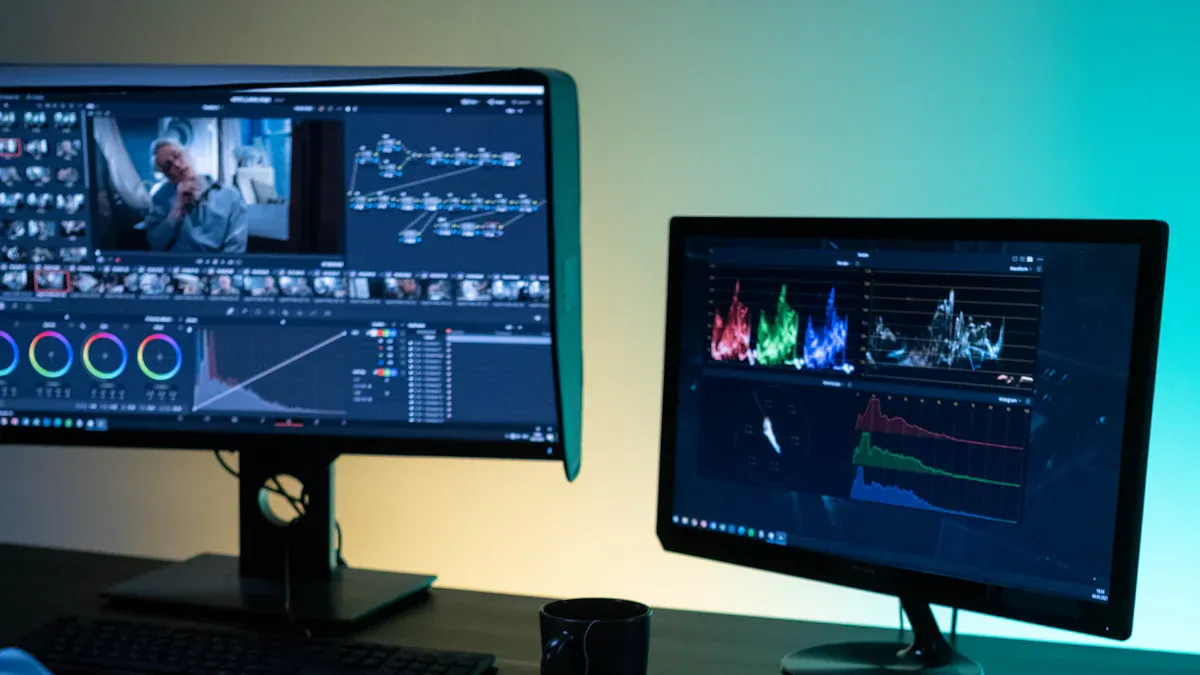
Upload and Schedule Content
Your digital signage setup is ready. Now you can upload and schedule content. The content management system helps you do this easily. You can drag and drop images, videos, or slides into the dashboard. Most systems let you put files in folders for quick access.
Scheduling is a strong feature in your content management system. You can set rules for when content shows up. For example:
Show breakfast menus from 6 AM to 11 AM, then switch to lunch menus.
Display school announcements in the morning and bus schedules in the afternoon.
Schedule ads, videos, or messages for certain days or special events.
The content management system will switch content for you. You do not need to update screens by hand. This saves time and keeps your digital signage setup fresh.
Test and Troubleshoot
Testing is important for every digital signage setup. You want your screens to work all the time. Problems can happen, but you can fix them fast if you know what to check. Here is a table of common issues:
Issue | Cause | Symptom |
|---|---|---|
Voltage sags | Heavy equipment starts up | Screens dim or players reboot |
Surges | Lightning or power changes | Damage or short device life |
Noise | Motors or lights nearby | Flickering images or crashes |
Brownouts | Power grid overload | Random shutdowns |
You can stop many problems before they start. Use a reliable operating system. Add offline playback so screens keep running if the network drops. Protect your hardware with good cases and regular checks.
Regular Maintenance
Regular care keeps your digital signage setup working well. Here are some tasks you should do:
Update your content often so people stay interested.
Replace old hardware before it breaks.
Check all screens and cables every month.
Clean screens and vents to stop dust and heat.
Back up your content management system data.
Test your network and power supply.
Review your schedules and logs for errors.
You can use this table to plan your work:
Frequency | Main Tasks |
|---|---|
Daily | Check screens, confirm playback, spot errors. |
Weekly | Clean screens, inspect cables, reboot players, review schedules. |
Monthly | Test network, update software, back up data, review content. |
Quarterly | Deep clean, check power, review logs, inspect hardware. |
If you follow these steps, your digital signage deployments will stay reliable and safe. Self-hosting gives you control, but you must keep up with maintenance. Your content management system helps you manage everything in one place.
You can make your own digital signage local server if you follow these steps: First, decide what you want your screens to do. Next, look at your space and pick the best spot for your screens. Then, check if you have enough power and a good network. After that, choose the right hardware and hook up your media player. Last, put in your content management software and set it up.
Self-hosting lets you be in charge, keeps your stuff private, and saves money. Check your system often and update it to keep it working well. When you feel ready, you can try things like remote management, setting times for content to play, or using other apps to make your setup better.
Quick Checklist | Description |
|---|---|
Pilot test | Use one screen first before adding more |
Preview content | Look at your images and videos on the screens |
Test interactivity | See if QR codes and buttons work |
Measure and optimize | Watch how things go and make them better |
You can add more screens when you need to. Keep learning and always try to make your system better!
FAQ
How many screens can I connect to my local server?
You can start with one screen. Most setups let you add more screens as you grow. The number depends on your hardware and network speed. For small businesses, five to ten screens work well.
Do I need the internet for local digital signage?
You do not need the internet all the time. Your system works on your local network. You only need the internet for updates or remote access. For daily use, your content plays even if the internet goes down.
Can I use a Raspberry Pi as a media player?
Yes, you can! Raspberry Pi works great for simple digital signage. It uses less power and costs less money. Just make sure your content is not too heavy for the device.
What file types can I show on my screens?
Most systems support these file types:
Images: JPG, PNG, GIF
Videos: MP4, AVI
Documents: PDF
Tip: Use MP4 for videos and JPG for images. These work best on most players.
See Also
Understanding Outdoor Digital Signage For Today's Enterprises
Selecting The Ideal Outdoor Digital Signage For Your Company
The Impact Of Round LCD Displays On Signage In 2025
Picking The Perfect Outdoor Signage For Your Business In 2025
