What Is a Self-Service Kiosk and How Does It Work
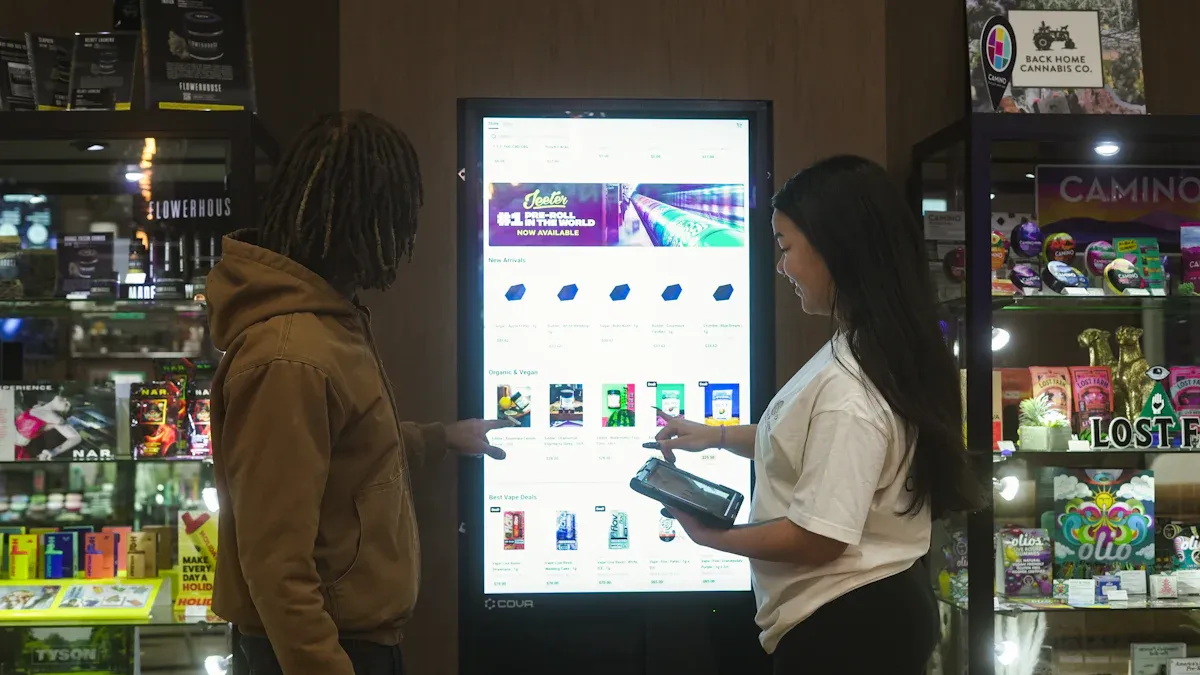
A self-service kiosk is a touchscreen device you can use by yourself. It helps you do things without needing help from a worker. You can use a self-service kiosk to order food. You can check in at offices or pay for groceries. You do not have to wait in line. Many businesses use self-service technology because it saves time. It also makes service better for customers. In 2023, there were over 3.7 million self-service kiosks, ATMs, and vending machines in the world. If you want to know how to set up a self-service kiosk, websites like http://www.topadkiosk.com/ can help you start.
Key Takeaways
Self-service kiosks help you do things by yourself. This saves time and makes lines shorter. You can find these kiosks in many places like restaurants, airports, and stores. They make getting services easier for everyone. When you use a self-service kiosk, your order can be more correct. You also get to pick what you want. Businesses like self-service kiosks because they spend less money on workers. Customers are also happier with their service. Always check your order before you pay. This helps you not make mistakes and have a good experience.
Self-Service Kiosk Overview
What Is a Self-Service Kiosk
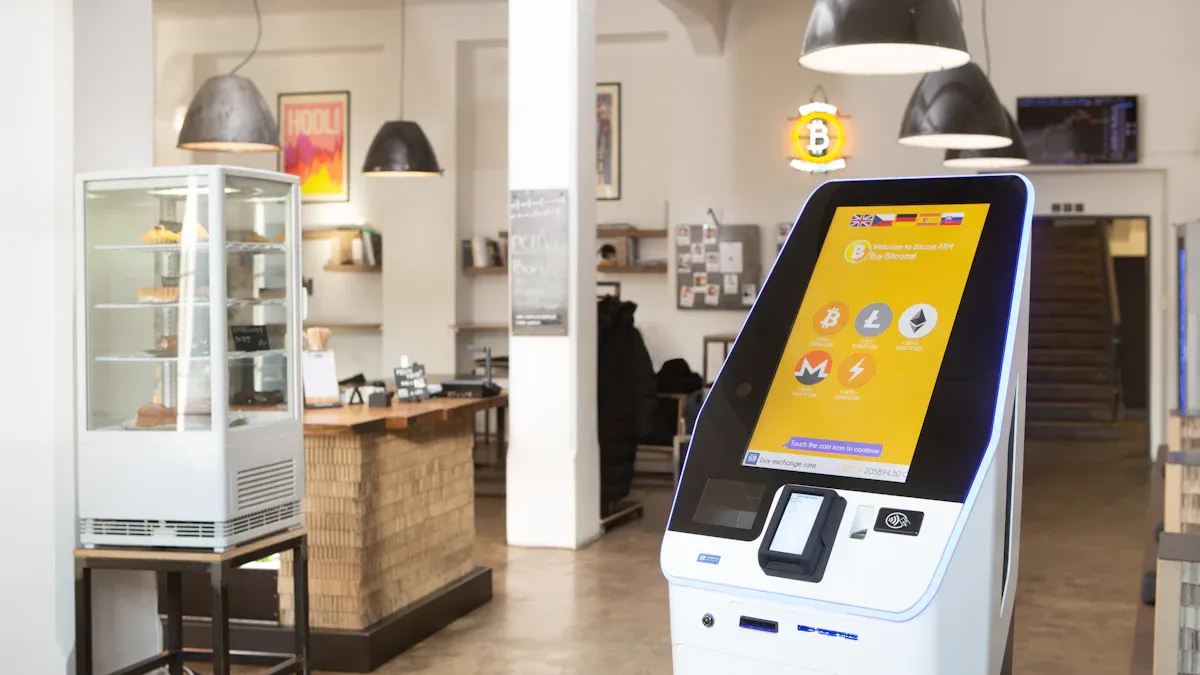
A self-service kiosk is a machine that helps you do things on your own. You can find a self-service kiosk in many places. It looks like a small computer or an interactive terminal. You use a touchscreen to make choices. Some kiosks have buttons or even voice commands. These machines let you order food, check in for appointments, or pay for items. You do not need to wait for a worker. You control the process from start to finish.
You see self-service kiosks in many businesses. Supermarkets use them for quick checkouts. Restaurants let you order and pay at a self-service kiosk. Offices use them for visitor check-ins. Airports have kiosks for boarding passes. Hospitals use them for patient registration. These examples show how self-service technology makes life easier.
Tip: If you want to save time, try using a self-service kiosk the next time you shop or travel.
Key Features
Self-service kiosks have important parts that help you. Most kiosks have a touchscreen. You tap the screen to pick what you want. Some kiosks have card readers for payments. Others have printers for receipts or tickets. You may see barcode scanners for coupons or loyalty cards. Some kiosks use cameras for security or ID checks.
Here is a table of common features you might find:
Feature | What It Does |
|---|---|
Touchscreen | Lets you choose options |
Card Reader | Accepts credit or debit |
Printer | Gives you receipts or tickets |
Barcode Scanner | Reads coupons or codes |
Camera | Checks ID or security |
You can use different types of self-service kiosks. Some use only touchscreens. Others add buttons or voice commands. Each type helps you finish tasks quickly and easily.
How Self-Service Kiosks Work
Operation Process
When you use a self-service kiosk, you follow a clear set of steps. These steps help you finish your task quickly and without confusion. Here is how you usually interact with a self-service kiosk:
Select the Service or Product
You start by choosing what you want. This could be ordering food, checking in for an appointment, or buying a ticket.Customize Your Selection
You can change your order or add special requests. For example, you might pick a different size or add extra toppings.Review Your Order or Input Information
You check your choices on the screen. You make sure everything is correct before moving on.Proceed to Payment
You pay using the kiosk. Many self-service kiosks accept cards, mobile payments, or cash.Collect Your Receipt or Confirmation
The kiosk prints a receipt or shows a confirmation on the screen. Sometimes, you get a ticket or a printed order slip.Follow Up (If Needed)
If you need to, you can ask for help or wait for your order to be ready.
A self-service kiosk uses smart software to guide you through these steps. The software connects to payment systems and back-end databases. This lets you complete your transaction safely and quickly. You do not need to wait for a staff member. The kiosk handles your order, payment, and confirmation in real time.
Tip: Always review your order before you pay. This helps you avoid mistakes and saves time.
Self-service kiosks combine hardware like touchscreens, card readers, and printers with software that keeps your information safe. The technology connects to the store’s payment system and inventory. This means your order goes straight to the kitchen or checkout, and your payment is secure.
Here is a table that shows how a self-service kiosk handles your transaction:
Feature | Description |
|---|---|
Smart Software | Guides you, processes your order, and connects to business systems |
Integrated Payments | Accepts cards, mobile payments, or cash for secure transactions |
You can use a self-service kiosk to order, check in, or pay without help. The kiosk accepts many payment types, such as cards, contactless payments, and QR codes. It also updates loyalty points and inventory right away.
Online and Offline Modes
A self-service kiosk needs a good connection to work well. The connection lets the kiosk talk to payment systems, update orders, and send data to the business. You can find different types of connections in self-service kiosks:
Ethernet gives the most stable and secure connection. Businesses use it for kiosks that stay in one place.
Wi-Fi works well in indoor spaces where wires are hard to install. You may see this in malls or airports.
Cellular (4G/5G) is best for kiosks in remote or temporary spots. It uses mobile data to stay connected.
Hybrid setups use Ethernet as the main connection and cellular as a backup. This keeps the kiosk running even if one connection fails.
Sometimes, a self-service kiosk works in places with weak or unstable networks. In these cases, the kiosk uses offline mode. It stores your actions and data locally. When the connection comes back, the kiosk sends the data to the business. This keeps your experience smooth and prevents lost orders.
Note: Smart caching helps a self-service kiosk work even if the internet goes down. The kiosk saves your choices and sends them later.
Designers pick the right connection for each self-service kiosk. They think about where the kiosk will be, how many people will use it, and how important uptime is. Good connectivity means you get fast service and your data stays safe.
A self-service kiosk gives you control and saves you time. You can trust the kiosk to handle your order, payment, and data, whether it is online or offline.
Uses of Self-Service Kiosks
Retail
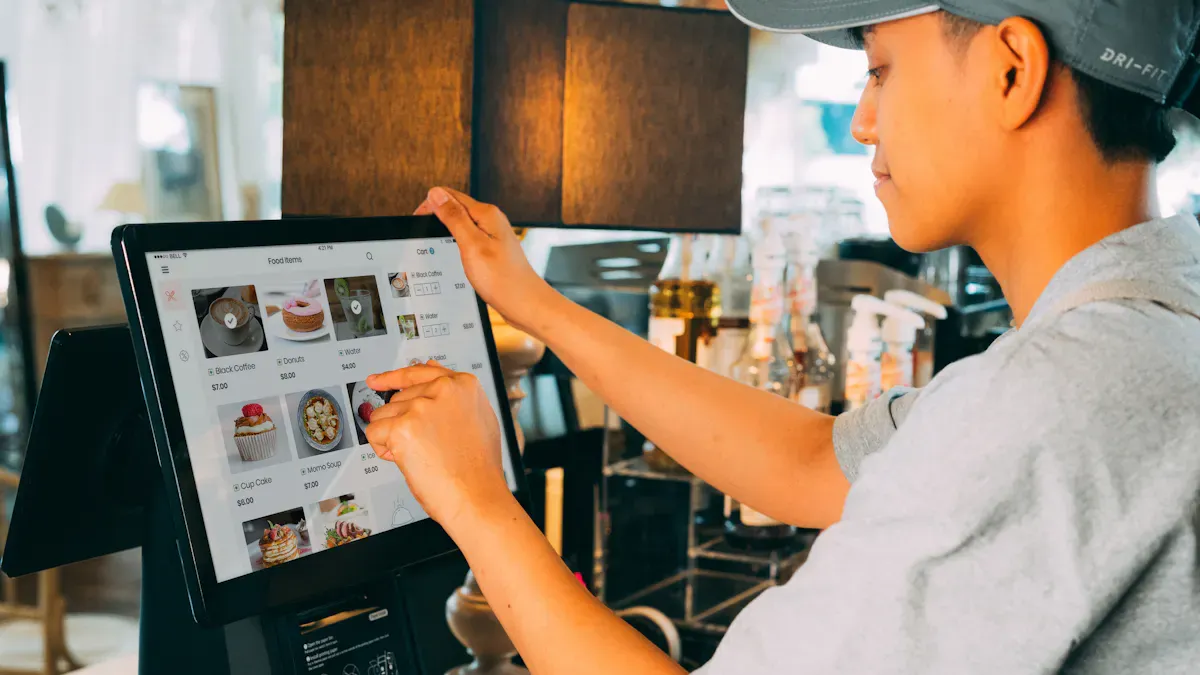
You can find self-service kiosks in lots of stores. These machines let you check out your items and scan prices. You can also use them to look for products. A self-service point of sale helps you pay for groceries or other things. Many stores put these kiosks near the door or by the exit. This helps you finish shopping fast. Here is a table that shows what people use kiosks for in stores:
Common Uses of Self-Service Kiosks in Retail |
|---|
Self-checkout stations |
Price-checking kiosks |
Checking prices and browsing inventory |
Processing self-checkout transactions |
Self-service kiosks make shopping simple. You do not have to wait in long lines. You can pay faster and leave the store quickly. Stores use these kiosks to give you more ways to pay. They also help you find what you want. Here is how kiosks make shopping better for you:
Benefit | Impact on Customer Experience |
|---|---|
Enhanced Convenience | Customers can quickly check prices and find product information. |
Reduced Wait Times | Customers complete purchases without waiting in long lines. |
Improved Accuracy | Fewer errors in transactions lead to higher satisfaction. |
Greater Control | Customers independently complete tasks, empowering their experience. |
Increased Impulse Buys | Easier navigation encourages additional purchases. |
Multiple Payment Options | Enhances convenience, fostering repeat visits and loyalty. |
Tip: Try a self-service kiosk when you shop. You might finish faster and feel more in charge of your shopping.
Hospitality
Hotels and restaurants use self-service kiosks to help you order food and check in. You can pick your meal, add toppings, or change your order. Many people like self-service because it saves time and stops mistakes. Here are some ways kiosks help in hotels and restaurants:
You can change your order the way you want.
Orders are more accurate.
Businesses save money on workers.
Companies learn what customers like.
Most people enjoy using self-service kiosks. Over 80% of Americans like them, and 71% say service is faster. Restaurants and hotels use these machines so you do not have to wait for staff. You get your food or room sooner. Workers can help guests who need extra help.
Transportation
You see self-service kiosks in airports and train stations. These machines help you check in and print boarding passes. You can also drop off bags and buy tickets. Some kiosks show maps and give you travel info. Here are some common ways people use kiosks:
Wayfinding kiosks show maps and updates.
Bag drop kiosks let you check in your luggage.
Boarding pass kiosks print your pass if you checked in online.
Ticketing kiosks help you buy or print tickets.
Check-in kiosks let you pick seats and tag bags.
Self-service kiosks in travel places save you time, especially when it is busy. You can do many things by yourself. This makes travel easier and less stressful.
Healthcare
In healthcare, self-service kiosks help you check in for appointments and fill out forms. You can also use them for telehealth services. These machines make visits faster and keep your information private. Here is a table that shows what kiosks do in healthcare:
Function | Description |
|---|---|
Patient Check-in | Kiosks assist patients in completing paperwork and verifying insurance. |
Access to Telehealth Services | They provide access to telehealth services, enhancing patient care options. |
Information Provision | Kiosks offer health information, clinical measurement collection, telemonitoring, and teleconsultation. |
You can use a self-service kiosk to get health info or talk to a doctor online. Hospitals and clinics use these machines so you wait less and get care faster.
Benefits and Drawbacks
Advantages
When you use a self-service kiosk, you get many good things. Businesses also see big changes. Here are some main benefits: You get help faster and wait less. Your orders are more correct, so there are fewer mistakes. You can change your order, like adding toppings. Businesses do not need as many workers, so they save money. You help companies learn what customers like. You can pay in more ways and it is easier for everyone. Companies give the same service at every place. Businesses can sell new things and suggest more items. Your visit feels smoother, so you want to come back. Companies do better than other businesses.
A self-service kiosk helps businesses save money and work better. Look at this table to see how:
Evidence Type | Details |
|---|---|
Cost Reduction | Automation can cut labor costs by 25-30%. |
Annual Savings | Some restaurants save up to £40,000 each year. |
Order Accuracy Improvement | Fewer mistakes can save up to 50% in reprocessing costs. |
Increased Average Order Size | Upselling can boost order size by 20%. |
Customer Retention | Customers are 15% more likely to return for faster service. |
Tip: Try using a self-service kiosk. It can make your trip faster and more fun.
Challenges
You might have some problems when you use a self-service kiosk. Not everyone finds it easy to use. Some people have trouble with the screen, especially if they do not use tech much. If there is no help, you might get upset.
Businesses also have problems when they set up self-service kiosks: Some people do not like new technology. Machines can break or stop working. Good internet and power are needed for kiosks to work well. Companies must make screens easy for everyone. They must keep your data safe and follow rules. Connecting kiosks to old systems can be hard and cost a lot. Strong security needs skilled workers and can be expensive.
Here is a table that shows some common challenges:
Challenge Type | Description |
|---|---|
Security and Privacy Considerations | Businesses must follow strict rules and protect your data. |
Customer Adaptation Issues | Some people find kiosks hard to use, which can lead to frustration. |
Technical Integration Difficulties | Connecting kiosks to old systems can cause problems and delays. |
User Interface Design | Kiosks must be simple for everyone, which is not always easy to achieve. |
Note: If you have trouble with a self-service kiosk, ask for help or read the screen for tips.
A self-service kiosk can make things easier, but it also brings new problems for you and businesses. Knowing these helps you use self-service technology better.
How to Set Up a Self-Service Kiosk
Setup Steps for Businesses
If you want to set up a self-service kiosk for your business, you need to follow some important steps. These steps help your customers have a good experience.
Choose the Right Kiosk Software
First, look for software that fits your business. Pick software that is simple and works with your other tools.Customize Your Kiosk Interface
Add your logo and colors to the screen. Make sure the screen is easy to use. Big buttons and clear menus help people finish tasks fast.Set Up Payment Options
Add safe ways to pay. You can let people use cards, phones, or cash. Always keep customer information safe.Implement Self-Service Features
Add things like self-checkout or ways to change orders. These features make using the kiosk better for everyone.Maintain and Monitor Your Kiosk
Clean the kiosk often. Check for broken parts. Update the software to keep it safe. Teach your workers how to fix problems quickly.
Here is a table to help you pick the best hardware and software for your self-service kiosk:
Component | Recommended | Cost | Notes |
|---|---|---|---|
Tablet | iPad 10th gen (10.9") | $350 | Reliable touchscreen, works well for self-service |
Kiosk stand | Heckler Design or CTA Digital | $100-$200 | Lockable, adjustable, secure mounting |
Protective case | OtterBox Defender | $50 | Protects against drops and weather |
Power | Long Lightning/USB-C cable | $20 | Keeps your kiosk charged all day |
Optional: Receipt printer | Star Micronics Bluetooth printer | $200 | Email confirmations work if you skip printing |
For a strong connection, use both Ethernet and cellular backup. Multi-carrier SIMs and internet failover keep your self-service kiosk working, even if the main internet stops.
User Guide
You might wonder how to help customers use a self-service kiosk. Good training makes it easy for everyone.
Put up clear signs and simple steps. Use pictures and easy words so people know what to do.
Show video guides on the screen. These videos walk users through each step.
Give live help when it is busy. Staff can answer questions and show how to use the kiosk.
Offer instructions in different languages. This helps travelers and people from other countries.
Add help for people with disabilities. Use sound help and braille for those who need it.
Hand out flyers or digital guides. These explain how to use the self-service kiosk.
Here is a table of common mistakes and how to stop them:
User Error | Prevention Measures |
|---|---|
Ignoring Accessibility | Use big buttons, clear text, and test for all users |
Poor Security | Use strong passwords and automatic logouts |
Skipping Updates | Update software often for safety and performance |
Tip: Always follow the steps on the screen. If you get stuck, ask for help or look for guides nearby.
Learning how to set up a self-service kiosk helps you serve customers better. A good self-service system saves time and makes visits easier.
You now know how a self-service kiosk works. These machines are important for customers and businesses. They help you save time and make fewer mistakes. You also get more control over what you do. Businesses use self-service to help more people and spend less money. Look at the table below to see the main benefits:
Benefit | Description |
|---|---|
Faster service | Shorter wait times and quick transactions |
Staff focus on important tasks | |
Order accuracy | Fewer mistakes and consistent results |
Customer satisfaction | Personalized experience and upselling |
Think about what you want and need. Self-service can work for many kinds of businesses. It helps make service better. You can also try new things like AI and biometric payments. Give self-service a try and see if you like it.
How to Set Up a Self-Service Kiosk
To set up a self-service kiosk, follow the core process: planning, hardware selection, software configuration, installation, testing, and maintenance. It is practical, reliable, and suitable for various scenarios such as retail, catering, and government services. Below are concise, actionable steps.
Step 1: Clarify Your Purpose and Requirements
Start by defining the kiosk’s core purpose—such as self-checkout, order placement, ticket printing, or government services. This forms the basis of all setup decisions. Focus on three key points: your target user group (e.g., elderly users need a simplified interface), whether payments will be processed (requires PCI DSS compliance if yes), and placement location (indoor vs. outdoor, which dictates hardware durability needs).
Step 2: Choose Suitable Hardware
Hardware is the foundation of the kiosk; prioritize commercial-grade components for reliability. Key components and requirements include:
Kiosk Enclosure: Use vandal-resistant, shatterproof materials (e.g., stainless steel, tempered glass). For outdoor use, select an enclosure with an IP54 or higher rating for water and dust resistance.
Touchscreen: A commercial-grade capacitive touchscreen (21.5–43 inches) with 300–500 nits brightness (1000+ nits for outdoor use) and smooth multi-touch functionality.
Processing Unit: An industrial-grade motherboard (e.g., Intel Celeron) designed for 24/7 continuous operation—avoid consumer-grade hardware.
Peripherals: Match accessories to your use case: EMV card readers and NFC modules for payments, thermal printers for tickets, and ID scanners for government services.
Power Supply: Install an Uninterruptible Power Supply (UPS) to prevent data loss or equipment damage during power outages.
Step 3: Install and Configure Software
Software acts as the kiosk’s "brain" and must meet four core requirements:
Kiosk Mode: Enable kiosk mode to lock the device, preventing users from exiting the interface or modifying settings.
User Interface: Keep it simple and intuitive, with no more than 3–5 steps per task. Tailor it to your audience (e.g., larger buttons for elderly users).
System Integration: Seamlessly connect to your existing business systems (POS, CRM, etc.) and support remote management for updates and status monitoring.
Security & Compliance: For payment-enabled kiosks, ensure PCI DSS compliance and encrypt data transmissions to protect user information.
Step 4: On-Site Installation and Network Setup
Installation should balance safety and convenience. Key steps include:
Site Preparation: Choose a well-lit, unobstructed location with steady power and reliable internet (wired Ethernet is preferred; use 4G/5G for mobile setups).
Secure the Kiosk: Fasten the enclosure to the floor or wall to prevent tipping or theft. Reinforce outdoor kiosks for wind and rain resistance.
Connect Peripherals: Attach printers, card readers, and other accessories, then test connections to avoid malfunctions.
Network Configuration: Connect to a secure network, set up firewalls, and block unauthorized access to protect data.
Step 5: Conduct Comprehensive Testing
Testing is critical to avoid post-setup issues. Cover three core areas:
Functionality Testing: Verify all workflows (e.g., payments, printing) to ensure no lag or errors.
Compatibility Testing: Check that hardware, software, and peripherals work together seamlessly.
Security Testing: Simulate unauthorized access to verify kiosk mode and data encryption effectiveness.
Step 6: Routine Maintenance and Support
Regular maintenance extends the kiosk’s lifespan. Key tips:
Cleaning: Wipe the touchscreen and enclosure regularly, and clear dust from printer paper trays to prevent hardware issues.
System Updates: Install software and system patches promptly to fix security vulnerabilities and ensure stability.
Troubleshooting: For lags or errors, first check network and peripheral connections to restore operation quickly.
By following these steps, you can set up a stable, user-friendly self-service kiosk that boosts operational efficiency and reduces labor costs.
Henry Fang
General Manager
Shenzhen TopAdkiosk Display Technology Co., Ltd.
Add.: 2F, Bldg 10, Changfeng Industrial Park, Dongkeng, Fenghuang, Guangming, Shenzhen, China 518132
Mobile/WHATSAPP: 86-138 25769658
Email: marketing@topadkiosk.com topadkiosk@gmail.com
Skype: pghenry1
Wechat: adkioskhenry
FAQ
What should you do if a self-service kiosk does not work?
If the kiosk does not respond, look for help nearby. You can ask a staff member or check for instructions on the screen. Sometimes, restarting the kiosk helps.
Can you use cash at all self-service kiosks?
Not every kiosk accepts cash. Many kiosks only take cards or mobile payments. Check the payment options on the screen or look for a sign near the kiosk.
Are self-service kiosks safe for your personal information?
Most kiosks use secure software to protect your data. Always check for security signs or locks on the machine. If you feel unsure, ask a worker before entering personal details.
How do you know if a kiosk is accessible for people with disabilities?
Feature | What to Look For |
|---|---|
Large Buttons | Easy to press and see |
Audio Support | Spoken instructions |
Braille Labels | Raised dots for reading |
You can ask staff if you need more help.
See Also
Essential Characteristics of Today's Touch Screen Kiosks
Comprehensive Instructions for Setting Up Touch Screen Kiosks
Evaluating Touch Screen Kiosks for Business Efficiency and Cost
