How to Integrate Payment Systems with LCD Display Kiosks
Add.: 2F, Bldg 10, Changfeng Industrial Park, Dongkeng, Fenghuang, Guangming, Shenzhen, China 518132
Mobile/WHATSAPP: 86-138 25769658
Email: marketing@topadkiosk.com topadkiosk@gmail.com
Skype: pghenry1
Wechat: adkioskhenry
English Web.: http://www.topadkiosk.com/
https://www.topkioskdisplay.com/
http://www.ad-kiosk.com/
https://www.toplcddisplay.com/
http://www.multitouchdigitalsignage.com/
https://www.youtube.com/channel/UCYVYNJHxLVEcQD8fuUxXNTA/videos?view_as=subscriber
https://www.facebook.com/TOPADKIOSKSHENZHEN/?ref=bookmarks
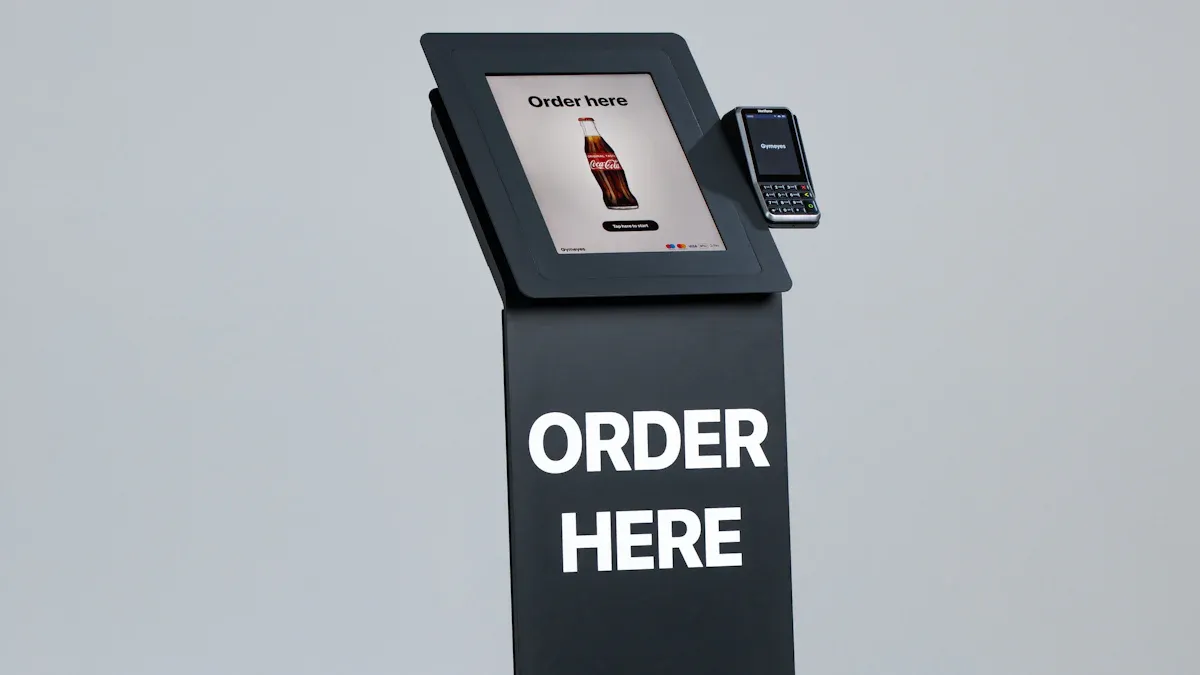
You can learn how to integrate payment systems with LCD display kiosks by adding secure payment hardware. Additionally, you need to develop software that accommodates cash, credit, and mobile payment options. Offering various payment types enhances customer satisfaction and encourages more purchases. Mobile payment is particularly advantageous as it is faster, allows for contactless transactions, and ensures payment security. You can also link kiosks to other systems such as ERP, CRM, or POS to keep inventory updated in real-time. A user-friendly interface is essential for helping customers complete their payments effortlessly. Many businesses, including retail stores and fast food establishments, utilize kiosks to reduce costs and streamline operations. For more information, visit http://www.topadkiosk.com/.
Key Takeaways
Add secure payment hardware and software to take cash, credit, and mobile payments. This makes customers happier and helps sell more.
Pick easy-to-use interfaces for kiosks. Clear steps and simple designs help customers pay without trouble.
Link kiosks to systems like ERP and CRM for live inventory updates. This lowers mistakes and makes things work better.
Make security important with encryption and PCI DSS rules. Keep customer data safe to build trust and stop fraud.
Test kiosks carefully before using them. Make sure all parts work together for a smooth experience.
Key Components for Payment Kiosks
LCD Display and Hardware
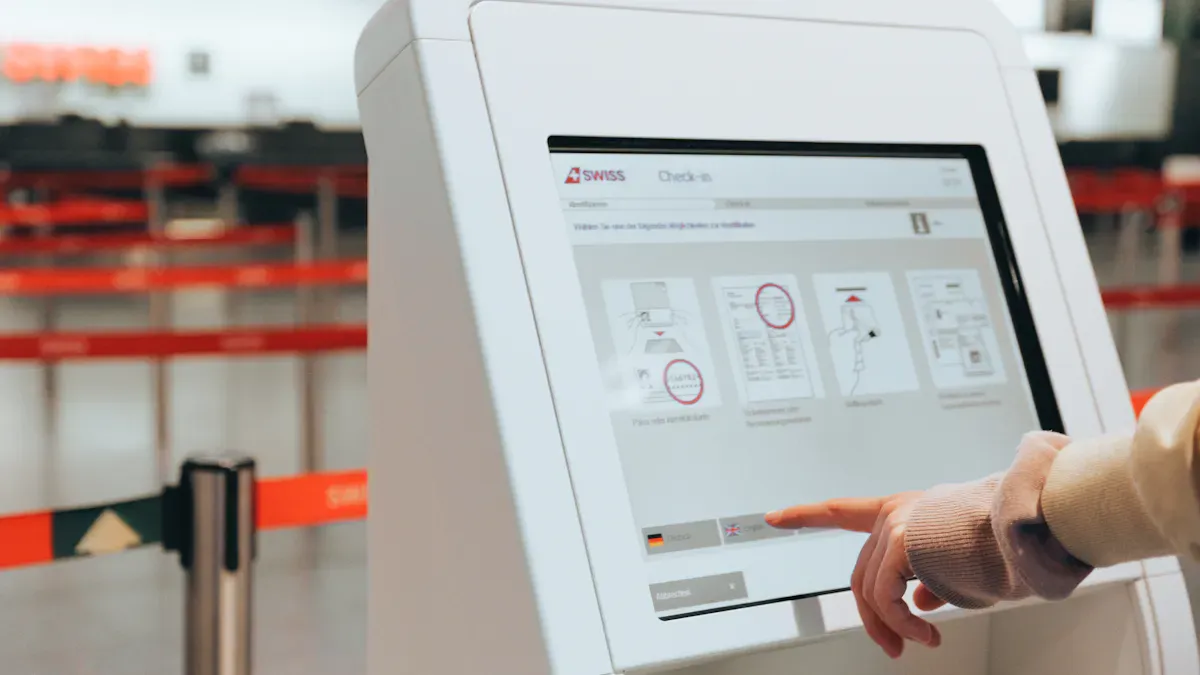
You need strong hardware to make a payment kiosk. Bright LCD displays help people see the screen outside. Touchscreens let users use the payment kiosk with their fingers. Industrial-grade parts help the kiosk work well in busy places. Security features keep the payment kiosk safe from tampering. Printing systems let you give receipts to customers. Wi-Fi or Ethernet keeps the payment kiosk online and updated.
Component | Description |
|---|---|
Easy to see outside, tough and bright. | |
Touchscreen Interfaces | Simple to use, works in hard conditions. |
Payment Integration | Lets people pay in many ways. |
Printing Systems | Prints receipts and other important things. |
Security Features | Stops tampering and keeps out people who should not enter. |
Network Connectivity | Gives updates and lets you manage the kiosk from far away. |
Payment Terminals and Peripherals
There are many payment terminals for your payment kiosk. Some, like S2PRO-TL and S2PRO i22, are good for stores and restaurants. Android and Linux terminals are safe and fast for payments. PIN pads, printers, and card readers help the payment kiosk do more jobs. Mobile and countertop devices help you serve customers in different ways. Self-service kiosks can help you sell more without staff.
Tip: Pick payment terminals that use EMV chip and NFC contactless payments for safer payments.
Software and APIs
Software links the payment kiosk to your payment gateway and other systems. APIs help the payment kiosk talk to CRM and POS platforms. This makes payment data move automatically and keeps customer profiles up to date. Payment confirmations can send follow-up messages in your CRM. Encryption and tokenization keep customer data safe during payment.
Connectivity and System Integration
You need to connect your payment kiosk to ERP, CRM, and POS systems. Real-time inventory sync keeps menu items and stock correct. This helps stop mistakes and saves time. Payment kiosks that work with omnichannel sales help you handle both online and in-store sales. Pick platforms that match your business size and needs. Good integration helps your payment kiosk work well with bill payment kiosks and interactive self-service kiosks.
Note: Seeing your stock in real time can save money and make things run better.
How to Integrate Payment Systems with LCD Display Kiosks
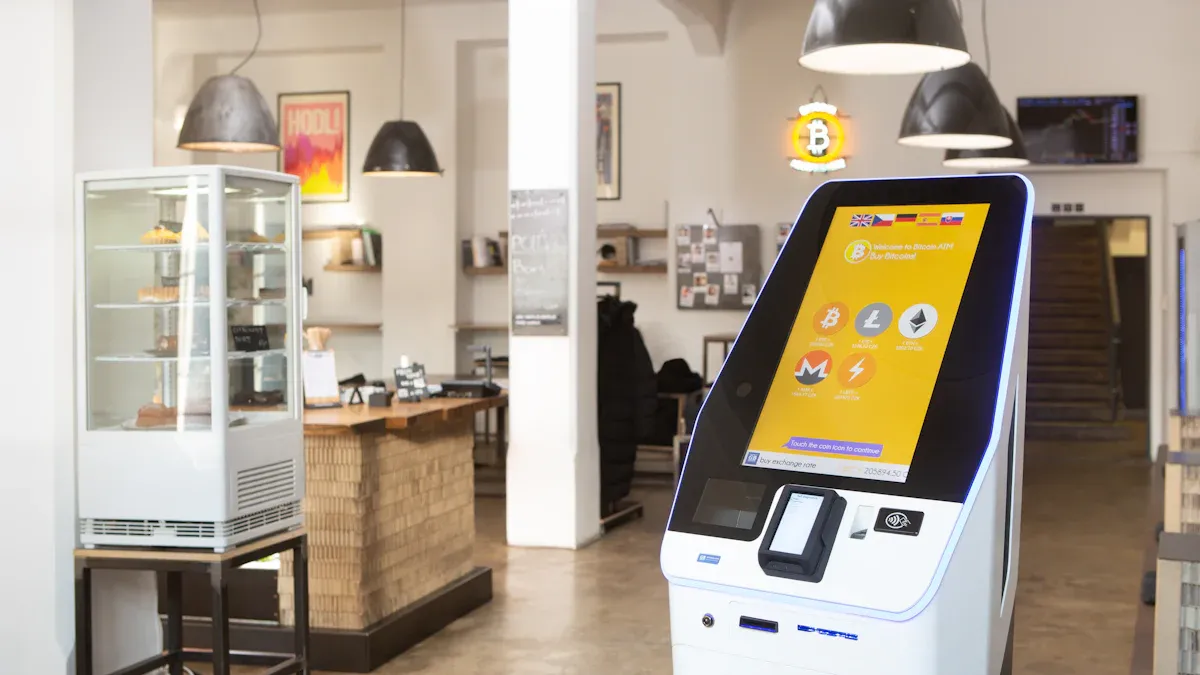
To add payment systems to LCD display kiosks, you must do a few steps. First, make a plan. Then, pick the best payment choices. Next, set up the hardware and software. You also need to make the screen easy to use. Test everything before you let customers use it. This guide will show you how to add payment systems with LCD display kiosks for your business.
Assessing Business Needs
Begin by thinking about what your business wants from a payment kiosk. Decide where you will put the self-service payment kiosk. Think about what payments you want to take. Some businesses connect the payment kiosk to POS, CRM, or inventory systems. Others may need to link with healthcare or property management systems.
Integration Type | Examples |
|---|---|
POS Systems | Oracle, NCR, Square, Toast |
Property Management Systems | Opera, Amadeus |
Healthcare Systems | Epic, Cerner, Meditech |
CRM Platforms | Salesforce, Microsoft Dynamics |
Payment Processors | First Data, Worldpay, Stripe |
You should also choose if the self-service payment kiosk will be inside or outside. Outdoor kiosks need to be strong and safe from weather. Think about how many people will use the payment kiosk each day. Decide if you want loyalty programs or real-time inventory updates.
Choosing Payment Options
Now, pick which payment methods your self-service payment kiosk will have. Most people want to pay with credit cards, debit cards, or mobile payment. Many use mobile wallets like Apple Pay or Google Pay. Some payment kiosks also take cash or QR code payments.
Payment integration needs good planning and approval.
EMV chip readers must follow PCI rules for safety.
Kiosks should work with different software.
4G/5G or Wi-Fi helps with mobile payment and data.
Outdoor kiosks need strong network for data.
Real-time updates make things better for users.
Trend | Description |
|---|---|
Near Field Communication | Lets users tap their phone or card for payment. |
QR Code Scanning | Shows a QR code for users to scan and pay with their mobile wallet. |
Digital Payment Methods | Supports mobile wallets like Apple Pay and Google Pay. |
Contact-less Payment | Offers safer, touch-free payment for customers. |
Loyalty Program Integration | Lets customers use loyalty points at the payment kiosk. |
Reduced Operational Costs | Lowers cash handling and saves money for your business. |
Always give more than one way to pay on your self-service payment kiosk. This helps more people use the kiosk. It also makes paying faster and easier.
Hardware and Software Setup
Setting up hardware and software is very important. Pick strong parts that last a long time. The self-service payment kiosk should have a bright LCD display and a touchscreen. It also needs a safe case. You need a card reader, barcode scanner, printer, camera, and speakers.
Description | |
|---|---|
Processor (CPU) | Runs software and handles user actions. |
Touchscreen | Lets users interact with the payment kiosk. |
Enclosure | Protects the payment kiosk from damage and tampering. |
Card reader/payment terminal | Accepts cards and other payment methods. |
Barcode scanner | Scans tickets or IDs. |
Printer | Prints receipts for users. |
Camera | Adds security and user verification. |
Speakers | Gives audio instructions. |
Connection hardware | Helps with data and software updates. |
Power over Ethernet (PoE) | Gives power and network in one cable. |
You can use Windows IoT, Android, or Linux for your self-service payment kiosk. These let you change the payment kiosk for your business. Application software helps people pay and collects data. Remote tools let you update the payment kiosk from anywhere.
For network, use Ethernet, Wi-Fi, or cellular (4G/5G). Ethernet is fast and safe. Wi-Fi and cellular are good if you do not have wires.
When you put in the self-service payment kiosk, get the spot ready. Make sure the floor is safe and you have power and network. Set up the kiosk, connect all parts, add the software, and test it to make sure it works.
Rating | Description |
|---|---|
IK07 | Handles small impacts, good for light use. |
IK08 | Handles bigger impacts, good for public places. |
IK10 | Handles strong impacts, best for outdoor or high-risk areas. |
User Interface Design
A good user interface makes the self-service payment kiosk simple to use. Use a high-resolution LCD screen between 15 and 55 inches. The touchscreen should work fast every time you touch it. Clear steps help people finish their payment without trouble.
Principle | Explanation |
|---|---|
User Interface | Simple, clear screens with easy steps and multi-language support. |
Physical Accessibility | Follow ADA rules so everyone, including people with disabilities, can use the payment kiosk. |
Customization and Integration | Connect with inventory or loyalty programs for more features. |
Use big buttons and easy-to-read words.
Give instructions in more than one language.
Make sure everyone can reach the payment kiosk.
Add things for people with vision or hearing problems, like zoom or speech.
Reset the screen after each use to keep it simple.
Accessibility Feature | Description |
|---|---|
Front-Reach Access | Controls between 15 to 48 inches above the floor. |
Side-Reach Access | Controls set back up to 20 inches, max height 48 inches. |
Interface Design | Custom options for visual impairments. |
Speech Output | Text-to-speech and braille activation. |
You can also add loyalty programs or connect the payment kiosk to your inventory. This gives your customers a better experience.
Testing and Deployment
Before you start using your self-service payment kiosk, test everything. Testing helps you find problems before customers use it. Check the hardware, software, payment choices, and network.
Pre-Deployment Preparation Steps
Pick the best spots for your payment kiosks.
Order hardware and set delivery times.
Start building and testing the system.
Make the user interface and content.
Set up the network.
Installation and Testing Procedures
Place and secure the payment kiosk.
Connect power and network cables.
Attach all devices like card readers and printers.
Install and set up the software.
Test the payment kiosk with real systems.
Let staff try the payment kiosk and give feedback.
Performance Monitoring and Optimization
Watch how many people use the payment kiosk.
Check if users finish their payments or stop early.
Make the payment kiosk better using feedback.
Tip: Use strong passwords, keep the payment kiosk in safe places, and update software often to keep your self-service payment kiosk secure.
You should also use safety steps like firewalls, network separation, and tamper-proof cases. Always keep track of what users do and system events for safety.
By following these steps, you can learn how to add payment systems with LCD display kiosks. You will make a self-service payment kiosk that is safe, easy to use, and ready for your customers. Giving mobile payment, cash, and card options will help more people use your payment kiosks. With good planning and testing, your self-service payment kiosk will help your business and make payments easy for everyone.
Security and Compliance in Payment Kiosks
Data Encryption and Secure Transactions
You need to keep every payment on your kiosk safe. Data encryption helps stop hackers from stealing payment information. There are different ways to encrypt payment data. Symmetric encryption uses one key to lock and unlock the data. Asymmetric encryption uses two keys, which makes it safer for online payments. Hash functions make a special code for each payment. This stops anyone from changing the data.
Encryption Type | Description | Advantages | Limitations |
|---|---|---|---|
Symmetric Encryption | Uses a single key for both encryption and decryption. | Faster encryption and decryption, requires less computational power. | Key management challenges, not ideal for large-scale networks. |
Asymmetric Encryption | Uses two keys: a public key for encryption and a private key for decryption. | Enhanced security, ideal for online payments. | Slower processing speed, higher computational requirements. |
Hash Functions | Generates a unique, irreversible fingerprint of the original data. | Prevents data tampering, ensures integrity. | Does not allow decryption. |
You can use point-to-point encryption to protect payment data right away. End-to-end encryption keeps the data safe the whole time. These methods help keep customer information private and safe.
PCI DSS and Regulatory Standards
You must follow rules to keep payment kiosks secure. PCI DSS gives rules for handling payment card data. These rules protect customers and help banks trust your business. You need to set up network security, use safe settings, and protect stored account data.
Requirement | Description |
|---|---|
1 | Install and Maintain Network Security Controls |
2 | Apply Secure Configurations to All System Components |
3 | Protect Stored Account Data |
... | ... |
12 | Maintain an Information Security Policy |
PCI DSS compliance is needed for any business that takes card payments. This includes stores, payment processors, and service providers. Following these rules lowers risks and helps you avoid fines. New rules help keep card data safe and make payments safer for everyone.
Biometric and Advanced Security Features
You can add biometric technology to make your payment kiosk safer. Fingerprint recognition lets people pay without a card or PIN. Facial recognition makes paying faster and helps stop fraud. Palm vein recognition scans veins in your hand, which is hard to copy. Iris scanning checks the patterns in your eye. Voice recognition lets people pay without touching anything.
Biometric Technology | Application in Payment Kiosks |
|---|---|
Fingerprint Recognition | Used for quick identity verification, allowing customers to authorize payments without cards or PINs. |
Facial Recognition | Enables secure payment authorization, enhancing speed and reducing fraud risk. |
Palm Vein Recognition | Offers high security by scanning internal vein patterns, making it difficult to replicate for unauthorized access. |
Iris Scanning | Provides a unique method of identity verification, ensuring that only the rightful user can authorize transactions. |
Voice Recognition | Can be integrated for additional security measures in payment kiosks, allowing for hands-free transactions. |
Biometric features make payments faster and help stop fraud. Only the right person can approve payments. This makes paying easier and quicker for customers. Contact-less payment options also help keep your kiosk safe and simple to use.
Tip: Always update your security features and follow the rules to keep your payment kiosk safe from new threats.
Benefits and Challenges of Payment Kiosk Integration
Advantages for Businesses and Users
When you use a payment kiosk with an LCD display, you get many benefits. The self-service payment kiosk does simple jobs by itself. This means you do not need as many workers. It also helps stop mistakes when people pay. The payment process is more correct because it is automatic. Users get more privacy and feel safer, especially for private payments. The payment kiosk can show different languages and is easy to use. People from many backgrounds can use it. Customers can use the payment kiosk any time they want. This makes it easier for them to pay when it works best for them. Businesses save money because they do not need as many workers. They can make more money from using the payment kiosk. Customers often buy more when they use a self-service payment kiosk. This helps businesses sell more things and offer more choices. Paying is faster and easier for everyone. Mobile payment is also possible, so customers have more ways to pay.
Does simple jobs and needs fewer workers
Helps stop mistakes and makes payments correct
Gives users more privacy and safety
Shows different languages and is easy to use
Lets customers pay any time
Saves money and helps businesses earn more
Helps sell more things and offer more choices
Makes paying faster and easier
Lets customers use mobile payment
Common Integration Challenges
There are some problems when you add a payment kiosk. It can cost a lot to set up and keep working. Security is a big worry because the payment kiosk deals with money. Some people may think the payment kiosk is hard to use. It can be tricky to connect the payment kiosk to other systems like ERP, CRM, or POS. You have to make sure the payment kiosk software works with these systems. Security is very important because the payment kiosk handles private data. You need strong security, like encryption and updates, to keep it safe.
Challenge | Description | Mitigation Strategies |
|---|---|---|
Initial Setup Costs and Maintenance | Setting up and keeping payment kiosks working costs a lot. | Leasing, working with partners, and checking if it is worth the money can help. |
Security Concerns | Payment kiosks can be attacked because they handle money. | Use encryption, anti-skimming tools, and check for problems often to keep it safe. |
User Adoption Issues | Some people may not like using self-service payment kiosks. | Give guides, train staff, and make the payment kiosk easy to use. |
Integration with Existing Systems | It can be hard to connect payment kiosks to other systems. | Work with providers to make custom APIs and test to make sure everything works together. |
Solutions and Best Practices
You can fix these problems with good ideas. Use error handling to stop double charges. Set up alerts to tell you if something goes wrong. Use webhooks to know if payments work or not. Check your payment data every day to make sure it is right. Use strong security, like encryption and tokenization, to stop hackers and fraud. Update your payment system often to follow new rules. Businesses that do these things have fewer security problems and can change faster when rules change. The payment kiosk works better and is safer for customers. Mobile payment and self-service make it easy and quick for people to pay.
Tip: Updating your payment kiosk and using strong security can stop most data breaches. If you update every three months, you can follow new rules much faster.
You can make a strong payment kiosk if you follow easy steps. Pick hardware and software that work for your business. Let people pay in many ways so more people can use it. Keep your system safe by using end-to-end encryption and updating it often. Connect your kiosk to other business systems so everything works well together.
Best Practice | Why It Matters |
|---|---|
End-to-end encryption | Stops hackers from stealing payment data |
PCI DSS compliance | Makes your payment area safe |
Fixes problems and keeps things secure |
Make a plan to update your system often.
Use tools to watch how your kiosk works.
Clean and check the hardware to keep it working.
Always try to make your kiosk better so users feel safe and can pay easily.
🧱 Core Hardware: The Foundation
Your kiosk needs to be built on a stable, secure hardware platform that can physically host the payment components.
Choose a Commercial-Grade Kiosk: Avoid consumer tablets. Commercial kiosks from manufacturers like Telpo, AonpoTech, or Ingenico are built with features crucial for payments, including ruggedized enclosures, secure mounting points for peripherals, and industrial-grade components designed for 24/7 operation.
Install Payment Peripherals: The specific hardware you need depends on the payment methods you'll accept. Here are the key components:
Component | Primary Function | Key Certification |
|---|---|---|
PIN Entry Device (PED) | For secure entry of PINs and to display payment amounts. | PCI PTS Certified (Pin Transaction Security) |
Card Reader | To accept physical cards. | EMV Level 1 & 2 Certified |
Receipt Printer | To provide customers with a transaction record. | N/A |
The most popular type of card reader for kiosks is the Hybrid Reader, which supports EMV chip insertion, contactless NFC (for Apple Pay/Google Pay), and magnetic stripe (as a backup).
⚙️ Integration Methods & Software: The Brain
Once you have the hardware, the next step is to connect it to your software.
The Leading Method: Semi-Integrated Architecture: This industry-standard approach is preferred for its security and simplicity. Here's the flow:
Your kiosk application sends the transaction amount to the payment terminal (via SDK or API).
The payment terminal handles all sensitive card data and encryption, communicating directly with the payment gateway.
The terminal returns only a simple "Success" or "Failure" token to your kiosk software.
Kiosk Software Integration Options:
API & SDK Integration: Your developers can directly integrate a payment gateway's APIs or SDKs into your custom application. Popular gateways like Stripe, Adyen, and Square all offer these tools for developers. For instance, the Intuiface no-code platform has an out-of-the-box integration with the Stripe SDK to connect with card readers.
Kiosk Lockdown & Management Platforms: Using a specialized platform like KioWare or SiteKiosk can dramatically simplify the process. These platforms provide built-in, agnostic APIs that handle the heavy lifting of integrating with various payment devices and gateways, plus security and remote management features.
🛡️ Security & Compliance: The Non-Negotiable Rules
If you're handling payments, adhering to security standards is not optional.
PCI DSS: The Payment Card Industry Data Security Standard (PCI DSS) applies to any device that accepts card payments. A key requirement is that your kiosk must never store sensitive card data locally.
EMV Certification: EMV (Europay, Mastercard, Visa) is the global standard for card payments. Using an EMV Level 1 & Level 2 certified card reader is crucial for secure chip-based transactions.
Physical Security: The physical enclosure of your kiosk must be tamper-proof and always remain locked when not being actively serviced to prevent unauthorized access.
Network Security: Your payment network must be secure. For maximum security, consider using a dedicated network (like a separate 4G/5G cellular modem) for your kiosk, isolating payment traffic from your main business network.
🏗️ Putting It All Together: A Step-by-Step Workflow
Here's a simplified overview of a successful payment transaction flow using the semi-integrated architecture:
Initiate Transaction: The customer finishes selecting items on the touchscreen and chooses to pay.
Send Request: Your kiosk application sends the total amount to the payment terminal via its SDK.
Process Payment: The payment terminal takes over. The customer taps, inserts, or swipes their card. The terminal securely encrypts the data and sends it to the payment gateway.
Receive Response: The gateway sends an approval or decline code back to the payment terminal.
Complete Transaction: The terminal sends a simple "Success" token to your kiosk application.
Finalize Order: Your kiosk software confirms the order, prints a receipt, and finalizes the transaction.
💡 Expert Tips & Pitfalls to Avoid
Drawing from real-world implementations, here are some key insights to ensure success.
Use Hardware Certified for 'Unattended' Use: This is critical. Many standard payment terminals are designed for attended checkout counters. For a self-service kiosk, you must use a solution specifically certified for Unattended Use to comply with security regulations and processor terms of service.
Plan for Offline Mode: Don't let an internet outage stop your business. Ensure your kiosk has a robust offline mode. For instance, the Toast POS system has a built-in "mobile service with automated backup to process orders and payments if your internet connection drops".
Consider a Modular Design: A modular kiosk allows you to easily swap out payment modules as new standards (like a new contactless technology) emerge. Telpo's modular K1, for example, features hot-swappable components.
🧭 Making Your Choice: A Decision Guide
To help you navigate the provider landscape, here is a quick overview of different integration paths.
Integration Approach | Description | Best For |
|---|---|---|
All-in-One POS & Kiosk | A complete, unified system from a single provider like Toast or Square, where hardware and software are fully integrated. | Businesses wanting a simple, "plug-and-play" solution with minimal technical setup. |
DIY via API/SDK | Your developers directly integrate a payment gateway (e.g., Stripe, Adyen) into your custom application using their APIs. | Organizations with strong in-house development teams that require maximum customization. |
Kiosk Management Platform | Using a specialized platform like KioWare or SiteKiosk, which offers pre-built integrations and handles security lockdown. | ISVs and businesses that want a powerful, secure platform without building every integration from scratch. |
FAQ
What payment methods can I add to my LCD display kiosk?
You can add credit cards, debit cards, cash, mobile wallets (like Apple Pay or Google Pay), and QR code payments. This helps more people use your kiosk.
How do I keep payments secure on my kiosk?
Use strong passwords, update software often, and choose payment devices that support encryption. You should also follow PCI DSS rules to protect customer data.
Can I connect my kiosk to my store’s inventory system?
Yes. You can link your kiosk to your inventory or POS system using APIs. This keeps your stock levels correct and updates them in real time.
What should I do if my kiosk stops working?
Check the power and network connections.
Restart the kiosk.
Contact your support team if you cannot fix the problem.
Do I need special software for payment integration?
Software Type | Purpose |
|---|---|
Payment Gateway | Handles transactions |
Kiosk Application | Manages user interface |
API Integration | Connects to other systems |
You need software that works with your payment devices and business systems.
See Also
Top LCD Kiosks For Retail Spaces In 2026
LCD Display Kiosks With Touch Screen Features In 2026
Selecting The Ideal LCD Kiosk Installation Service Locally
