How to Install a Digital Signage Media Player in 2026
https://www.youtube.com/watch?v=b1MU52IZHQAAdd.: 2F, Bldg 10, Changfeng Industrial Park, Dongkeng, Fenghuang, Guangming, Shenzhen, China 518132
Mobile/WHATSAPP: 86-138 25769658
Email: marketing@topadkiosk.com topadkiosk@gmail.com
Skype: pghenry1
Wechat: adkioskhenry
English Web.: https://www.topkioskdisplay.com/
http://www.ad-kiosk.com/
https://www.toplcddisplay.com/
http://www.multitouchdigitalsignage.com/
https://www.youtube.com/channel/UCYVYNJHxLVEcQD8fuUxXNTA/videos?view_as=subscriber
https://www.facebook.com/TOPADKIOSKSHENZHEN/?ref=bookmarks

You want things to go well when you start with your digital signage media player. In 2026, hardware and software are easier to use. But you still need to watch your network setup and security. Every step is important, like checking your internet connection and following security rules. Good internet and enough bandwidth make your display work better. Get all the parts you need before you start. Follow each step carefully to install it right. If you want more information, go to https://www.topkioskdisplay.com/.
Key Takeaways
Get all the parts you need before you start. You will need displays, media players, cables, and tools. This helps your setup go smoothly.
Pick a smart spot for your digital signage. Put it where lots of people walk by. Make sure it is easy to see and near power and internet.
Use good cables to connect your media player to the display. Check that all cables are tight. This stops signal loss and display problems.
Put in a signage app or use a web player to manage content. This lets you pick what shows and set times for updates.
Take care of your system often. Update software, clean the displays, and check the content. This keeps your digital signage working well and interesting.
Prepare for Installation
Gather All Components
You should get all your hardware, cables, and tools first. This helps you not forget anything and keeps things simple. Start with a plan. Decide where your digital signage will go. Think about what you want it to show. Pick the hardware that fits your needs. Use the table below to see what you need:
Component Type | Description |
|---|---|
Displays | Commercial-grade screens for long hours and bright environments. |
Media Players | Devices that store and show your content. |
Mounting Solutions | Brackets and mounts to keep your display safe and secure. |
Cabling | HDMI, DisplayPort, and power cables for strong connections. |
Networking Equipment | Routers or switches for internet access and content updates. |
Power Infrastructure | Surge protectors and outlets to keep everything running. |
You also need the right tools. Use strong mounting solutions to keep things safe. Bring good power tools and measuring devices. These help you put up the display straight and tight.
Here are the steps to get ready:
Make a plan and look at the area.
Choose displays, media players, and mounts.
Set up your software for content.
Check if the wall can hold the display.
Pick displays for inside or outside.
Follow safety rules.
Open and check your hardware.
Plug in cables and power.
Test each part.
Make sure everything is safe and steady.
Plan Display Location
Pick a place where people will see your digital signage. Look for busy spots like doors or waiting rooms. Make sure there is enough light and space for your display. Watch out for glare from windows or lights. Stay away from dusty places or spots with bad airflow. These things can make your display work worse.
Tip: Always check for Wi-Fi and power outlets where you want to put your display. If the network is weak or there is no power, your system will not work. Wired connections are better for important screens.
Think about who will see your display. Put it where they can see it well. Good placement helps your content work better and gives you the best results.
Set Up the Digital Signage Media Player
Unbox and Connect to Display
First, open the box and check for all parts. Put the device close to your display. Use an HDMI or DisplayPort cable to connect the player to the screen. Push the cable in tight on both ends. If you have a touchscreen, plug in the USB cable for touch.
Always use good cables when you connect things. This stops signal loss and screen problems. Make sure cables are neat and not hanging down. If you need to mount the display, follow the kit’s steps. Check that the wall or stand is strong enough.
Tip: Turn on firewalls and use encryption for better safety. Put security software on your digital signage media player. This blocks malware and keeps out people who should not get in.
Set strong passwords and controls on your device. Update your software often to stay safe.
Power On and Connect to Wi-Fi
After you connect the screen and player, plug the power cord into a surge protector. Then plug it into the wall. Press the power button to turn on the digital signage media player. Wait for the device to start up. Some players show a welcome screen or logo.
To get online, use a wired Ethernet cable or Wi-Fi. Wired is more stable, but Wi-Fi is easier if you can’t use cables.
Follow these steps to use Wi-Fi:
Plug in the Wi-Fi antenna if you have one.
Open the menu and go to Settings.
Tap WLAN or Wi-Fi.
Find your network and pick it.
Type in the Wi-Fi password.
Save and wait for the connection.
If you use an Ethernet cable, plug it into the RJ45 port and the router or switch. The device should connect by itself.
Note: Always check that your internet is strong and steady. If you can’t connect, check the network name and password. Ask your IT team if they changed the info. Make sure the router is set up right.
Install Signage App or Access Web Player
When your media player is online, install a signage app or use a web player. Many digital signage media players in 2026 work with popular apps and platforms. Some top choices are:
Bizplay: Cloud-based and easy for making and showing content.
Mandoe: Has design tools and media players for better messages.
CAYIN Technology: Good for system integrators and worldwide use.
BrightSign: Reliable and advanced media players.
Mvix: Award-winning, cloud-based software for many businesses.
NowSignage: Simple and connects any display to a main platform.
Download the app from the official website or app store. Some devices already have the app. If you use a web player, open the browser and type in the web address.
Follow the steps on the screen to finish setup. You may need to log in with your account. Set up your playlist and pick what you want to show.
Tip: Use safe login info for your content management system. Turn on firewalls and VPNs for extra safety.
Pair with Content Management System
Now, pair your digital signage media player with your content management system (CMS). This lets you control your playlist, schedule content, and manage displays from one place.
Most CMS platforms give you a pairing code or device ID. Type this code into your media player app or web player. The device should show up in your CMS dashboard.
If you have problems, check the table for common issues and fixes:
Common Issue | Resolution |
|---|---|
Sleep/standby mode | Press the power button or send a wake command. |
Resolution mismatch | Use safe mode or set to default resolution. |
Cable quality | Replace with a good HDMI cable. |
CEC issues | Turn off CEC or power the display by hand. |
Network connectivity | Make sure the player has internet and check settings. |
CMS connection | Check player status in the management console. |
Sync schedule | Check sync settings; content may update at next sync. |
Local storage | Make sure USB/storage is plugged in and works. |
Content publishing | Check if content was published and look at status. |
Player software | Restart the app or reboot the player. |
Firewall issues | Open the ports needed for CMS traffic. |
Authentication | Log in again if your info expired. |
Time zone | Fix any time zone problems. |
Cache | Clear player cache to remove old stuff. |
Check CMS logs | Look at logs for sync and errors. |
A content management system helps you send content right away. You can update your playlist or add new content from anywhere. Central control makes it easy to manage many screens.
Remember: Always keep your software up to date. Install updates as soon as you can. This keeps your digital signage media player safe and working well.
Test and Manage Content
Upload and Schedule Content
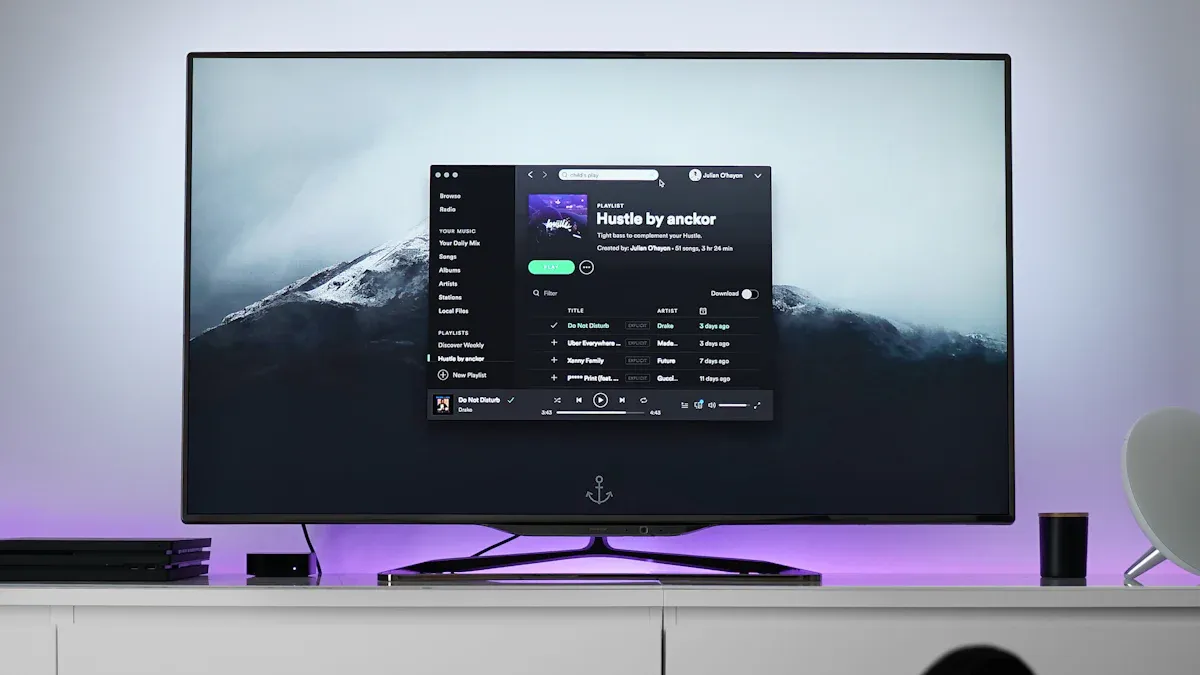
Your digital signage hardware is ready. Now, upload and schedule your content. Pick the right formats for your media. Most digital signage media players in 2026 support many file types. Here is a quick guide:
Content Type | |
|---|---|
Video | MP4, AVI, MOV, GIF, MKV, M4V, WEBM, MPEG |
Image | JPG, PNG, GIF, BMP |
Document | |
Audio | MP3, WAV, OGG, M4R |
When you make your first playlist, use images, videos, and live data. This keeps your display fun and interesting. Change how long each message shows. Short messages are good for busy places. Longer messages are better for waiting rooms. You can use templates and rules to help with your schedule. Plan ahead for holidays or special events. Dynamic content feeds keep your screens new.
Tip: Match your content to your business goals. Use analytics to see what works best. Update your schedule when needed.
Test Playback and Display
After you upload your content, test playback on your digital signage. Check that each file loads and plays well. Run a simple network test to make sure your connection is strong. Restart your media player and display to clear old data. Gently check all cables to see if they are tight. Make sure your files are in the right format and resolution.
You can use these metrics to see how your digital signage works:
Metric Type | Description |
|---|---|
Tracks views, touches, and session time | |
Audience Demographics | Estimates age, gender, and mood |
Conversion Metrics | Links views to sales or sign-ups |
Uptime Analytics | Monitors device health and performance |
Content Analytics | Shows how often content plays and how effective it is |
Note: Update your software often. This helps your system support new formats and fix bugs.
Train Staff and Maintain System
Your team needs to know how to manage the digital signage system. Teach them to upload and schedule content. Show them how to fix simple problems. Help them use reports to check if the content works. Teach them to test the setup for good visibility and function. Make sure they know how to read the data on the screens.
Keep your system running well by following these steps:
Check and clean displays often.
Update software and back up your content.
Review and refresh your content regularly.
Use strong security settings and limit access.
Plan for downtime and check system health.
Remember: Good training and regular care help your digital signage system stay reliable and effective. Making content that fits your audience will make your displays more engaging.
You can set up a digital signage media player by using this guide. The steps are simple if you stay neat and follow them. Taking care of your system helps it work for a long time:
Updating software gives you new tools and keeps it safe.
Cleaning the hardware stops it from getting too hot.
Look at the wires to make sure everything works well.
Getting new hardware can make your system faster.
If you want to try more things, look at these cool features:
Feature | Description |
|---|---|
Uses data to make special campaigns for people. | |
IoT Sensor Solutions | Sends alerts to keep people safe and healthy. |
Native Ad Server | Lets you show ads from others to earn money. |
Interactive Experiences | Gives touch-free help and makes shopping easier. |
Real-time Data Display | Shows live numbers and info from your business tools. |
Remote Device Management | Lets you fix and control screens from anywhere. |
Keep this guide close and update your system a lot. This way, you will get great results and can make your network bigger without worry.
Installing a digital signage media player is a straightforward process. This tutorial provides a universal framework for the three most common types of media players: professional hardware (like BrightSign), Android, and Windows.
Before you begin, it's a good practice to complete the setup at a desk before moving everything to its final location; this allows for easier troubleshooting.
✅ Step 1: Before You Begin – The Installation Checklist
Before touching any cables, a quick site survey can prevent installation problems. Use this checklist to ensure you have everything ready.
Gather Hardware & Tools
Media Player: Your chosen device (BrightSign, PC, or Android device).
Display: A screen (TV or commercial monitor) with an available HDMI port.
Mounting: VESA-compatible wall, ceiling, or floor stand mount for the display. Ensure the mount matches the display's VESA pattern.
Cables: An HDMI cable, a network cable (Ethernet), and the player's power supply. A USB mouse/keyboard is useful for initial setup on some players.
Memory (if needed): An SD card (minimum Class 10, 8GB+), required for BrightSign and Raspberry Pi setups.
Check Site & Services
Power: A nearby power outlet. Standard 15A circuits can handle about 1,800W total, but a dedicated circuit is recommended for video walls or critical displays.
Network: A live Ethernet port (preferred) or strong Wi-Fi signal in the installation area.
Environment: For outdoor or demanding locations, verify operating temperature, humidity, and direct sunlight exposure.
Prepare Software & Accounts
Account: Create an account with your chosen CMS provider (e.g., MediaSignage, Rise Vision, EasySignage).
Software: Download the required player app or firmware installer. This varies by player type:
BrightSign: Download the specific
.ziporautorun.brsfile for your CMS.Android: Identify the correct player app in the Google Play Store.
Windows: Download the installer (e.g.,
.exe) from your CMS provider.
⚙️ Step 2: Preparing the Player Software
With your materials ready, you can prepare the software on the media player.
Preparing a Professional BrightSign Player
Prepare the SD Card: Insert an SD card (Class 10, 8GB or larger) into your computer. Format it to
FAT32. A blank SD card is often required.Load the Software: There are two main methods:
BSN.cloud (Remote): Connect the player to power and internet. Log into BSN.cloud, create a "Device Setup Profile", and register the player using its activation code. This is the preferred method for large-scale deployments.
Local (Manual): Unzip the downloaded CMS file and copy the extracted files to the root folder of the SD card (do not copy the parent folder). Some systems require a specific file (e.g.,
autorun.brs) and apin.txtfile containing your screen PIN. Then, safely eject the SD card.
Preparing an Android Media Player
Install the App: Connect your Android device to the internet. Open the Google Play Store, search for your CMS's specific player app, and install it.
Check Compatibility: Ensure the device runs at least Android 5.1 (Lollipop).
Preparing a Windows Media Player
Run the Installer: On the Windows PC, run the downloaded installer file (e.g.,
.exe) and follow the on-screen wizard. For some cloud-based systems, simply installing and launching the app is sufficient.
🔌 Step 3: Physical Installation & Cabling
Now, connect the hardware. For the cleanest look, you can mount the player directly behind the display.
Mount the Display: Secure the display to the wall, ceiling, or stand using the appropriate VESA-compatible mount.
Connect the Media Player:
Video: Use an HDMI cable to connect the player's HDMI port to an HDMI input on the display.
Network: Plug an Ethernet cable from an active network jack into the player's RJ45 port. If using Wi-Fi, some players have an external antenna that should be attached now.
Power: Connect the player to power. Most players will power on automatically. If it doesn't, press the power button.
Insert SD Card (if used): Turn the BrightSign or Raspberry Pi player off, insert the prepared SD card, and then power the player back on.
Power On the Display: Switch the display's input source to the same HDMI port you used.
🖥️ Step 4: Software Configuration & Activation
With everything connected, complete the setup in the CMS portal.
BrightSign Player Activation
Local Method: After a few minutes, the screen will show a registration or pairing code. Log into your CMS account, navigate to the device management section, and add a new device using this code.
BSN.cloud Method: After registering the device in BSN.cloud, the software will download and install automatically. This may involve several reboots and take a few minutes.
Android Player Activation
Launch the App: Open the installed app on your Android device.
Get the Code: The app will display a registration code.
Register in CMS: Log into your CMS web portal, navigate to "Devices" or "Screens", and add a new device using the code from the Android device.
Grant Permissions: After a few seconds, the CMS will push content to the player, and it will become functional.
Windows Player Activation
Launch & Pair: Open the installed player software. It will likely show a pairing code. Log into your CMS account, navigate to "Screens" → "Add Screen", and enter the code to register the player. The content will then be pushed to the PC.
🩺 Troubleshooting Common Issues
Display Not Working: Verify the display is set to the correct HDMI input and the HDMI cable is firmly connected at both ends. Also, ensure the player is powered on.
No Pairing/Activation Code: Confirm the network cable is securely plugged into an active jack and that the port is live. Some players (like BrightSign) require an Ethernet connection to obtain an IP address.
SD Card Issues: Ensure the SD card is formatted as
FAT32and that the software files were copied to the root directory (not inside a folder).Player Not Registering: Double-check the activation code you entered in the CMS. If using a PIN file (for some BrightSign setups), verify the
pin.txtfile contains the correct code and is saved as plain text.Software Won't Install on BrightSign: For players with older firmware, a manual reset may be required. Disconnect power, hold the Reset and SVC buttons, and reconnect power while holding them. Release when the red "ERR" light blinks rapidly.
FAQ
How do you update your digital signage media player?
To update your media player, go to the settings menu. Look for software updates there. Download the newest version and install it. Updates help your system work better. They also keep your device safe from problems.
Can you use a regular PC for digital signage?
You can use a normal computer for digital signage. Change some settings on your PC first. Install digital signage software on it. Connect your computer to your display. Make sure your PC is strong enough for smooth videos.
What is the best way to connect to the internet?
A wired Ethernet connection is the best choice. It gives you the most stable internet. If you use Wi-Fi, check the signal strength. Try to keep other devices from causing problems.
How do you set up a Fire TV Stick for digital signage?
You can use a Fire TV Stick for digital signage. Download a digital signage app from the Amazon Appstore. Plug the stick into your display and sign in. Follow the steps in the app to finish setup.
What should you do if your content does not display correctly?
Check if your files are the right format and size. Make sure your content matches what is supported. Restart your media player and check all cables. If it still does not work, look at your content management system settings.
See Also
A Complete Guide to Installing Digital Display Signage
Simple Steps to Install and Configure Digital Signage Software
Key Steps for Setting Up Outdoor Digital Signage in 2026
Seven Key Trends in Digital Signage Player Technology for 2026
