How to Install and Set Up Digital Display Signage
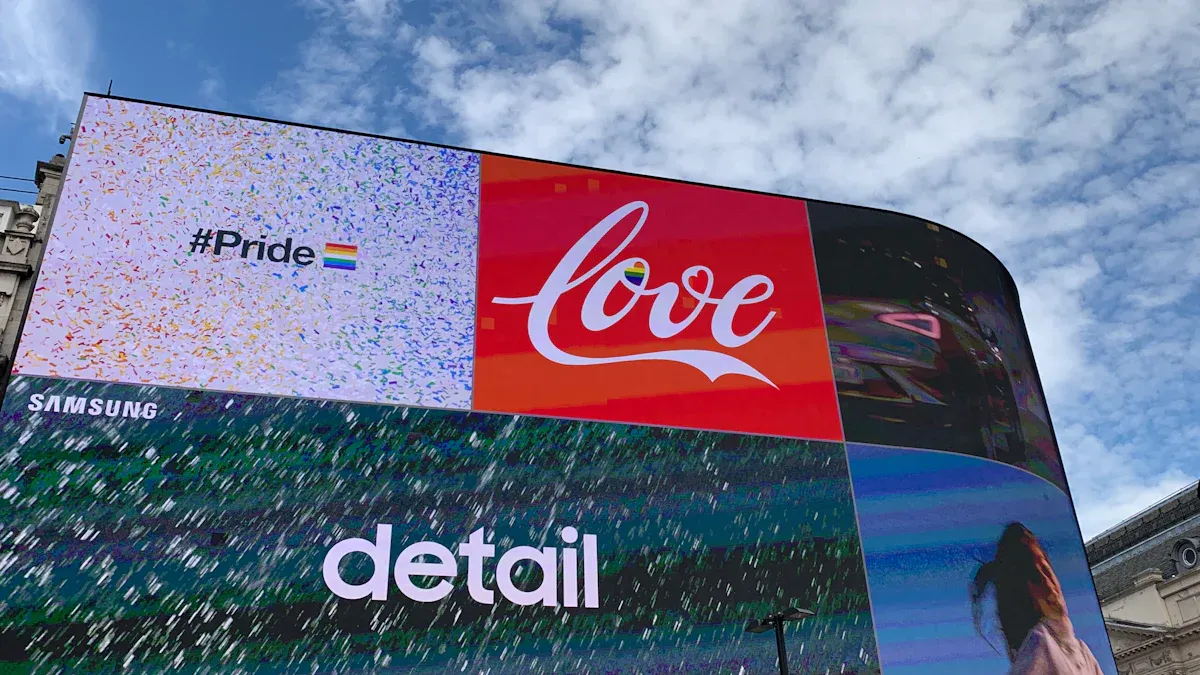
You can set up digital display signage by picking the right hardware and software for what you need. You can choose from things like LCD digital signage, outdoor screens, touch screen kiosks, and LED displays. This helps you find what fits your space and goal. Here is a quick look at common hardware:
Hardware Type | Description |
|---|---|
LCD Digital Signage | Different LCD choices for digital signage. |
Outdoor LCD Digital Signage | Choices made for outdoor use. |
Touch Screen Kiosk & ATM | Kiosks and ATM machines you can touch. |
Self-Service Terminal | Machines for self-service uses. |
LCD Video Wall and Processor | Big displays with special units. |
Android Windows Tablet | Tablets that use Android and Windows. |
OLED Display | Very good OLED display choices. |
LED Screen | Many LED screen choices for signage. |
You can get digital signage and solutions that do not cost a lot. There are options for people with all skill levels. The steps are easy, so you can start your own digital display signage project and feel sure about it. Brands like topadkiosk have good products for both new users and experts.
Key Takeaways
Pick the best hardware for your digital signage. Think about the screen type, size, and how much you can spend. This will help you choose what works best.
Use easy steps to set up by yourself. Get your space ready first. Mount your display so it is safe. Connect all devices with care. This makes your setup work well.
Pick a digital signage platform that is easy to use. Find software that lets you change content easily. Make sure you can update it from far away. This keeps your screens new.
Put your screens where people can see them. Place them at eye level in busy spots. This helps more people see your messages.
Update your content and software often. Keeping things new makes people interested. It also helps your displays work well.
Choose Display Hardware for Digital Signage
Picking the right hardware is the first thing you need to do. Think about what you want to show, where you will put it, and how much money you have. Topadkiosk has many digital signage displays. You can pick LCD screens, LED walls, or touch kiosks. These choices help you find digital signage that does not cost too much and fits your needs.
Select Screen Size and Type
Match your screen size and type to your space. Look at the table below to see what matters:
Factor | Description |
|---|---|
Audience Distance | Pick a bigger screen if people are far away. |
Content Type | Use large screens for videos or lots of pictures. Small screens are good for simple text. |
Venue Size | Big rooms need big screens so everyone can see. |
Resolution Requirements | High resolution makes your content look clear, especially on big screens. |
Technical Considerations | Think about brightness, aspect ratio, and if you want the screen tall or wide. |
You can find cheap digital signage like smart tvs or commercial displays. These work well in many places.
Pick a Media Player
Media players send your content to the screen. You can pick from many kinds:
BrightSign: This is reliable and used a lot.
AOPEN: Has different models for many uses.
Samsung: Works with SSSP 6.0 on Tizen 4.0 or higher.
LG: Supports WebOS 4.0 and above.
Philips: Good for Android-powered digital signage.
Raspberry Pi: Small and costs less.
Amazon Fire TV Stick: Easy to use for digital signage.
Google Chromecast: Streams clear images and videos.
When you pick a media player, make sure it works with your display. Most media players connect with HDMI or USB. Some displays, like smart tvs, have built-in players. Others need an external android media player or something similar.
Ensure Power and Connectivity
You want your digital signage to work well. Follow these steps for power and network:
Make sure your site’s electrical system can handle your digital signage players.
Use a surge protector to keep your equipment safe.
Add a UPS (Uninterruptible Power Supply) so your display stays on during power outages.
For network connections:
Pick a wired connection for the best stability.
Use network switches to help manage traffic.
Make sure your network has enough bandwidth for your digital signage.
If you plan your hardware, you can set up digital signage that works well and lasts a long time.
DIY Digital Signage Installation Steps
Setting up diy digital signage is easy if you follow steps. You can make your diy digital signage safe and last longer. Prepare your space, mount your display, and connect your devices carefully. Here is what you need to do:
Prepare the Mounting Site
Start your diy digital signage by getting the area ready. This helps you avoid problems and keeps your diy digital signage safe.
Look at your space. Check for power outlets, strong walls, and network access. Make sure your diy digital signage will fit and work.
Think about weather. If your diy digital signage is outside, check for sunlight, rain, and wind. Pick a spot that protects your diy digital signage from bad weather.
Get permits if needed. Some places need approval before you install diy digital signage. This keeps you out of legal trouble.
Make a budget. Write down all costs for your diy digital signage. Include hardware, software, and installation. This helps you plan and not get surprised.
Keep safety in mind. Do not block walkways with your diy digital signage. Keep screens away from stairs and exits.
Tip: Always check your floor plan first. Put your diy digital signage where people can see it, but not where it blocks anything.
Securely Mount the Display
Mount your diy digital signage so it stays safe and easy to see. You want your diy digital signage to last and not move.
Pick a busy spot. Good places for diy digital signage are entrances, lobbies, and waiting rooms.
Put your diy digital signage at eye level. This makes it easy for people to see.
Make sure nothing blocks your diy digital signage. Remove things that hide your screen or distract people.
Adjust size and resolution so people can read from far away.
Use strong mounts and brackets. Secure your diy digital signage so it cannot fall or be messed with.
For outdoor diy digital signage, use waterproof mounts. This keeps your diy digital signage safe from rain and dust.
Ground your diy digital signage. Install lightning arresters to protect from electrical surges.
Physical protection is important. Secure mounting and tamper resistance help diy digital signage in busy places like malls or hospitals.
Do not put diy digital signage where it blocks doors or exits.
Keep interactive diy digital signage at a height everyone can reach, including people in wheelchairs.
Connect Media Player and Cables
After mounting, connect your media player and cables. This step makes your diy digital signage work.
Plug your media player into your diy digital signage display. Use HDMI or USB cables.
Connect your diy digital signage to power. Use a surge protector to keep it safe from power spikes.
Add a UPS to your diy digital signage setup. This keeps your diy digital signage running during short power outages.
Connect your diy digital signage to the network. Wired connections are best, but Wi-Fi works too.
Organize cables. Use ties or covers to keep your diy digital signage area neat and safe.
For outdoor diy digital signage, make sure cables are waterproof and have good drainage nearby.
Do not let cables hang loose where people can trip.
Check all connections before turning on your diy digital signage.
Note: Always test your diy digital signage after connecting everything. Make sure the screen turns on and content plays right.
By following these steps, you can install diy digital signage that is safe and reliable. Good planning and careful setup help your diy digital signage work well for a long time.
Install the App and Set Up Software
Choose a Digital Signage Platform
You need to pick a digital signage platform that fits your needs. Some platforms are easy to set up and manage from far away. Check the table below to see what each platform offers:
Platform | Features |
|---|---|
DigitalSignage.com | Works on Windows, Mac, Linux; supports Android TV; plug-and-play; remote management. |
Spectrio | Custom solutions; media player support; open-source options like Xibo and Concerto. |
You can make a free account and build presentations. Download the app for your device. DIY digital signage lets you use devices like Raspberry Pi to make your own system. Cloud-based digital signage software lets you update and control your screens from anywhere.
Tip: Pick a platform that is easy to use. Good scheduling tools help you manage digital signage content without needing special skills.
Install the App on Your Device
You need to install the app to control your digital signage. Follow these steps to set it up:
Choose your display type and where it will go.
Connect your display to a media player or control system.
Download the app for your device’s operating system.
Install the app and follow the instructions on the screen.
Set up a main control point to manage your screens.
Most platforms have plug-and-play options. You can use SignPlayer or similar apps to make setup easy. After installing the app, you can upload content and schedule when it shows.
Always test your setup before using it. Make sure your screens show the right content and respond to remote commands.
Configure and Schedule Content
You can manage digital signage content with a Content Management System (CMS). A CMS lets you upload, schedule, and update content from anywhere. See the table below for content layers and how often to update:
Content Layer | Description | Update Frequency Recommendations |
|---|---|---|
Always-On Layer | Main messages and directions | 30–40% of screen time |
Weekly/Monthly Layer | Promotions and seasonal themes | Update 2–4 weeks ahead |
Real-Time Layer | Flash sales and emergency alerts | Needs fast updates or automatic feeds |
You can use drag-and-drop tools to design your content. Scheduling lets you set displays for different times of day. In busy places, update promotions a few times each week. In quiet spots, monthly updates are enough.
Scheduling saves time and keeps your digital signage new. Cloud-based digital signage software lets you manage screens and content from anywhere.
Optimize Placement and Visibility
Analyze Audience Flow
You should watch how people move in your space. This helps you pick the best spots for your digital signage. Check your floor plan and see where people walk most. Places like entrances, hallways, and waiting rooms are good for displays. People stop in these areas, so more will see your message. Watch where crowds gather and write it down. Find places where people wait, like by elevators or checkout lines. Match your signage to what your audience needs and what you want to say.
Tip: Put your screens at eye level and where people can see them. Good placement helps more people notice your content.
Adjust Display Settings
You can make your content easier to see by changing display settings. The right settings help your content stand out in bright or busy places.
Display Setting | Description |
|---|---|
Pixel Pitch | Use bigger spacing for far away and smaller for close up. |
Brightness | Change brightness for inside or outside light. |
Glare Management | Use anti-glare screens and keep them out of direct sunlight. |
Content Scheduling | Show messages when your audience is most likely to see them. |
Use strong contrast between text and background. Pick font sizes that are easy to read from far away, like 20–30 points. Choose sans-serif fonts so words are clear.
Changing these settings makes your signage easy for everyone to read.
Ensure Accessibility and Safety
You need to make sure everyone can use your digital signage. Follow accessibility rules so no one is left out.
Accessibility Standard | Description |
|---|---|
Interactive Components | Keep buttons and touch areas no higher than 44 inches. |
Speech Output | Give options for speech so people can hear information. |
Text Size | Use letters at least 5/8 inch tall for people standing 72 inches away. |
Font Style | Pick sans-serif fonts so words are easy to see. |
Use high-contrast colors and fonts that are easy to read. Add sound or voice help for people who cannot see well. Make sure screens do not block doors or paths. Put interactive screens where people in wheelchairs can reach them.
If you skip accessibility, some people cannot use your signage and you might break the law. Safe placement keeps everyone protected and your signage working.
Troubleshoot Digital Signage Issues
Sometimes, digital signage can have problems. You can fix most problems with easy steps. If you take care of your system, your screens will stay bright. Your messages will reach everyone who needs to see them.
Fix Connectivity Problems
Your digital signage might not update or show a blank screen. This usually means there is a network problem. Try these things:
Check all network cables. Make sure they are plugged in tight.
Turn your router and switches off and on again. Unplug them, wait, then plug them back in.
Look at your network settings. Make sure IP addresses and DNS are right.
Use a wired connection if you can. Wired networks work better than Wi-Fi.
If your screens use a closed network, check that the right ports are open.
Tip: Wired connections help your screens stay online and avoid most network problems.
Resolve Power Issues
Power problems can make your screens turn off or flicker. You can fix many power problems by checking a few things:
Look at your hardware for damage or wear.
Make sure all power cables are good and plugged in well.
Use a special power supply, not a TV USB port.
Keep your devices cool and let air move around them.
Add a surge protector or UPS to stop power spikes and blackouts.
Check your media player’s firmware and update it if needed.
Heat and bad airflow can also cause problems. Clean your screens and check for dust often.
Update Software and Content
Keeping your software and content up to date helps your digital signage work well. Here are some good tips:
Install software updates as soon as you get them. Updates make your system safer and fix bugs.
Check your content every week or month. New content keeps people interested.
Make your images and videos fit your display. This stops slow videos and crashes.
Back up your content and settings often.
Use strong passwords and only let trusted people change your screens.
Solution | |
|---|---|
Deteriorating display quality | Watch brightness and color; change screens after 10-12 years. |
Incompatibility with software versions | Look for updates and match your software to your hardware. |
Unstable internet connection | Use wired connections and check all cables. |
Display hierarchy setup | Follow clear steps when grouping devices to stop mistakes. |
Closed network issues | Open the right ports so your screens can talk to the network. |
Regular checks and updates keep your digital signage working well and looking good.
You can set up digital display signage by taking simple steps. First, pick the right hardware for your needs. Install your screens so they are safe and easy to see. Use software that is easy to manage for your content. There are affordable choices for any budget:
Component | Description |
|---|---|
Smart TV or Monitor | Use your own TV or buy a cheap display. |
Media Player | Try Fire TV, Android, or Raspberry Pi for easy setup. |
Signage Software | Use apps like OptiSigns to manage your content easily. |
Keep your content new by updating it often and making real-time changes. If you want to grow, you can add interactive displays. You can connect with other systems or open new locations.
Plan your system and teach your team how to use it.
Test your setup on a small scale before making it bigger.
Check your results and make your system better.
Good planning and new content help your signage get noticed and keep your audience interested.
FAQ
What is digital display signage?
Digital display signage shows messages or ads on screens. You use special software to pick what shows up. You can change your content whenever you want.
Can I install digital signage by myself?
Yes, you can put up digital signage on your own. Just follow simple steps. Pick the right hardware and software. Many brands make it easy for anyone to use.
What devices work as media players?
You can use things like Amazon Fire TV Stick, Raspberry Pi, or Android boxes. Some smart TVs already have media players inside. Always make sure your device works with your screen.
How do I keep my content updated?
Use digital signage software to add new content. Most platforms let you control screens from your computer or phone. Set reminders so you remember to update your messages.
Is digital signage expensive?
You can find cheap choices. Use your own TV or buy a low-cost display. Pick media players and software that do not cost much. Start small and add more as you need.
See Also
Easily Set Up and Configure Your Digital Signage Software
Step-by-Step Guide to Setting Up Local Digital Signage
Selecting and Installing Outdoor Digital Signage: A Complete Guide
Key Steps for Installing Outdoor Digital Signage This Year
In-Store Digital Signage Solutions: A Detailed Comparison Guide
